
Description
.png)
Helpdesk Order Management
The Problem
When a customer reports a missing item, wrong product or damaged delivery, your support team has to open Helpdesk, switch to Sales to find the order, switch to Inventory to check the delivery, manually create a return or replacement, then come back to update the ticket.
This constant app switching slows down your team, increases mistakes and leaves customers waiting longer than they should.
What Is Helpdesk Order Management?
Helpdesk Order Management is an Odoo 18 module that brings the entire order complaint process into a single Helpdesk ticket.
Link the Sale Order — products fill in automatically from the delivery. Create free deliveries and returns in one click without leaving the ticket. Missing items can be sent immediately or added to the customer’s next order automatically. For tracking inquiries, agents see the full order timeline and can send a professional status email in one click. Tickets close automatically when the complaint is fully resolved.
The Result
Agents resolve complaints faster without switching between apps — everything they need is on the ticket.
Tickets close automatically when the work is done — no manual follow-up, no missed steps, no forgotten returns.
Managers see every complaint, its status and resolution progress in one dashboard — always in control.
Before vs After
 Watch on YouTube
We specialize in delivering advanced Odoo solutions across multiple domains. Our expertise includes:

EDI & SWIFT/ACH Payment Integrations
End-to-end EDI automation, including X12, EDIFACT, XML standards, & financial integrations such as SWIFT, ACH, & Fedwire.


eCommerce Integrations
Seamless integration with leading eCommerce platforms to sync products, orders, inventory, and customer data in real time.

Shipping Integrations
Robust shipping connectors for global couriers, offering automated label generation, tracking, and rate computation.

Most Useful Apps for your ERP
A wide range of highly-rated Odoo modules designed to enhance automation, improve productivity, & simplify business operations.
 Features
 Process
 FAQs
FAQs
 Send with Next Order:
Add pending complaint products as free lines in the customer’s next Sale Order.
Auto Stage Transitions:
Tickets move from New → In Progress → Solved automatically based on delivery and return validation. No manual stage changes.
Carrier and Tracking Info:
Carrier name, tracking reference and tracking URL are auto-filled from the original delivery. Supports any carrier in Odoo.
Send Status Email:
One-click email to customer with order status, tracking link and estimated delivery date — auto-generated.
Complaint Dashboard:
Dedicated dashboard with Kanban, List, Pivot and Activity views. Built-in filters and group by for quick analysis.
Full Chatter History:
Every action — delivery created, validated, return received, stage changed — is logged in the ticket chatter automatically.
No Configuration Required:
Works with your existing Helpdesk teams, warehouses, carriers and Sale Orders out of the box.
One Place. Every Order Complaint.:
Stop switching between Sales, Inventory and Helpdesk. Raise, resolve and track every order issue from a single ticket.
Products Load Themselves:
Link the Sale Order — complaint products fill in automatically from the original delivery. Agent only sets the affected quantity.
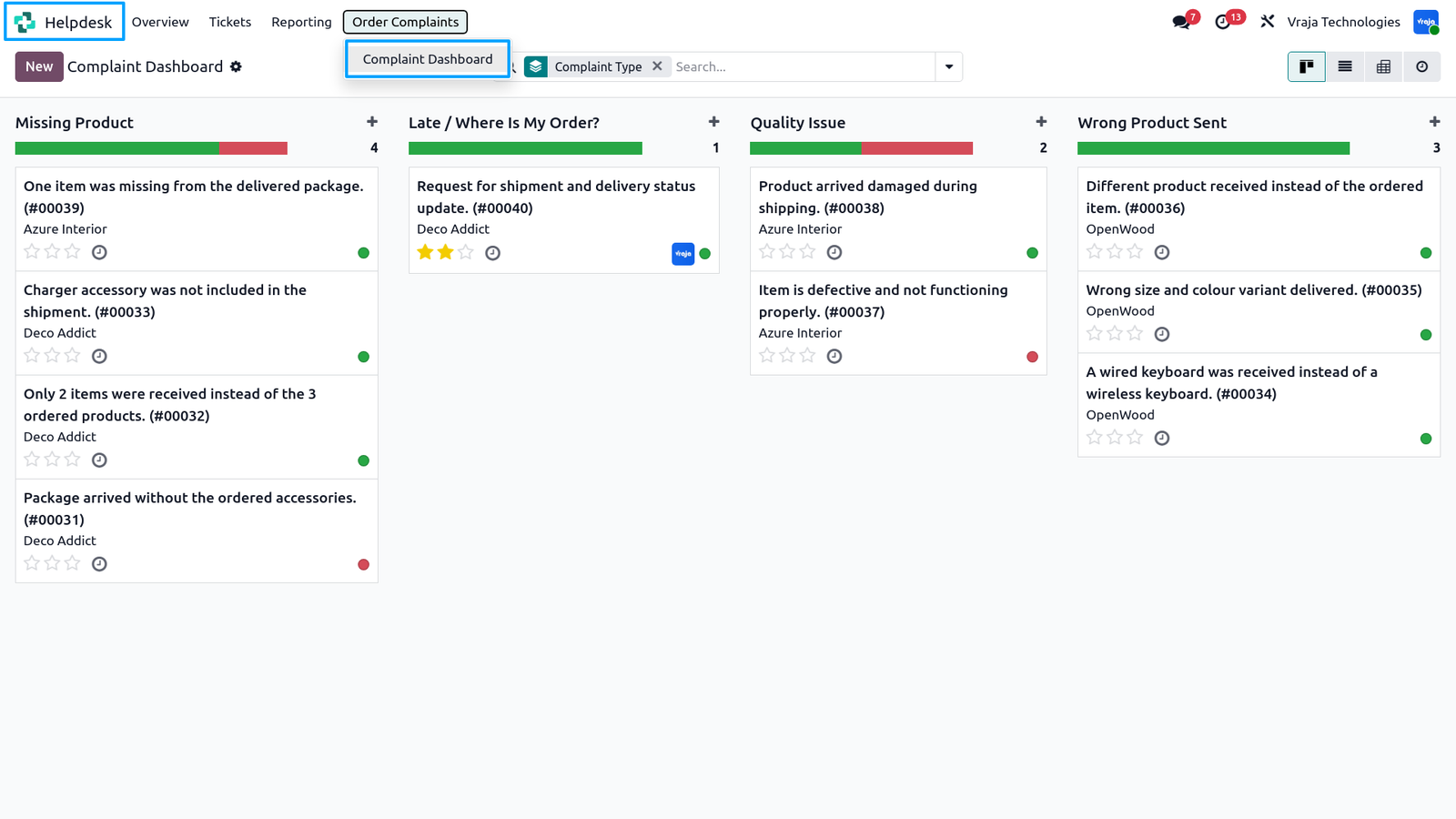
Open Helpdesk from the main menu and click Order Complaints.
Open Helpdesk from the main menu and click Order Complaints.
The Complaint Dashboard opens in Kanban view — all complaint tickets displayed as cards, grouped by Complaint Type.
Each column shows the complaint type with a ticket count.
Each card shows the ticket subject, customer name and priority.
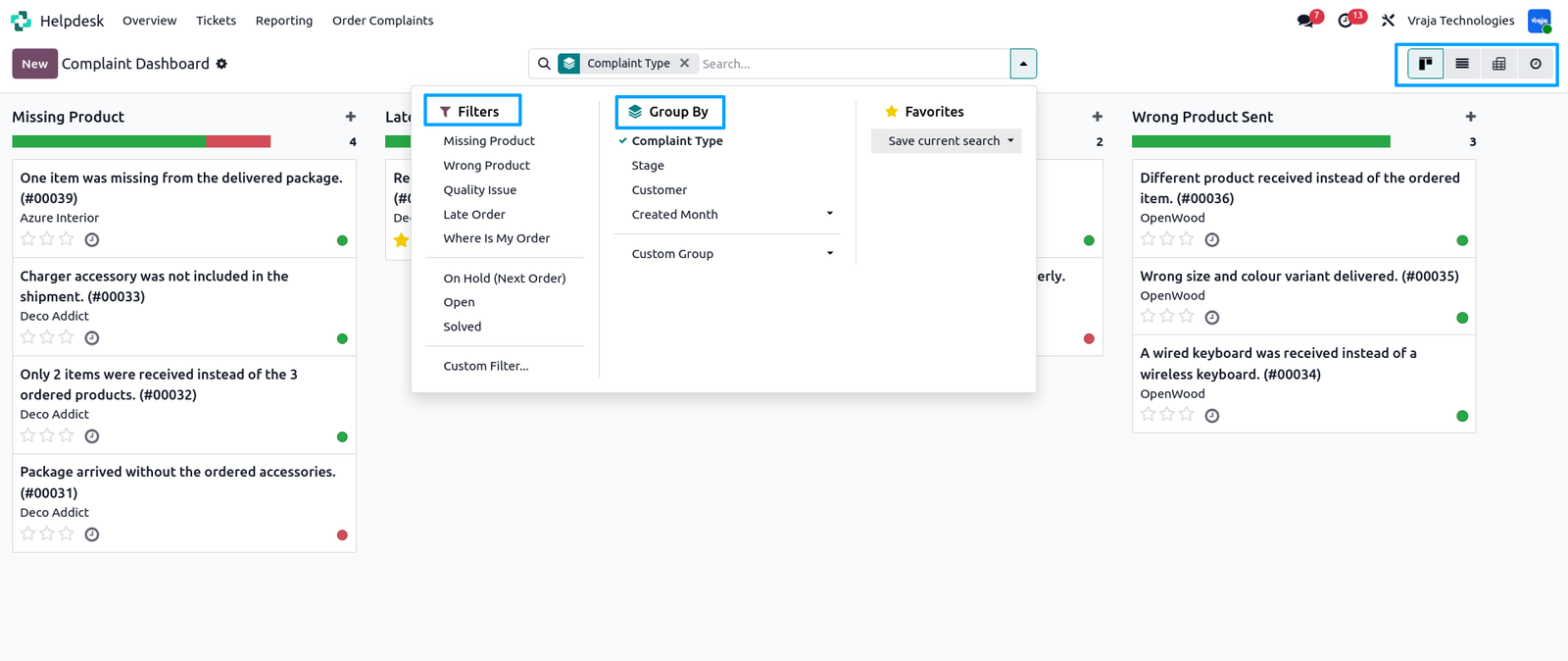
Use the search bar to filter and organise tickets instantly.
Use the search bar to filter and organise tickets instantly.
Filters — Missing Product, Wrong Product, Quality Issue, Late Order, Where Is My Order, On Hold (Next Order), Open, Solved.
Group By — Complaint Type, Stage, Customer, Created Month.
Views — Switch between Kanban, List, Pivot and Activity using the view buttons on the top right.
Missing Product
Click New to create a complaint ticket.
Click New to create a complaint ticket.
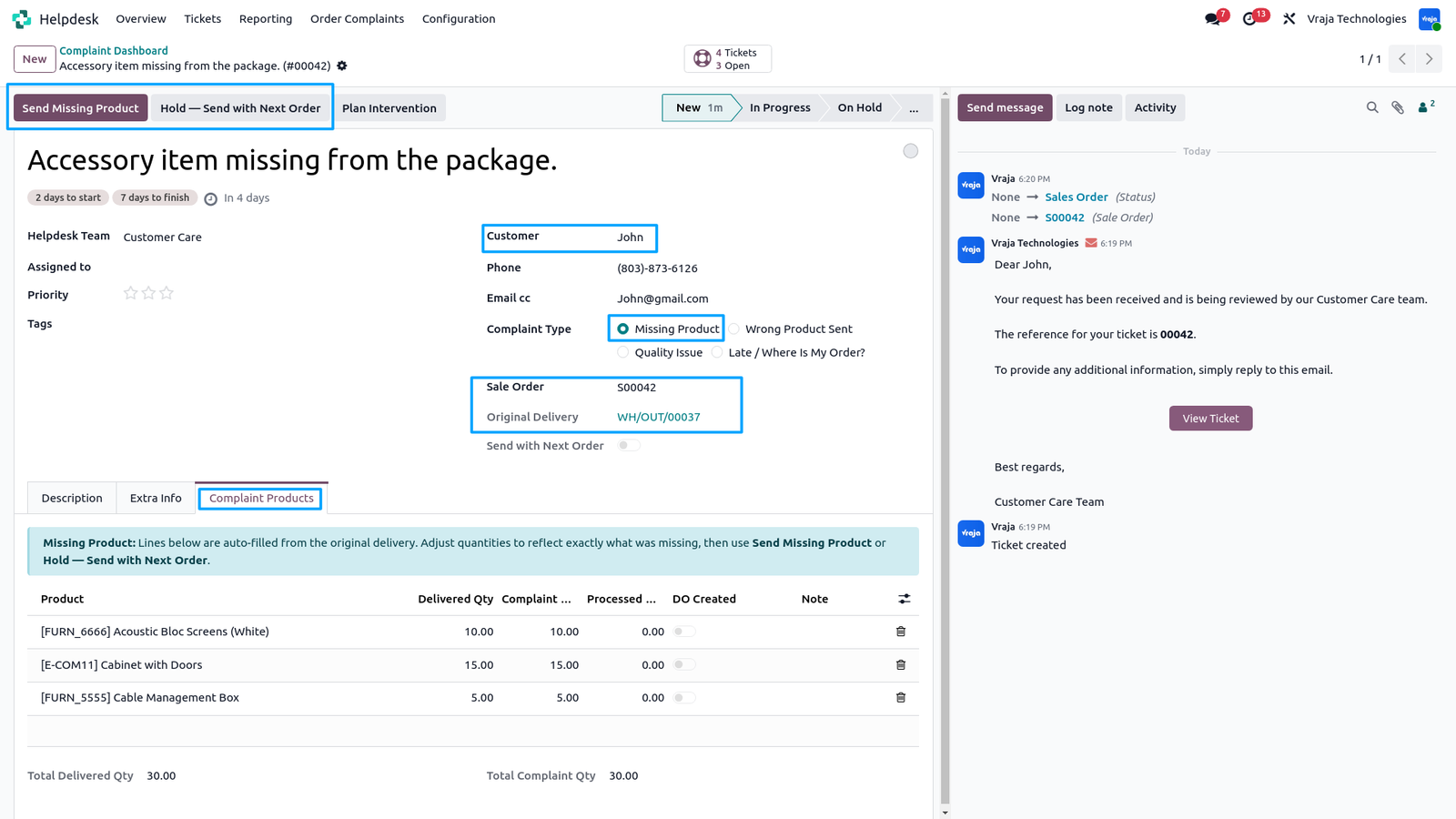
Fill in the Customer and select Complaint Type → Missing Product.
Two action buttons appear at the top instantly:
Send Missing Product — create a free delivery order now.
Hold — Send with Next Order — add to the customer's next order.
Select the Sale Order.
Original Delivery fills automatically from the validated delivery.
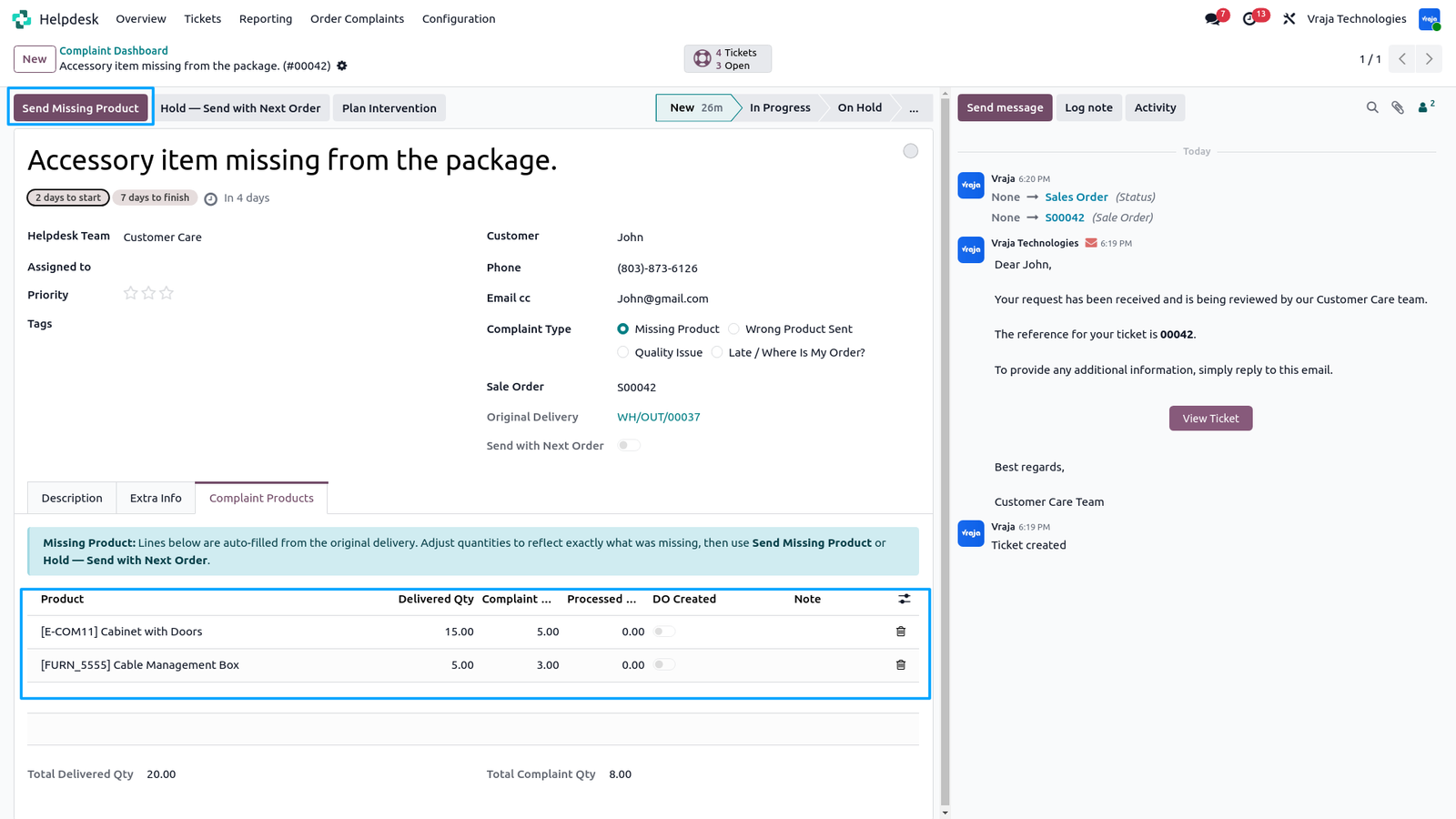
Open the Complaint Products tab — all delivered products load automatically with quantities pre-filled.Adjust Complaint Qty to reflect exactly what was missing.Remove any product to skip.
Total Delivered Qty and Total Complaint Qty are calculated automatically at the bottom.
The agent has adjusted the Complaint Qty for each product to reflect the exact missing quantities.
The agent has adjusted the Complaint Qty for each product to reflect the exact missing quantities.
Products without any complaint can be manually removed from the list, so only affected products remain visible.
DO Created column shows whether a delivery order has already been created for each line.
Once quantities are confirmed, click Send Missing Product.
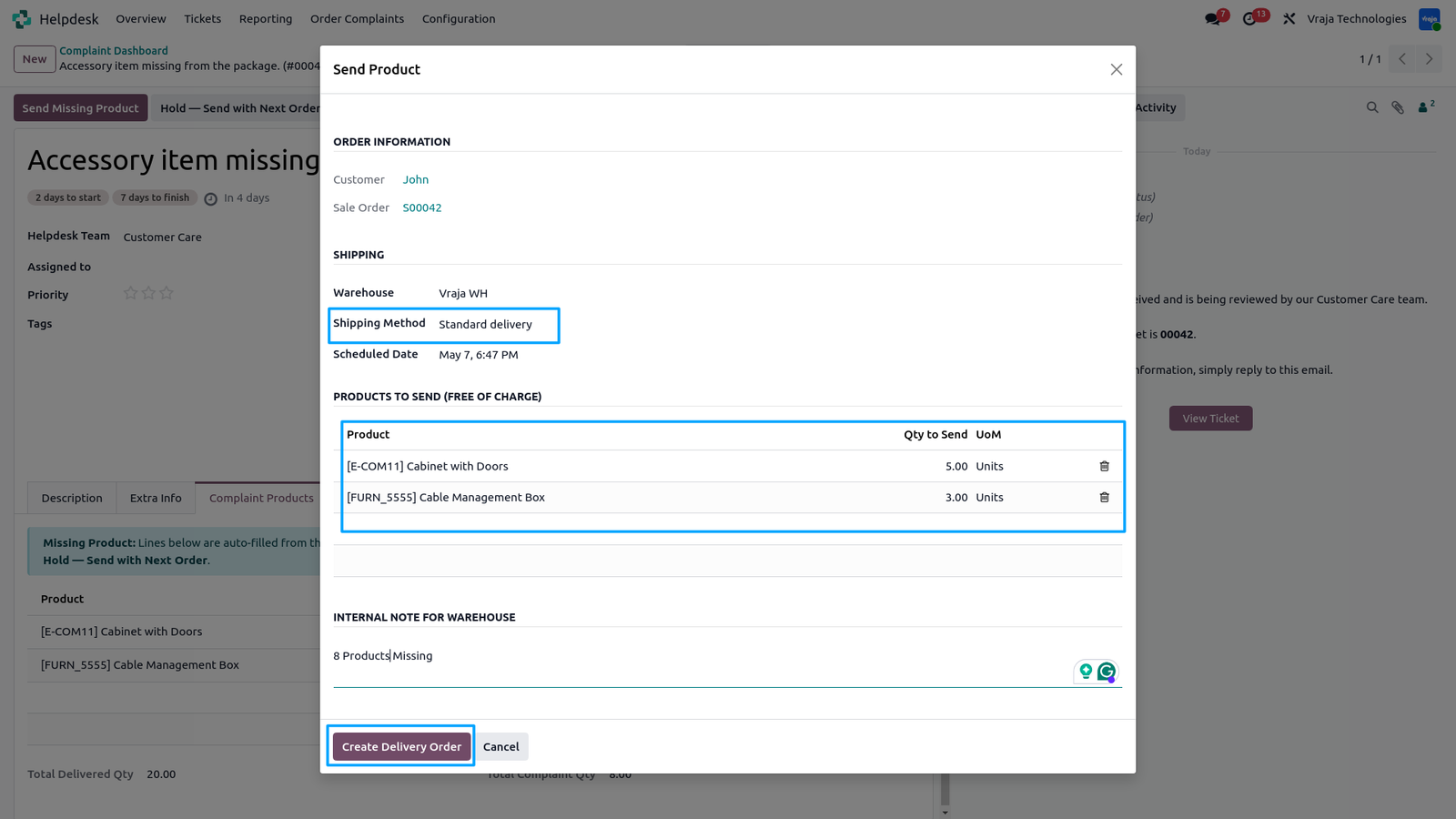
The Send Product wizard opens pre-filled from the ticket.
The Send Product wizard opens pre-filled from the ticket.
Order Information shows the customer and sale order.
Shipping section shows the warehouse and shipping method auto-filled from the sale order — agent can adjust if needed.
Products to Send (Free of Charge) table shows all pending products with quantity to send.
Delete any line to process it in a separate batch later.
Add an Internal Note for the warehouse team if needed.
Click Create Delivery Order to confirm.The delivery is created, confirmed.
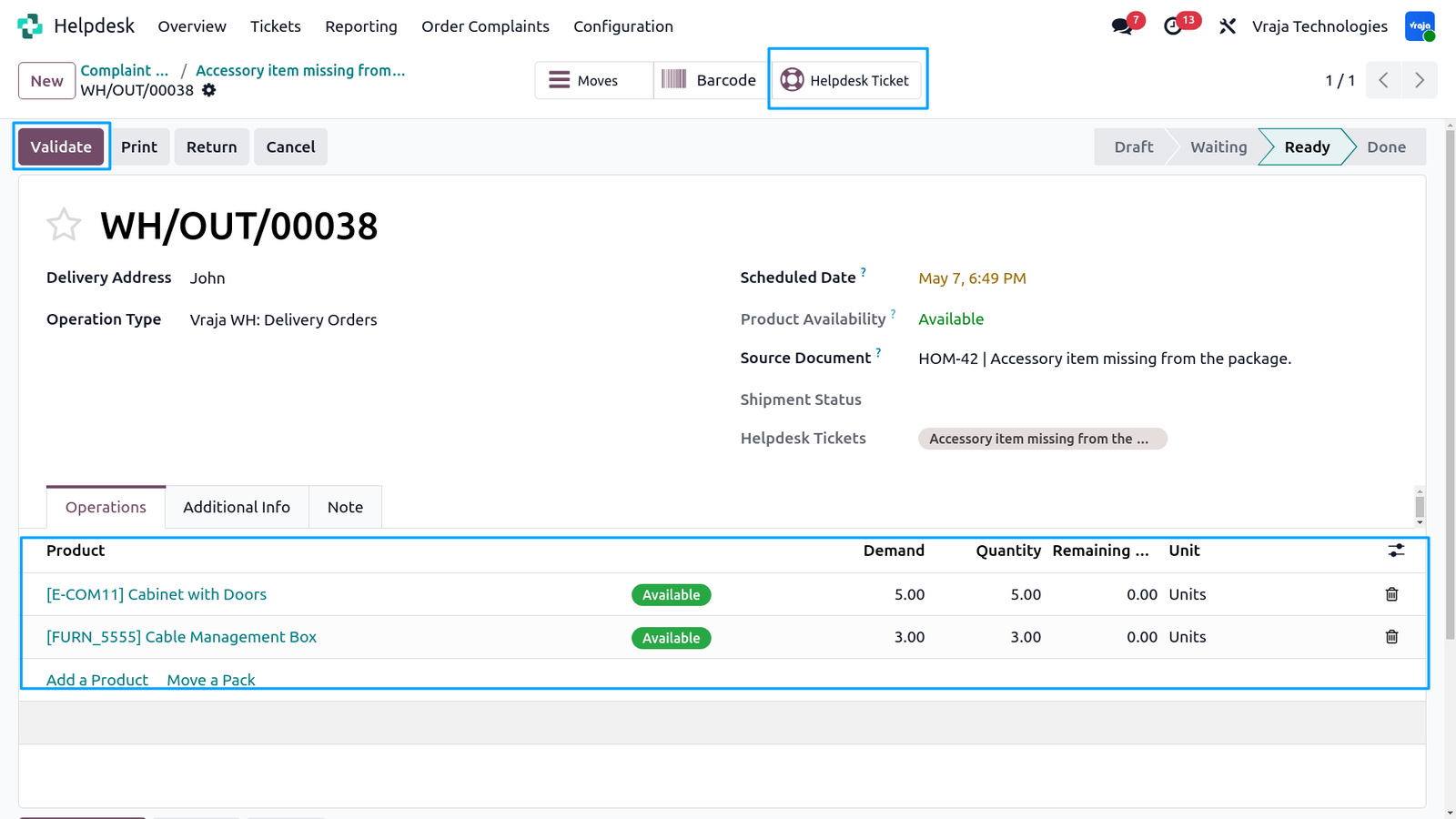
The delivery order is created and linked to the ticket.
The delivery order is created and linked to the ticket.
Source Document shows the HOM ticket reference.
Helpdesk Tickets field shows the linked complaint ticket.
The warehouse team validates the delivery by clicking the Validate button.
A Helpdesk Ticket smart button is shown at the top to navigate back to the complaint ticket instantly.
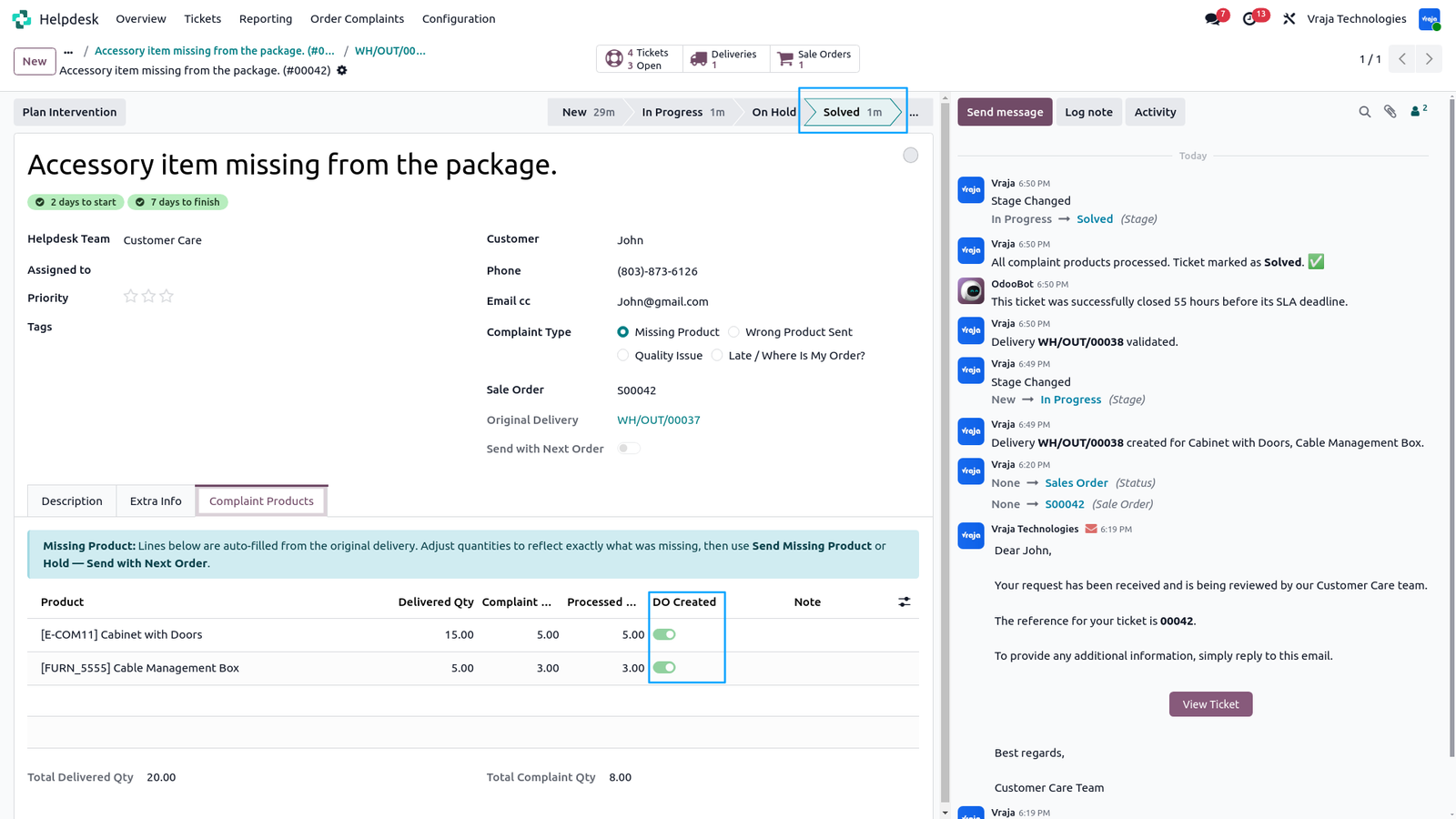
When the warehouse validates the delivery —
When the warehouse validates the delivery —
the ticket moves to Solved automatically.
The chatter shows the complete audit trail:
→ Ticket created
→ Sale Order linked
→ Stage changed to In Progress
→ Delivery created
→ Delivery validated
→ All complaint products processed — Ticket marked as Solved
DO Created toggles are ON for all complaint lines.Smart buttons show Deliveries 1 and Sale Orders 1.All action buttons are hidden on Solved tickets.
For Missing Product complaints where the customer prefers to receive the item with their next order — click Hold — Send with Next Order.
For Missing Product complaints where the customer prefers to receive the item with their next order — click Hold — Send with Next Order.
The ticket moves to On Hold stage instantly.Send with Next Order toggle turns ON automatically.
The chatter logs the action — ticket put On Hold, missing products will be included in the customer's next Sale Order as free lines.
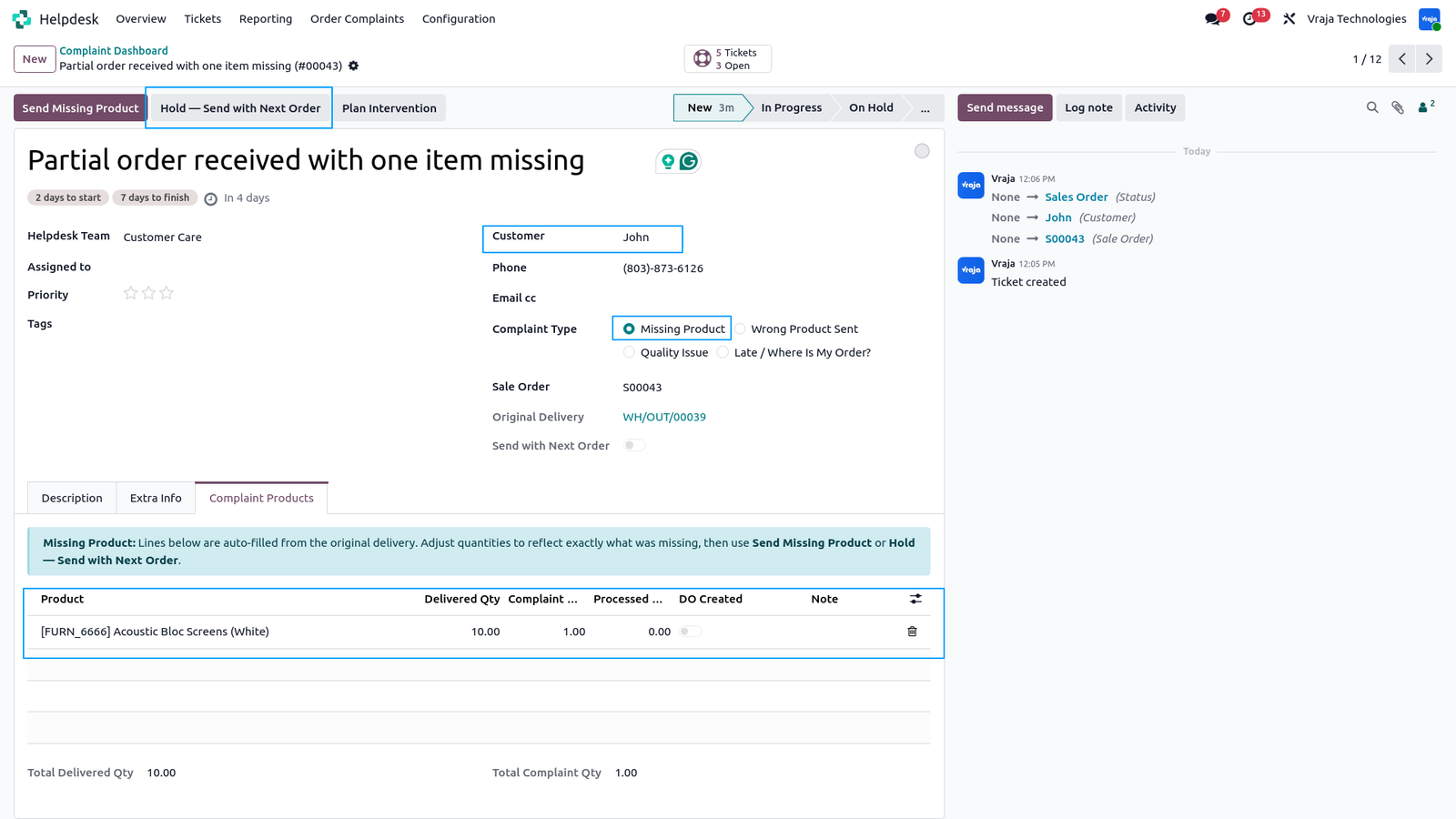
The ticket is now On Hold.
The ticket is now On Hold.
Send with Next Order toggle is ON.
No action buttons are visible — the ticket waits for the customer's next order.
The chatter confirms the stage change from New to On Hold and the Send with Next Order flag set to Yes.
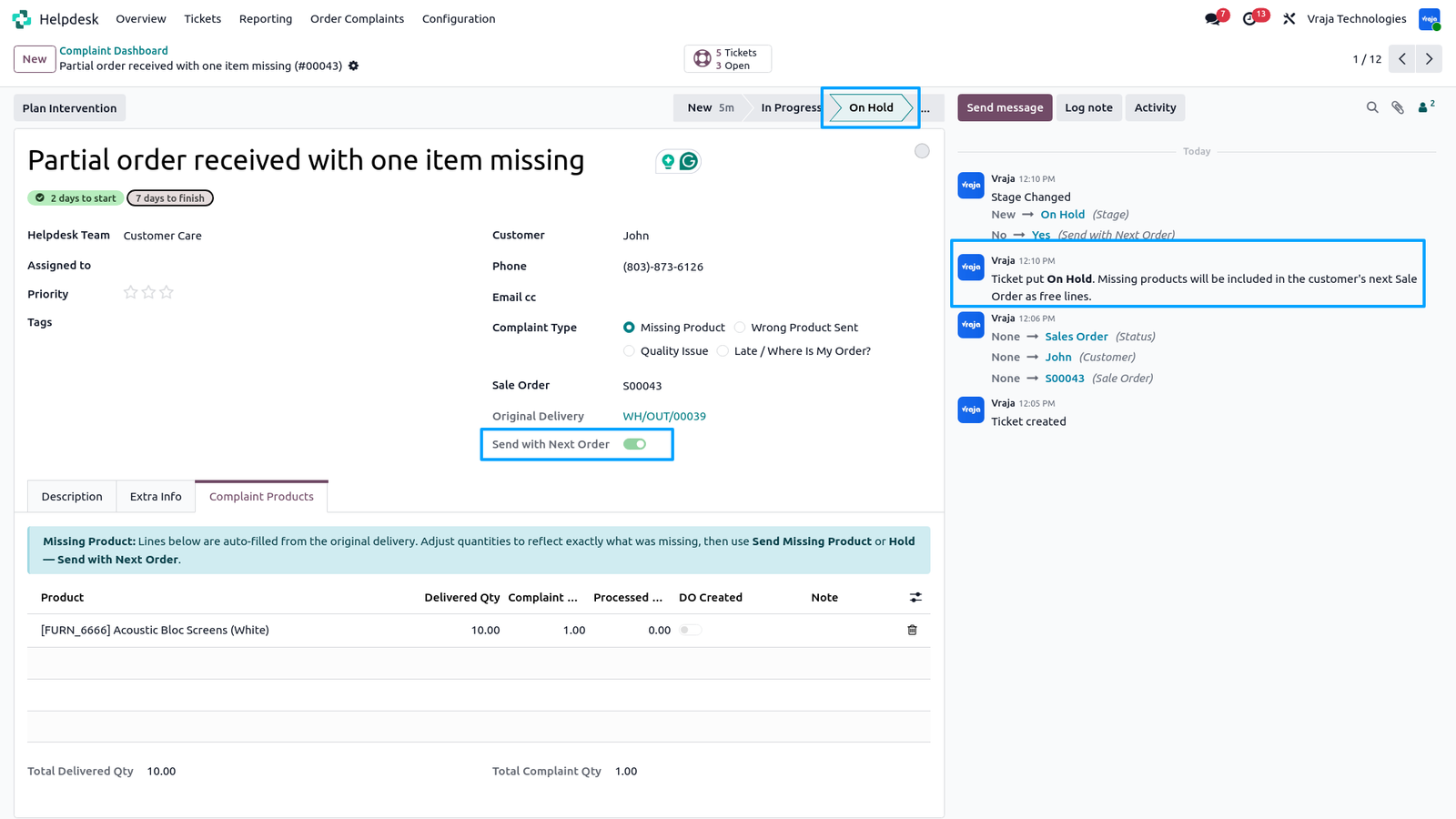
When a Sale Order is created for a customer who has On Hold complaint tickets, a Pending Complaints smart button appears at the top of the Sale Order.
When a Sale Order is created for a customer who has On Hold complaint tickets, a Pending Complaints smart button appears at the top of the Sale Order.
Click Pending Complaints to open the wizard.
The wizard shows all On Hold complaint tickets for this customer with their pending products and quantities.
Each row shows:
Ticket — complaint ticket reference
Original — original sale order of the complaint
Product — missing product to be added
Qty to Add — quantity to include in this order
Note — optional reference note
Toggle Add ON for the lines you want to include.
Toggle OFF to skip any line for this order.
Click Add Selected to This Order to confirm.
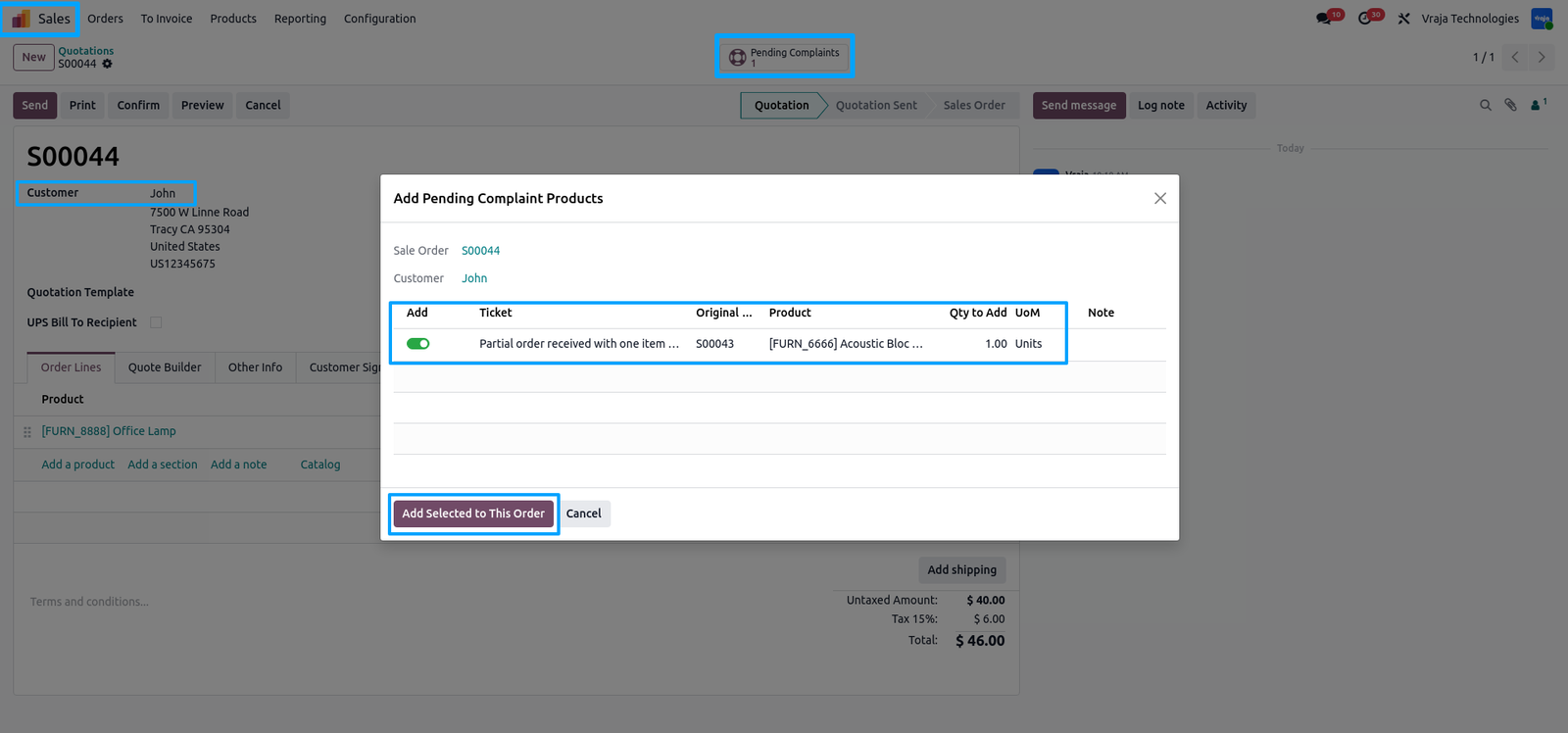
Selected products are added as free lines instantly.
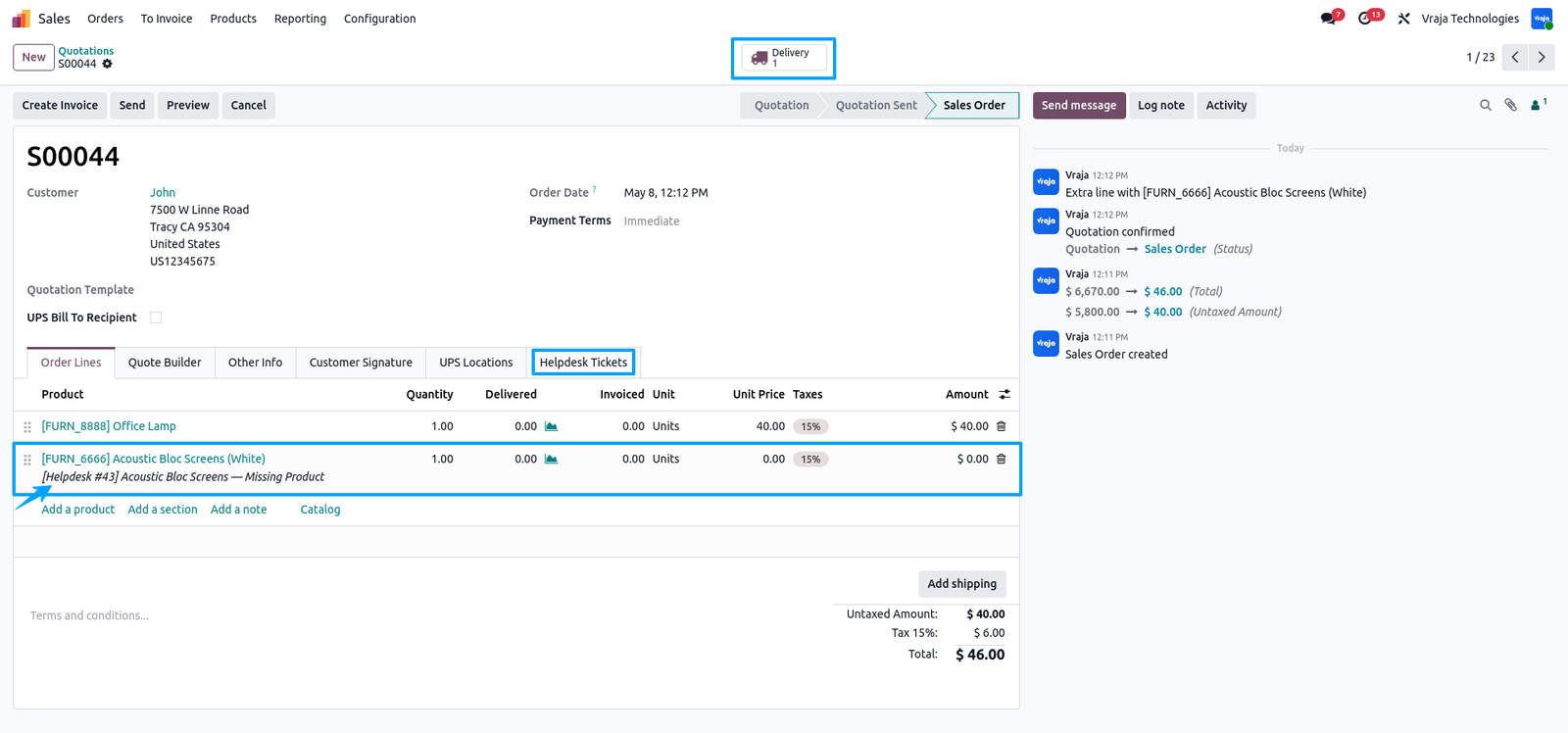
After confirming the wizard, the missing complaint products are added to the Sale Order as free lines with price 0.00.
After confirming the wizard, the missing complaint products are added to the Sale Order as free lines with price 0.00.
Each line shows the Helpdesk ticket reference and product name in the description — full traceability from order to complaint.
The Sale Order is confirmed normally.A Delivery smart button appears at the top.
A Helpdesk Tickets tab on the order shows all linked complaint tickets for full visibility.
The delivery created from the new Sale Order is automatically linked to the complaint ticket.
The delivery created from the new Sale Order is automatically linked to the complaint ticket.
Helpdesk Tickets field on the delivery shows the original complaint ticket.
The warehouse team validates this delivery to resolve the complaint.
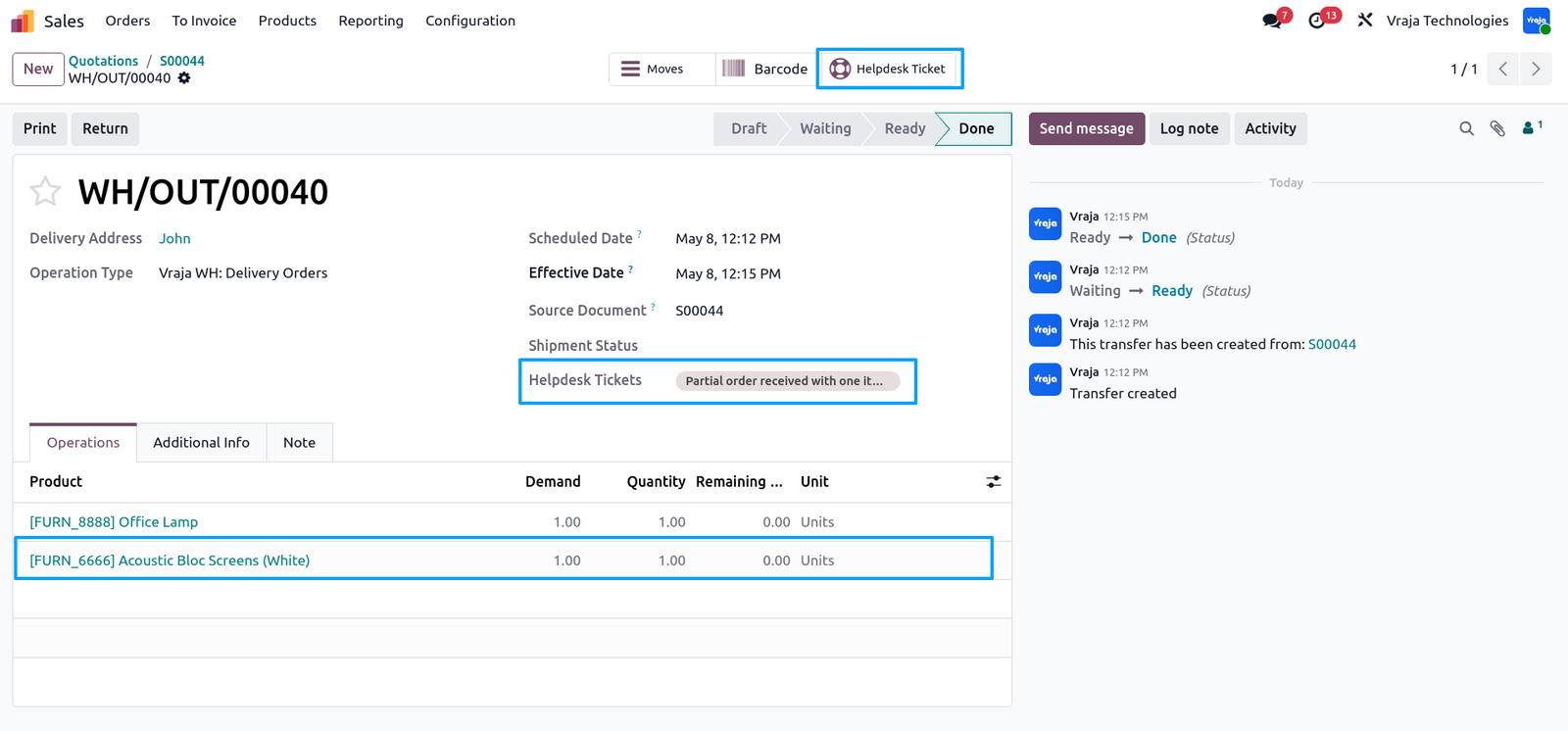
When the delivery from the next order is validated —
When the delivery from the next order is validated —
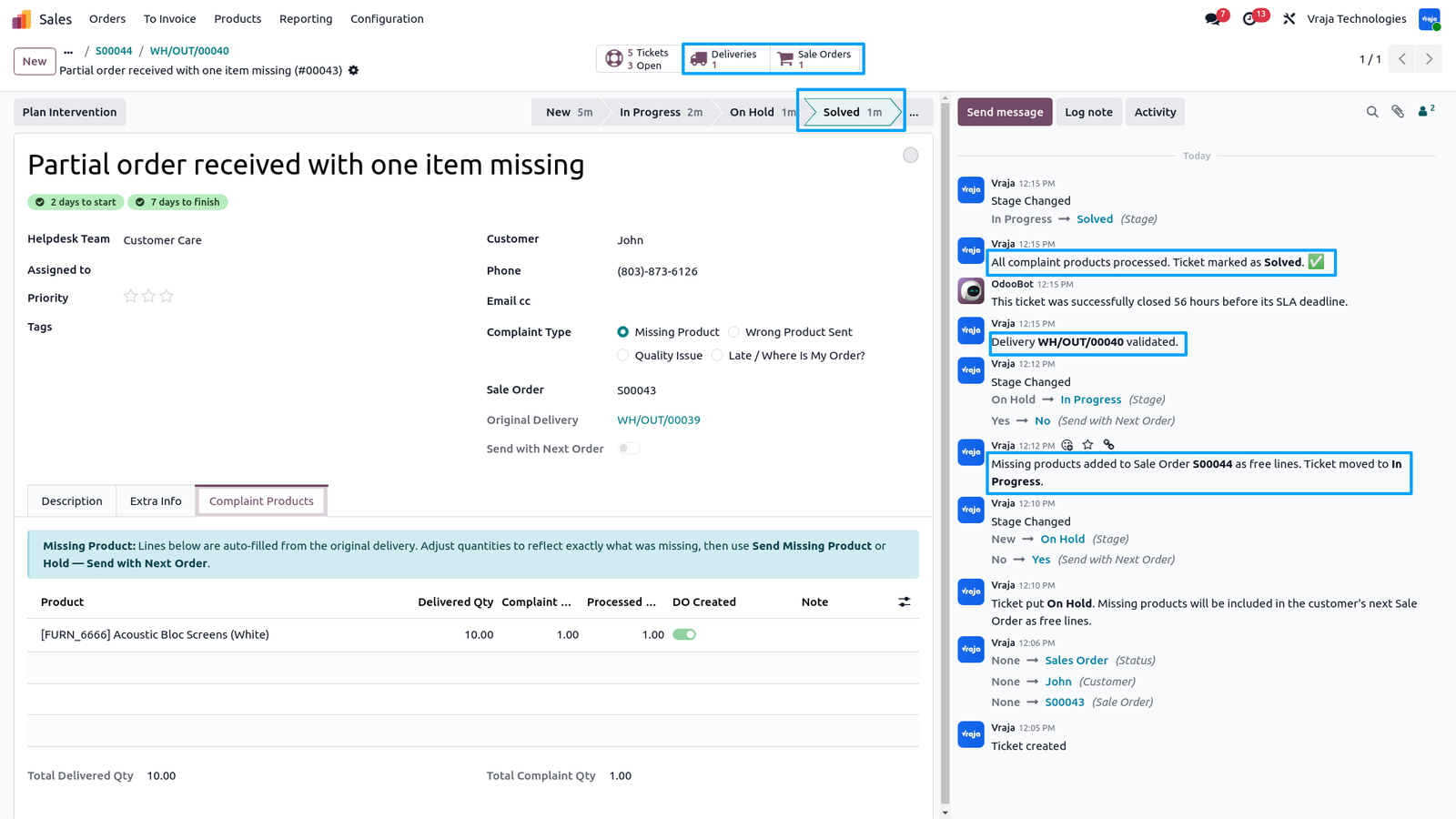
the complaint ticket moves to Solved automatically.
The chatter shows the complete history:
→ Ticket created → On Hold → In Progress → Solved
→ Missing products added to Sale Order S00044
→ Delivery WH/OUT/00040 validated
→ All complaint products processed — Ticket marked as Solved
Smart buttons show Deliveries 1 and Sale Orders 1.
Wrong Product Sent
For Wrong Product Sent complaints — select the complaint type, link the Sale Order and open the Complaint Products tab.
For Wrong Product Sent complaints — select the complaint type, link the Sale Order and open the Complaint Products tab.
The delivered products auto-fill from the original delivery.
Adjust Complaint Qty for each incorrectly sent product.
Two independent action buttons appear at the top:
Send Correct Product — create an outgoing delivery for correct items.
Return Wrong Product — create an incoming return for wrong items.
Both buttons work independently — no forced order.
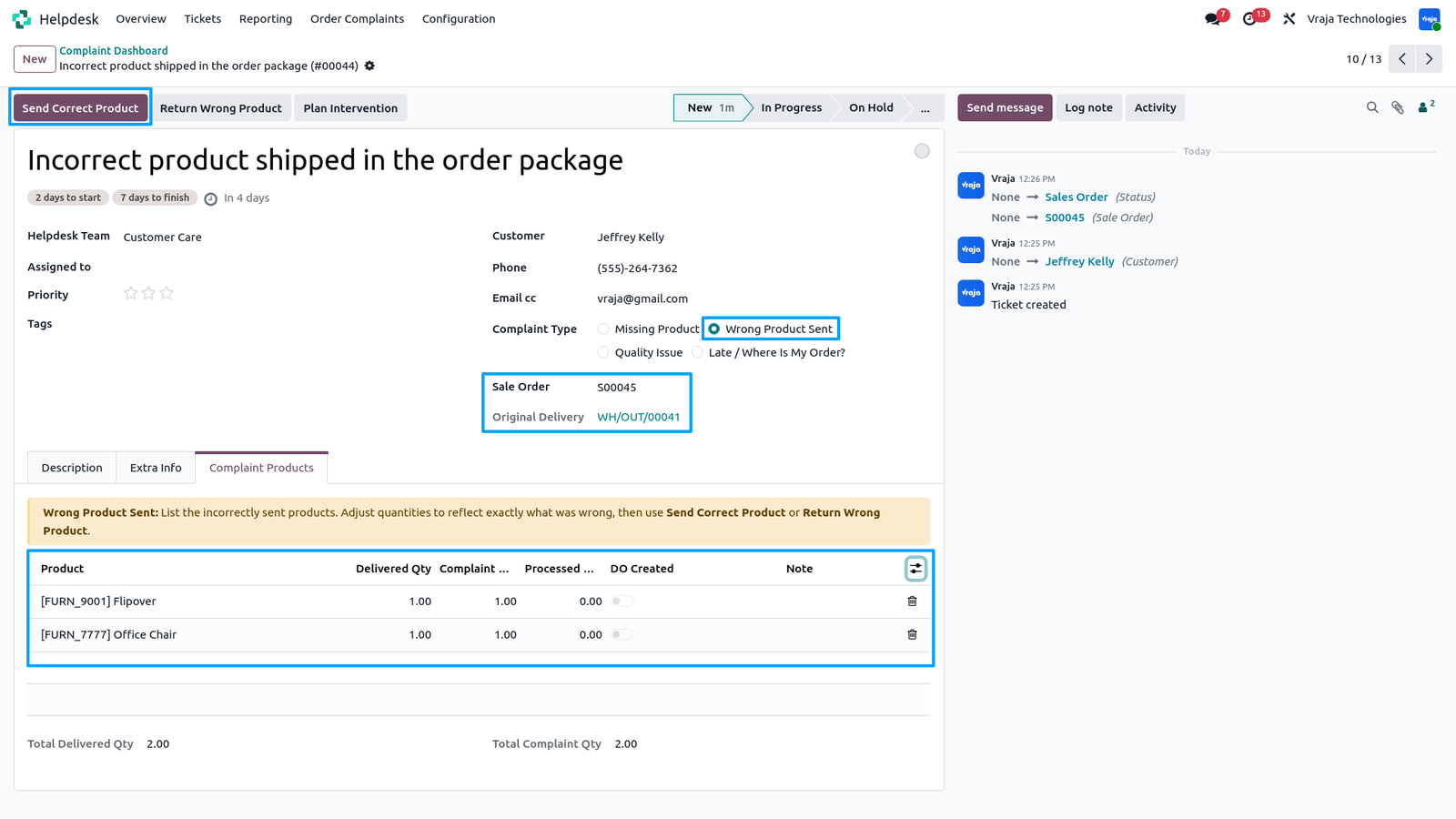
Click Send Correct Product.
Click Send Correct Product.
The wizard opens pre-filled with the wrong products listed as Products to Send (Free of Charge).
Warehouse and Shipping Method are auto-filled from the Sale Order.Delete lines to process in batches if needed.
Click Create Delivery Order to confirm.
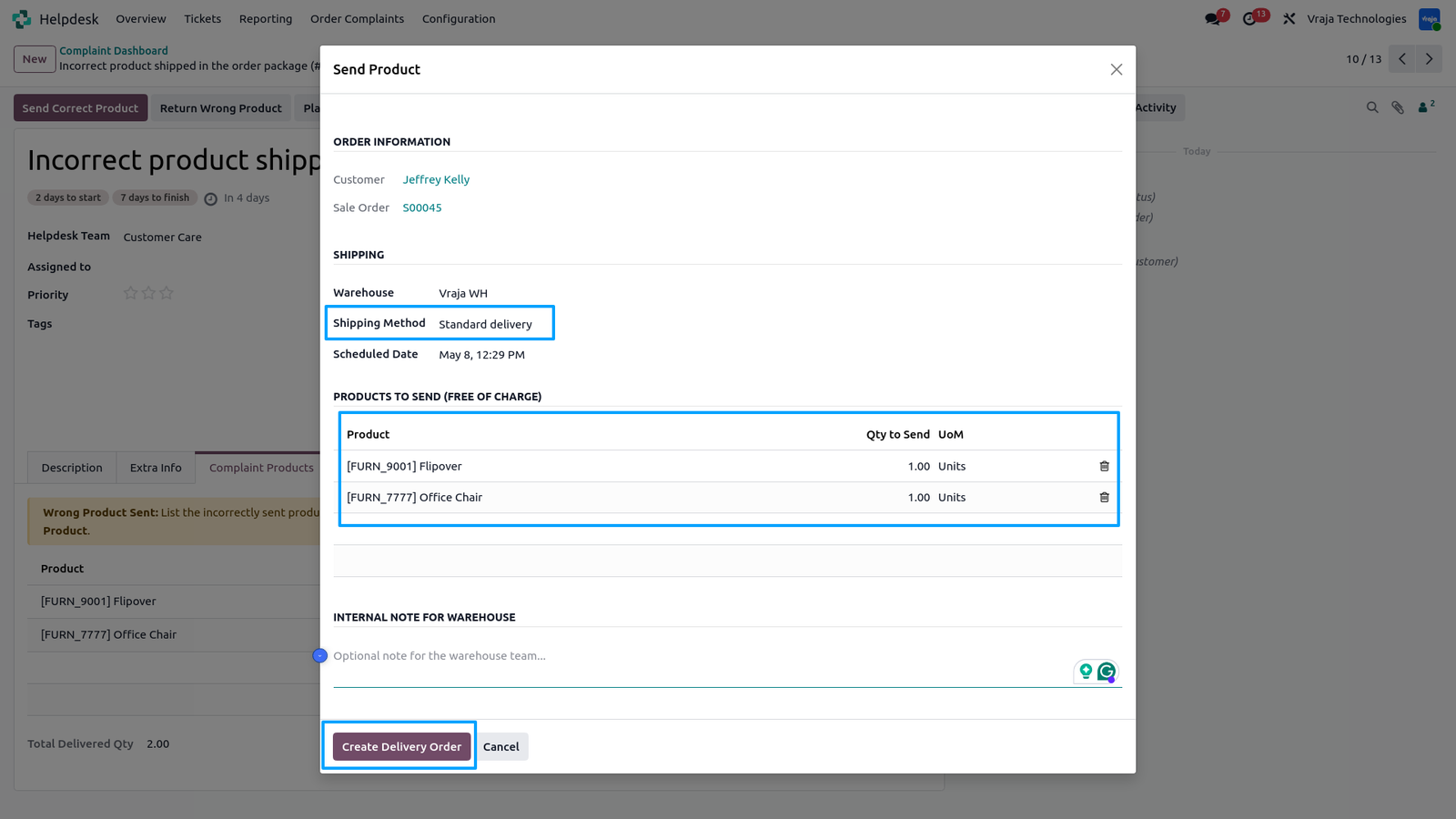
The delivery order for correct products is created and linked to the ticket.
The delivery order for correct products is created and linked to the ticket.
Source Document shows the HOM ticket reference.
Helpdesk Tickets field links back to the complaint.
Product availability is Available and ready to validate.
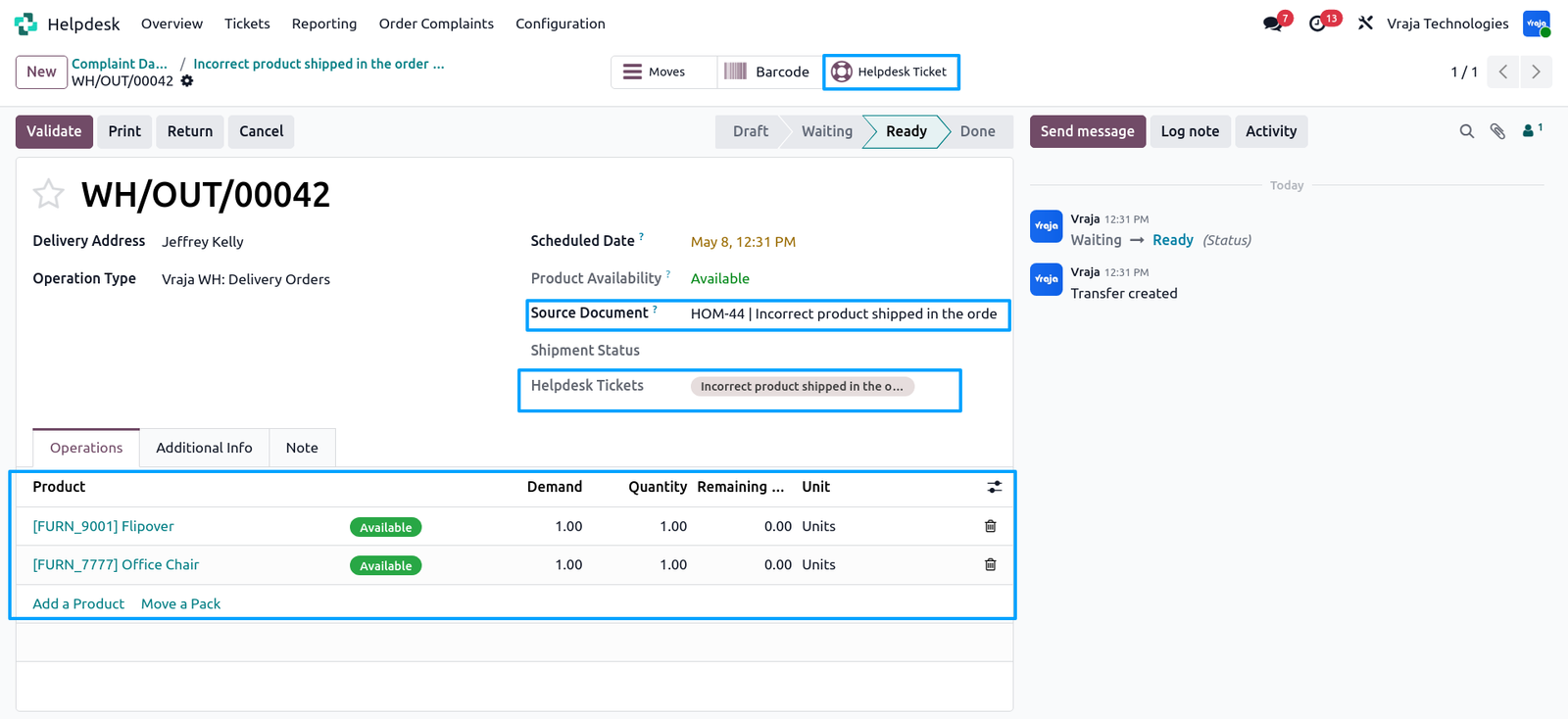
After the delivery is validated —
After the delivery is validated —
Processed Qty and DO Created toggle are updated for all complaint lines.
The Send Correct Product button hides — delivery is done.
Return Wrong Product button remains visible —
the return has not been created yet.
The chatter logs delivery creation and validation.Ticket moves to In Progress.
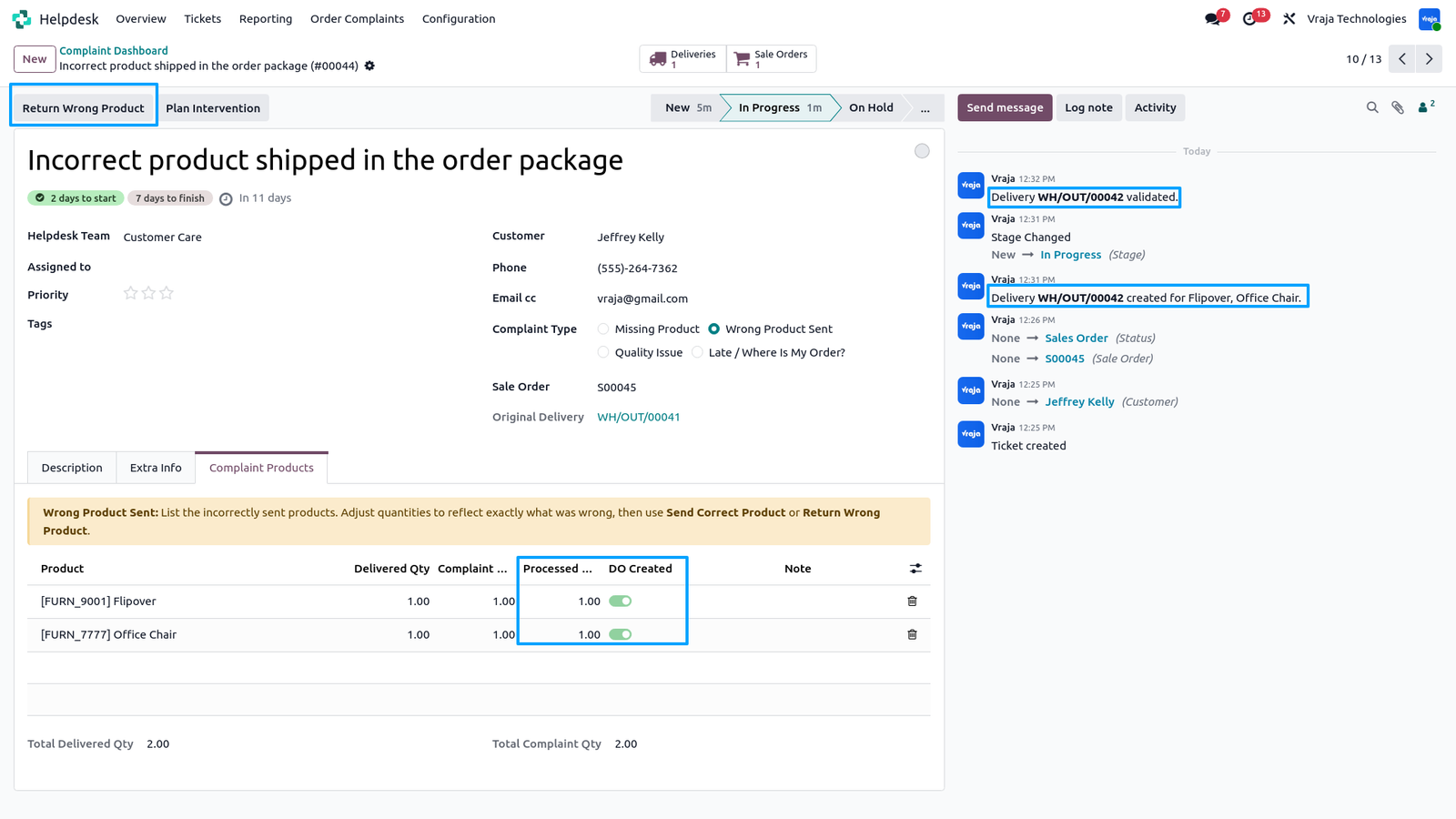
Click Return Wrong Product.
Click Return Wrong Product.
The Return Product wizard opens pre-filled.
Order Information shows the customer and original delivery.Add a Return Reason to describe why the products are being returned.
Products to Return table shows all complaint products
with quantities.
Click Create Return Order to confirm.An incoming return picking is created and linked to the ticket.
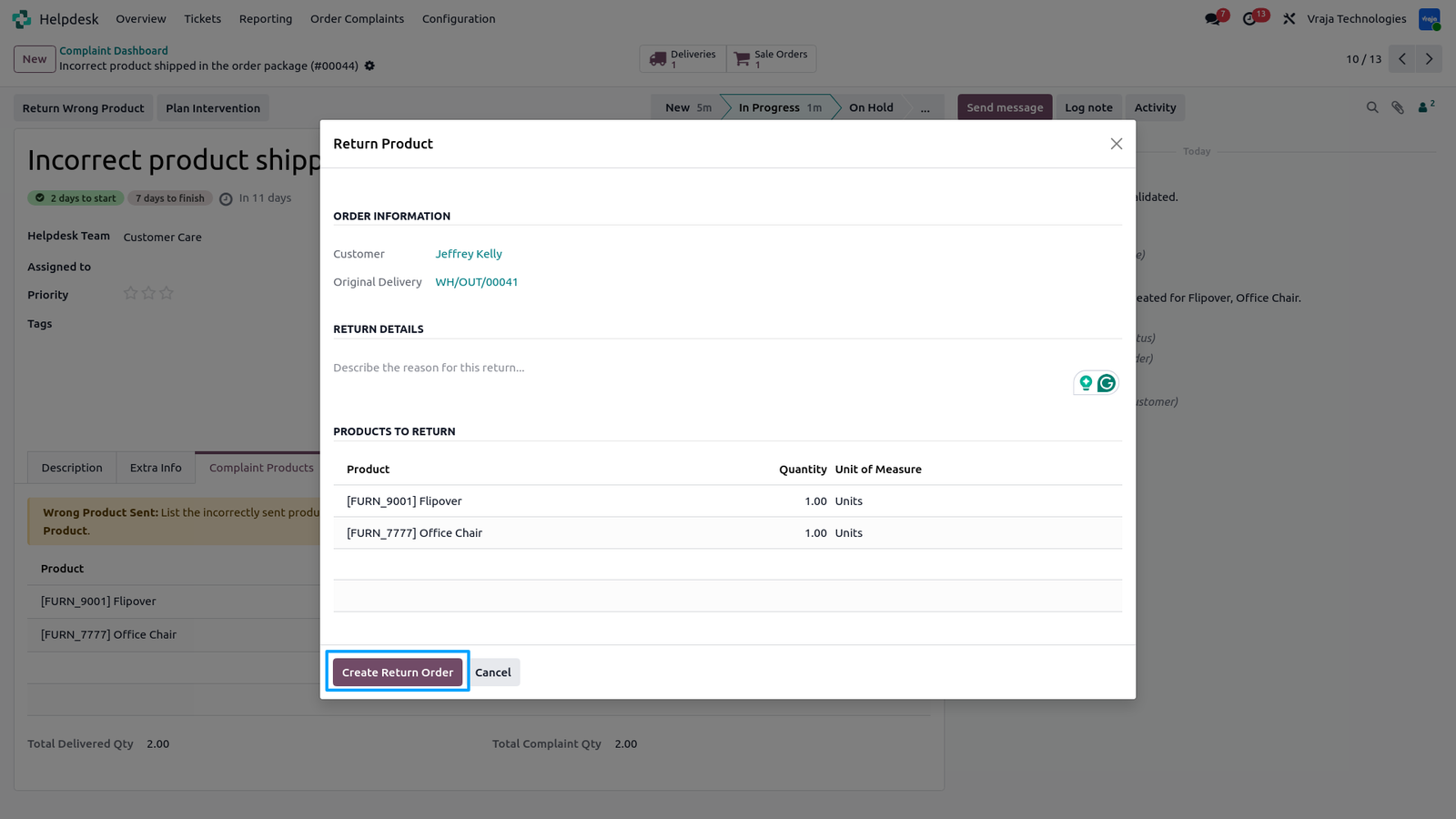
The return picking is created and linked to the ticket.
The return picking is created and linked to the ticket.
Source Document shows the return reference and HOM ticket.Helpdesk Tickets field links back to the complaint.
The warehouse team validates the return by clicking Validate.
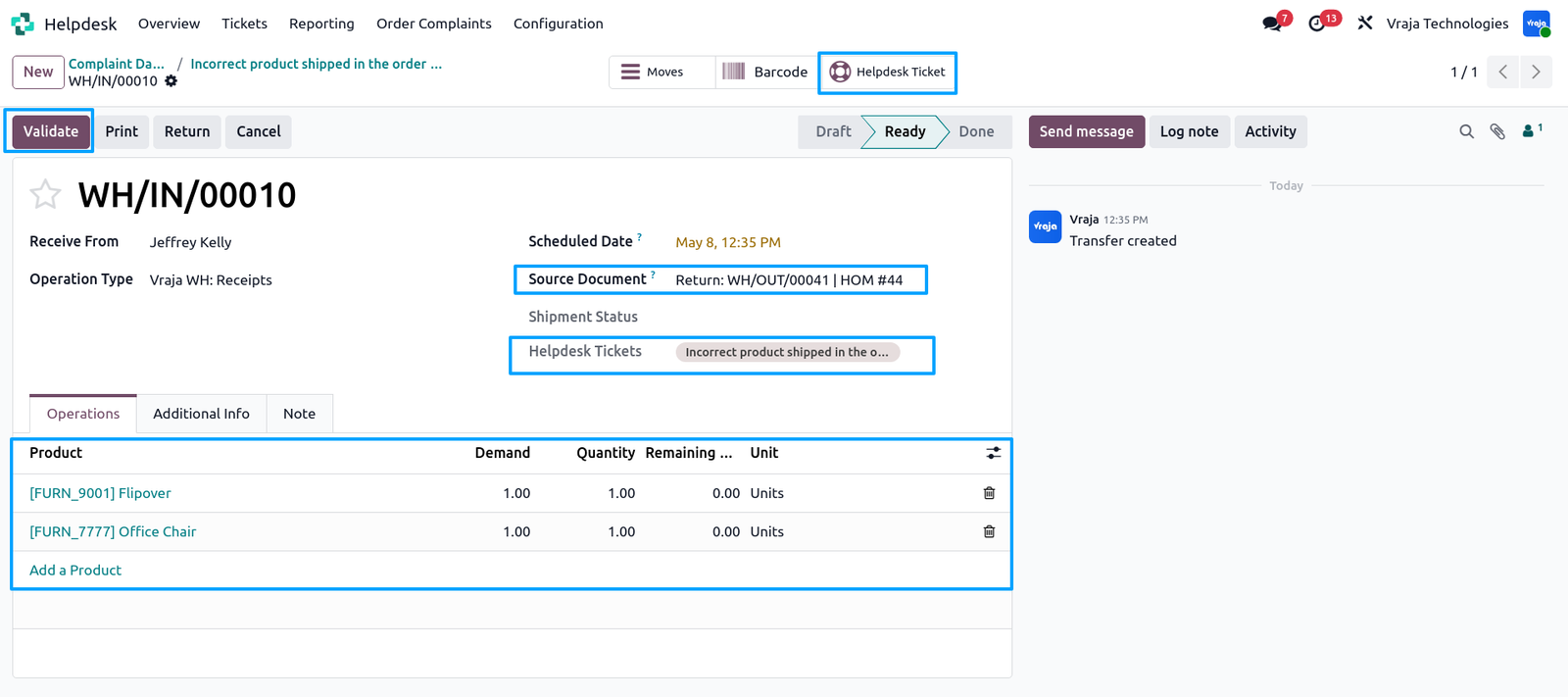
When the return picking is validated —
When the return picking is validated —
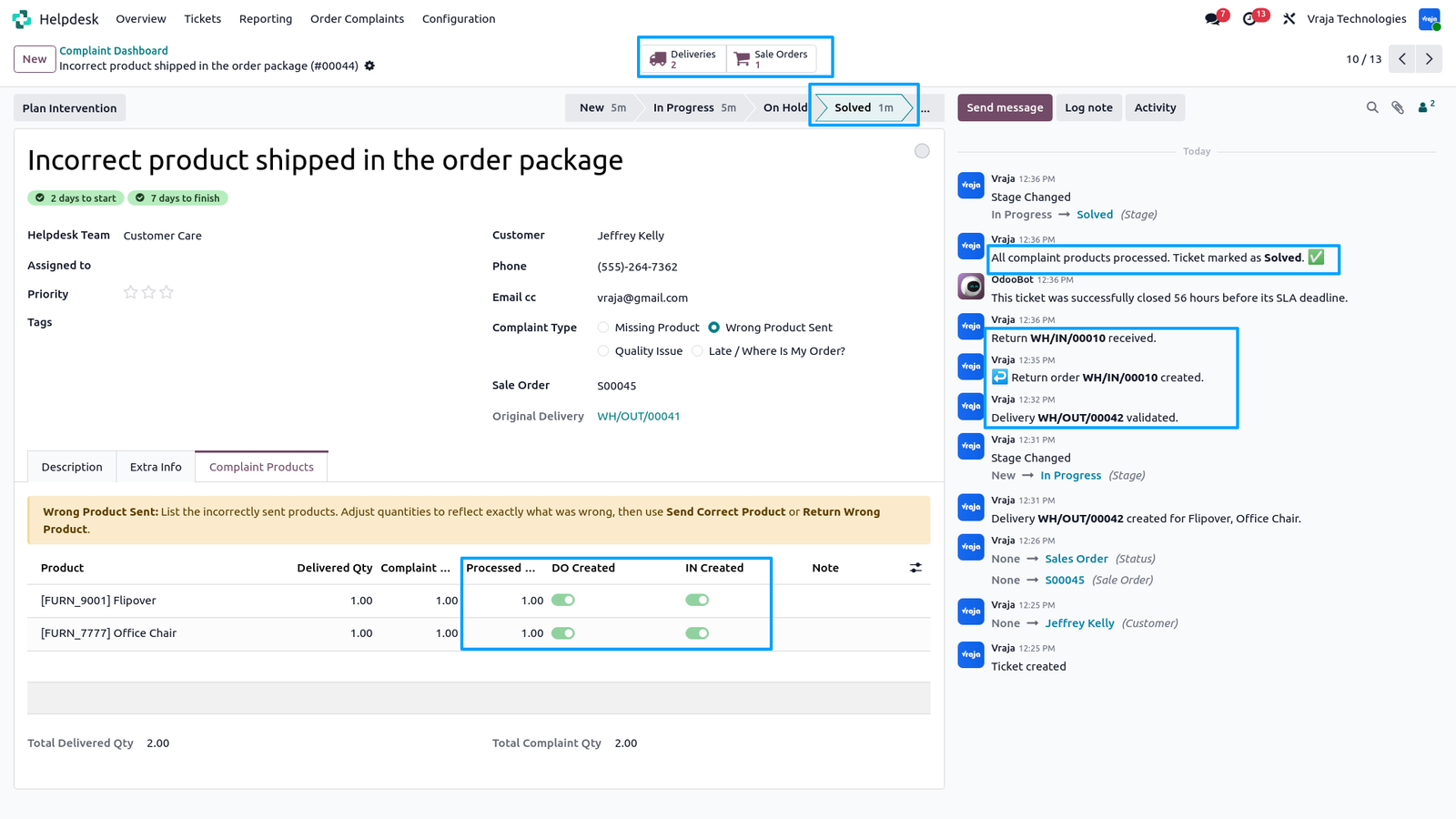
all complaint lines show DO Created and IN Created as ON.Processed Qty is fully updated.
The ticket moves to Solved automatically.
The chatter shows the complete history:
→ Delivery WH/OUT/00042 validated
→ Return order WH/IN/00010 created
→ Return WH/IN/00010 received
→ All complaint products processed — Ticket marked as Solved
Smart buttons show Deliveries 2 and Sale Orders 1.
Quality Issue
For Quality Issue complaints — select the complaint type and link the Sale Order.
For Quality Issue complaints — select the complaint type and link the Sale Order.
Choose the Quality Resolution:
Send Replacement Only — creates a replacement delivery only.
Return Defective + Send Replacement — creates both a delivery and a return, with both buttons working independently.
Complaint Products tab auto-fills from the original delivery.Agent sets Complaint Qty for each defective product and adds a note to describe the defect.
Two action buttons appear: Send Replacement and Return Defective Product.
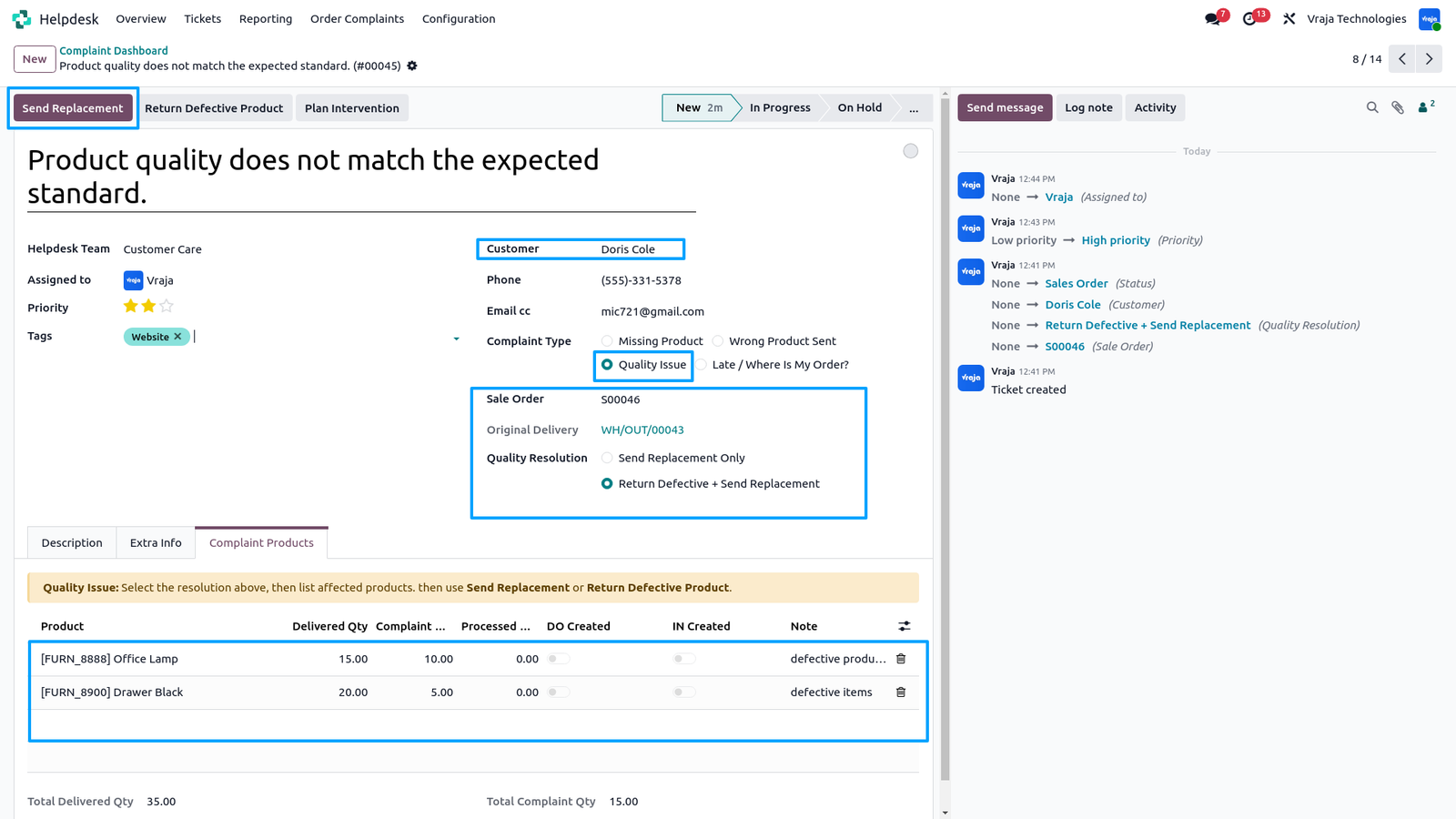
Click Send Replacement.
Click Send Replacement.
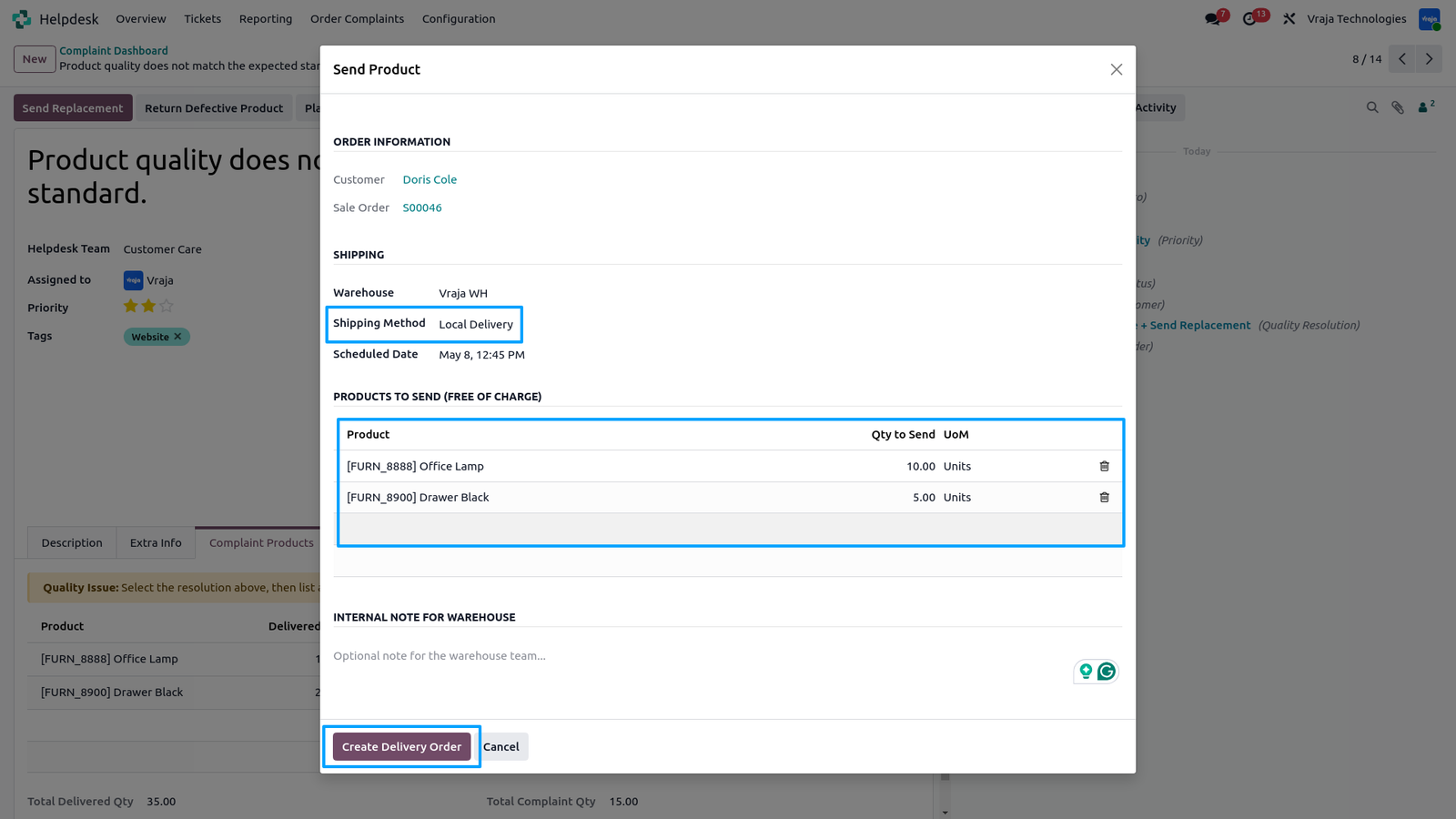
The wizard opens pre-filled with defective products listed as Products to Send (Free of Charge).
Warehouse and Shipping Method auto-filled.Delete lines to process in batches if needed.
Click Create Delivery Order to confirm.
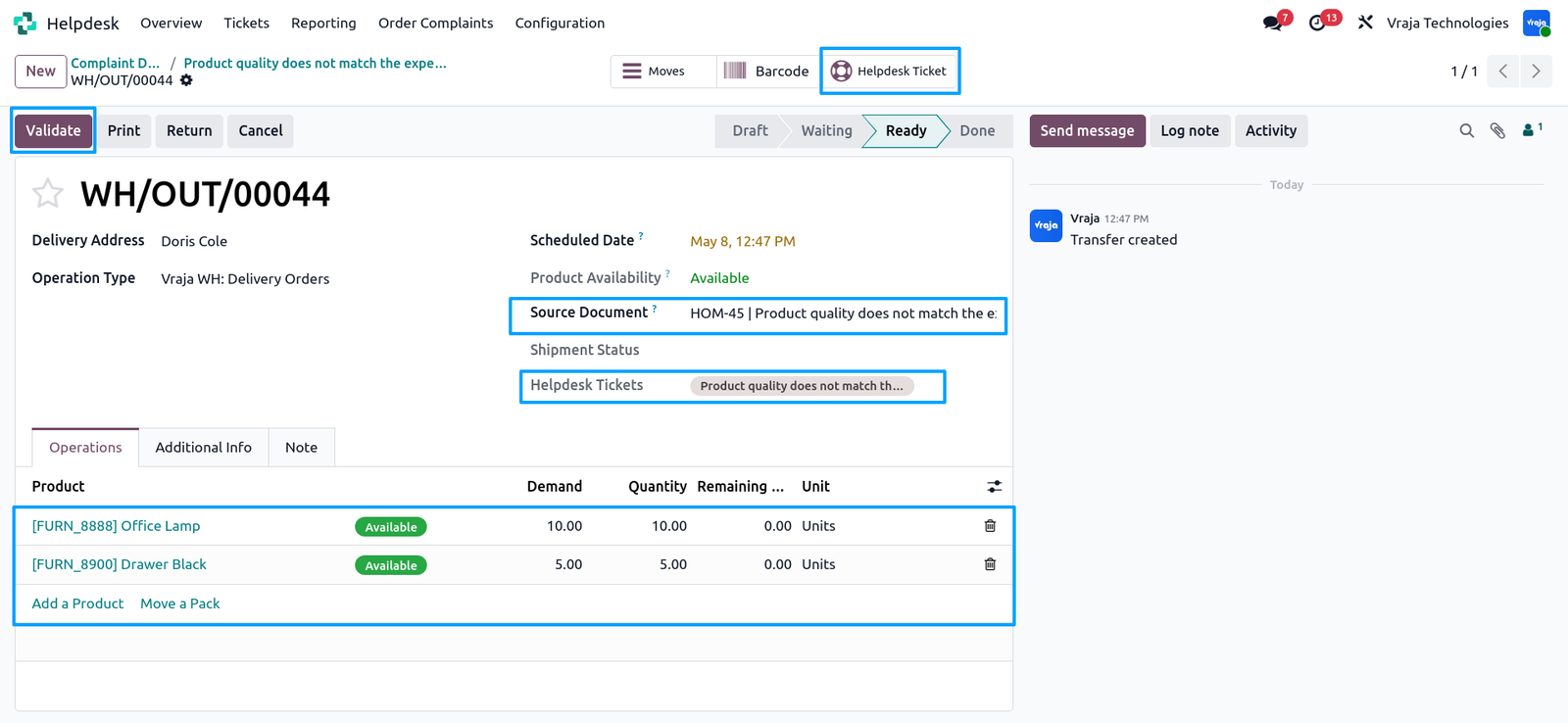
The replacement delivery is created and linked to the ticket.
The replacement delivery is created and linked to the ticket.
Source Document shows the HOM quality issue ticket reference.Helpdesk Tickets field links back to the complaint.
Click Validate to dispatch the replacement to the customer.
After the replacement delivery is validated.DO Created toggles are ON for all complaint lines and Processed Qty is updated.
After the replacement delivery is validated.DO Created toggles are ON for all complaint lines and Processed Qty is updated.
Send Replacement button hides — replacement delivery is done.
Return Defective Product button remains visible.The return has not been created yet.
Agent can now proceed to collect the defective items.
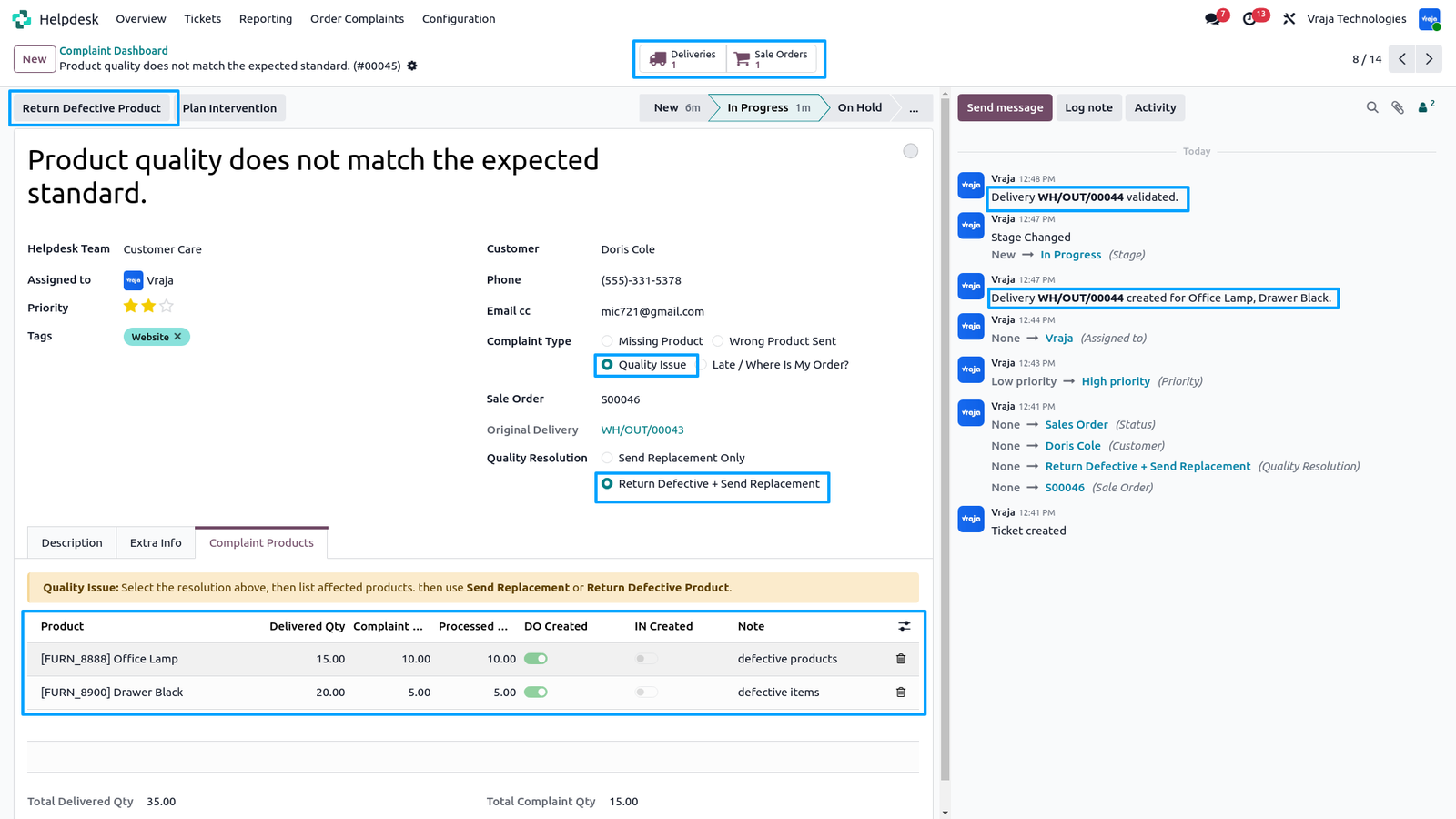
Click Return Defective Product.The Return Product wizard opens pre-filled.
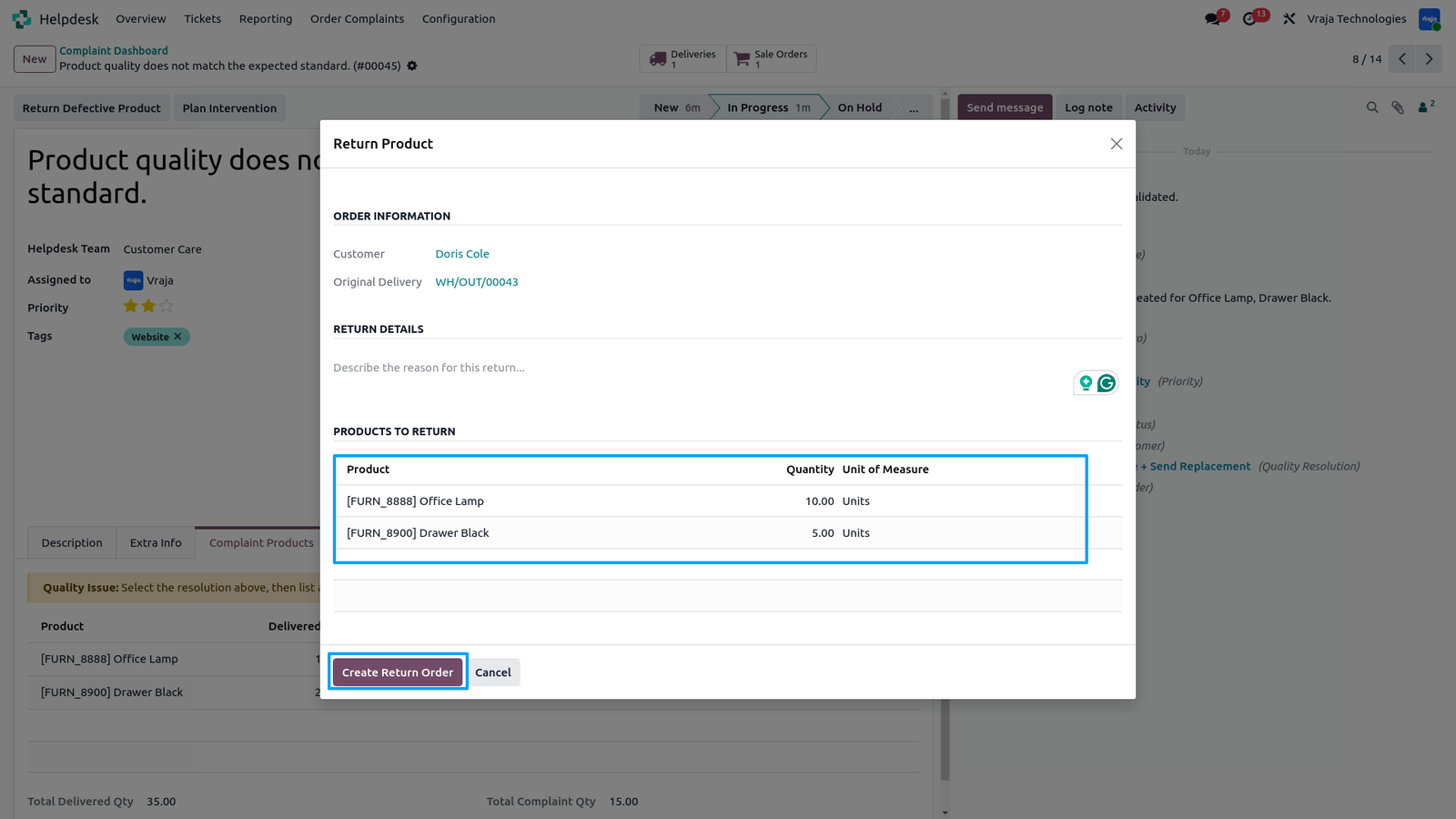
Click Return Defective Product.The Return Product wizard opens pre-filled.
Products to Return shows the defective items with quantities — fully readonly.
Add a Return Reason to describe the defect.Click Create Return Order to confirm.
An incoming return picking is created and linked to the ticket.
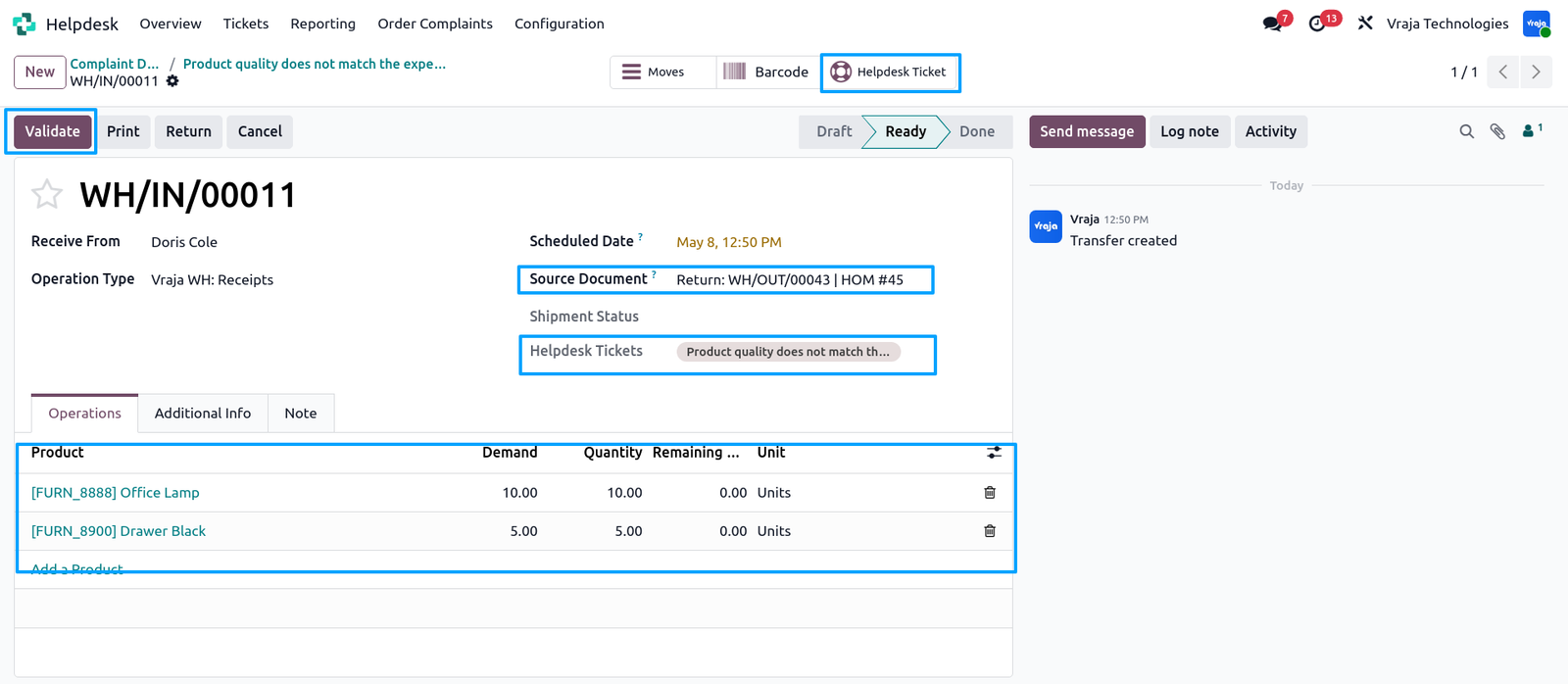
The return picking for defective items is created and linked to the quality issue ticket.
The return picking for defective items is created and linked to the quality issue ticket.
Source Document shows the return reference and HOM ticket.Helpdesk Tickets field links back to the complaint.
The warehouse team validates the return by clicking Validate.
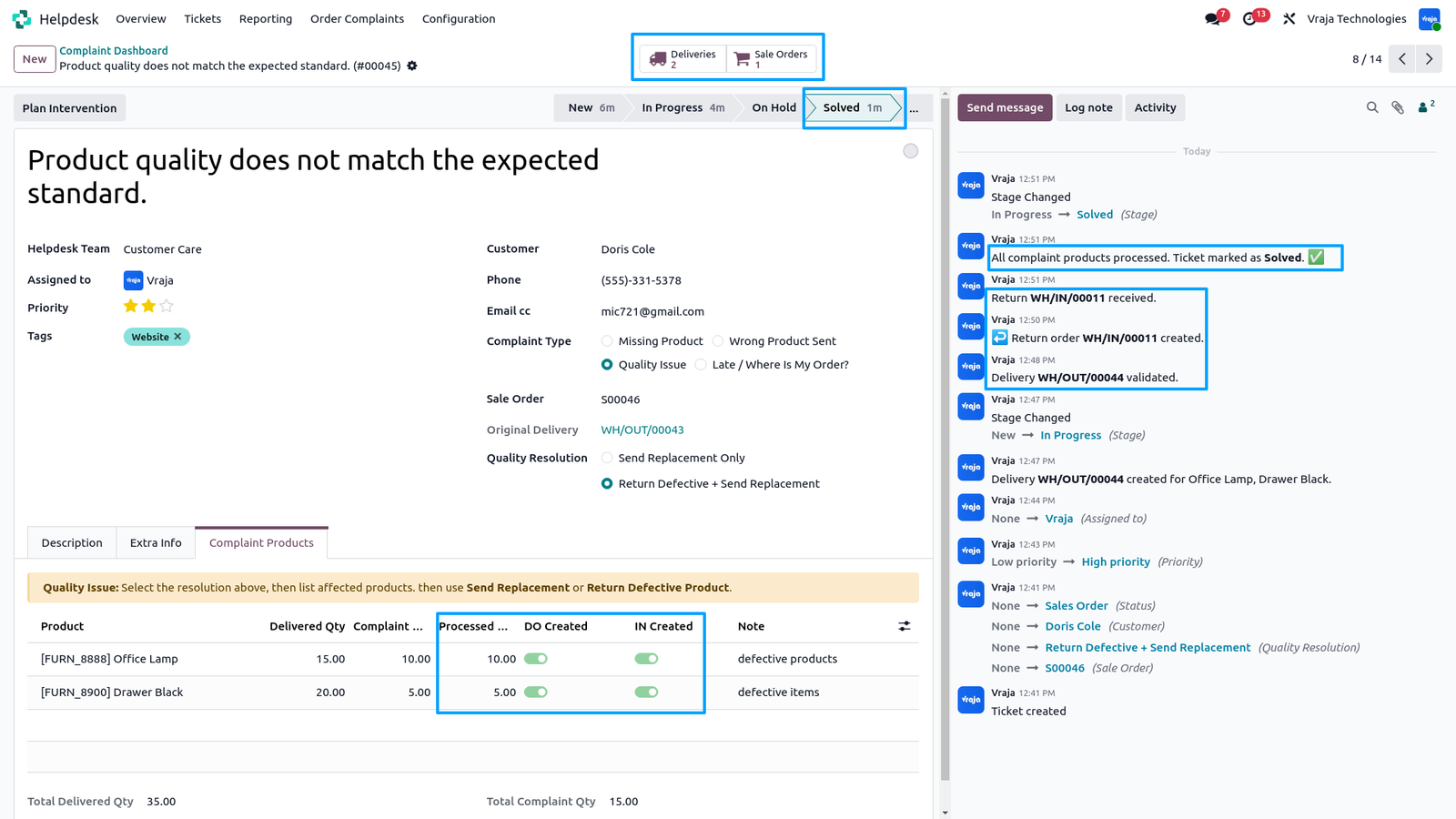
When the return picking is validated —
When the return picking is validated —
all complaint lines show DO Created and IN Created as ON.
Processed Qty is fully updated.
Ticket moves to Solved automatically.
The chatter shows the full history:
→ Delivery WH/OUT/00044 created and validated
→ Return order WH/IN/00011 created
→ Return WH/IN/00011 received
→ All complaint products processed — Ticket marked as Solved
Smart buttons show Deliveries 2 and Sale Orders 1.
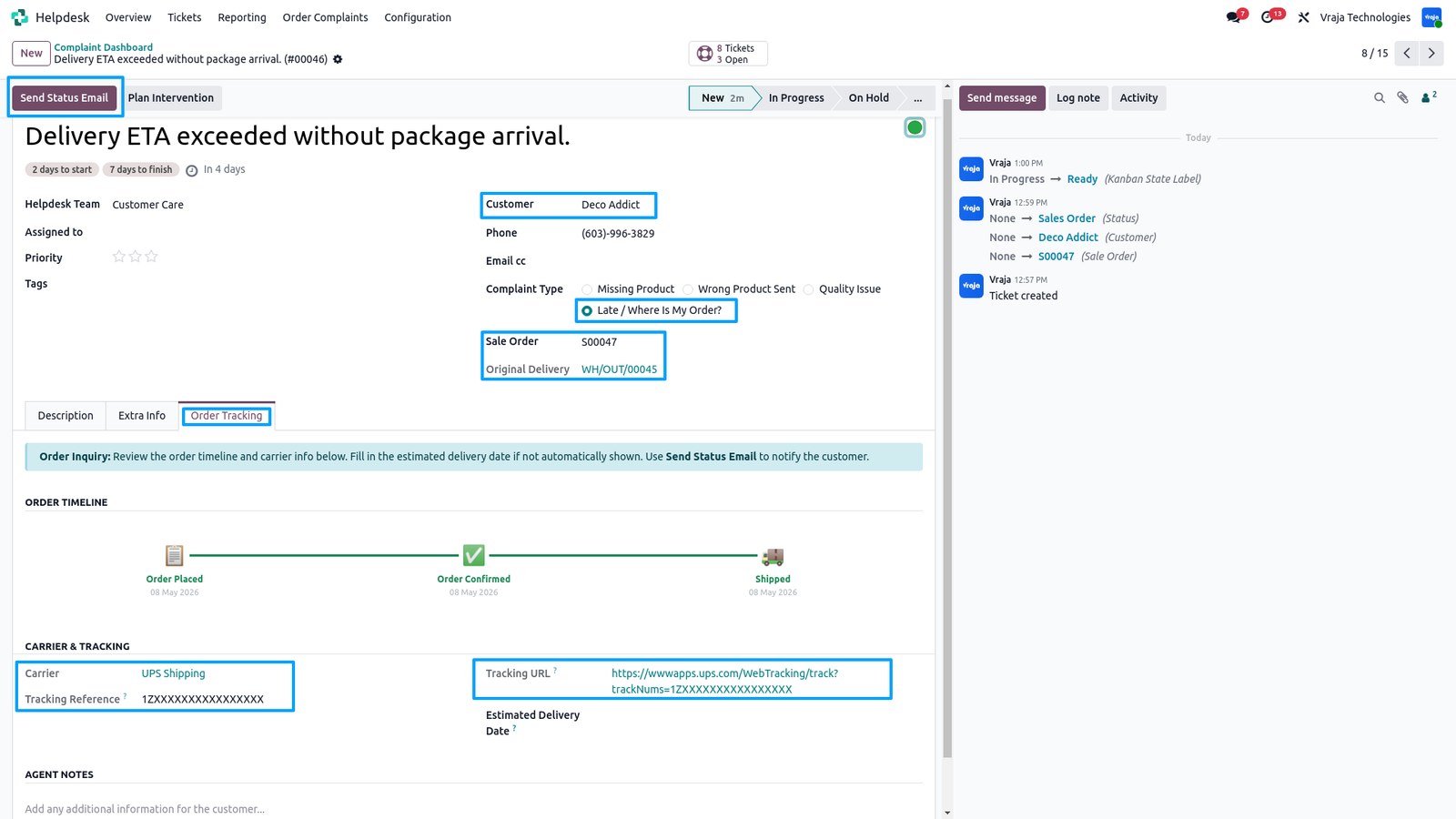
Late / Where Is My Order
For Late Order or Where Is My Order complaints —
For Late Order or Where Is My Order complaints —
select Late / Where Is My Order? as complaint type
and link the Sale Order.
The Order Tracking tab activates automatically.
Order Timeline shows the current order status visually:
📋 Order Placed — 08 May 2026
Order Confirmed — 08 May 2026
🚚 Shipped — 08 May 2026
Carrier & Tracking section shows:
Carrier — UPS Shipping (auto-filled from delivery)
Tracking Reference — auto-filled from delivery
Tracking URL — clickable UPS tracking link
Agent fills Estimated Delivery Date if not available.
Agent adds notes in the Agent Notes section.
Click Send Status Email to notify the customer.
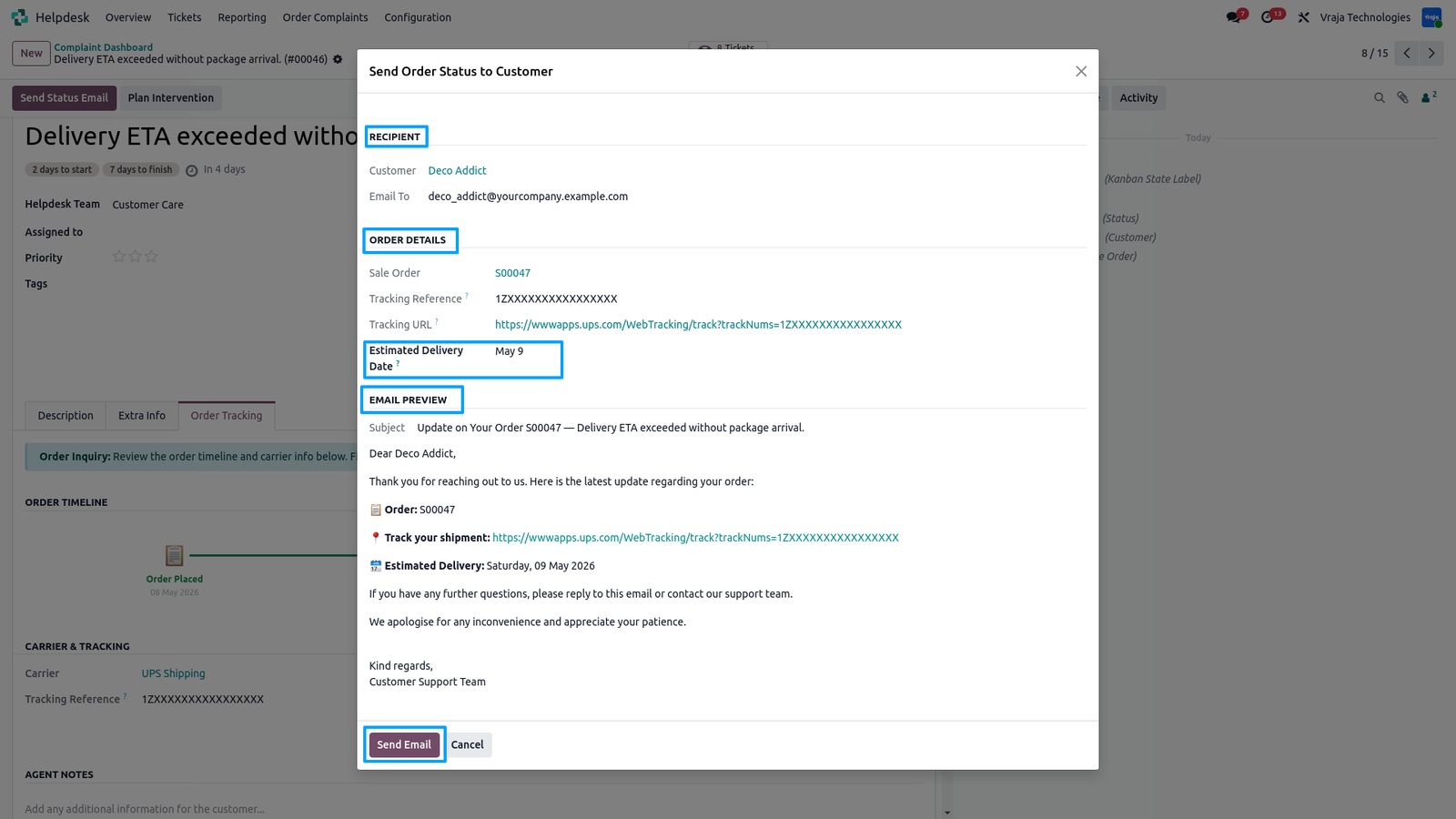
The Send Order Status to Customer wizard opens pre-filled.
The Send Order Status to Customer wizard opens pre-filled.
Recipient section shows the customer name and email address.
Order Details section shows:
Sale Order, Tracking Reference, Tracking URL and Estimated Delivery Date — all auto-filled.
Email Preview shows the auto-generated email body:
→ Order reference
→ Clickable tracking link
→ Estimated delivery date
→ Professional closing message
Click Send Email to deliver the status update instantly.
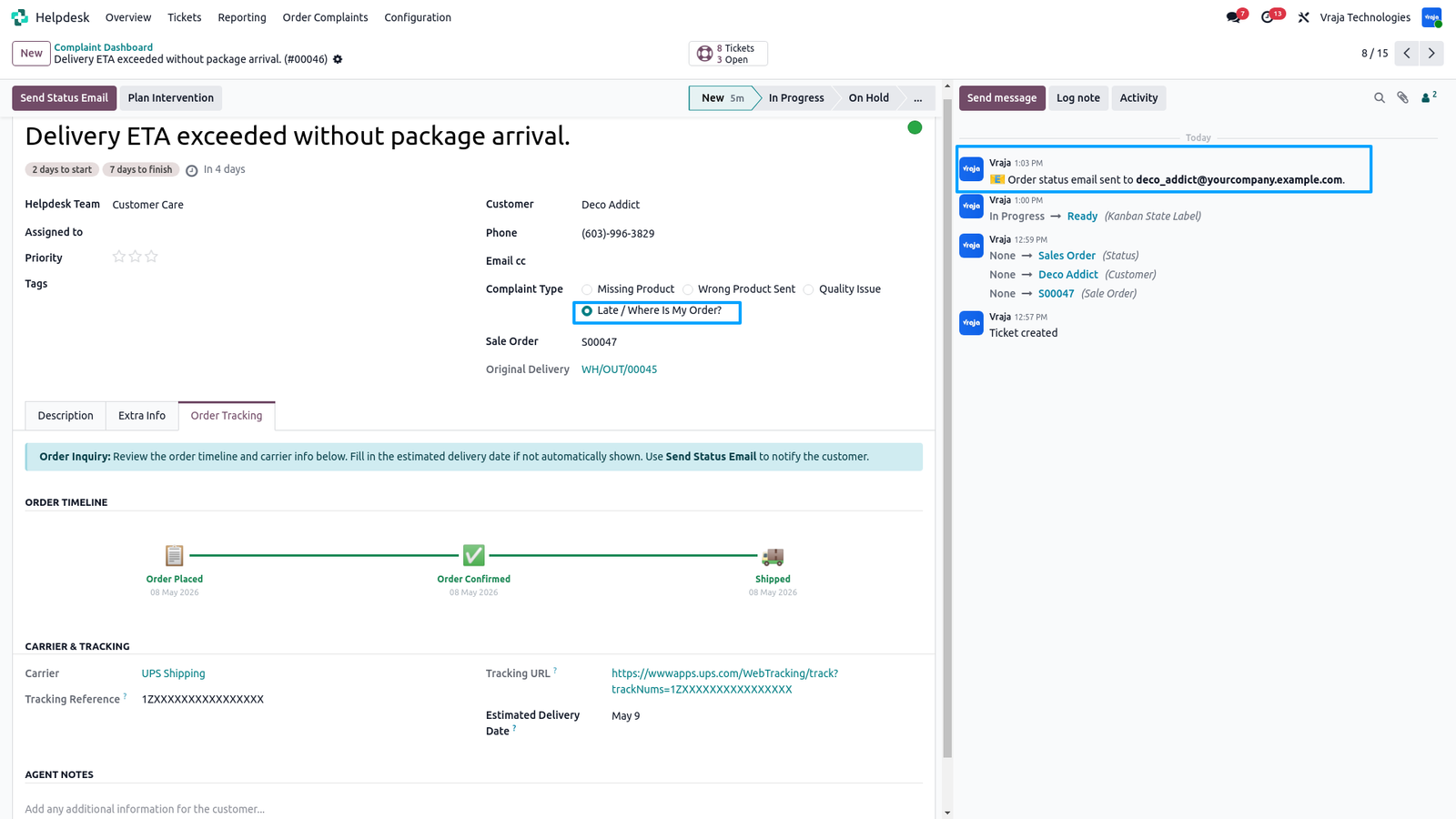
After sending — the email is logged in the ticket chatter.
After sending — the email is logged in the ticket chatter.
The chatter shows: Order status email sent to the customer's email address.Estimated Delivery Date is now visible on the Order Tracking tab.
The agent manually moves the ticket to Solved after the customer confirms the issue is resolved.
 Does this module replace the standard Helpdesk?
- No. It extends it. All standard Helpdesk features work exactly as before. This module adds order complaint management on top without changing anything existing.
Can I process complaint products in separate deliveries?
- Yes. The wizard shows all pending products. Delete lines to process specific products now and handle the rest later. Each product tracks its own DO Created status.
Does the Send with Next Order feature work automatically?
- When a ticket is put On Hold using Send with Next Order, a Pending Complaints smart button appears on any new Sale Order created for that customer. The agent opens the wizard, selects which products to include and clicks Add Selected to This Order. Products are added as free lines at zero price. The agent stays in full control of which order the missing products go into and when.
Is the carrier tracking URL shown automatically?
- Yes — if the carrier in Odoo supports tracking URLs. If not, the tracking reference is shown with a message to share it with the customer directly. The agent can also fill the Estimated Delivery Date manually.
What if the customer received 10 items but only 3 are missing?
- Set Delivered Qty shows 10 automatically from the delivery. Agent sets Complaint Qty to 3. Only 3 units are processed in the complaint resolution — the rest are ignored.
What if the customer has multiple open complaint tickets?
- Each complaint ticket is managed independently. When using the Send with Next Order flow, the system automatically checks all On Hold complaint tickets for the customer and displays all pending complaint products together in the next Sale Order wizard. The agent can then select which products should be added to the current order, making it easy to handle multiple complaint tickets efficiently from a single Sale Order.
Can the agent process a return without creating a delivery first?
- Yes. For Wrong Product and Quality Issue — both actions are completely independent. Return can be created before or after the delivery.
What does the agent see when all products are processed?
- All action buttons disappear from the ticket header. The Complaint Products tab becomes readonly. The ticket is in Solved stage with a full chatter history.
Is there a limit on how many deliveries can be created per ticket?
- No. The agent can create as many deliveries and returns as needed. All are linked to the ticket and visible via the Deliveries smart button.
Is there a report or export for complaint data?
- Yes. Use the Pivot view on the Complaint Dashboard to analyse complaint data by type and stage. Export to Excel using the standard Odoo export feature.
I would like to request a custom feature for this application. What’s the process to get it implemented?
- We’re happy to help tailor the application to meet your business needs! You can reach us via sales@vrajatechnologies.com
Who is the point of contact for technical support, configuration support or bug-related queries?
- You can reach us via support@vrajatechnologies.com
Submit a Support Ticket
If you encounter any issues while using our app that are caused by the app itself, we offer complimentary support for 60 days from the date of purchase.
To create a support ticket, please register via the Vraja Technologies Support Email and provide the necessary details so we can assist you in resolving the issue.

Email Us
support@vrajatechnologies.com

 1.png)
Contact Us
vrajatechnologies.com/contactus

Support
vrajatechnologies.com/support-policy
Vraja Technologies Services

Odoo Implementation

Odoo App Integration Services

Odoo Customization

Odoo Consultation
Odoo Support & Maintenance

Odoo Developer Outsourcing
Suggested Application














Reviews
There are no reviews yet.