
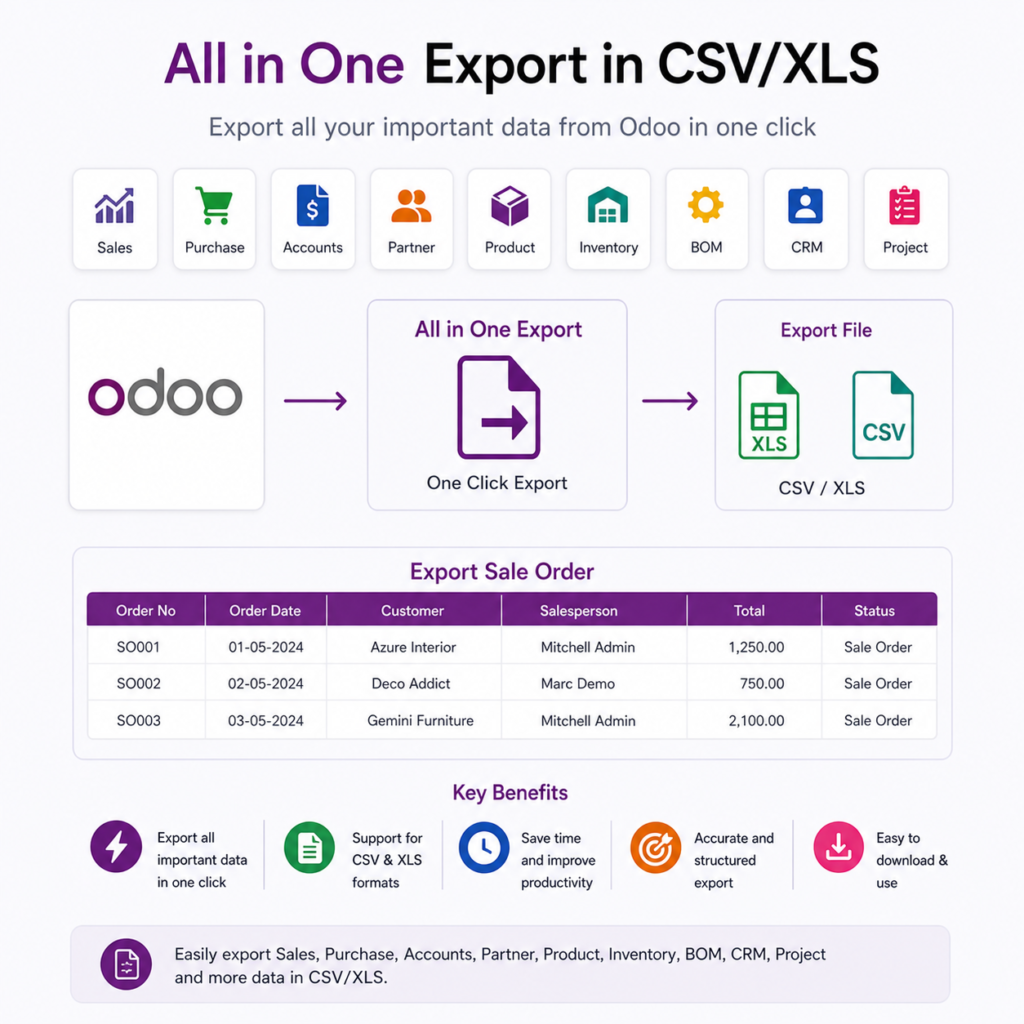
Description
.png)
 Enterprise Community Odoo.sh
All in one Export Records into CSV / XLS
The Dynamic Export Application for Odoo is designed to streamline data exports with a fully customizable and user-friendly interface. It allows you to export any model and its fields, including many-to-one (M2O), many-to-many (M2M), and one-to-many (O2M)relationships, such as sale order lines (product, quantity, and price). You can create and reuse custom export templates, making recurring exports faster and more efficient. The app also offers export actions to directly export or print records from tree and form views, simplifying the process. By automating exports, it eliminates manual data entry, saving time and reducing errors with built-in validation. The solution is scalable for businesses of any size, ensuring that as your company grows, the export process remains efficient and reliable.
 Watch on YouTube
We specialize in delivering advanced Odoo solutions across multiple domains. Our expertise includes:

EDI & SWIFT/ACH Payment Integrations
End-to-end EDI automation, including X12, EDIFACT, XML standards, & financial integrations such as SWIFT, ACH, & Fedwire.

eCommerce Integrations
Seamless integration with leading eCommerce platforms to sync products, orders, inventory, and customer data in real time.

Shipping Integrations
Robust shipping connectors for global couriers, offering automated label generation, tracking, and rate computation.

Most Useful Apps for your ERP
A wide range of highly-rated Odoo modules designed to enhance automation, improve productivity, & simplify business operations.
 Features
 Process
 FAQs
FAQs
 Dynamic Export
Custom Templates
M2O & M2M Field Support
Export Actions
O2M Field Export
Dynamic Export
Custom Templates
M2O & M2M Field Support
Export Actions
O2M Field Export
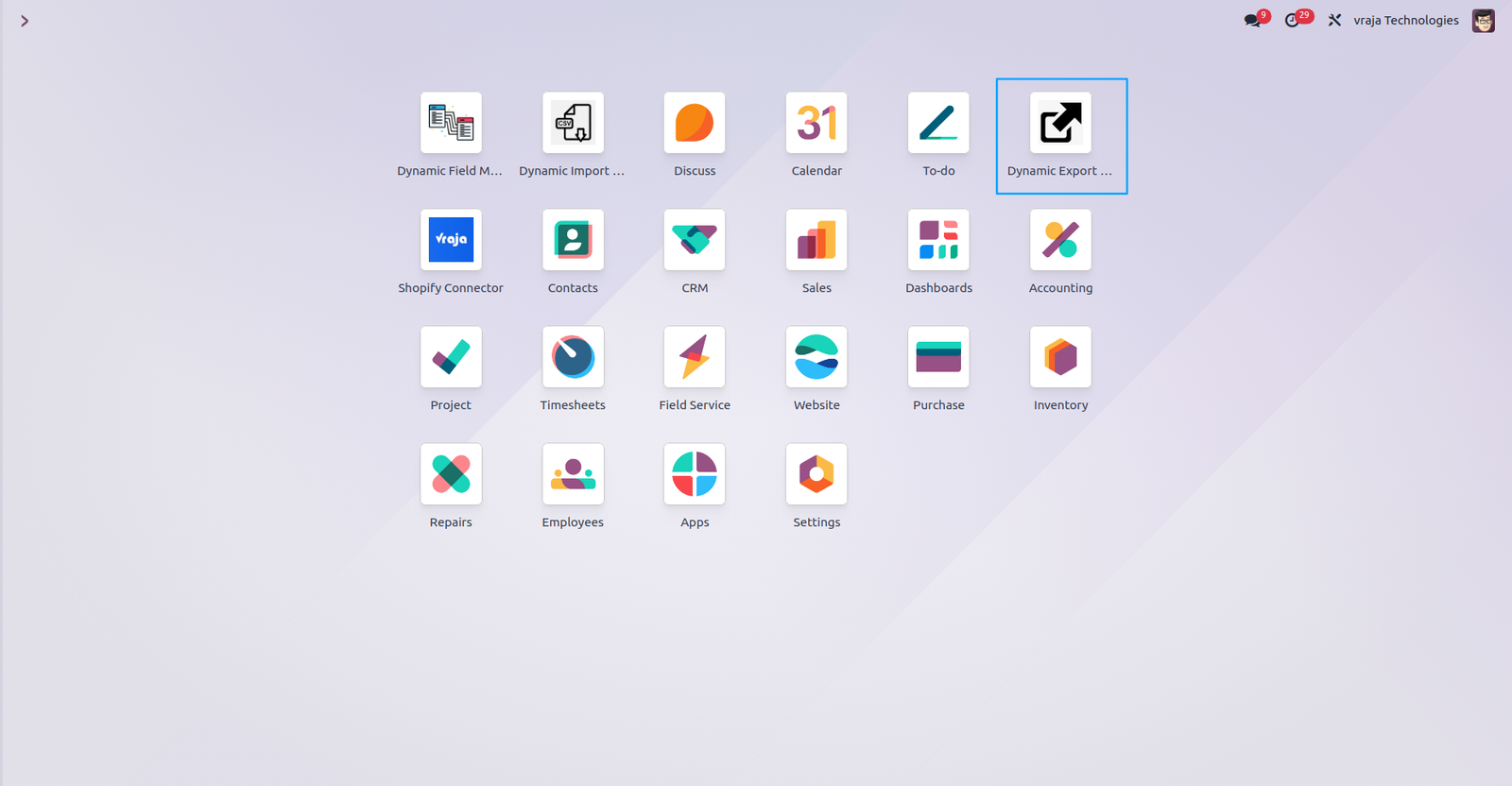
Go to Dynamic Export Action menu.
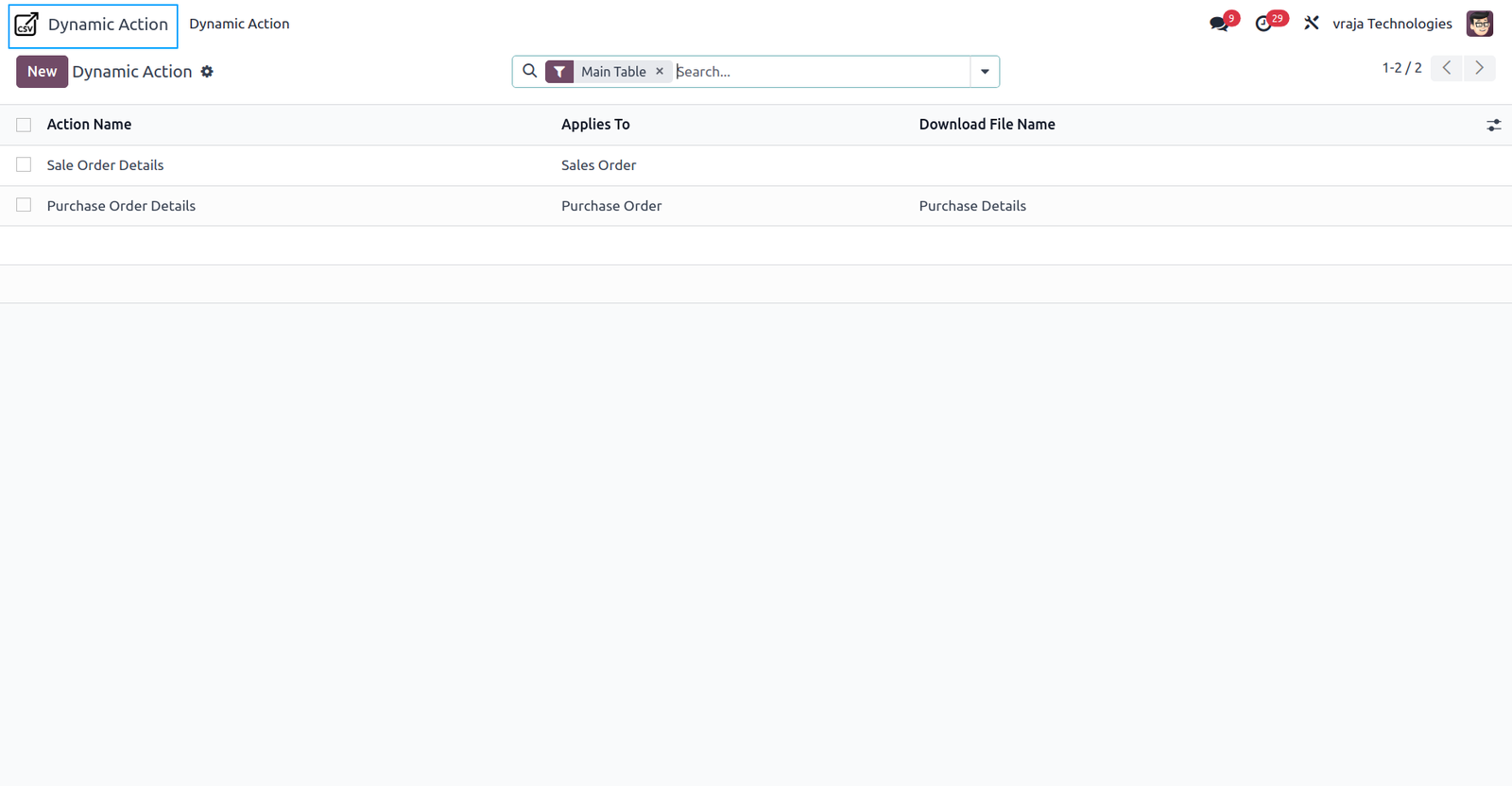
Dynamic Action records, you can see the list of all the actions which created for an export process
Here, you can select the desired model and specify a name for the download file. Use ‘Add a line’ to include fields you want in the export.
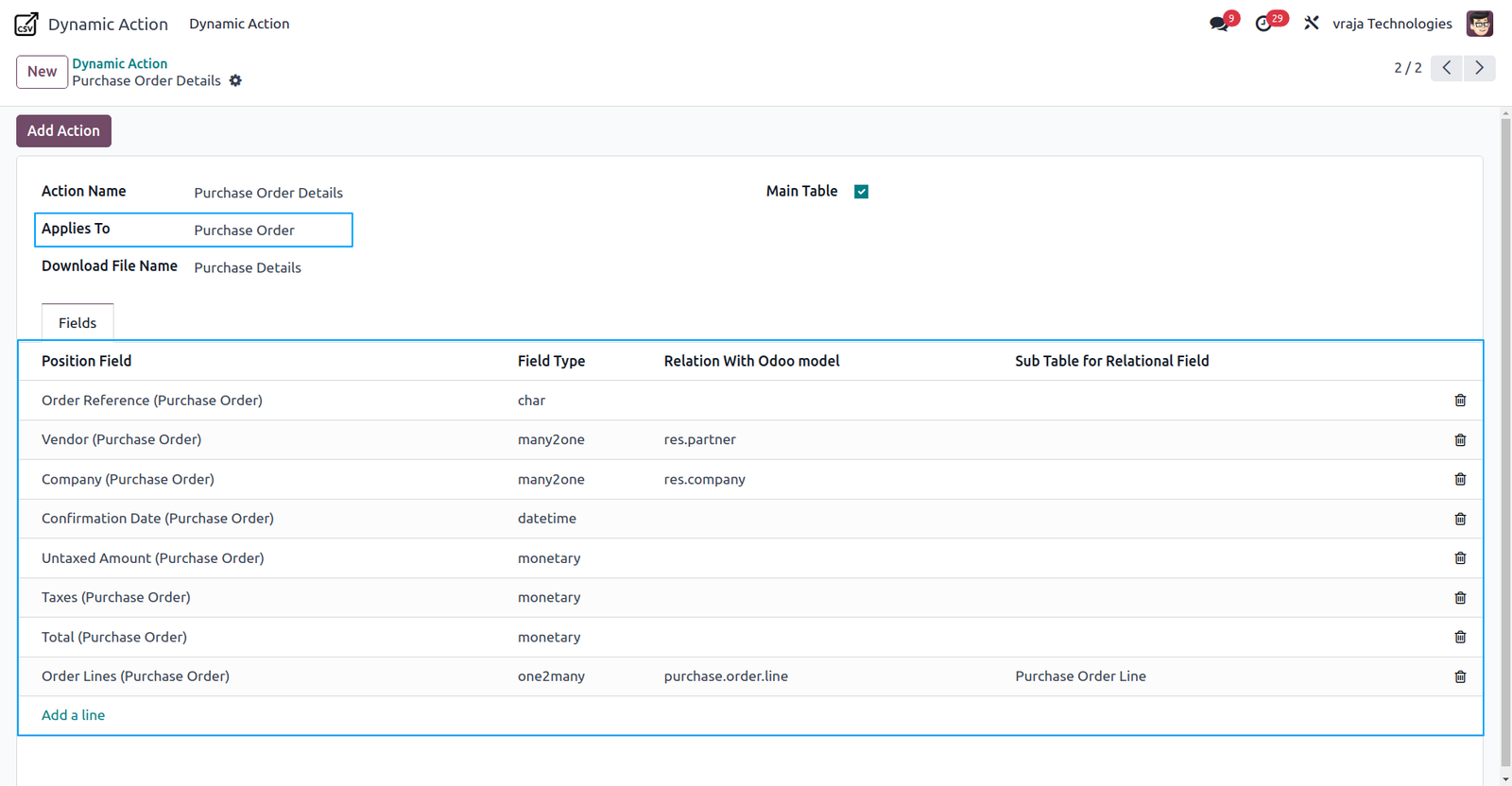
For O2M fields, you can add sub table.
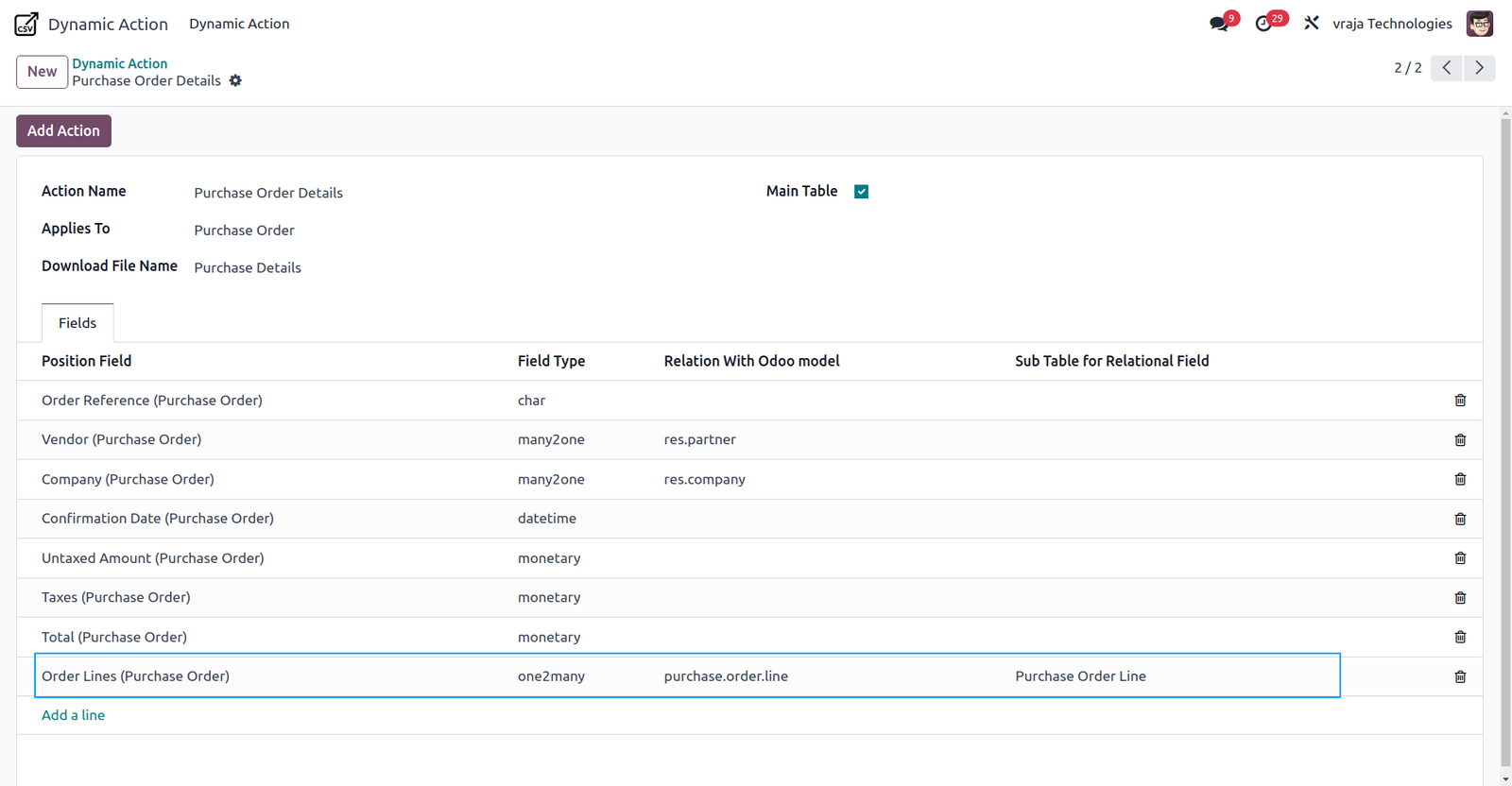
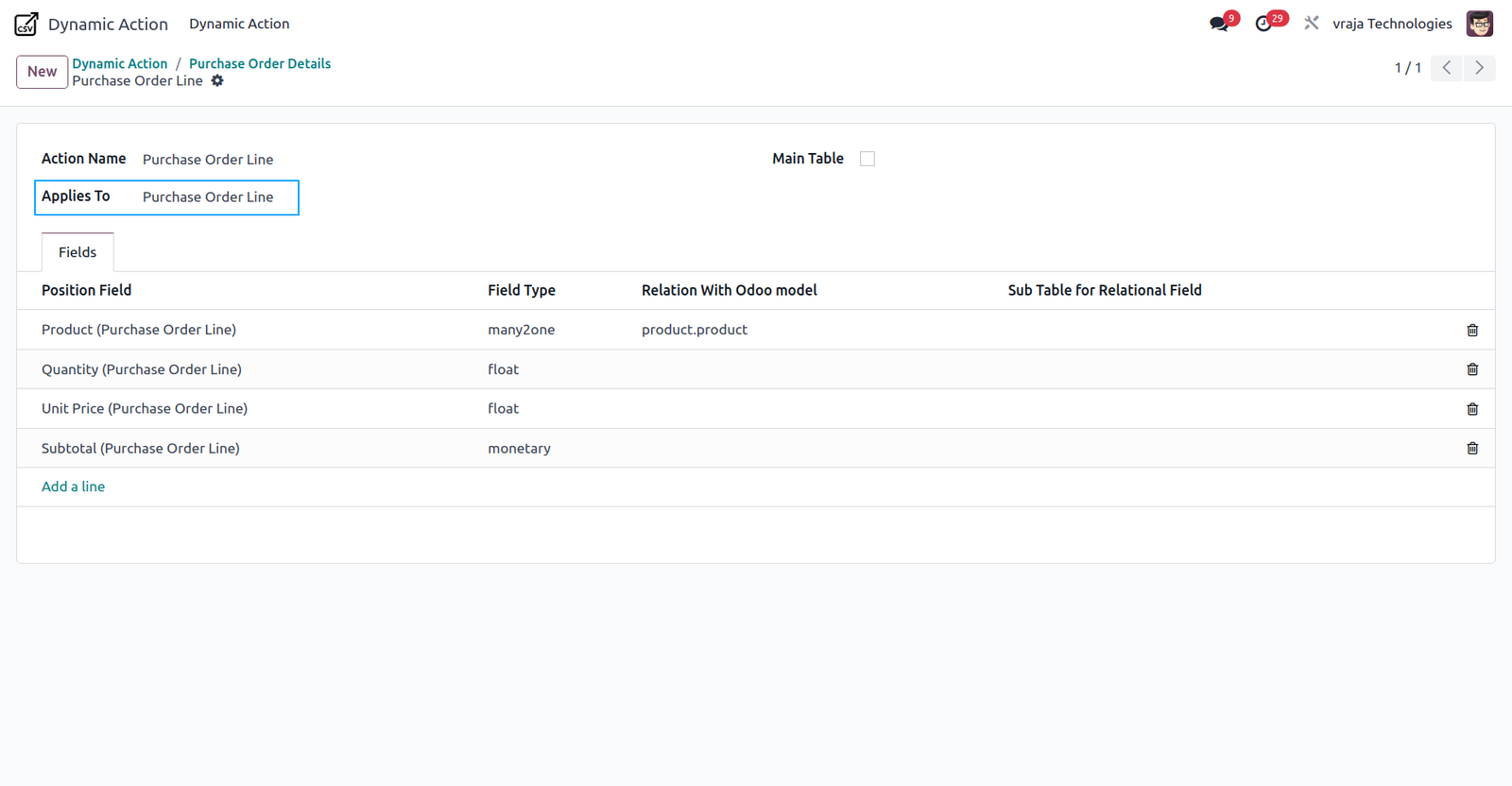
You can select sub table’s any fields.
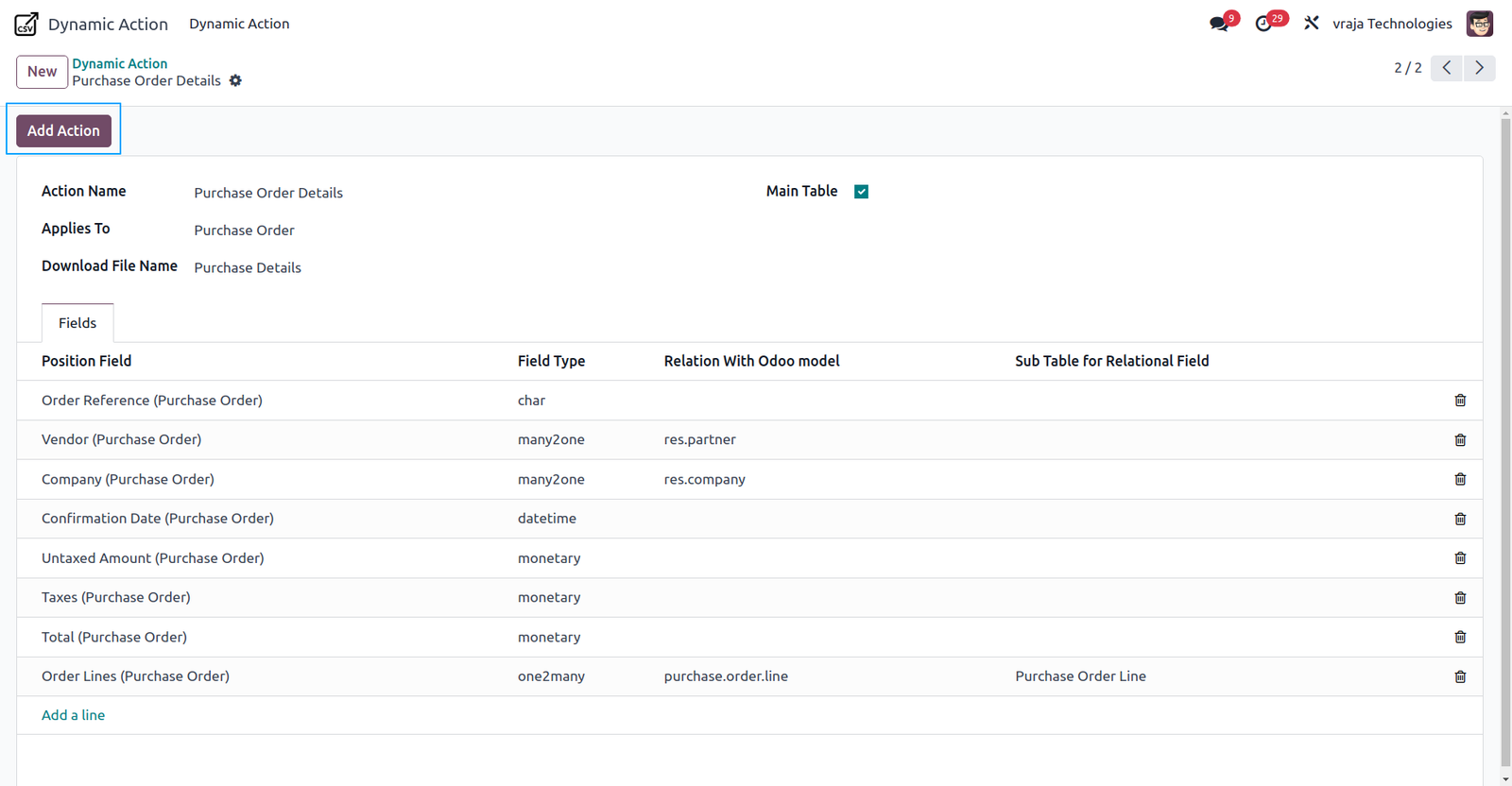
After selecting all fields, press ‘Add Action’ button to add action in the appropriate model.
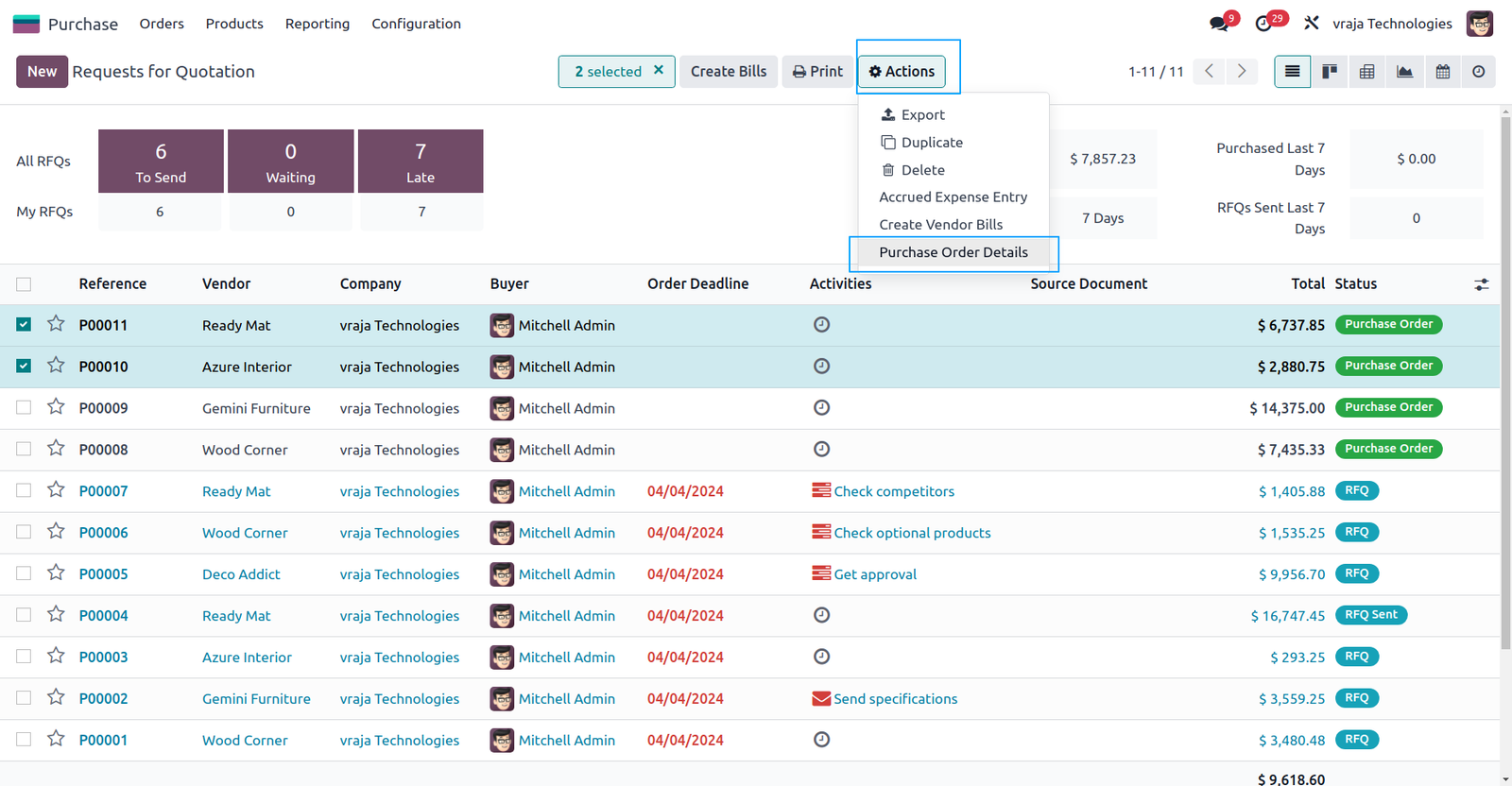
Go to that model & open action menu, you can see that action. When you select it, you will have the option for export.
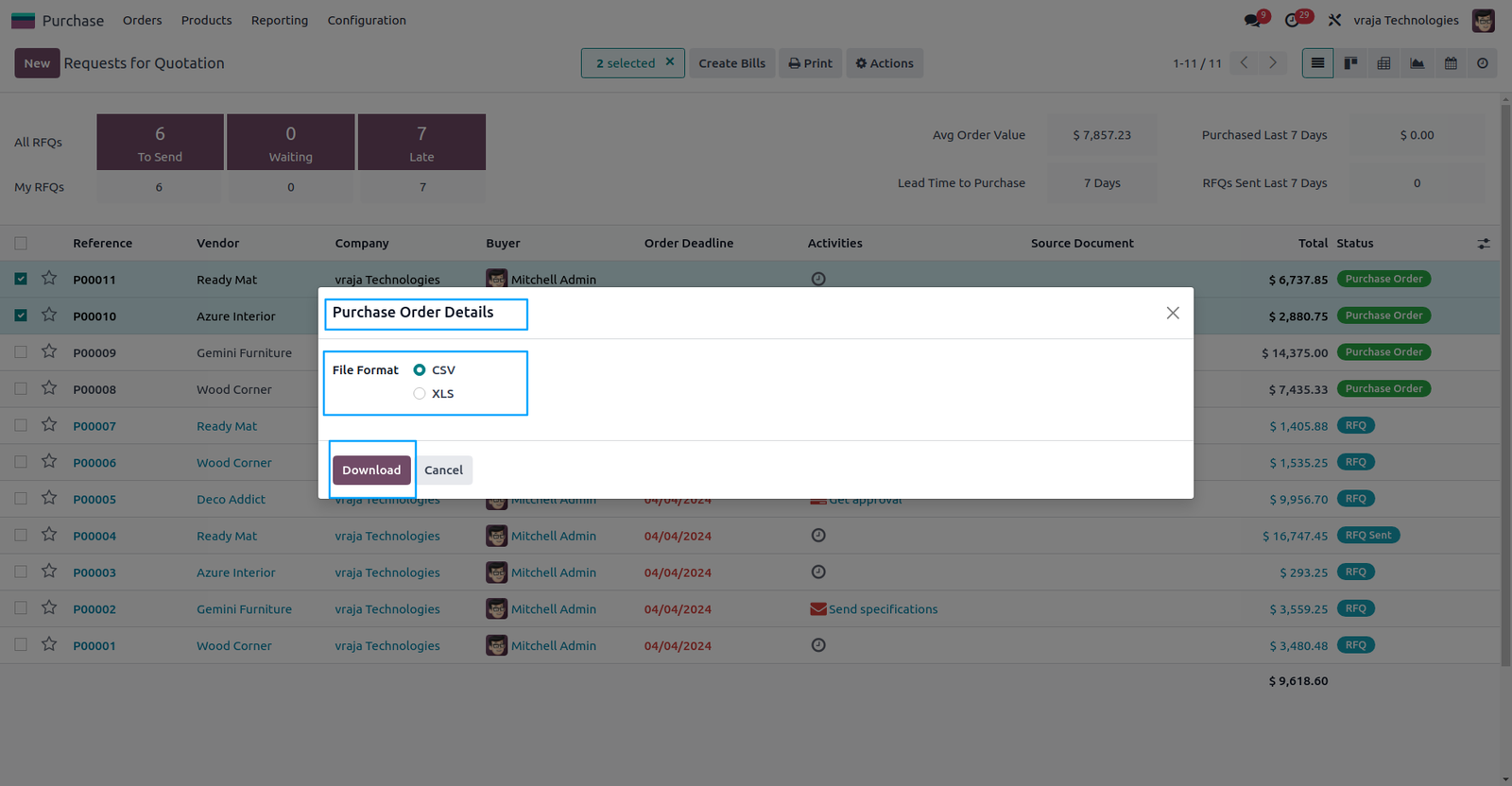
You can select a desired file format for export data & press on download button. (This time CSV file format.)
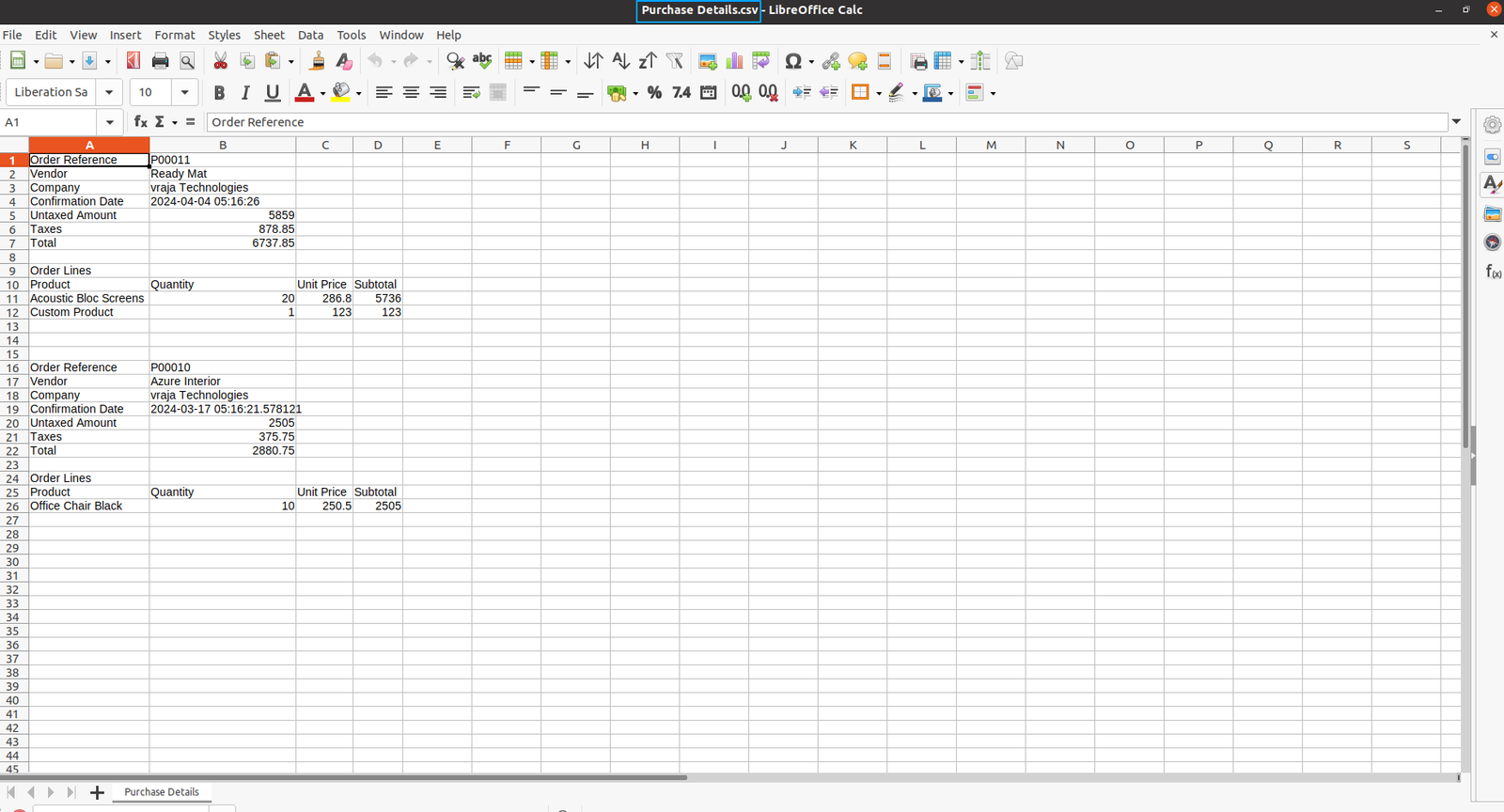
The exported CSV file appears as shown below:
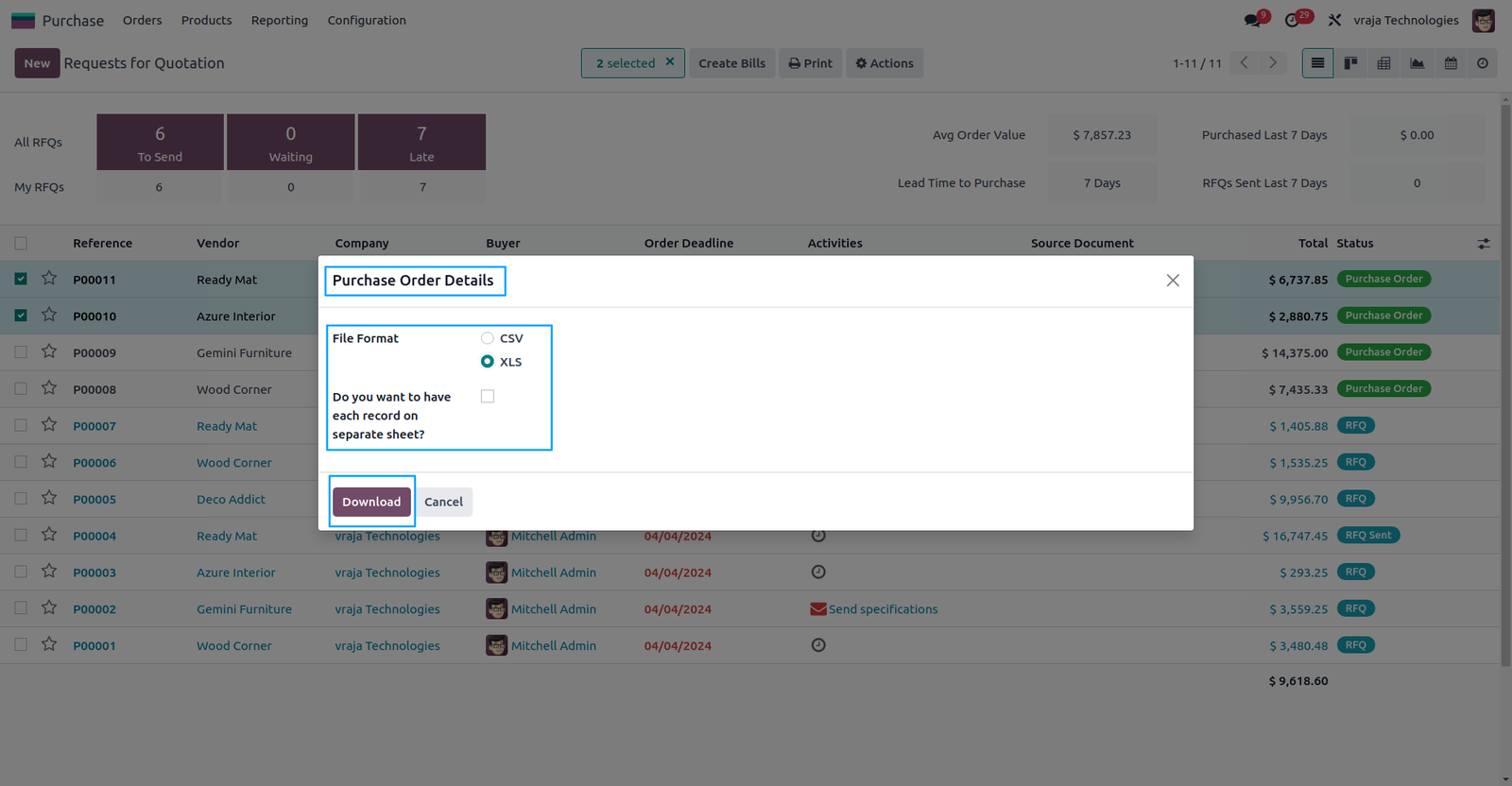
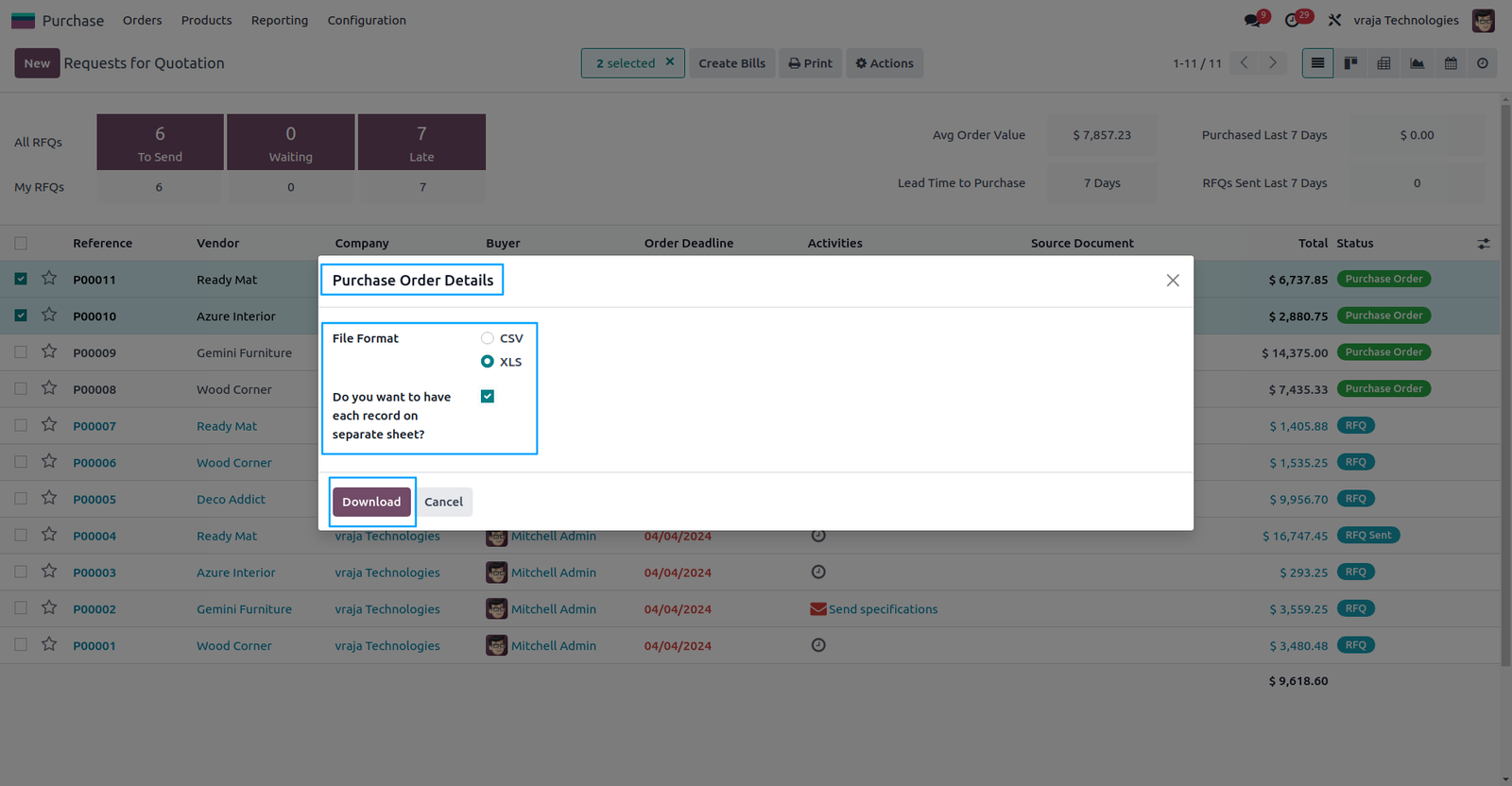
You can select a desired file format for export data & press on download button. (This time XLS file format.)
With XLS file format, there is one option. You have a choice to export records in separate sheets.
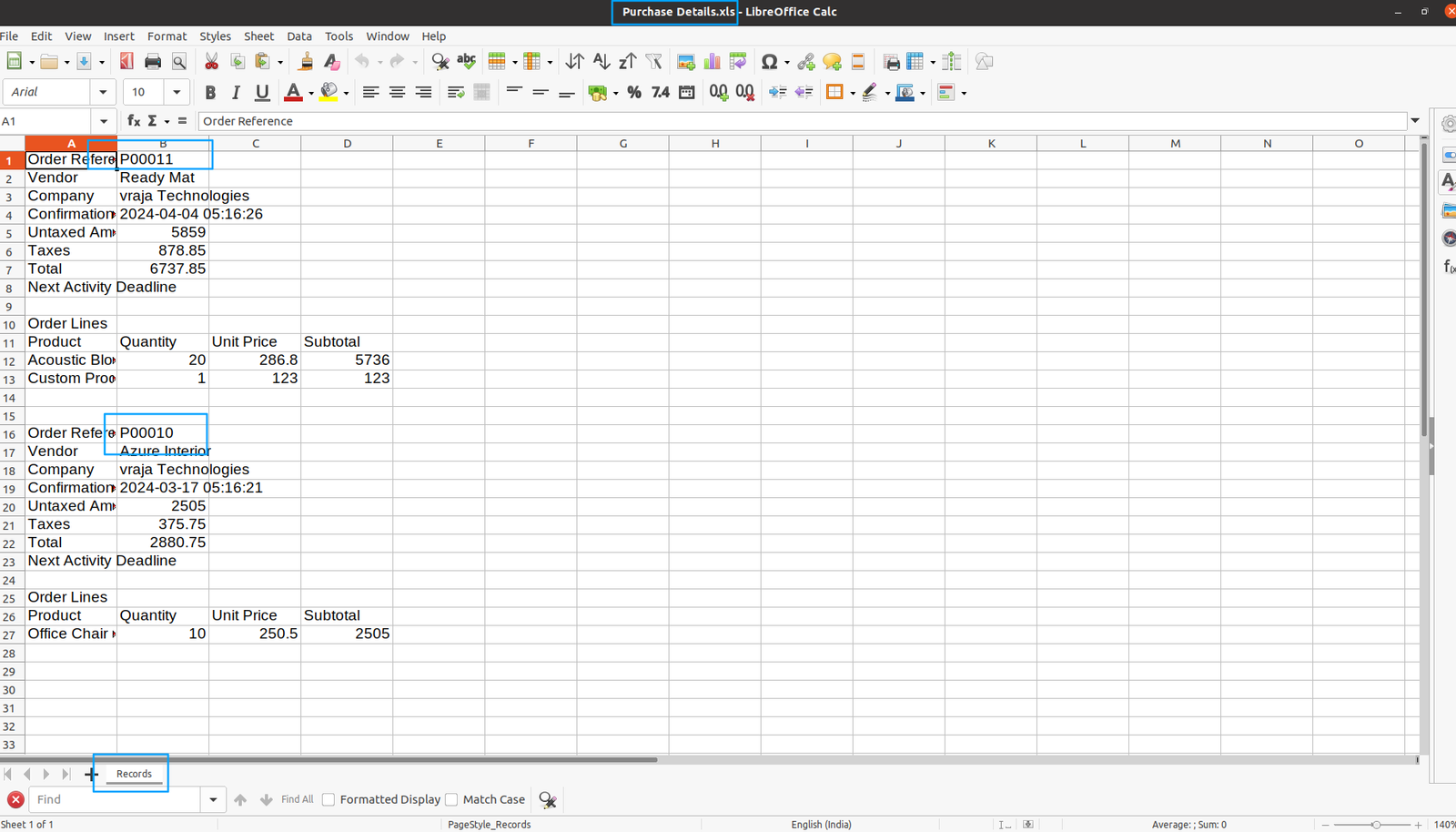
The exported XLS file with a single sheet appears as shown below:
You can select a desired file format for export data & press on download button. (This time XLS file format.)
With XLS file format, there is one option. You have a choice to export records in separate sheets. (This time with a separate sheet.)
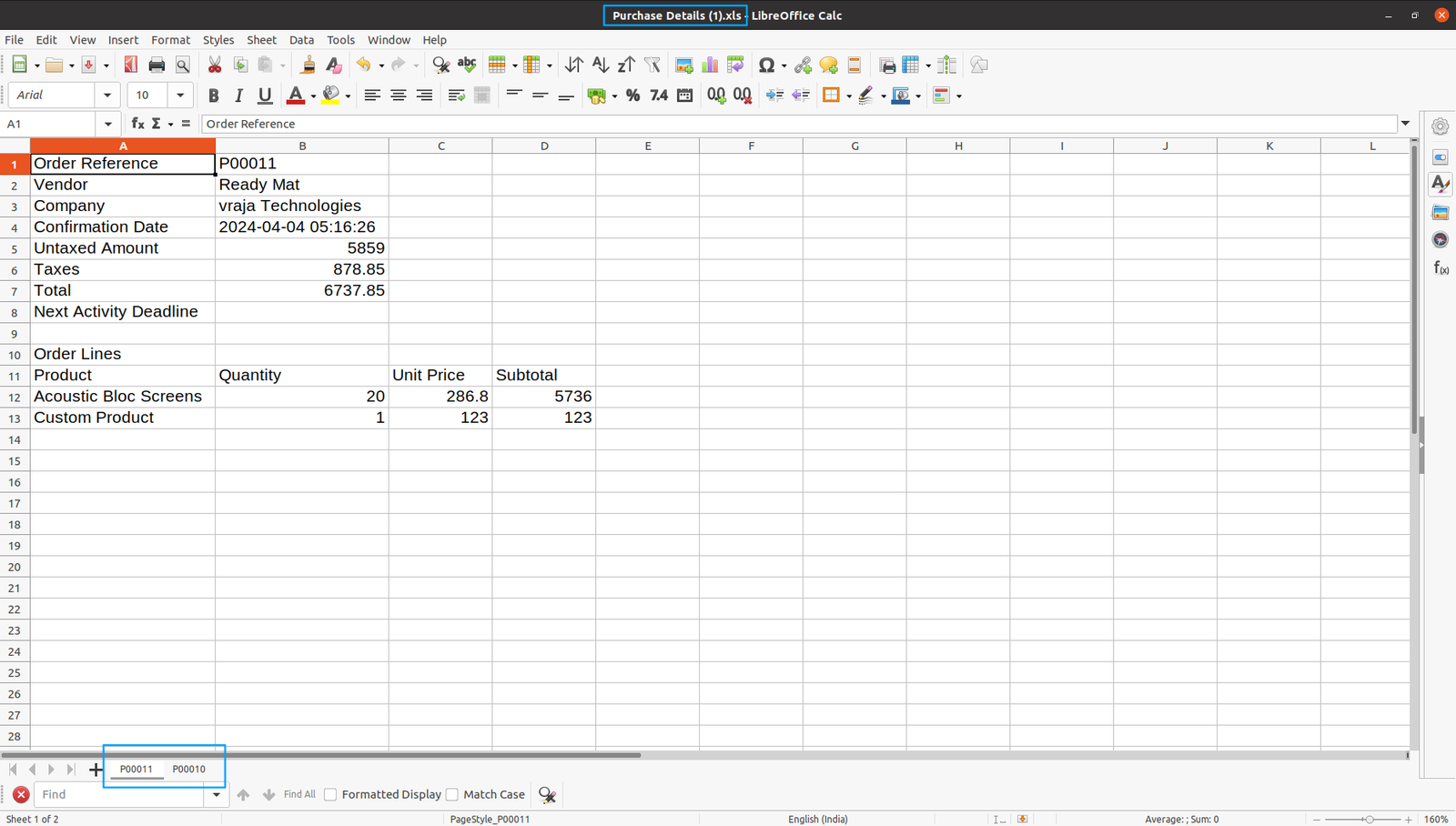
The exported XLS file with separated sheets appears as shown below:
 I would like to request a custom feature for this application. What’s the process to get it implemented?
- We’re happy to help tailor the application to meet your business needs! You can reach us via sales@vrajatechnologies.com
Who is the point of contact for technical support, configuration support or bug-related queries?
- You can reach us via support@vrajatechnologies.com
Submit a Support Ticket
If you encounter any issues while using our app that are caused by the app itself, we offer complimentary support for 90 days from the date of purchase.
To create a support ticket, please register via the Vraja Technologies Support Email and provide the necessary details so we can assist you in resolving the issue.

Email Us
support@vrajatechnologies.com

 1.png)
Contact Us
vrajatechnologies.com/contactus

Support
vrajatechnologies.com/support-policy
Vraja Technologies Services

Odoo Implementation

Odoo App Integration Services

Odoo Customization

Odoo Consultation

Odoo Support & Maintenance

Odoo Developer Outsourcing
Suggested Application














Reviews
There are no reviews yet.