
Description
.png)
 Enterprise Community Odoo.sh
Hubstaff Odoo Integration
Integrating Hubstaff with Odoo makes it easy to track and manage your team’s work. This integration enables you to import and synchronize projects, tasks, and time entries from Hubstaff to Odoo, ensuring accurate timesheets and productivity tracking. You can also export projects and tasks from Odoo back to Hubstaff when needed.The module also lets you sync users between both systems. This helps you to track progress and manage work in one place. automate these processes reduce manual data entry, maintain consistency and keep up-to-date information across both Hubstaff and Odoo.
 Watch on YouTube
Hubstaff Key Features
.png)
Effortless import of projects, tasks, & time entries from Hubstaff to Odoo
.png)
Export projects and tasks from Odoo back to Hubstaff easily
.png)
Seamlessly sync users across both platforms in real-time.
.png)
Accurate time tracking with detailed logs for tasks and projects
.png)
Seamless handling of large datasets with pagination support

Centralized project, task, member & time tracking in one place.
We specialize in delivering advanced Odoo solutions across multiple domains. Our expertise includes:

EDI & SWIFT/ACH Payment Integrations
End-to-end EDI automation, including X12, EDIFACT, XML standards, & financial integrations such as SWIFT, ACH, & Fedwire.


eCommerce Integrations
Seamless integration with leading eCommerce platforms to sync products, orders, inventory, and customer data in real time.

Shipping Integrations
Robust shipping connectors for global couriers, offering automated label generation, tracking, and rate computation.

Most Useful Apps for your ERP
A wide range of highly-rated Odoo modules designed to enhance automation, improve productivity, & simplify business operations.
 Features
 Configuration
 Import
 Export / Update
 FAQs
FAQs
Features
Import Operations (Hubstaff to Odoo)
- Import projects, tasks, and time entries from Hubstaff into Odoo.
- Sync team members/users from Hubstaff into Odoo.
- Automatically handle large datasets with pagination to ensure all records are imported.
- Receive instant updates in Odoo via webhooks whenever new project and task are created in the hubstaff.
- Keep Odoo data always up-to-date with Hubstaff.
- Automate the import process using a scheduled cron job to run at defined intervals.
Export Operations (Odoo to Hubstaff)
- Export projects and tasks from Odoo to Hubstaff.
- Update existing projects or tasks in odoo from hubstaff.
- Maintain correct mappings to avoid duplicates or data conflicts.
- Automate the export process using a scheduled cron job to run at defined intervals.
Odoo – Hubstaff Synchronization
Projects
Import / Export
Tasks
Import / Export
Time Entries
Import
Project
Import / Export / update
Task
Import / Export / update
Time Entries
Import
User
sync
Projects
Import
Task
Import
Hubstaff Benefits
Increased Productivity:
Automated import of projects, tasks, and time entries reduces manual effort and minimizes data inconsistencies.
Better Project Management:
Up-to-date project and task information helps managers monitor work status, allocate resources efficiently, and make informed decisions.
Centralized Work Management:
Manage projects, tasks, and time entries from a single system, improving operational control and reporting accuracy.
Scalability:
You can easily manage and scale your business operations as it grows.
Instance creation process with it’s configuration
 Setting up the Hubstaff Instance in Odoo (From this button you can create new instance)
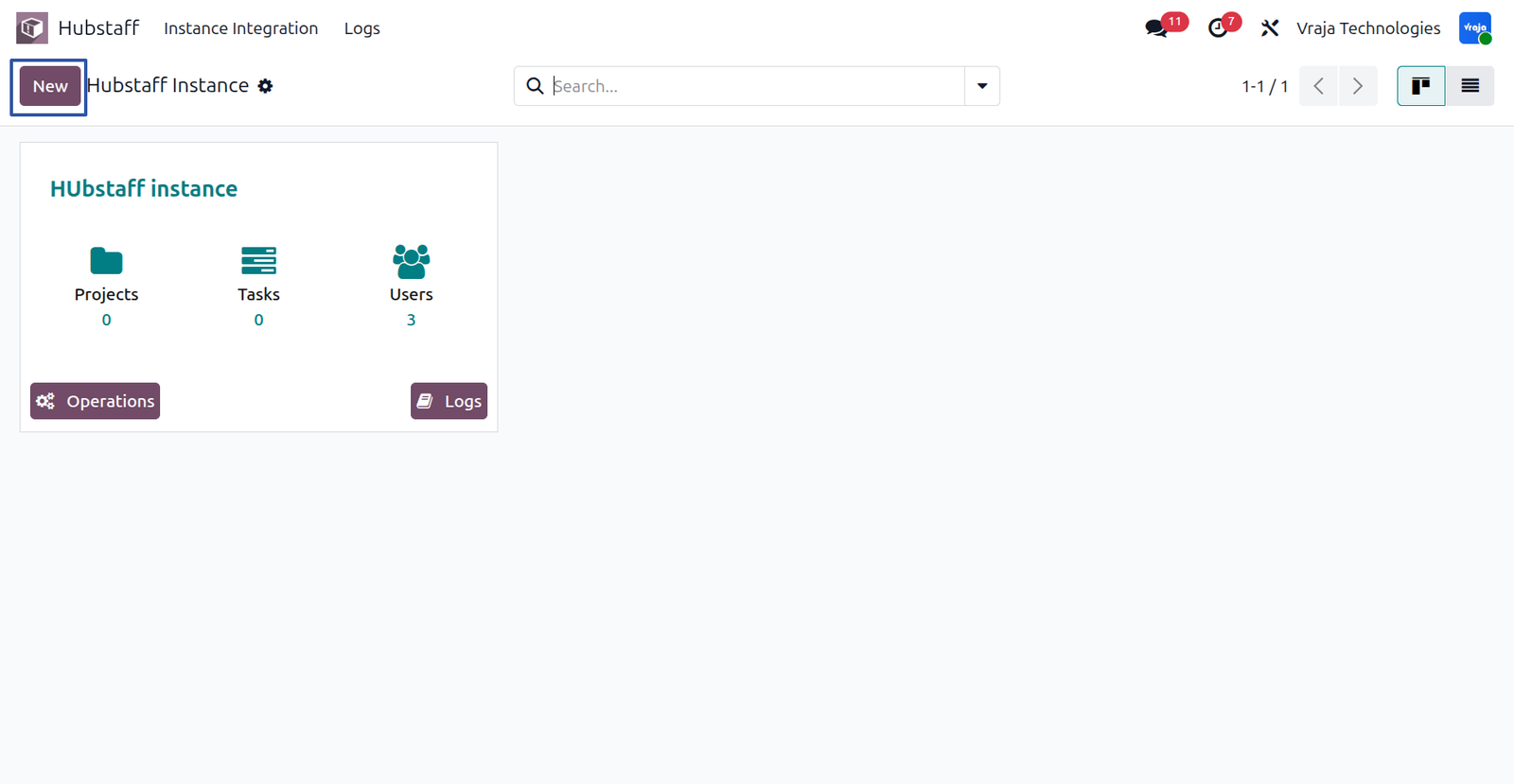
In the instance configuration, set the Instance Name, Company, Client ID, Client Secret Key, and Redirect URI. The Redirect URI should be your live URL from which the Hubstaff synchronization will be performed.
You can obtain the Client ID and Client Secret Key from Hubstaff. Enter these credentials in the respective fields and save the configuration to complete the setup.
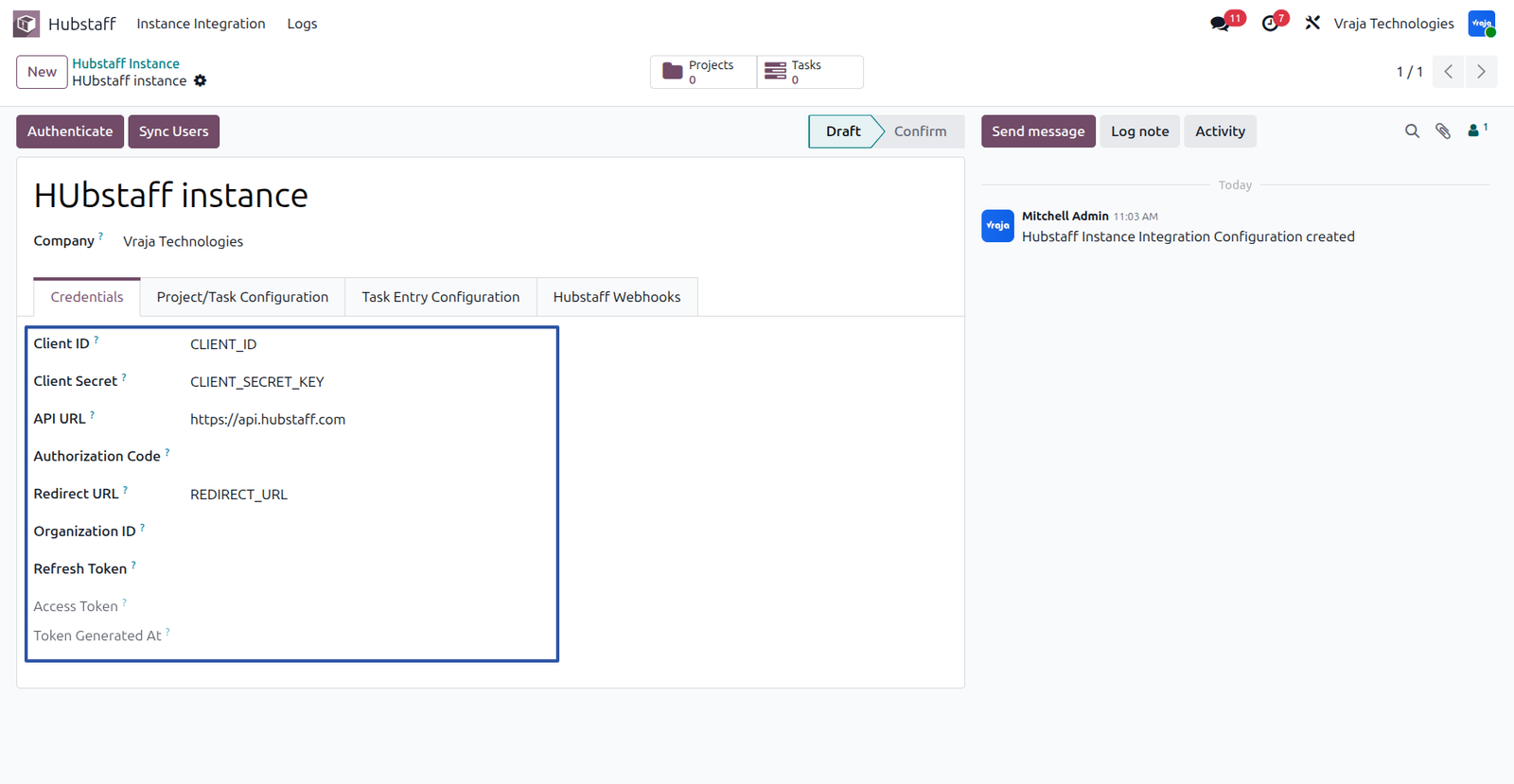
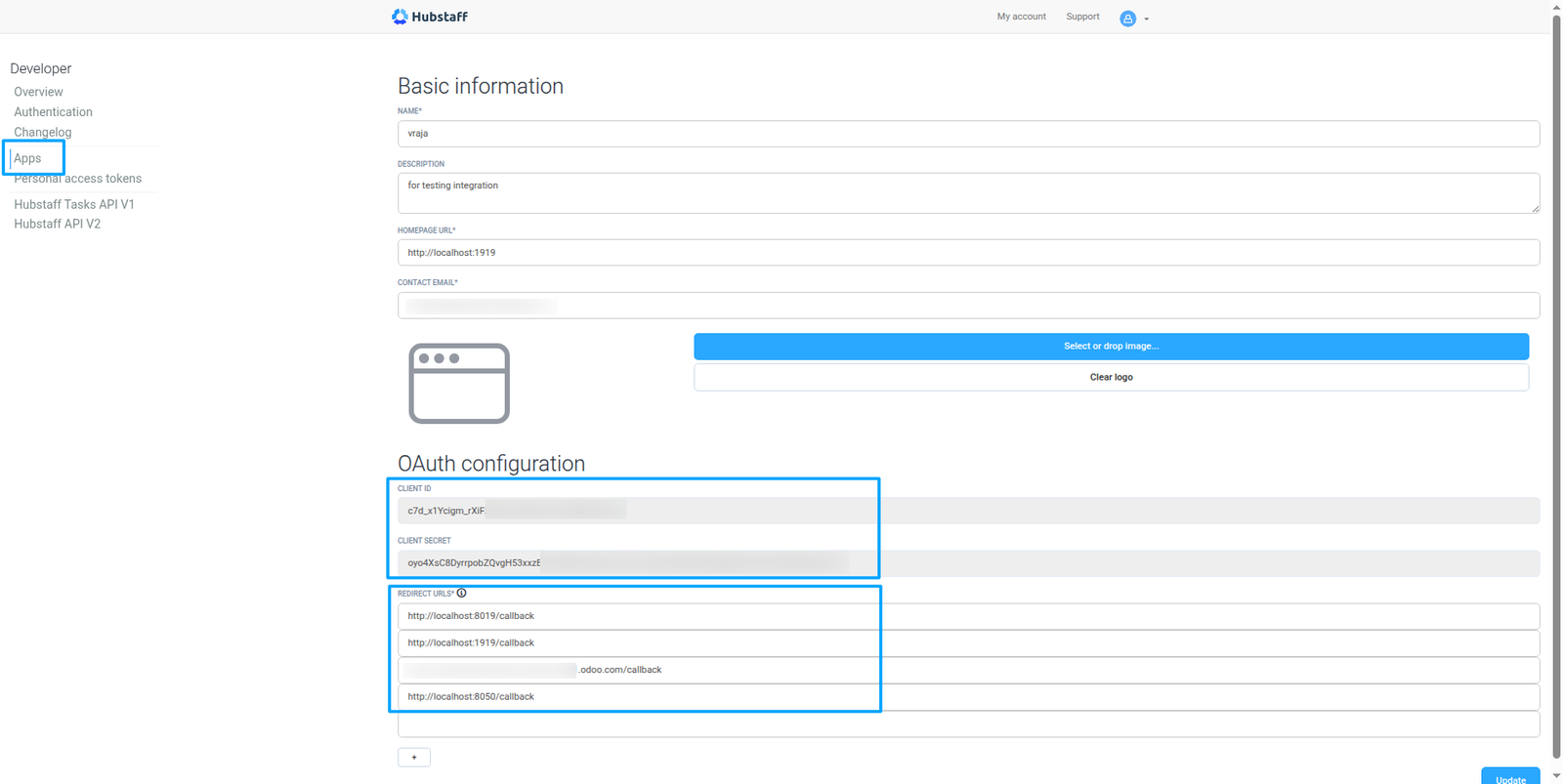
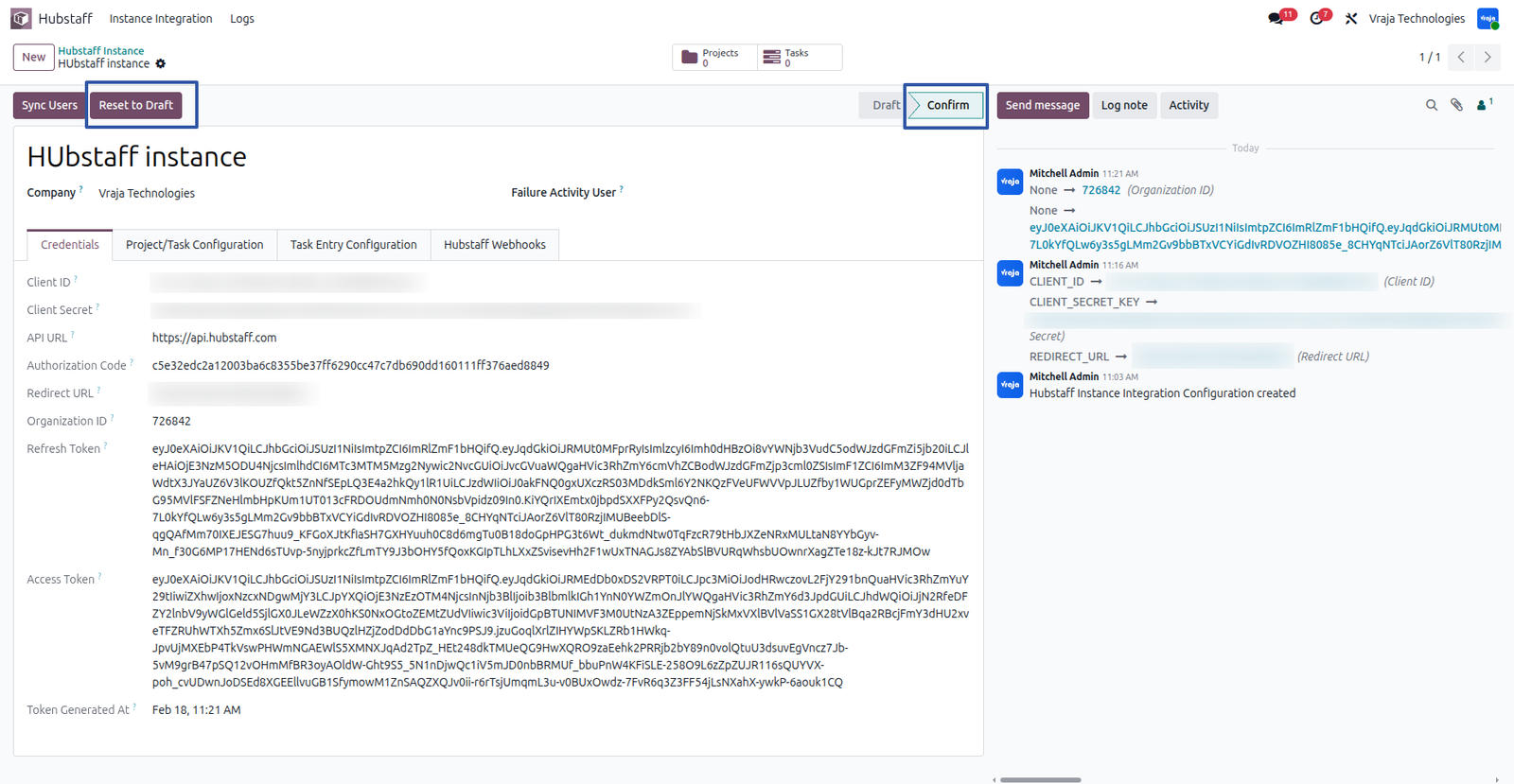
After clicking the Authenticate button, you will be redirected to Hubstaff. If prompted, sign in to your account and authorize the application from the authorization popup. Once authorization is completed, you will be redirected back to Odoo, where the required fields such as Authorization Code and Access Token will be automatically filled.
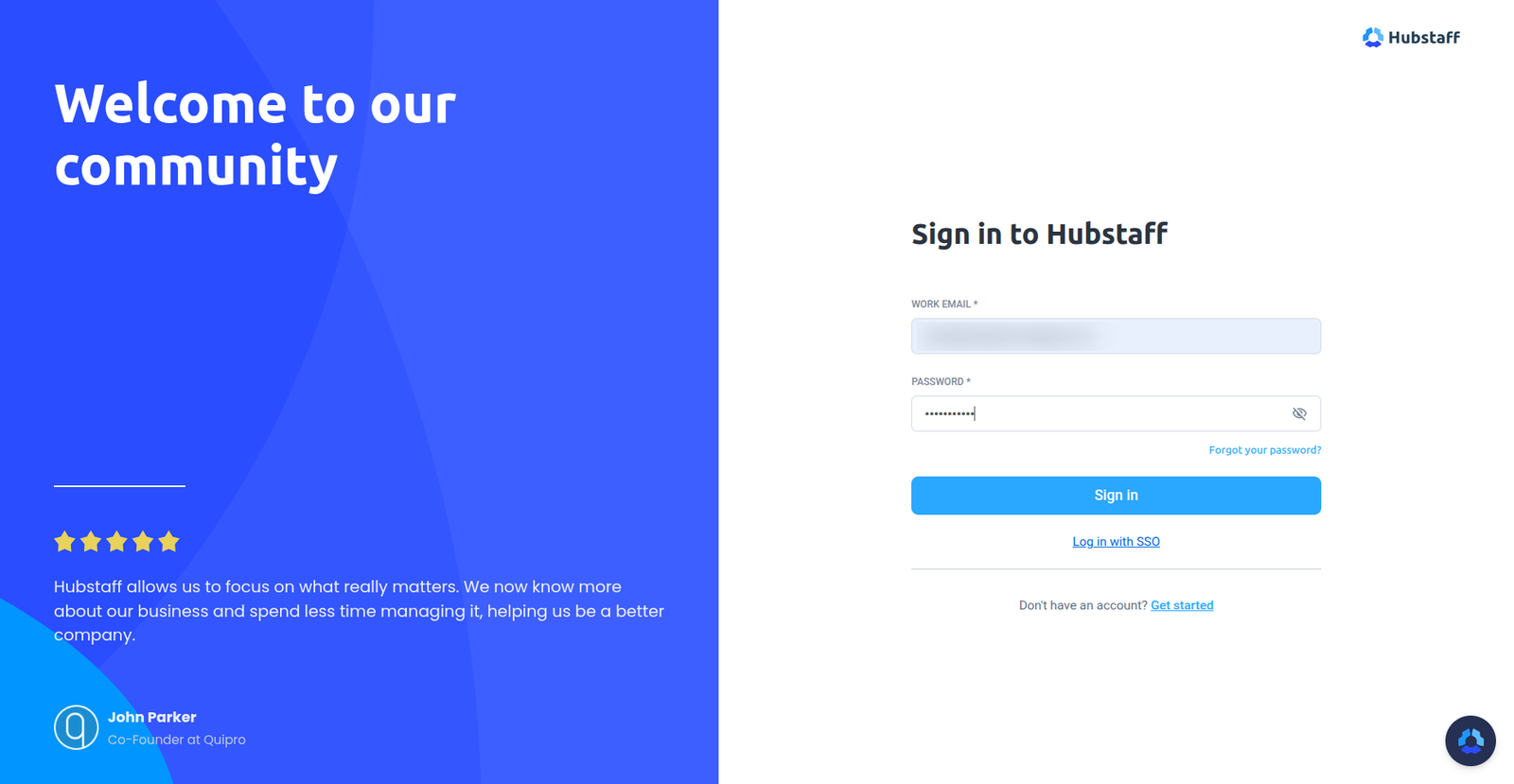
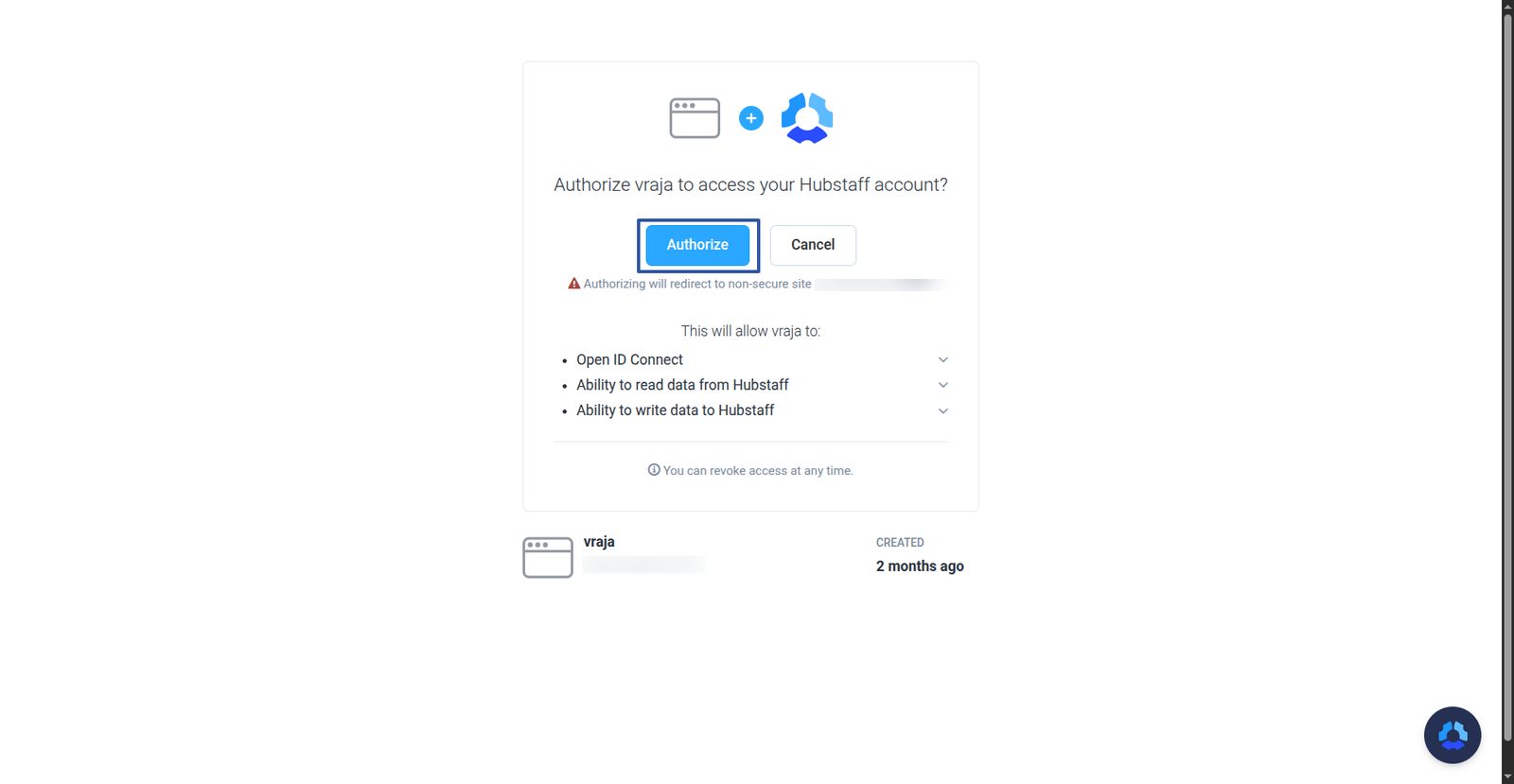
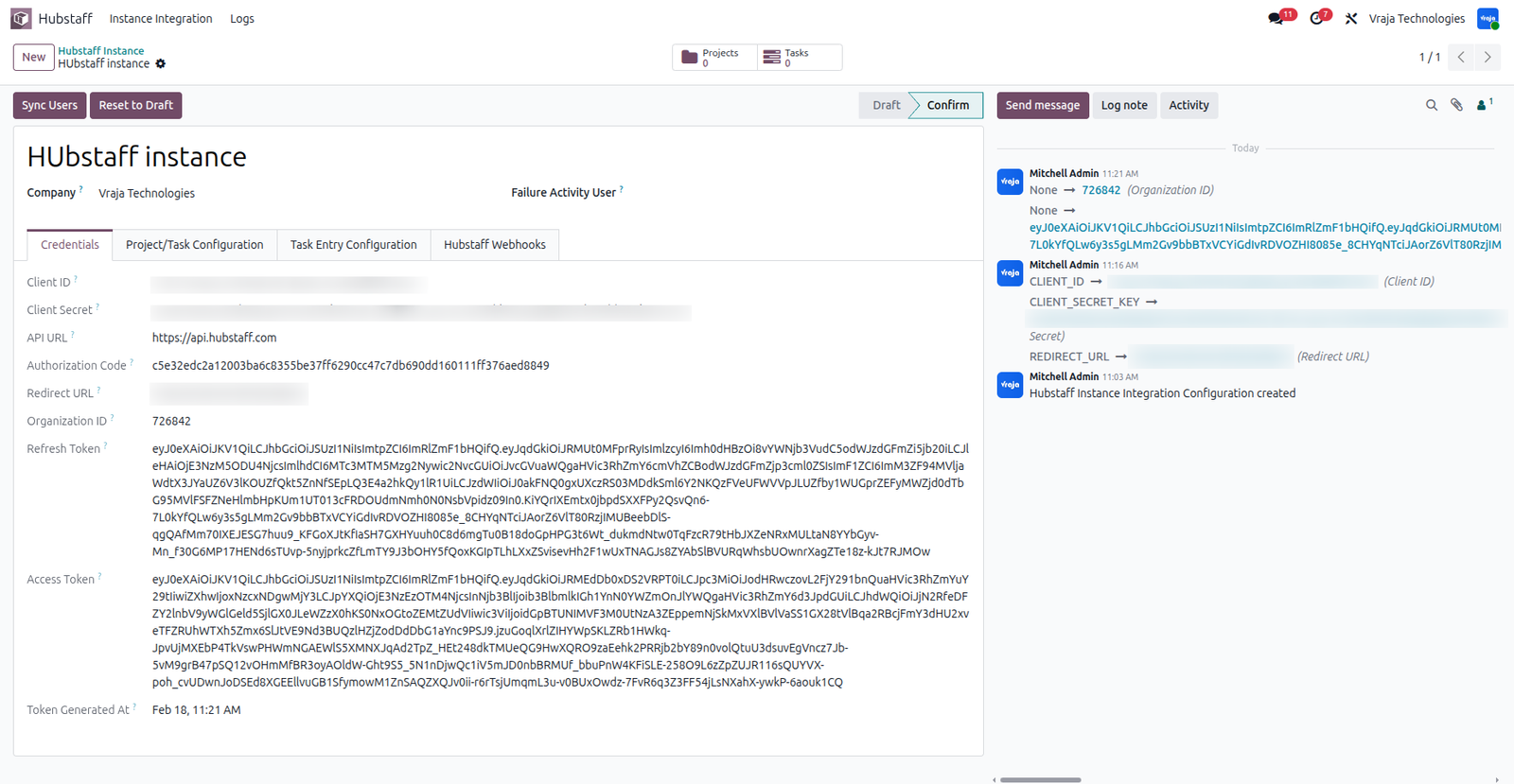
Once authentication is completed, the state is set to Confirmed. If you need to update the credentials later, click Reset to Draft, make the required changes, and authenticate again in Odoo.
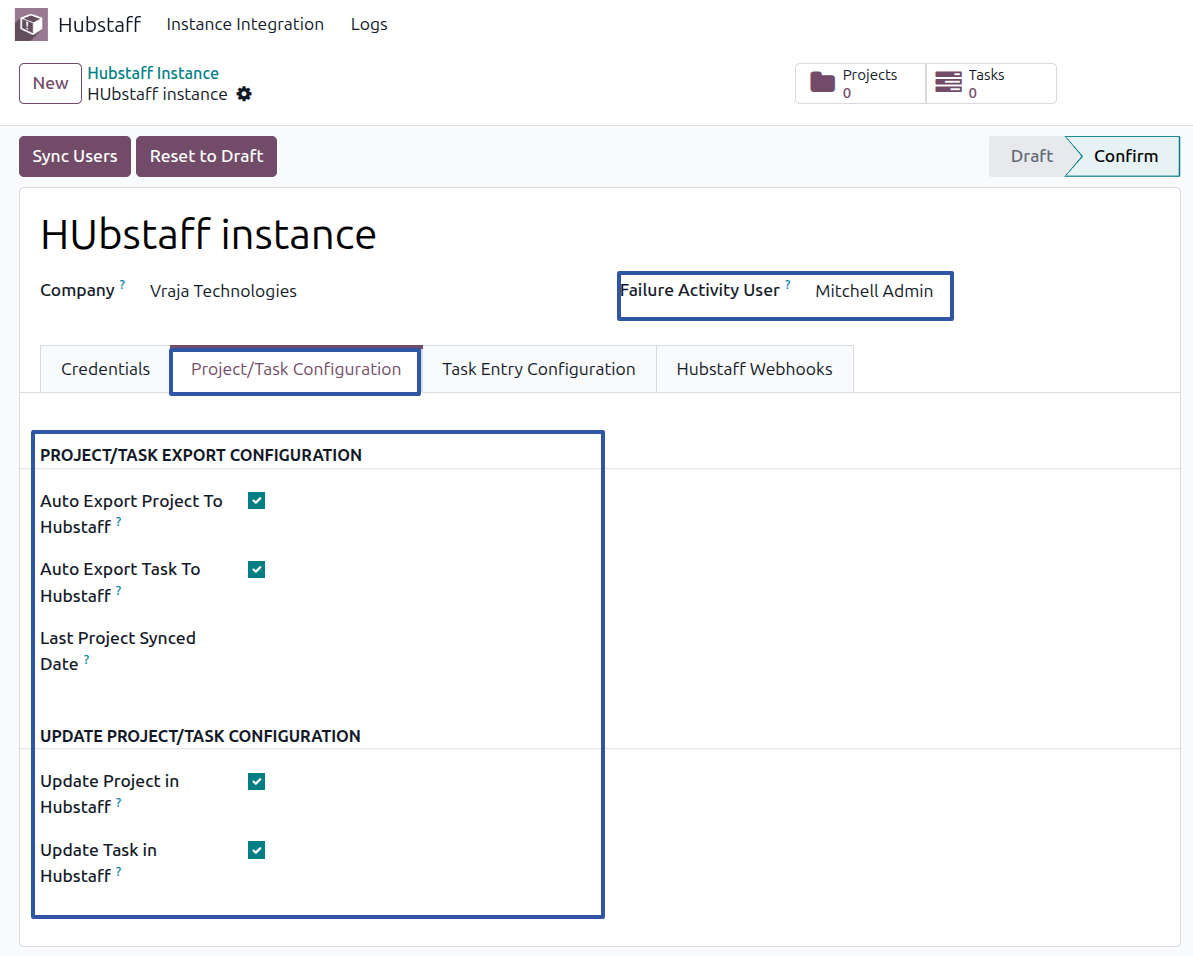
In the instance Project/Task Configuration, enable the options as per your requirements. Additionally, select a Failure Activity User — if the export process fails, an activity will be automatically created for the selected user.
In the instance Task Entry configuration

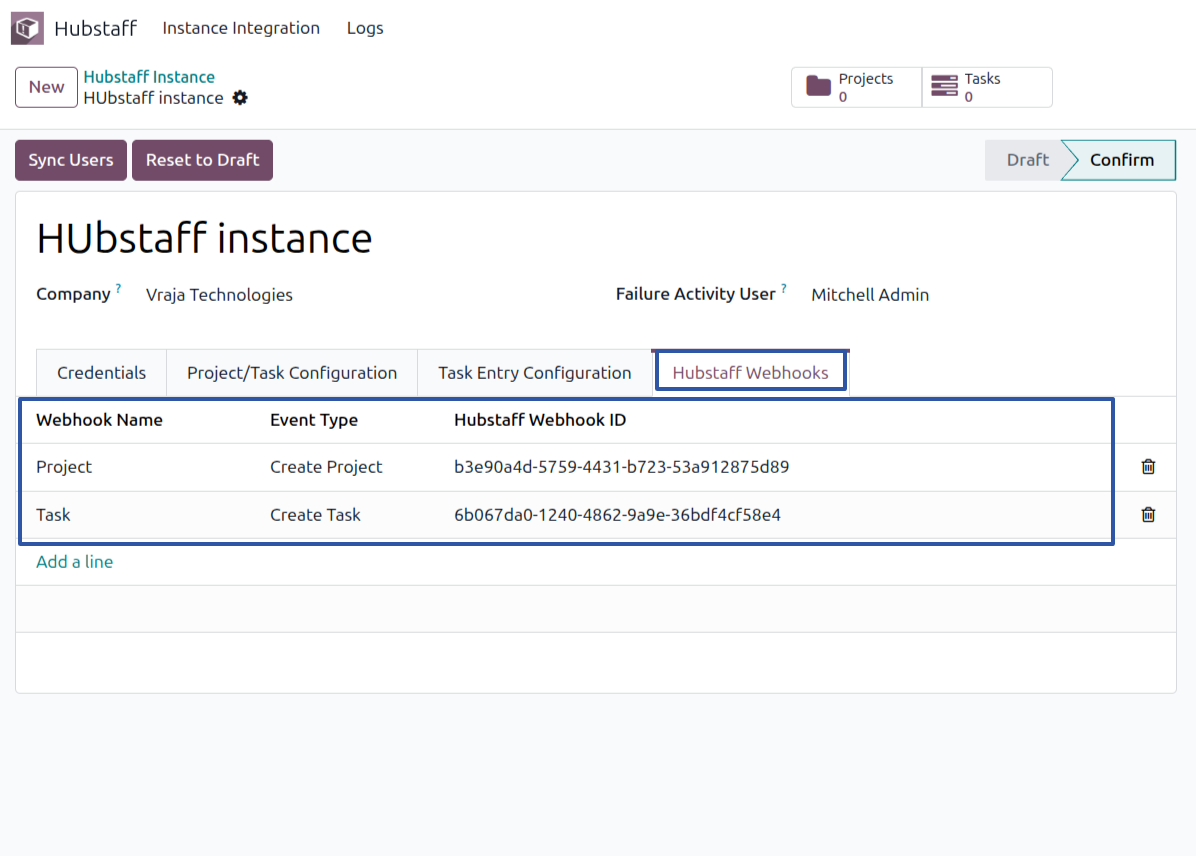
In instance Hubstaff webhooks configuration
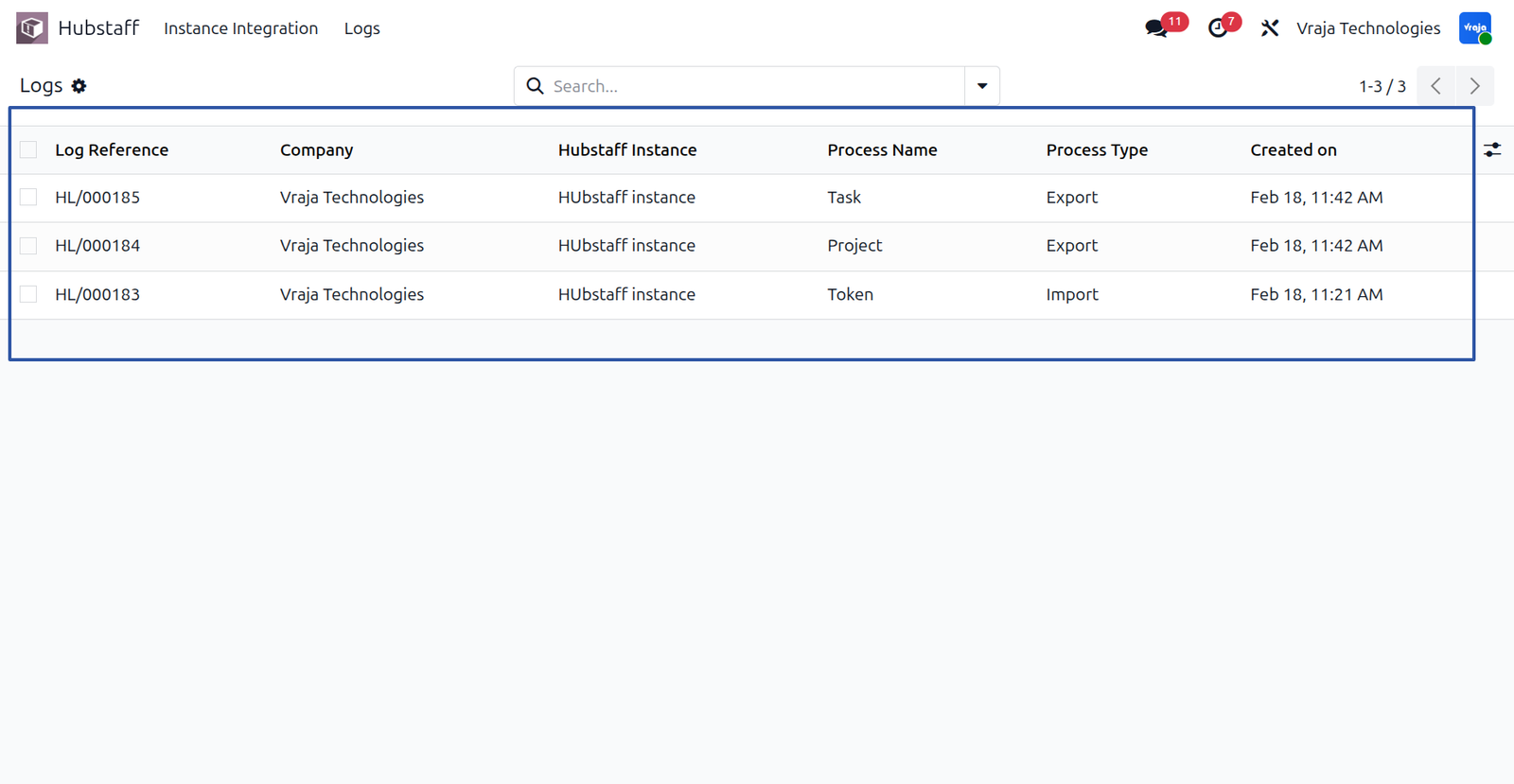
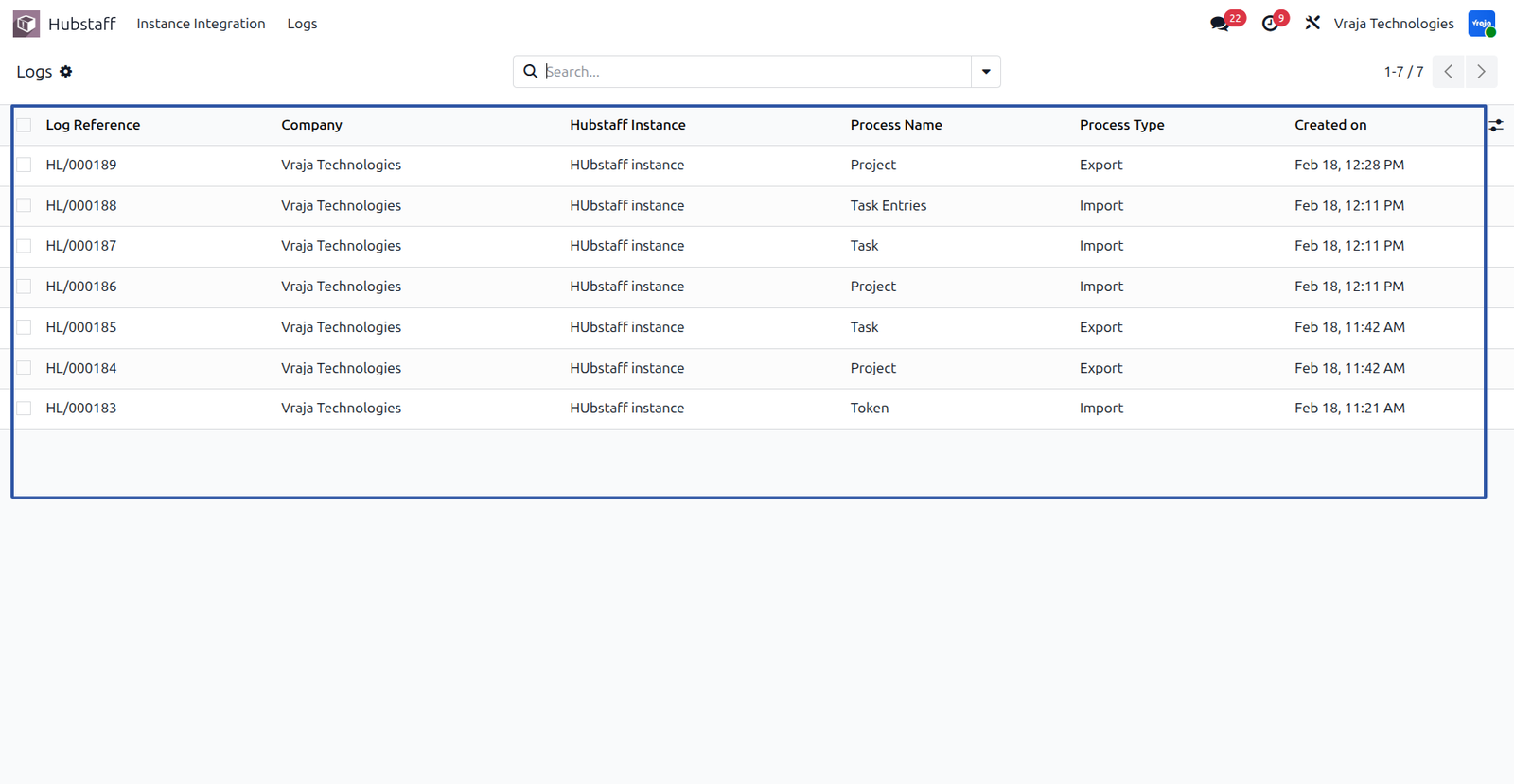
From the Log menu, you can view logs for all processes and review both successful and failed operations from there.
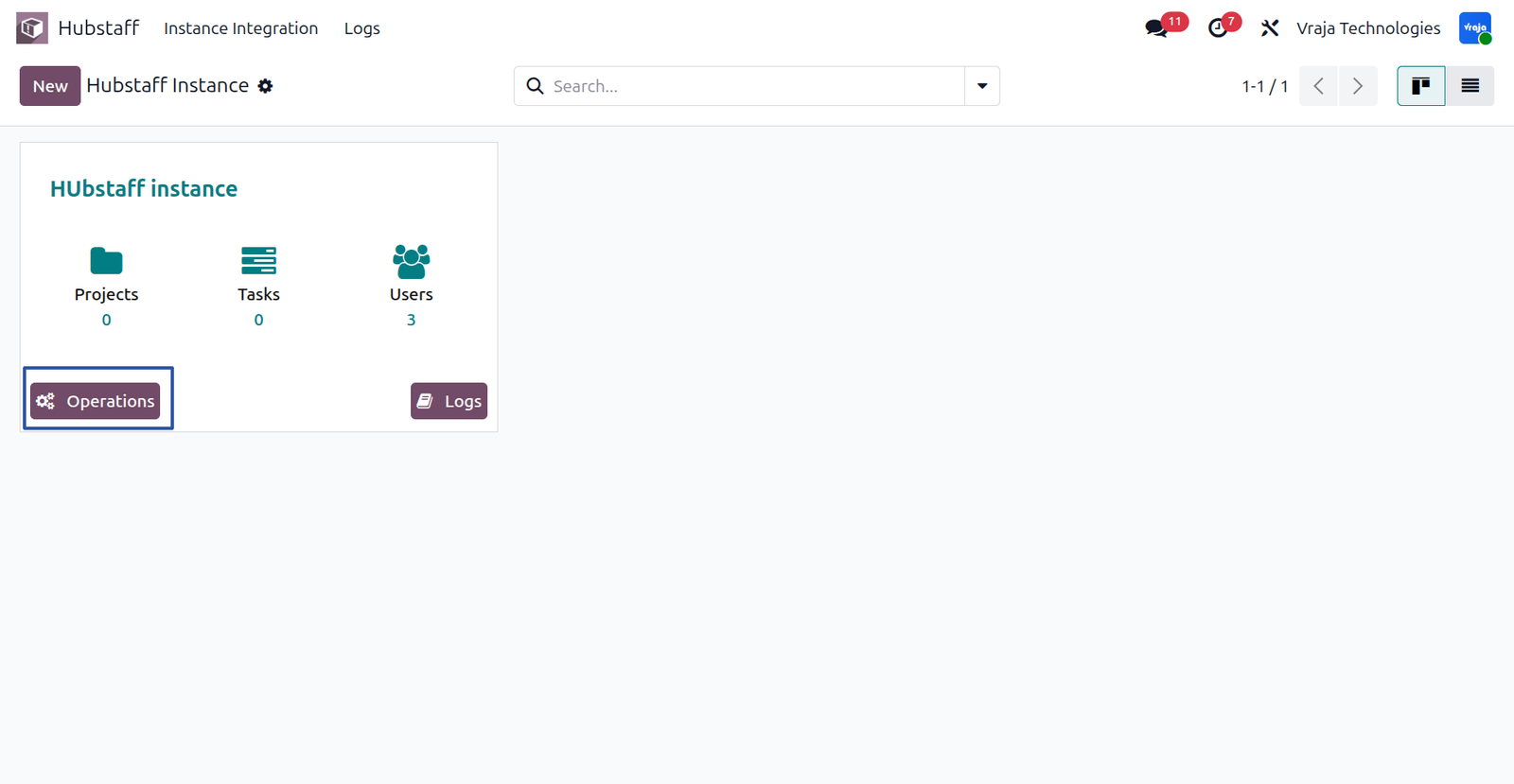
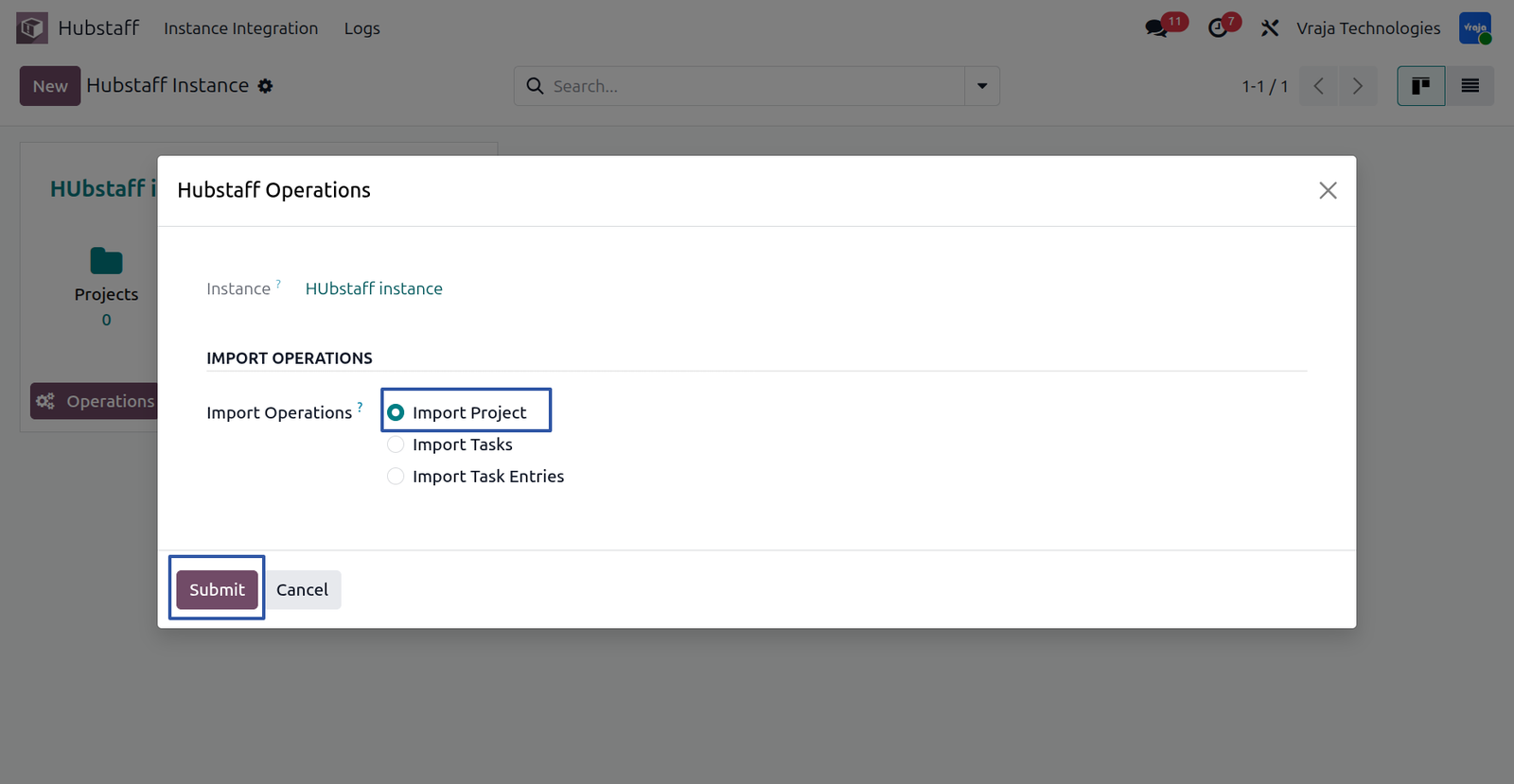
Import Project process
By clicking on the Operation button, you can perform the Import Project process.
Import Task process
Similarly, you can use the Operation button to perform the Import Task process.

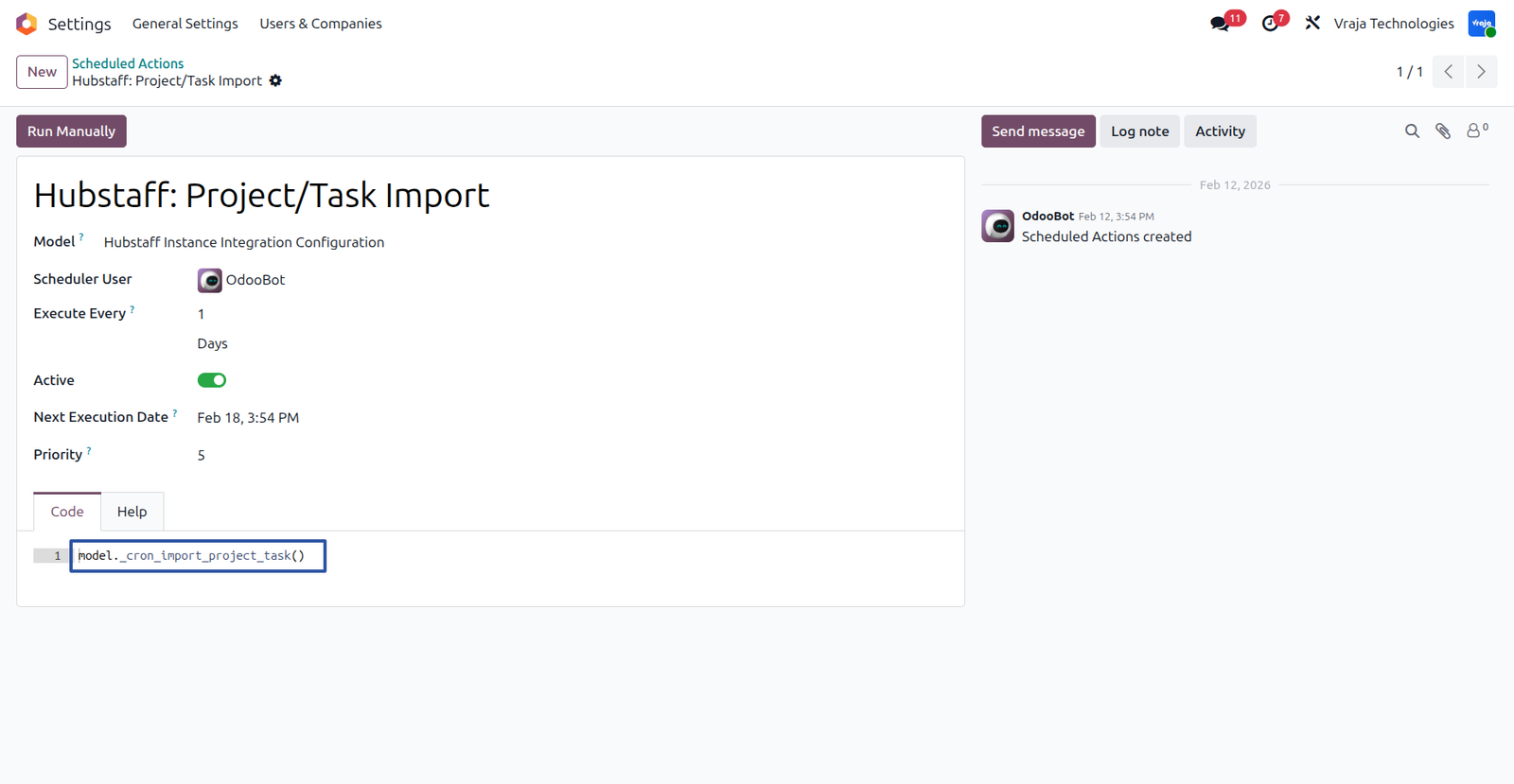
Also, have automated actions to automatically import projects and tasks at defined intervals.
Import Task Entry process
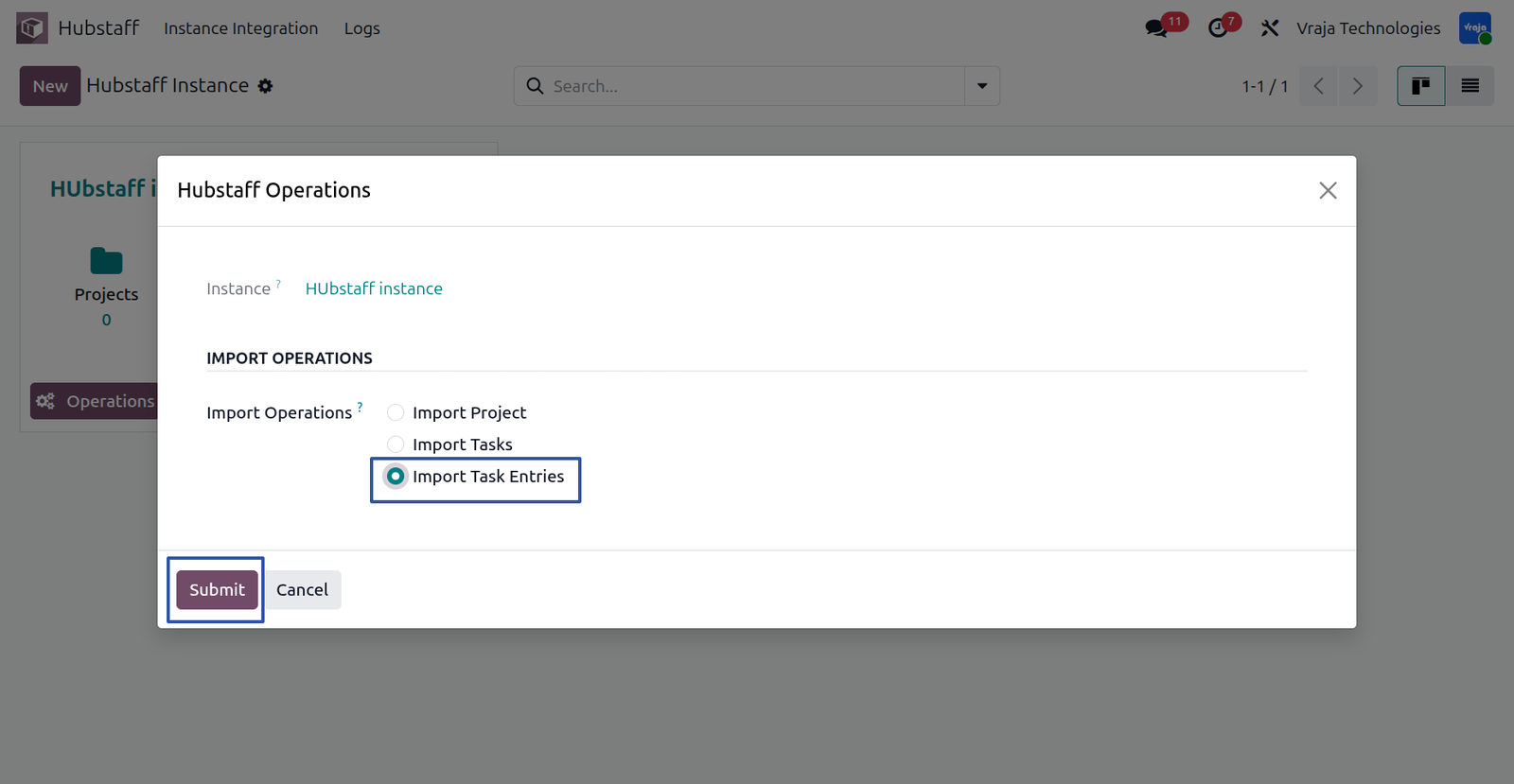
Also , you can import Task Entries, and for that also automation actions are available to schedule automatic task entry imports.
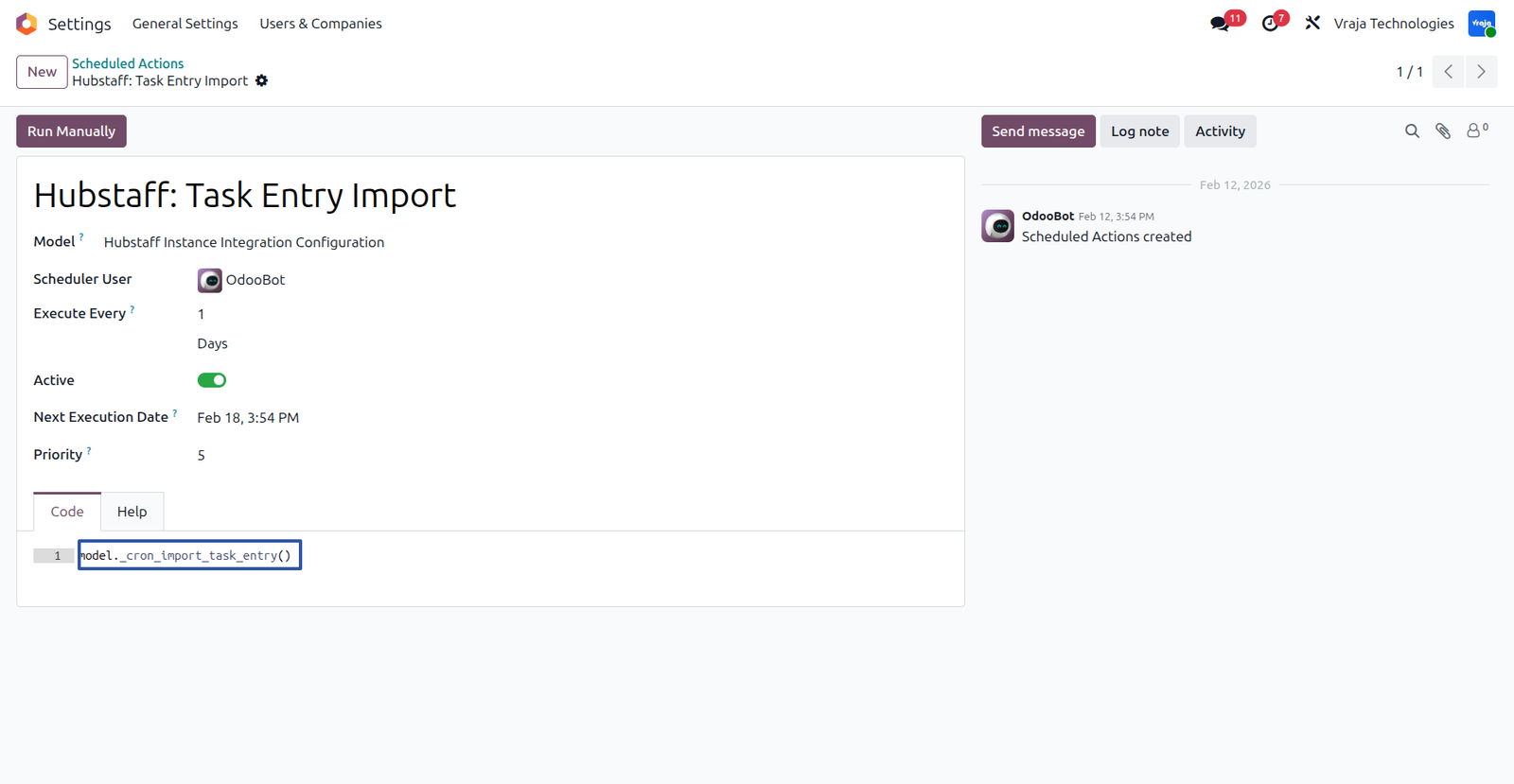
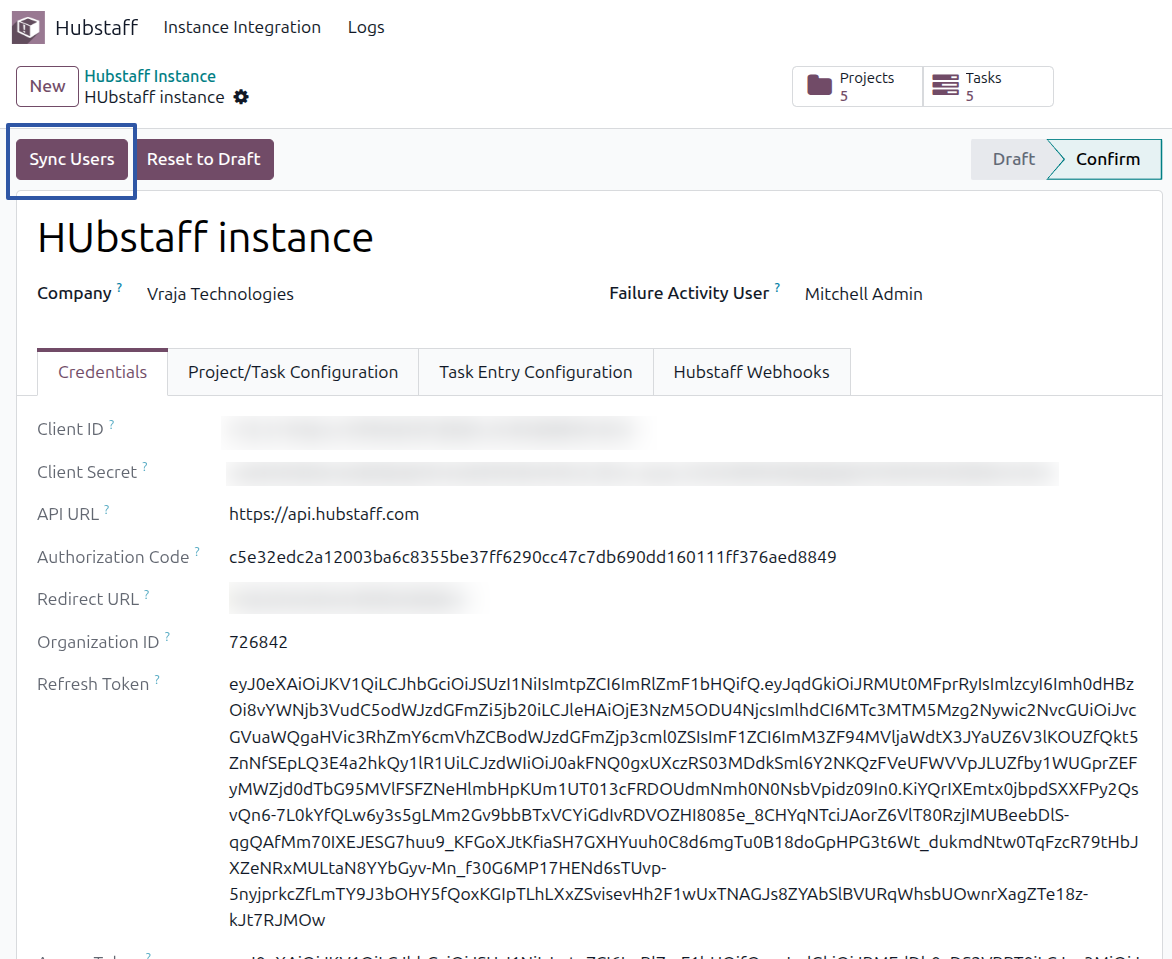
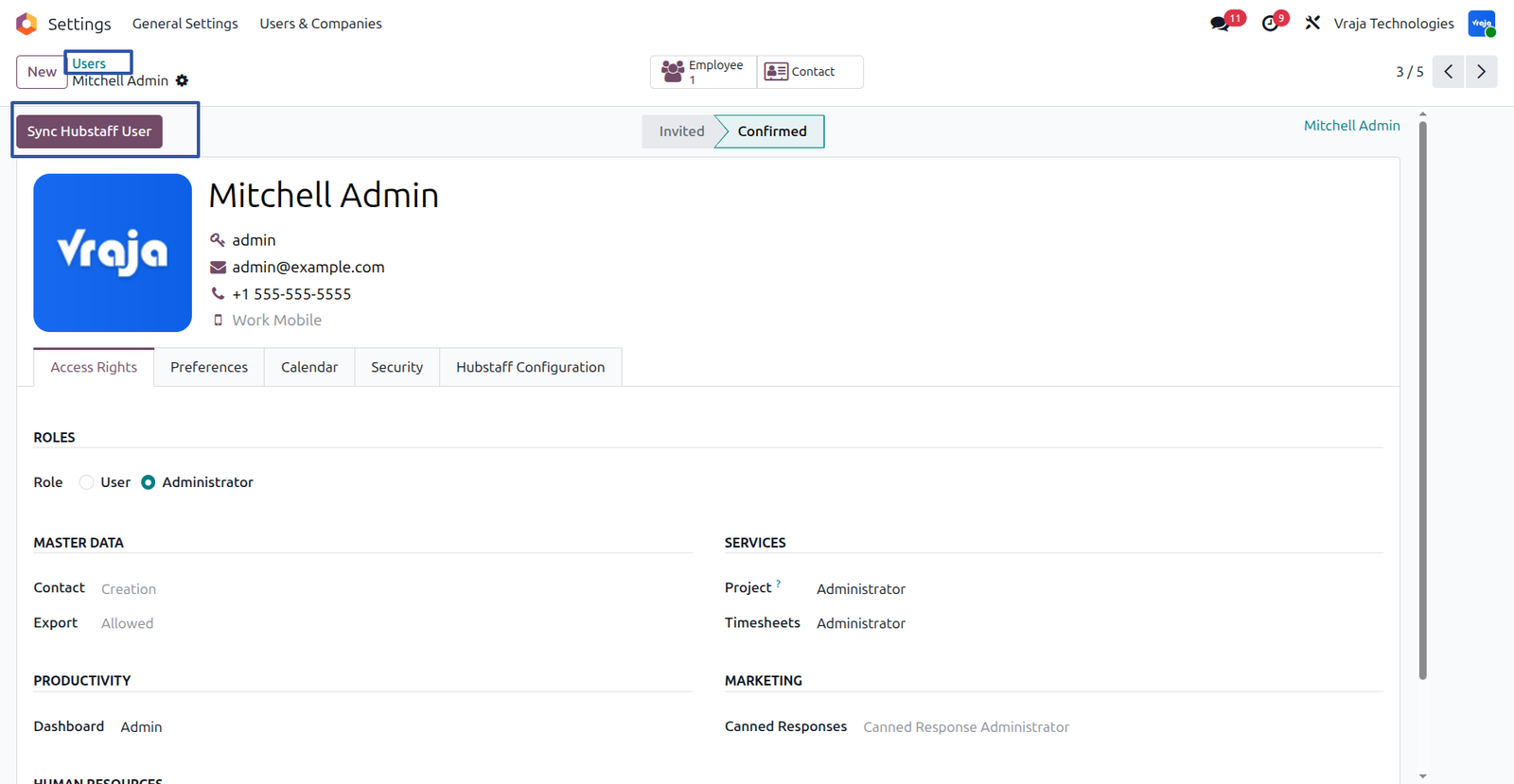
Sync User Process
Clicking the Sync User button at the instance level allows you to sync all users with Hubstaff. Additionally, the same option is available at the user level, allowing you to sync a specific user individually.
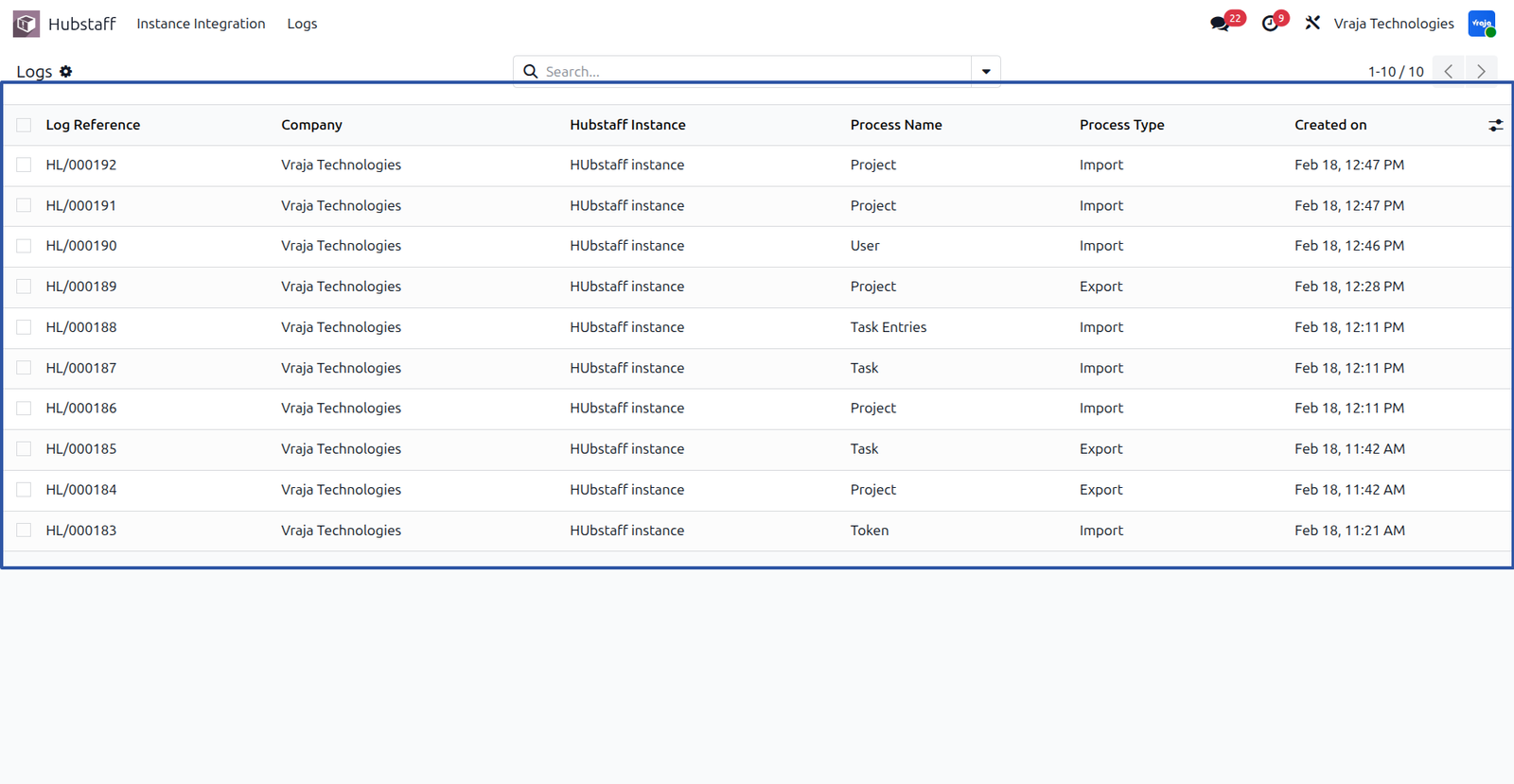
From the Log menu, you can view logs for all processes and review both successful and failed operations from there.
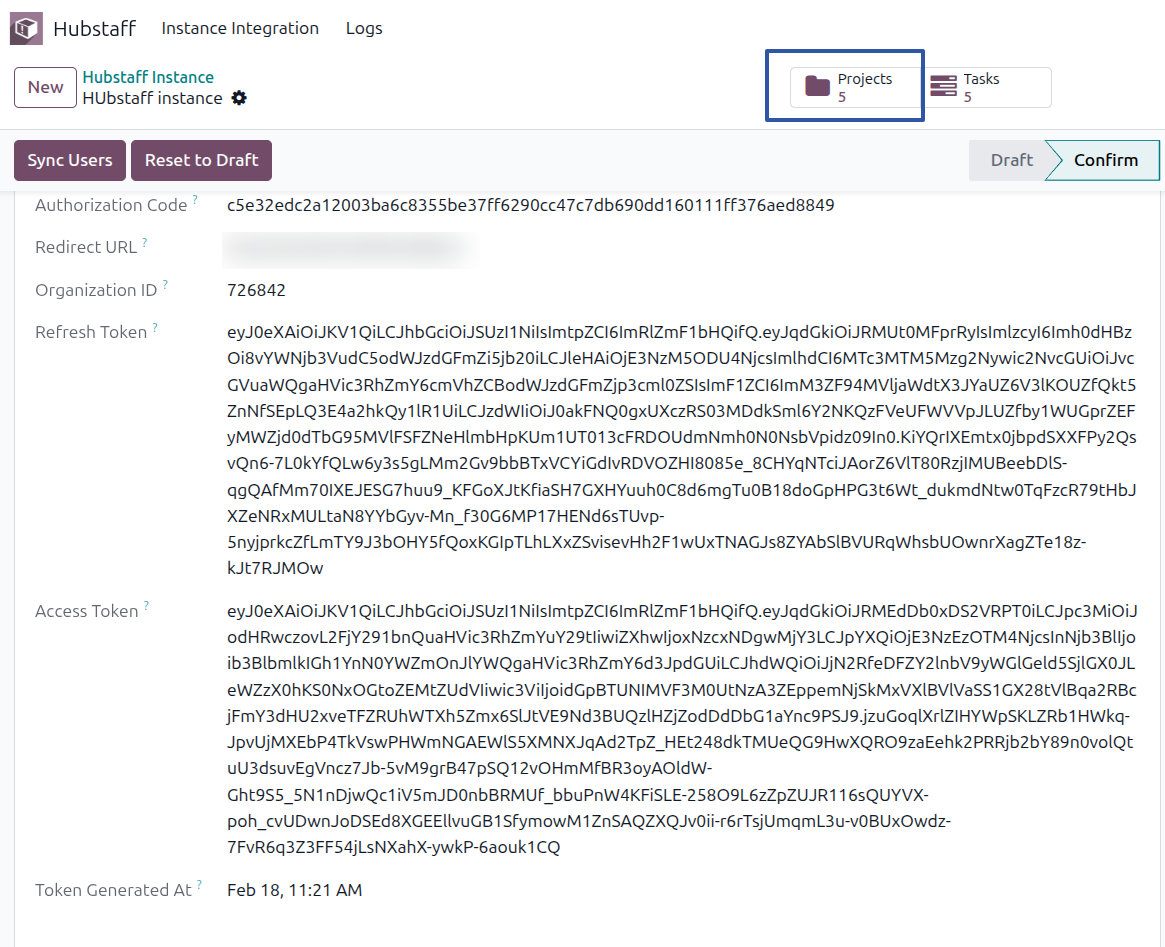
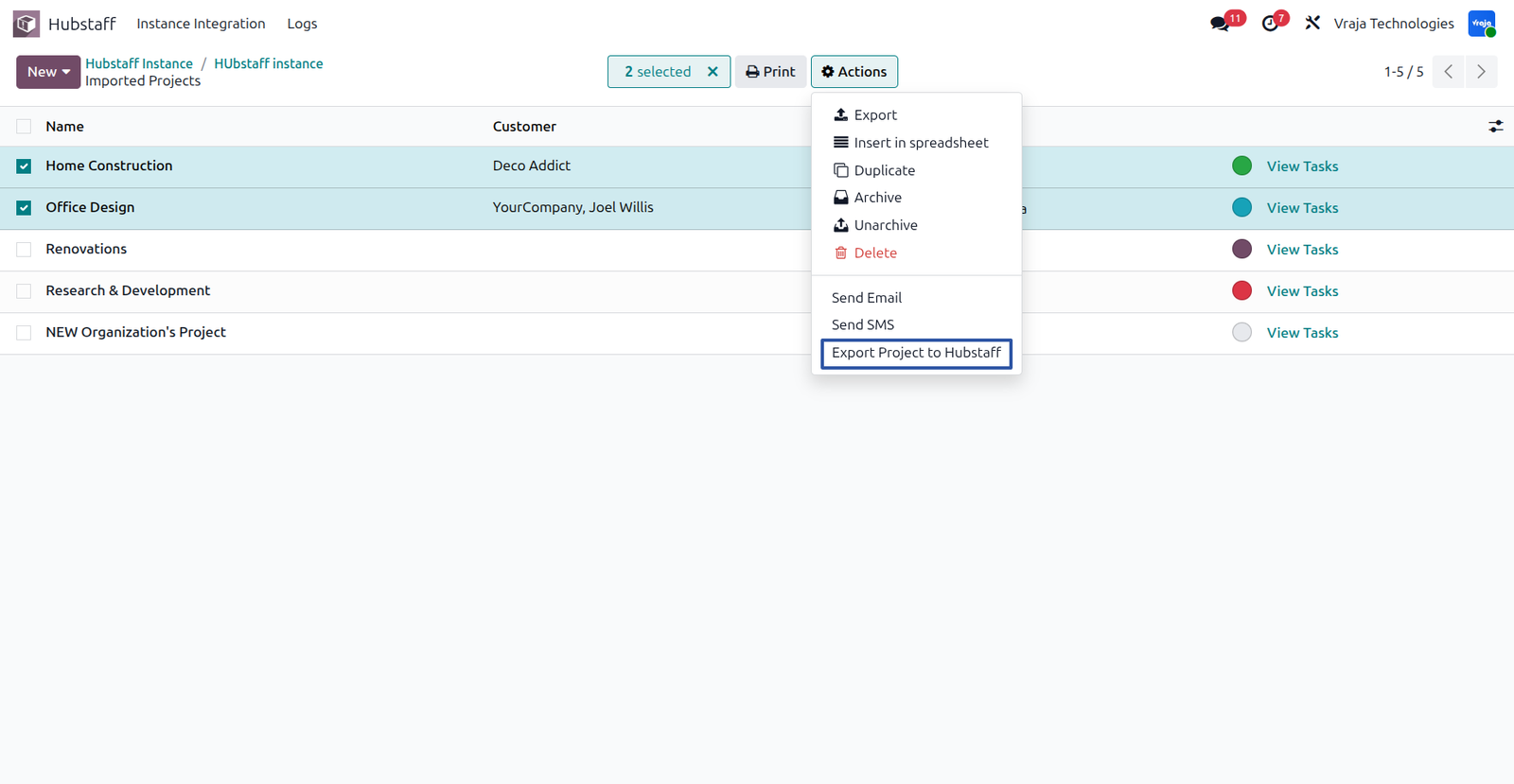
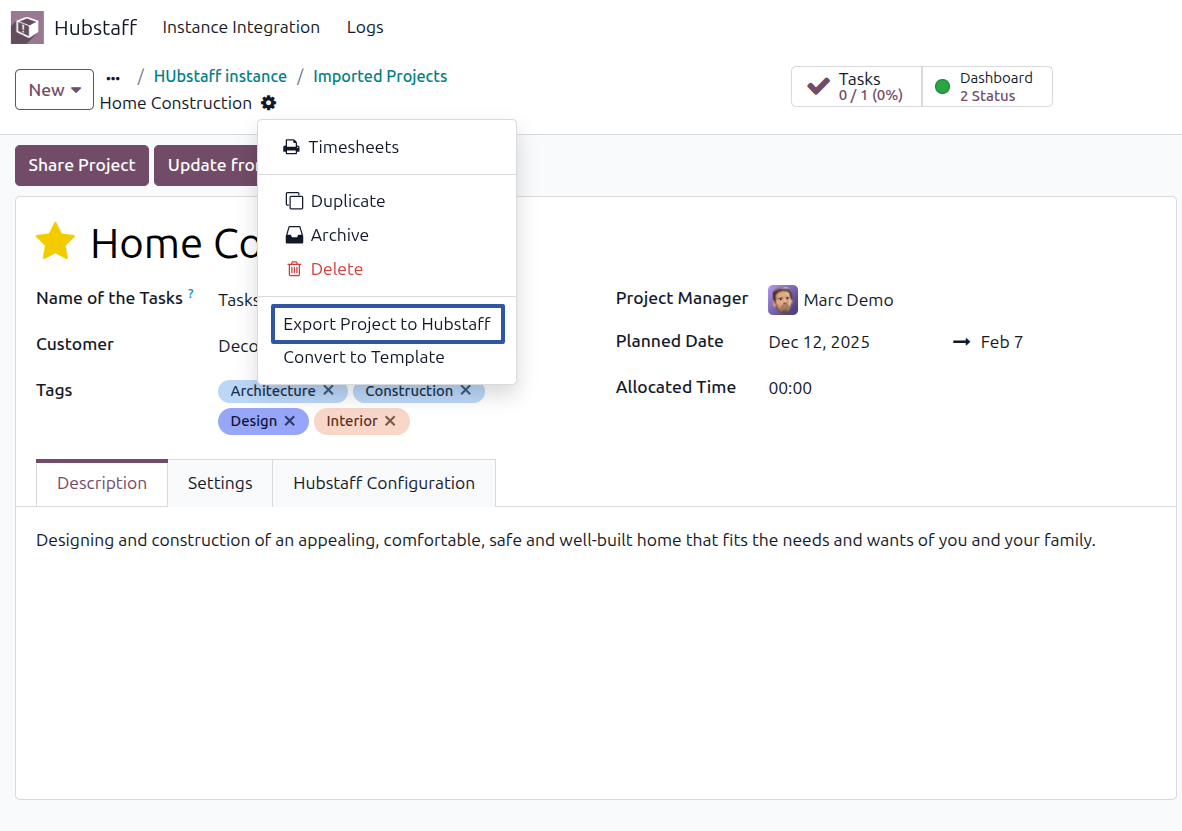
Export Project Process
By clicking this option, you will be redirected to the Project List View, where you can select and export the chosen projects to Hubstaff. Additionally, from the Project Form View, you can export an individual project using the Export to Hubstaff option.
Export Task Process
Similarly, clicking this option will redirect you to the Task List View, where you can select and export the chosen tasks to Hubstaff. You can also export a specific task directly from the Task Form View using the Export to Hubstaff option.
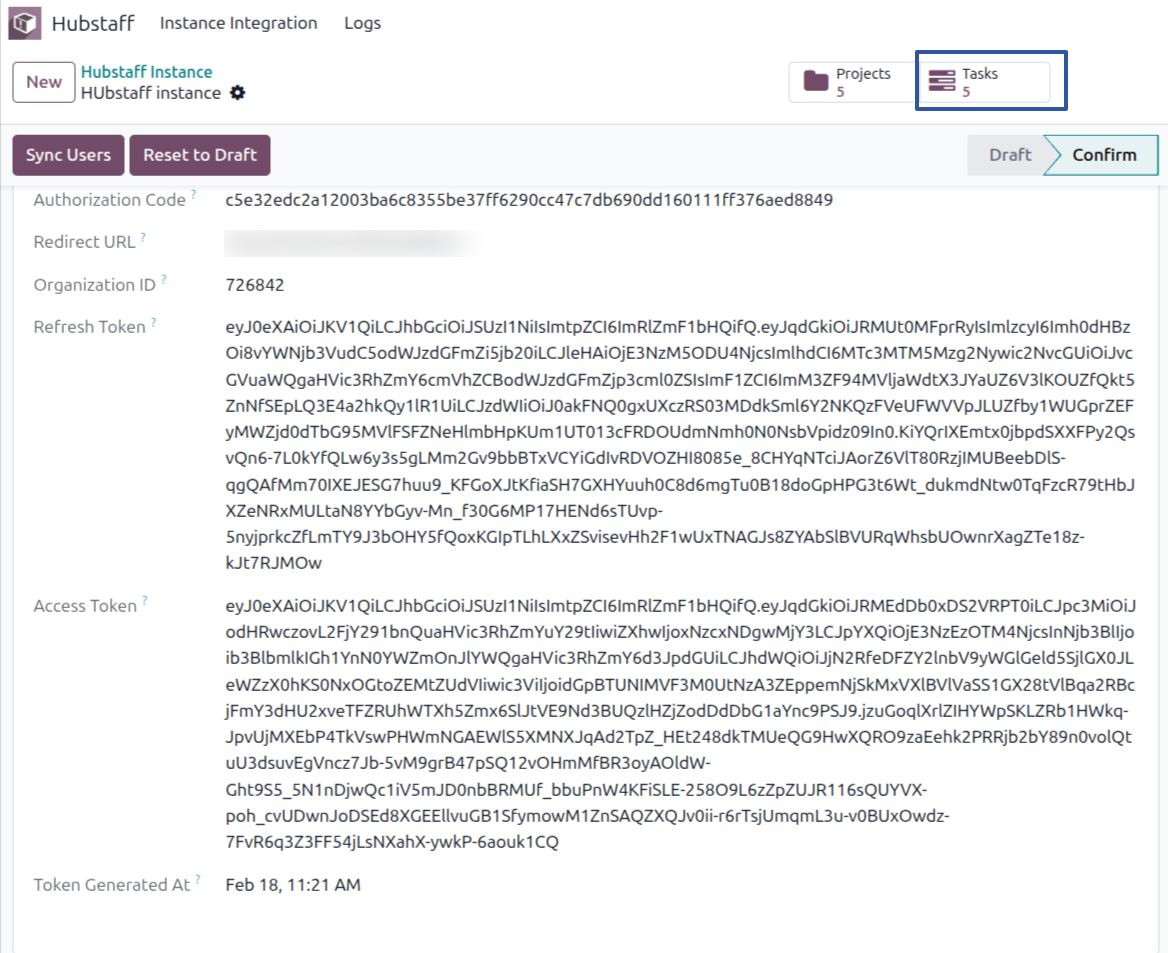
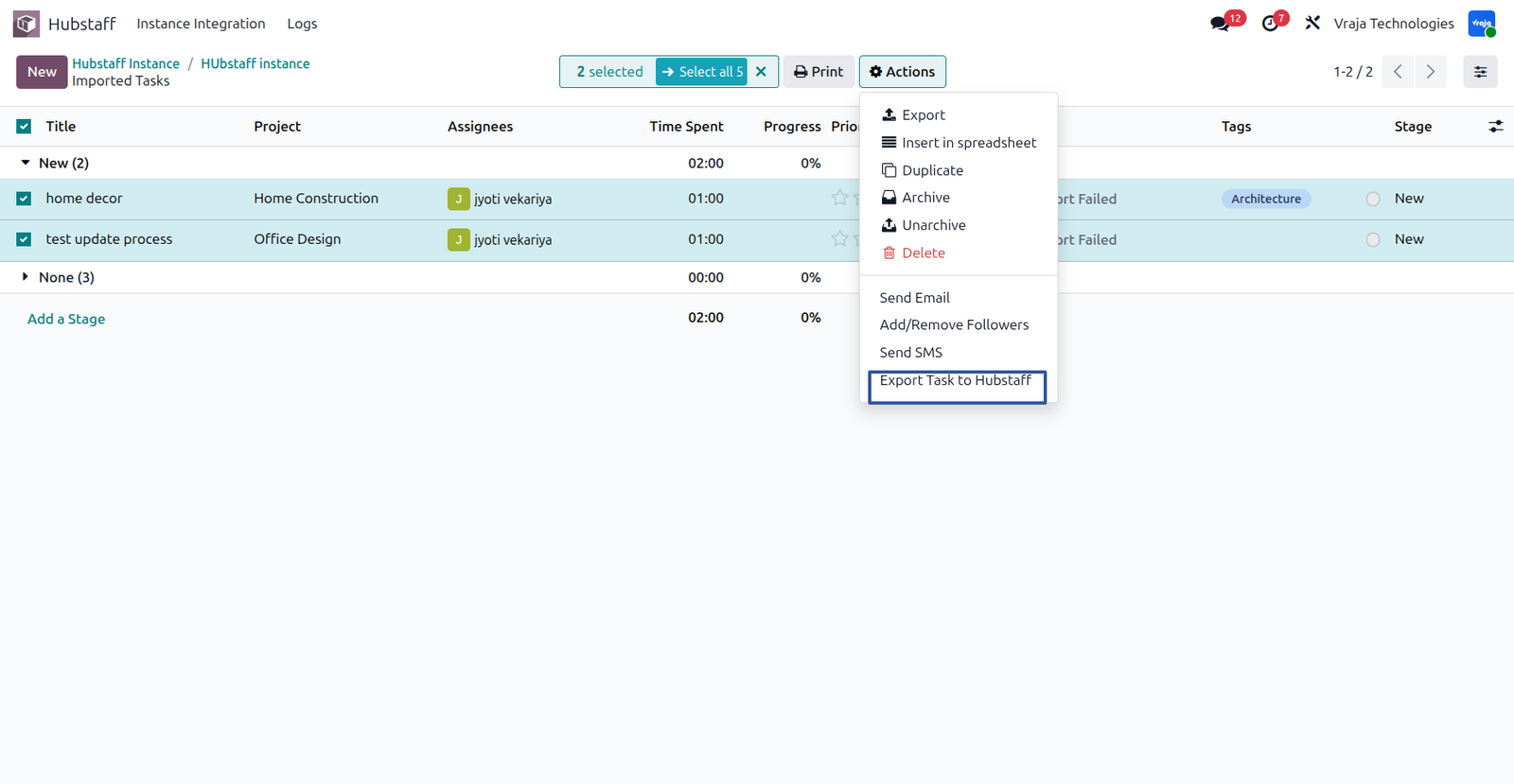
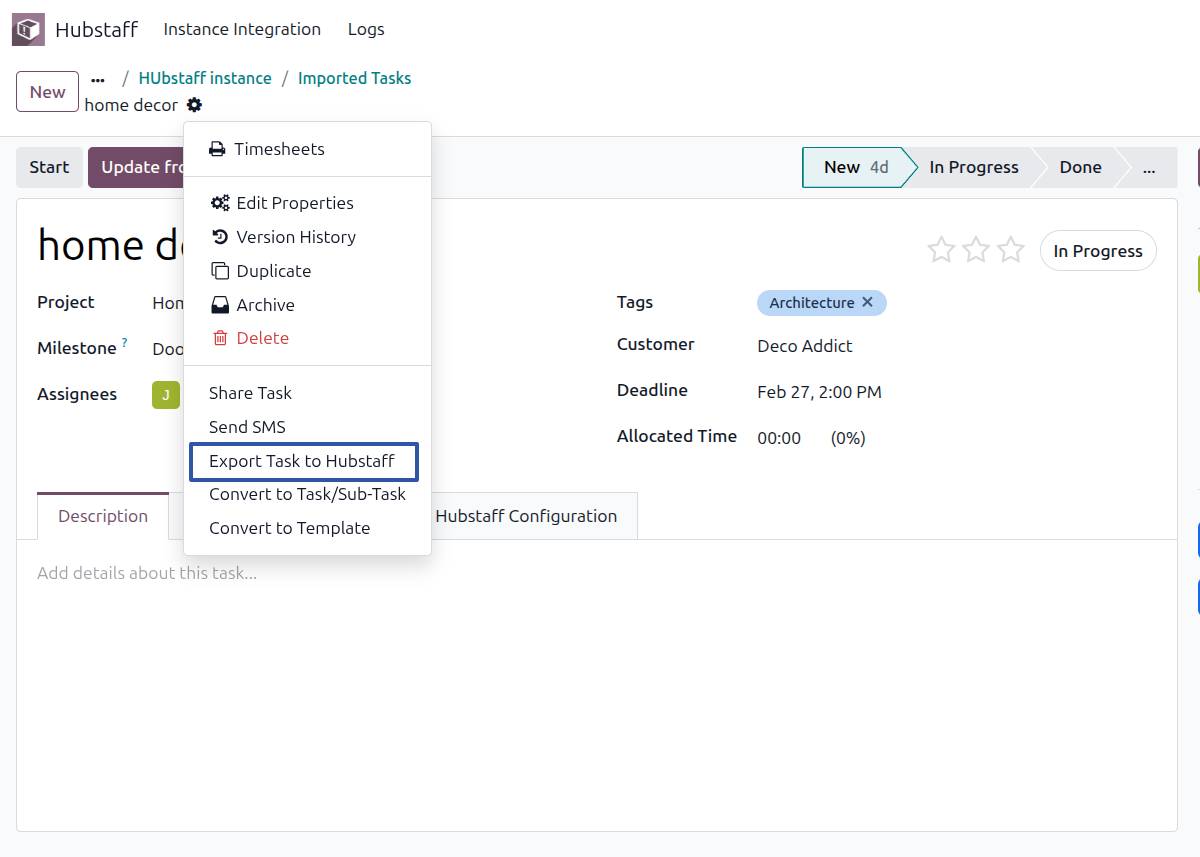
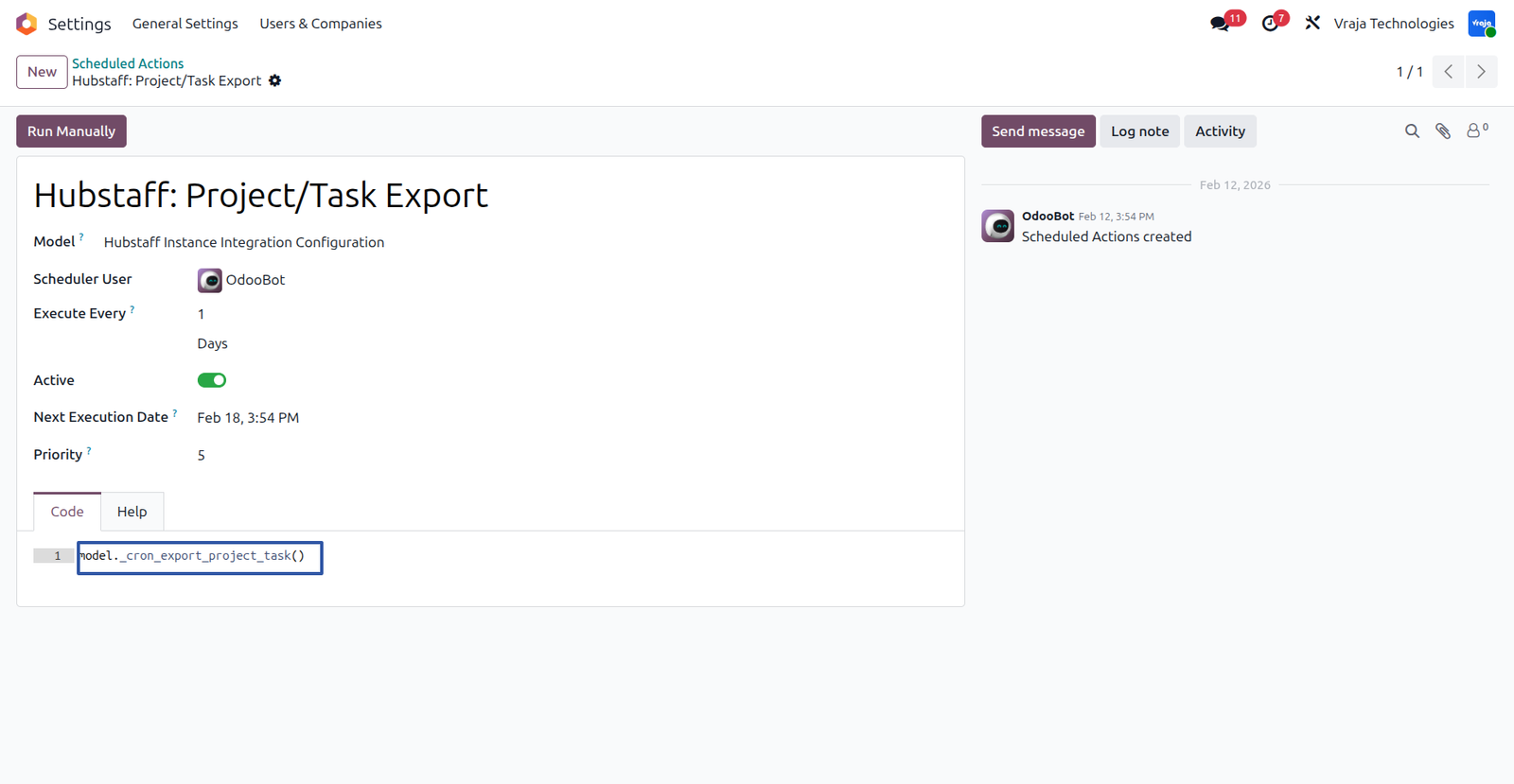
Automation actions are also available to schedule the automatic export of projects and tasks at defined intervals.
UPDATE Project Process
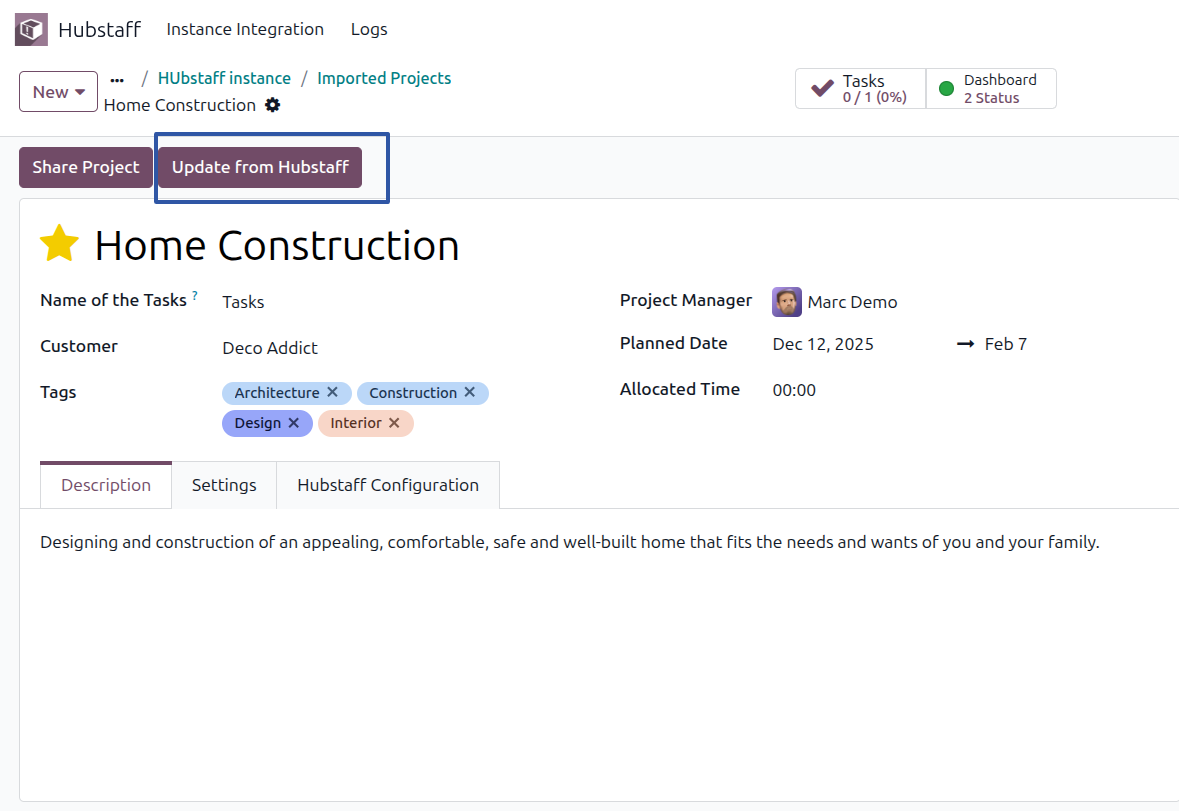
From the Project Form View, an Update from Hubstaff button is available. By clicking this, the selected project will be updated with the latest data from Hubstaff.
UPDATE Task Process
Similarly, from the Task Form View, the Update from Hubstaff option allows you to update the selected task with the latest information from Hubstaff.

From the Log menu, you can view logs for all processes and review both successful and failed operations from there.
 Is this application compatible with both Odoo Enterprise and Community editions?
- Yes, the application is fully compatible with Odoo Enterprise (On-premise and Odoo.SH) and Community editions. However, it cannot be installed on Odoo Online, as third-party apps are not supported.
Is it possible to manage multiple Hubstaff organizations or instances?
- Yes, you can configure and manage multiple Hubstaff instances within Odoo.
Can projects and tasks be imported automatically and manually?
- Yes, projects and tasks can be imported manually using operation buttons or automatically through scheduled actions (cron jobs).
Does the integration support real-time synchronization?
- Yes, real-time synchronization is supported through webhooks. Projects and tasks created in Hubstaff can be automatically created in Odoo.
How are time entries managed in the integration?
- Time entries can be imported from Hubstaff into Odoo either manually or automatically using scheduled automation.
Can projects and tasks be exported from Odoo to Hubstaff?
- Yes, projects and tasks can be exported individually from the form view or in bulk from the list view. Automated export actions can also be configured.
What happens if synchronization fails?
- If any export process fails, logs are created and a failure activity can be automatically assigned to the configured user for review.
I would like to request a custom feature for this application. What’s the process to get it implemented?
- We’re happy to help tailor the application to meet your business needs! You can reach us via sales@vrajatechnologies.com
Who is the point of contact for technical support, configuration support or bug-related queries?
- You can reach us via support@vrajatechnologies.com
Submit a Support Ticket
If you encounter any issues while using our app that are caused by the app itself, we offer complimentary support for 90 days from the date of purchase.
To create a support ticket, please register via the Vraja Technologies Support Email and provide the necessary details so we can assist you in resolving the issue.

Email Us
support@vrajatechnologies.com

 1.png)
Contact Us
vrajatechnologies.com/contactus

Support
vrajatechnologies.com/support-policy
Vraja Technologies Services

Odoo Implementation

Odoo App Integration Services

Odoo Customization

Odoo Consultation

Odoo Support & Maintenance
Odoo Developer Outsourcing
Suggested Application
















Reviews
There are no reviews yet.