
All-in-One Dynamic Import & Export Records |
Community Enterprise Odoo.sh |
Our Dynamic Import & Export Manager for Odoo allows you to export and import any Odoo data in CSV, XLS, or XLSX formats—fully configurable and platform-ready. Whether you are managing Products, Sales Orders, Customers, Invoices, Vendors, or any custom model, this module gives you complete control over file structure, mapping, and automation—without hardcoding.
Perfect for businesses that need to sync Odoo with external marketplaces, portals, ERPs, or marketing platforms like Google, Facebook, Fruugo, and more. Enhanced with a powerful Dynamic Translation feature, the module enables effortless import and export of multilingual field values. You can manage translations across multiple languages within a single workflow, making it ideal for global businesses and multi-language Odoo environments while ensuring accurate and consistent data across different systems.
|
|
Additional support for importing TXT files. |
|
|
For import, allows comma , and semicolon ; as delimiters for CSV files and TXT files, and supports UTF-8 and ISO-8859-1 encoding for CSV and TSV files. |
|
|
Flexible field mapping with support for flat and relational (one2many) structures across various Odoo models. |
|
|
Option to split large import files by enabling the Split the Records of a File setting for efficient batch processing. |
|
|
Dynamic data validation and error handling during import, ensuring data accuracy and consistency. |
|
|
Manual upload support for import, and FTP/SFTP server integration for both import and export processes. |
|
|
Fully customizable export configurations with field selection, filtering, and required field checks. |
|
|
Supports simultaneous export of data from multiple models in structured formats. |
|
|
Comprehensive logging for both import and export activities to maintain traceability. |
|
|
Clean, user-friendly interface designed for ease of use and operational efficiency. |
|
|
Built-in Dynamic Translation support for seamless import of multilingual field values |
|
|
Seamless support for CSV, TSV, and Excel (XLSX) formats for both import and export operations. |
01 Upon installing the application, you will find two main menus: one for server configuration and the other for import/export configuration.

02 You can configure the FTP server under the FTP Syncing menu.

03 You can configure the SFTP server under the SFTP Syncing menu.

04 Configuration of mapping table:
Name: You need to assign an appropriate name for the configuration table as required.
Mapping Model: You need to select the model for which you want to import the records.
Type: This field specifies the type of operation the configuration table is intended for—whether it will be used for import or export.
Main Table: You need to enable this option if your configuration is main. For example if you want to add a sale order record then for the sale order model you need to create configuration record with main table enable & you need to create sale order line configuration separately without main table enable.
Which type of data import?: You need to select the type of data you want to import: Inventory or Other. If you choose Inventory, a location field will appear where you must specify the location for adding or updating the inventory data.
Company: Reference of company.
Partner: Reference of Partner/Contact – this is for your reference in case you have created multiple import mapping configurations, allowing you to easily identify which configuration belongs to which partner.
Unique Identifier Column: Set Column Alphabet (From A-CW), from this value check existing record available or not. To avoid duplication of records in Odoo this must be needed.
Set Default Field Values: During the import process, if you want to include specific values along with the processed data, you should enter these values in dictionary format.
Server Type: You need to select the server type from which the file for this configuration will be imported.
Select FTP/SFTP: You need to select the corresponding FTP or SFTP server configuration record.
File Path: You need to specify the destination file path where the file is located for the import process on your FTP/SFTP server.
Use first row as a header?: You need to select Use first row as a header? If you use Heading/Header in a import file.
CSV & TXT File Delimiter: You need to specify the delimiter for the CSV & TXT file (comma or semicolon); by default, a comma is considered.
Split the records of a file: If you have big files that need splitting for processing then you have to select the Split the Records of a File field as well.
Model Fields: File Column Name: Set Column Alphabet (From A-CW, we have handled upto 100 columns), from this column value fetch.
Selected Model Fields: You can select the fields from the chosen model that you want to map with column data/value from import file.
Field to search for M2O: This field is not required, if you choose Many2one field for mapping then you have an option to set the inner field of that Many2one model. It helps you to search records based on that field or else search with the name field of the Many2one model.
Field to search for M2M: This field is not required, if you choose Many2many field for mapping then you have an option to set the inner field of that Many2many model. It helps you to search records based on that field or else search with the name field of the Many2many model.
Sub Table for Relational Field: For a One2many mapping field, you need to select a sub-table where a separate configuration is defined for the One2many field's model. The same concept is followed in the sub-table configuration, with the only difference being that you do not need to enable the Main Table option there.

05 This is a sub-table configuration where you need to specify the name, model and type; selecting the main table is not required. In addition, you can configure the Unique Identifier column and set default field values. Below are the mapping fields for the selected model, as explained in the previous step.

06 For each server configuration, whether it's FTP or SFTP, a scheduled action will be created to import records.

07 When this scheduled action is executed, it identifies the import-type mapping tables linked to the current server configuration, locates the available files based on the defined file path, and imports records from those files accordingly.

08 This is the defined file path on the server where the file is located for import.

09 This is a sample file format.

10 If any record's value from the file does not match existing records in Odoo, you will see a log message like this.

11 After the successful import process, the record is created in Odoo.

12 For a successful import operation, you will see log messages like these.

13 After the import process, the original file from the defined server path will be moved to the Archive folder to prevent re-import and avoid duplication.

14 Additionally, you can configure translation fields by enabling the translation option and selecting the desired language. During the import process, translations will be automatically applied to the imported records.
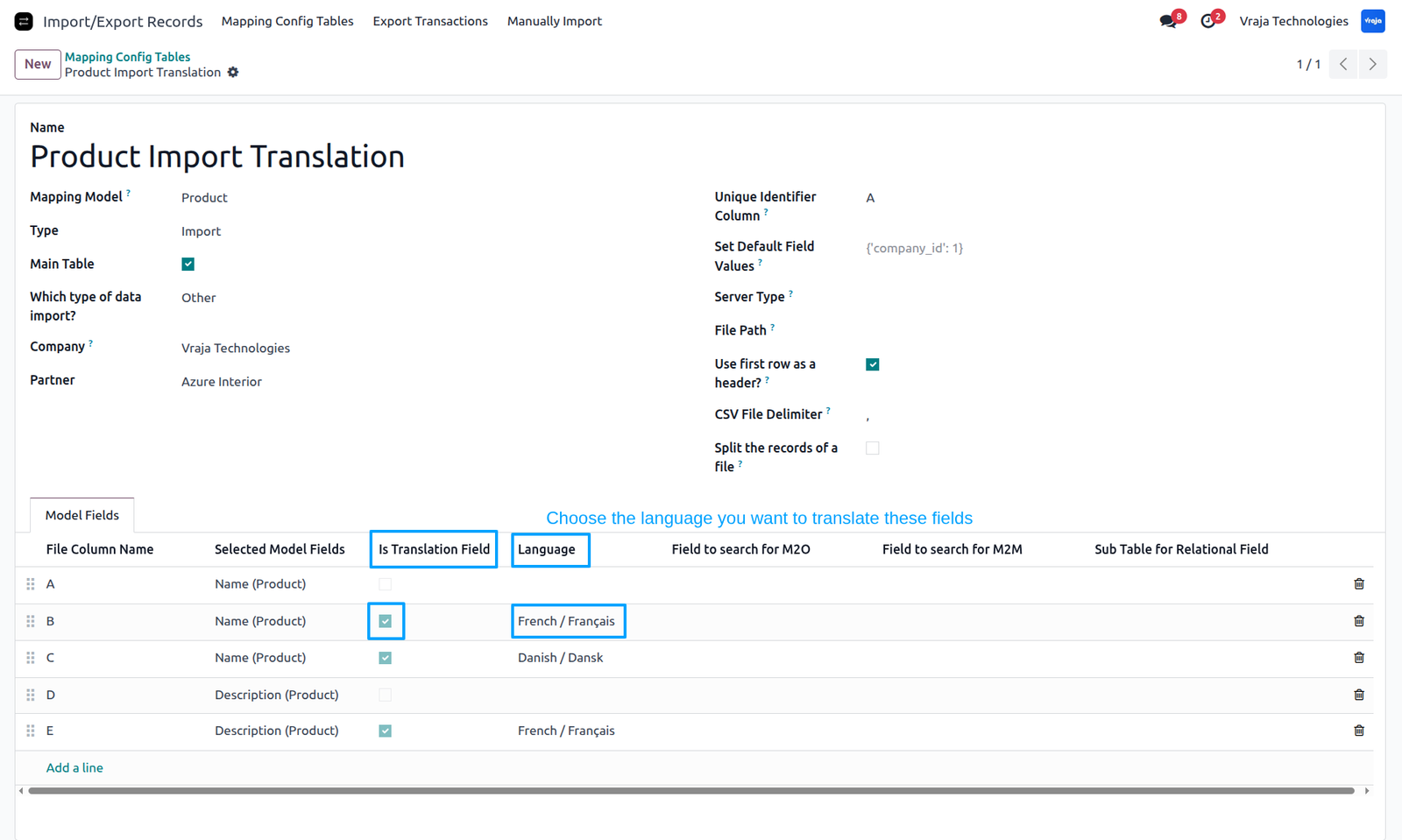
15 After the import process is completed, the translated values will be available in the corresponding translation fields.

16 This is a sample file format for dynamic translation fields.

17 We have also provided a manual file import option. In this, you simply need to select the mapping table and upload the file — the system will then import records from the file based on the selected mapping configuration.

01 Upon installing the application, you will find two main menus: one for server configuration and the other for import/export configuration.

02 You can configure the FTP server under the FTP Syncing menu.

03 You can configure the SFTP server under the SFTP Syncing menu.

04 Configuration of mapping table:
Name: You need to give the name for the configuration table.
Mapping Model: You need to select the model from which you want to export the records.
Type: This field specifies the type of operation the configuration table is intended for—whether it will be used for import or export.
Main Table: You need to enable this option if your configuration is main. For example if you want to add a sale order record then for the sale order model you need to create configuration record with main table enable & you need to create sale order line configuration separately without main table enable.
Company: Reference of company.
Partner: Reference of Partner/Contact – this is for your reference in case you have created multiple export mapping configurations, allowing you to easily identify which configuration belongs to which partner.
Enter Export File Name: You can specify the file name that will be used for the exported file.
Export File Type: You need to select the file type or format from the available options: CSV, TSV or XLSX.
Enter Filter (Domain): If you need to export specific records from the selected mapping model, you can define a filter/domain here.
Select Upload Option: You need to select the method how you want to export the file.
Server Type: You need to select the server type to which the file for this configuration will be exported.
Select FTP/SFTP: You need to select the corresponding FTP or SFTP server configuration record.
File Path: You need to enter the destination file path where the file should be stored on your FTP/SFTP server.
Select partners to send created file in mail: You need to select the partners whom you want to send the created file via mail.
Model Fields:
Selected Model Fields: You can select the fields from the chosen model that you want to include in the exported file.
Field to search for M2O: This field is optional. If you select a Many2one field for mapping, you can specify a sub-field from the related model to export its specific value. If not specified, the default name field of the Many2one model will be used.
Field to search for M2M: This field is optional. If you select a Many2many field for mapping, you can specify a sub-field from the related model to export its specific value. If not specified, the default name field of the Many2many model will be used.
Required: You can enable this option if the field's value must not be empty. If it is marked as required and found empty, the file will not be generated.
Sub Table for Relational Field: For a One2many mapping field, you need to select a sub-table where a separate configuration is defined for the One2many field's model. The same concept is followed in the sub-table configuration, with the only difference being that you do not need to enable the Main Table option there.


05 This is a sub-table configuration where you need to specify the name, model and type; selecting the main table is not required. Below are the mapping fields for the selected model (as explained in the previous step).

06 These scheduled actions are responsible for preparing the file and exporting it to the designated server.

07 The initial scheduled action is responsible for generating the file to be exported.

08 Upon running the scheduled action, new transaction records will be generated under the Export Transactions menu.

09 After the file is successfully generated, it will be available within the corresponding transaction record along with the generated file.
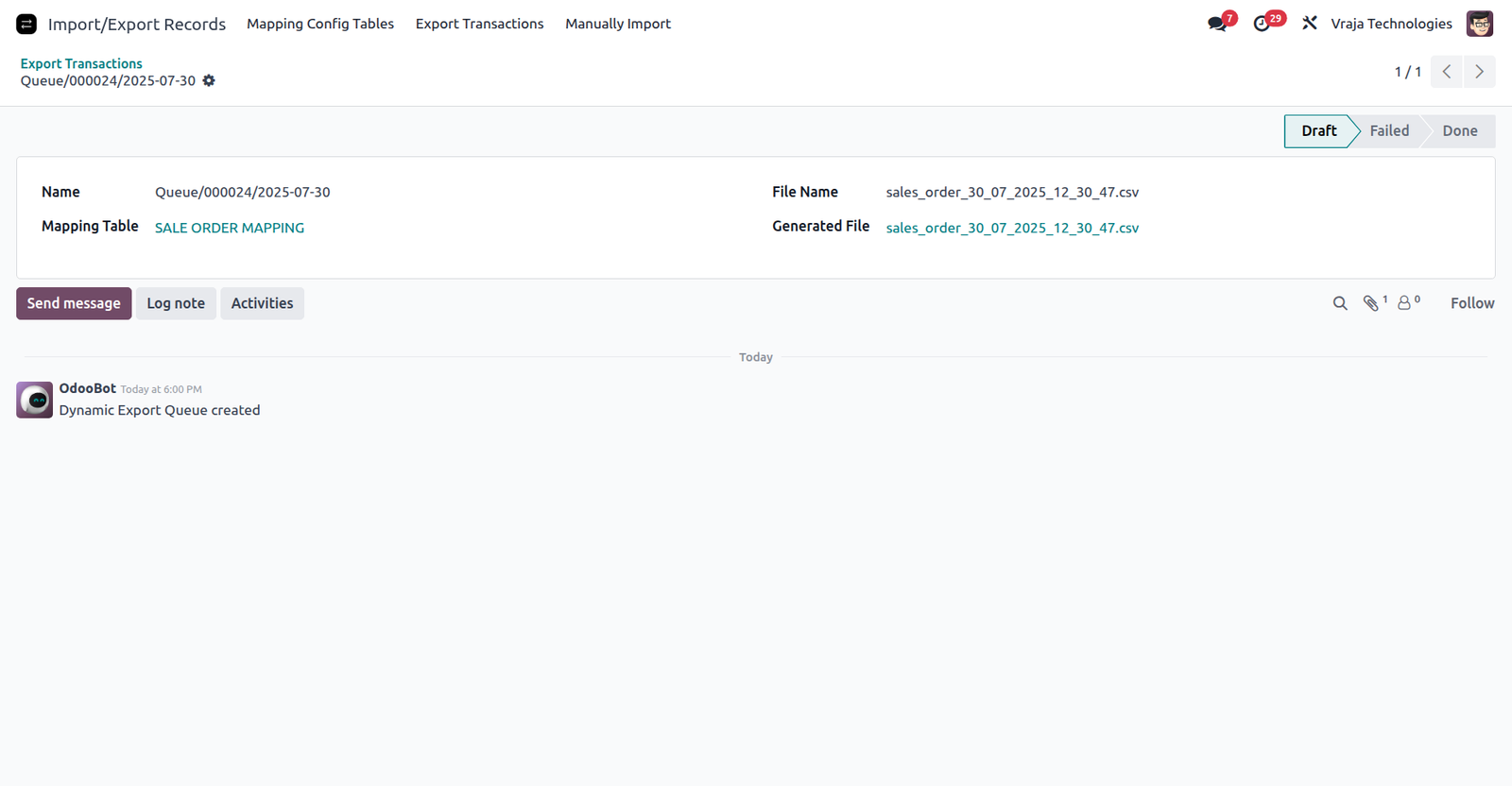
10 If any field marked as required is left empty during export, the file generation will be halted to prevent incomplete data from being exported.
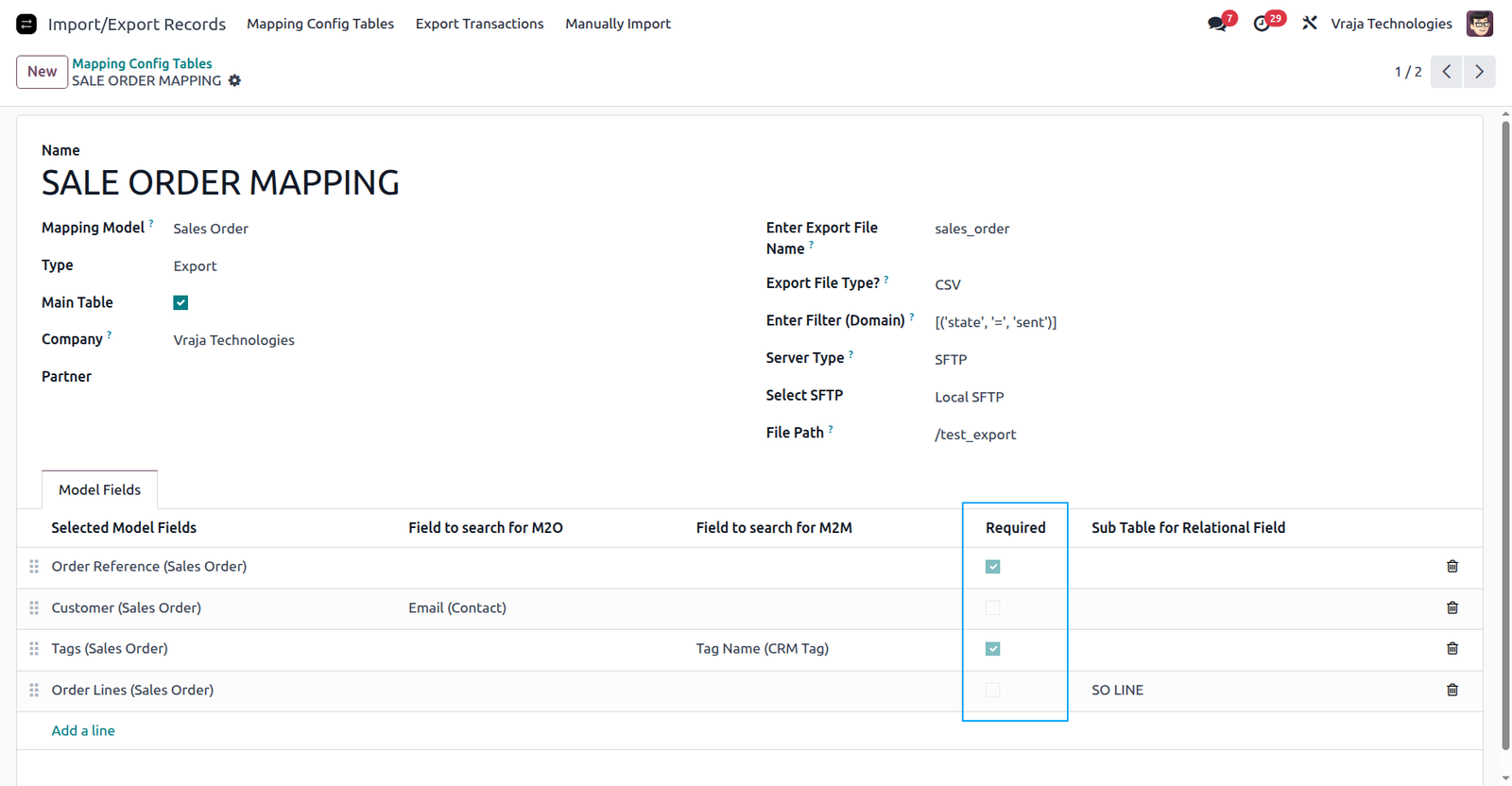
11 A transaction will be created in a failed state, and you will see a new button to re-generate the file along with log details explaining why the file was not generated.

12 You can review the log details directly from the transaction. In this case, the file generation failed because a required field was left empty.

13 Once you rectify the error—by providing the missing value for the required field in the specific record—you can click the *Re-compute* button. This will regenerate the file, and the transaction will move to the *draft* state, indicating it is now ready for export.

14 This is the second scheduled action, responsible for exporting files that are in the Draft state to the configured server.

15 You can check the transaction state as Done once the file has been successfully exported to the server, along with the corresponding log details.

16 You can view the detailed logs directly from the transaction record and also from the FTP/SFTP Syncing menu.

17 You have to set up an outgoing mail server to automatically send generated file via mail.

18 Generated files will be automatically sent to the partners selected in mapping table.
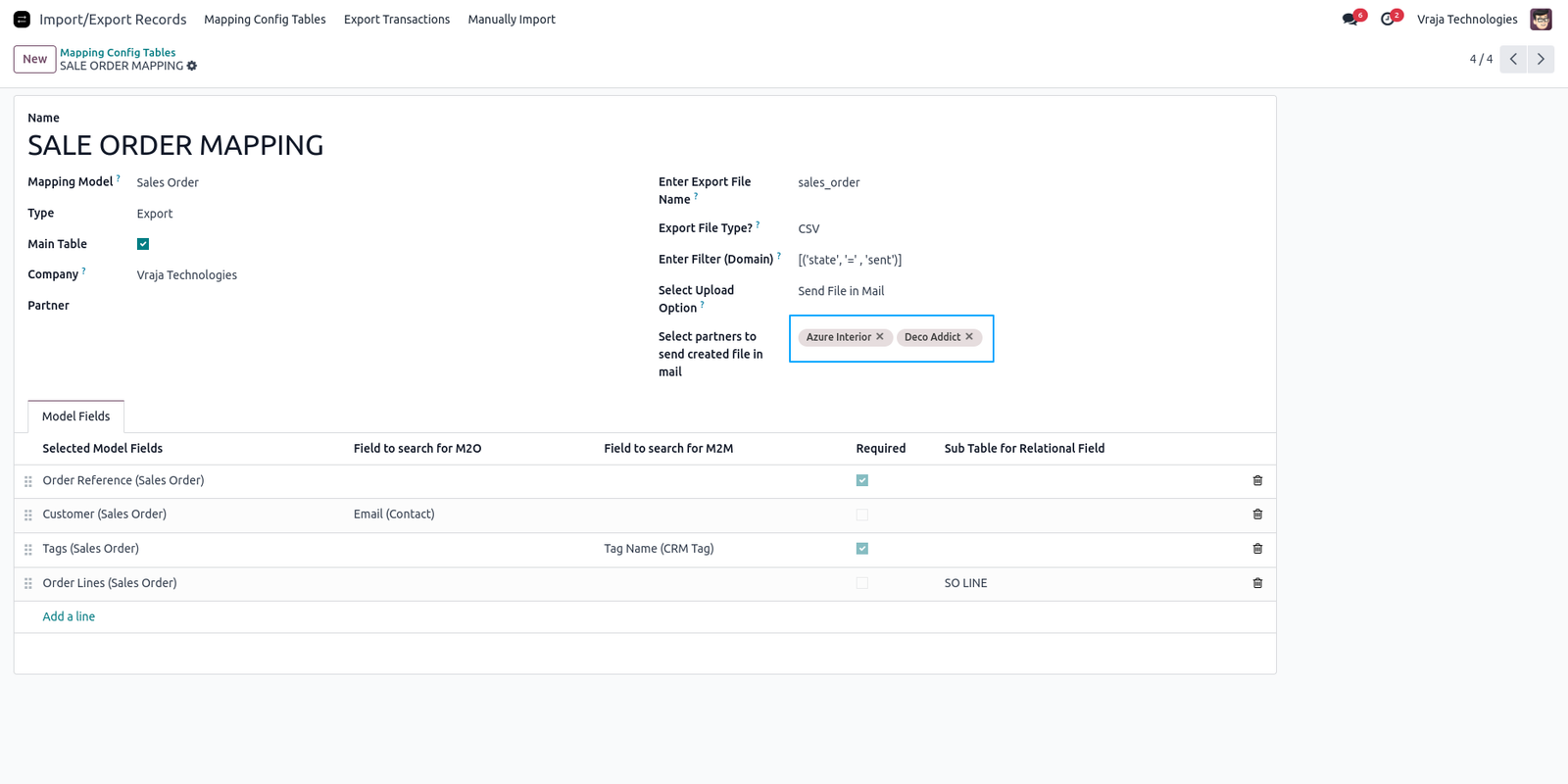
19 You have to set the email inside that partner to successfully send the file via mail.


20 If email is not set in any selected pertner then transaction state will be set to Not Sent. You can set the state to draft from **Reset to Draft** button after reviewing the logs.

21 You can view the related logs directly from the transaction record. In this case, emails were not found for any selected partner.

22 After making the necessary changes, you can see the transaction is done.

23 You can view the detailed logs directly from the transaction record. If in case, some partner have email set on them and some does not, we send the file to the partners with email.

24 This is the SFTP server to which the file has been successfully exported.

25 This is an example of the file that has been successfully exported.

|
|
I need an extra customization in this application, how can I get it?Yes, you can contact us on support@vrajatechnologies.com or can schedule a DEMO with our team to customize additional features. |
|
|
Is the application compatible with Odoo Enterprise and Community?Yes, this application module is supported by both. It is also compatible with test and production environments. |
|
|
Do I get free upgrades and support if I purchase this application?If there is a bug or any issues, our team will be there to help you out. If you need to add any new features, you will need to upgrade the application. |
|
|
Is technical knowledge required to set up the integration?While some technical understanding may be helpful, the integration is designed to be user-friendly. Detailed documentation and support may be provided to aid in the setup process. |
|
|
Is this free customization and implementation?Our team has produced a support video that guides you through the implementation process step by step. If you encounter any issues, please feel free to contact us for assistance. |
|
|
Which protocol you have used to transfer file?We have used FTP & SFTP protocol to transfer files. |
|
|
Which file format supported?CSV, TSV, and XLSX file formats are supported for import and export, with added support for importing TXT files. |
|
|
Once records exported from Odoo to FTP/SFTP, is that export again?No, system only pick fresh records next time. |
|
|
Does the module support dynamic translation for multilingual fields?Yes, the module includes built-in support for Dynamic Translation, allowing you to import multilingual values seamlessly. Simply enable the translation option on the desired fields and select your target languages |
|
|
Included App Support90 Days Complimentary Support for Supported Versions If you encounter issues caused by the app itself, our team provides complimentary support for 90 days from the date of purchase for supported Odoo versions. |
90 Days Complimentary Support for Supported Versions
If you encounter issues caused by the app itself, our team provides complimentary support for 90 days from the date of purchase for supported Odoo versions.

Customer SupportNeed help with installation, configuration, technical issues, or general questions about the module? Submit a support ticket through our dedicated support portal. |
||
|
Support Portal
vrajatechnologies.com/helpdesk
|
Support PolicyReview our support policy for complete information about support coverage, issue eligibility, exclusions, version compatibility, and other support conditions. |
||
|
Support Policy
vrajatechnologies.com/support-policy
|
Scan for Support
|
||
|
Support Portal
vrajatechnologies.com/helpdesk
|
This module manages the complete transportation EDI workflow in Odoo, including 204 Load Tender, 990 Carrier Response, 214 Shipment Status, 210 Freight Invoice, and 820 Payment Order. It supports secure FTP-based communication with carriers and trading partners, enabling smooth shipment processing, tracking, billing, and payment data exchange.
Automates ANSI X12 EDI integration in Odoo by supporting export of EDI 850 Purchase Orders, 860 PO Changes, and 846 Product Inventory, along with import of 810 Bills, 856 ASN, 855 PO Acknowledgments, 997 Functional Acknowledgments, and 832 Vendor Pricelists. It ensures accurate data synchronization with trading partners using FTP protocols and ANSI 4010 format for secure, reliable, and streamlined EDI file exchange.
This module automates warehouse communication with third-party logistics providers using ANSI X12 EDI documents, including 943 Shipment Advice, 944 Receipt Advice, 940 Shipping Order, and 945 Shipping Confirmation. It supports secure FTP/SFTP file exchange to streamline inventory transfer, order fulfilment, shipment updates, and warehouse operations between Odoo and any EDI-supported 3PL partner.
This module automates trading partner communication by importing EDI 850/860 Purchase Orders into Odoo as Sales Orders and exporting EDI 855 PO Acknowledgments, 856 ASN, 810 Invoices, and 832 Sales Pricelists. It supports ANSI 4010 format and secure FTP-based data exchange, helping suppliers reduce manual work, improve order accuracy, and streamline EDI operations directly from Odoo.
This module automates the complete purchasing workflow, including ORDERS, ORDRSP, ORDCHG, DESADV, RECADV, INVOIC, REMADV, PRICAT, and INVRPT documents. It supports secure FTP/SFTP data exchange and EDIFACT D96A/D97A formats, helping businesses streamline supplier communication, order processing, delivery confirmation, billing, and payment updates in Odoo.
This module automates B2B document exchange by importing ORDERS and ORDCHG into Odoo Sales Orders and exporting ORDRSP, DESADV, INVOIC, PRICAT, and INVRPT to trading partners. It also supports RECADV and REMADV processing with secure FTP/SFTP communication, helping suppliers reduce manual entry, improve accuracy, and streamline order, delivery, invoicing, payment, pricing, and inventory operations.
This all-in-one Odoo EDI solution connects Odoo with trading partners using FTP, SFTP, and AS2 protocols, with a dynamic XML mapping engine to import, export, create, or update any Odoo record without coding. It supports secure AS2 file transfer, MDN acknowledgments, scheduled automation, remote folder synchronization, and reliable bidirectional data exchange across any Odoo model.
This all-in-one Odoo EDI solution connects Odoo with trading partners using FTP and SFTP protocols, with a dynamic XML mapping engine to import, export, create, or update any Odoo record without coding. It supports remote directory synchronization, scheduled automation, and reliable bidirectional data exchange across any Odoo model for accurate and streamlined business workflows.
Explore Before Purchase |
Start with a free trial
Test the connector with your real workflows using our 15-day free trial. If you need help, our product experts will guide you throughout the trial.
|
|
Test the connector with your real workflows.Our product experts will guide you during the trial to help you evaluate, configure, and use the connector with confidence.
15-Day
Trial
Expert
Guidance
Real
Workflow Testing
|