Explore the key features, workflow, and value of this Odoo module.
|
|
Export Purchase Orders (EDI 850) from Odoo to suppliers. |
|
|
Export Purchase Order Changes (EDI 860) to update existing orders. |
|
|
Import Purchase Order Acknowledgements (EDI 855) and track supplier confirmations in Odoo. |
|
|
Import Advance Ship Notices (ASN) (EDI 856) to manage incoming deliveries. |
|
|
Import Vendor Bills (EDI 810) to create and process supplier invoices in Odoo. |
|
|
Import Vendor Pricelists (EDI 832) to update purchase pricing in Odoo. |
|
|
Import Product Inventory (EDI 846) to get the latest stock availability from suppliers. |
|
|
Import Functional Acknowledgements (EDI 997) to track EDI file processing status. |
|
|
Supports AS2/FTP/SFTP communication protocols and ANSI(4010) format for secure and reliable data transfer. |
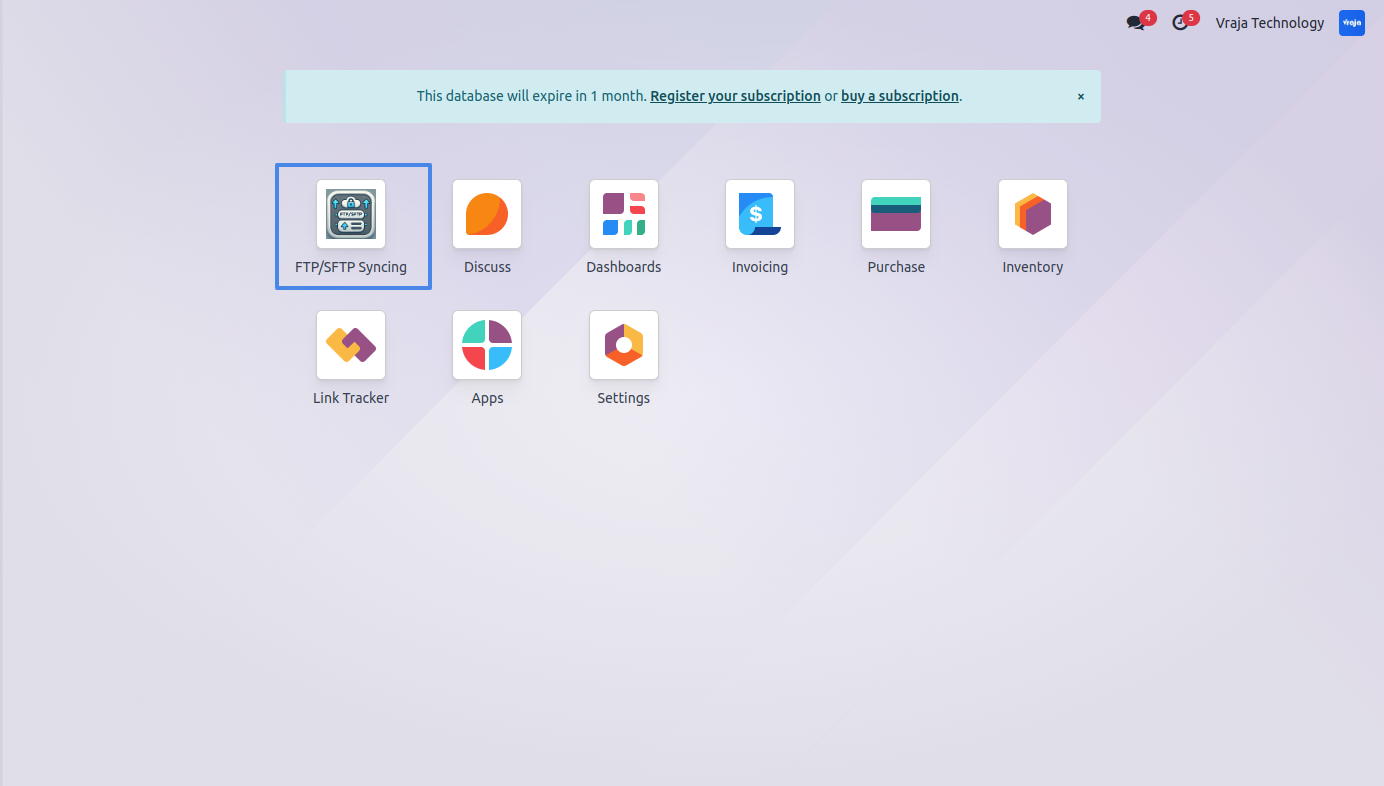
01 Upon Installing the application, you can see the FTP/SFTP Syncing menu.
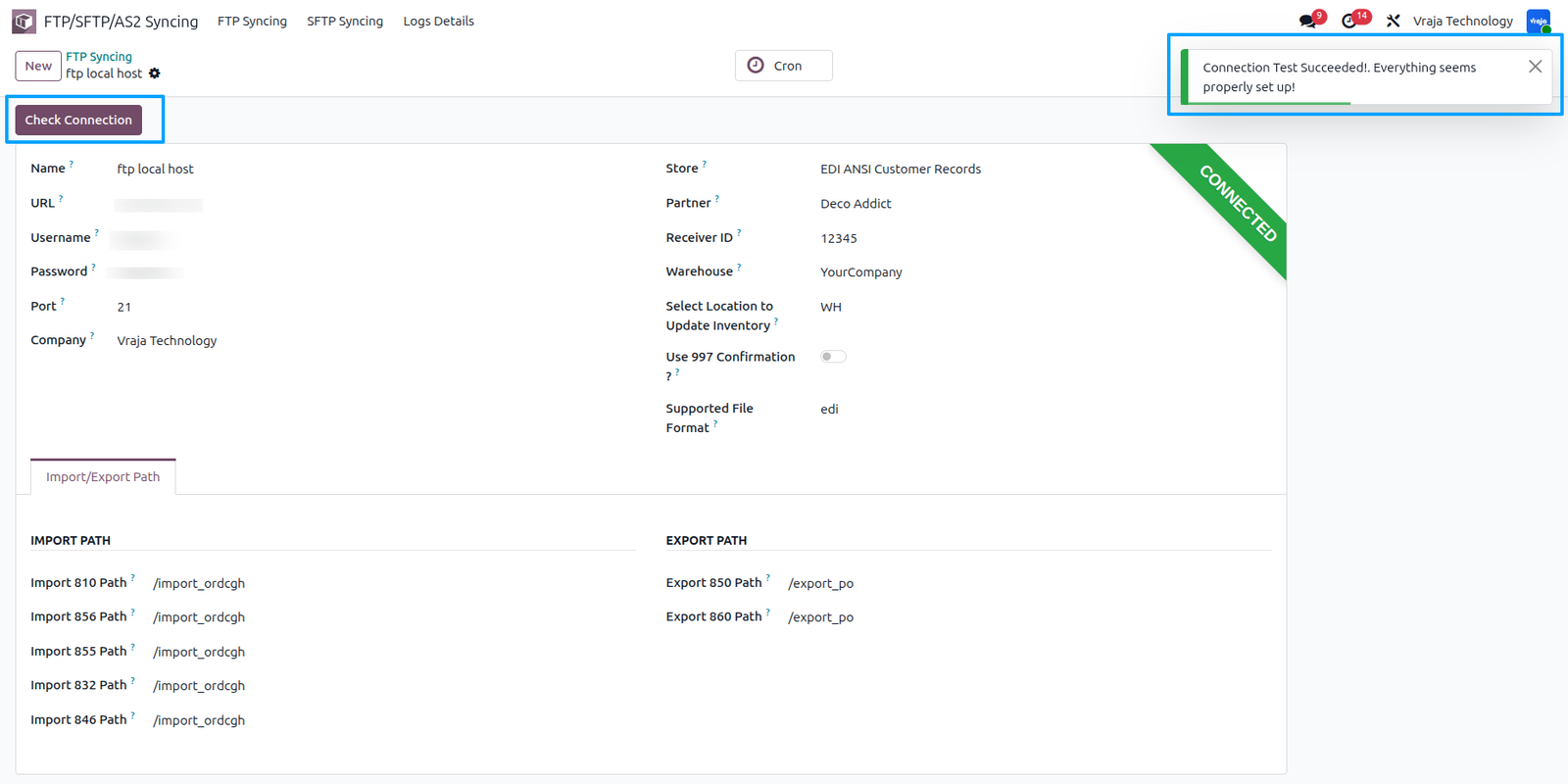
02 Fill in the FTP/SFTP configuration fields (Name, URL, Username, Password, Port, Company) along with Store, Customer, Sender ID,location,supported file format and Pricelist details. Set the Export and Import Paths under the Import/Export Path tab, then click Check Connection to verify the setup.
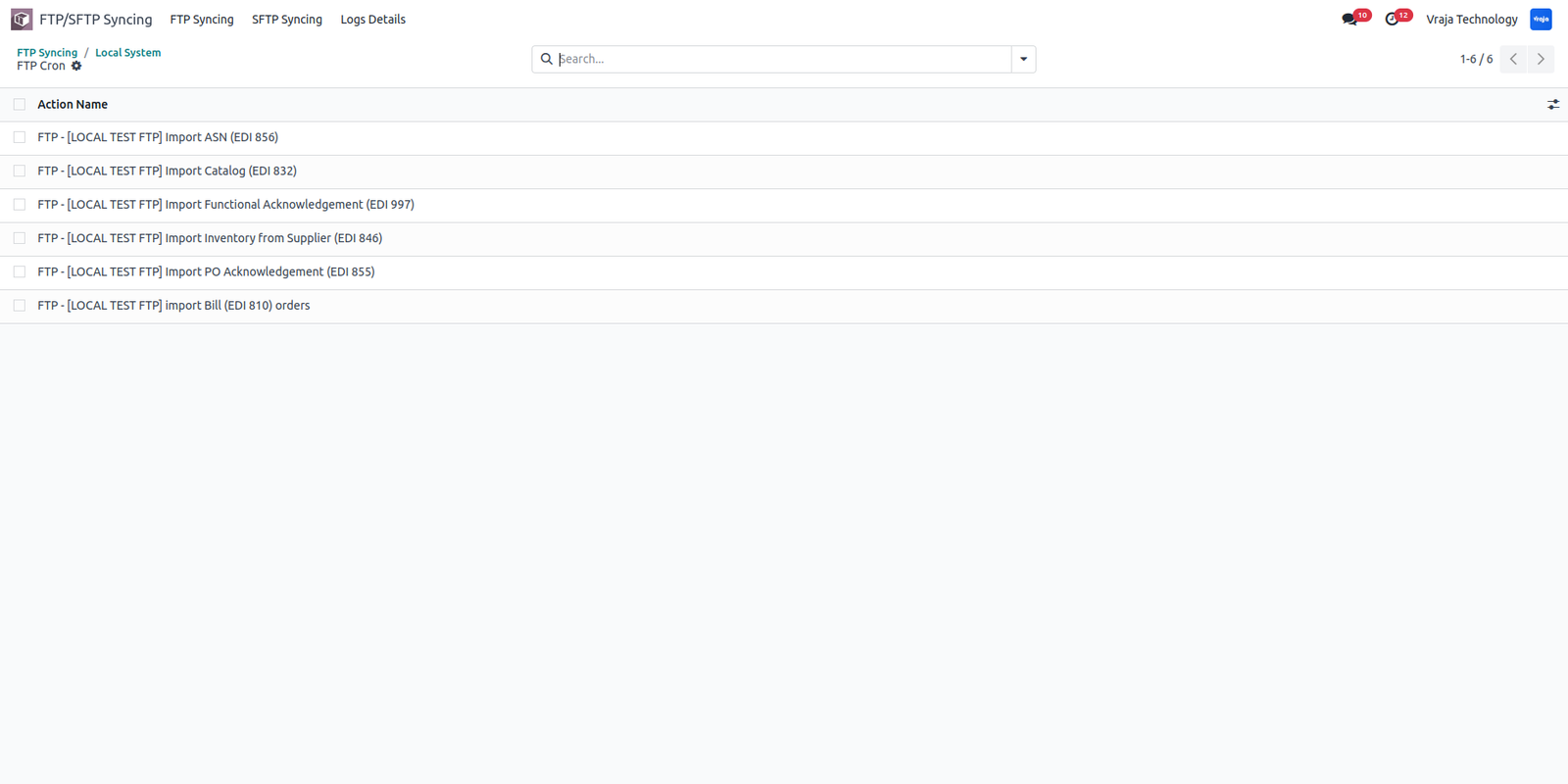
03 These are your schedule actions for importing or exporting file and process them accordingly.
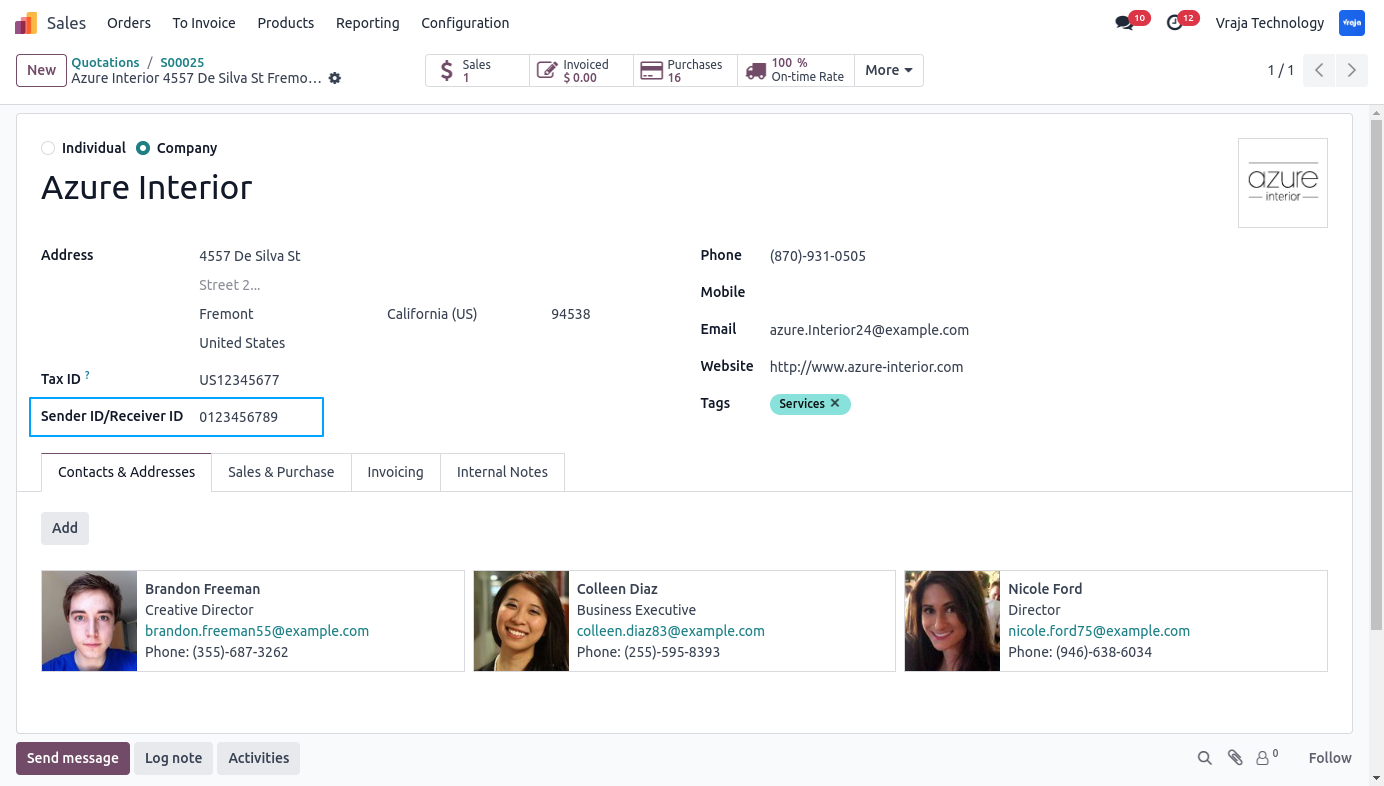
04 This is where you have to give partner's ID to reflect in import/export format.
05 You can export the Purchase Order (EDI 850) directly from the RFQ stage using the "Export 850" button. Simply click this button on the Purchase Order to export it as an EDI 850 file.
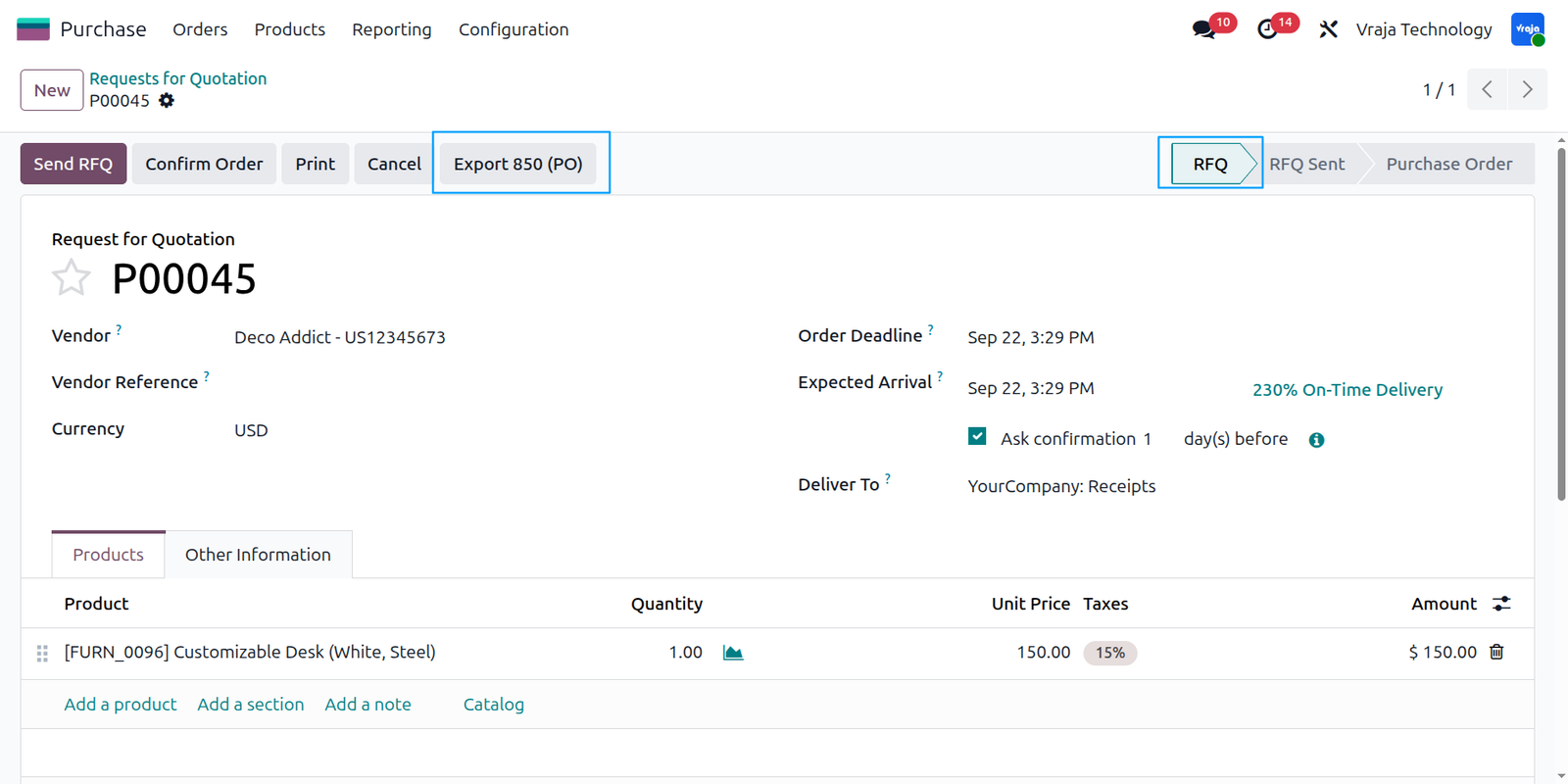
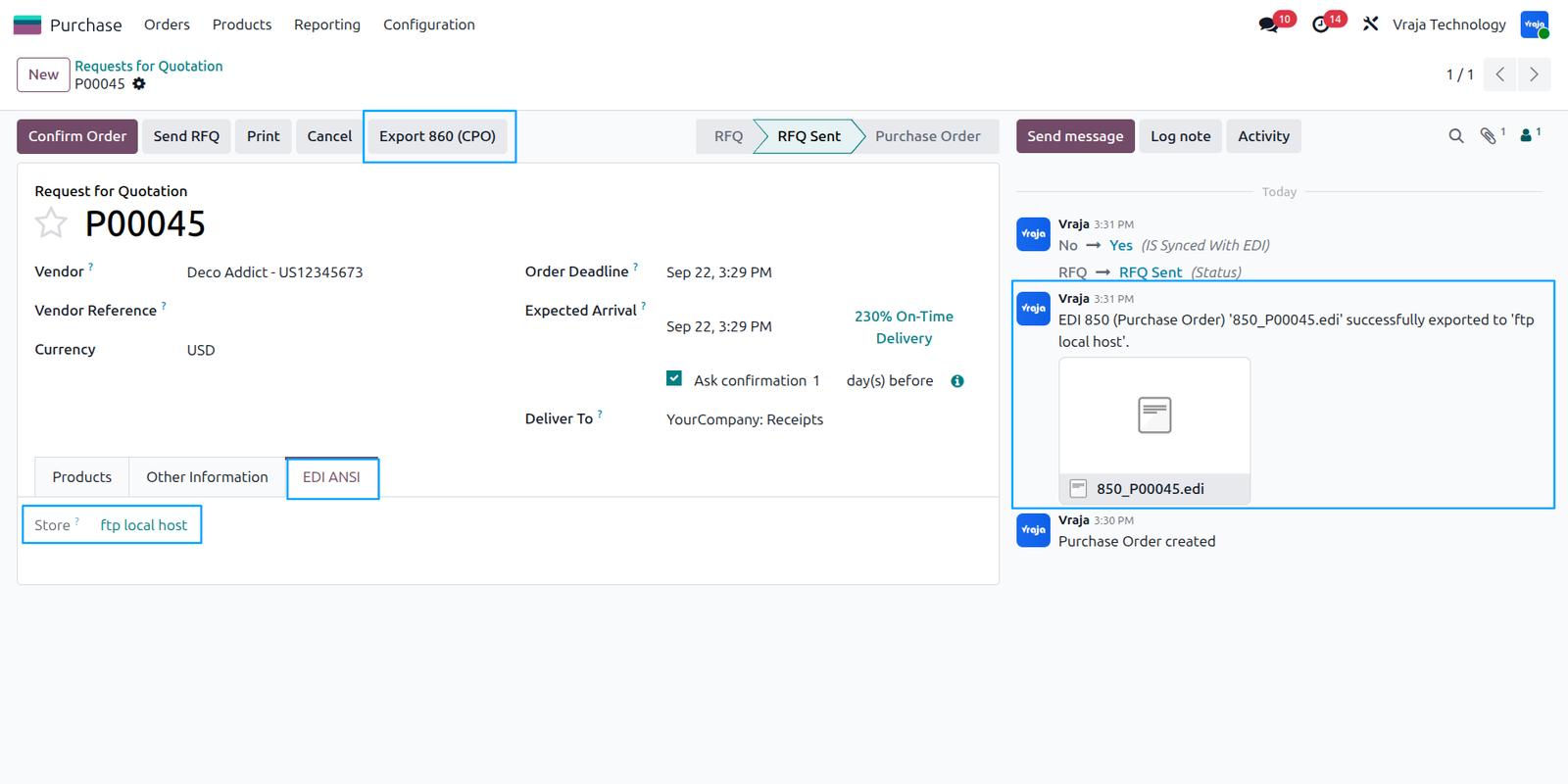
06 After successfully exporting the 850 format, you can see the confirmation on chatter box with FTP used to export PO in page view. Now, 860 export button is also visible and PO state becomes RFQ Sent.
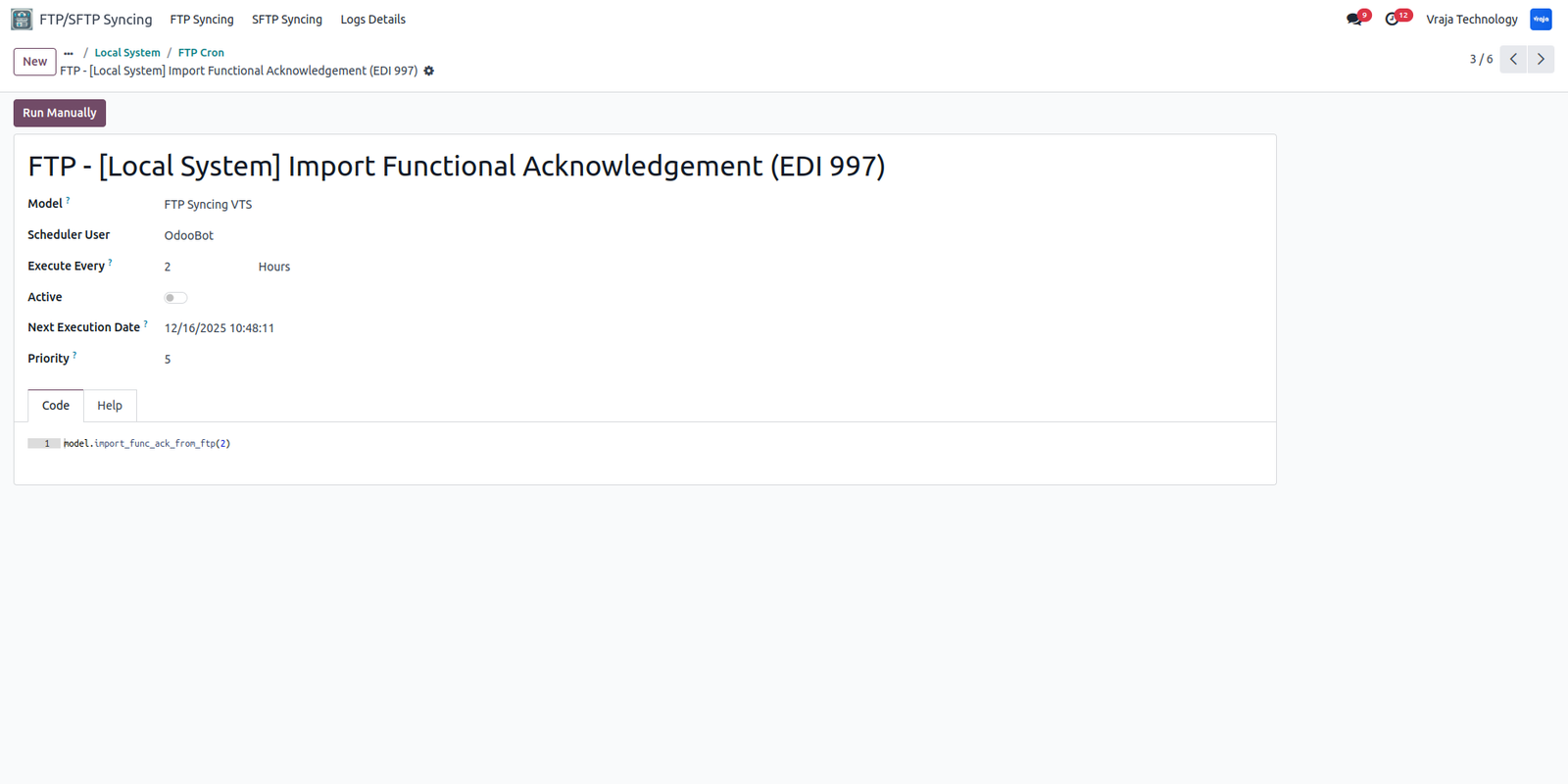
07 If you have selected the 997 confirmation required, then you should run this schedule action to validate the 850 PO.
08 After successfully validating the PO you can see that in the chatter box that PO is functionally validated.
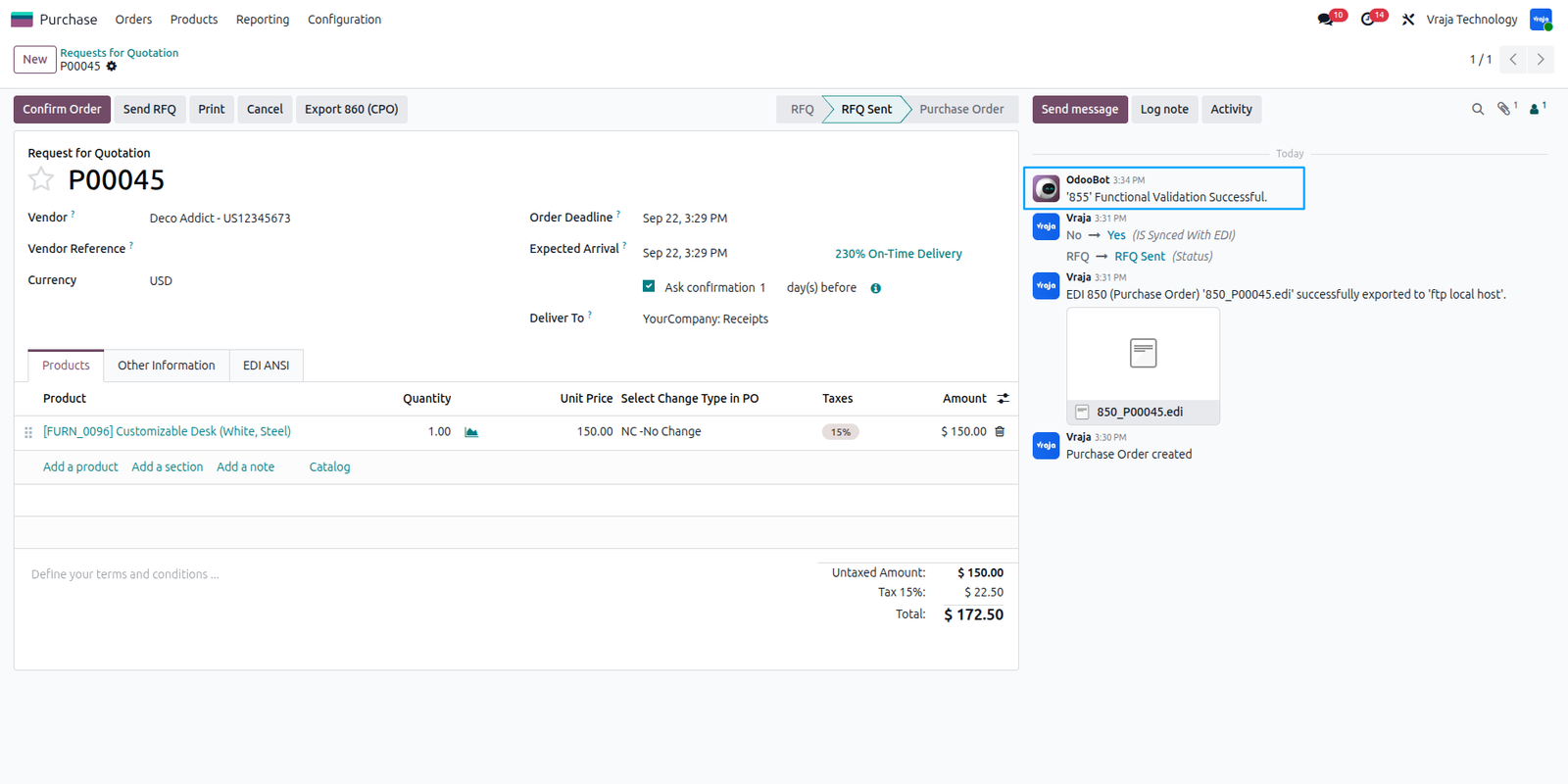
09 On the Purchase Order lines, you can set the Change Type value — by selecting this, you can specify whether the change is a Price change or a Quantity change before exporting the update via EDI 860. After successfully exporting in EDI 850 format, you can see the confirmation in the chatter with the FTP used to export the PO, visible on the page. The "Export 860" button now also becomes visible, and the PO state changes to "RFQ Sent."
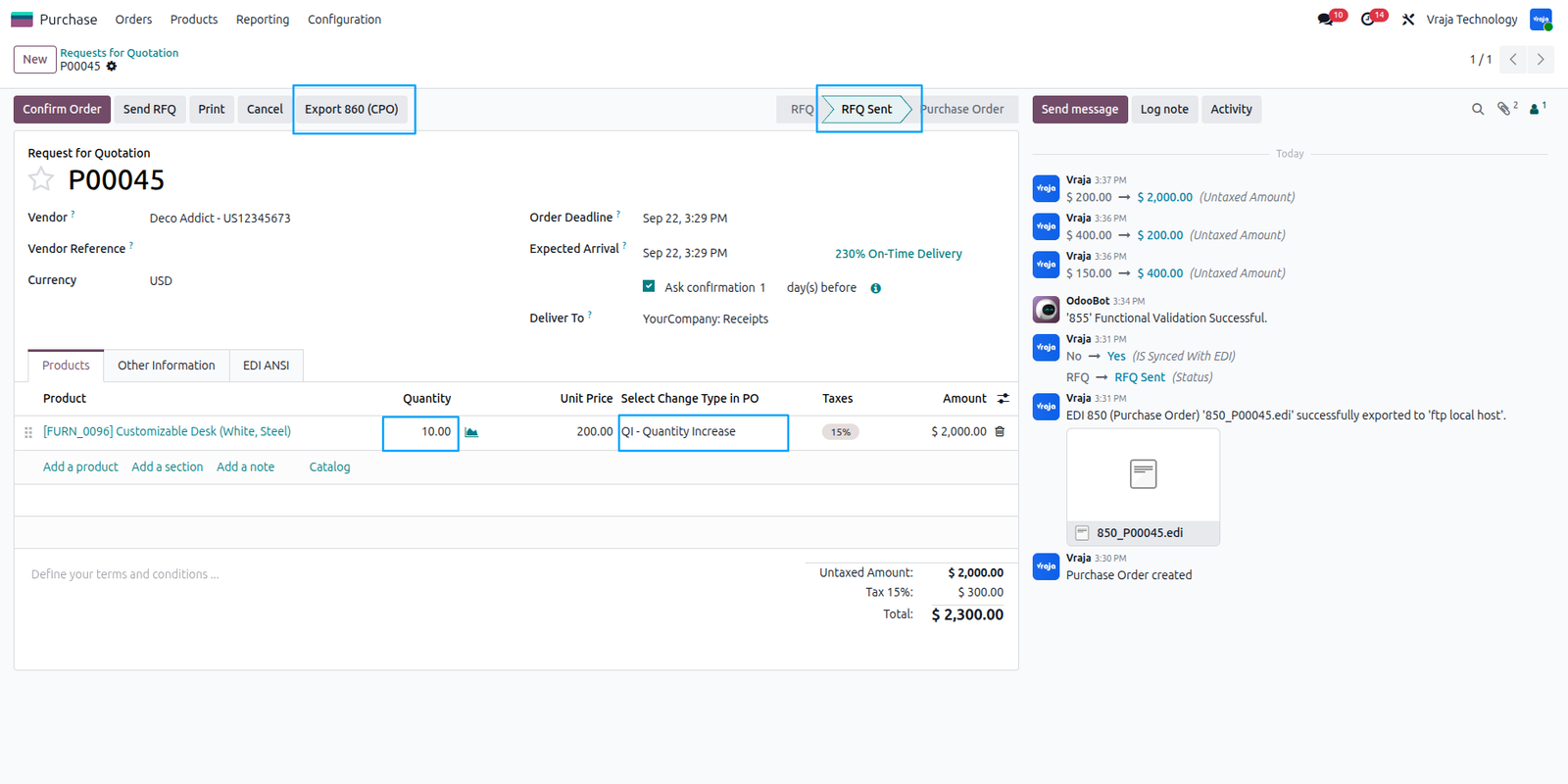
10 After export, you can see that file in the chatter box with the message suggesting the same.

11 After successfully validating the PO you can see that in the chatter box that PO is functionally validated.
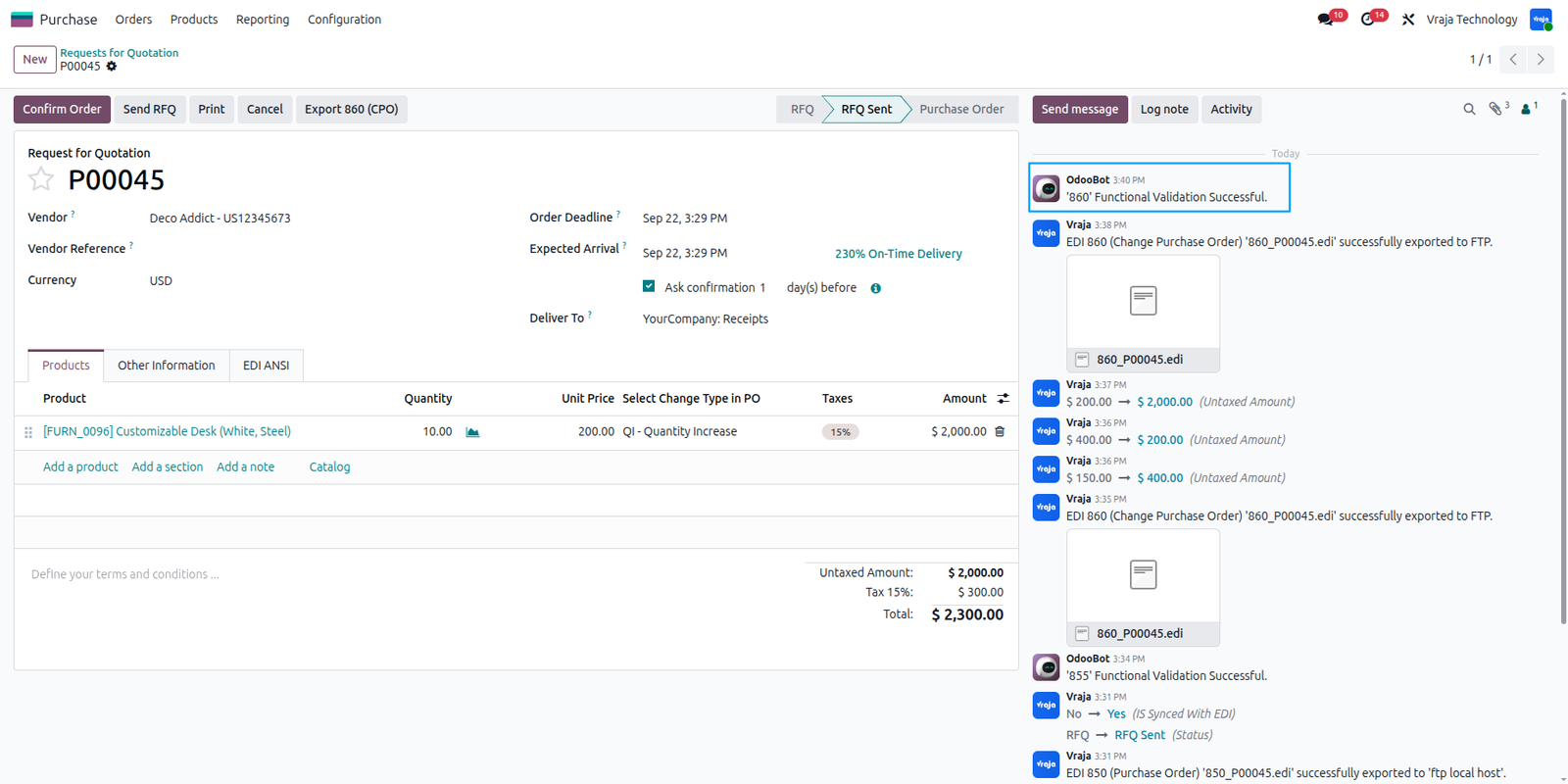
12 Now, This schedule action is for PO Acknowledgement (EDI 855).
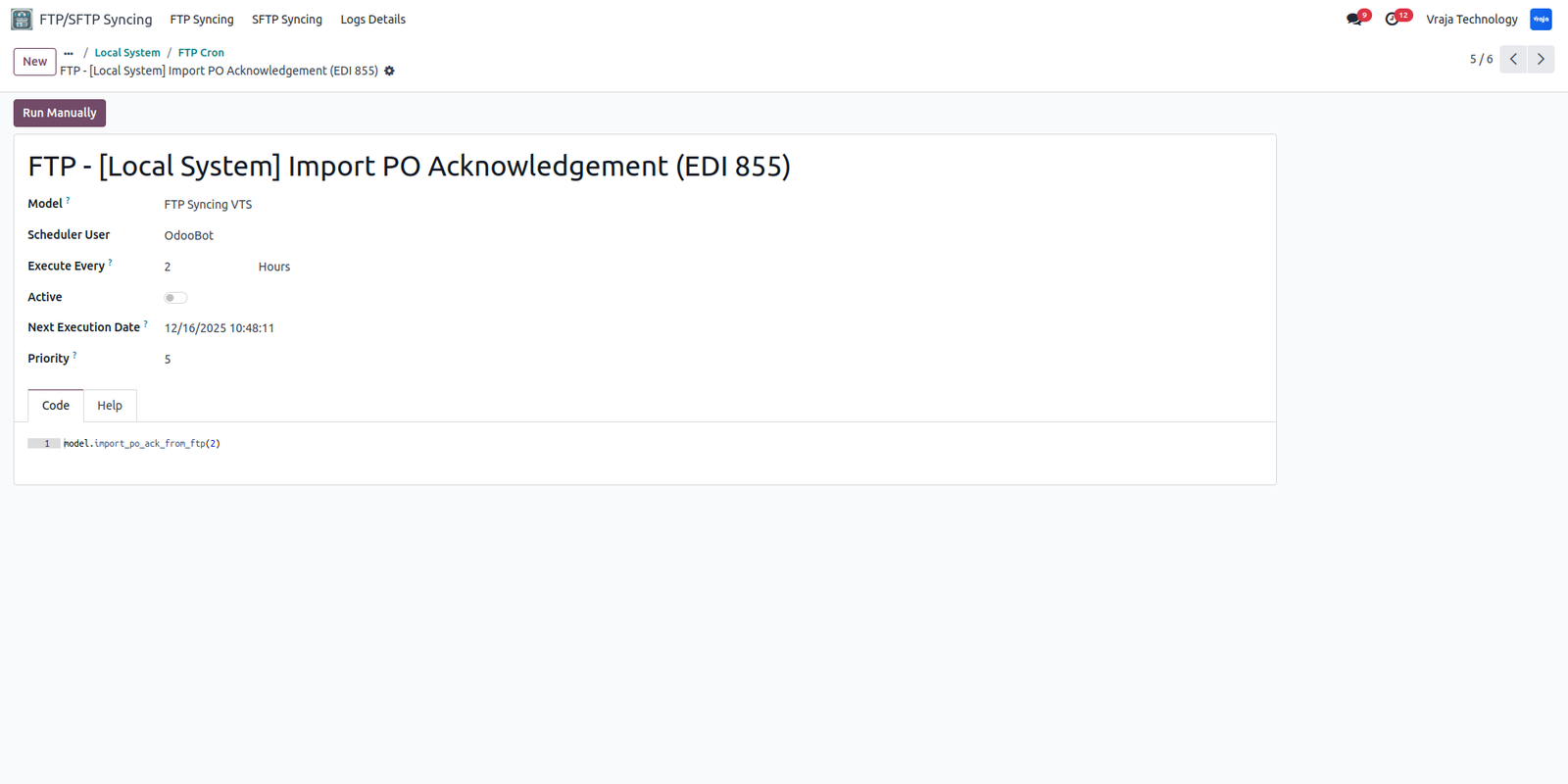
13 After successfully acknowledgement of the PO, you can see that PO is confirmed with message that shows the file name from which it was confirmed as well.

14 This schedule action is for importing the ASN (Advanced Ship Notice) (EDI 856).

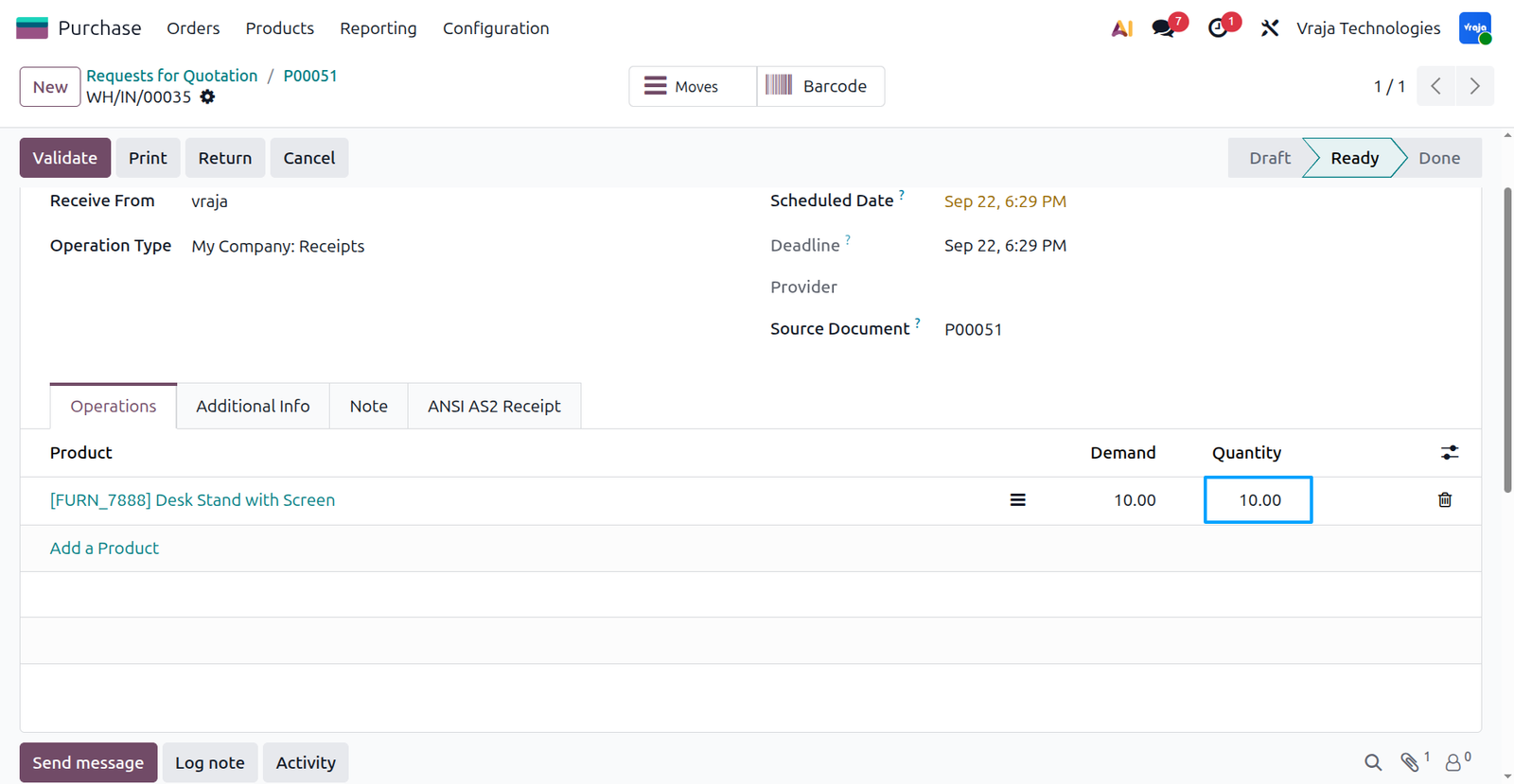
15 After successfully importing of the ASN, you can see the tracking number on the receipt.

16 The delivered Quantities are also updated from the ASN import schedule action.

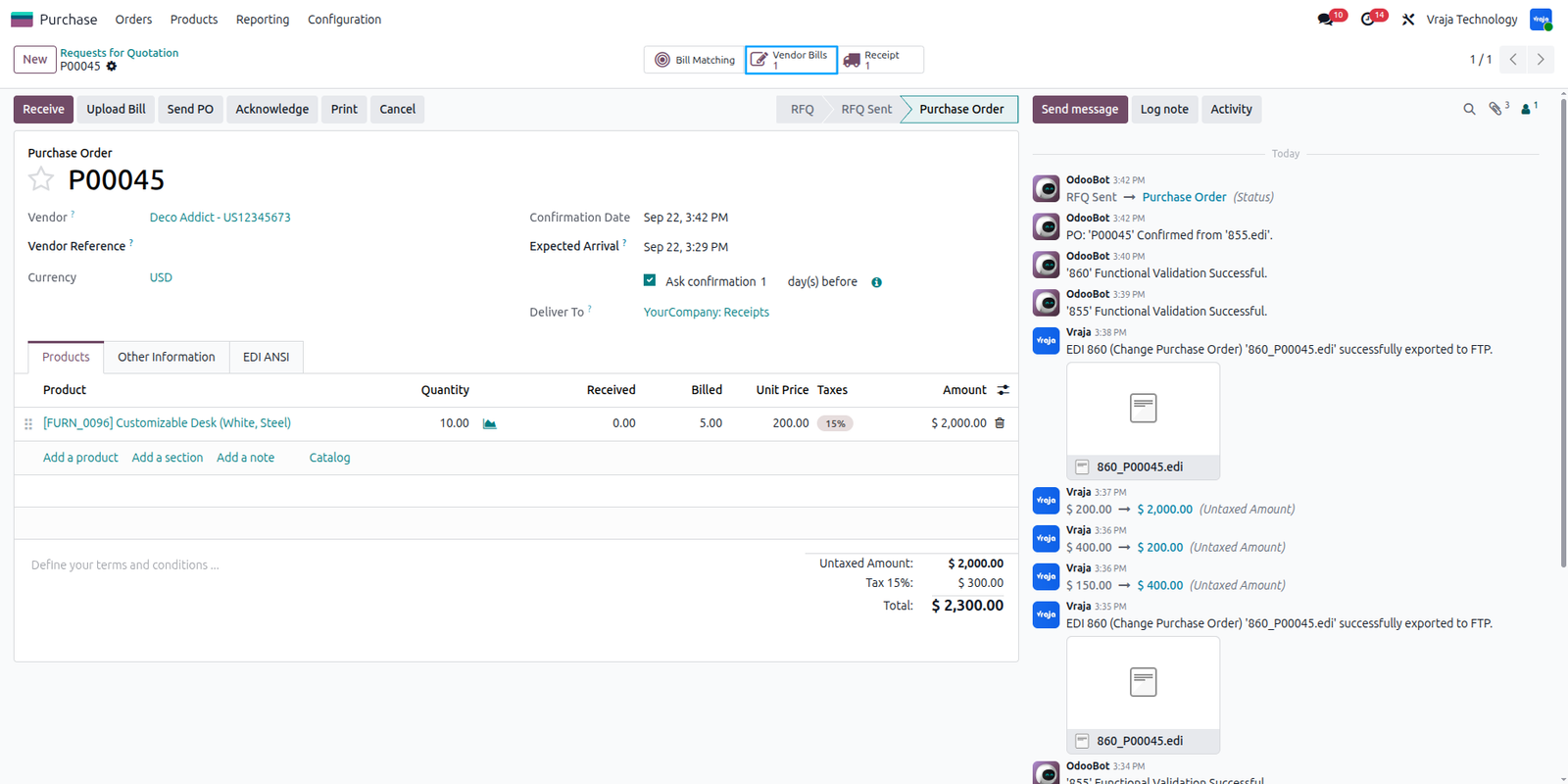
17 This scheduled action automatically imports the Vendor Bill (EDI 810) for the Purchase Order.
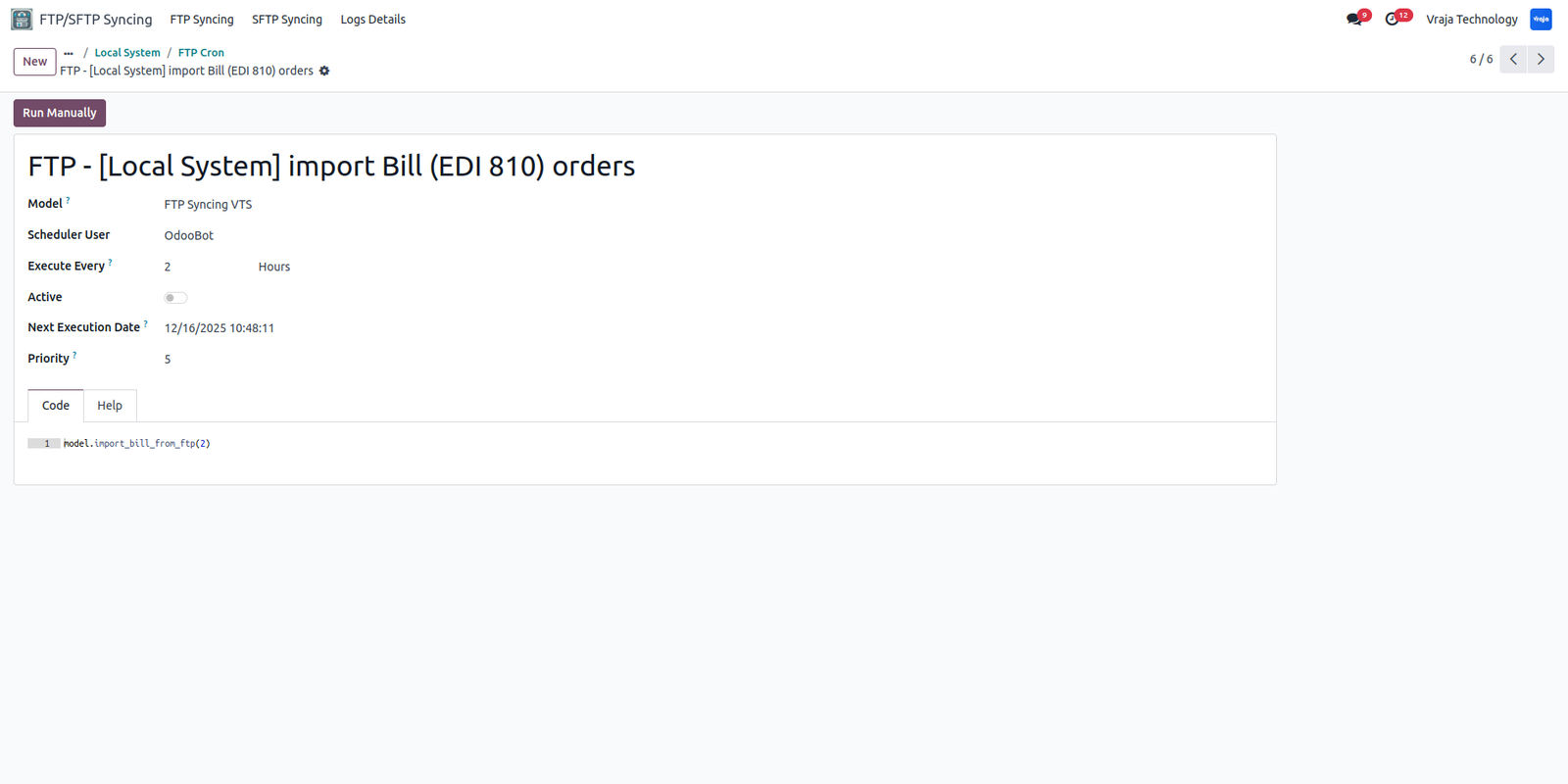
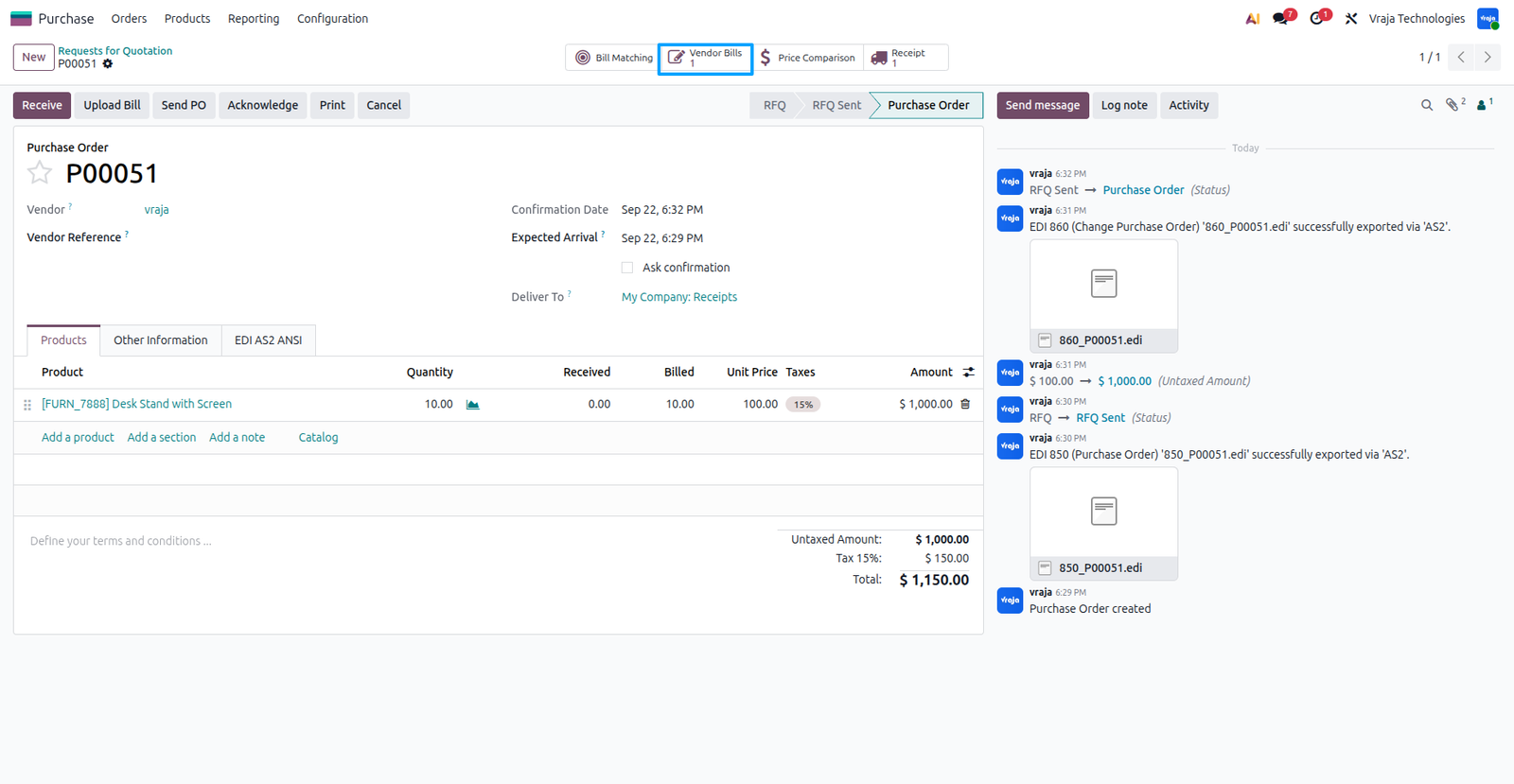
18 Once the bill is successfully imported, a smart button appears on the Purchase Order.
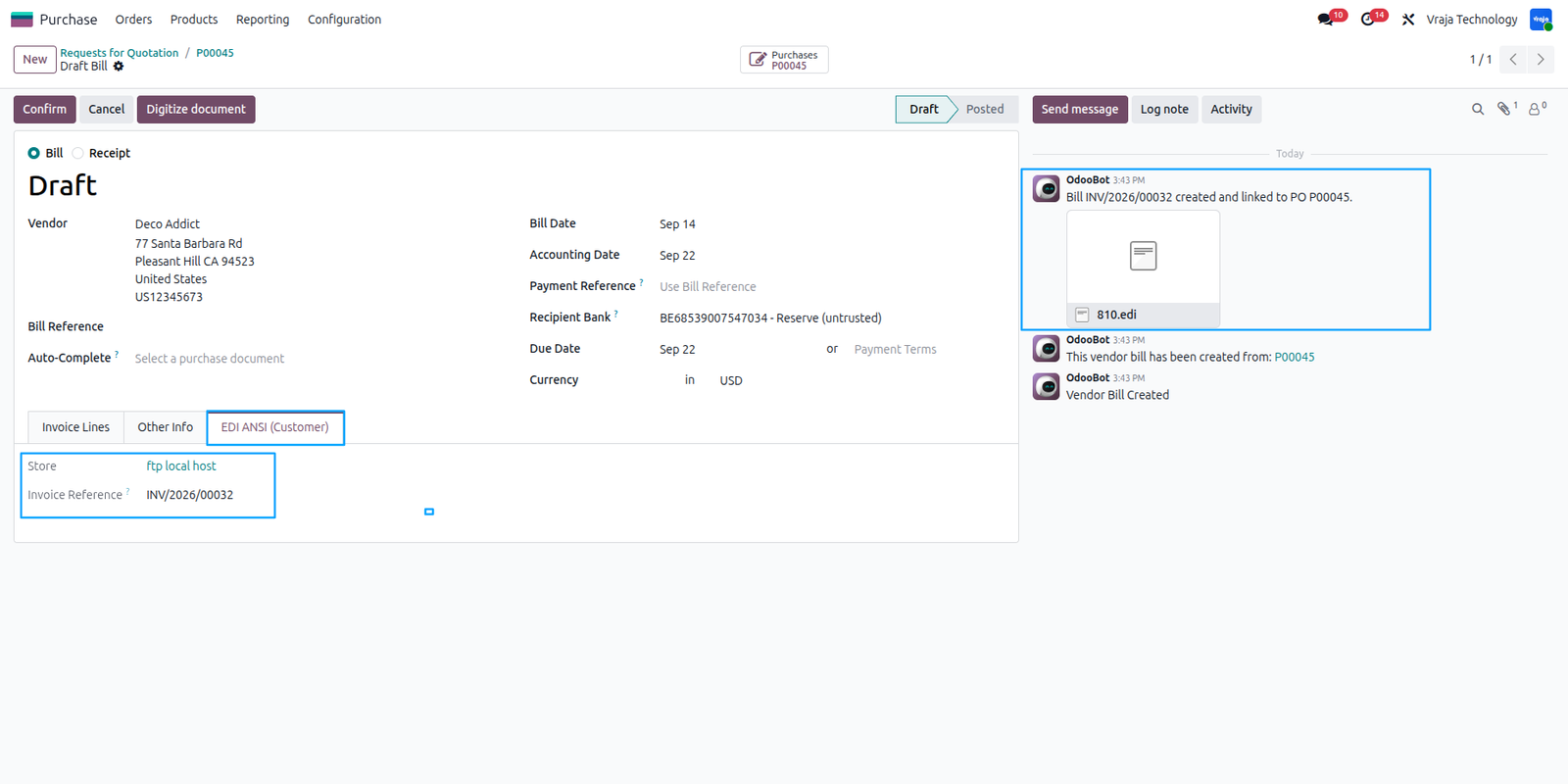
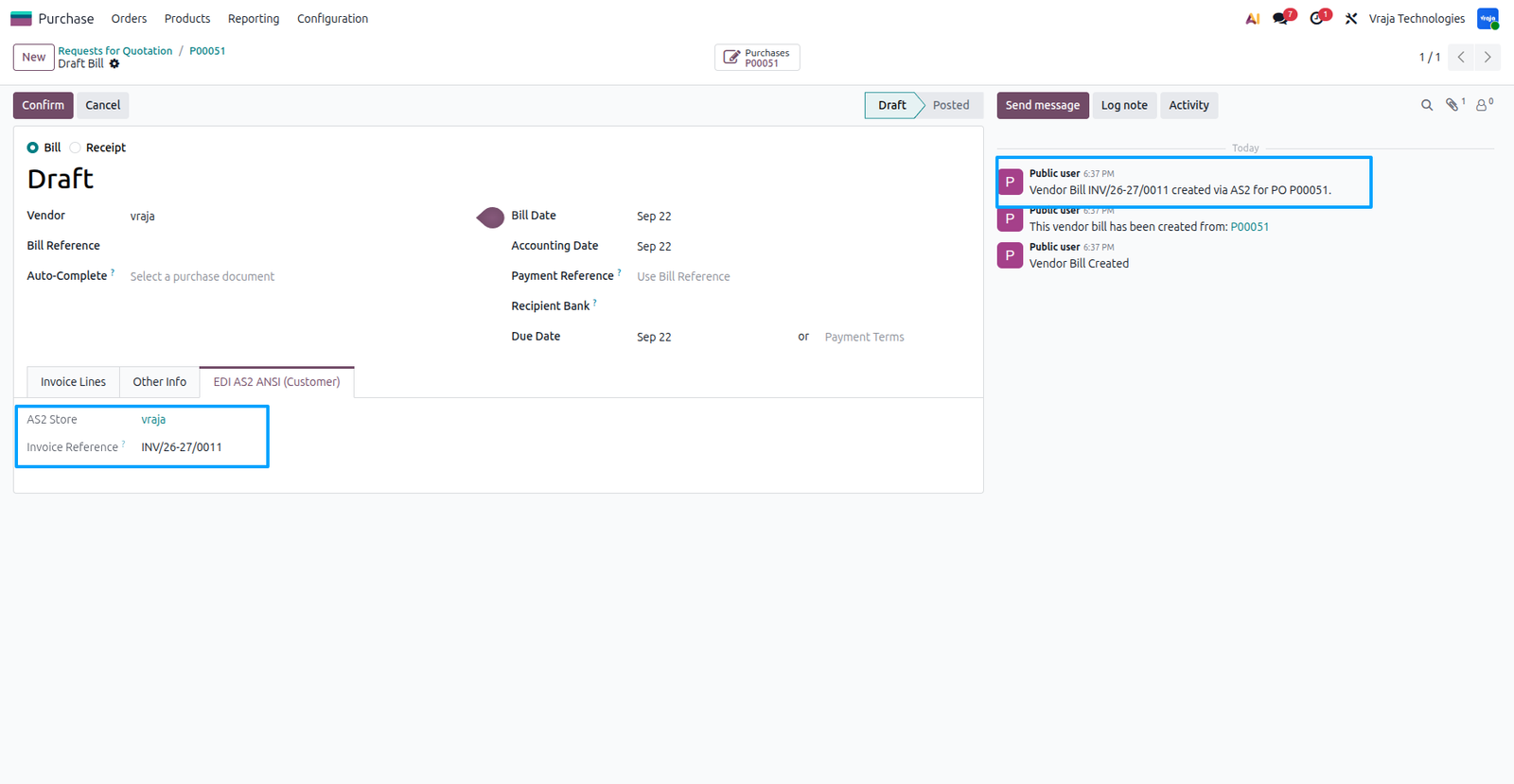
19 This vendor bill is automatically created from the imported file. In the chatter, you can view the attached file, and the EDI/ANSI notebook tab shows the FTP/SFTP details associated with this invoice reference.
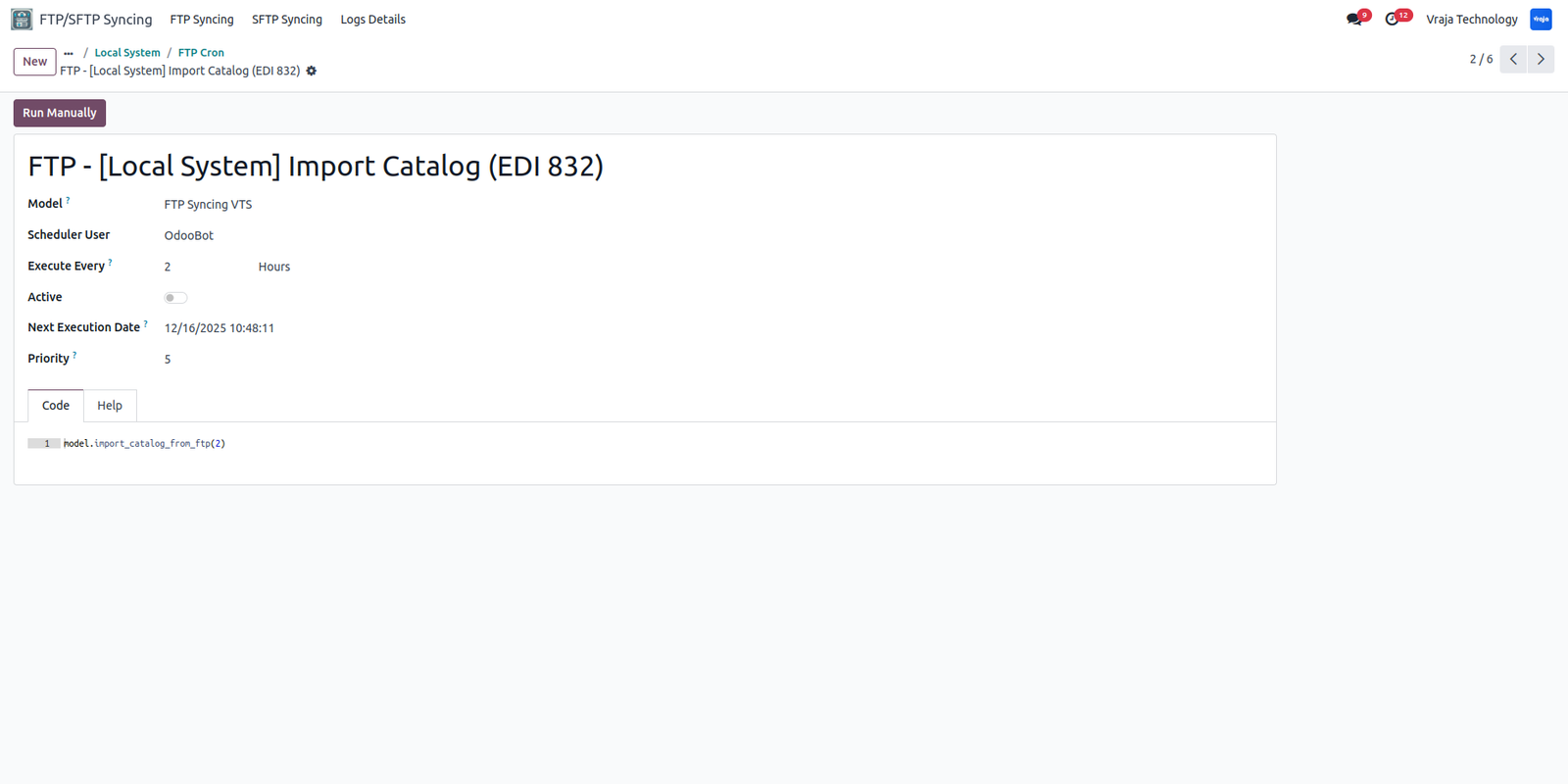
20 This Schedule action is for importing the vendor price list (EDI 832) to the Odoo database for your products.
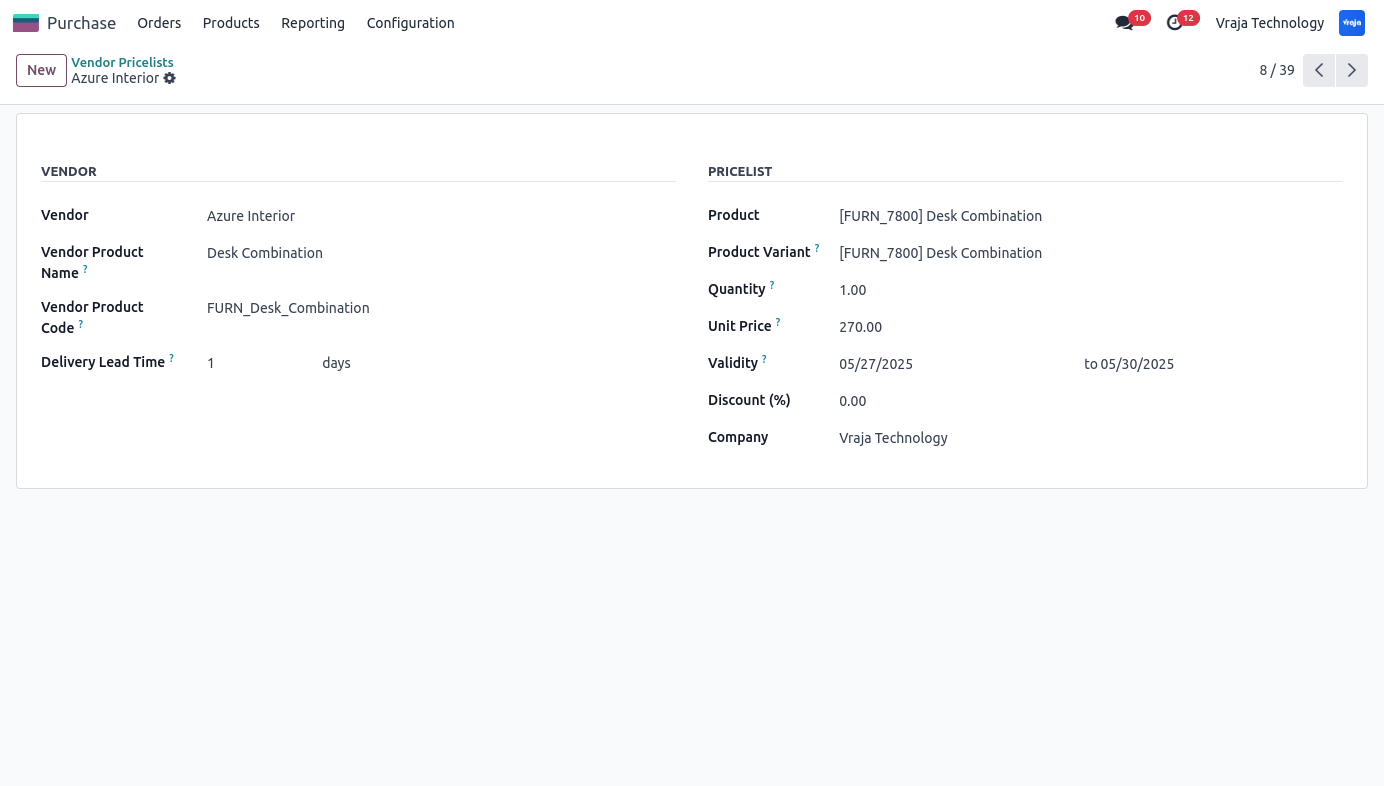
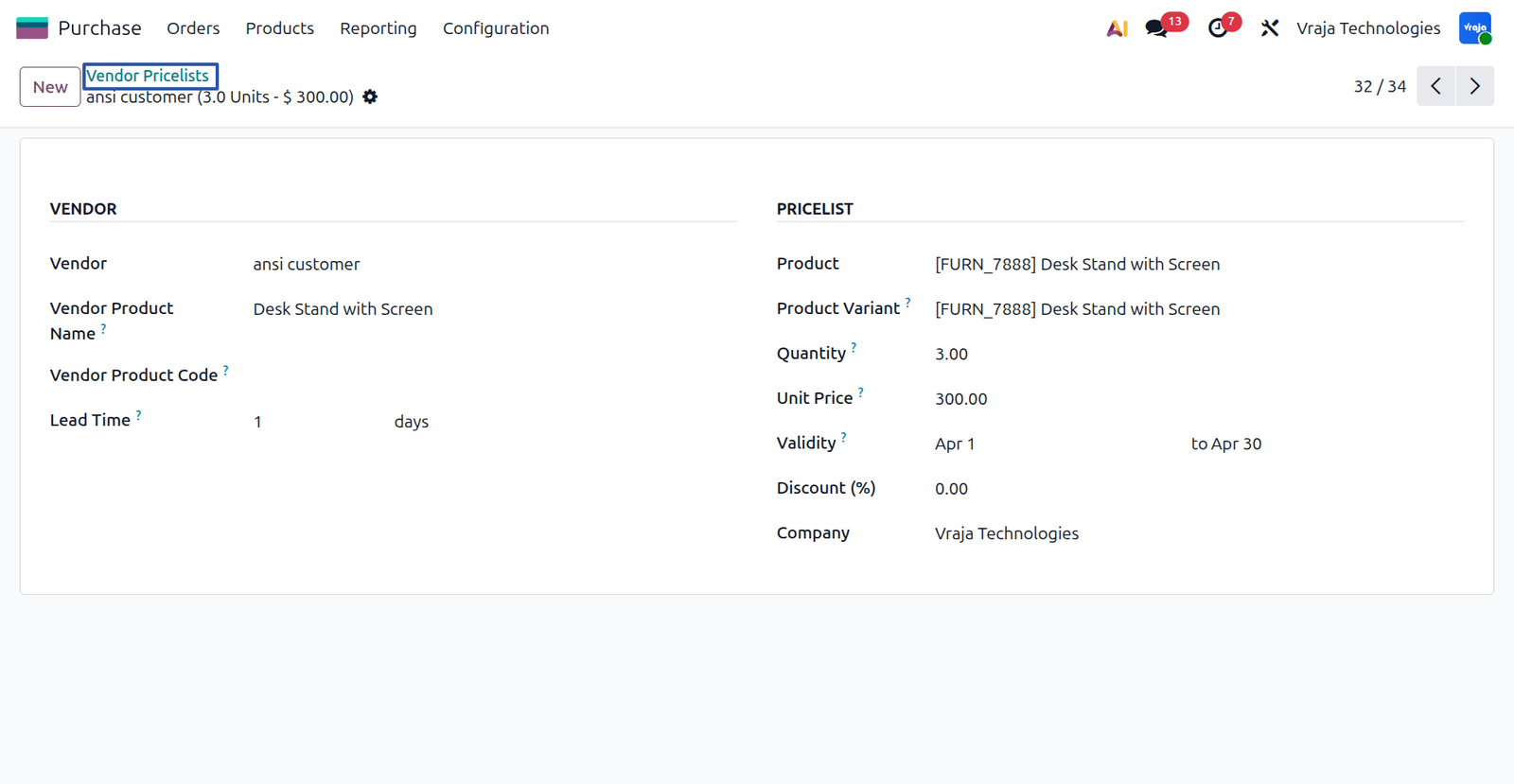
21 This vendor pricelist is created from the schedule action that fetches pricelist from the FTP.
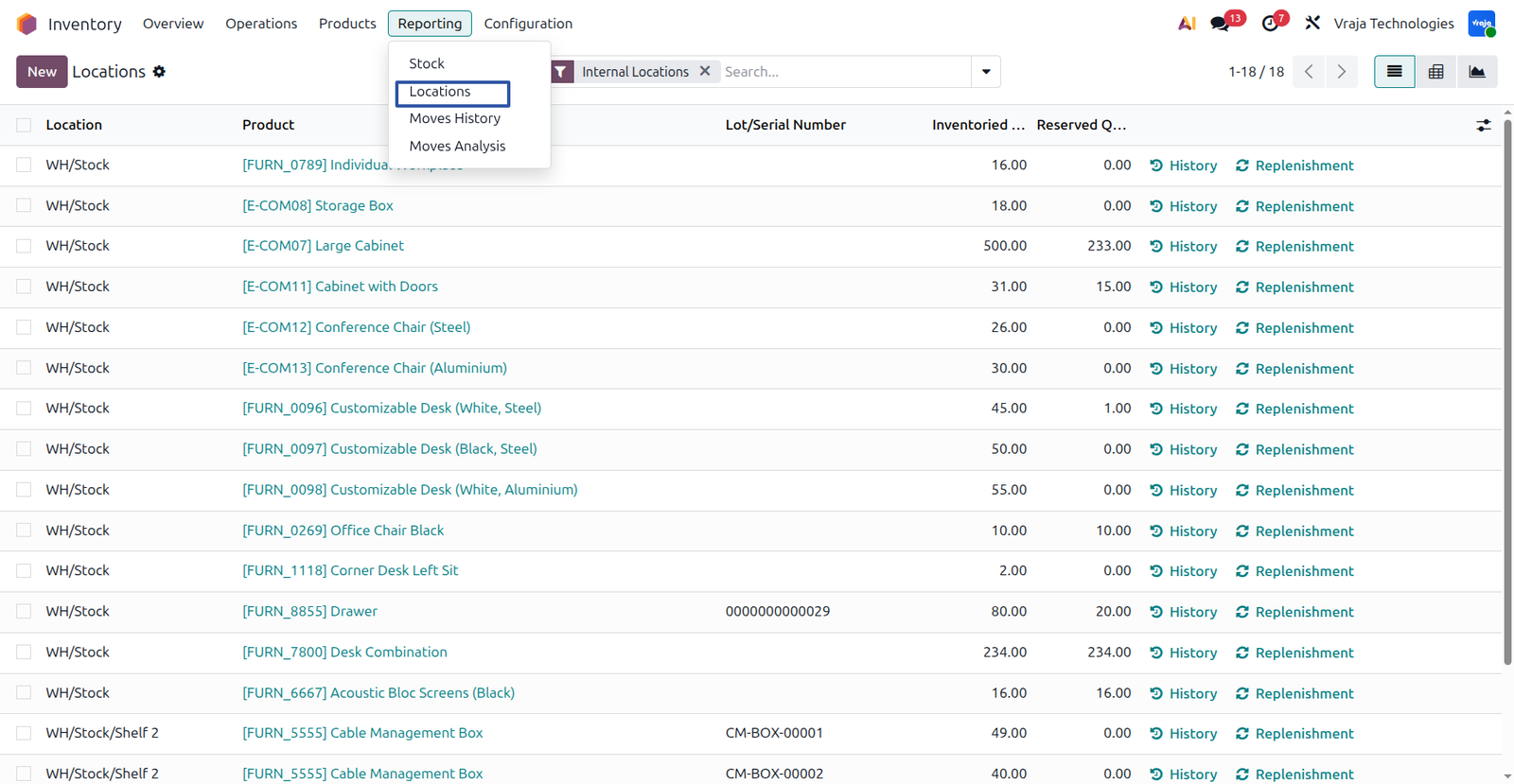
22 This Schedule action is for importing the Product Quantity (EDI 846) to the Odoo database and update the On hand Quantity for your products.
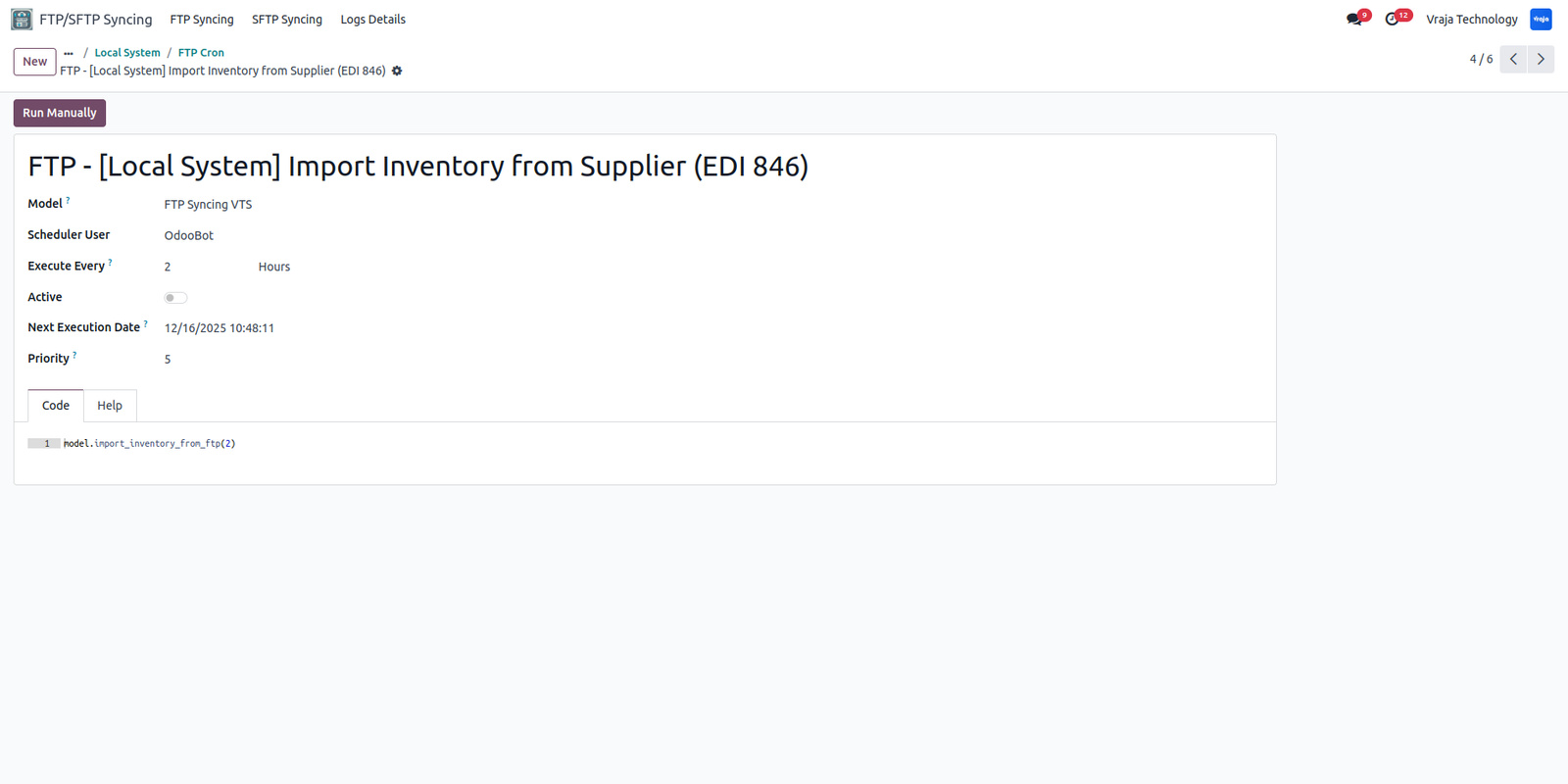
23 This Stock Quants is created from the schedule action that fetches Product Quantity from the FTP.

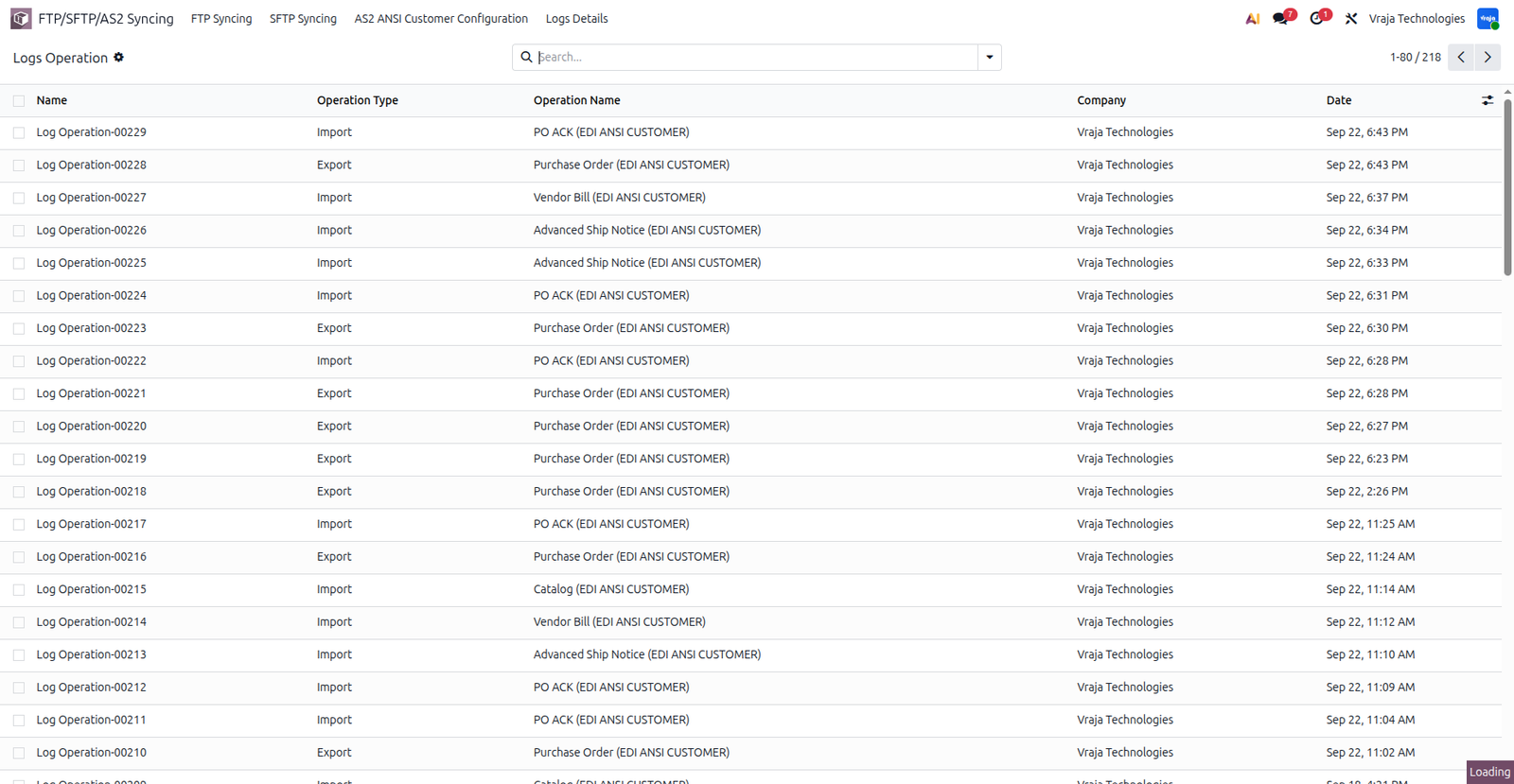
24 You can view the logs under the FTP/SFTP Syncing menu under Log Details.

01 Configuration
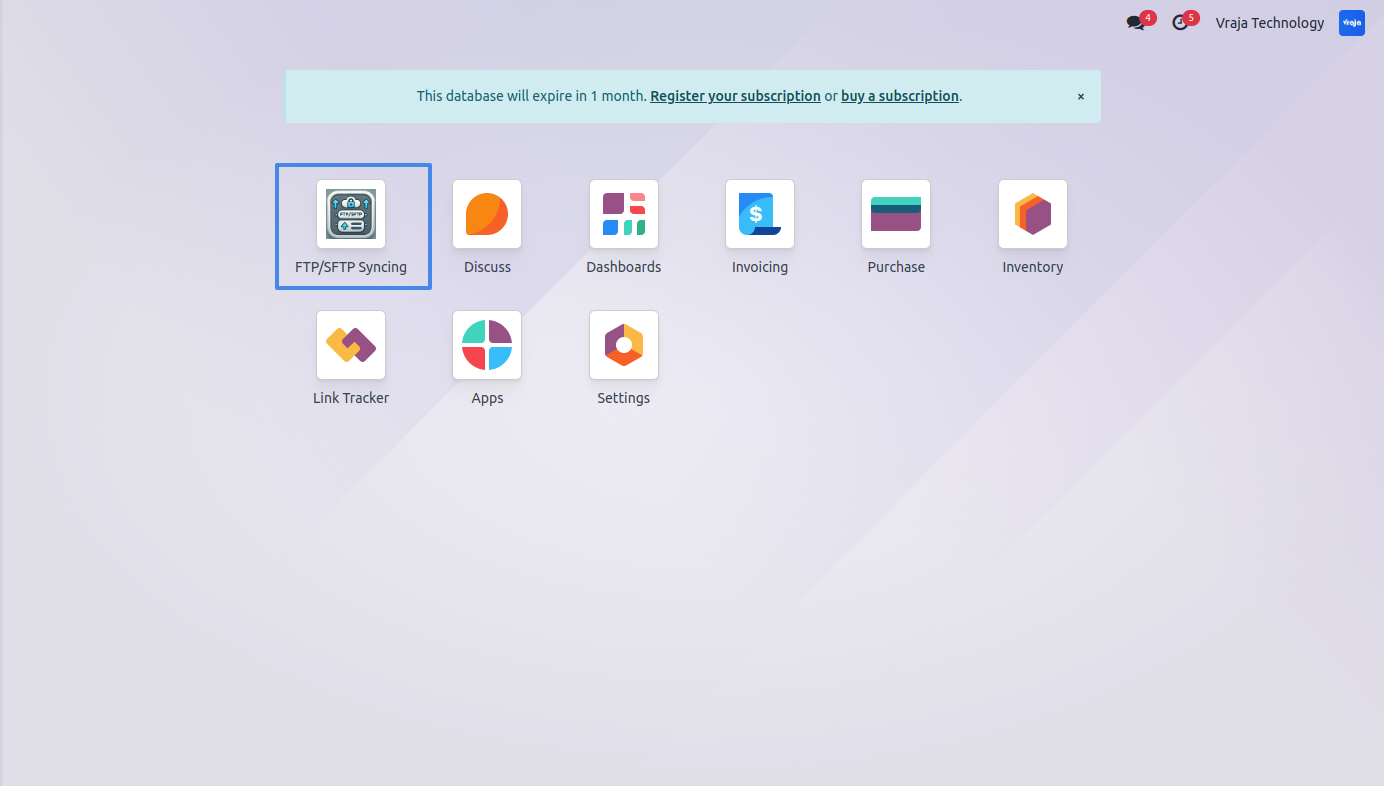
Upon successfully installing the application you can see the FTP/SFTP/AS2 Syncing menu.
02 AS2 (Applicability Statement 2) Configuration
If you would like to use the AS2 protocol please follow steps below.
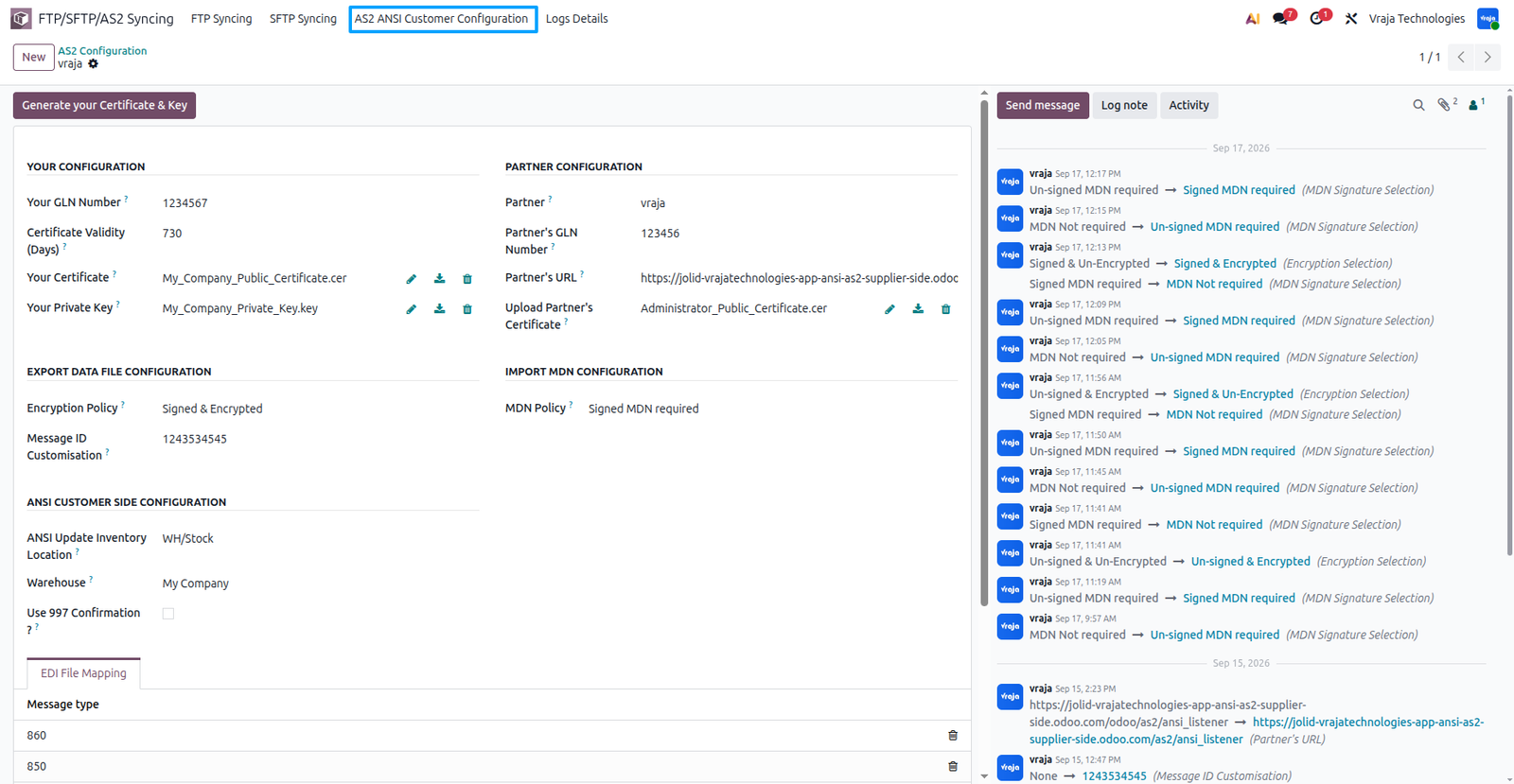
Your Configuration
- Your GLN Number: Enter your company's unique GLN (Global Location Number). This number identifies your organization in EDI communication. Maximum length is 13 digits.
- Certificate Validity (Days): If you are generating the certificate from the button, then you have to enter the validity of the Certificate. In simple terms, for how much period of time you want this certificate to be valid?
- Your Certificate: You have to either upload the certificate along with the private key. If you do not have the public/private keys then you can generate them with given "Generate your Certificate & Key" button.
- Your Private Key: You have to upload the private key if you have. If not then, you can generate the key-pair from given "Generate your Certificate & Key" button.
Partner Configuration
- Partner: Select the partner (customer or supplier) for whom the AS2 configuration is being created.
- Partner's GLN Number: Enter the partner's GLN (Global Location Number) used to identify them in EDI transactions.
- Partner's URL: Enter the URL provided by the partner. This URL is used to send EDI messages through the AS2 protocol.
- Upload Partner's Certificate: Upload the partner’s public certificate. This certificate is used to encrypt messages before sending them to the partner.
Export Data File Configuration
- Encryption Policy: Define how outgoing EDI messages should be secured.
- The following policies are supported:
- Un-signed & Un-encrypted
- Un-signed & Encrypted
- Signed & Un-encrypted
- Signed & Encrypted
Choose the option based on the security requirement agreed with the trading partner.
Message ID Customisation: Specify a custom identifier to be included in the AS2 Message ID header.This helps partners identify the source system or sender of the message.
Import MDN Configuration
MDN Policy: Defines how the system should handle Message Disposition Notifications (MDN).
- Supported policies
- Un-signed MDN Required
- Signed MDN Required
MDN confirms that the partner has successfully received the AS2 message.
ANSI Customer Side Configuration
- ANSI Update Inventory Location: Select the inventory location where product stock quantities will be updated when the Product Inventory (846) file is imported from the partner.
- Warehouse: Select the warehouse where the inventory operations will be applied during the import of the Product Inventory (846) file. The stock quantities received from the partner will be updated for this selected warehouse.
- Use 997 Confirmation: If this option is enabled, the system will import the Functional Acknowledgment (EDI 997) for the exported files.
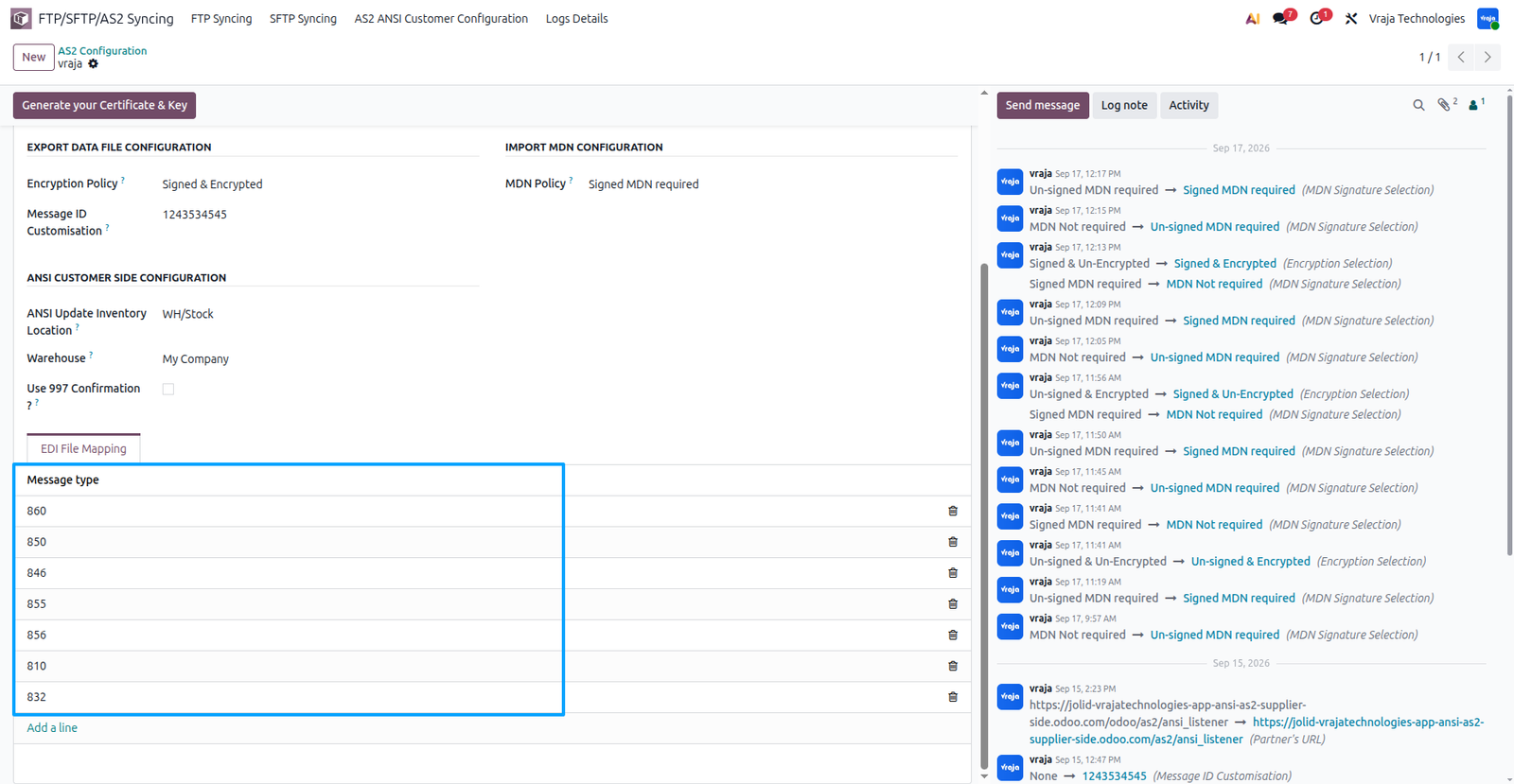
EDI File Mapping
- Message Type: in which define the only ANSI import file message type. for example if bill import then according ANSI file format 810 is come in the edi file format. only need to define for import file.
03 Export Purchase Order Process
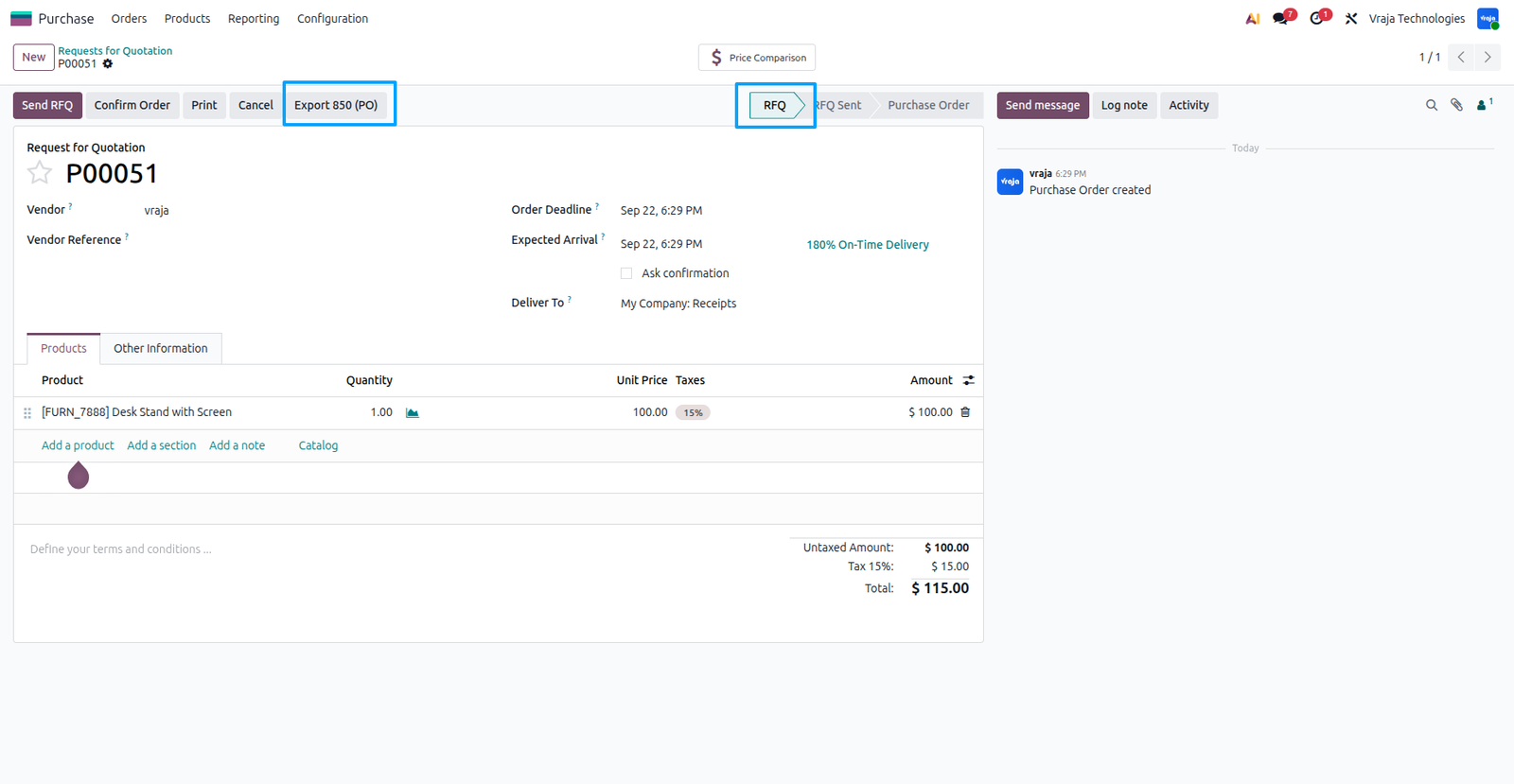
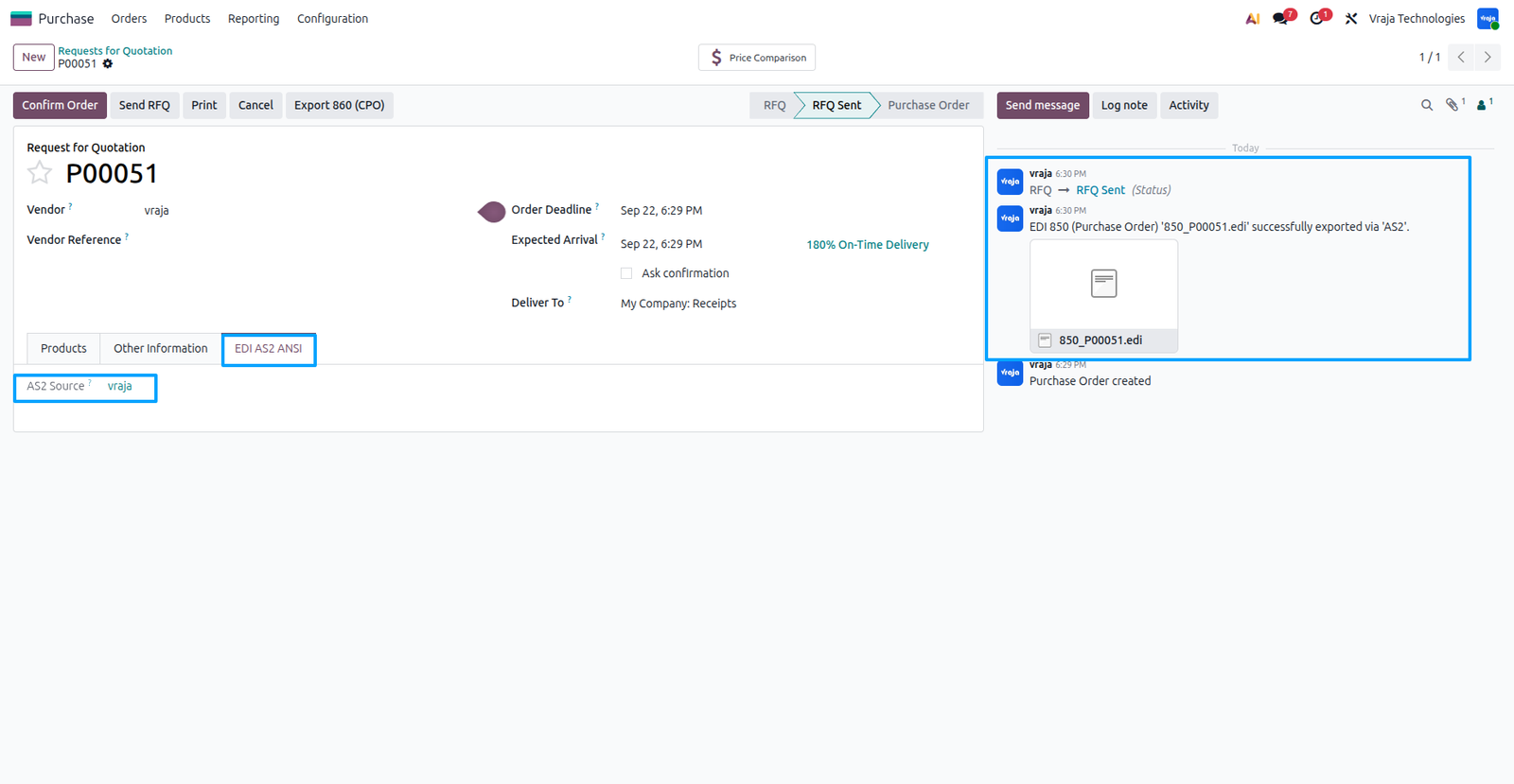
Click the Export 850(PO) button to export the Purchase Order (850) in RFQ state. and the PO is automatically exported using AS2 configuration. and the exported file is attached to the record. and with that if 997(functional ackwoldgemnt) required then it also imported. You can view the attachment and msg in the chatter for reference.
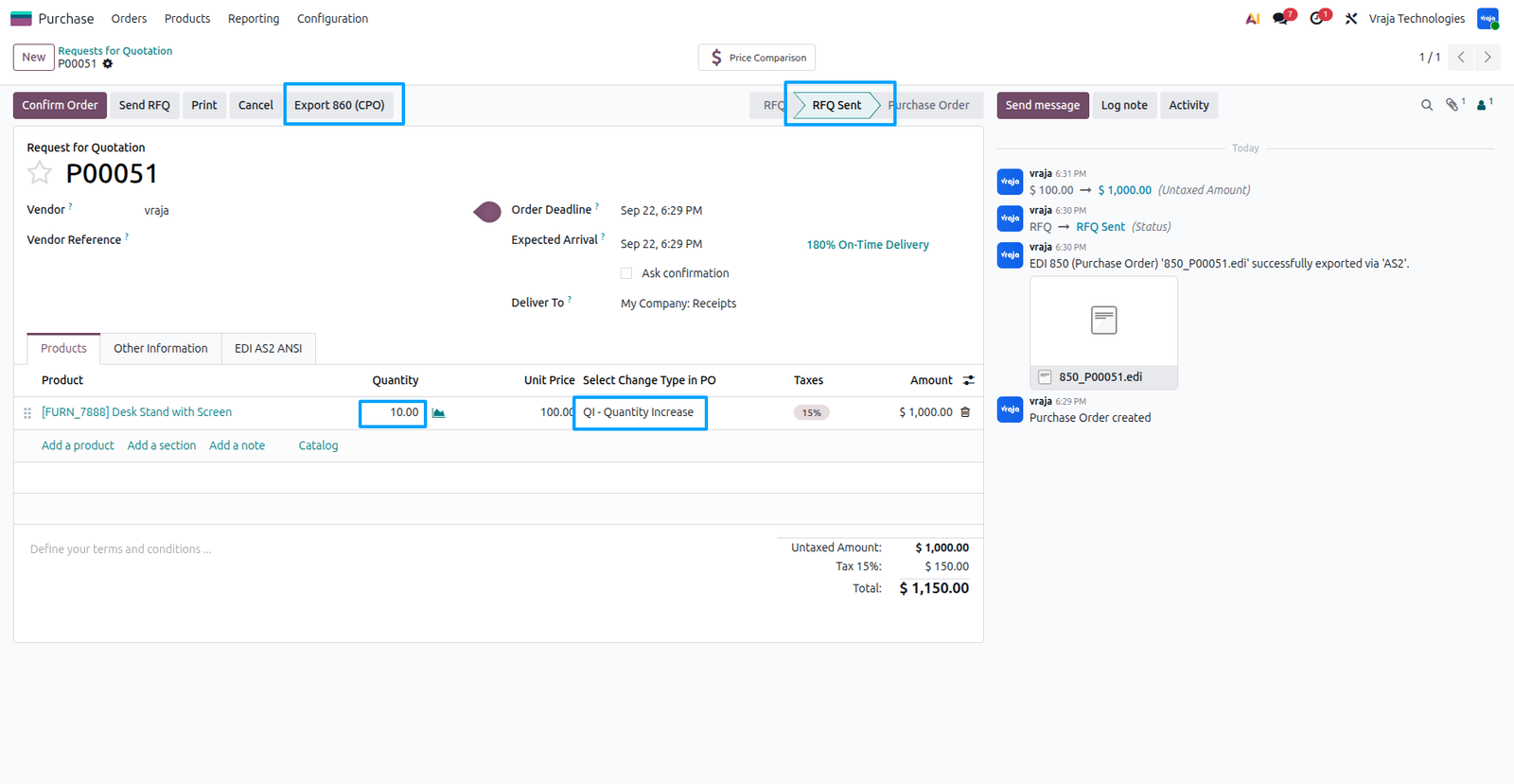
If there are any changes in the PO, update the Purchase Order line by selecting the appropriate Change Type — based on the selected type, the corresponding change (Price or Quantity) is applied to the line. Once updated, click Export 860 (CPO) in the RFQ Sent state. The PO is automatically exported using AS2, and the file is attached to the record.
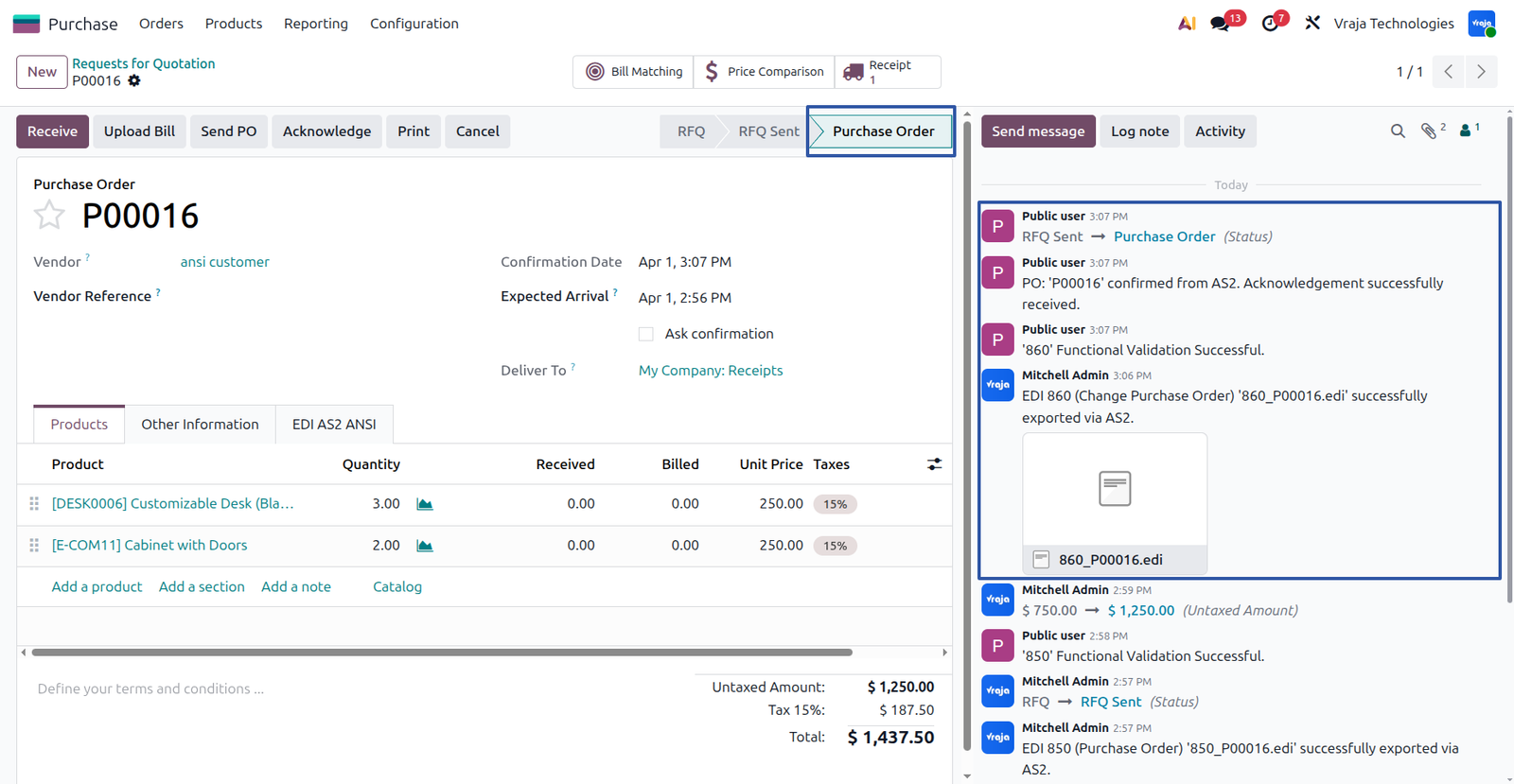
If 997 (Functional Acknowledgment) is enabled, both 997 and 855 (PO Acknowledgment) will be imported; otherwise, only 855 will be imported. You can check the attachment and messages in the chatter for reference.
04 Import ASN Process
Inside the purchase order, you can find the receipt(856) that will be updated.

It updates the quantity and tracking reference in the receipt.

05 Import Vendor Bill Process
You can view the imported Vendor Bill(810) using the Vendor Bill smart button. You can also check the source of the imported bill from the "EDI AS2 ANSI(Customer)" page.
06 Import Vendor Pricelist Process
This Vendor Pricelist is created through the AS2 import process(832),You can view it in the Vendor Pricelist menu.
07 Import Product Inventory Process
In this process, the Product Quantity (846) file is imported into the Odoo database and updates the On Hand Quantity of the products. The Stock Quants are created through the AS2 import process, which retrieves the product quantity information from the AS2 partner.
Log details can be found under the 'Log Details' menu in FTP/SFTP/AS2 syncing, capturing both successful and failed operations for reference.
|
|
Which protocol is used to transfer files?We use both AS2/FTP/SFTP protocols for secure file transfer. |
|
|
Can we export the Purchase Order and its changes?Yes, you can export Purchase Orders (EDI 850) and Purchase Order Changes (EDI 860) directly from Odoo. |
|
|
How do we track supplier confirmations?Supplier confirmations are received via Purchase Order Acknowledgment (EDI 855) and can be tracked in Odoo. |
|
|
Can we get supplier pricelist and inventory updates?Yes, Vendor Pricelist (EDI 832) and Product Inventory (EDI 846) can be imported to keep pricing and stock data updated. |
|
|
Is there any way to track EDI file processing status?Yes, Functional Acknowledgment (EDI 997) is imported to track the processing status of EDI files. |
|
|
I would like to request a custom feature for this application. What’s the process to get it implemented?We’re happy to help tailor the application to meet your business needs! You can reach us via sales@vrajatechnologies.com |
|
|
Who is the point of contact for technical support, configuration support or bug-related queries?You can reach us via support@vrajatechnologies.com |
|
|
Can we see the exported or imported file? If yes, where?Yes. You can view or download the exported or imported file directly from the message post (chatter), as shown in the screenshots. And you can see all these files together in the attachments also. |
|
|
Included App Support90 Days Complimentary Support for Supported Versions If you encounter issues caused by the app itself, our team provides complimentary support for 90 days from the date of purchase for supported Odoo versions. |
Included App Support
90 Days Complimentary Support for Supported Versions
If you encounter issues caused by the app itself, our team provides complimentary support for 90 days from the date of purchase for supported Odoo versions.

Customer SupportNeed help with installation, configuration, technical issues, or general questions about the module? Submit a support ticket through our dedicated support portal. |
||
|
Support Portal
vrajatechnologies.com/helpdesk
|
Support PolicyReview our support policy for complete information about support coverage, issue eligibility, exclusions, version compatibility, and other support conditions. |
||
|
Support Policy
vrajatechnologies.com/support-policy
|
Scan for Support
|
||
|
Support Portal
vrajatechnologies.com/helpdesk
|