Explore the key features, workflow, and value of this Odoo module.
|
|
Centralized Printer ManagementImports computers along with their printers and supported paper sizes, allowing administrators to manage all printing devices directly within Odoo. |
|
|
Automated Printing RulesSupports configurable Print Rules to automatically print documents based on defined conditions, selected printers, and paper sizes, minimizing manual intervention. |
|
|
Print Job Tracking and LogsManages logs for every printing operation, providing real-time tracking of print job status and helping identify any issues quickly. |
|
|
Streamlined WorkflowsBy combining automated rules, direct printing, and detailed logging, the module ensures efficient, reliable, and error-free printing operations across your Odoo environment. |
|
|
Increased EfficiencyAutomates document and label printing directly from Odoo to printers via PrintNode, reducing manual printing steps and saving time for your team. |
|
|
Direct Label PrintingAutomatically prints shipping or product labels based on delivery method settings, storing label details such as the file, carrier, printer, and related delivery order. |
|
|
Automatic CleanupRemoves old print job requests and associated attachments after a set period (e.g., 15 days), keeping the system optimized and clutter-free. |
01 To connect your system with PrintNode, some configuration is required. Install the PrintNode desktop application based on your operating system, log in with your PrintNode account credentials, and it will fetch the printers available on your system.
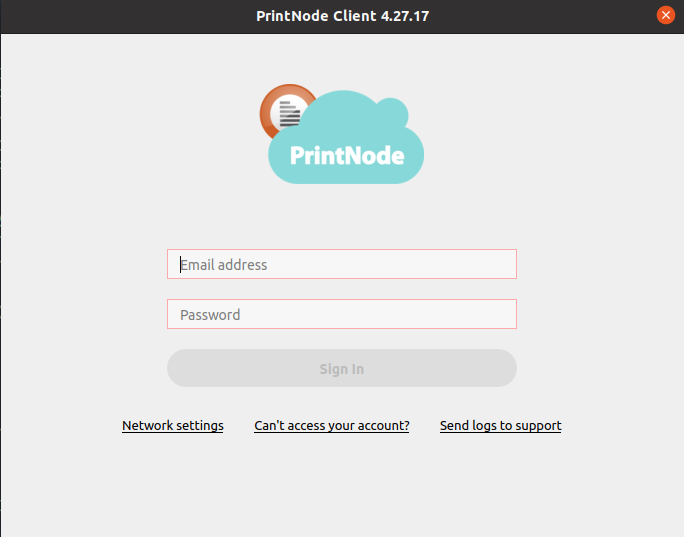
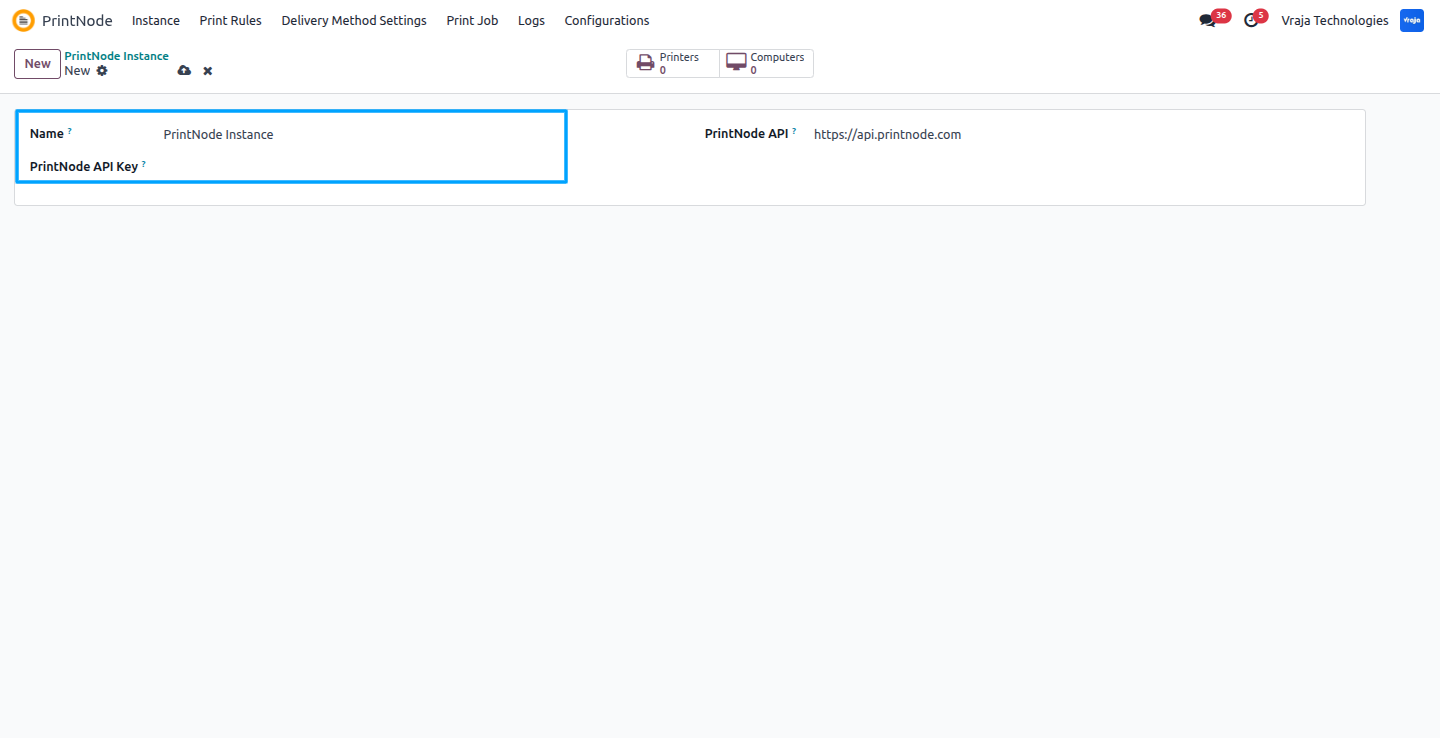
02 PrintNode Instance Configuration Process

03 Enter the Instance Name and the PrintNode API Key, which can be retrieved from your PrintNode Account
Note: If you already have a PrintNode account, you can use your existing API key.
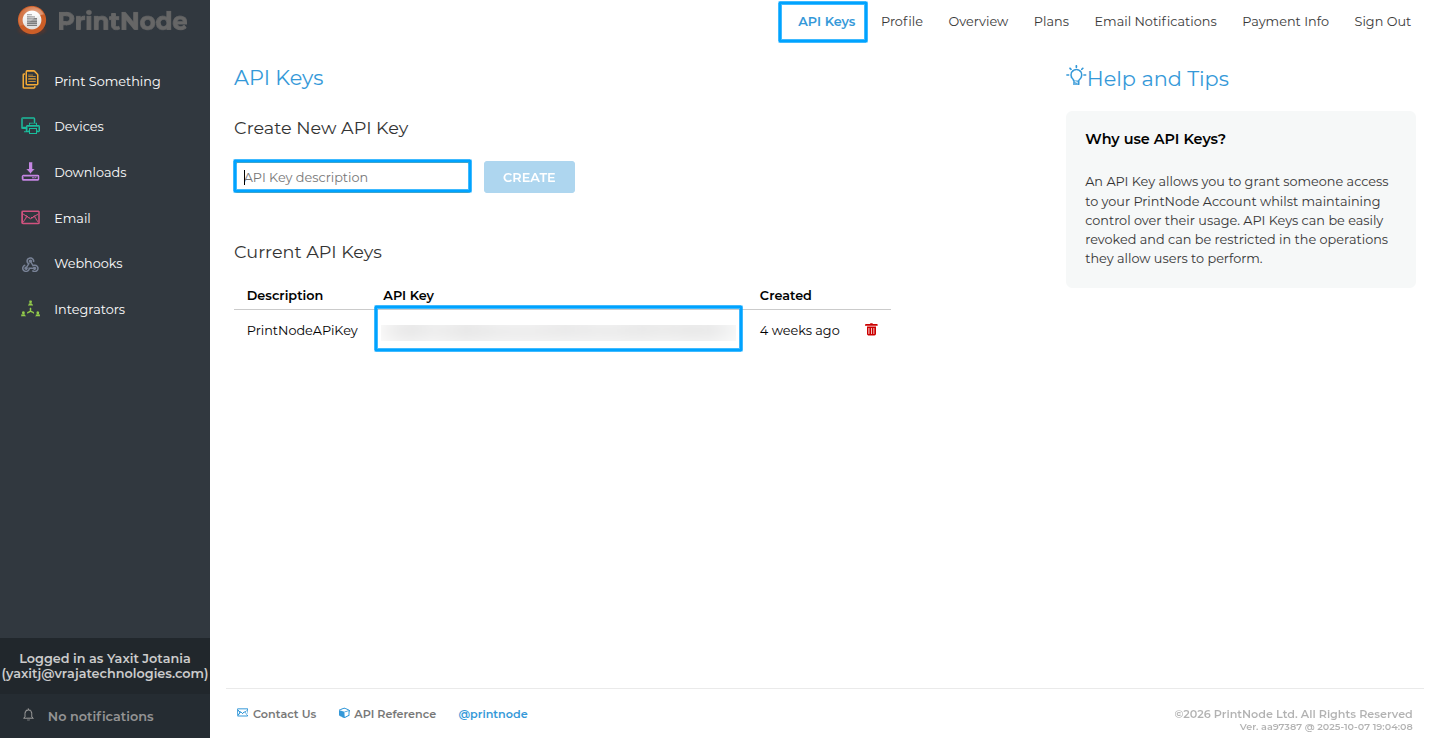
04 If you do not have a PrintNode account, you need to create one and obtain the API key from the PrintNode portal, as shown in the image.
05 After entering the API key, click Sync PrintNode Data to retrieve all the data such as systems, printers, and papers from PrintNode.

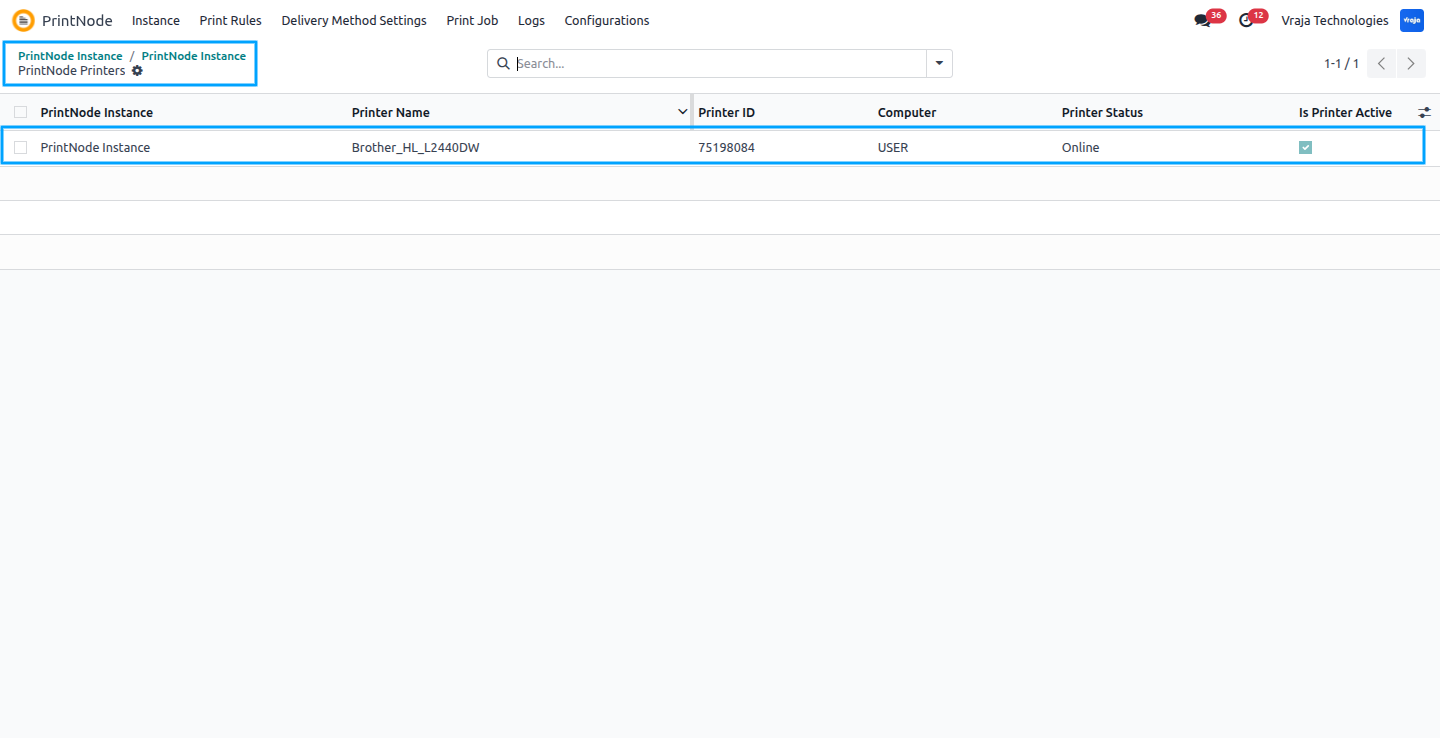
01 By clicking the Sync PrintNode Data button, you will retrieve all computers and their corresponding printers along with their paper formats. You can view these computers and printers using the smart buttons and also from the configuration menus.

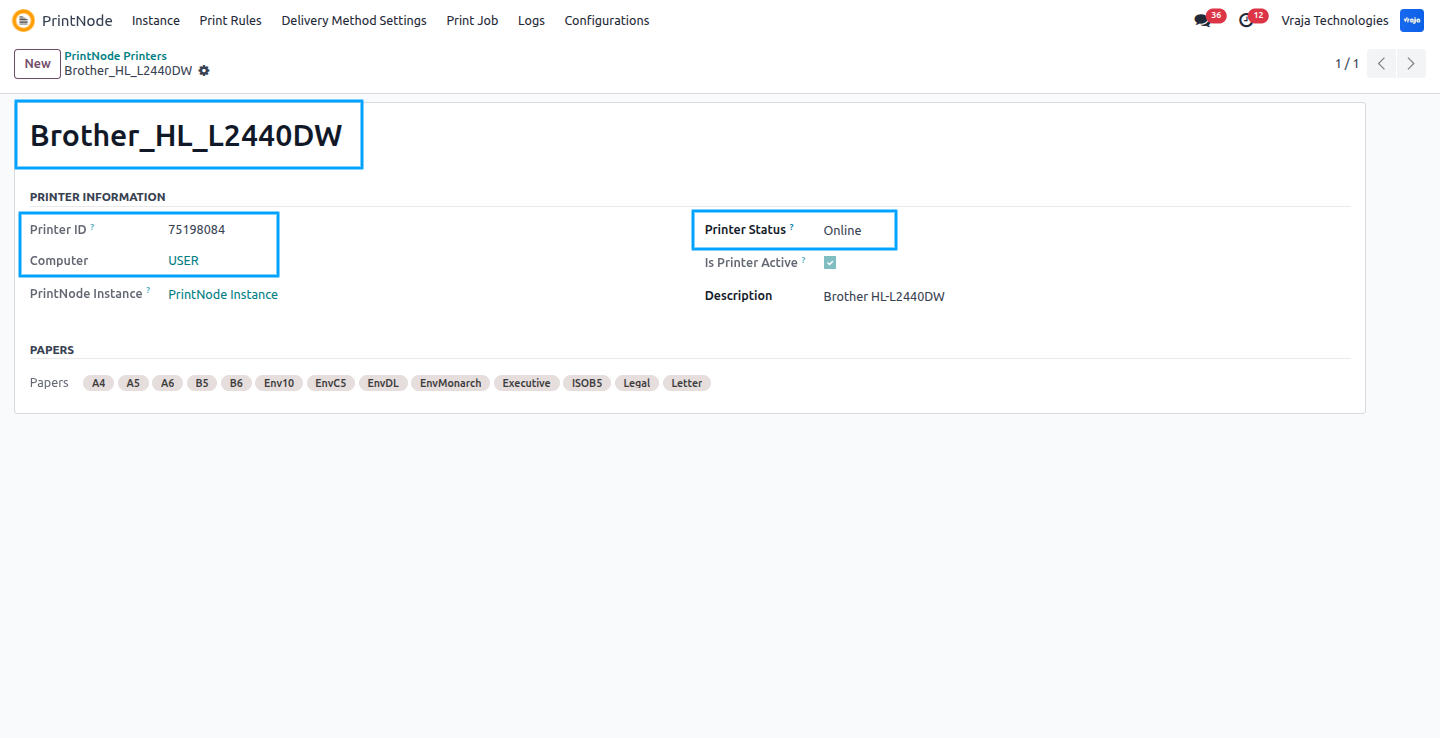
02 You can view the imported printers from PrintNode along with all the related information such as status, computer, and paper formats.
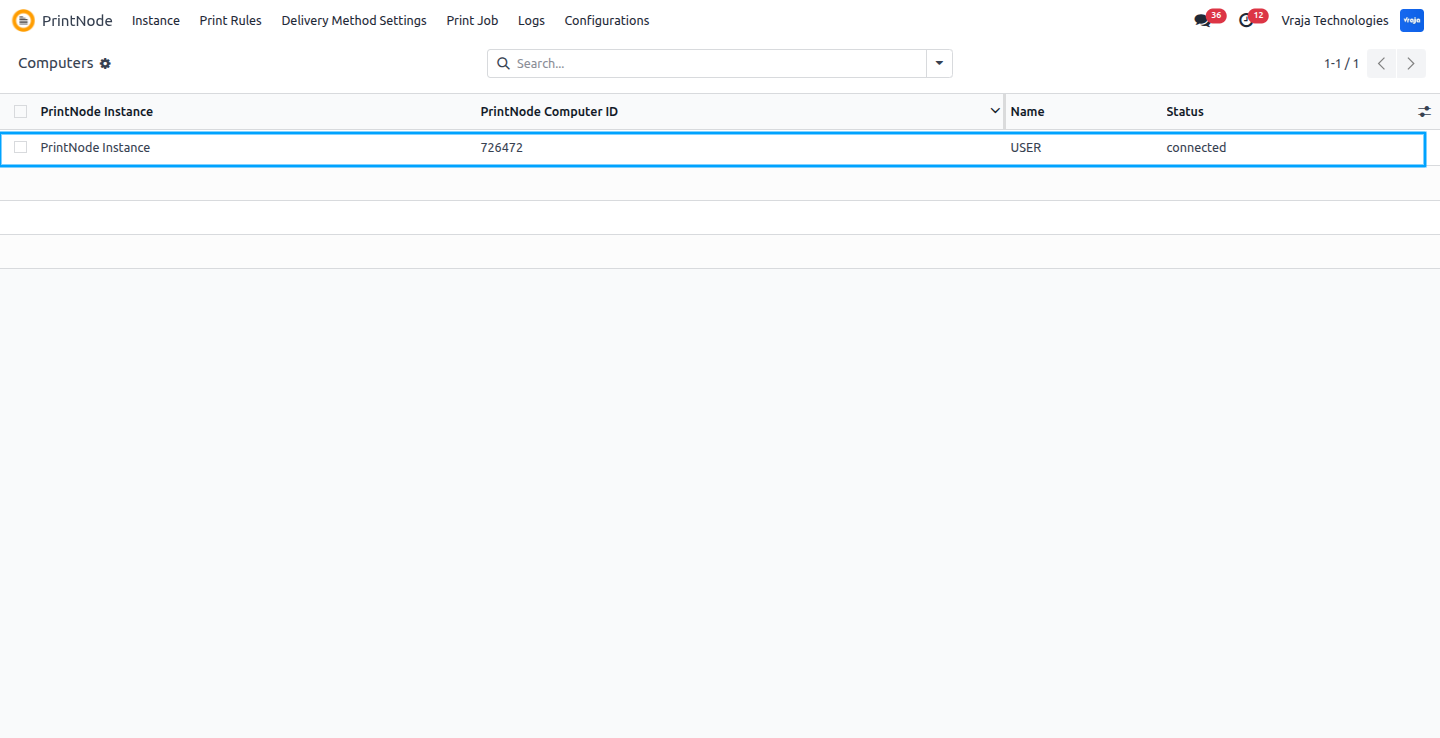
03 Here you can view all the information related to the imported computer, including its ID and status of the computers.
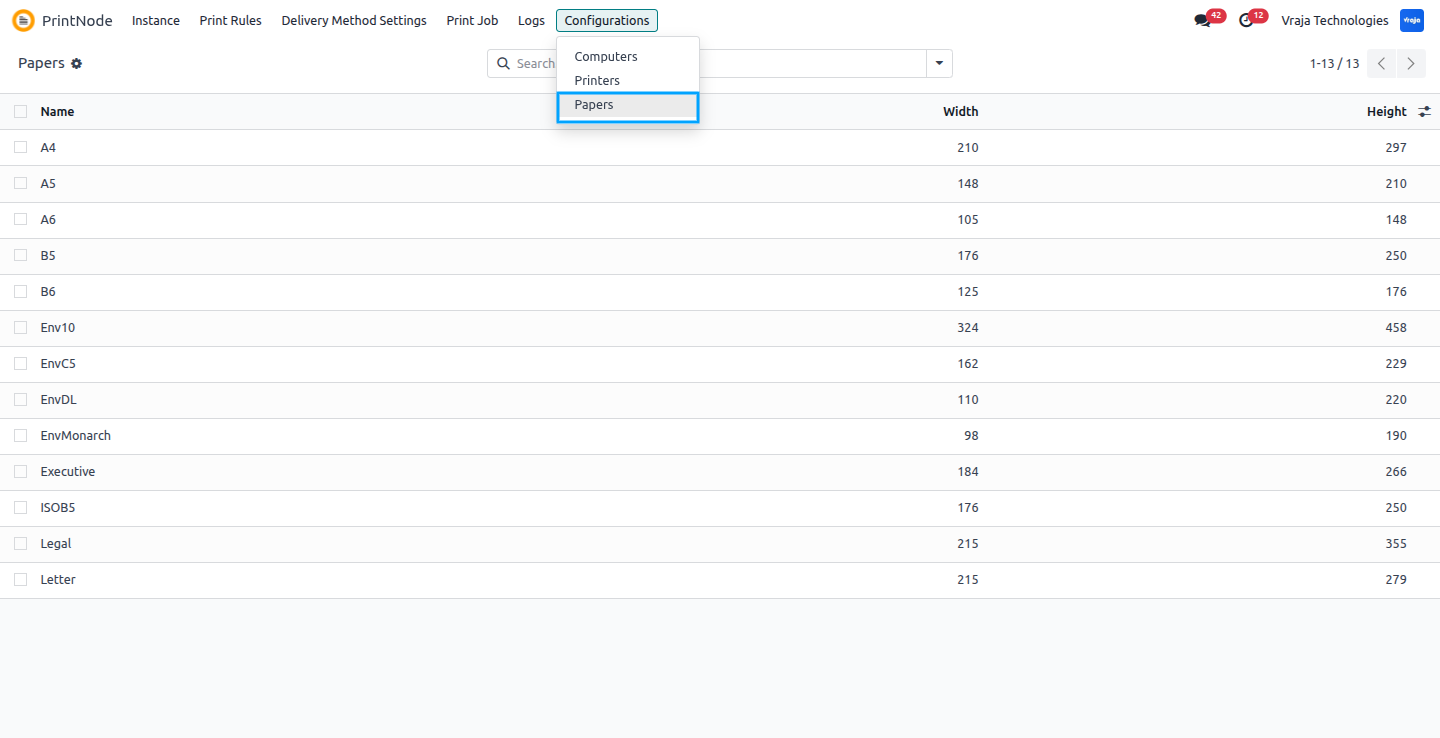
04 All paper formats imported from PrintNode can be viewed here.
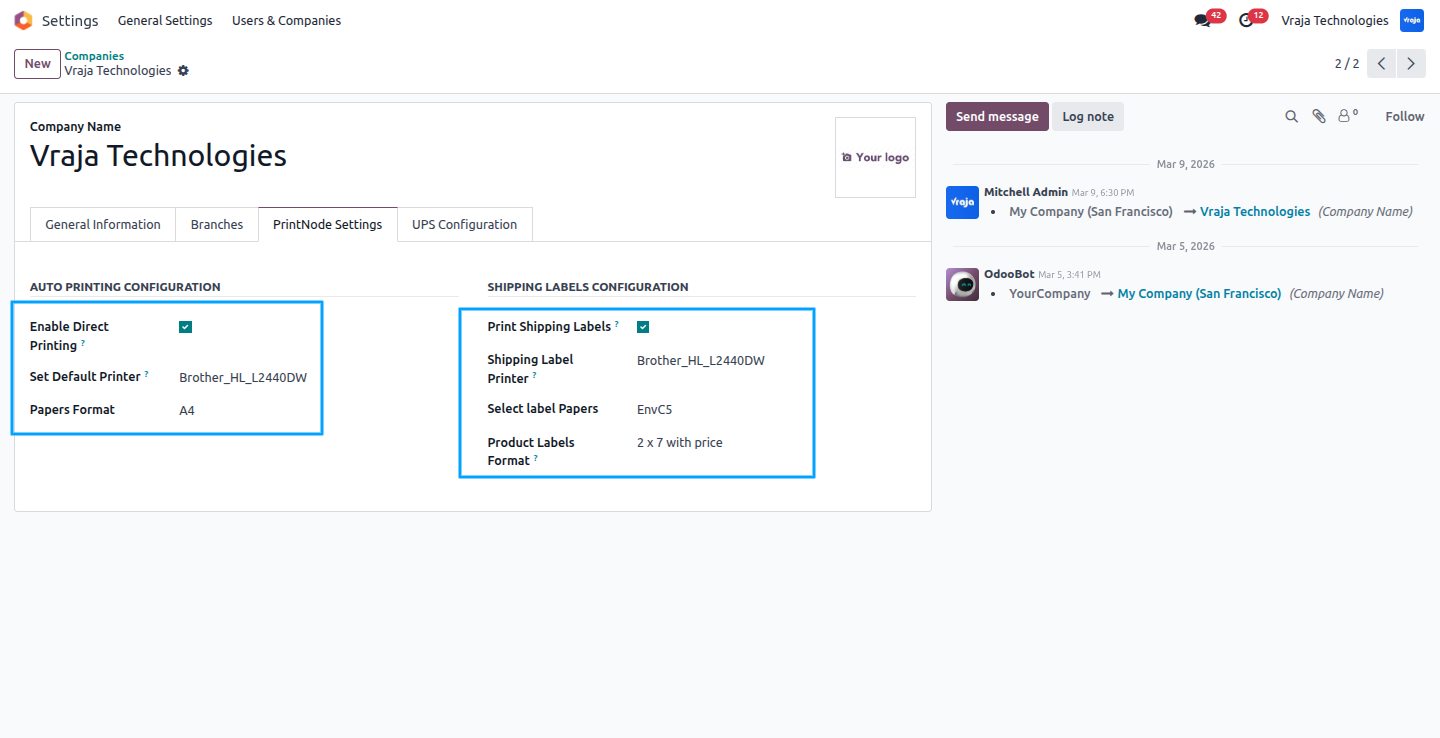
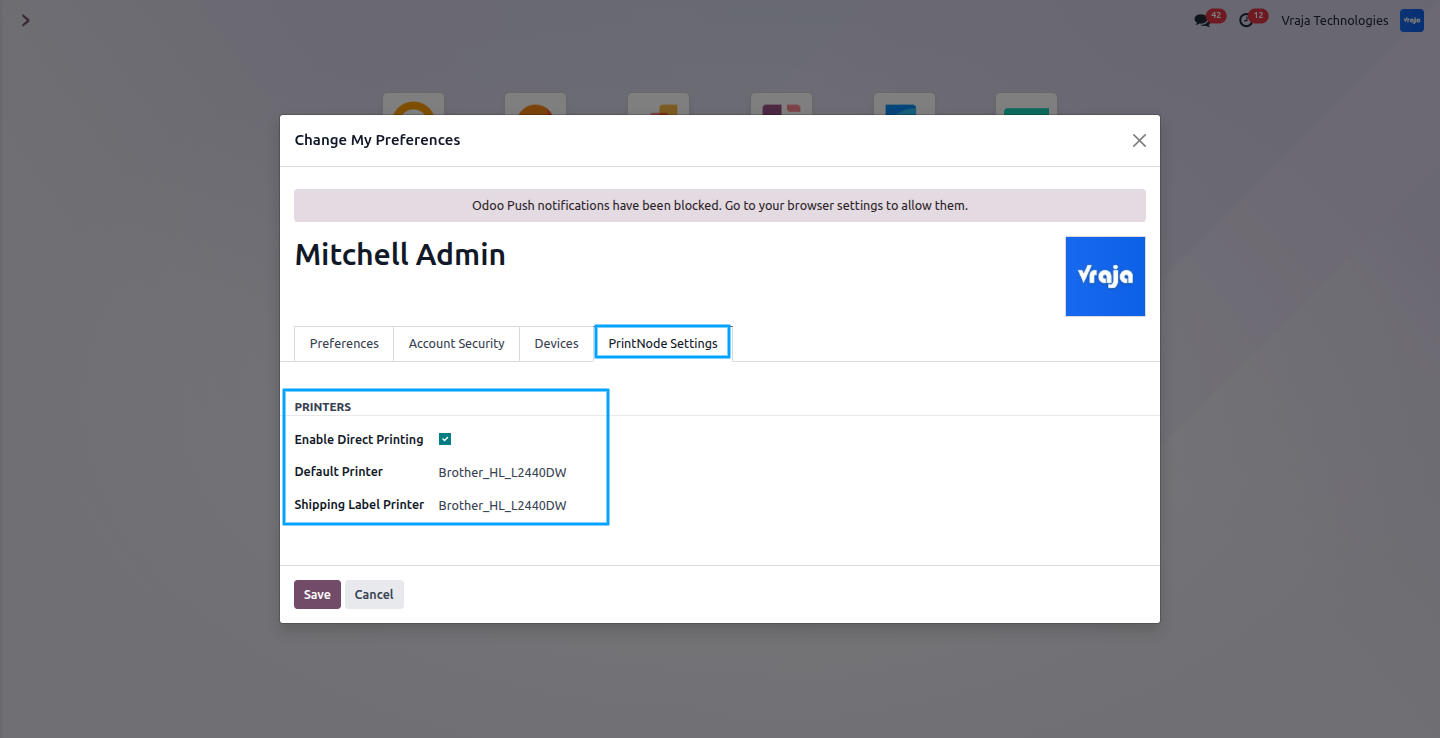
05 Now that all available printers and computers have been synchronized for direct printing, you just need to enable the Direct Printing option for Report Printing and Print Shipping Label for Labels printing. Enable this option at both the User and Company levels, and then select the default printer and paper format.
The default printer and paper format are used when no specific printer is selected for printing a document and for printing a label.
06 Now in the Print Rules menu, you can see all the available printing rules. You just need to activate the rule you want to use.

07 When you click on a specific rule, you just need to activate it and select the printer, paper format and copies. If you want to print only specific records, you can add filters (domain conditions) so that the print job is created only when the conditions are satisfied.
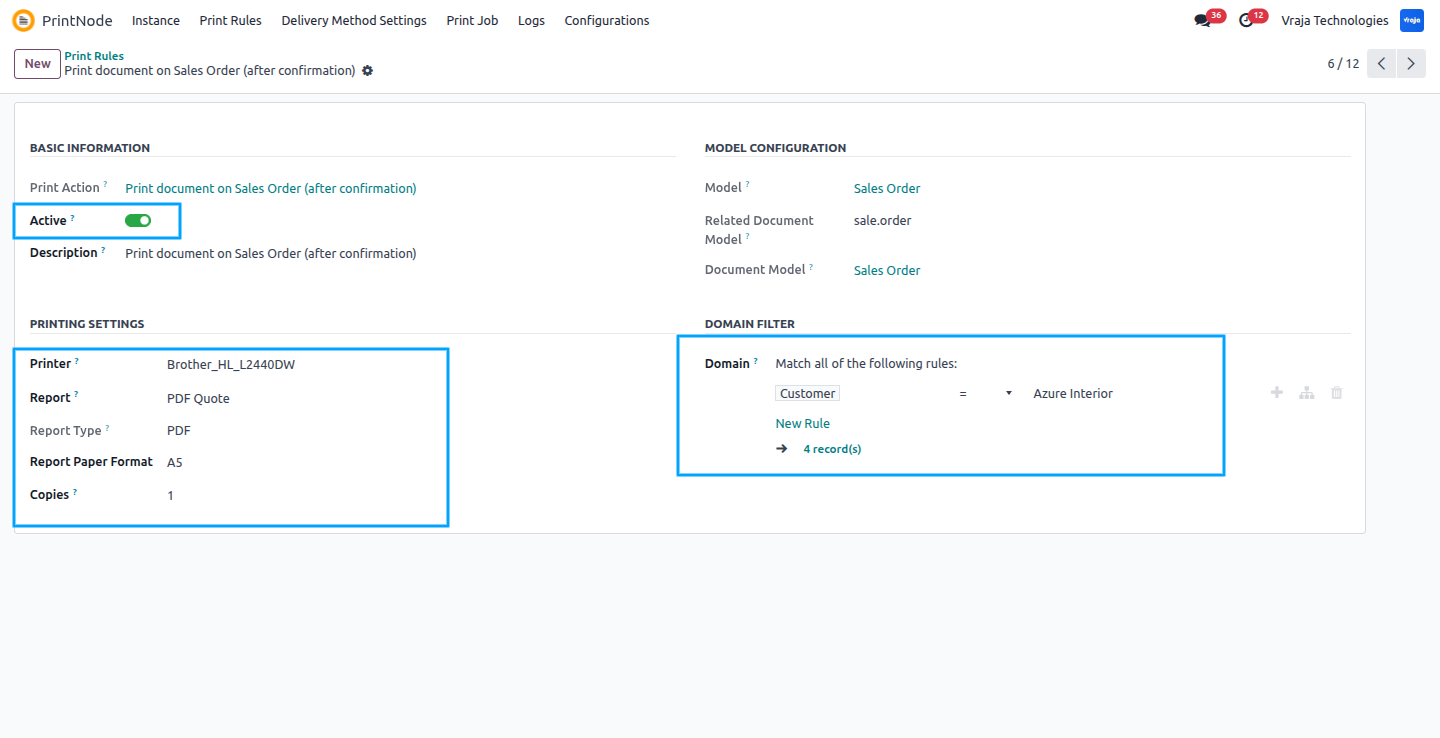
08 We created a sales order for Azure Interior. When the order is confirmed, a print job is automatically created and the document is printed instantly. This enables effortless printing with no need to download the document, improving overall efficiency.

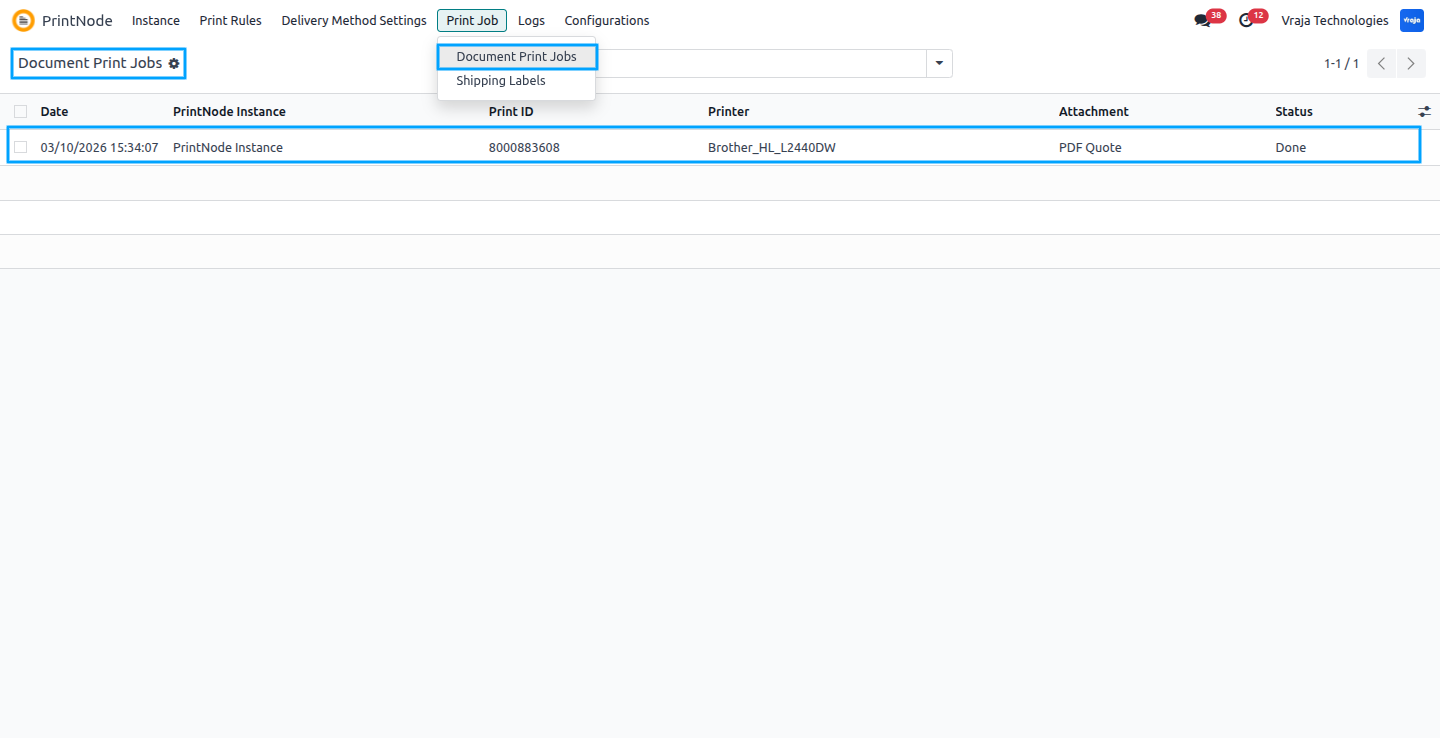
09 After confirming the sales order, a print job request is created in the Print Job menu. You can view the print job record with the status Done, which indicates that the document was printed successfully through PrintNode.
10 PrintNode Connector includes a logger to track all operation records between Odoo and PrintNode. you can see the log details for import process of Computers and Printers, You can open each record to review its detailed information directly in the logbook.

11 After configuring the settings at the Company level, you also need to configure the Delivery Method settings for PrintNode. For each delivery method, select the printer, paper format, and number of copies. You can assign a specific printer to each delivery method to ensure reliable and accurate printing.

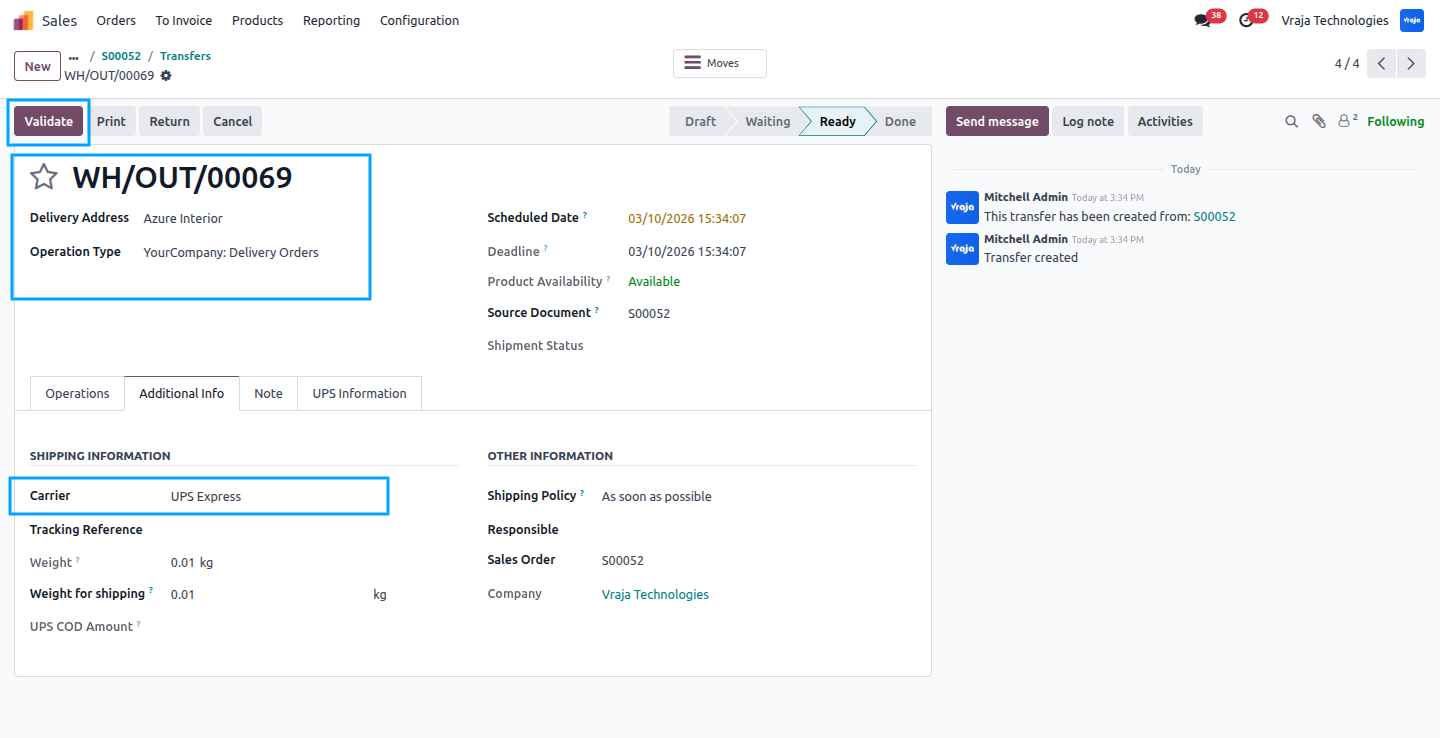
12 Now everything is set to print the shipping label directly through PrintNode. When you validate the order, the label is generated and automatically printed via PrintNode.
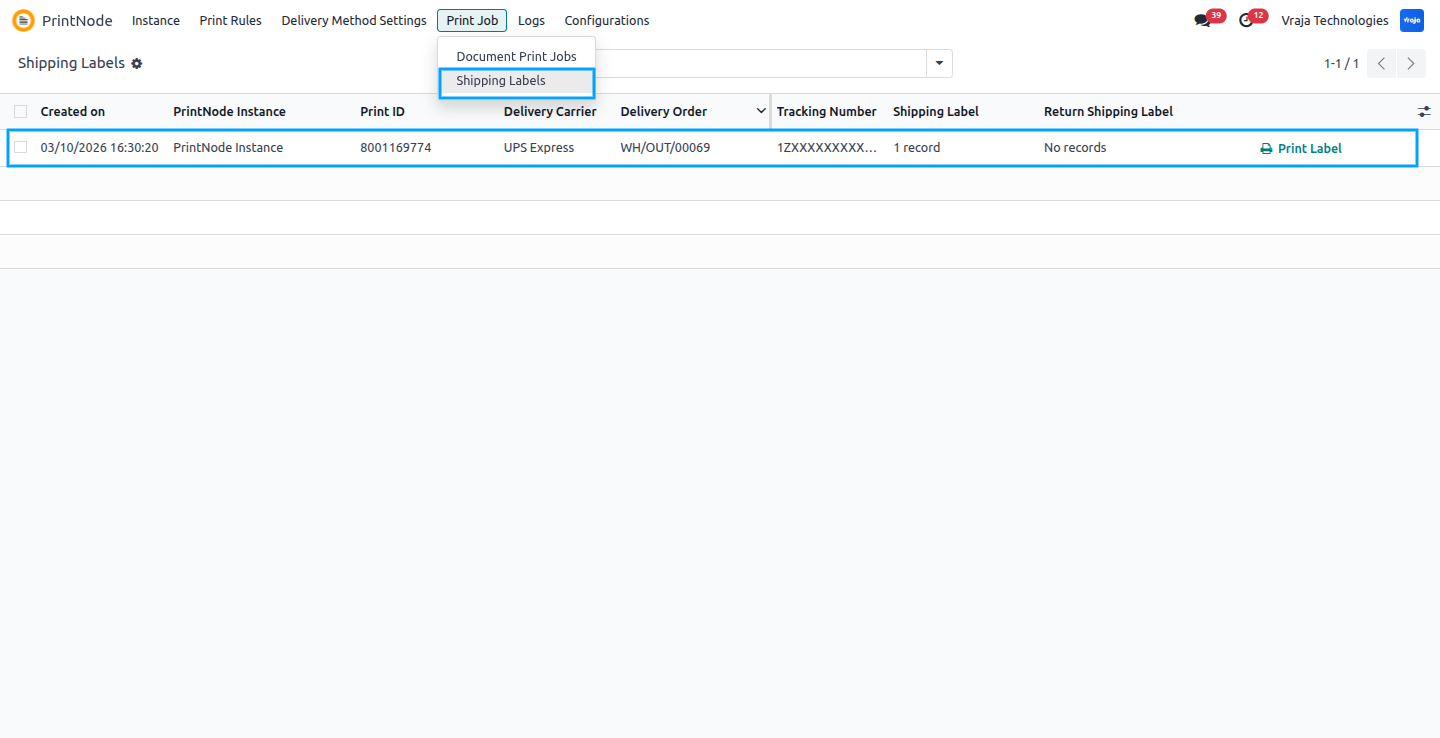
13 You can view all the details related to shipping labels in the Print Job → Shipping Labels menu. Also we have a option to reprint that specific label using Print Label button. same you can view the log book to tack label records between odoo and PrintNode.
14 You can also print a specific report by clicking the Print option from the Actions menu. To enable this feature, some configuration is required. Navigate to Settings > Report , where you can grant users permission to print specific reports. In this section, you can also configure the printer and paper format that should be used for printing the report.

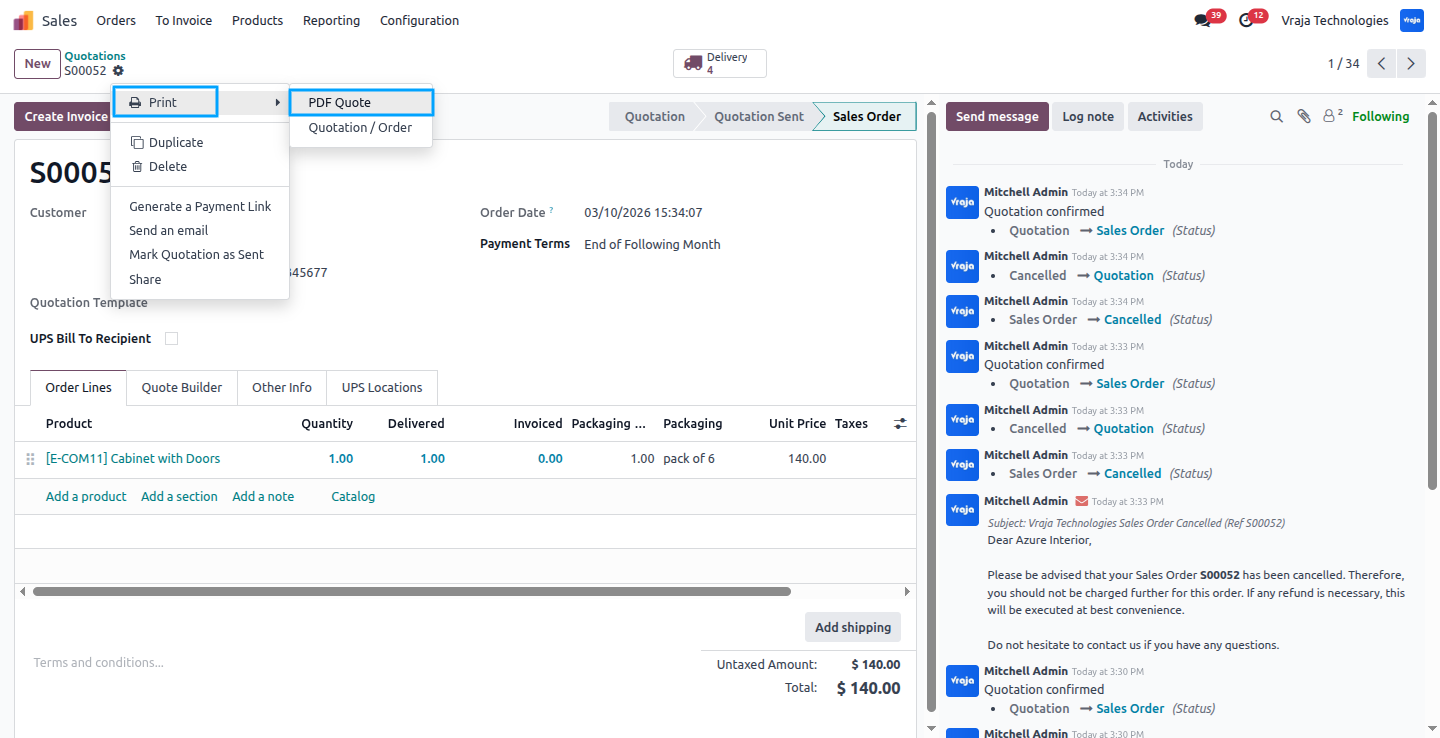
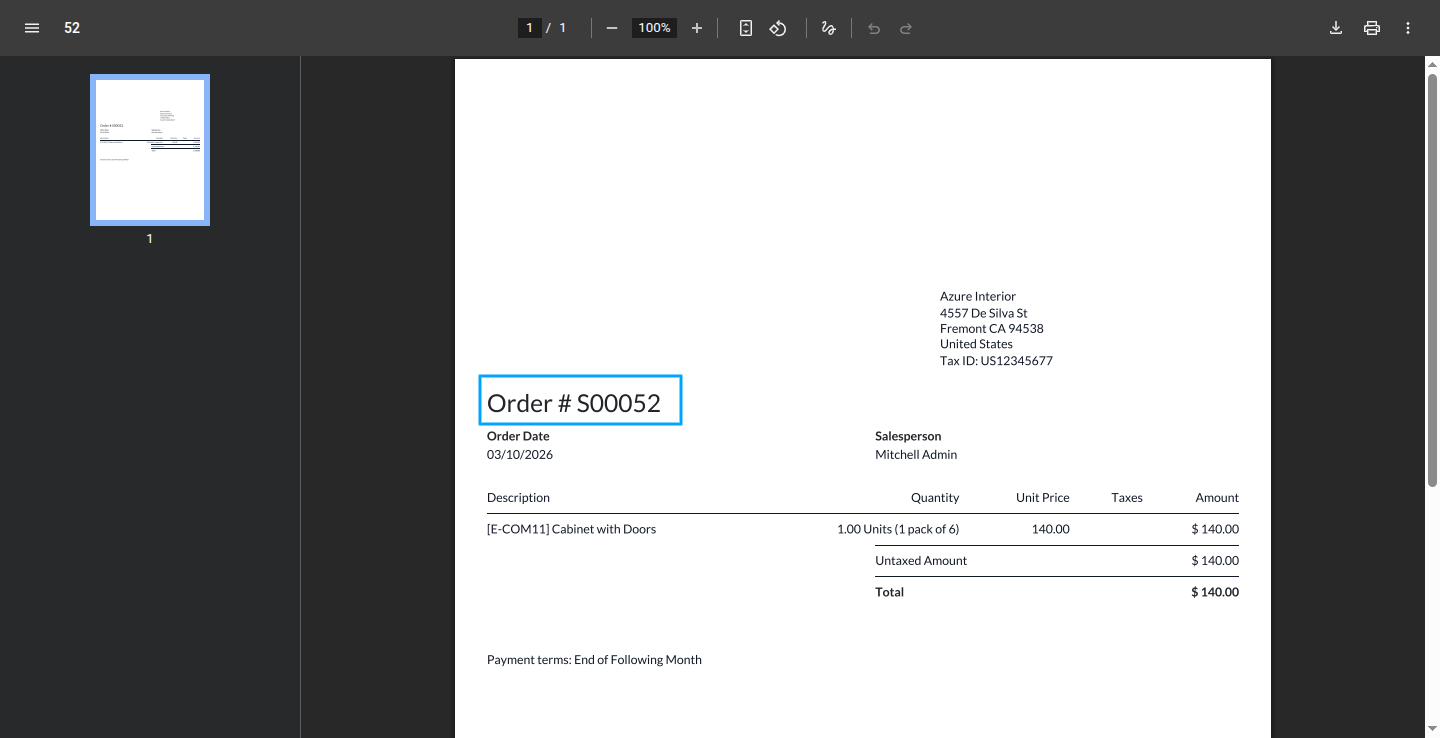
15 Create a Sales Order and confirm it. Then, from the Actions → Print → PDF Quote server action, open the Print Wizard. In the wizard, enter the number of copies you want to print and click Print. The document will be printed directly through PrintNode, and a print job request will be created. You can also track this operation in the Log Book.

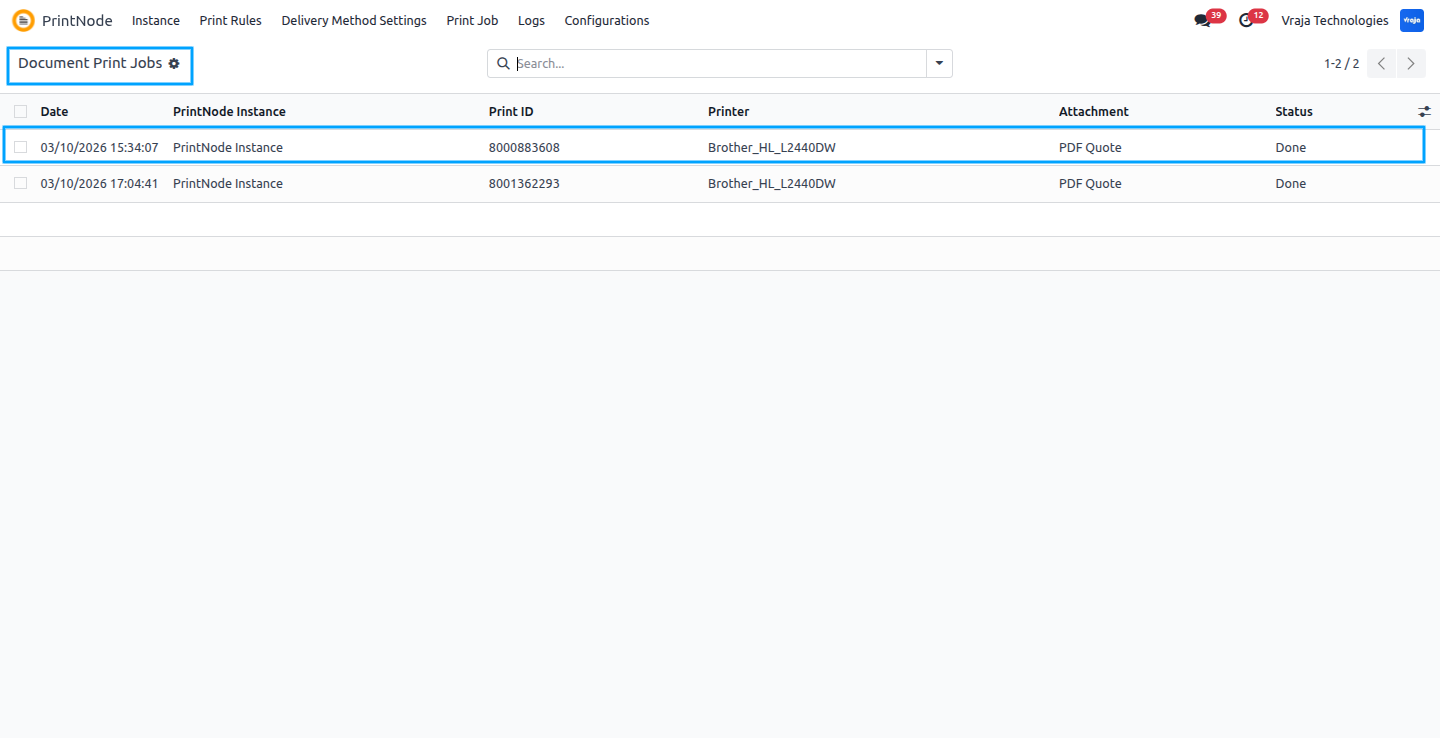
16 A print job request is created in the Print Job menu. You can view the print job record with the status Done, which indicates that the document was printed successfully through PrintNode.
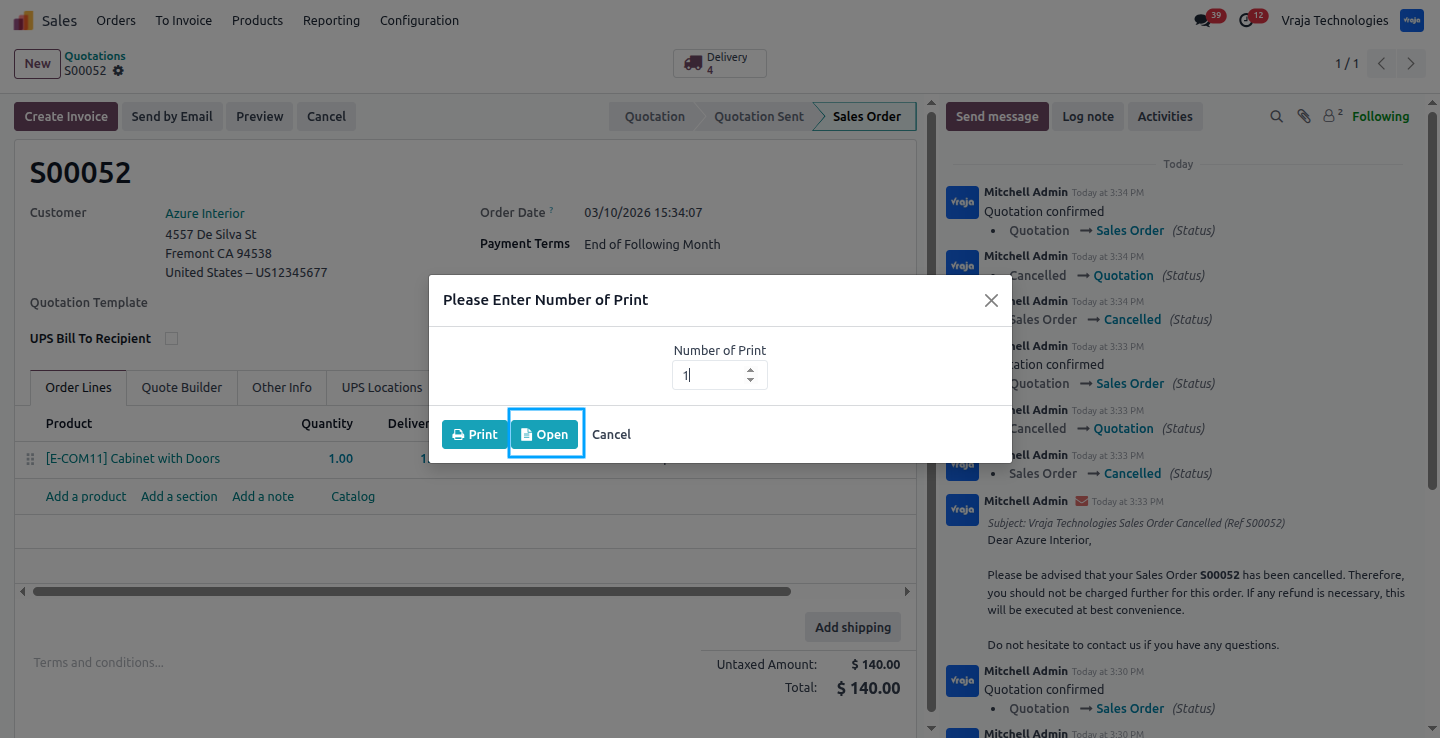
17 If you want to view the document, simply click Open in the print wizard. The document will open in your browser, So no need to download the PDF to open.
18 We also have a cron job that runs daily to delete print jobs older than 15 days, To keep the system clean and optimized.

|
|
What types of printers are supported by this module?Our module supports all type of printers, including ZPL, ESC/POS, and network printers. And can Print Document based on printer |
|
|
Can I print shipping labels for any carrier?Yes, you can print shipping labels for any carrier once the PrintNode configuration is properly set up. |
|
|
Can I track print operations?Yes, the module includes a logger that records all operations between Odoo and PrintNode. Each print job’s details can be viewed directly in the Log Book, including status, system, printer, and paper information. |
|
|
Can multiple copies be printed?Yes, when using the Print Wizard or report printing, you can specify the number of copies to print. |
|
|
Are all printing rules built-in, and can I customize them?Yes, all rules come pre-configured (built-in). You can also customize each rule by selecting the printer, paper format, and adding filters or domain conditions to control which records are printed. |
|
|
What happens if a printer is not configured in the rules?If no printer is configured for a rule, the system will use the default printer and paper format set at the User or Company level to print the document. |
|
|
Will I receive Configuration support and upgrades upon buying the application?Yes, We offer free support for the initial 60 days after the purchase date. |
|
|
I would like to request a custom feature for this application. What’s the process to get it implemented?We’re happy to help tailor the application to meet your business needs! You can reach us via sales@vrajatechnologies.com |
|
|
Included App Support90 Days Complimentary Support for Supported Versions If you encounter issues caused by the app itself, our team provides complimentary support for 90 days from the date of purchase for supported Odoo versions. |
Included App Support
90 Days Complimentary Support for Supported Versions
If you encounter issues caused by the app itself, our team provides complimentary support for 90 days from the date of purchase for supported Odoo versions.

Customer SupportNeed help with installation, configuration, technical issues, or general questions about the module? Submit a support ticket through our dedicated support portal. |
||
|
Support Portal
vrajatechnologies.com/helpdesk
|
Support PolicyReview our support policy for complete information about support coverage, issue eligibility, exclusions, version compatibility, and other support conditions. |
||
|
Support Policy
vrajatechnologies.com/support-policy
|
Scan for Support
|
||
|
Support Portal
vrajatechnologies.com/helpdesk
|