Explore the key features, workflow, and value of this Odoo module.
|
|
Real-Time Webhook SynchronizationAutomatically synchronize file and folder changes from OneDrive to Odoo in real time. |
|
|
Folder Mapping Rules with Attachment SynchronizationAutomatically create mapped OneDrive folders for Odoo records and synchronize their attachments. |
|
|
Upload Existing AttachmentsAutomatically upload existing Odoo attachments to the mapped OneDrive folders based on the configured Folder Mapping Rules. |
|
|
Date-Based Folder HierarchyAutomatically create Year and Month folders for mapped OneDrive folders based on the record creation date. |
|
|
Sync History TrackingTrack Upload, Import, Update, Delete, Folder Creation, Restore, and Webhook/Delta Sync operations from the Sync History menu. |
|
|
OneDrive File & Folder ImportImport OneDrive files and folders into Odoo Documents either manually on demand or automatically through real-time webhook synchronization. |
|
|
File and Folder Export SynchronizationAutomatically synchronize files and folders between OneDrive and Odoo. |
|
|
File & Folder Rename SynchronizationAutomatically synchronize renamed files and folders between OneDrive and Odoo. |
|
|
File & Folder Move SynchronizationAutomatically synchronize moved files and folders between OneDrive and Odoo. |
|
|
File & Folder Delete SynchronizationAutomatically synchronize deletions from OneDrive to Odoo, with optional auto-delete synchronization from Odoo to OneDrive. |
|
|
File & Folder Restore SynchronizationAutomatically restore deleted files and folders between OneDrive and Odoo. |
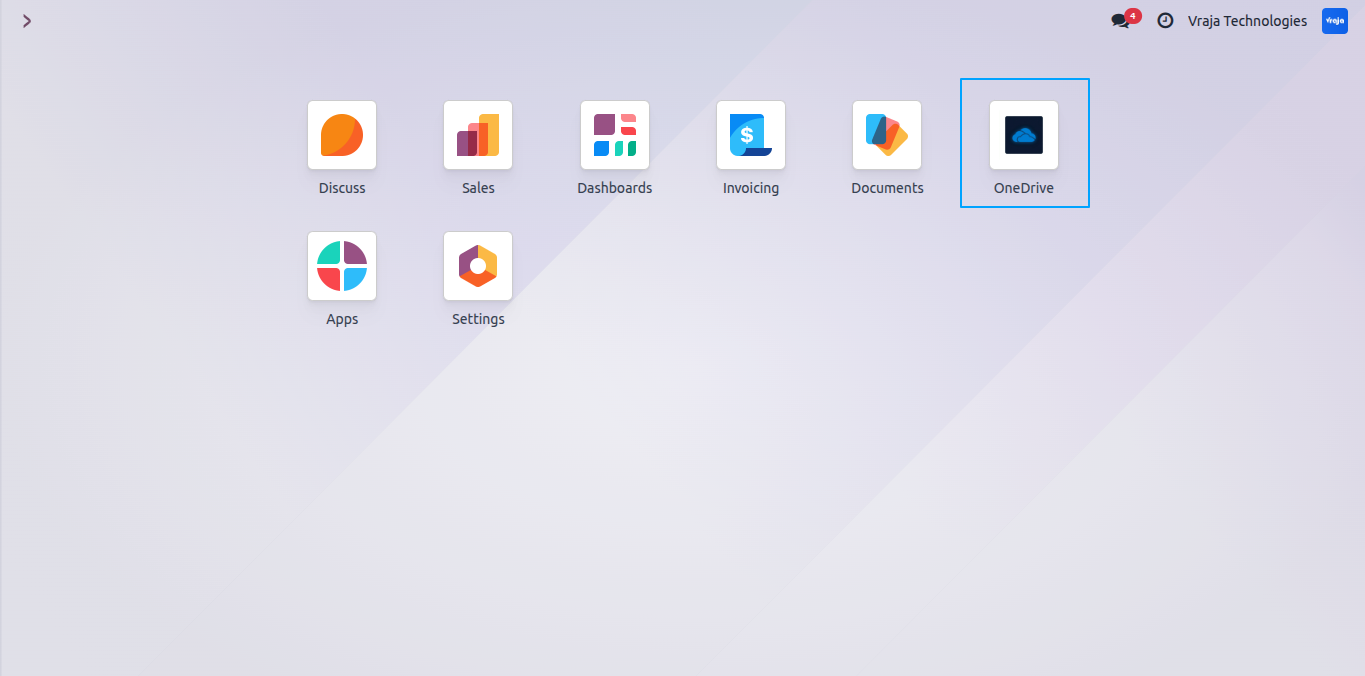
01 After installing the module, the OneDrive app appears in the Odoo dashboard
02 The OneDrive dashboard provides a centralized overview of the integration, where users can configure OneDrive instances and synced documents, storage usage, today’s operations, sync status summary, operation breakdown by type, and recent activity.


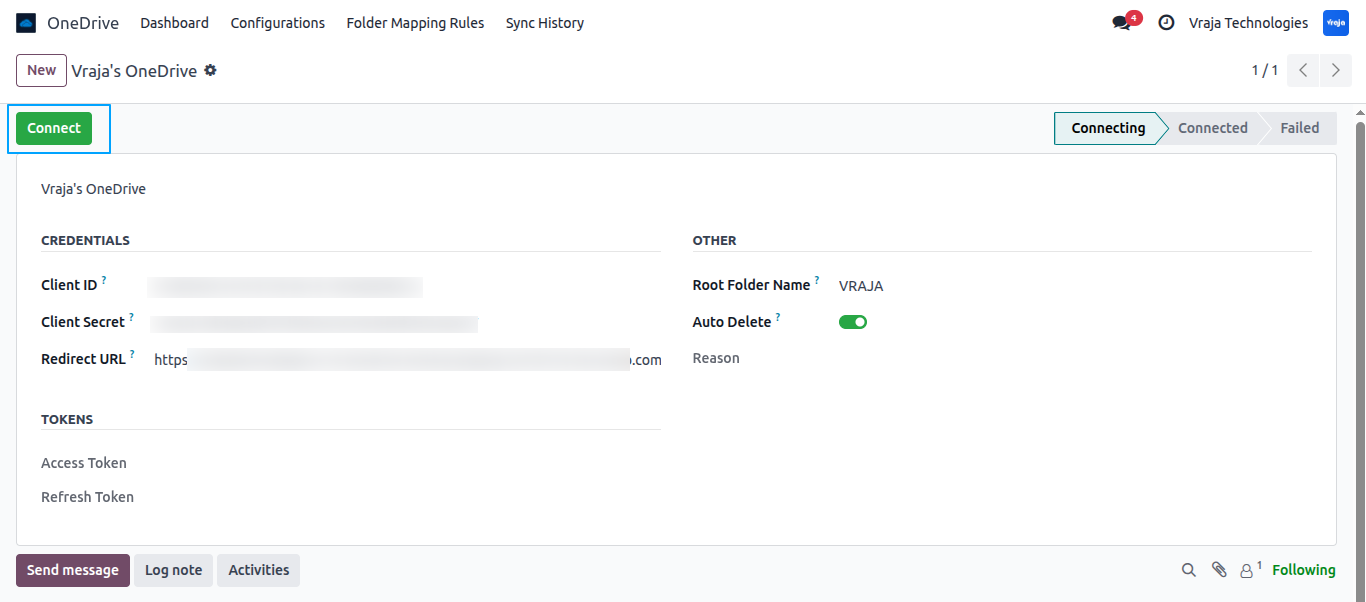
03 Configure the instance by entering your OneDrive credentials to enable a secure connection between Odoo and OneDrive. The Root Folder Name creates a dedicated folder inside the Odoo OneDrive folder where all synchronized OneDrive files and folders are stored, while Auto Delete automatically removes them from OneDrive when deleted in Odoo.
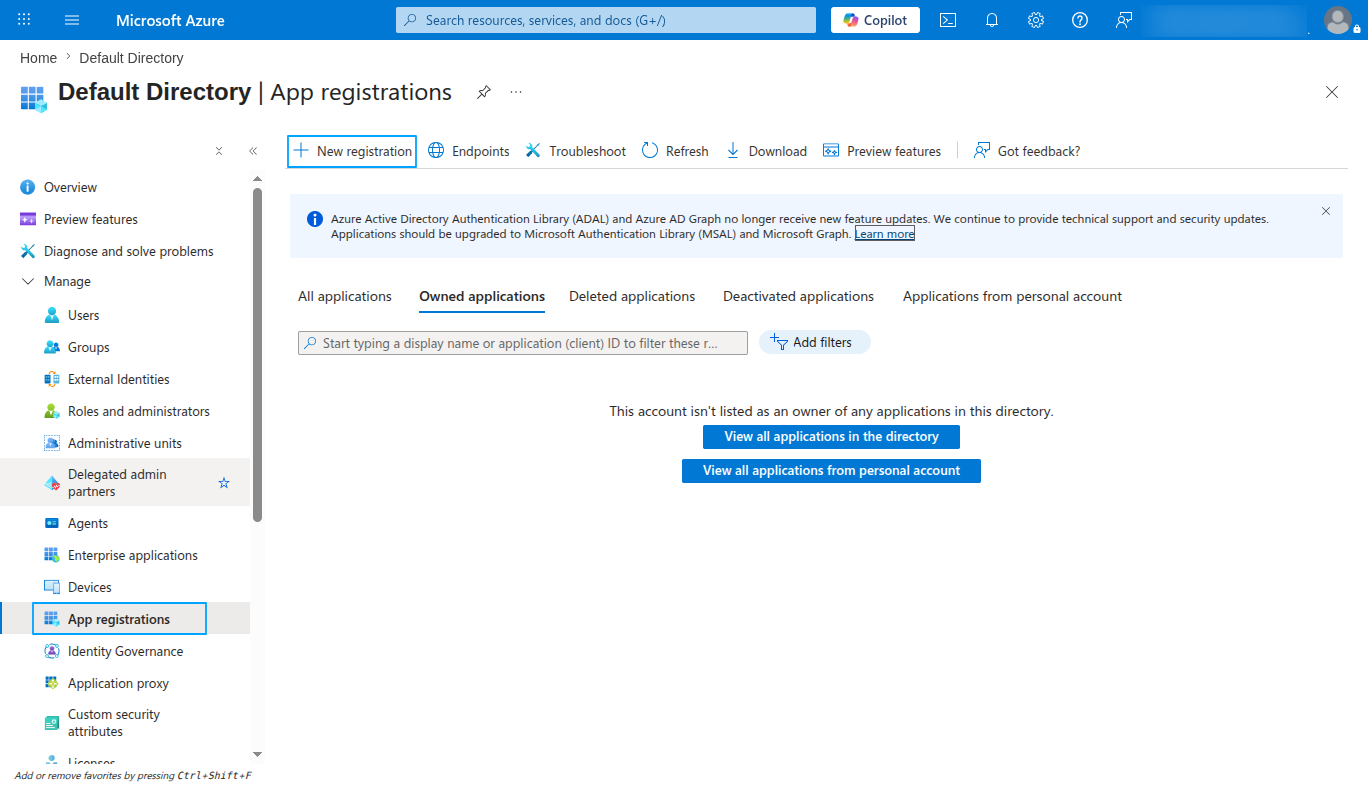
04 Log in to your Microsoft Azure Portal account, navigate to the Microsoft Entra ID service, open the App Registrations menu, and click on the New Registration button to create a new application for the OneDrive integration.
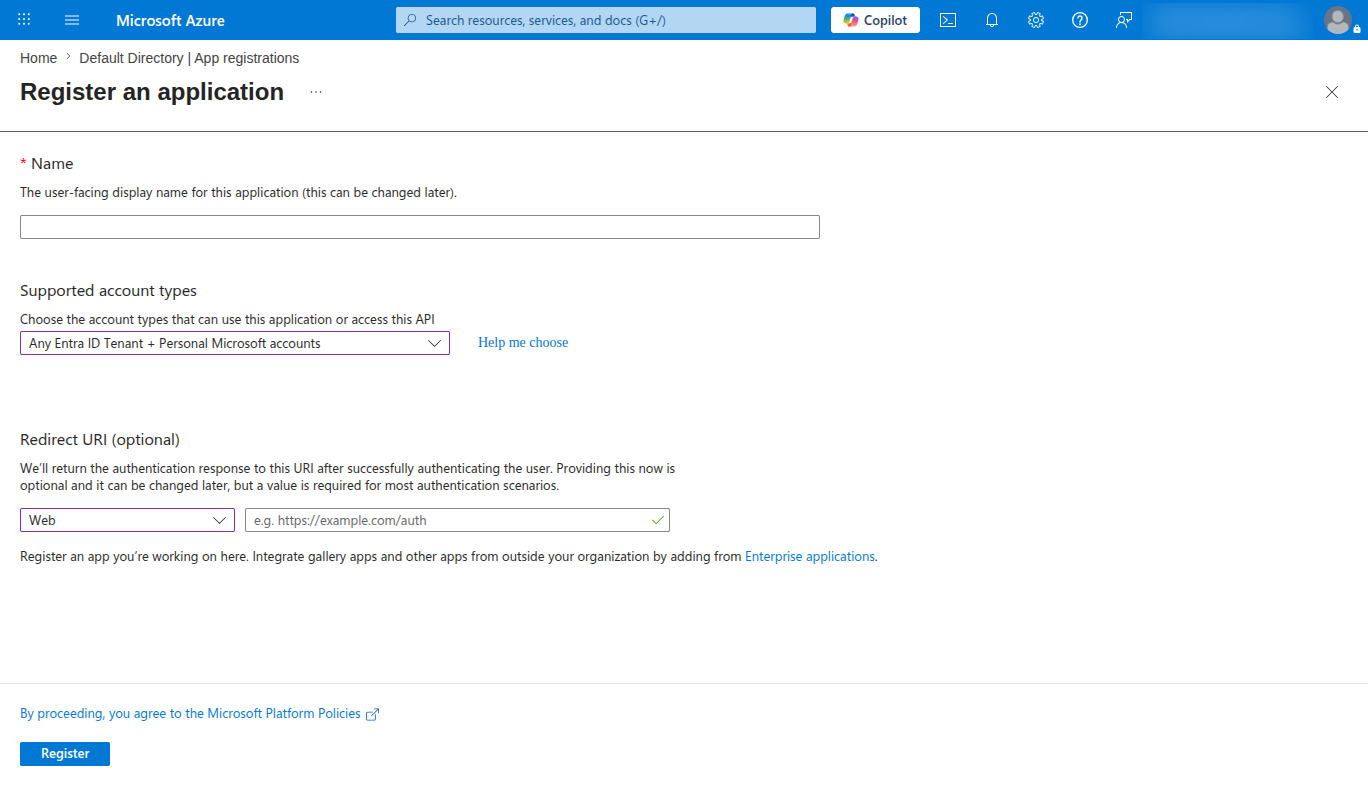
05 Enter the application name, select the supported account type, choose “Web” in the Redirect URI field, add the Odoo redirect URL, and click Register to create the application for OneDrive integration.
06 After the application is created, copy the Application (Client) ID displayed in the application details section, as it is required for configuring the OneDrive integration in Odoo.

07 Navigate to the Certificates & secrets section from the left menu, create a new client secret if required, and copy the generated Value, which will be used as the Client Secret in the Odoo OneDrive configuration.

08 You can add or edit the Redirect URI from the Authentication section by updating the required callback URL used for the Odoo OneDrive integration authentication process.

09 Clicking the Connect button redirects you to the Microsoft OneDrive authorization page, allowing you to securely connect your OneDrive account with Odoo.

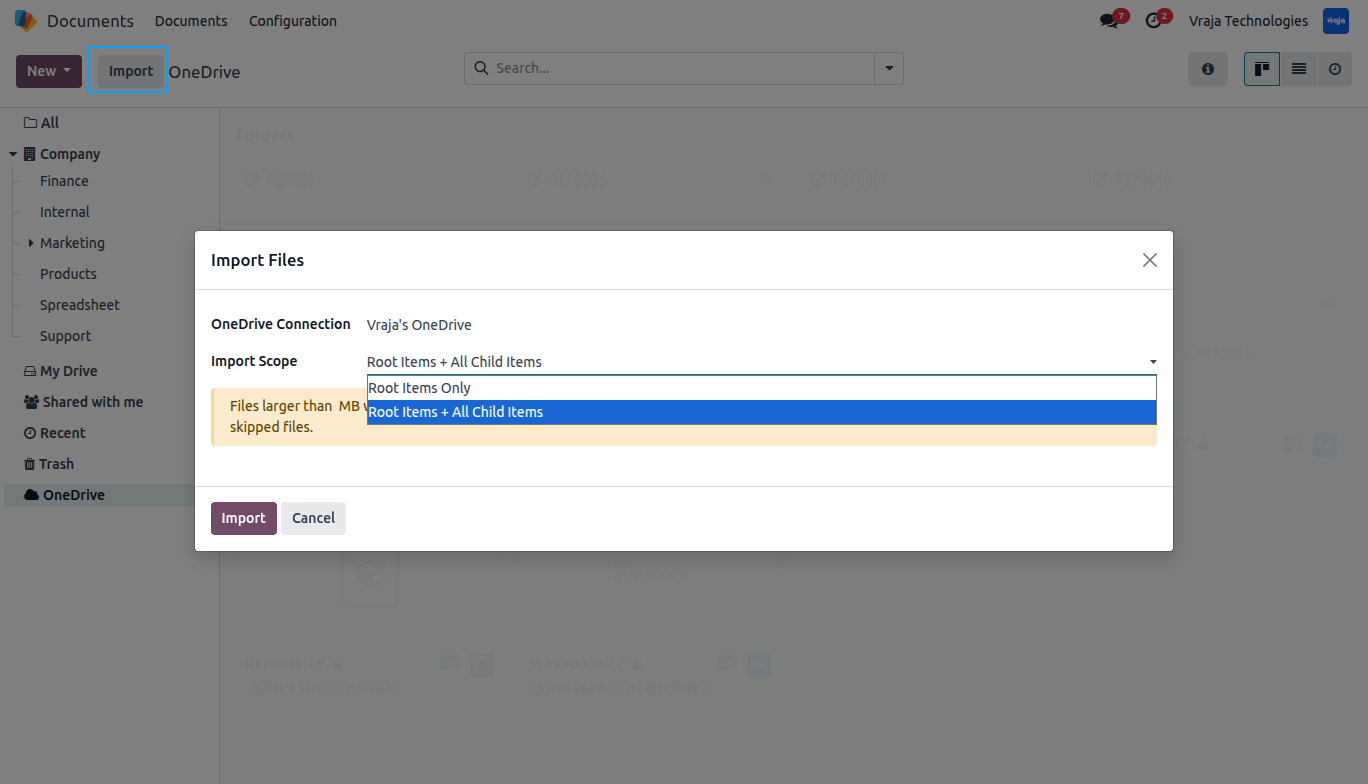
01 Open the Documents application and navigate to the OneDrive workspace. Click the Import button to import files and folders from the connected OneDrive account, with options to import only root-level items or root items along with their nested folders and files. Files larger than the allowed Odoo upload size limit will be skipped during import. Details of skipped files can be viewed from the Sync History menu.
02 Currently, the connected OneDrive account contains files and folders such as Projects and Product List, which can be imported.

03 After importing, a root folder named VRAJA is automatically created in Odoo Documents based on the folder name configured in the OneDrive configuration, and all imported OneDrive files and folders are organized inside it.

04 To manually create a folder in the OneDrive workspace, select the VRAJA folder, click New, choose Folder, and create the folder.
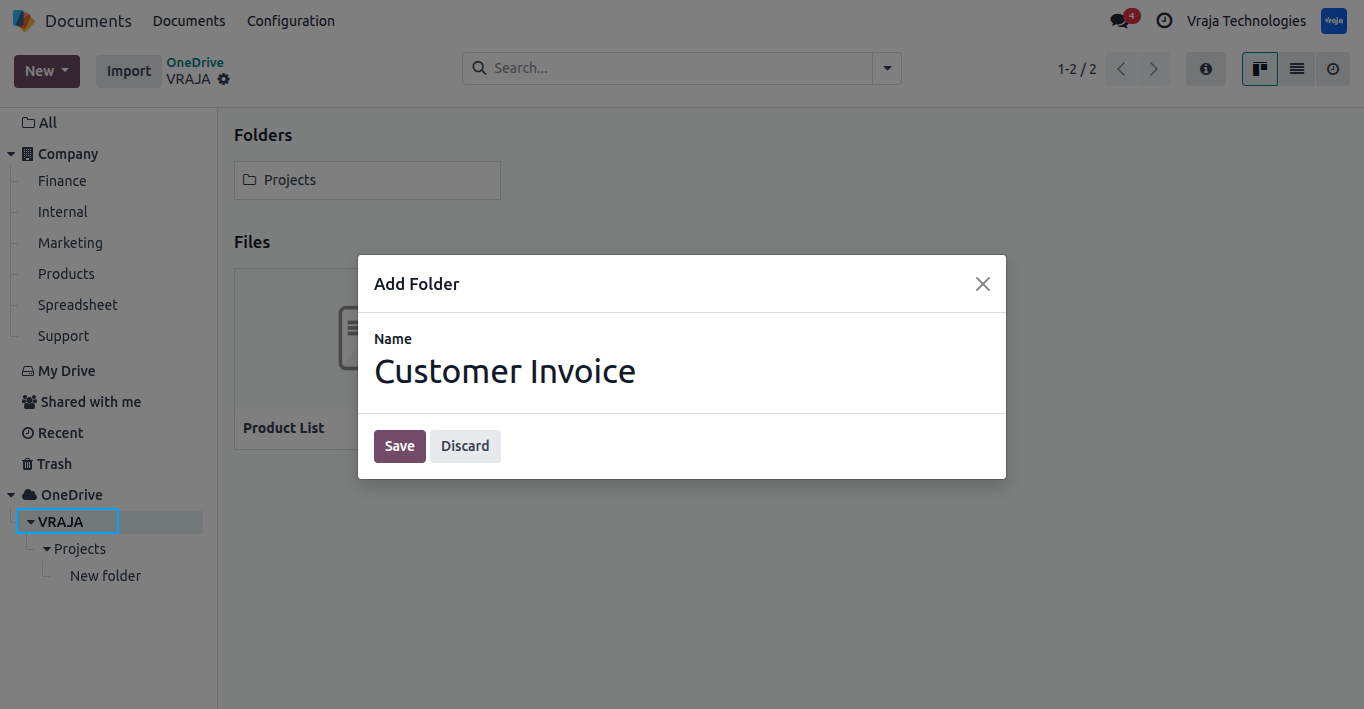
05 After creating the folder from Odoo Documents, the folder is automatically created in the connected OneDrive account.

06 To manually upload files to OneDrive from Odoo Documents, select the VRAJA folder, click New, choose Upload, and upload the file to the connected OneDrive workspace.

07 The uploaded file is successfully synced from Odoo Documents to the connected OneDrive account and is now visible in the OneDrive storage.

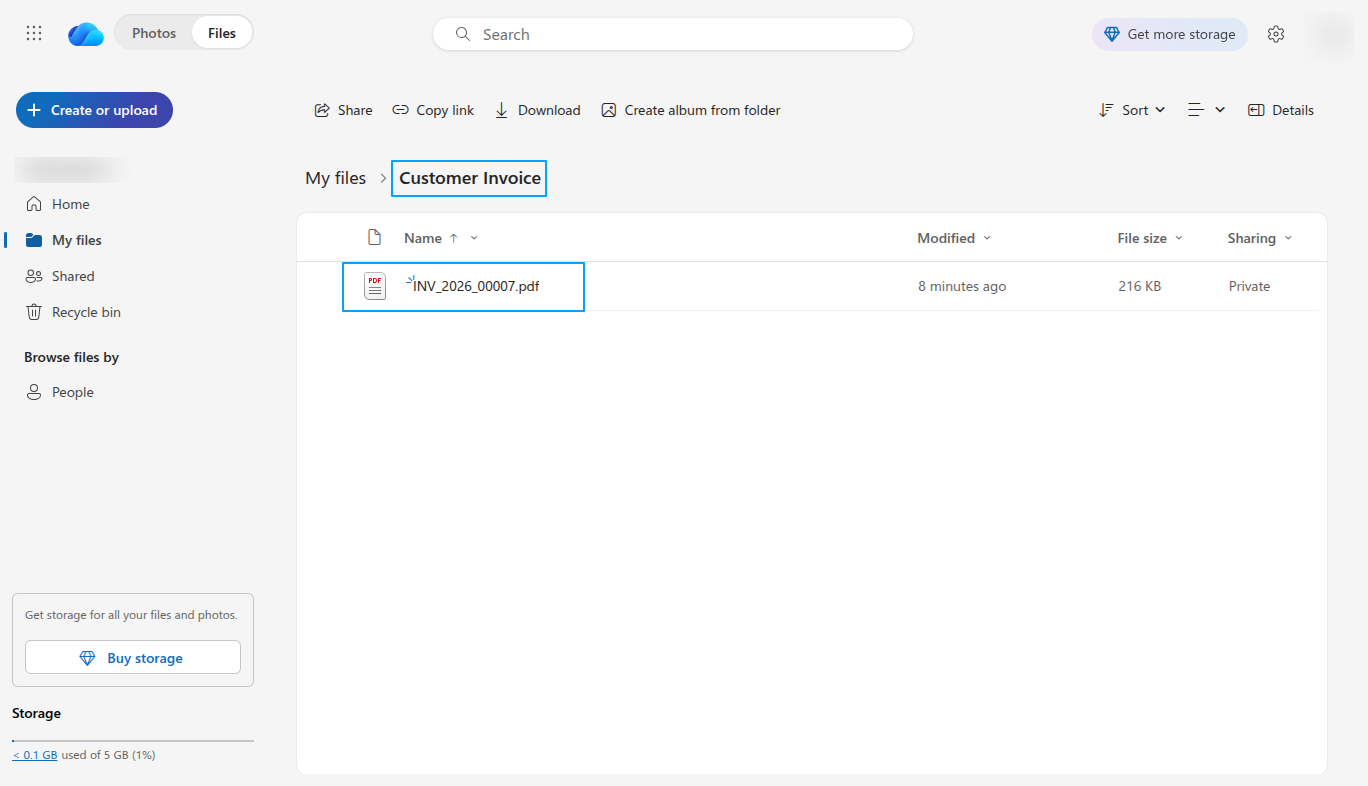
08 When the file INV_2026_00007.pdf is moved to the Customer Invoice folder in Odoo Documents, the file is automatically moved to the same folder in OneDrive.
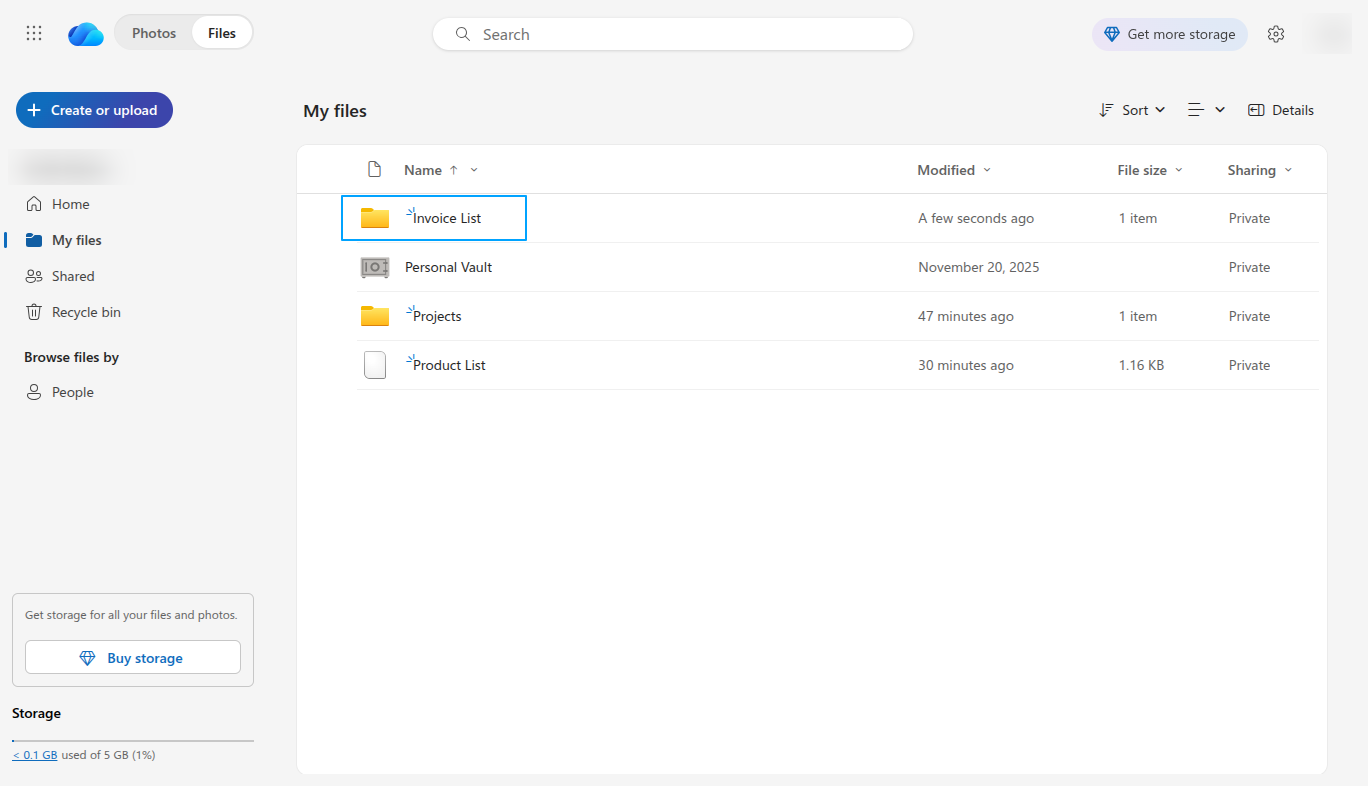
09 The folder Customer Invoice is renamed to Invoice List in Odoo Documents.

10 The folder name is also updated to Invoice List in OneDrive, confirming that the rename operation has been synchronized successfully.
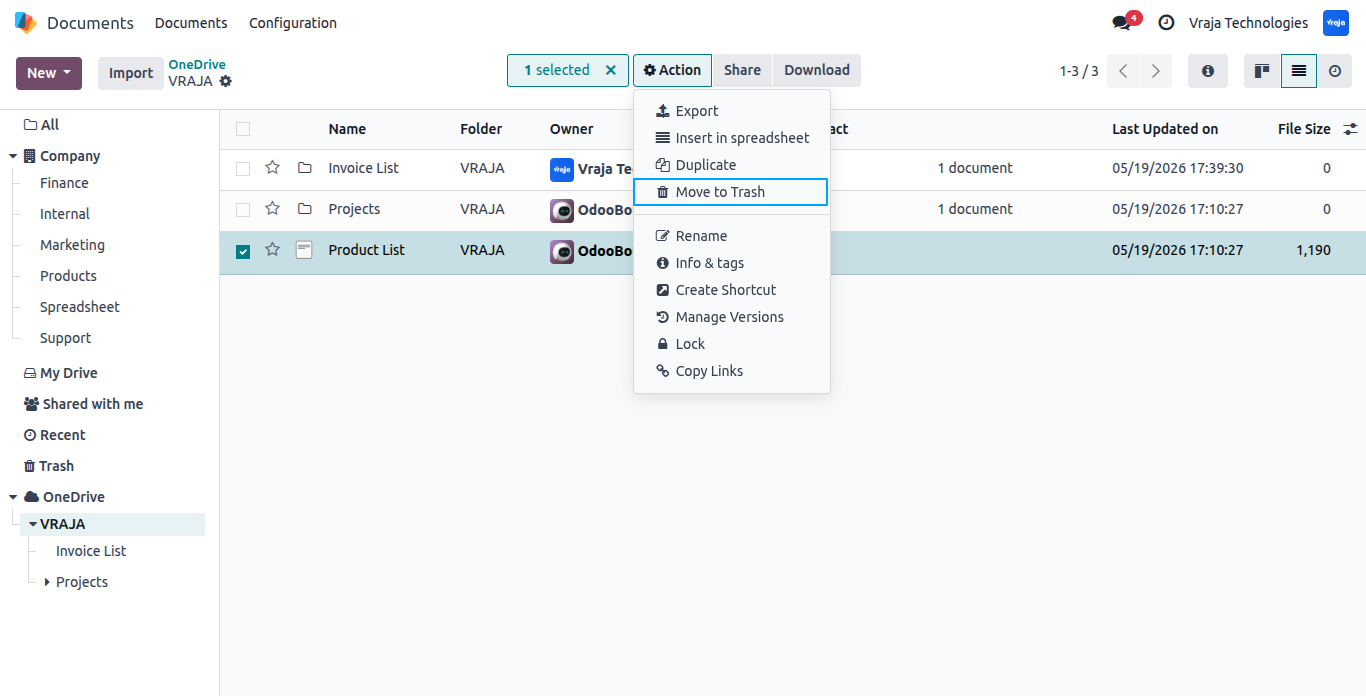
11 The file Product List is selected in Odoo Documents and moved to Trash to delete it from OneDrive.
12 The file Product List is moved to the OneDrive Recycle Bin after being deleted from Odoo Documents.

13 The deleted file Product List is restored from the Trash menu in Odoo Documents.

14 After restoration from Odoo Documents, the Product List file is automatically restored and displayed again in OneDrive storage.

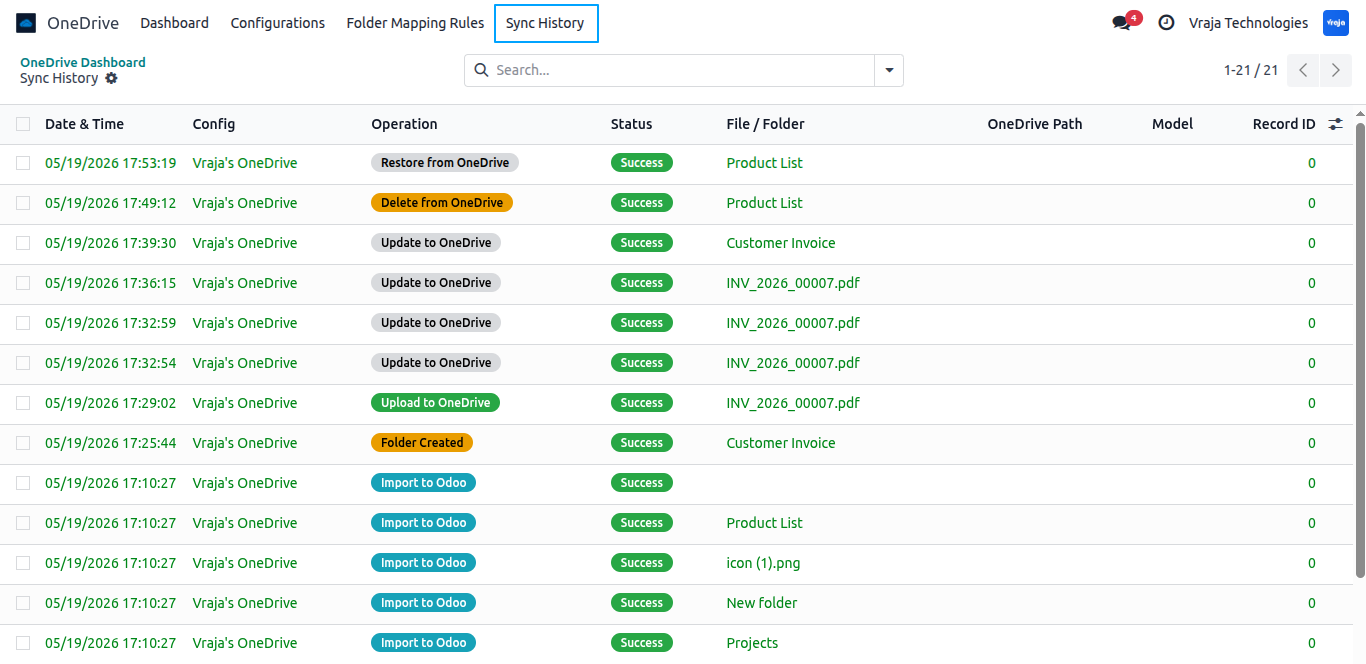
15 The Sync History menu displays all file and folder synchronization activities between Odoo and OneDrive, including import, upload, update, delete, restore, and webhook sync operations, along with their status and execution time.
01 Click the Enable Real-Time Sync button to activate webhook-based synchronization between Odoo and OneDrive for automatic real-time updates.

02 After enabling Real-Time Sync, it displays the subscription details. Use the Refresh Storage Info button to update the latest OneDrive storage usage in Odoo.

03 A new folder named Webhook Folder is created directly in OneDrive.

04 The Webhook Folder in OneDrive is automatically created in Odoo Documents through real-time webhook synchronization.

05 The file icon (1).png is uploaded to OneDrive.

06 The file icon (1).png is automatically uploaded in Odoo Documents through real-time synchronization.

07 The file icon (1).png is renamed to Vraja_icon.png in OneDrive.

08 The file icon (1).png is renamed to Vraja_icon.png and displayed in Odoo Documents.

09 The file Vraja_icon.png is moved from the OneDrive root directory to the Webhook Folder.

10 The file Vraja_icon.png is automatically moved to the Webhook Folder in Odoo Documents through real-time synchronization.

11 The folder Webhook Folder, including the file Vraja_icon.png, is deleted from OneDrive.

12 The folder Webhook Folder and file Vraja_icon.png are moved to the Odoo Trash through real-time synchronization.

13 The Webhook Folder is restored from the OneDrive Recycle Bin.

14 The folder Webhook Folder is automatically restored in Odoo along with the file Vraja_icon.png after being restored from the OneDrive Recycle Bin.

15 Go to Folder Mapping Rules, select the Odoo model for which automatic folder mapping needs to be created, and click Browse OneDrive to choose the target OneDrive folder. Enable Sync Existing Attachments to upload existing Odoo attachments associated with the selected model's records to their mapped OneDrive folders. Enable Create Year Folder and Create Month Folder to automatically organize subfolders based on the record creation year and month within the selected target folder.

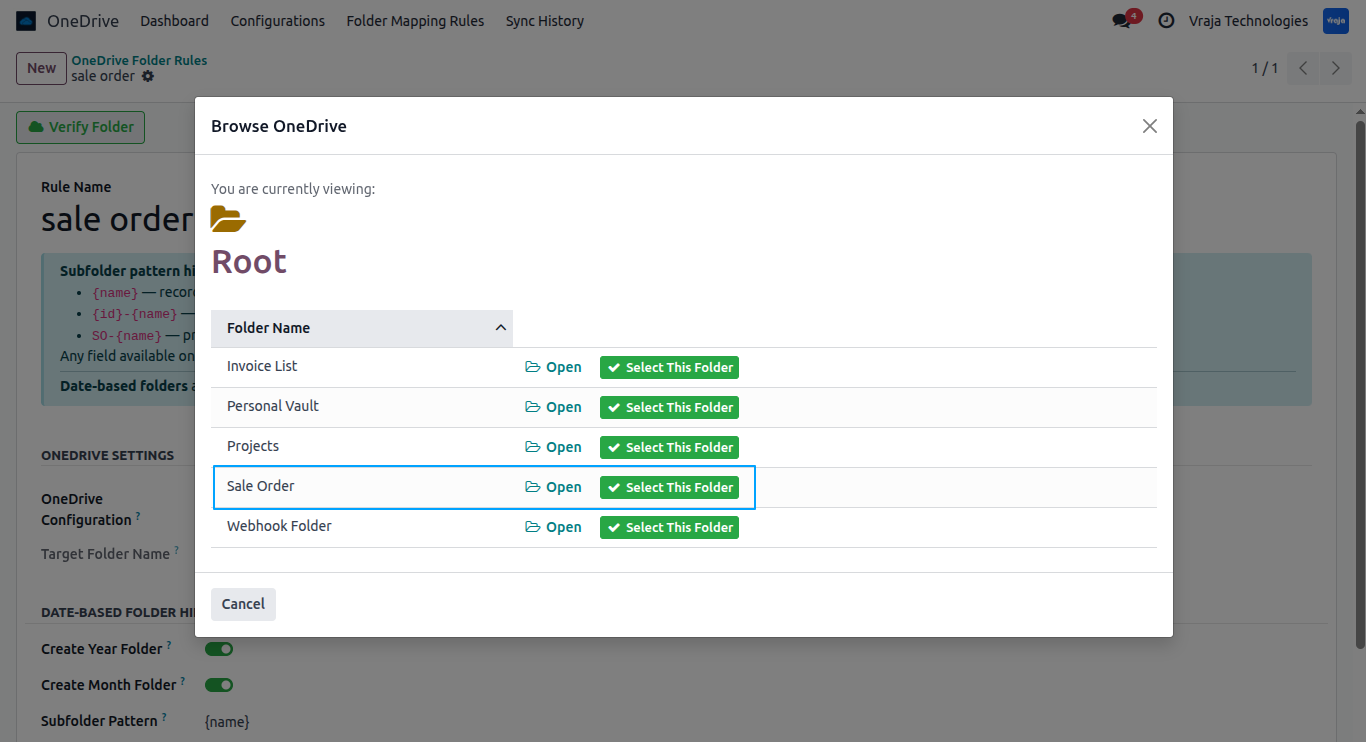
16 Select the target OneDrive folder in which the automatic subfolder mapping folder will be created for the selected Odoo model. To navigate into nested folders, click Open for the required folder and then select the destination folder. In this example, the Sale Order folder is selected directly from the root level.
17 Open the required record in Odoo and attach the files that should be synchronized to the mapped OneDrive folder.

18 The attached files are automatically synchronized to the mapped OneDrive folder. In this example, the files are uploaded to the folder path: Sale Order → 2026 → May → S00002 based on the configured Folder Mapping Rules, as the Create Year Folder and Create Month Folder options are enabled.

|
|
I would like to request a custom feature for this application. What’s the process to get it implemented?We’re happy to help tailor the application to meet your business needs! You can reach us via sales@vrajatechnologies.com |
|
|
Who is the point of contact for technical support, configuration support, or bug-related queries?You can reach us via support@vrajatechnologies.com |
|
|
Can existing OneDrive files and folders be imported into Odoo Documents?Yes, files and folders can be imported manually using the Import feature. |
|
|
Does the module support real-time synchronization from OneDrive to Odoo?Yes, the module supports real-time webhook synchronization for file and folder operations performed in OneDrive. |
|
|
Does the module support automatic Year and Month folder creation?Yes, Year and Month based folder hierarchy can be enabled from Folder Mapping Rules. |
|
|
Can synchronization activities be tracked?Yes, all synchronization operations can be monitored from the Sync History menu. |
|
|
What happens if the imported file size exceeds the Odoo upload limit?Files larger than the Odoo upload size limit are skipped during import and synchronization. |
|
|
I would like to request a custom feature for this application. What’s the process to get it implemented?We’re happy to help tailor the application to meet your business needs! You can reach us via sales@vrajatechnologies.com |
|
|
Who is the point of contact for technical support, configuration support or bug-related queries?You can reach us via support@vrajatechnologies.com |
|
|
Included App Support90 Days Complimentary Support for Supported Versions If you encounter issues caused by the app itself, our team provides complimentary support for 90 days from the date of purchase for supported Odoo versions. |
Included App Support
90 Days Complimentary Support for Supported Versions
If you encounter issues caused by the app itself, our team provides complimentary support for 90 days from the date of purchase for supported Odoo versions.

Customer SupportNeed help with installation, configuration, technical issues, or general questions about the module? Submit a support ticket through our dedicated support portal. |
||
|
Support Portal
vrajatechnologies.com/helpdesk
|
Support PolicyReview our support policy for complete information about support coverage, issue eligibility, exclusions, version compatibility, and other support conditions. |
||
|
Support Policy
vrajatechnologies.com/support-policy
|
Scan for Support
|
||
|
Support Portal
vrajatechnologies.com/helpdesk
|