Explore the key features, workflow, and value of this Odoo module.
|
|
Stock Button on Every Order LineEach sale order line has a stock button (list icon) next to the Taxes column. One click shows the stock of that line’s product. |
|
|
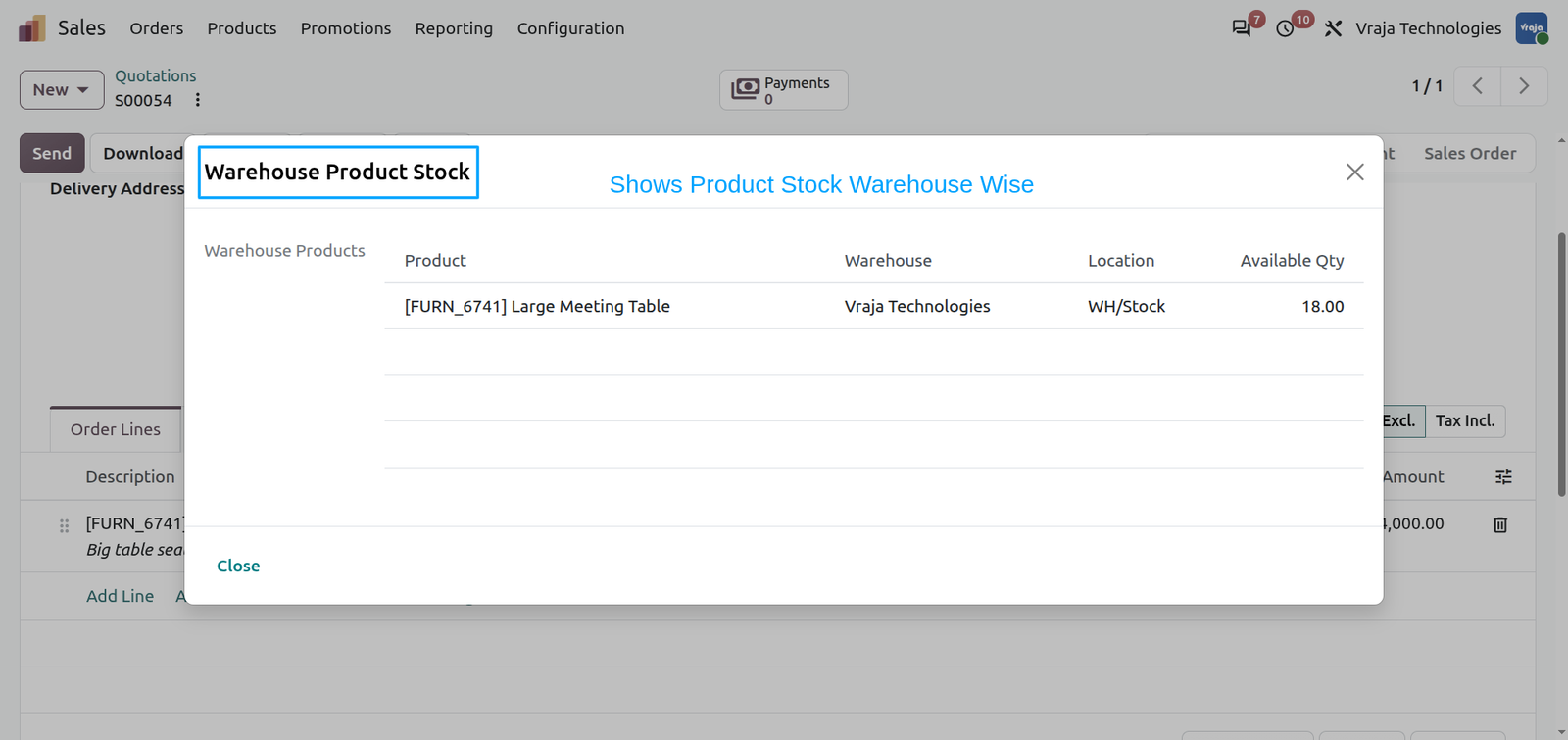
Warehouse-Wise StockIn Warehouse Wise mode, the popup lists every warehouse of your company with its main stock location and the product’s available quantity there. |
|
|
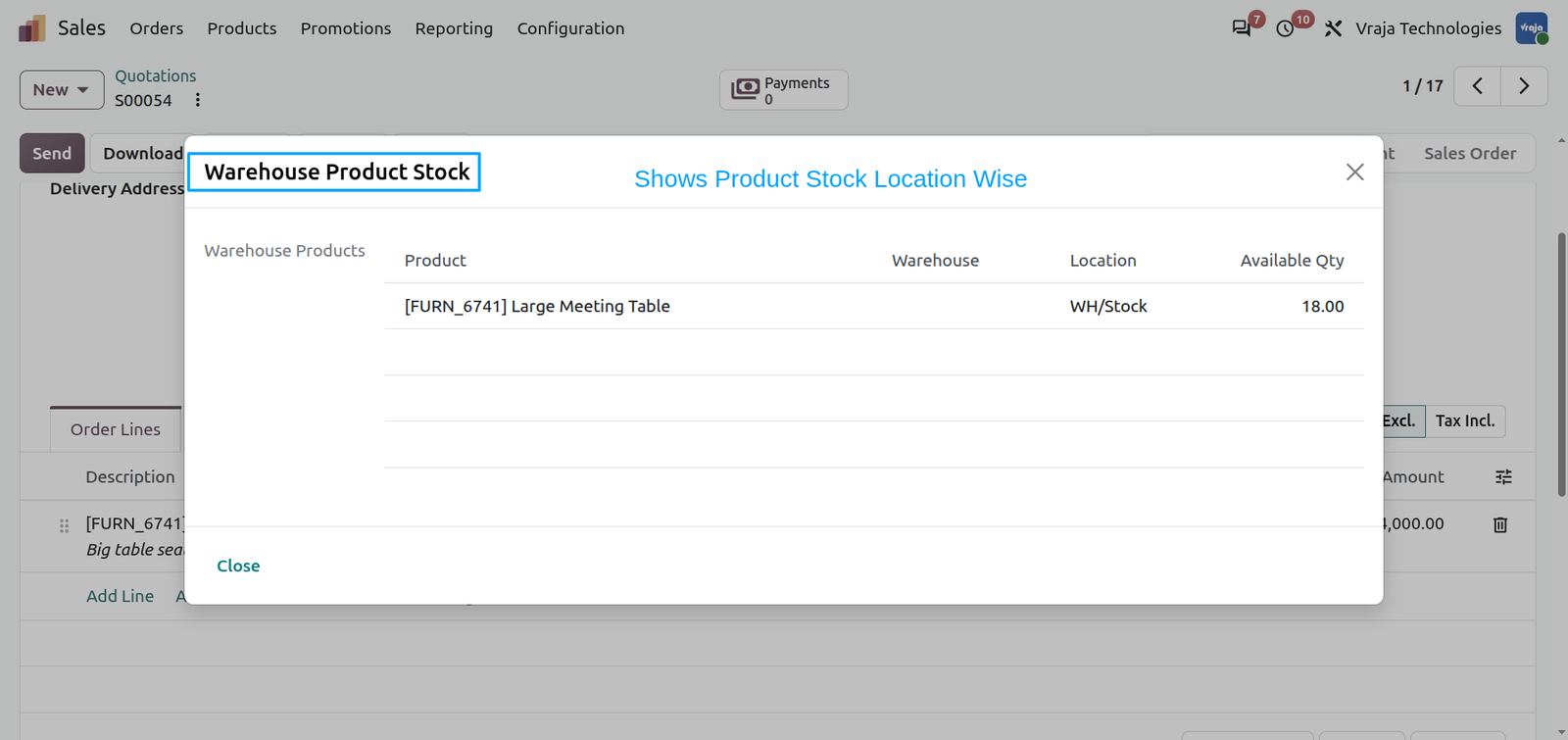
Location-Wise StockIn Location Wise mode, the popup lists each internal stock location that holds the product, with the quantity in that location. Locations with no stock aren’t listed. |
|
|
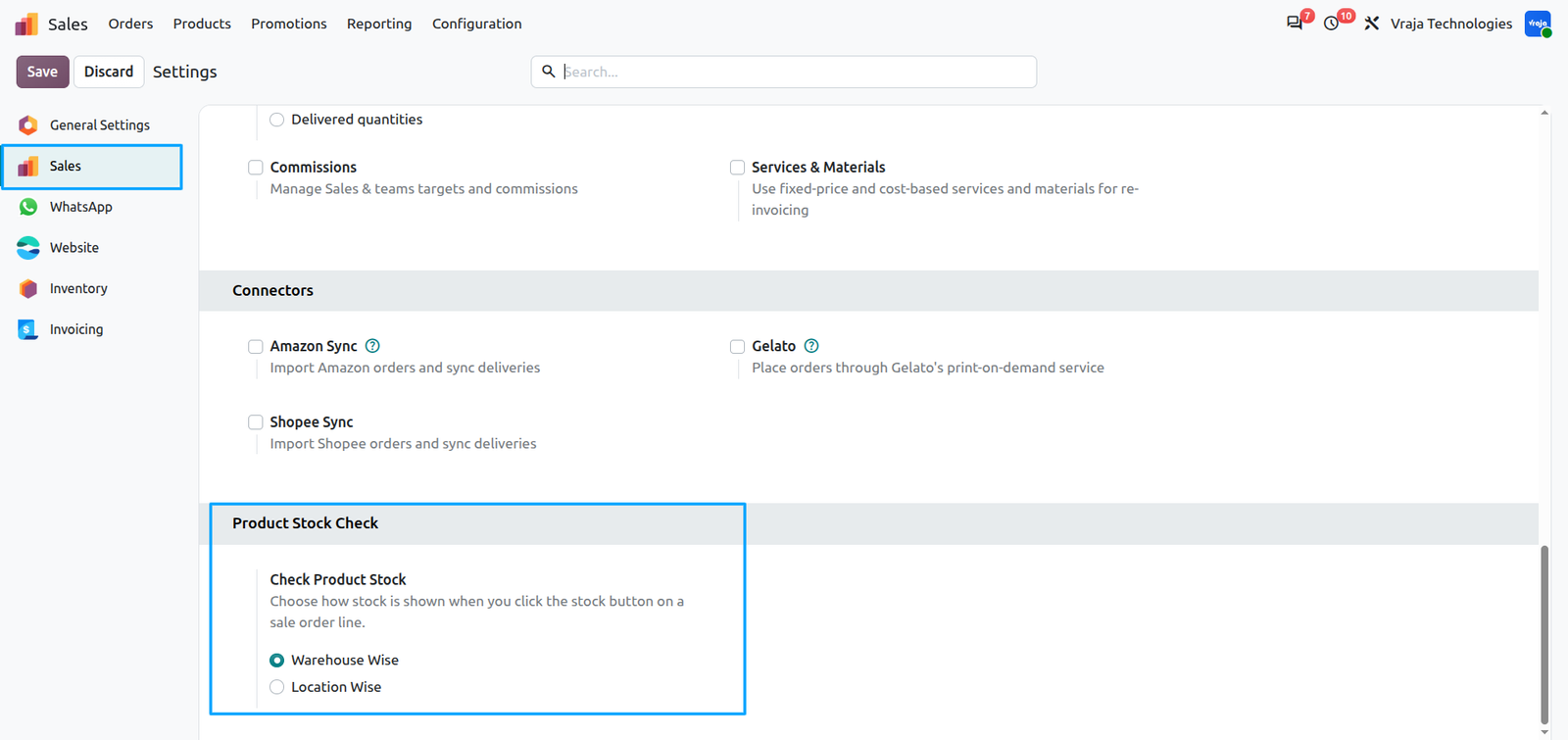
Switch Between the Two Views in SettingsA Product Stock Check Configuration section in Settings lets you choose between Warehouse Wise (the default) and Location Wise. The choice applies to all users. |
|
|
Check Stock Without Leaving the OrderThe popup opens over the sales order, and you close it with the Close button. There is no need to open the product form or the Inventory app, and nothing on the order is changed. |
|
|
Read-Only Stock InformationThe popup only displays the product, warehouse, location and available quantity. It doesn’t reserve stock, move products or change the order |
|
|
Works on Quotations and Sales OrdersThe stock button is on the order lines of both quotations and confirmed sales orders, so you can check stock before and after confirming. |
|
|
Helps Choose the Right Fulfilment SourceWhen the product’s total stock is spread across several warehouses or locations, you can see where the quantity is. This helps salespeople promise delivery from the right place. |
|
|
Available to Every SalespersonUsers in the Sales / User group can open the popup, with no extra Inventory access. The popup’s access rules are set up for that group. |
01 Go to Sales > Configuration > Settings and scroll to the bottom. The new Product Stock Check section has a Check Product Stock option. Choose how stock is shown when you click the stock button on a sale order line: Warehouse Wise (selected by default) or Location Wise.
02 Open a quotation or sales order from Sales → Orders. In the Order Lines tab, each line has a stock button (list icon) next to the Taxes column. The example is quotation S00054, with the product [FURN_6741] Large Meeting Table. The line shows Available qty 18.00, Sale Price 4,000.00 and Unit Price 4,000.00.
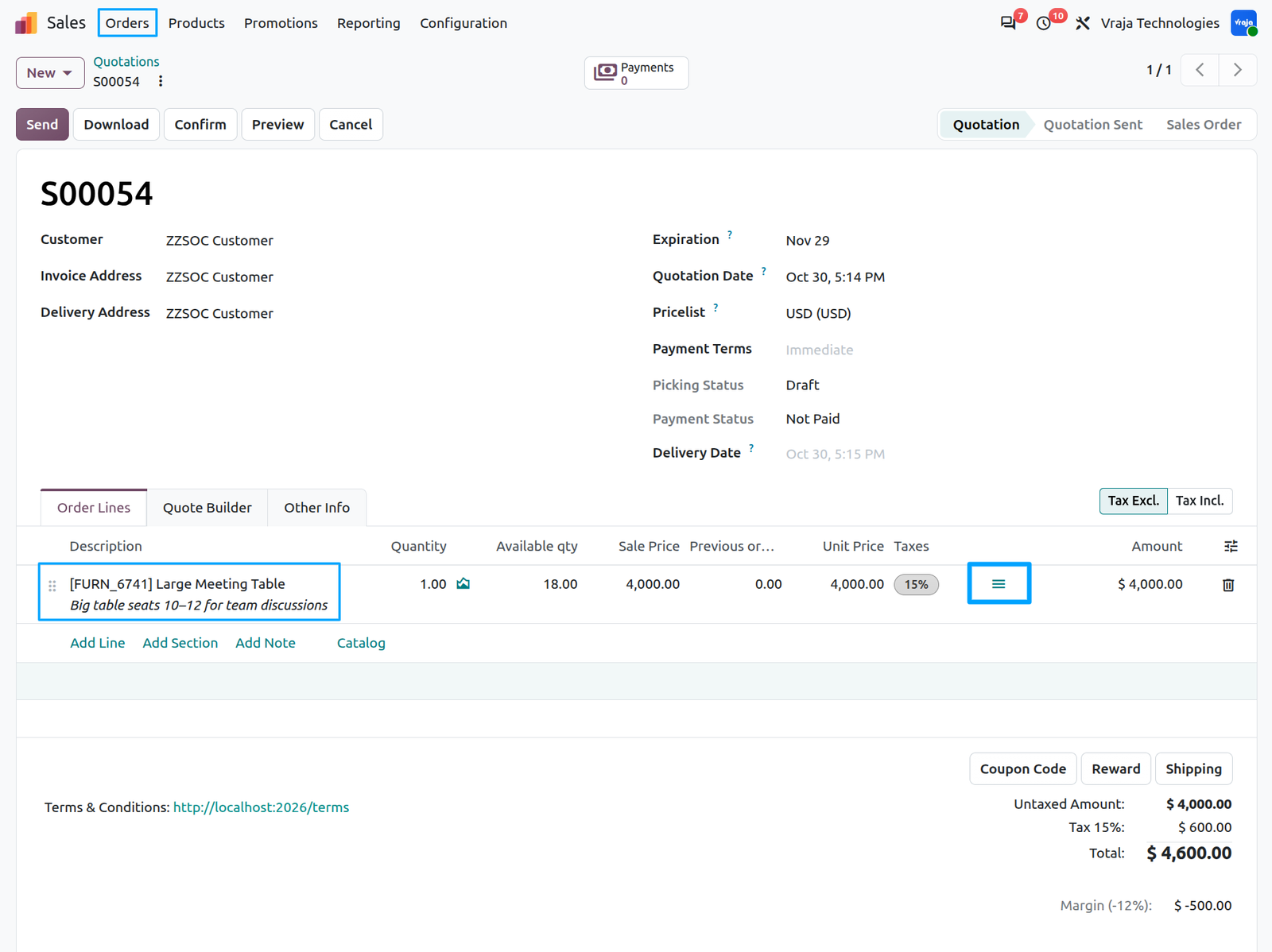
03 Open a quotation or sales order from Sales → Orders. In the Order Lines tab, each line has a stock button (list icon) next to the Taxes column. The example is quotation S00054, with the product [FURN_6741] Large Meeting Table. The line shows Available qty 18.00, Sale Price 4,000.00 and Unit Price 4,000.00.
04 With Location Wise selected, the popup lists the product, the location (WH/Stock) and the available quantity (18.00). The Warehouse column is empty in this view, because stock is shown by location.
|
|
What does this module do?It shows a product’s available stock per warehouse or per location, from the order line on a sales order. |
|
|
How do I check the stock of a product?Open a quotation or sales order and click the stock button (list icon) next to the Taxes column on the line. A “Warehouse Product Stock” popup opens. |
|
|
What information does the popup show?The popup shows the product, the warehouse, the location and the available quantity in the warehouse of the product. |
|
|
How do I switch between the two?Go to Settings and find Product Stock Check Configuration. Choose Warehouse Wise or Location Wise and save. The default is Warehouse Wise. |
|
|
Does the setting apply to everyone?Yes. It is a single setting for the whole database, so all users see the same view. |
|
|
Does Location Wise show locations with zero stock?No. Only internal locations with a quantity above zero are listed. |
|
|
Does checking stock reserve it or change the order?No. The popup is for information only. It doesn’t reserve stock or change the order line. |
|
|
Is any configuration required?No. Install the module and the stock button appears. Use Settings only if you want Location Wise instead of the default Warehouse Wise. |
|
|
Which Odoo apps does it need?Sales and Inventory (the Delivery module is also required). |
|
|
I would like to request a custom feature for this application. What’s the process to get it implemented?We’re happy to help tailor the application to meet your business needs! You can reach us via sales@vrajatechnologies.com |
|
|
Who is the point of contact for technical support, configuration support or bug-related queries?You can reach us via support@vrajatechnologies.com |
|
|
Included App Support90 Days Complimentary Support for Supported Versions If you encounter issues caused by the app itself, our team provides complimentary support for 90 days from the date of purchase for supported Odoo versions. |
Included App Support
90 Days Complimentary Support for Supported Versions
If you encounter issues caused by the app itself, our team provides complimentary support for 90 days from the date of purchase for supported Odoo versions.

Customer SupportNeed help with installation, configuration, technical issues, or general questions about the module? Submit a support ticket through our dedicated support portal. |
||
|
Support Portal
vrajatechnologies.com/helpdesk
|
Support PolicyReview our support policy for complete information about support coverage, issue eligibility, exclusions, version compatibility, and other support conditions. |
||
|
Support Policy
vrajatechnologies.com/support-policy
|
Scan for Support
|
||
|
Support Portal
vrajatechnologies.com/helpdesk
|