Explore the key features, workflow, and value of this Odoo module.
LTL / FTL Features |
|
|
FTL & LTL Shipment ManagementEasily create and manage Full Truckload (FTL) and Less Than Truckload (LTL) shipments in Odoo. |
|
|
Send RFQs to Multiple Freight BrokersSend freight quotation requests to multiple brokers via email with a single click. |
|
|
Online Broker Quotation PortalAllow brokers to view shipment details and submit quotations online without an Odoo login. |
|
|
Compare Freight Rates & Select Best BrokerCompare broker quotations, shipping costs, and transit times to choose the best freight offer. |
|
|
Freight Booking ConfirmationConfirm freight bookings with the selected broker and manage booking details in Odoo. |
|
|
Cargo, Carton & Package ManagementManage cargo descriptions, carton quantities, package dimensions, and shipment weights. |
|
|
Freight Class & NMFC Code SupportMaintain freight classes and NMFC codes for accurate LTL freight classification. |
|
|
Manual Shipment Tracking & Tracking URLStore tracking numbers and URLs, and manually update shipment statuses based on broker information. |
|
|
Bill of Lading (BOL) GenerationGenerate professional BOL PDFs with shipment, cargo, shipper, consignee, and carrier details. |
|
|
Proof of Delivery (POD) ManagementRecord delivery confirmations, upload signed POD documents, and track damaged or missing packages. |
|
|
Purchase Order & Vendor Bill IntegrationCreate freight Purchase Orders or direct Vendor Bills and manage broker payments through Odoo. |
Ocean Freight Features |
|
|
FCL & LCL Shipment ManagementManage Full Container Load (FCL) and Less than Container Load (LCL) ocean shipments in Odoo. |
|
|
Origin & Destination Port ManagementRecord ports of loading and discharge, shipping locations, and ocean freight route details. |
|
|
Multiple Container & Cargo ManagementManage multiple containers, cargo descriptions, quantities, and weights within one shipment. |
|
|
Container Number, Type & Seal DetailsMaintain container numbers, container types, seal numbers, and gross weights. |
|
|
Assign Cartons & Packages to ContainersOrganize cargo by assigning individual carton and package lines to specific containers. |
|
|
Freight Broker RFQ & Quote ComparisonRequest ocean freight rates from multiple brokers and compare quotations to select the best offer. |
|
|
Online Broker Quotation SubmissionLet freight brokers submit ocean shipping quotations through a secure online form without logging into Odoo. |
|
|
Ocean Freight Booking ManagementConfirm ocean freight bookings with selected brokers and maintain booking references. |
|
|
Manual Shipment & Container TrackingStore tracking URLs, container references, and manually update ocean shipment progress. |
|
|
Bill of Lading (BOL) GenerationGenerate ocean shipping BOL PDFs with shipper, consignee, port, container, and cargo information. |
|
|
Commercial Invoice GenerationGenerate commercial invoice PDFs with product details, HS codes, quantities, prices, and declared values. |
|
|
Proof of Delivery (POD) ManagementRecord delivery details, upload supporting POD documents, and manage delivery exceptions. |
|
|
Purchase Order & Vendor Bill IntegrationCreate freight Purchase Orders or Vendor Bills directly in Odoo to manage ocean freight expenses. |
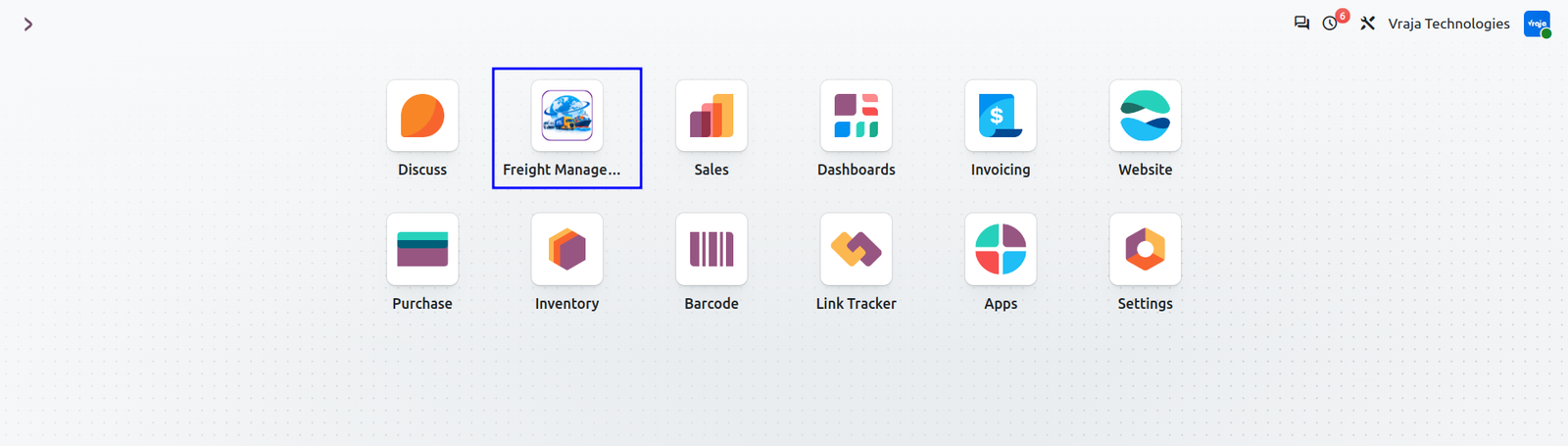
01 Click On Freight Quote Menu.
Open Freight Management and choose FTL/LTL Requests. Coordinators also see Broker Offers.
02 Create Freight Quote.
Click New and choose the freight type: LTL or FTL & Enter shipping information.

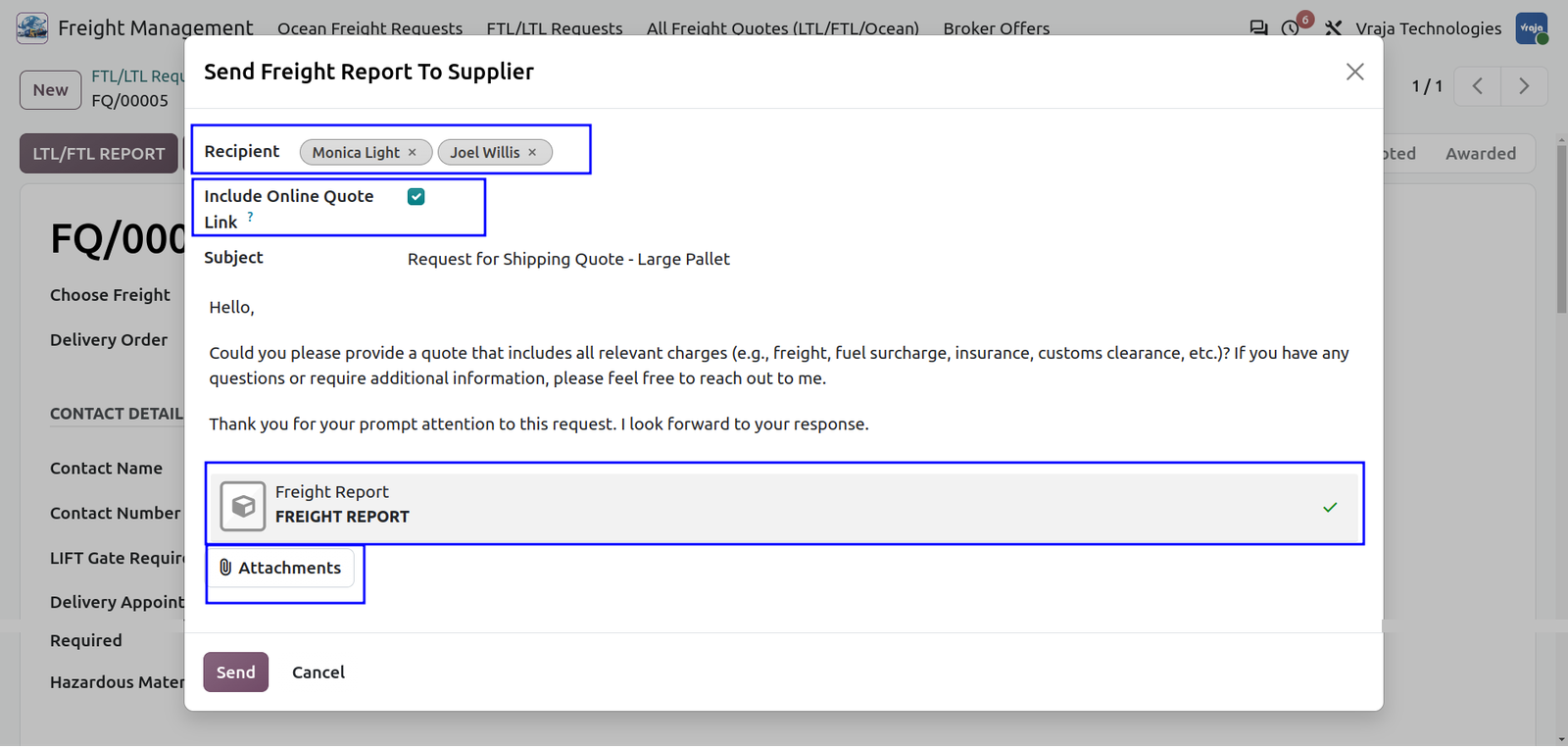
03 Send the RFQ by email.
Click Send E-mail To Shipping Providers and select one or more brokers. Keep Include Online Quote Link on to give every broker a private quotation page.

04 The report is attached automatically.
The Freight Quote PDF is attached to the email. Edit the text if needed, then send. The request moves to RFQ Sent.
05 Add the broker's quotation.
When the broker answers on the quotation page (rate, currency, transit days, validity, notes, optional file), the offer is created for you and marked Submitted Online. If the broker answers by email or phone, add the cost yourself under Broker Details. The request becomes Quoted.
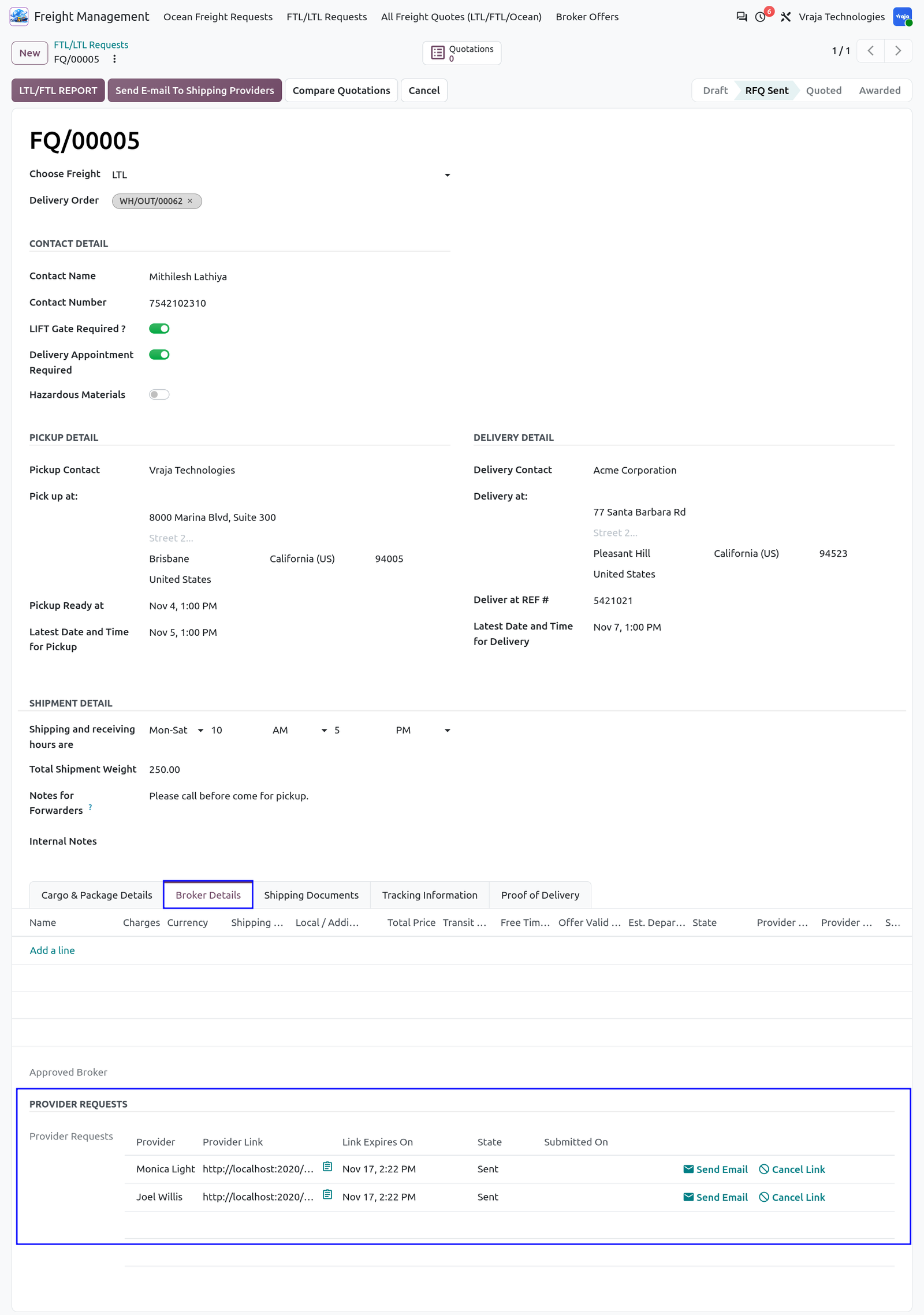
06 The broker receives the email.
Once broker receive email and then they submit the quote online then we can check it which broker submit the quote and who still not.

07 Compare quotations and award the best one.
Click Compare Quotations to see all offers in one list with totals in your company currency. Click Award, write a short note and confirm. The other offers become Not Selected.


08 Confirm The Broker Booking
Click Confirm Broker Booking once the broker confirms the pickup. The date and user are logged in the chatter.

09 Create the Purchase Order or Vendor Bill.
Click Create PO / Vendor Bill, choose Purchase Order First or Direct Vendor Bill, select the freight service product and create the draft. Open it from the smart button on the request.


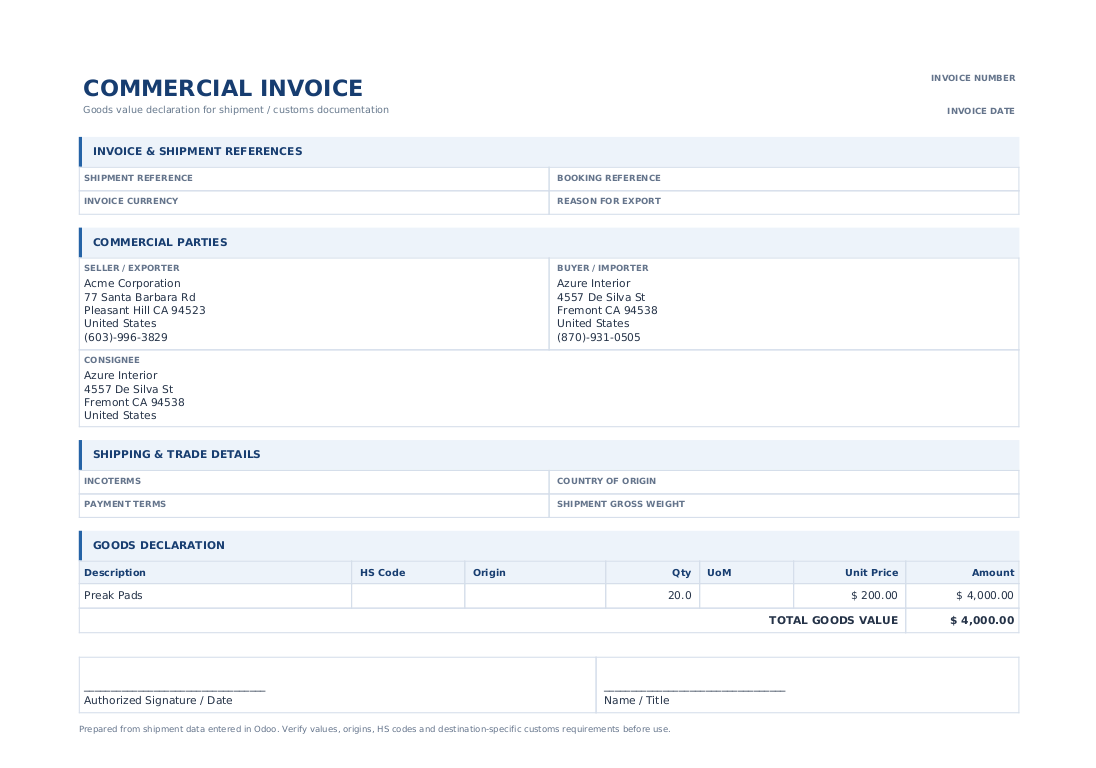
10 Generate Commerical Invocie and Bill of Loading
If you want to ship order internationally and you want to generate commercial invoice or Bill of loading then you can generate it and attach in email while send shipping details to propvider.


11 Track the shipment manually.
In the Tracking Information tab, save the tracking number, PRO number and tracking link, then click Record Tracking Update after each call or email. The history keeps every update.

12 Confirm Proof of Delivery.
In the Proof of Delivery tab, enter the receiver, delivery date, package counts and signed document, then click Confirm Proof of Delivery. After that, Download POD is available.

01 Open the Freight Management app.
Click the Freight Management app. The menu shows Ocean Freight Requests, FTL/LTL Requests, All Freight Quotes (LTL/FTL/Ocean) and, for coordinators, Broker Offers. Open Ocean Freight Requests and click New.

02 Create the Ocean Freight request.
Set Choose Freight to Ocean Freight. Enter the contact name and number and switch on Hazardous Materials if needed. Under Route / Operation enter the shipper company, Port of Loading (POL), Port of Discharge (POD), loading location and cargo ready date. Under Transport Terms choose Direct or Transshipment, FCL or LCL, incoterm, Prepaid or Collect and the party responsible for freight payment. Then fill in the Pickup Detail and Delivery Detail (contact, address, ready and latest dates, delivery reference). Use Notes for Forwarders for text that forwarders can see, and Internal Notes for private comments.

03 Click Send E-mail To Shipping Providers.
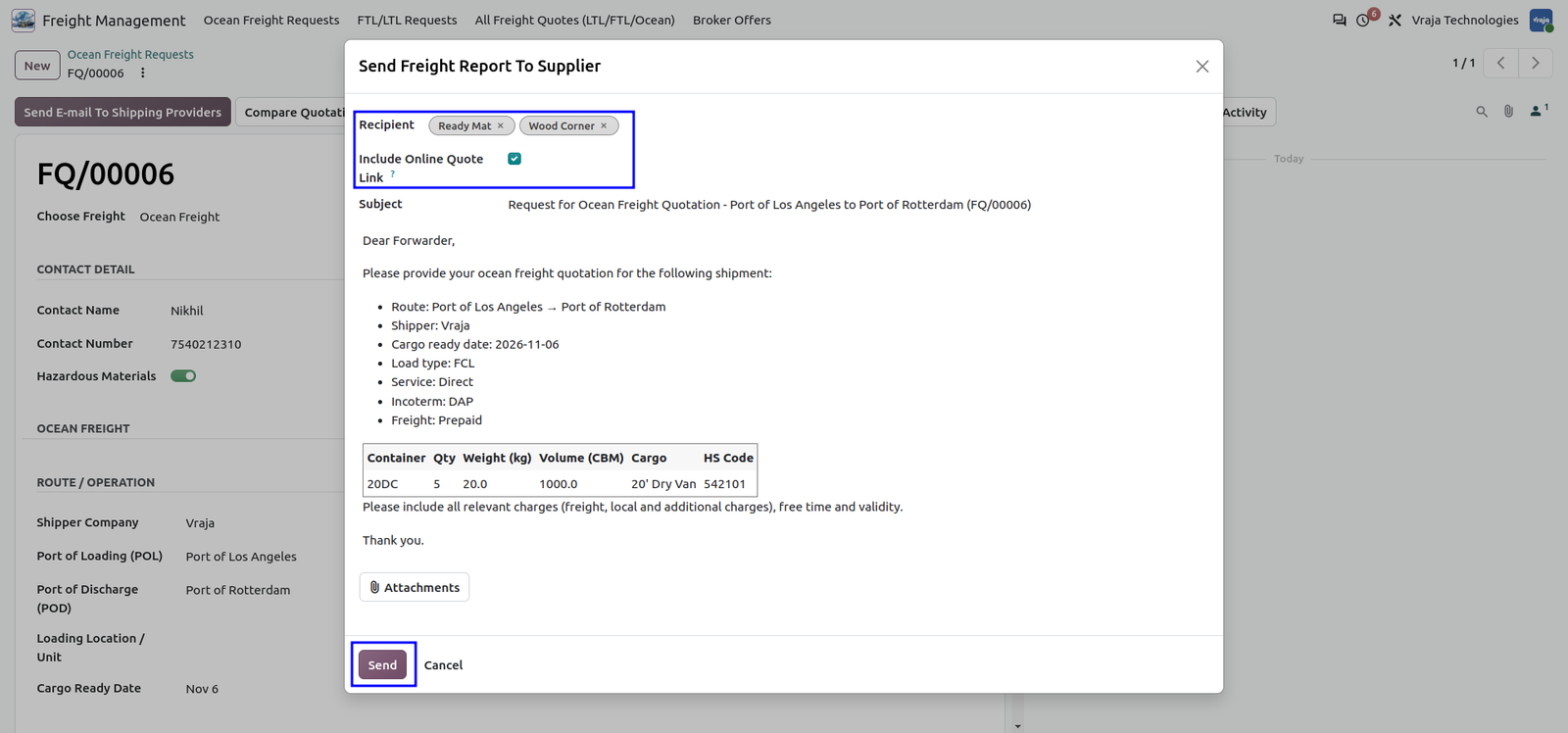
Click Send E-mail To Shipping Providers and select one or more brokers. Keep Include Online Quote Link on to give every broker a private quotation page.

04 Select the forwarders and send.
Choose one or more Recipients and keep Include Online Quote Link switched on, so every forwarder receives a private quotation page. The subject and the ocean RFQ text (route, shipper, cargo ready date, load type, service, incoterm, freight terms and container table) are filled in for you. Edit the text if needed and click Send. The request moves to RFQ Sent.
05 Follow the sent links.
Open the Broker Details tab. Provider Requests lists each forwarder with the private link, the expiry date (14 days) and the state Sent. Use Send Email to send the same link again, or Cancel Link to close it.

06 Forwarders submit their quotations.
Each forwarder opens the link and enters the shipping line, rate, local charges, transit days, free time and validity (and an optional file). The provider request changes to Submitted, the quotation appears in the Broker Details list and the request moves to Quoted. If a forwarder answers by email or phone, click Add a line and enter the quotation yourself.

07 Compare the quotations.
Click Compare Quotations. The list shows the shipping line, freight, local charges, total price, total in your company currency, transit days, free time, offer validity and estimated departure. The No FX box warns you when a currency has no exchange rate. Click Award on the best offer.

08 Award the best quotation.
Check the forwarder and total price, write a Selection Note that explains your choice (for example Lowest rate and best service) and click Award.


09 Confirm the broker booking.
After the award, click Confirm Broker Booking once the forwarder confirms the booking. The date and user are logged in the chatter, and the button is replaced by Create PO / Vendor Bill.
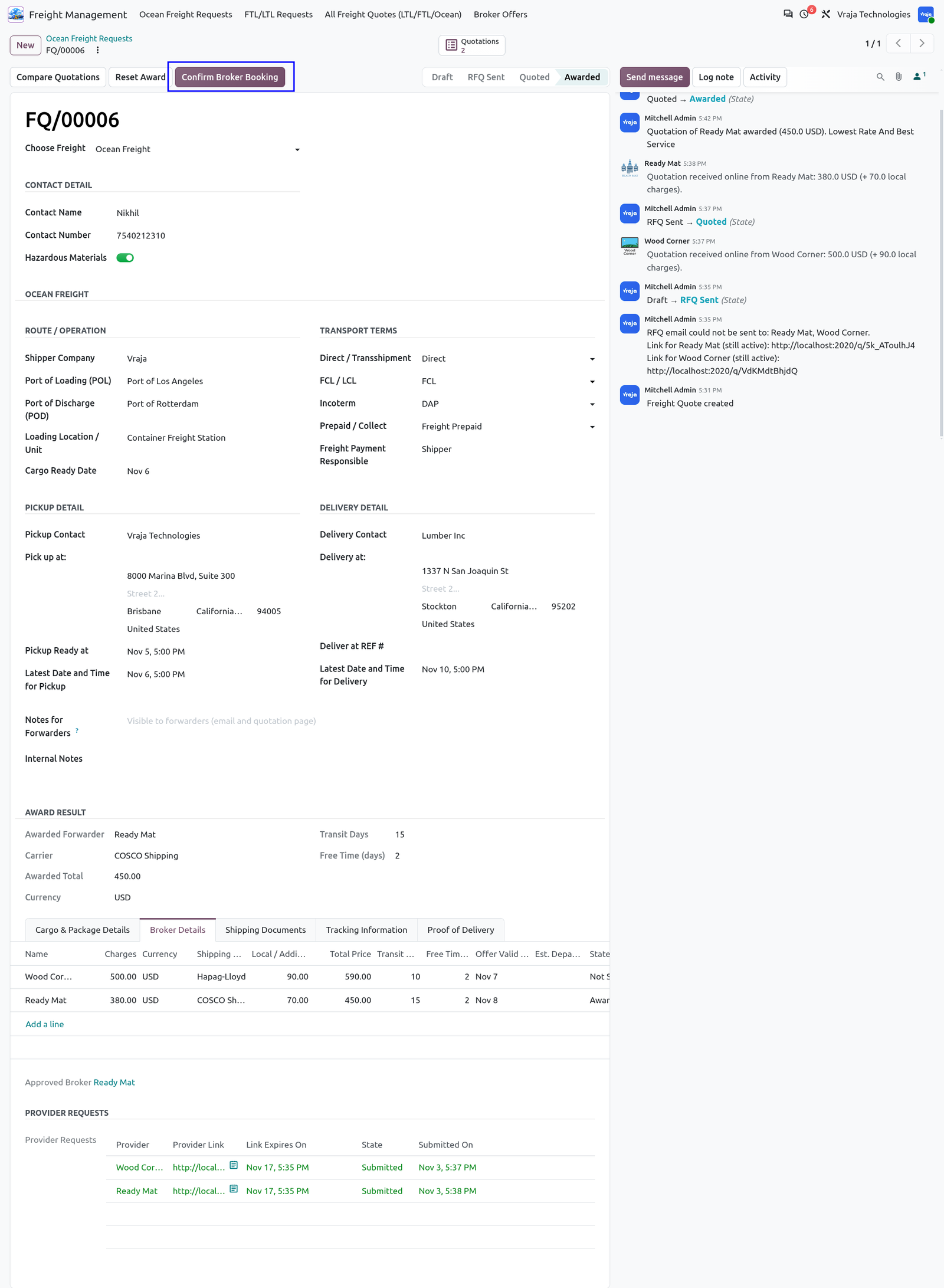
10 Click Create PO / Vendor Bill.
Click Create PO / Vendor Bill in the header. It is available after the booking is confirmed.

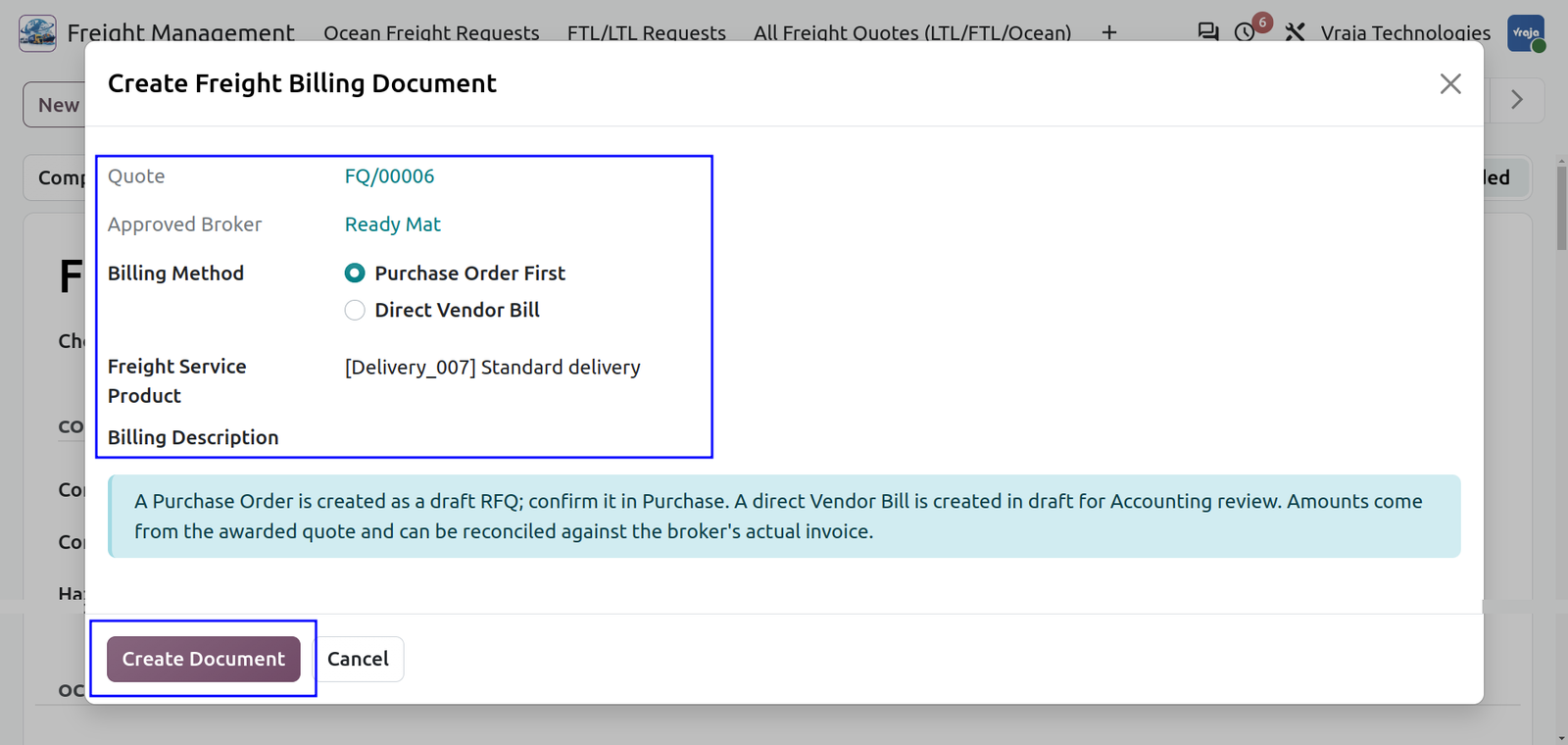
11 Create the billing document.
Choose the billing method: Purchase Order First (a draft RFQ that you confirm in Purchase) or Direct Vendor Bill (a draft bill for Accounting review). Select the Freight Service Product, add a billing description if needed and click Create Document. Amounts come from the awarded quotation and can be checked against the forwarder's real invoice. The purchase order is available from a smart button on the request.
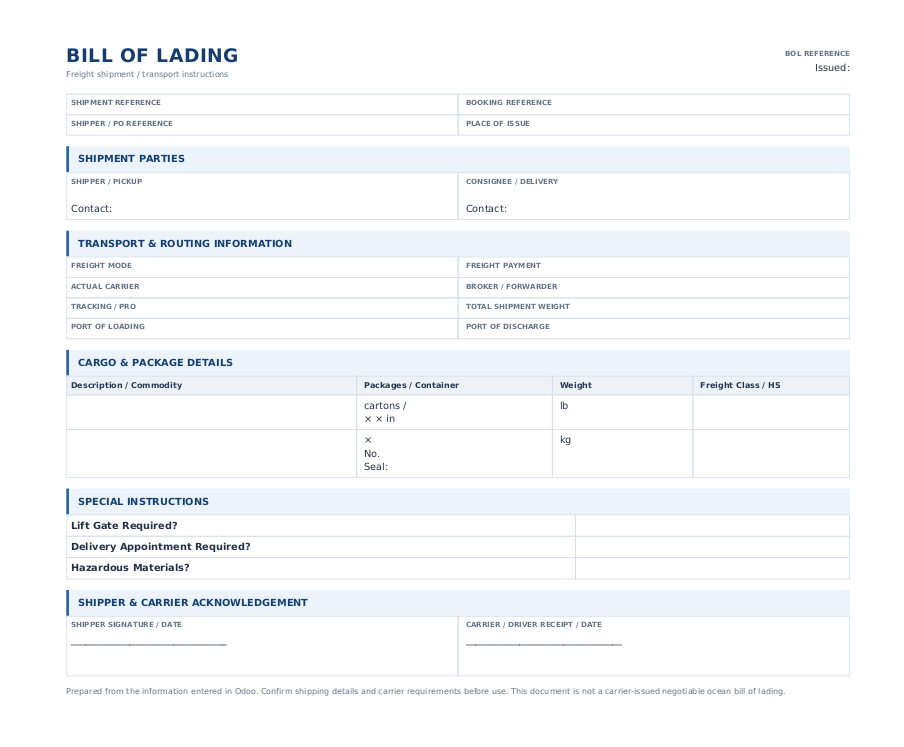
12 Fill in the Shipping Documents.
Open the Shipping Documents tab. Enter the Bill of Lading details (number, date, place of issue, PO reference, cargo description and special instructions) and the Commercial Invoice details (invoice number and date, seller, buyer, consignee, currency, country of origin, payment terms, reason for export, incoterm). Add the goods lines with description, HS code, country of origin, quantity, unit and price. Click Download BOL or Download Commercial Invoice.


13 Track the shipment.
Open the Tracking Information tab. Save the tracking number, tracking URL, PRO number, booking reference and actual carrier, and use Open Tracking Website to check the carrier site. Under Shipment Progress keep the estimated and actual pickup and delivery dates. After each phone call, email or website check, click Record Tracking Update. The history lists the date, status, source, notes and user.

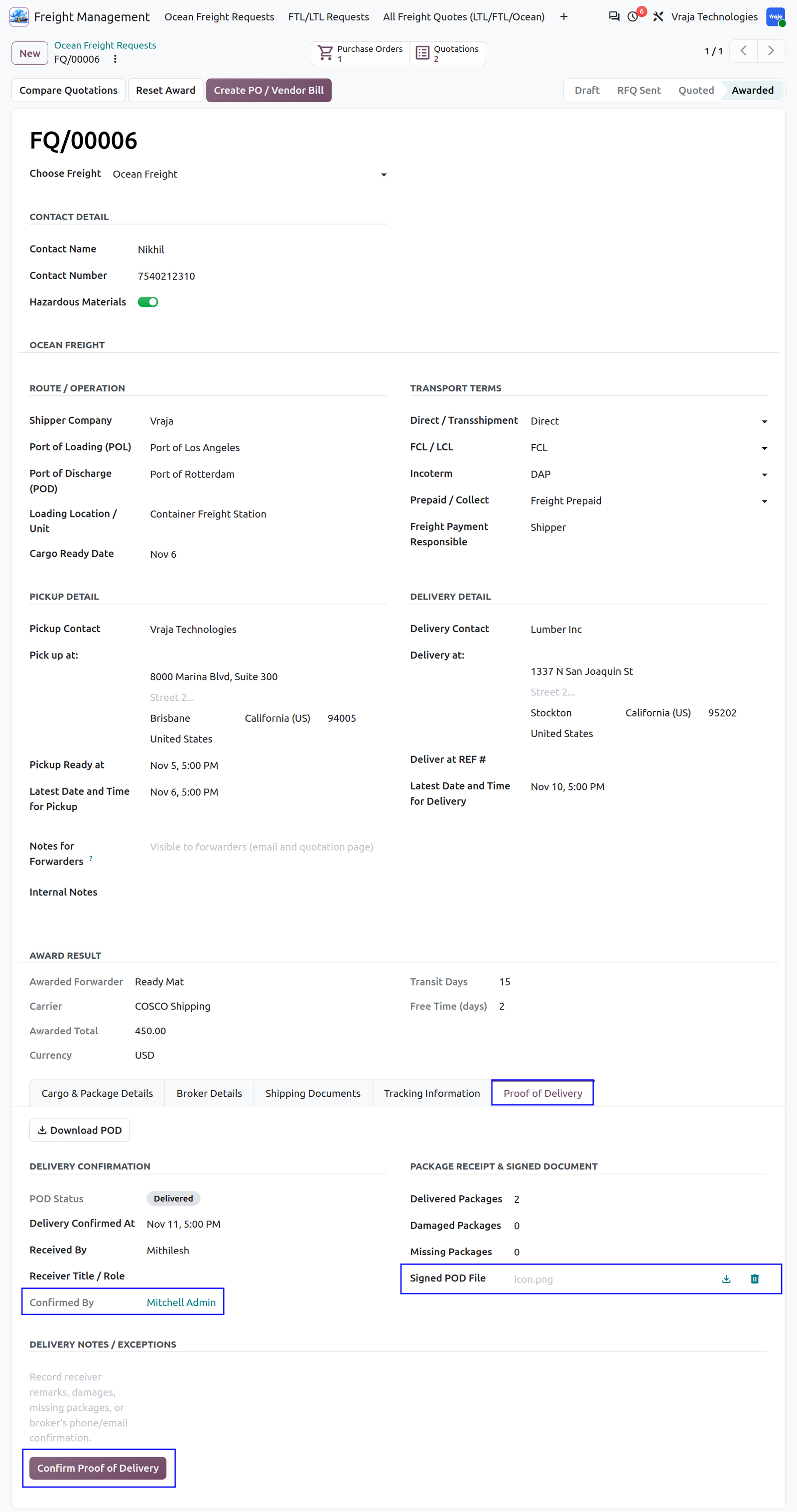
14 Confirm the Proof of Delivery.
Open the Proof of Delivery tab. Enter the delivery date and time, who received the goods, the delivered, damaged and missing packages, add the Signed POD File, and write notes if there was any exception. Click Confirm Proof of Delivery. The POD status becomes Delivered and Download POD prints the report.
|
|
I would like to request a custom feature for this application. What’s the process to get it implemented?We’re happy to help tailor the application to meet your business needs! You can reach us via sales@vrajatechnologies.com |
|
|
Who is the point of contact for technical support, configuration support or bug-related queries?You can reach us via https://vrajatechnologies.com/helpdesk |
|
|
Which freight types are supported?LTL (Less Than Truckload), FTL (Full Truckload) and Ocean Freight (FCL and LCL). |
|
|
Does the broker need an Odoo user or a login?No. The broker opens the private link from the email and submits the quotation on a simple web page. The link works once, expires after 14 days and closes when the request is awarded, cancelled or combined. |
|
|
Can brokers answer by email instead?Yes. You can add any quotation manually in the Broker Details tab, with the amount, currency, transit time and an attached file. |
|
|
Can I change my decision after awarding?Yes, use Reset Award. All quotations return to Pending. It is blocked once the broker booking is confirmed or a Purchase Order or Vendor Bill exists. |
|
|
How does billing work?After the booking is confirmed, create a draft Purchase Order or a direct Vendor Bill from the awarded quotation. Set a default Freight Service Product in the Settings so it is filled automatically. |
|
|
Included App Support90 Days Complimentary Support for Supported Versions If you encounter issues caused by the app itself, our team provides complimentary support for 90 days from the date of purchase for supported Odoo versions. |
Included App Support
90 Days Complimentary Support for Supported Versions
If you encounter issues caused by the app itself, our team provides complimentary support for 90 days from the date of purchase for supported Odoo versions.

Customer SupportNeed help with installation, configuration, technical issues, or general questions about the module? Submit a support ticket through our dedicated support portal. |
||
|
Support Portal
vrajatechnologies.com/helpdesk
|
Support PolicyReview our support policy for complete information about support coverage, issue eligibility, exclusions, version compatibility, and other support conditions. |
||
|
Support Policy
vrajatechnologies.com/support-policy
|
Scan for Support
|
||
|
Support Portal
vrajatechnologies.com/helpdesk
|