Vraja Technologies

AI Cashflow Intelligence Agent

Community Enterprise Odoo.sh

Cashflow AI is an advanced Odoo module developed by Vraja Technologies that brings CFO-level financial intelligence directly into your Odoo backend. It connects to the OpenAI (ChatGPT), Claude (Anthropic), Google Gemini to analyse your real-time Accounts Receivable (AR), Accounts Payable (AP), bank balances, expense pipelines, and sales/purchase order pipelines — then delivers actionable insights, liquidity scoring, cash runway forecasts, and a full executive summary.

The module is built on top of the Vraja AI common platform (vraja_ai) and the Odoo account module. It uses a token-optimised CSV approach to minimise API costs while maximising the quality of AI-generated intelligence.

Stop guessing about your cash position. Cashflow AI connects to your Odoo accounting data and uses AI to deliver instant CFO-level insights.

Submit Request Trending Apps
Vraja Technologies

End-to-end Odoo solutions for growing companies.

EDI & SWIFT/ACH Payment Integrations

End-to-end EDI automation, including X12, EDIFACT, XML standards, and financial integrations such as SWIFT, ACH, and Fedwire.

ANSI X12 EDIFACT XML SFTP / AS2 More Apps
ANSI X12 EDIFACT XML SFTP / AS2

Ecommerce Integrations

Seamless integration with leading eCommerce platforms to sync products, orders, inventory, and customer data in real time.

Orders Sync Inventory Products Customers More Apps
Orders Sync Inventory Products Customers

Shipping Integrations

Robust shipping connectors for global couriers, offering automated label generation, tracking, and rate computation.

Live Rates Labels Tracking Cancel Shipment More Apps
Live Rates Labels Tracking Cancel Shipment

Most Useful Apps for your ERP

A wide range of highly-rated Odoo modules designed to enhance automation, improve productivity, and simplify business operations.

Sales Inventory Accounting Automation More Apps
Sales Inventory Accounting Automation
App Details

Explore the key features, workflow, and value of this Odoo module.

AI-Powered Cashflow Analysis

AI KPI Dashboard

AI Insights & Attention Alerts

Top AR Risks & AP Priorities

Cash Runway & Liquidity Intelligence

Executive Summary

CFO Report (Automated Email)

AI Log & Audit Trail

01 After installing the module, the AI Dashboard app appears directly on your home screen, giving you quick and easy access to all AI features and configuration options from one place.

02 From the Configuration menu, you can set up your credentials. The system supports multiple AI Provider options — including OpenAI (ChatGPT), Claude (Anthropic), Google Gemini — so you can choose the AI Provider that best fits your business needs and budget. Now add the specific api key and select the LLM model you want to use.

03 Open the Vraja AI Dashboard From the Odoo main menu, navigate to Vraja AI → Dashboard. You will see all available AI cards, including the Cashflow AI Dashboard card that was automatically created on module installation.

04 Open the Cashflow AI Card Click the Review button on the Cashflow AI card. If no analysis has been generated yet, the Generate Cashflow Intelligence pop-up will automatically open.

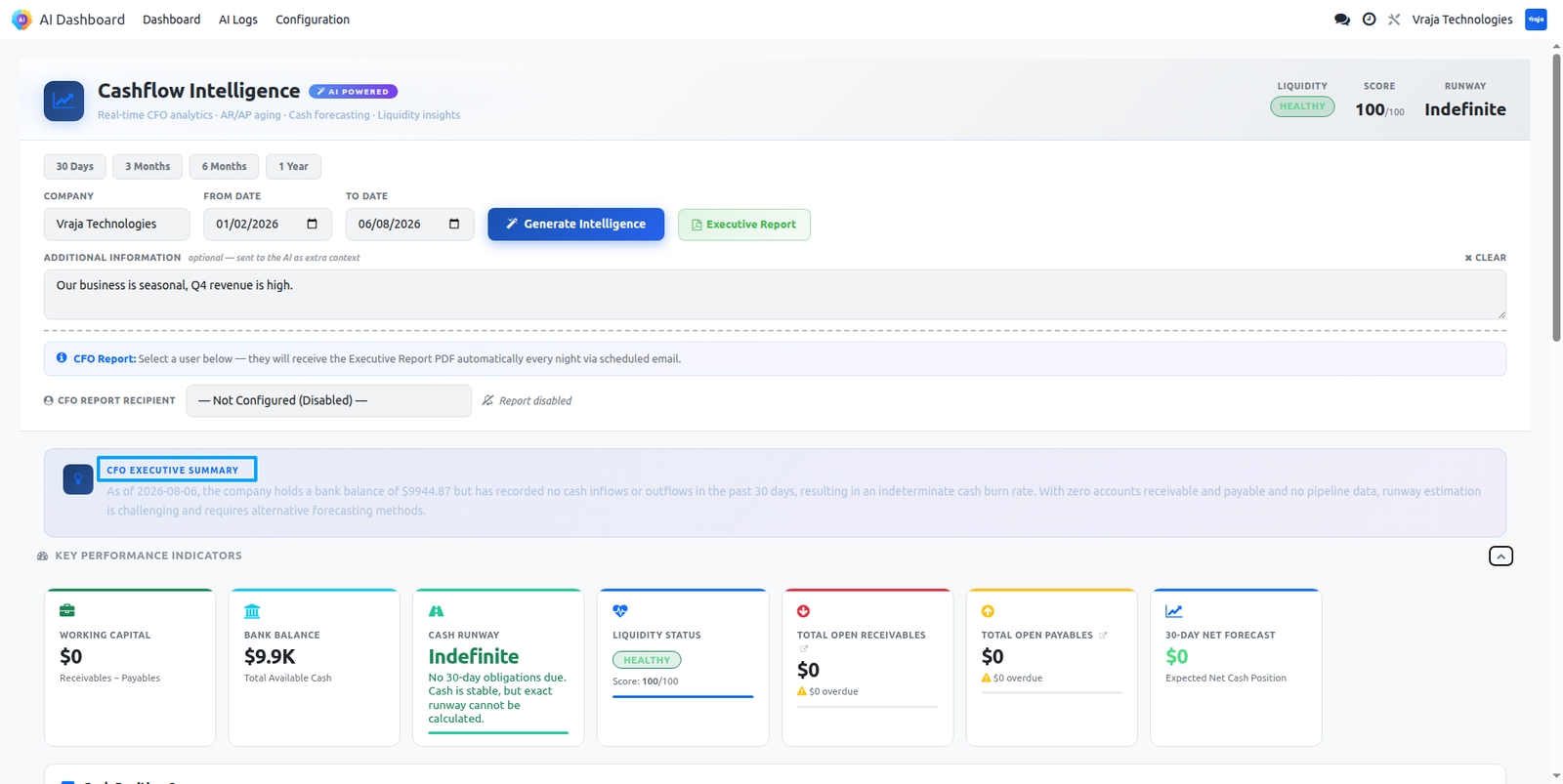
05 Generate Cashflow Intelligence pop-up The pop-up presents two date fields: From Date and To Date. The defaults are automatically set to the start of two months ago through today, giving a broad financial picture. You can also select the Odoo company for which you want to perform the analysis. Additionally, you can provide any extra information, context, or specific instructions for the AI to consider during the analysis. Click Generate Dashboard. The system will collect all financial data, send it to the AI, and open the populated dashboard once the analysis is complete.

06 Review the Dashboard for example, Overdue AR and Overdue AP are highlighted in red when significant, while the Liquidity Score badge is green (Healthy), amber (Caution), or red (Critical).

07 Review the Executive Summary Below the KPI tiles, the AI Executive Summary is displayed as a highlighted text block. This is a 2–3 sentence CFO-level summary of the most critical financial signals derived from the analysis. This text is also included in the CFO email.

08 Review What Needs Attention The 'What Needs Attention' panel lists up to 5 critical issues that require immediate action. Each item includes:

09 Review AI Insights The AI Insights panel lists up to 8 insights sorted by severity (HIGH → MEDIUM → LOW). Each insight includes a category badge, a severity label, a finding with specific dollar amounts, and a recommended action.

10 Review Top AR Risks And Review Top AP Priorities.

11 Download Executive Report PDF Click the Download Report button on the dashboard to generate and download the Executive Cash Flow Report as a PDF.

12 Regenerate Analysis To run a fresh analysis (for example, after a week has passed or after new invoices have been posted), click the Generate Intelligence button on the dashboard. Important: Regenerating analysis will consume AI API tokens. Each run sends your financial data (as a compact CSV) to the AI API. Token usage is logged in the AI Log for each run.

13 CFO Report Configuration Setting the CFO Report Recipient The CFO report is sent to a designated internal Odoo user. To configure it: Look for the CFO Report Recipient field (or access it from the card settings). Select the internal user (e.g., the CFO or Finance Manager) from the dropdown. Save the card. The auto job will now send reports to this user's email address. To disable nightly reports, clear the CFO Report Recipient field.

14 Viewing the Log Every analysis run creates a log entry in the AI Log. To view logs for the Cashflow AI card: Open the Cashflow AI Dashboard card. Click the Log button on the card.

15 Viewing the Log Every analysis run creates a log entry in the AI Log. To view logs for the Cashflow AI card: Open the Cashflow AI Dashboard card. Click the Log button on the card.

16 Viewing the Log Every analysis run creates a log entry in the AI Log. To view logs for the Cashflow AI card: Open the Cashflow AI Dashboard card. Click the Log button on the card.

How often should I run the analysis?

For most businesses, a weekly or bi-weekly refresh is sufficient. For real-time monitoring during critical periods (e.g., end of month, funding rounds), you can regenerate on demand at any time using the Generate Intelligence button.

Does the analysis consume a lot of AI tokens?

No. The module uses a token-optimised approach — financial data is serialised into a compact format rather than verbose JSON. Token usage is logged in the AI Log for each run for you reference.

What happens if the AI call fails?

The analysis record is set to 'error' state and the error message is stored both on the analysis record and in the AI Log. The dashboard will display the error. You can regenerate the analysis once the issue (e.g., API key problem, network error) is resolved.

Are historical analysis results kept?

Yes. Each analysis run for a unique date range is stored as a separate cashflow analysis record. When you regenerate for the same date range, the previous record for that range is deleted and replaced with the new one.

Does the module work if I have no sales orders or expenses?

Yes. The module gracefully handles empty datasets. If no SO, PO, or expense data exists, those pipeline values are simply 0. The AI is instructed to base all findings only on available data and will not hallucinate values.

Can I export or share the analysis results?

Yes — use the Download Report button to generate a PDF of the Executive Cash Flow Report. This PDF can be shared with stakeholders or board members. The CFO email also automatically distributes the PDF to the designated recipient.

What does a Liquidity Score of -1 mean for cash runway?

A cash runway of -1 means the AI could not reliably determine a runway figure — typically because there is no historical burn data and no AP or expense pipeline to estimate from. The dashboard displays this as 'N/A'. It does not indicate a problem; it simply means insufficient data for a meaningful estimate.

How do I track how many API tokens are being used?

Every AI log record shows the Total Tokens Used for that particular run. You can refer to this figure to monitor your API consumption and plan your AI usage accordingly.

Can I get a demo of the module before making a purchase?

Yes, to test this module please contact us at sales@vrajatechnologies.com

Included App Support

90 Days Complimentary Support for Supported Versions

If you encounter issues caused by the app itself, our team provides complimentary support for 90 days from the date of purchase for supported Odoo versions.

Included App Support

90 Days Complimentary Support for Supported Versions

If you encounter issues caused by the app itself, our team provides complimentary support for 90 days from the date of purchase for supported Odoo versions.

Customer Support

Customer Support

Need help with installation, configuration, technical issues, or general questions about the module? Submit a support ticket through our dedicated support portal.

Customer Support

Customer Support

Need help with installation, configuration, technical issues, or general questions about the module? Submit a support ticket through our dedicated support portal.

Support Policy

Review our support policy for complete information about support coverage, issue eligibility, exclusions, version compatibility, and other support conditions.

Support Policy

Review our support policy for complete information about support coverage, issue eligibility, exclusions, version compatibility, and other support conditions.

Scan for Support

Vraja Technologies Support Portal QR Code

Scan for Support

Vraja Technologies Support Portal QR Code
Discover Trending Apps

Klaviyo Odoo Integration

Connect Odoo with Klaviyo to sync customers, products, orders, and marketing data smoothly. Automate email and SMS marketing campaigns using real-time Odoo eCommerce and sales information. Improve customer engagement, abandoned cart recovery, and repeat sales with powerful Klaviyo automation.

Multi Company Microsoft Outlook

Manage Microsoft Outlook email configuration for multiple companies directly inside Odoo. This app helps each company use its own Outlook email account for sending and receiving emails. It is useful for businesses operating with multi-company setups and separate communication channels.

Dynamic Export Records

Export any Odoo model records dynamically without custom development or manual technical work. Users can configure export fields, filters, and formats based on business requirements. This app saves time and helps businesses generate flexible reports from Odoo data easily.

PrintNode Odoo Connector

It helps automate labels, reports, and attachment printing without manual downloads, making printer management and printing workflows faster and easier.

Stripe Terminal Odoo Integration

This module enables Stripe Terminal payments directly from the Odoo backend for Customer Invoices and Sale Quotations. It supports real-time physical card payments using devices such as WisePOS E and Stripe S700 Reader. With one-click installation, automated Odoo Accounting synchronization.

Disable Shipping Method

Control and restrict shipping methods on the Odoo website based on business rules and conditions. You can hide specific carriers depending on products, customers, order amount, location, or other criteria. This app improves checkout accuracy and helps businesses show only valid delivery options to customers.

BigCommerce Odoo Integration

Connect BigCommerce with Odoo to manage products, customers, orders, and inventory in one system. The integration helps automate order import, stock updates, and product synchronization between both platforms. It is ideal for eCommerce businesses looking to centralize BigCommerce operations inside Odoo.

Shopify Odoo Integration

Sync Shopify store data with Odoo including products, customers, orders, inventory, and fulfillment details. This app reduces manual data entry and keeps Shopify and Odoo records updated automatically. It helps online retailers manage eCommerce, warehouse, accounting, and order processing from Odoo.

EDIFACT Odoo Integration

Integrate EDIFACT EDI messages with Odoo to automate document exchange with trading partners. Support common EDIFACT flows such as ORDERS, INVOIC, DESADV, PRICAT, INVRPT, and acknowledgements. This solution helps businesses reduce manual work and manage supplier or customer EDI communication efficiently.

ANSI X12 EDI Odoo Integration

Connect Odoo with ANSI X12 EDI standards for automated B2B document exchange. Support key EDI transactions such as 850 purchase orders, 855 acknowledgements, 856 ASN, 810 invoices, and 997 acknowledgements. This app helps retailers, suppliers, distributors, and logistics businesses streamline EDI operations inside Odoo.

Explore Before Purchase

Start with a free trial

Test the connector with your real workflows using our 15-day free trial. If you need help, our product experts will guide you throughout the trial.

Test the connector with your real workflows.

Our product experts will guide you during the trial to help you evaluate, configure, and use the connector with confidence.

15-Day Trial Expert Guidance Real Workflow Testing