The AI Product Recommendation Agent module provides a complete solution for automatically identifying and applying alternative and accessory products across your Odoo catalog using the power of AI. Instead of manually linking related products one by one, your team simply selects the products to analyze, configures a few settings, and lets the AI do the work. The module supports leading AI providers, including OpenAI, Anthropic Claude, and Google Gemini, enabling it to scan your full catalog, pricing data, categories, tags, attributes, and real sales history to generate intelligent recommendations that reflect how your customers actually shop.
The entire process is managed through a guided six-step dashboard that takes your team from product selection to reviewing and applying AI-generated recommendations directly to Odoo product records. Products can be added individually, imported in bulk via an Excel file, or selected all at once. After configuration, the system generates a structured data file and sends it to your chosen AI provider—OpenAI, Anthropic Claude, or Google Gemini. The recommendations are then displayed in a review table and can be applied with a single click.
Every analysis run is fully logged with the status, error details if anything went wrong, suggestion type used, confidence level, total tokens consumed, and a per-product breakdown of exactly what alternatives and accessories were applied. The entire flow can also be automated through Odoo cron jobs so your product relationships stay current without any manual effort.
|
|
AI-Powered Product Recommendations |
|
|
Flexible Product Selection & Bulk Import |
|
|
Advanced AI Configuration & Data Validation |
|
|
Guided Review & One-Click Application |
|
|
Automated AI Processing & Scheduling |
|
|
Complete AI Logs & Status Monitoring |
|
|
Guided End-to-End Workflow |
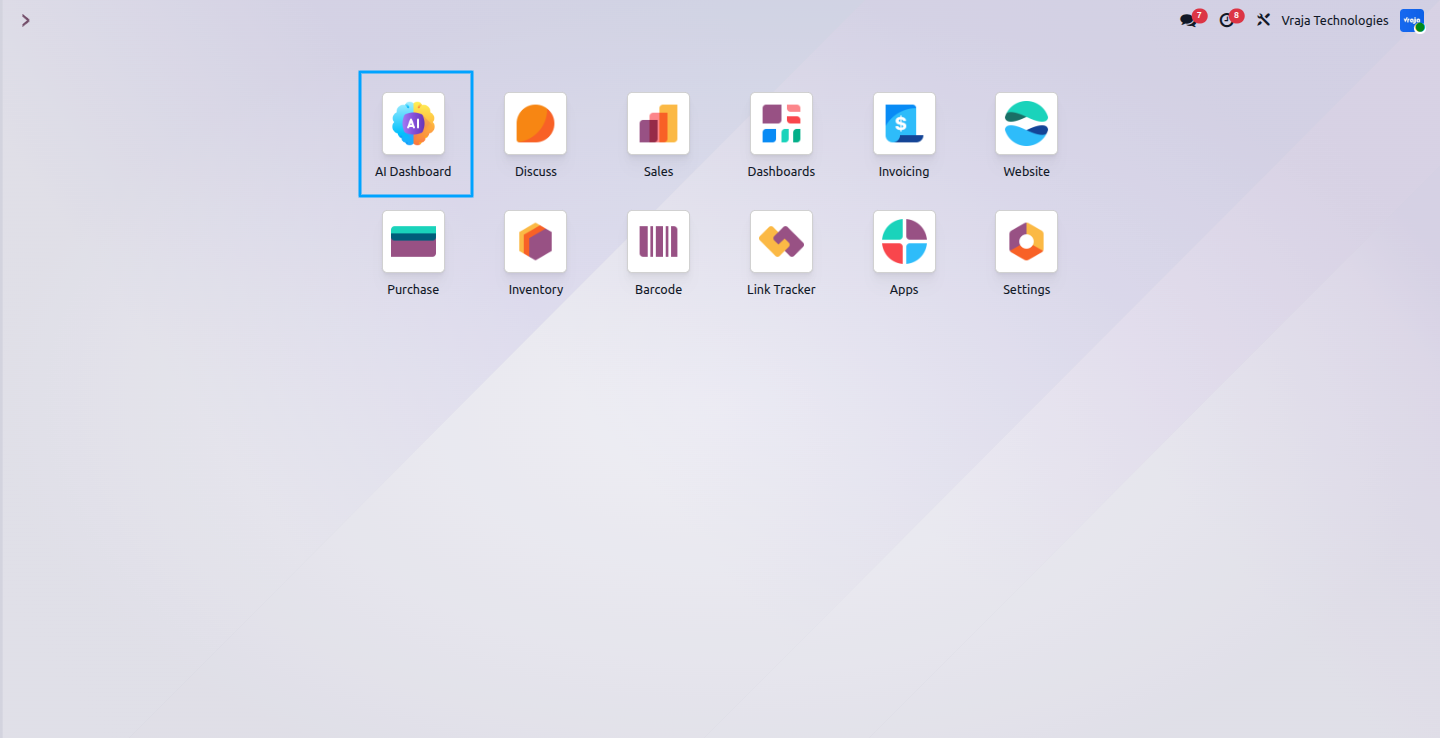
01 After installing the module, the AI Dashboard app appears directly on your home screen, giving you quick and easy access to all AI features and configuration options from one place.

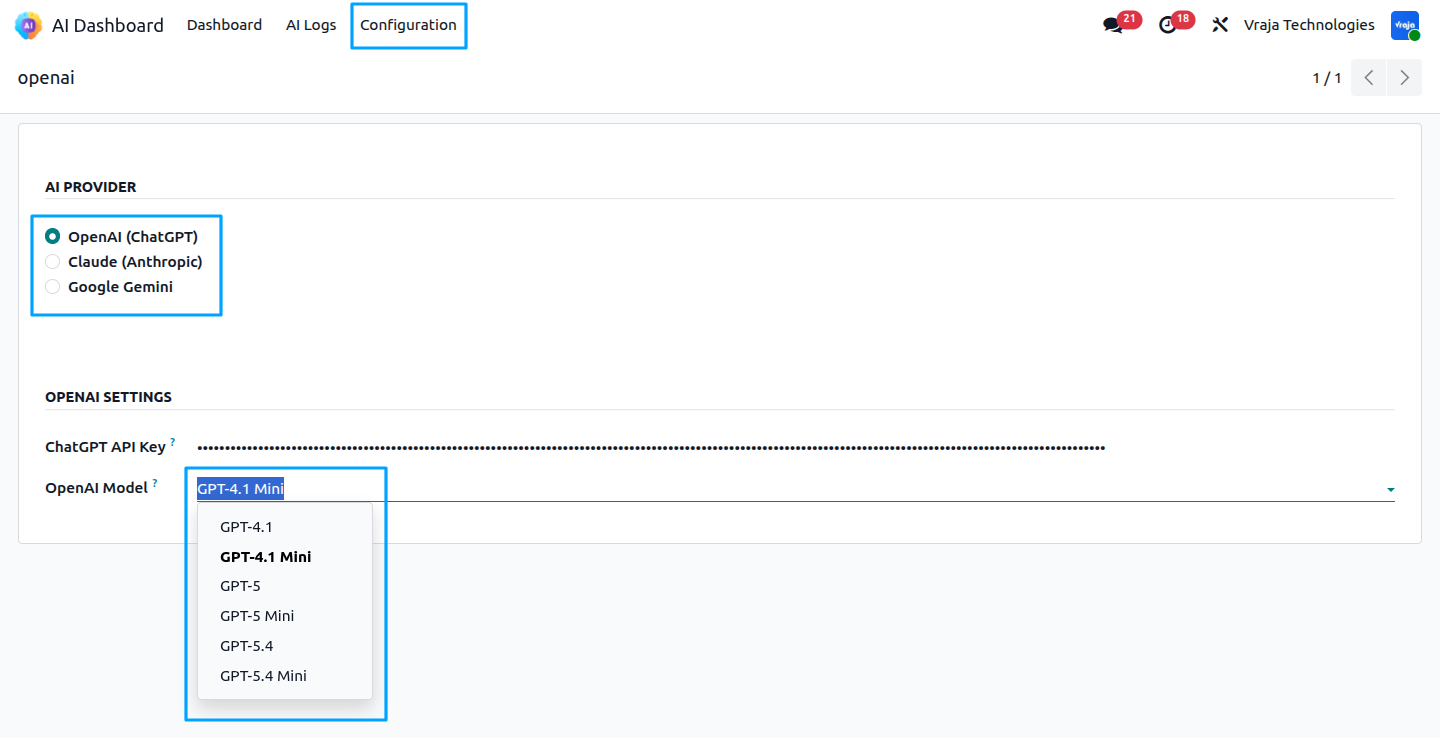
02 From the Configuration menu, you can set up your AI provider API key and choose the LLM model you want to use. The module supports most of the latest models from OpenAI (ChatGPT), Anthropic Claude, and Google Gemini, allowing you to select the option that best fits your business needs.

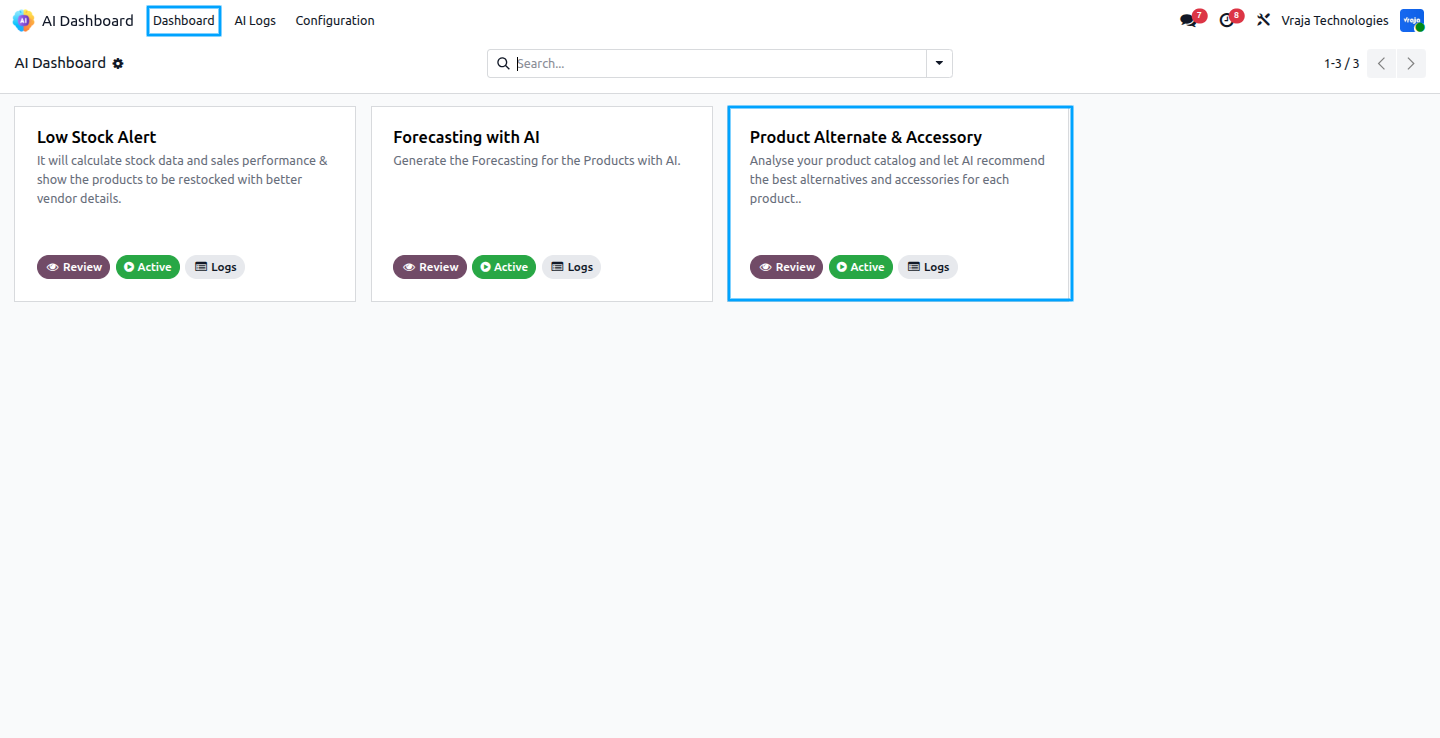
03 The AI Dashboard gives you a central view of all available AI features. Each feature card shows its name, a short description of what it does, and its current status. The Product Alternate & Accessory feature analyses your product catalog and lets AI recommend the best alternatives and accessories for each product. You can click the Review button on any card to open its full workflow, or click Logs to view its past run history. In that we also have the button for the Active and inactive to make the cron active dynamically from here only.

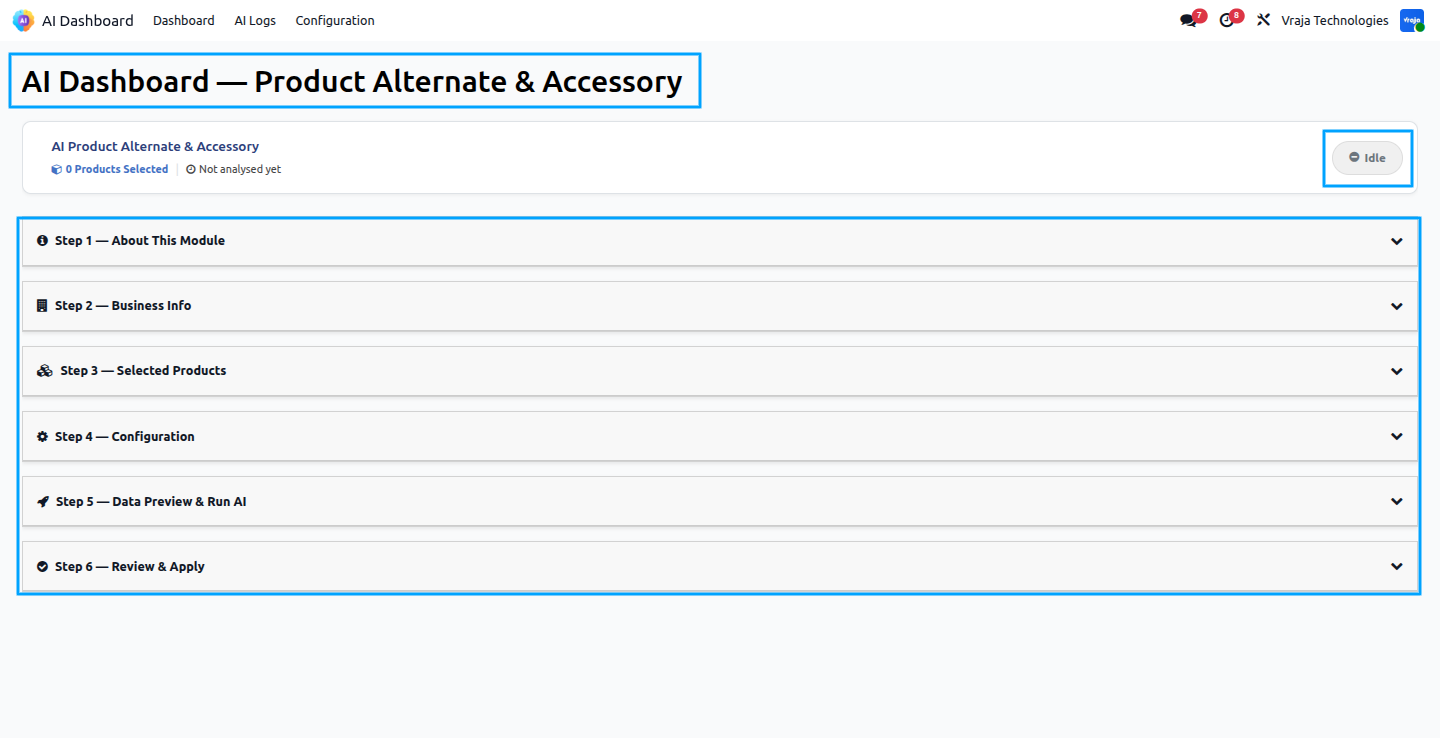
04 When you open the Product Alternate & Accessory Card, you are presented with a clean 6-step workflow — About This Module, Business Info, Selected Products, Configuration, Data Preview & Run AI, and Review & Apply. The status bar at the top shows how many products are currently selected and whether the AI analysis has been run, giving you a live summary of your session at all times.

05 Step 1 gives you a complete overview of what the AI Product Alternate & Accessory Linking feature does and how it works. It automates product relationship management inside your system using Artificial Intelligence. The feature works across four key areas — AI Powered analysis of your product catalog, suggesting Alternatives that customers would buy instead, suggesting Accessories that customers buy together, and using Sales History as the strongest matching signal. The How It Works section shows the five steps involved: Select Products, Configure Settings, Run AI Analysis, Review Results, and Apply.Once you have reviewed this information, click Next to proceed.

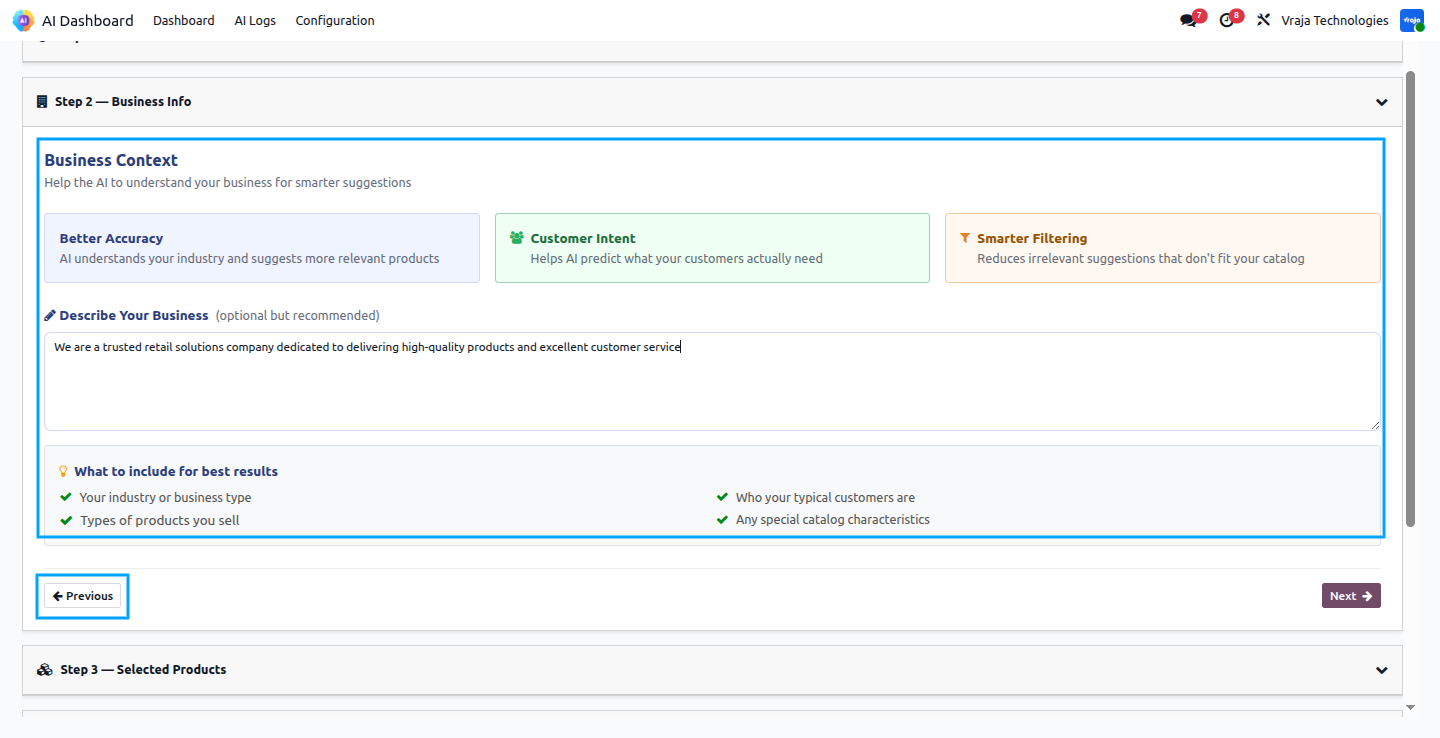
06 Step 2 allows you to provide a description of your business so the AI can generate smarter and more relevant suggestions. Providing this context helps the AI understand your industry, predict what your customers actually need, and filter out suggestions that do not fit your catalog. They Describe Your Business, where you can write a short description of your company and what you sell. The section also guides you on what to include for best results, such as your industry or business type, types of products you sell, who your typical customers are, and any special catalog characteristics.

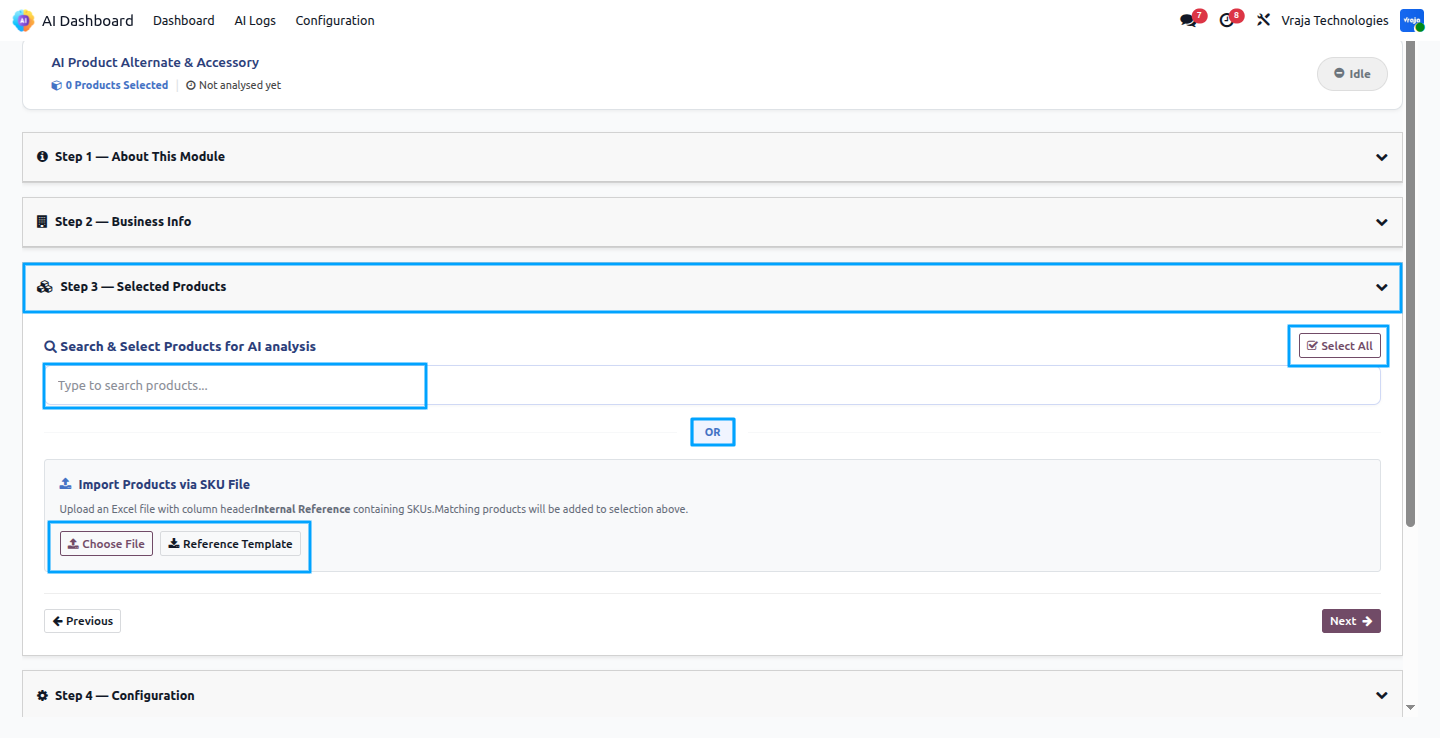
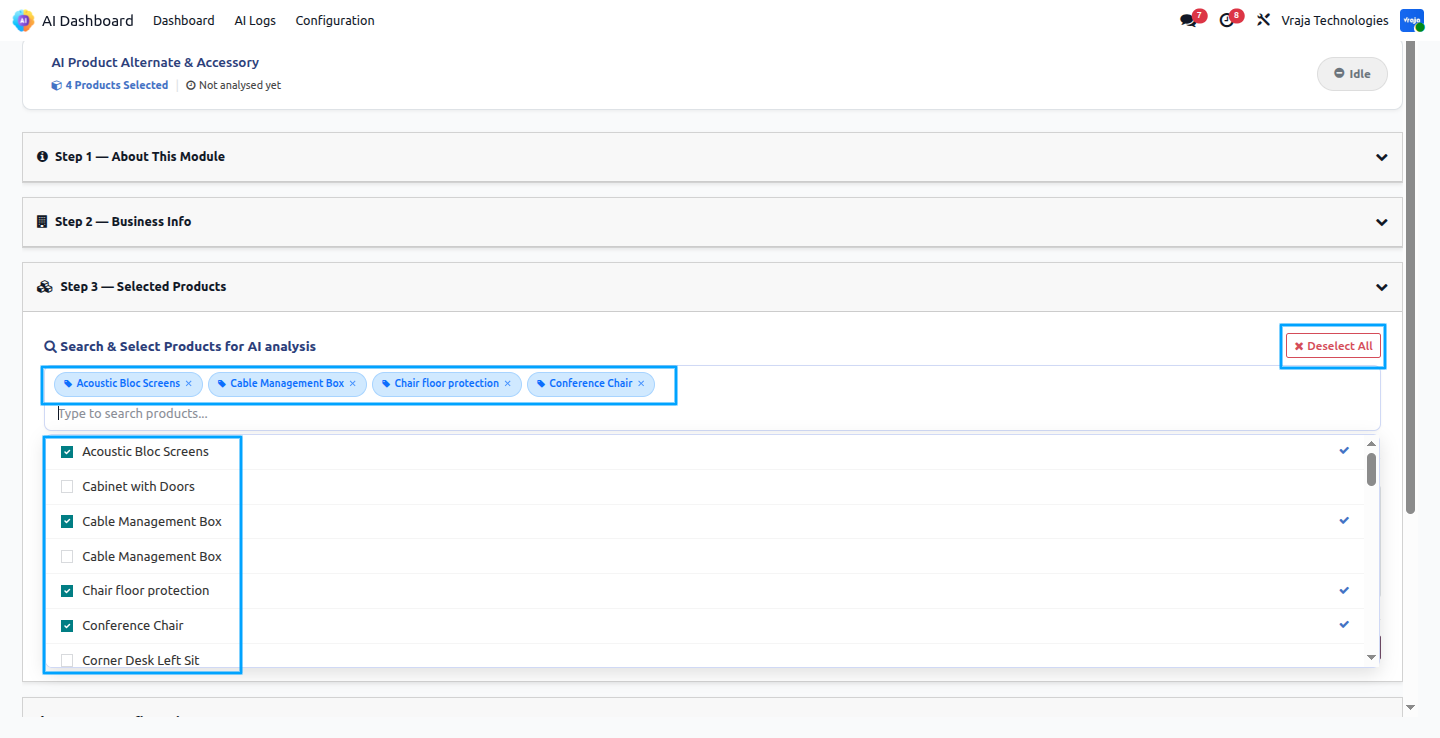
07 Step 3 allows you to select the products you want the AI to analyse. You can either search for products individually by typing in the search field, or you can bulk import products by uploading an Excel file with an Internal Reference column using the Choose File button. A Reference Template is also available to download so you know exactly how the import file should be formatted. A Select All button is available if you want to run the analysis across your entire product catalog at once.

08 Step 3 allows you to select the products you want the AI to analyse. You can either search for products individually by typing in the search field, or you can bulk import products by uploading an Excel file with an Internal Reference column using the Choose File button. A Reference Template is also available to download so you know exactly how the import file should be formatted. A Select All button is available if you want to run the analysis across your entire product catalog at once.

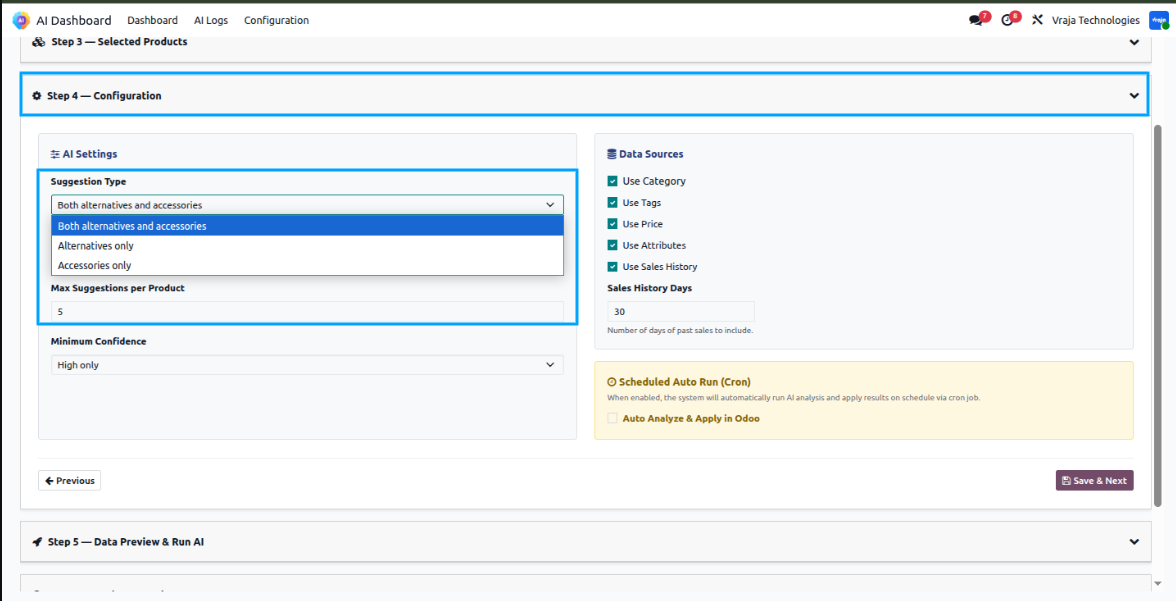
09 Step 4 allows you to configure exactly how the AI should run its analysis. The Suggestion Type dropdown lets you choose between generating Both alternatives and accessories, Alternatives only, or Accessories only depending on your requirement. You can also set the Maximum Suggestions per Product and the Minimum Confidence level.

10 Step 4 allows you to configure exactly how the AI should run its analysis. The Suggestion Type dropdown lets you choose between generating Both alternatives and accessories, Alternatives only, or Accessories only depending on your requirement. You can also set the Maximum Suggestions per Product and the Minimum Confidence level.

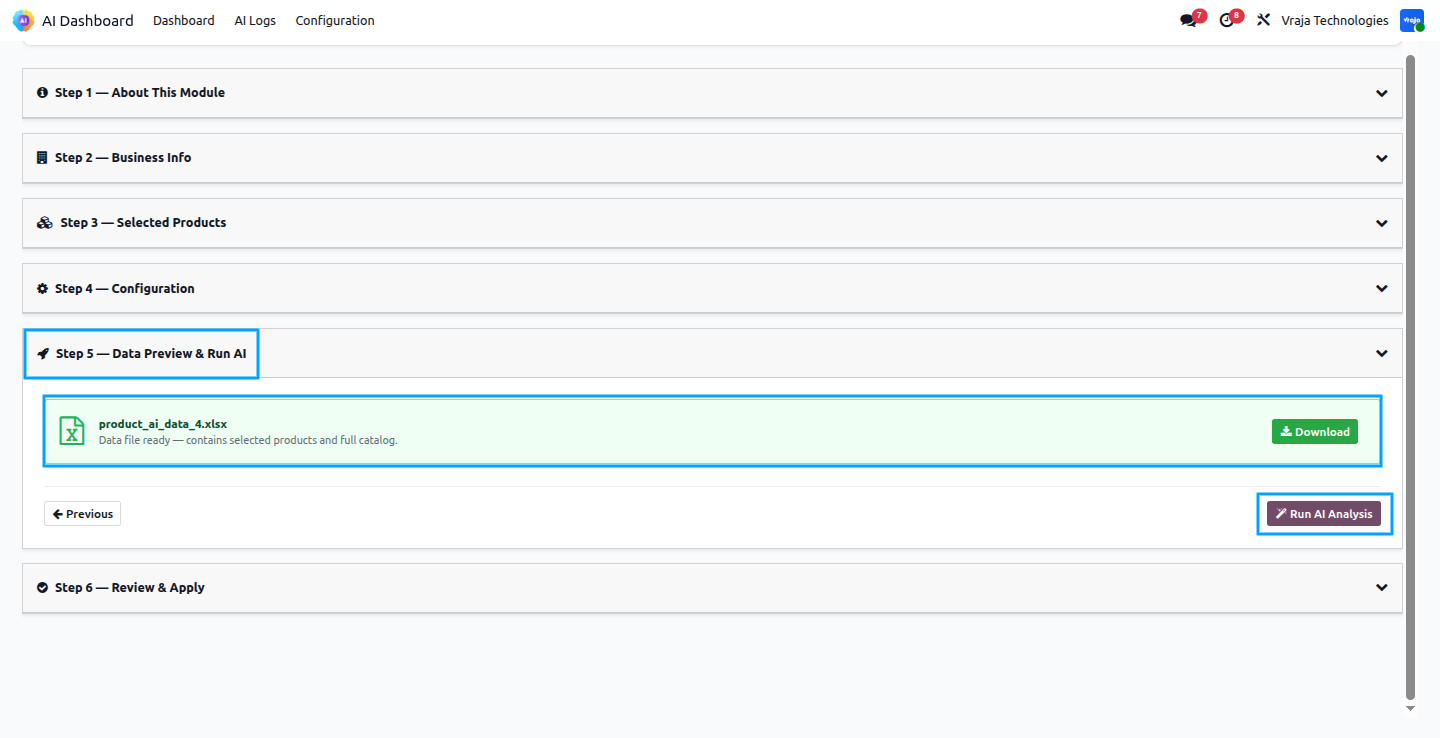
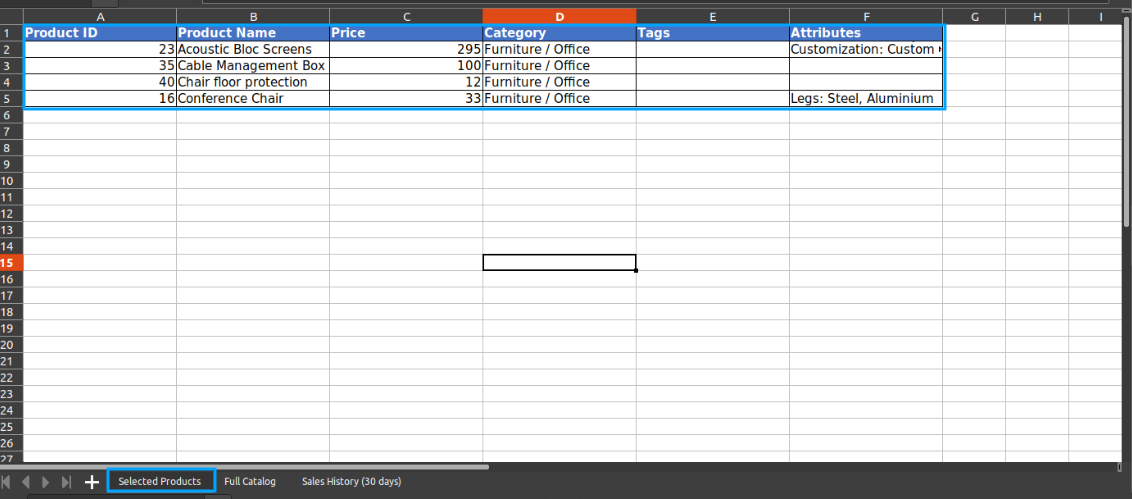
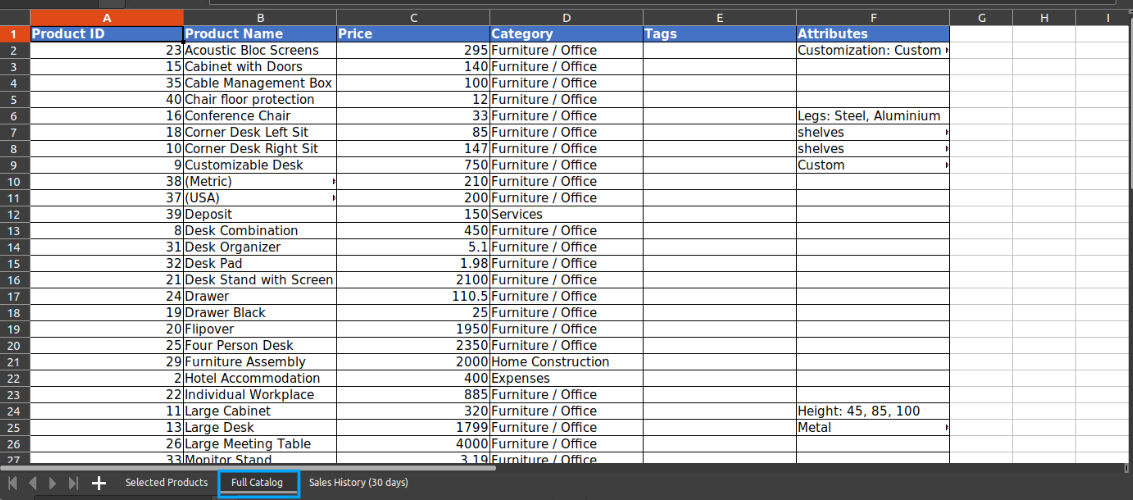
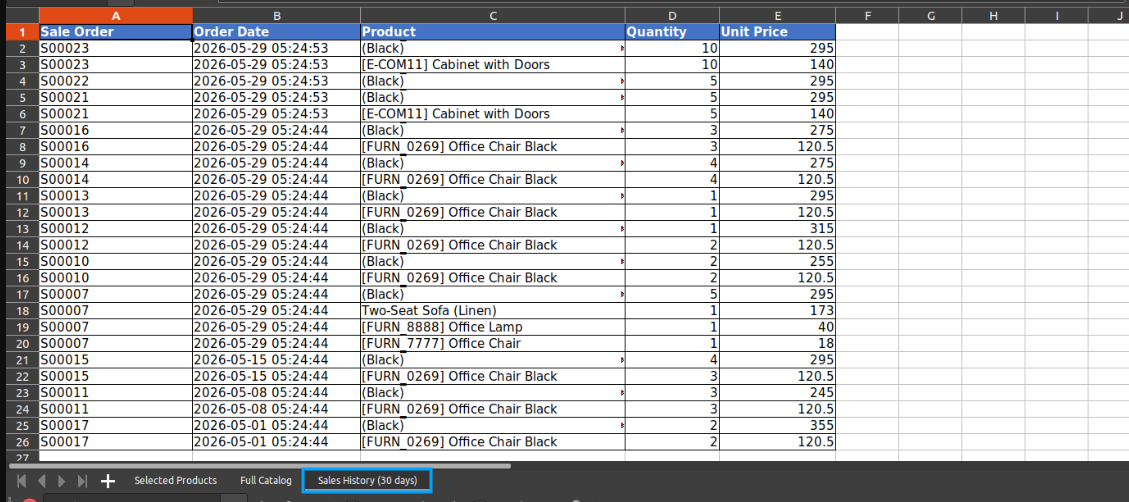
11 Step 5 shows you a preview of the data file that the system has automatically prepared for the AI analysis when you save the setting in previous state. The file named product_ai_data_4.xlsx contains all the selected products along with the full catalog and is ready to be sent to the AI. You can click the Download button to inspect this file before running the analysis. Once you are satisfied, click Run AI Analysis to trigger the AI processing.

12 Step 5 shows you a preview of the data file that the system has automatically prepared for the AI analysis when you save the setting in previous state. The file named product_ai_data_4.xlsx contains all the selected products along with the full catalog and is ready to be sent to the AI. You can click the Download button to inspect this file before running the analysis. Once you are satisfied, click Run AI Analysis to trigger the AI processing.

13 Step 5 shows you a preview of the data file that the system has automatically prepared for the AI analysis when you save the setting in previous state. The file named product_ai_data_4.xlsx contains all the selected products along with the full catalog and is ready to be sent to the AI. You can click the Download button to inspect this file before running the analysis. Once you are satisfied, click Run AI Analysis to trigger the AI processing.

14 Step 5 shows you a preview of the data file that the system has automatically prepared for the AI analysis when you save the setting in previous state. The file named product_ai_data_4.xlsx contains all the selected products along with the full catalog and is ready to be sent to the AI. You can click the Download button to inspect this file before running the analysis. Once you are satisfied, click Run AI Analysis to trigger the AI processing.

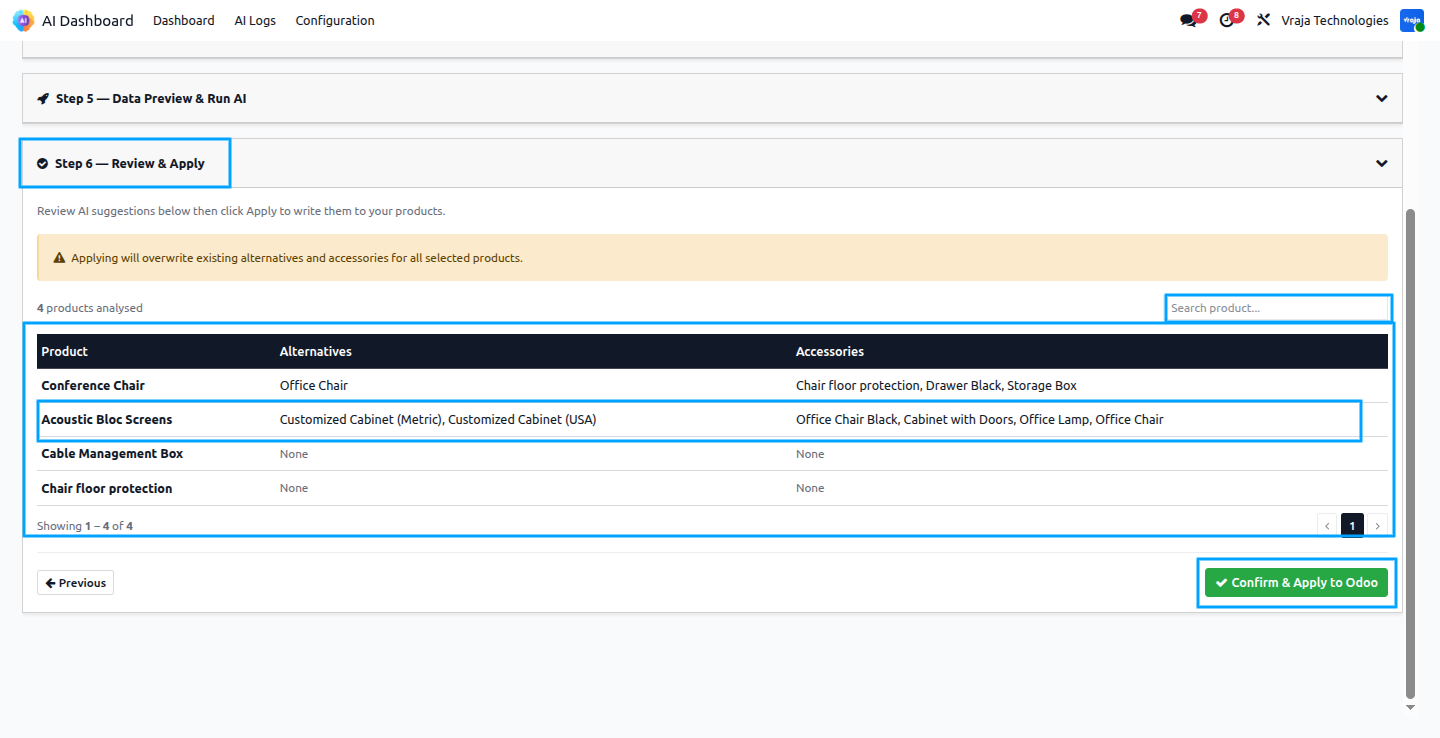
15 Once the AI analysis is complete, Step 6 shows you all the recommendations in a clear table listing each product along with its suggested Alternatives and Accessories. You can search for a specific product using the search field to quickly find its results. A warning message at the top reminds you that applying will overwrite any existing alternatives and accessories already saved on those products. Once you have reviewed the results and are satisfied, click Confirm & Apply to save all the AI suggestions directly to the respective products in odoo.

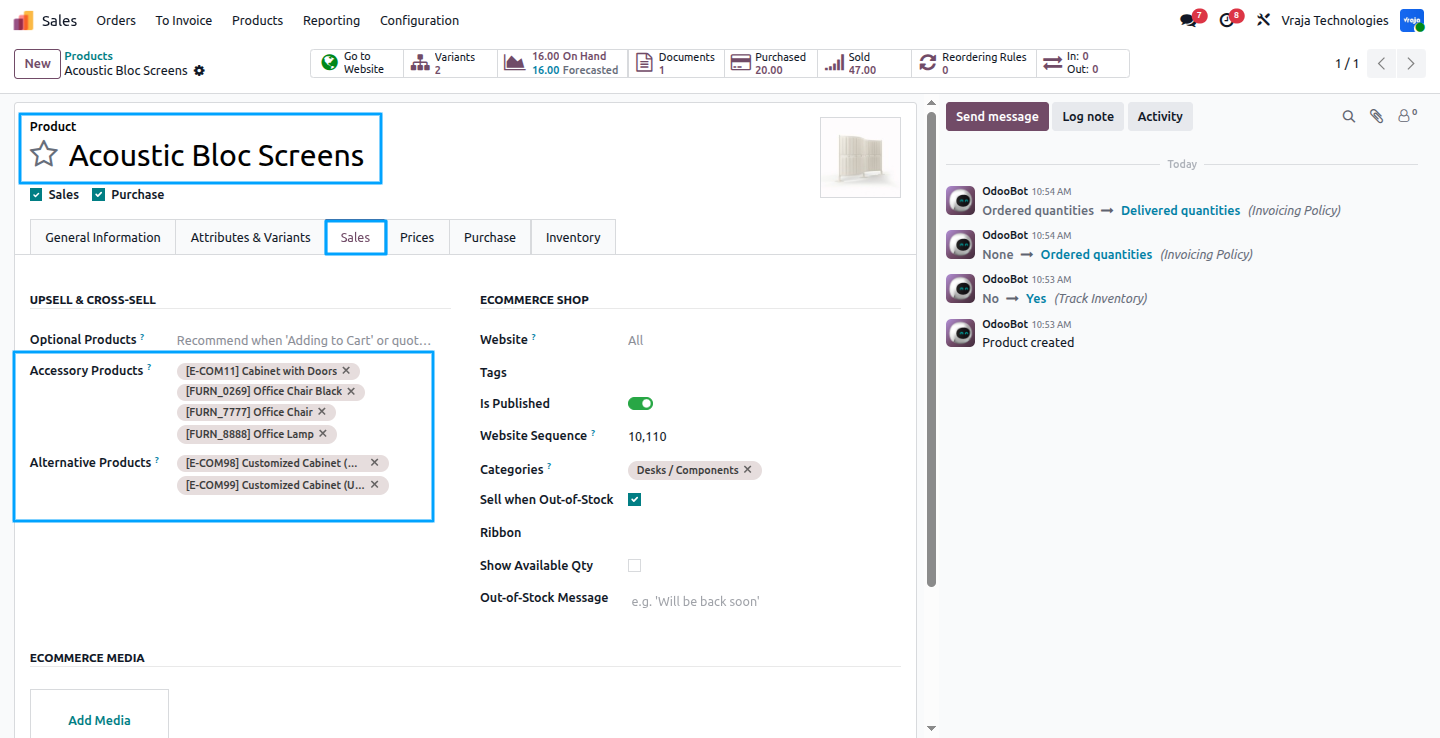
16 Result Applied on Product Record. After applying the results, you can open any product and go to its Sales tab to see the AI recommendations have been saved directly onto the product. The Accessory Products field now contains the AI-suggested accessories and the Alternative Products field contains the suggested alternatives, confirming that the entire process has completed successfully and the product relationships are now live in the system.

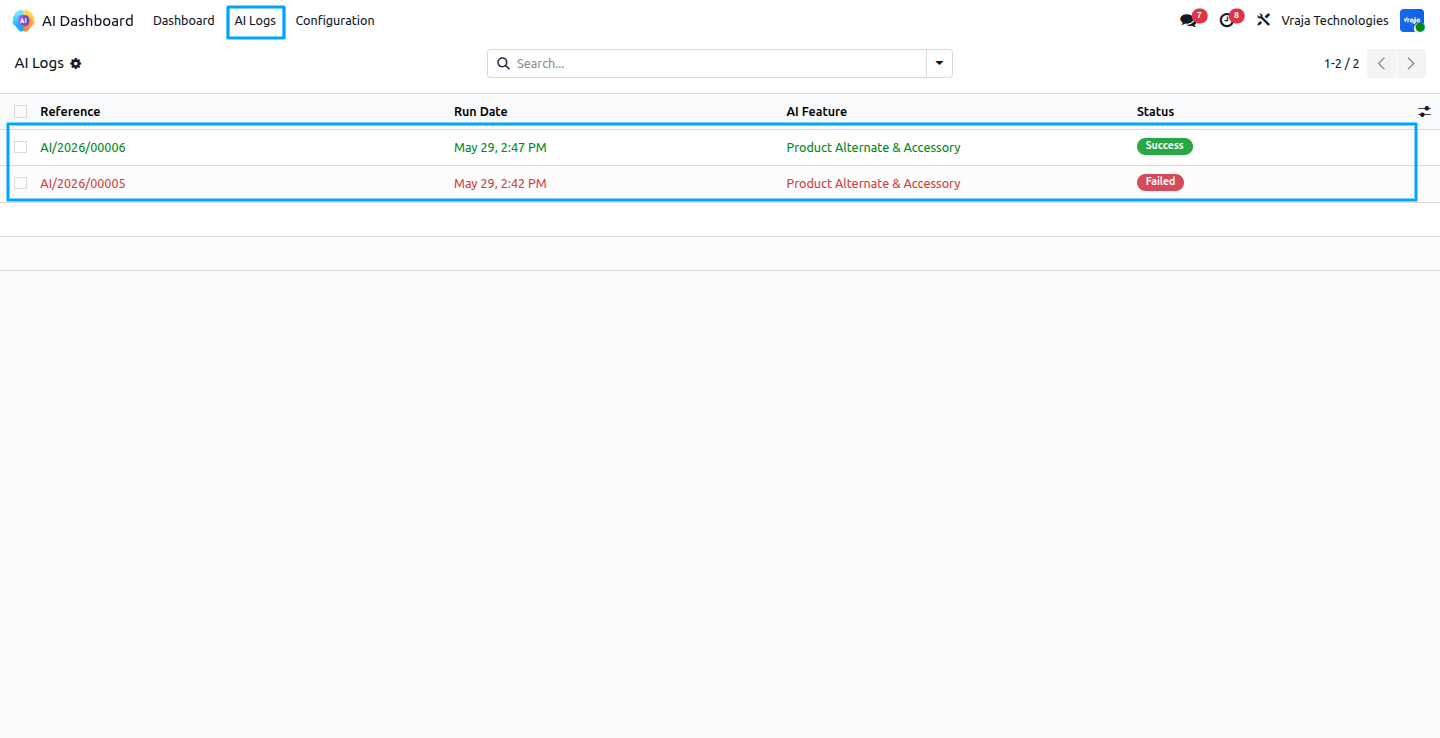
17 The AI Logs section, accessible from the top navigation menu, keeps a complete history of every AI analysis run. Each log entry shows the reference number, the date and time it was run, the AI feature used, and the final status. A green Success badge indicates the run completed and was applied correctly, while a red Failed badge indicates something went wrong, making it easy to monitor and audit all past AI activity.

18 Opening an individual log record gives you a full breakdown of that AI run. The Run Info section shows the exact date and time, the AI feature used, and the final status. The Configuration Used section shows the Suggestion Type and Confidence Level that were set for that run, along with the Total Tokens Used, helping you track API consumption. The Log Message confirms how many products were applied successfully, and the Product Details table below shows a per-product breakdown of how many alternatives and accessories were applied to each product along with their individual success status.

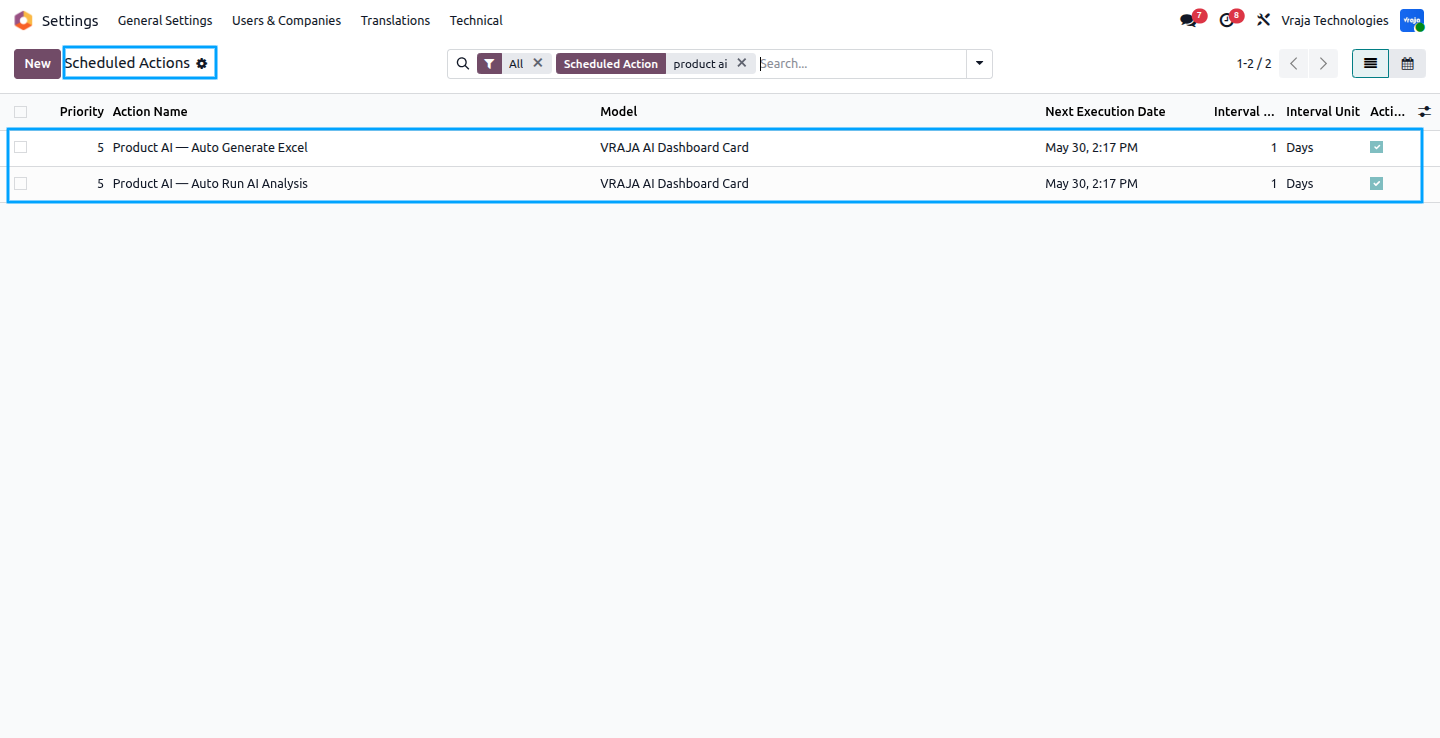
19 When Card is active in the dashboard and the Scheduled Auto Run option is enabled in Step 4 , the system automatically runs two scheduled actions — Product AI Auto Generate Excel and Product AI Auto Run AI Analysis. Both cron run daily and handle the entire AI workflow automatically without requiring any manual steps, ensuring your product alternatives and accessories are always kept up to date on a regular schedule.

|
|
What does the AI Product Alternate & Accessory module do?This module uses Artificial Intelligence to automatically analyse your product catalog and recommend the best alternative products and accessories for each product. It saves you hours of manual work by building product relationships intelligently based on your catalog data, product attributes, and real sales history. |
|
|
Which AI models are supported in this module?The module supports most of the latest AI models from OpenAI, Anthropic Claude, and Google Gemini. You can easily select your preferred model from the Configuration page based on your business needs. |
|
|
Where do I enter my API key?You can enter your API key from the Configuration menu inside the AI Dashboard. Simply open the Configuration page, select the provider and enter your API Key, select your preferred LLM model, and save. |
|
|
What is the difference between Alternative Products and Accessory Products?Alternative products are products that a customer would buy instead of the selected product, meaning they serve a similar purpose. Accessory products are products that a customer would buy together with the selected product, meaning they complement each other. The AI recommends both types based on your catalog and sales data. |
|
|
Do I need to select products manually every time I run the analysis?No. You can either search and select products individually, use the Select All option to include your entire catalog, or upload an Excel file with product internal references to bulk-select products. If you enable the Scheduled Auto Run option, the system handles everything automatically on a daily basis without any manual selection. |
|
|
Is the Business Info description mandatory?No, it is optional but strongly recommended. Adding a business description improves the accuracy of the AI suggestions significantly, especially for businesses with specialized or niche product catalogs. |
|
|
How many days of Sales History does the system use?You can configure the number of days of past sales data to include using the Sales History Days field in the Configuration step. By default it is set to 30 days, but you can increase or decrease this based on how much historical data you want the AI to consider. |
|
|
Can I review the AI suggestions before applying them to the products?Yes. Step 6 — Review & Apply shows you all the AI recommendations in a clear table before anything is saved. You can review each product's suggested alternatives and accessories, search for specific products, and only apply them when you are satisfied with the results. |
|
|
How do I track how many API tokens are being used?Every AI log record shows the Total Tokens Used for that particular run. You can refer to this figure to monitor your API consumption and plan your provider usage accordingly. |
|
|
Can I get a demo of the module before making a purchase?Yes, to test this module please contact us at sales@vrajatechnologies.com |
|
|
Included App Support90 Days Complimentary Support for Supported Versions If you encounter issues caused by the app itself, our team provides complimentary support for 90 days from the date of purchase for supported Odoo versions. |
90 Days Complimentary Support for Supported Versions
If you encounter issues caused by the app itself, our team provides complimentary support for 90 days from the date of purchase for supported Odoo versions.
Customer SupportNeed help with installation, configuration, technical issues, or general questions about the module? Submit a support ticket through our dedicated support portal. |
||
|
Support Portal
vrajatechnologies.com/helpdesk
|
Support PolicyReview our support policy for complete information about support coverage, issue eligibility, exclusions, version compatibility, and other support conditions. |
||
|
Support Policy
vrajatechnologies.com/support-policy
|
Scan for Support |
||
|
Support Portal
vrajatechnologies.com/helpdesk
|
Connect Odoo with Klaviyo to sync customers, products, orders, and marketing data smoothly. Automate email and SMS marketing campaigns using real-time Odoo eCommerce and sales information. Improve customer engagement, abandoned cart recovery, and repeat sales with powerful Klaviyo automation.
Manage Microsoft Outlook email configuration for multiple companies directly inside Odoo. This app helps each company use its own Outlook email account for sending and receiving emails. It is useful for businesses operating with multi-company setups and separate communication channels.
Export any Odoo model records dynamically without custom development or manual technical work. Users can configure export fields, filters, and formats based on business requirements. This app saves time and helps businesses generate flexible reports from Odoo data easily.
It helps automate labels, reports, and attachment printing without manual downloads, making printer management and printing workflows faster and easier.
This module enables Stripe Terminal payments directly from the Odoo backend for Customer Invoices and Sale Quotations. It supports real-time physical card payments using devices such as WisePOS E and Stripe S700 Reader. With one-click installation, automated Odoo Accounting synchronization.
Control and restrict shipping methods on the Odoo website based on business rules and conditions. You can hide specific carriers depending on products, customers, order amount, location, or other criteria. This app improves checkout accuracy and helps businesses show only valid delivery options to customers.
Connect BigCommerce with Odoo to manage products, customers, orders, and inventory in one system. The integration helps automate order import, stock updates, and product synchronization between both platforms. It is ideal for eCommerce businesses looking to centralize BigCommerce operations inside Odoo.
Sync Shopify store data with Odoo including products, customers, orders, inventory, and fulfillment details. This app reduces manual data entry and keeps Shopify and Odoo records updated automatically. It helps online retailers manage eCommerce, warehouse, accounting, and order processing from Odoo.
Integrate EDIFACT EDI messages with Odoo to automate document exchange with trading partners. Support common EDIFACT flows such as ORDERS, INVOIC, DESADV, PRICAT, INVRPT, and acknowledgements. This solution helps businesses reduce manual work and manage supplier or customer EDI communication efficiently.
Connect Odoo with ANSI X12 EDI standards for automated B2B document exchange. Support key EDI transactions such as 850 purchase orders, 855 acknowledgements, 856 ASN, 810 invoices, and 997 acknowledgements. This app helps retailers, suppliers, distributors, and logistics businesses streamline EDI operations inside Odoo.
Explore Before Purchase |
Start with a free trial
Test the connector with your real workflows using our 15-day free trial. If you need help, our product experts will guide you throughout the trial.
|
|
Test the connector with your real workflows.Our product experts will guide you during the trial to help you evaluate, configure, and use the connector with confidence.
15-Day
Trial
Expert
Guidance
Real
Workflow Testing
|