Explore the key features, workflow, and value of this Odoo module.
|
|
Import Operations (Hubstaff to Odoo)1. Import projects, tasks, and time entries from Hubstaff into Odoo. 2. Sync team members/users from Hubstaff into Odoo. 3. Automatically handle large datasets with pagination to ensure all records are imported. 4. Receive instant updates in Odoo via webhooks whenever new project and task are created in the hubstaff. 5. Keep Odoo data always up-to-date with Hubstaff. 6. Automate the import process using a scheduled cron job to run at defined intervals. |
|
|
Export Operations (Odoo to Hubstaff)1. Export projects and tasks from Odoo to Hubstaff. 2. Update existing projects or tasks in odoo from hubstaff. 3. Maintain correct mappings to avoid duplicates or data conflicts. 4. Automate the export process using a scheduled cron job to run at defined intervals. |
|
|
Odoo – Hubstaff Synchronization0 |
01 Instance creation process with it's configuration
Setting up the Hubstaff Instance in Odoo (From this button you can create new instance)
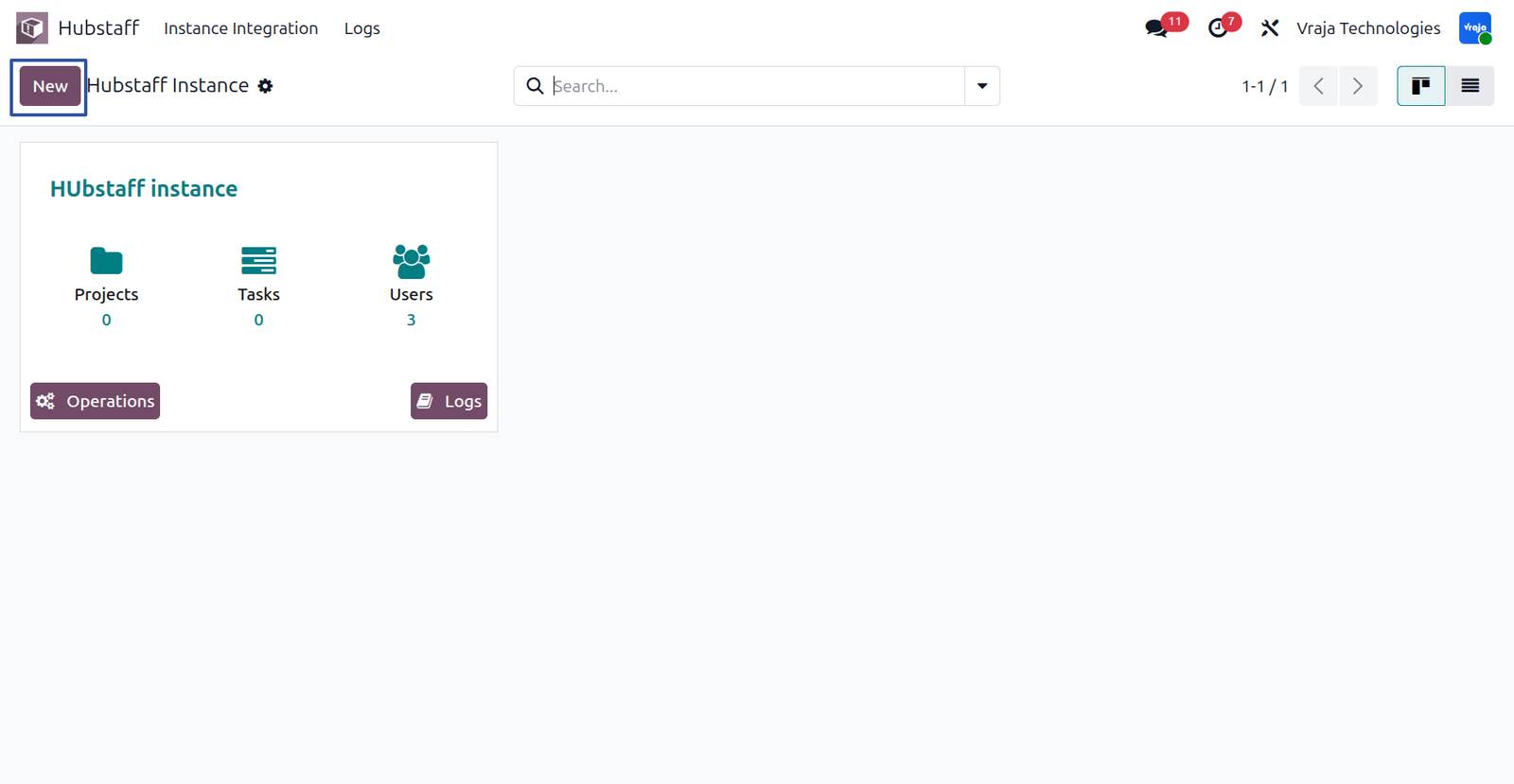
In the instance configuration, set the Instance Name, Company, Client ID, Client Secret Key, and Redirect URI. The Redirect URI should be your live URL from which the Hubstaff synchronization will be performed.
You can obtain the Client ID and Client Secret Key from Hubstaff. Enter these credentials in the respective fields and save the configuration to complete the setup.


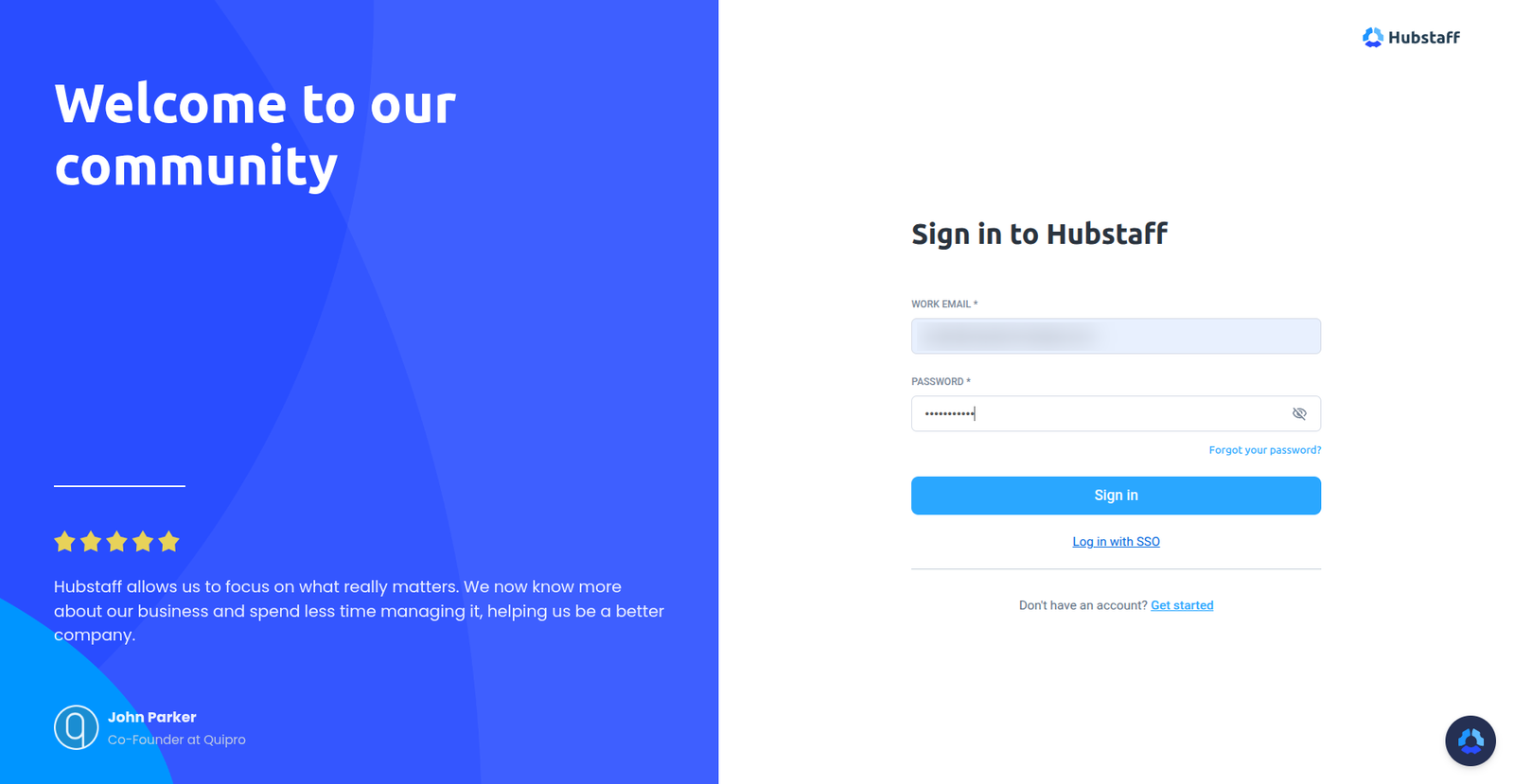
After clicking the Authenticate button, you will be redirected to Hubstaff. If prompted, sign in to your account and authorize the application from the authorization popup. Once authorization is completed, you will be redirected back to Odoo, where the required fields such as Authorization Code and Access Token will be automatically filled.


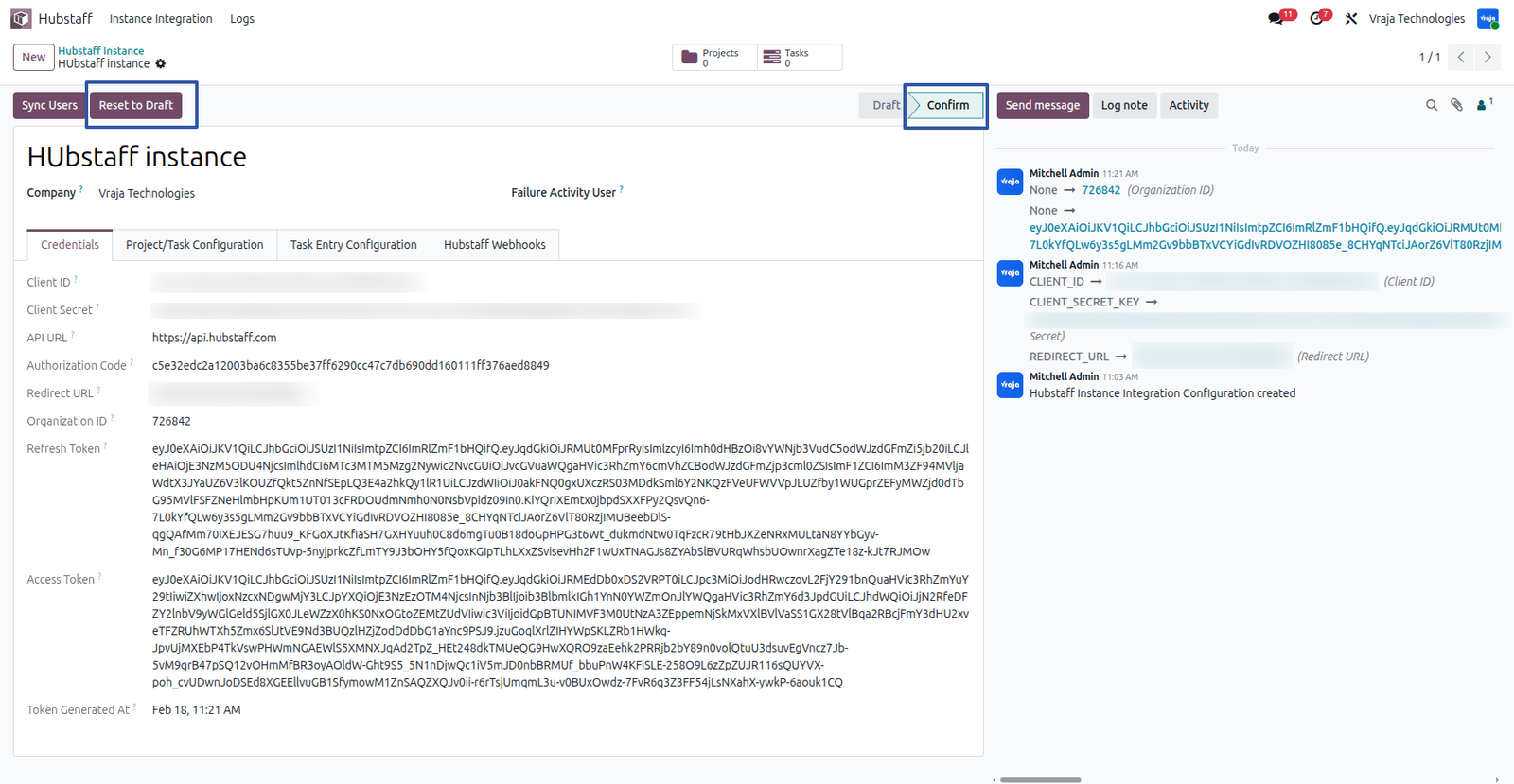
Once authentication is completed, the state is set to Confirmed. If you need to update the credentials later, click Reset to Draft, make the required changes, and authenticate again in Odoo.
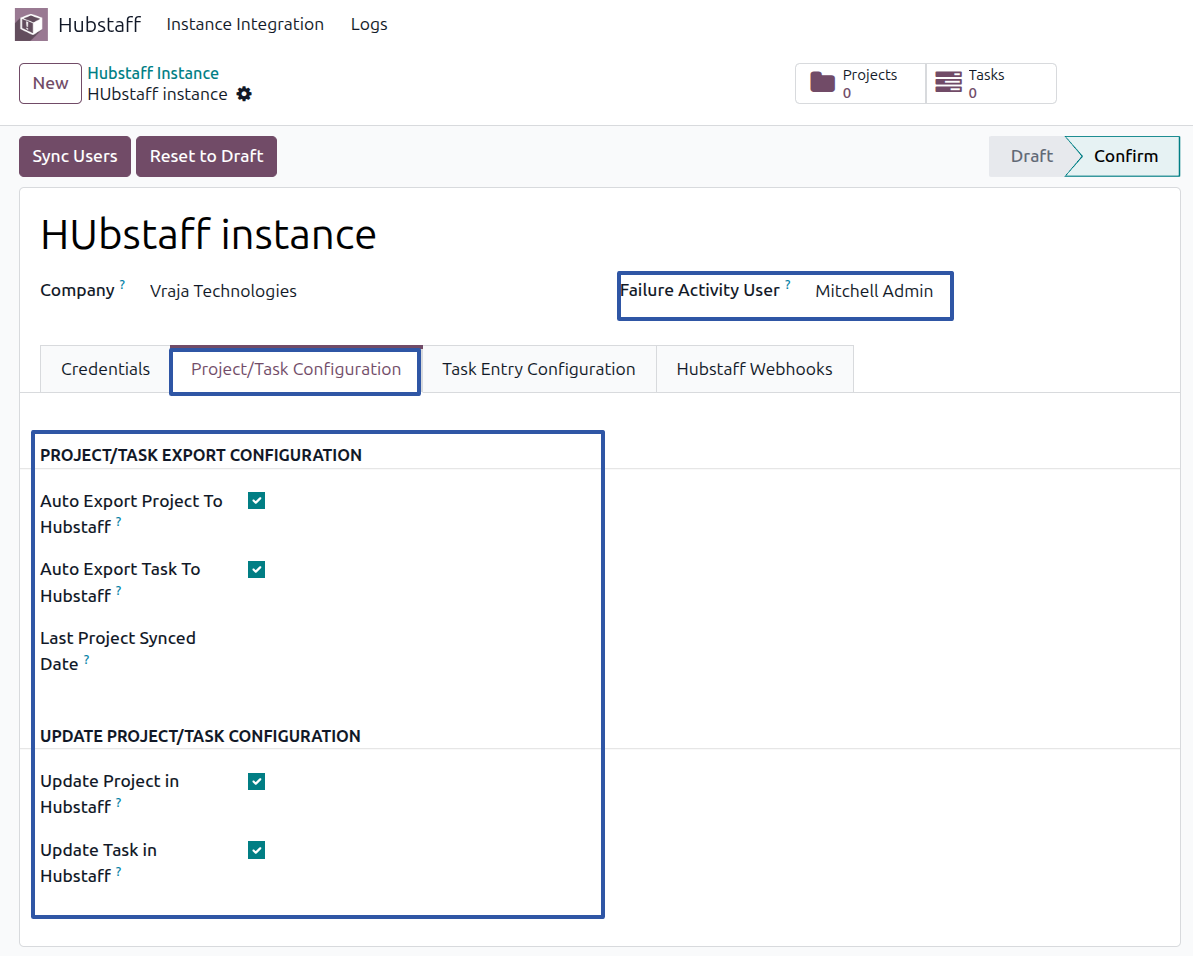
In the instance Project/Task Configuration, enable the options as per your requirements. Additionally, select a Failure Activity User — if the export process fails, an activity will be automatically created for the selected user.
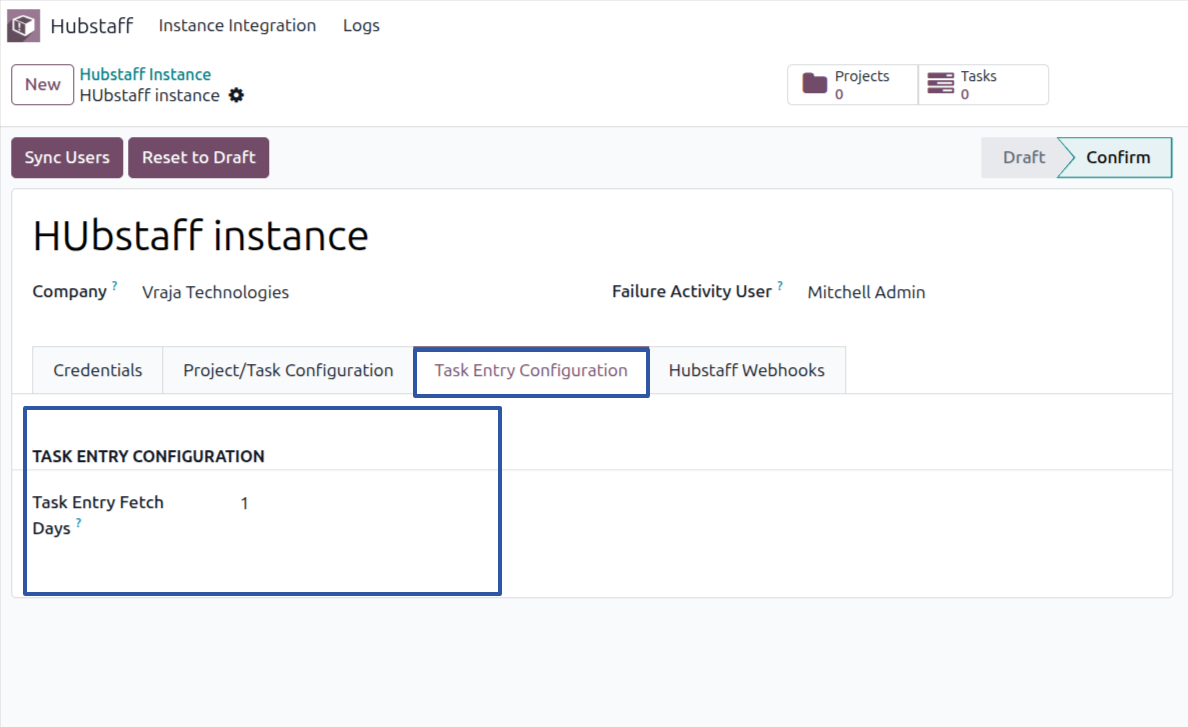
In the instance Task Entry configuration
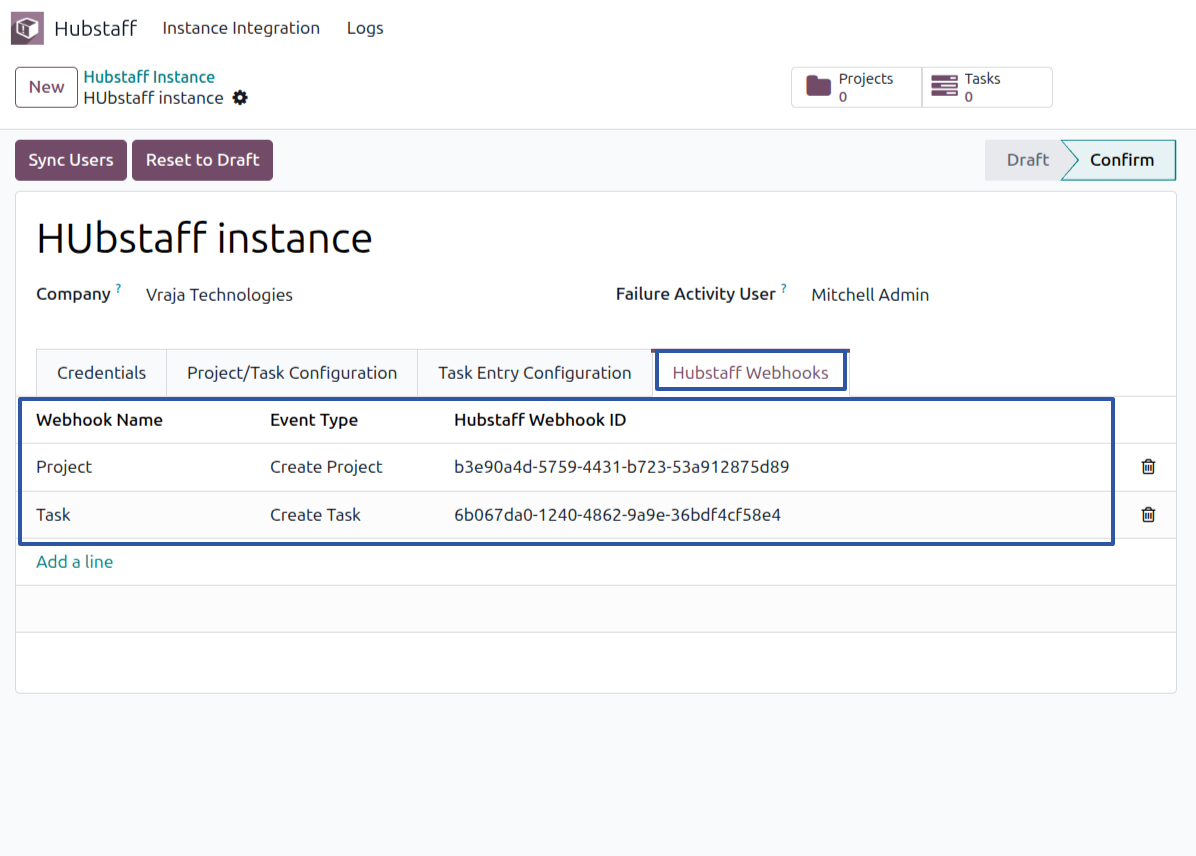
In instance Hubstaff webhooks configuration
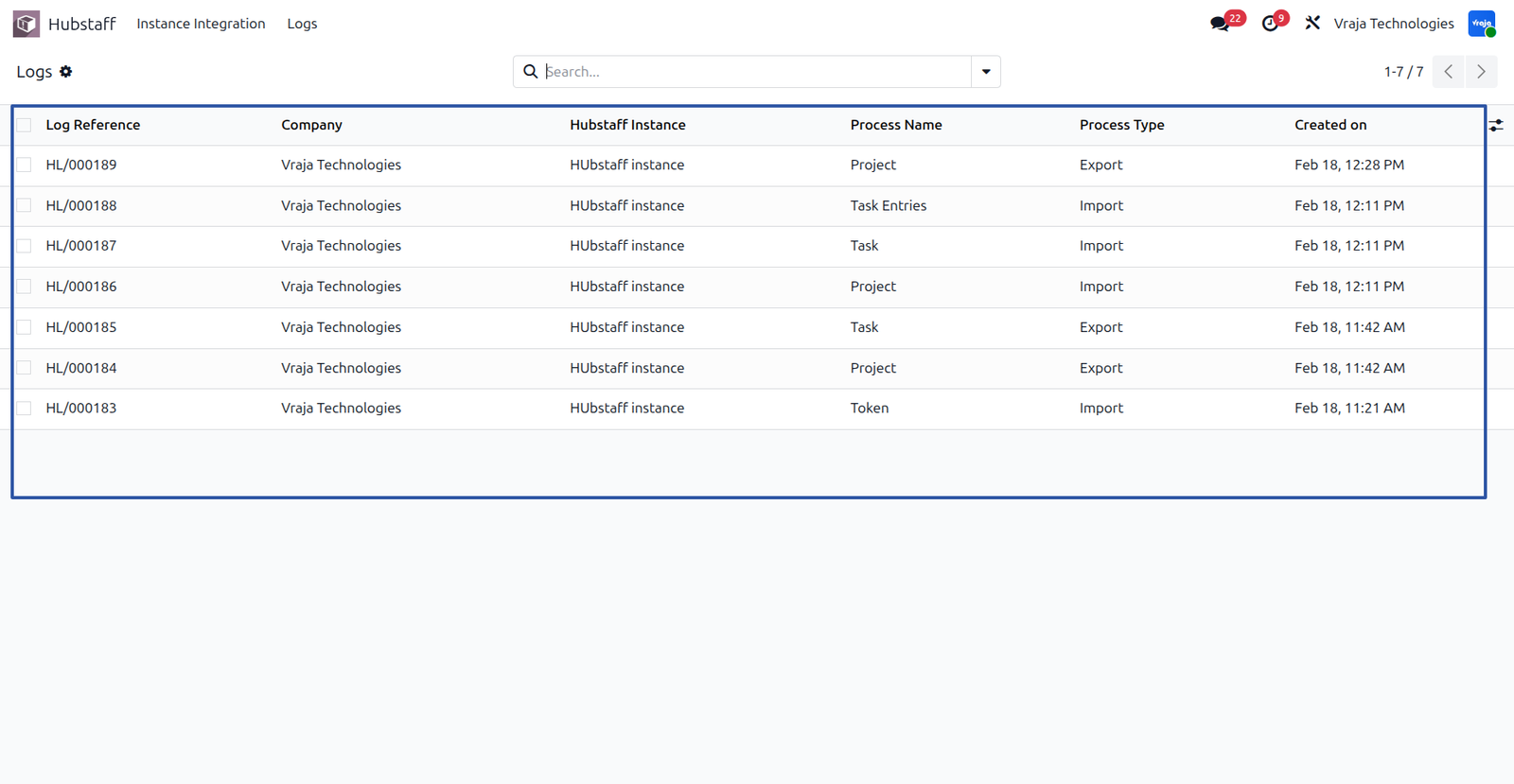
From the Log menu, you can view logs for all processes and review both successful and failed operations from there.

01 Import Project process
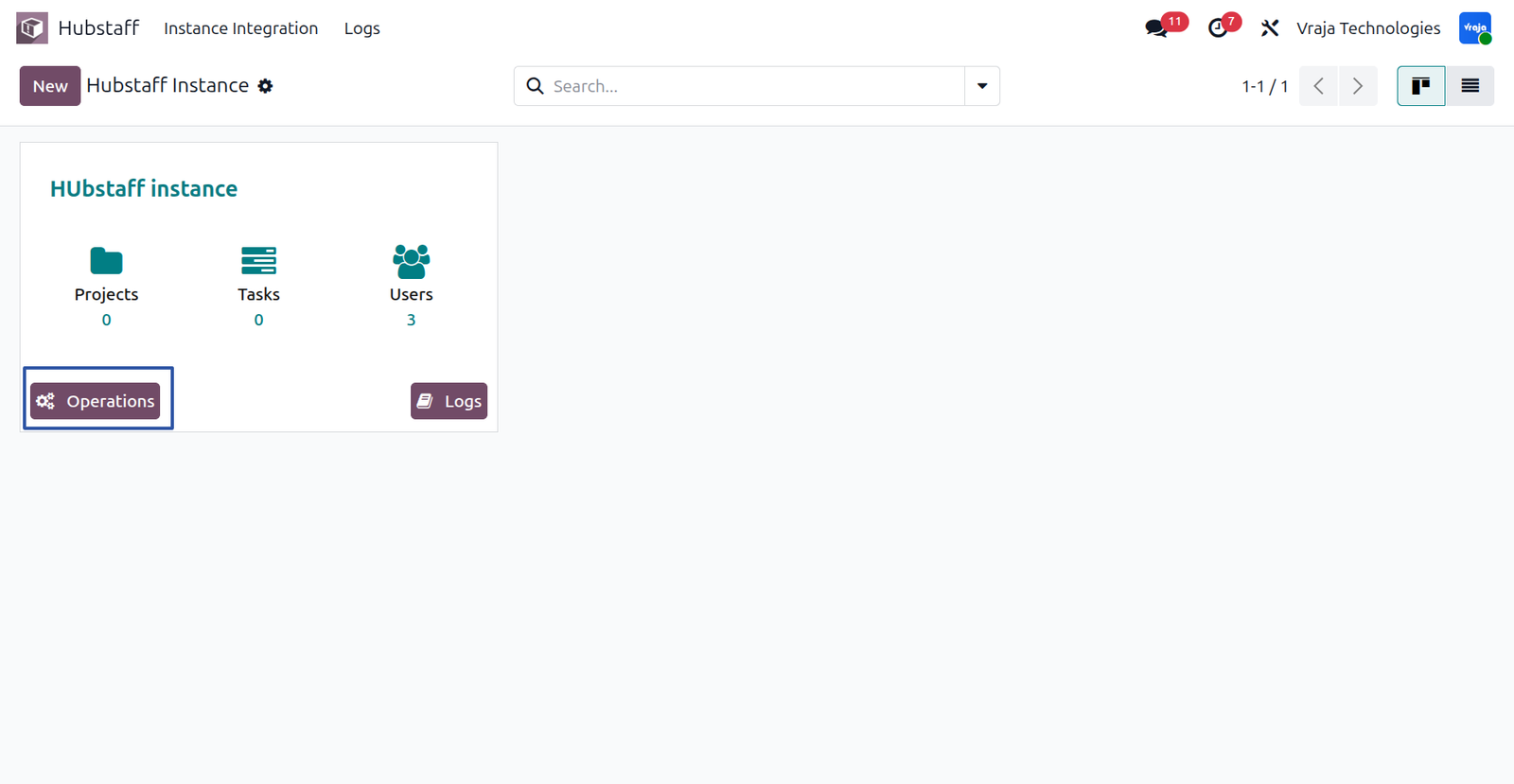
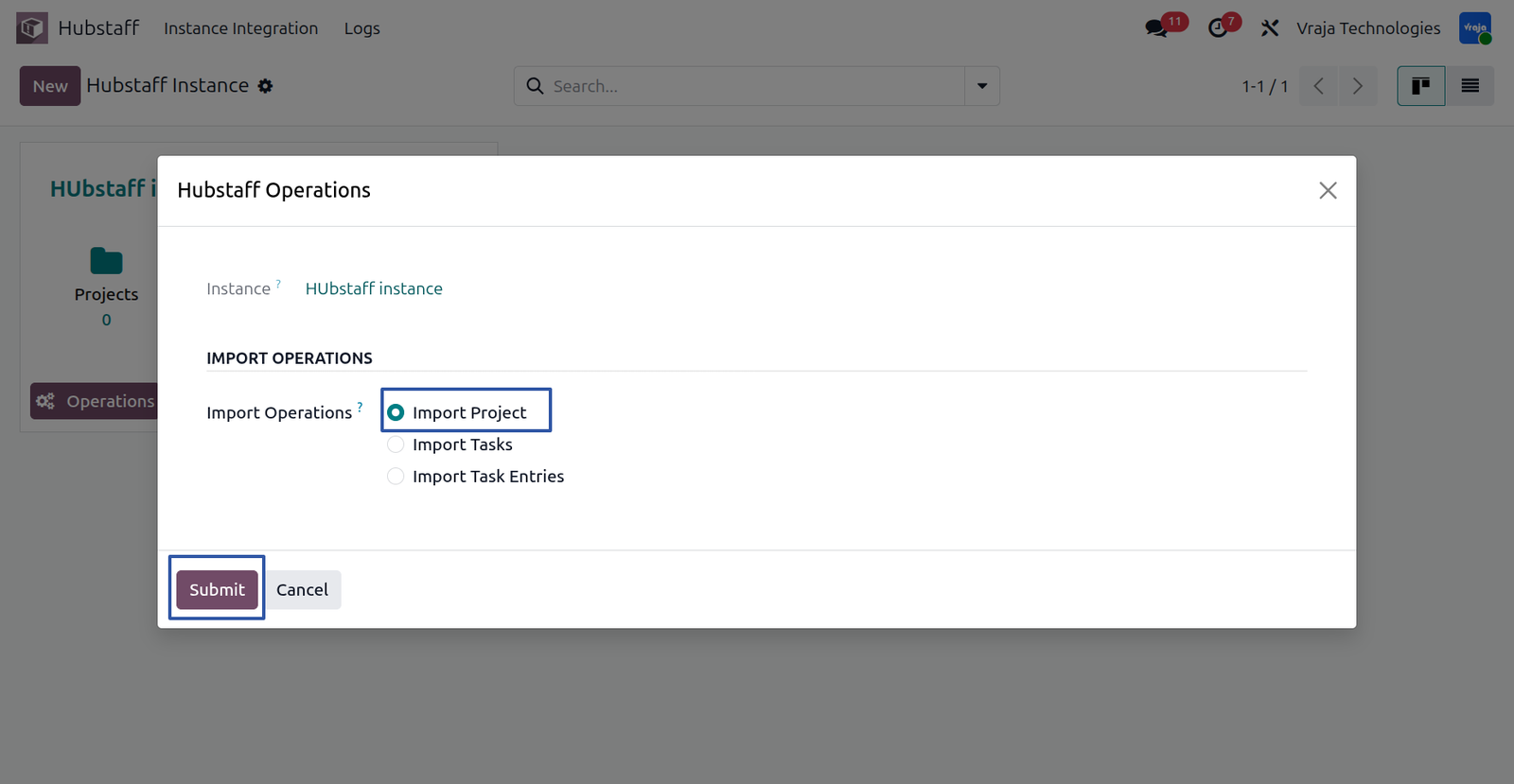
By clicking on the Operation button, you can perform the Import Project process.
02 Import Task process
Similarly, you can use the Operation button to perform the Import Task process.
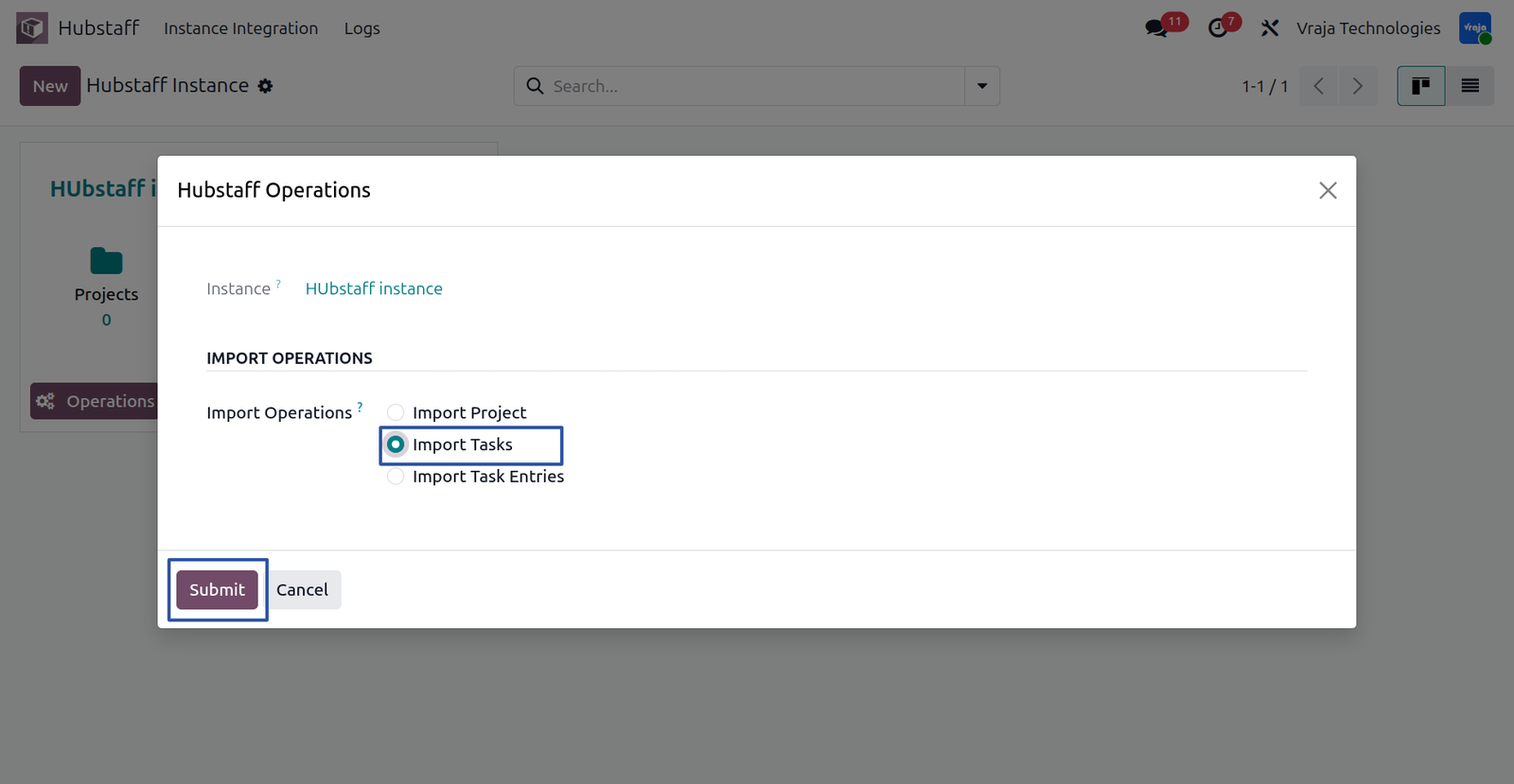
Also, have automated actions to automatically import projects and tasks at defined intervals.

03 Import Task Entry process
Also , you can import Task Entries, and for that also automation actions are available to schedule automatic task entry imports.

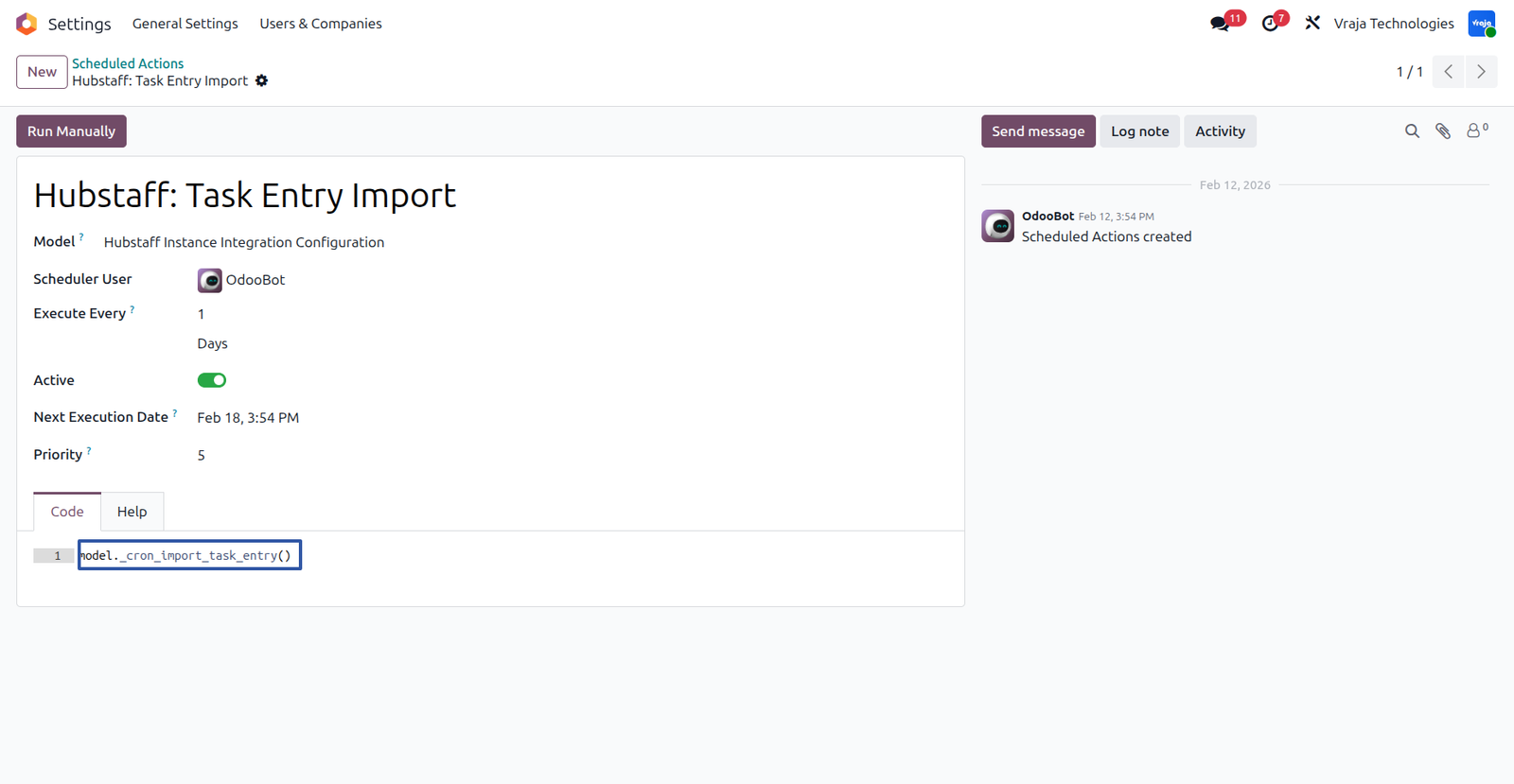
04 Sync User Process
Clicking the Sync User button at the instance level allows you to sync all users with Hubstaff. Additionally, the same option is available at the user level, allowing you to sync a specific user individually.


From the Log menu, you can view logs for all processes and review both successful and failed operations from there.

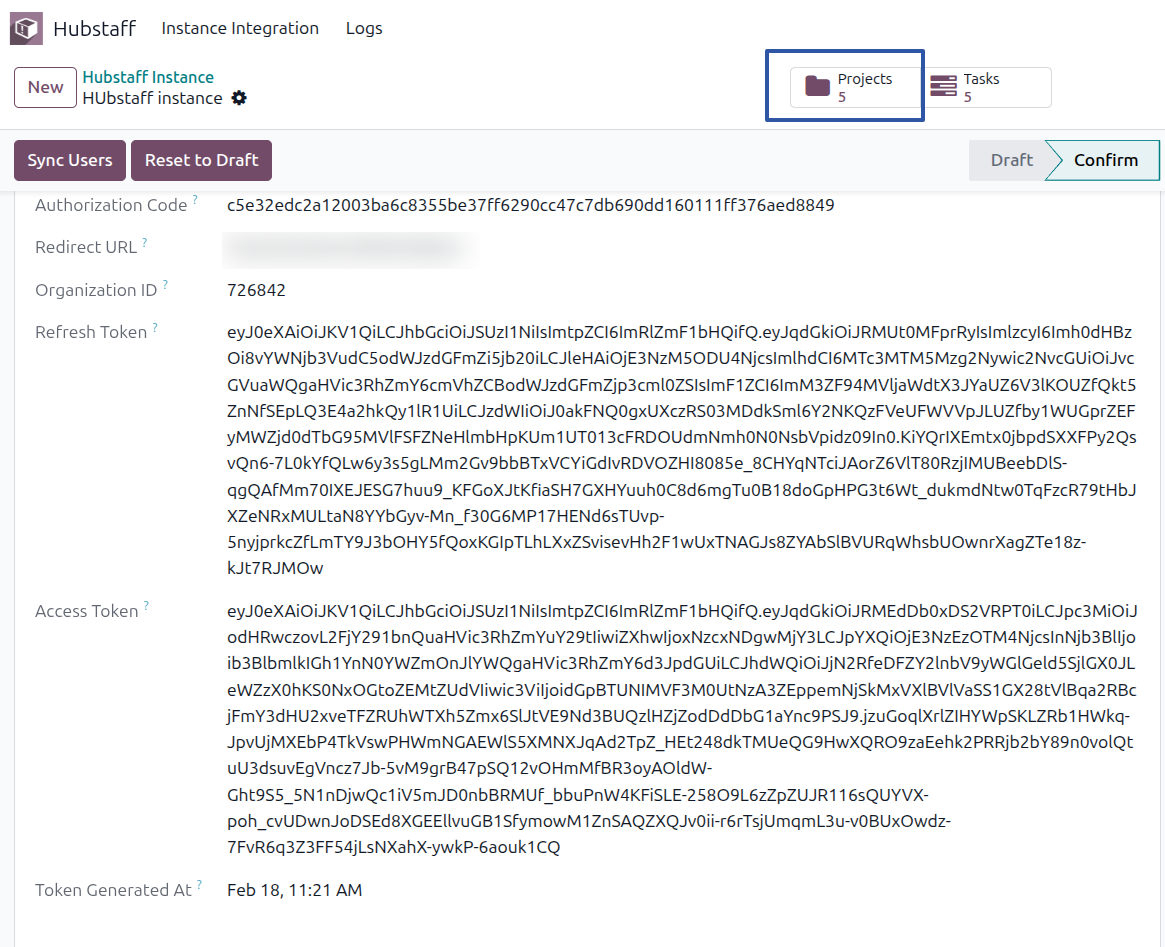
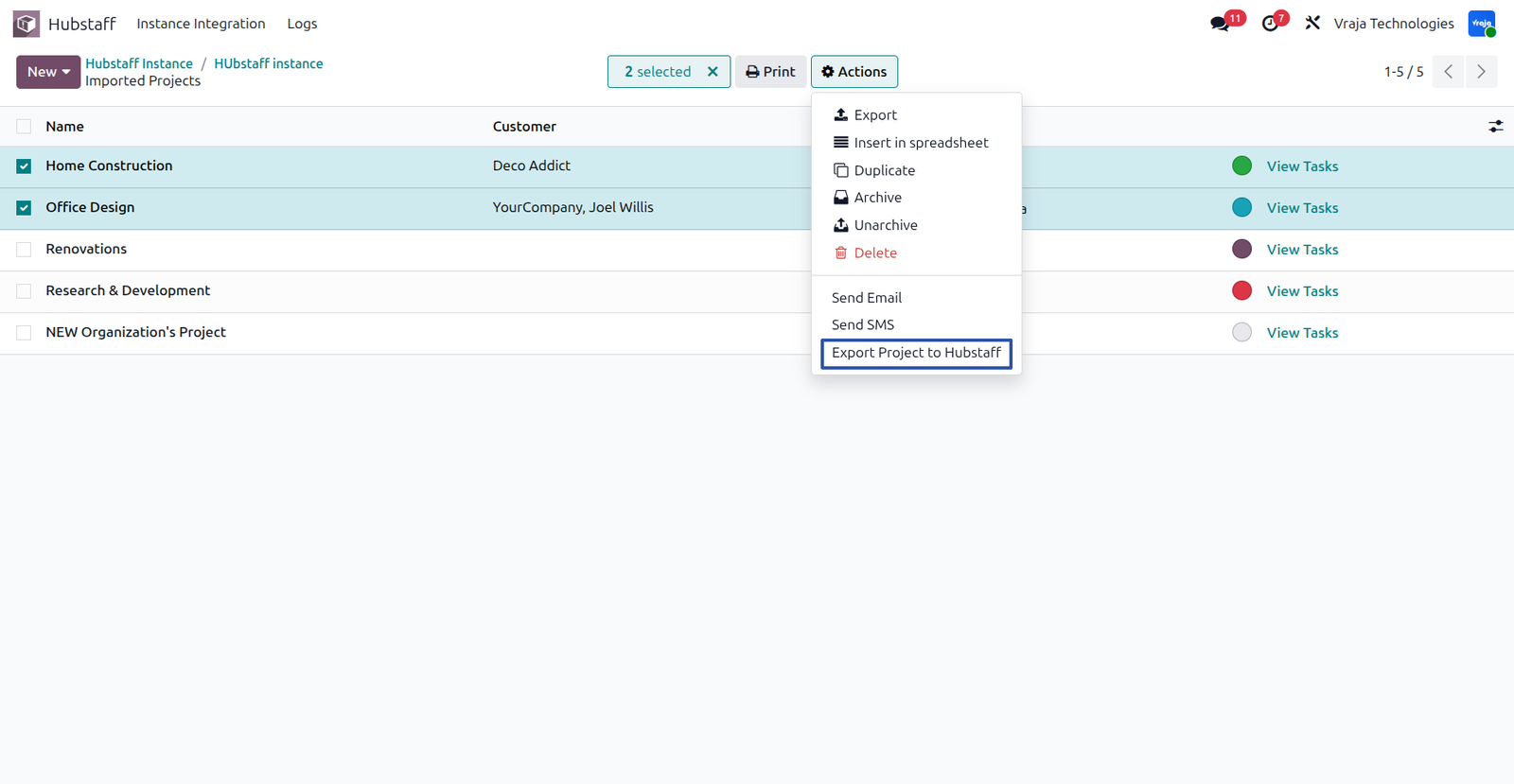
01 Export Project Process
By clicking this option, you will be redirected to the Project List View, where you can select and export the chosen projects to Hubstaff. Additionally, from the Project Form View, you can export an individual project using the Export to Hubstaff option.

02 Export Task Process
Similarly, clicking this option will redirect you to the Task List View, where you can select and export the chosen tasks to Hubstaff. You can also export a specific task directly from the Task Form View using the Export to Hubstaff option.

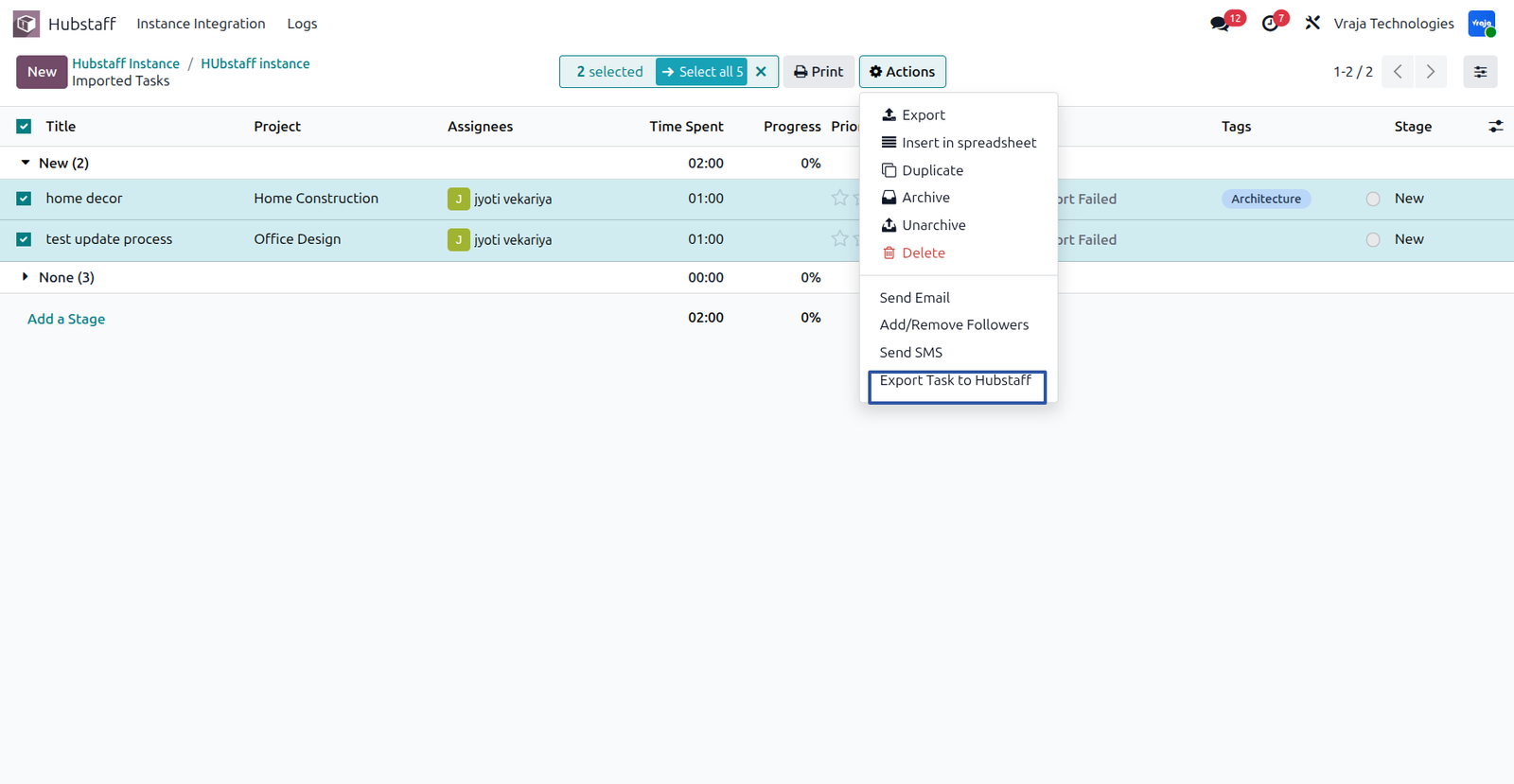

Automation actions are also available to schedule the automatic export of projects and tasks at defined intervals.

03 UPDATE Project Process
From the Project Form View, an Update from Hubstaff button is available. By clicking this, the selected project will be updated with the latest data from Hubstaff.

04 UPDATE Task Process
Similarly, from the Task Form View, the Update from Hubstaff option allows you to update the selected task with the latest information from Hubstaff.

From the Log menu, you can view logs for all processes and review both successful and failed operations from there.
|
|
Is this application compatible with both Odoo Enterprise and Community editions?Yes, the application is fully compatible with Odoo Enterprise (On-premise and Odoo.SH) and Community editions. However, it cannot be installed on Odoo Online, as third-party apps are not supported. |
|
|
Is it possible to manage multiple Hubstaff organizations or instances?Yes, you can configure and manage multiple Hubstaff instances within Odoo. |
|
|
Can projects and tasks be imported automatically and manually?Yes, projects and tasks can be imported manually using operation buttons or automatically through scheduled actions (cron jobs). |
|
|
Does the integration support real-time synchronization?Yes, real-time synchronization is supported through webhooks. Projects and tasks created in Hubstaff can be automatically created in Odoo. |
|
|
How are time entries managed in the integration?Time entries can be imported from Hubstaff into Odoo either manually or automatically using scheduled automation. |
|
|
Can projects and tasks be exported from Odoo to Hubstaff?Yes, projects and tasks can be exported individually from the form view or in bulk from the list view. Automated export actions can also be configured. |
|
|
What happens if synchronization fails?If any export process fails, logs are created and a failure activity can be automatically assigned to the configured user for review. |
|
|
I would like to request a custom feature for this application. What’s the process to get it implemented?We’re happy to help tailor the application to meet your business needs! You can reach us via sales@vrajatechnologies.com |
|
|
Who is the point of contact for technical support, configuration support or bug-related queries?You can reach us via support@vrajatechnologies.com |
|
|
Included App Support90 Days Complimentary Support for Supported Versions If you encounter issues caused by the app itself, our team provides complimentary support for 90 days from the date of purchase for supported Odoo versions. |
Included App Support
90 Days Complimentary Support for Supported Versions
If you encounter issues caused by the app itself, our team provides complimentary support for 90 days from the date of purchase for supported Odoo versions.

Customer SupportNeed help with installation, configuration, technical issues, or general questions about the module? Submit a support ticket through our dedicated support portal. |
||
|
Support Portal
vrajatechnologies.com/helpdesk
|
Support PolicyReview our support policy for complete information about support coverage, issue eligibility, exclusions, version compatibility, and other support conditions. |
||
|
Support Policy
vrajatechnologies.com/support-policy
|
Scan for Support
|
||
|
Support Portal
vrajatechnologies.com/helpdesk
|