Explore the key features, workflow, and value of this Odoo module.
|
|
Multi-PaymentAllow customers to pay multiple outstanding invoices together in a single payment transaction directly from the website portal. |
|
|
Invoice SelectionEnable portal users to select multiple unpaid invoices using checkboxes and proceed with one combined payment. |
|
|
Auto-CalculationAutomatically calculate the total outstanding amount of all selected invoices and display the combined payable amount. |
|
|
Single TransactionProcess payments for multiple selected invoices through one payment transaction instead of requiring separate payments. |
|
|
Payment ConfirmationDisplay a payment confirmation page with the paid amount, invoice references, and payment method after successful processing. |
|
|
Auto-ReconciliationAutomatically associate successful payments with the corresponding invoices through Odoo's accounting payment and reconciliation workflow. |
|
|
Status UpdatesAutomatically update the payment status of the selected invoices after successful payment processing and reconciliation. |
01 Open the Odoo dashboard and navigate to the Invoicing application to manage customer invoices and payments.

02 Navigate to Invoicing → Customers → Invoices to view customer invoices. Select multiple posted invoices with outstanding balances that you want to process for payment.

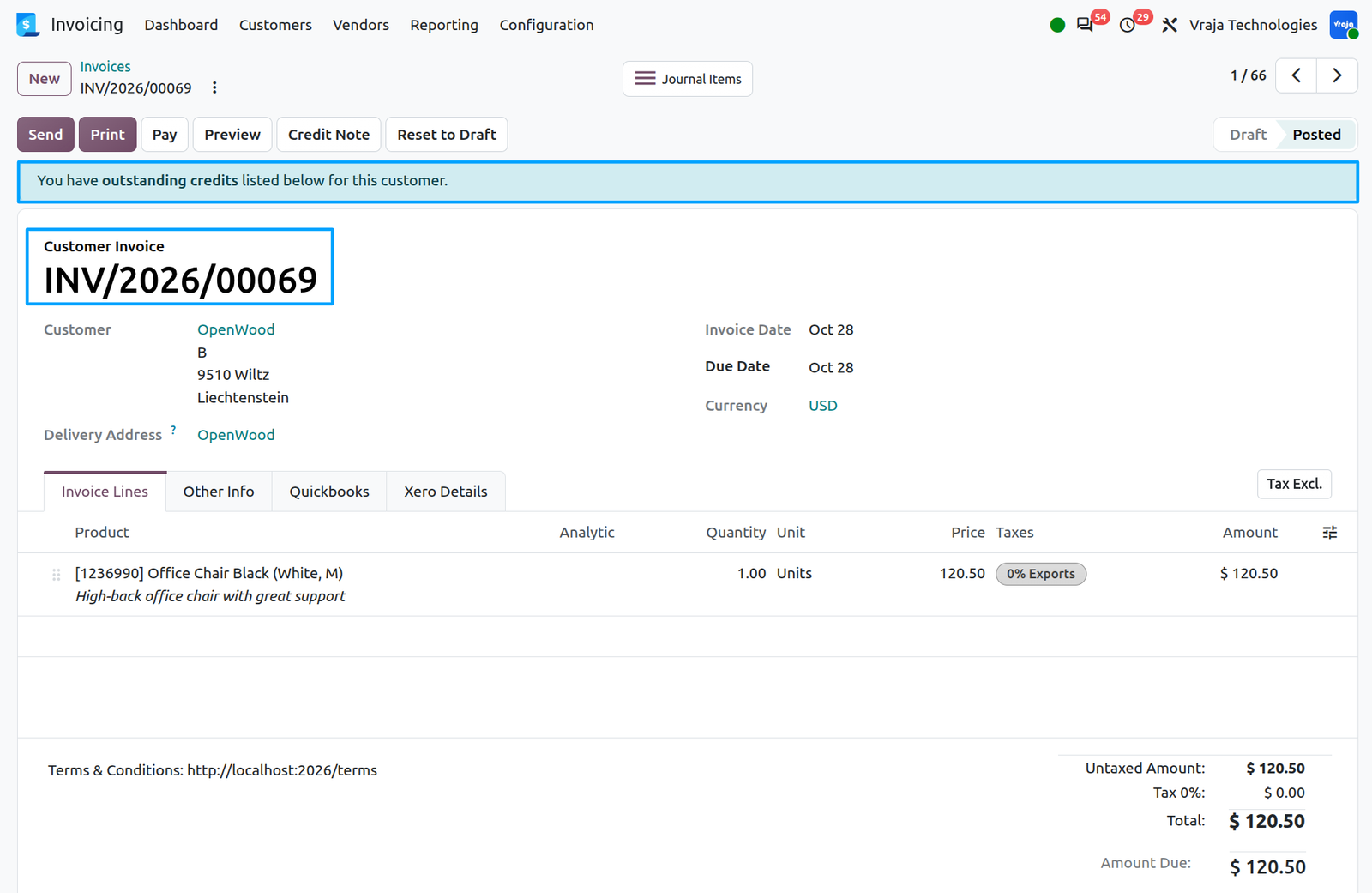
03 Open a customer invoice to review its invoice number, customer information, invoice date, due date, invoice lines, total amount, and outstanding balance. Ensure that the invoice is posted and has an outstanding amount before proceeding with payment.
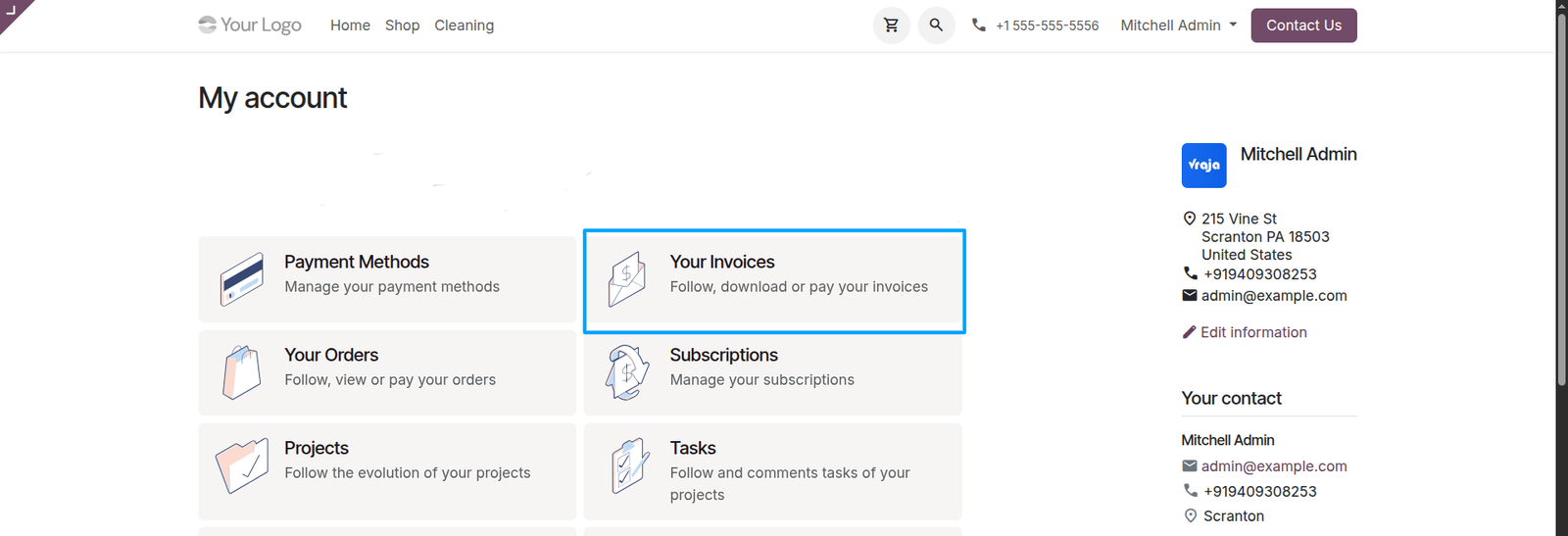
04 Log in to the Odoo website as a portal user and navigate to My Account → Your Invoices. This section allows customers to view their invoices and access the multiple invoice payment functionality.
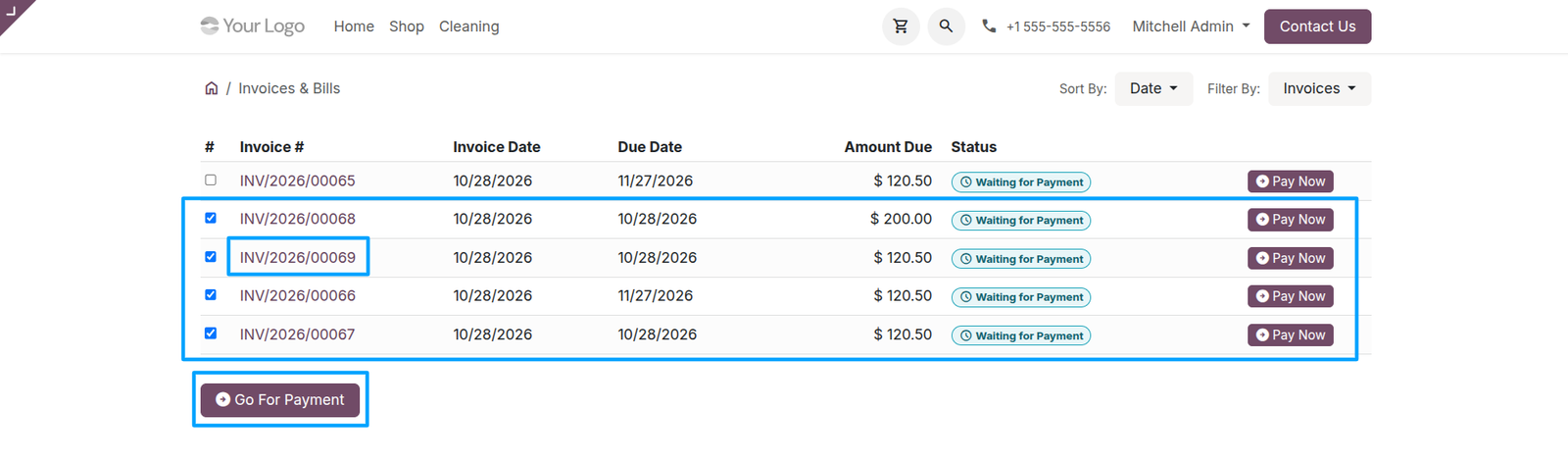
05 On the Invoices & Bills portal page, customers can select multiple unpaid invoices using the checkboxes provided beside each invoice. After selecting the required invoices, click Go For Payment to proceed with a single combined payment for the selected invoices.
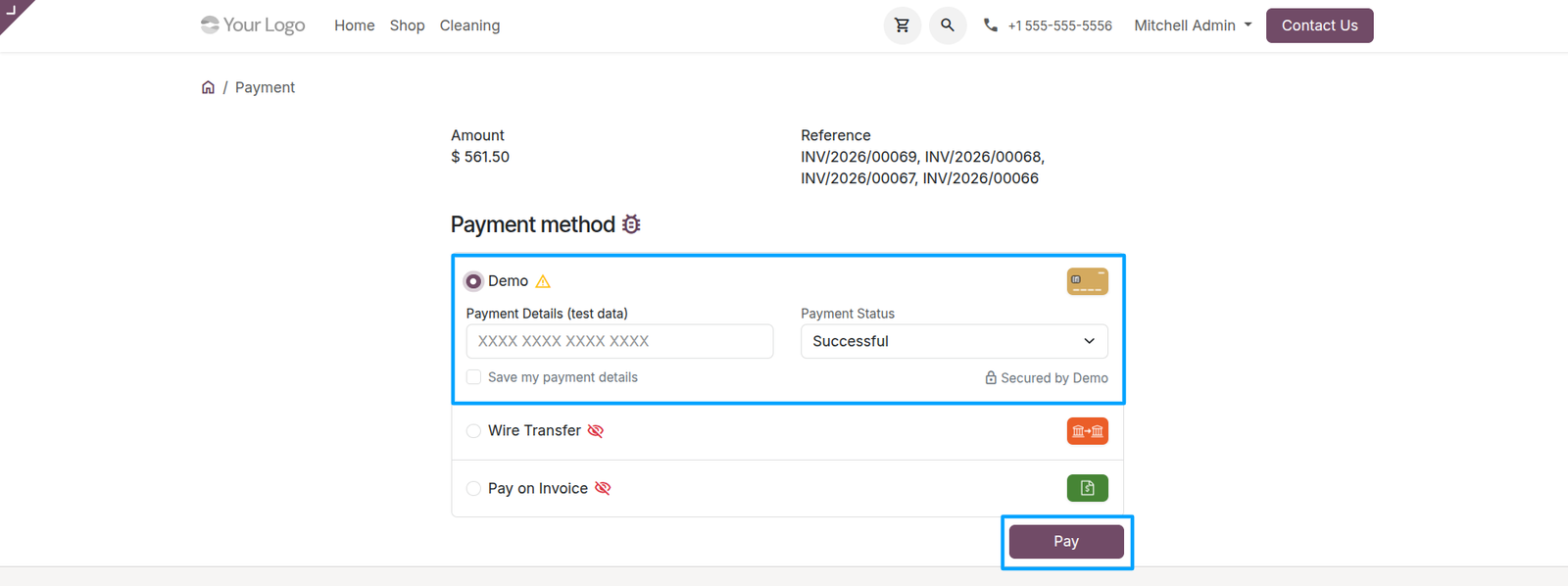
06 The payment page displays the combined outstanding amount and references of all selected invoices.Customers can choose an available payment method and click Pay to process the total amount in a single transaction. In the example shown, four invoices totaling $561.50 are selected for payment using the Demo payment provider.
07 Once the payment is successfully processed, Odoo displays a payment confirmation page showing the total amount paid, selected invoice references, payment method, and payment provider.Customers can click Go to my Account to return to their website portal.
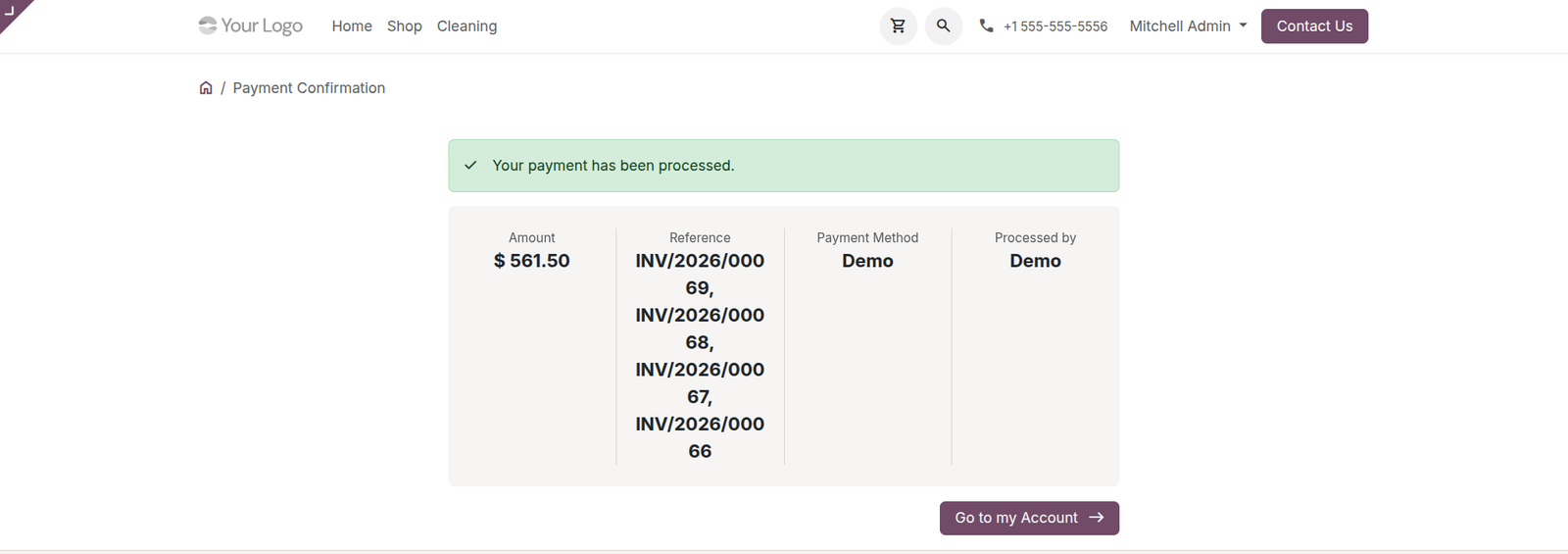
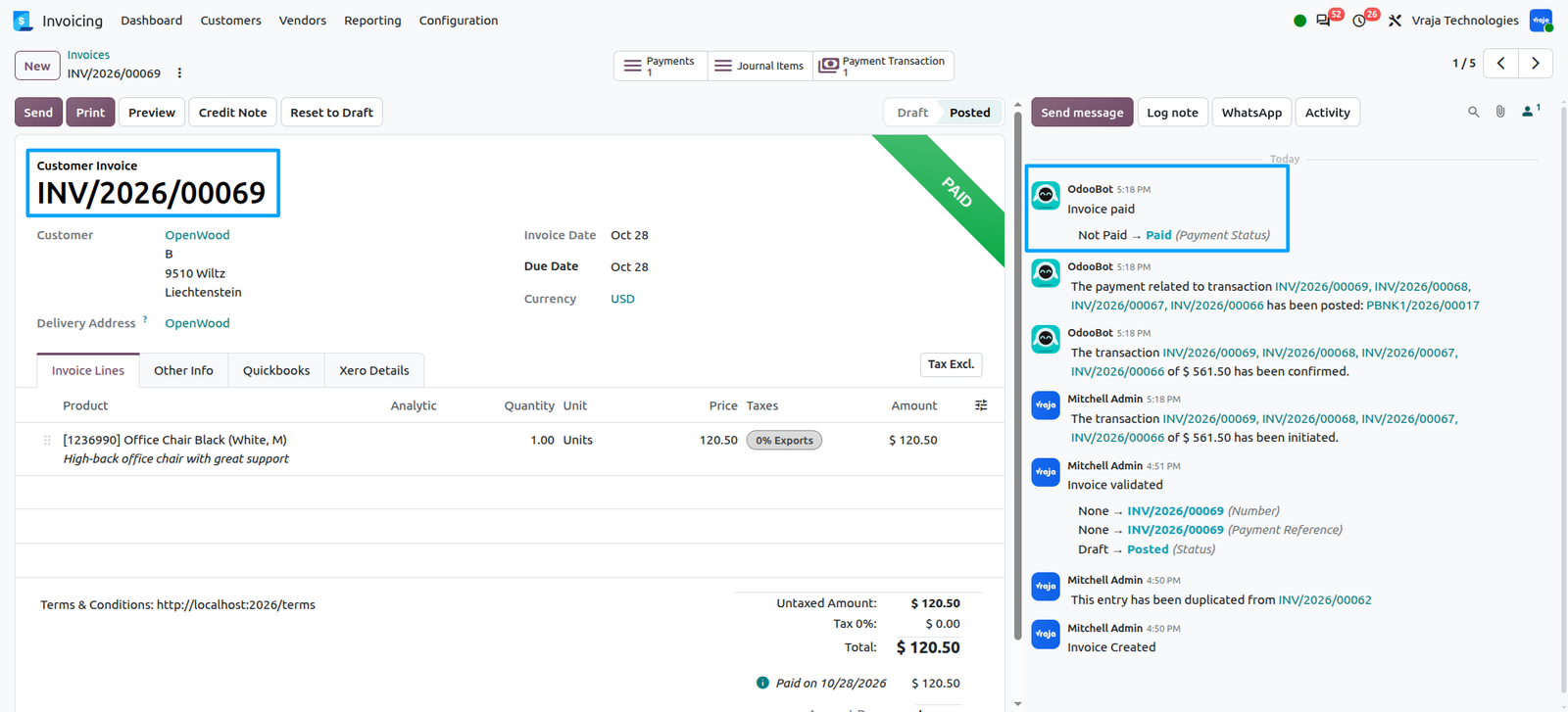
08 After successful payment processing, Odoo automatically links the payment transaction to the selected invoices and updates their payment status.The invoice displays the Paid status, and the chatter records the payment transaction details, payment confirmation, and related accounting payment information for tracking and reference.
|
|
What is the purpose of the Website Multiple Customer Invoice Payment module?This module allows portal users to select and pay multiple outstanding customer invoices together through a single payment transaction. |
|
|
Can customers pay multiple invoices at the same time?Yes. Customers can select multiple unpaid invoices from their website portal and complete the payment in one transaction. |
|
|
Where can customers access the multiple invoice payment option?Customers can log in to their website portal and navigate to My Account → Your Invoices, where they can select invoices for payment. |
|
|
How is the total payment amount calculated?The module automatically calculates the combined outstanding balance of all selected invoices and displays the total on the payment page. |
|
|
Can customers select invoices with different currencies?No. All selected invoices must have the same currency to be processed in a single payment transaction. |
|
|
Can invoices from different companies be paid together?The module supports invoices belonging to the same company or branches of the same parent company, provided they use the same currency. |
|
|
Can customers pay invoices that are already fully paid?No. The module provides invoice selection for invoices that still require payment. Fully paid invoices are not eligible for the multiple invoice payment process. |
|
|
Does the module automatically update invoice payment statuses?Yes. Once the payment is successfully processed and posted, Odoo updates the payment status of the related invoices according to its standard accounting and reconciliation workflow. |
|
|
Does the module create a separate payment transaction for each invoice?No. It creates a single payment transaction linked to the selected invoices, allowing customers to settle multiple invoices together. |
|
|
Is the module compatible with Odoo 20?Yes. The supplied module is configured for Odoo 20. |
|
|
I would like to request a custom feature for this application. What’s the process to get it implemented?We’re happy to help tailor the application to meet your business needs! You can reach us via sales@vrajatechnologies.com |
|
|
Who is the point of contact for technical support, configuration support or bug-related queries?You can reach us via support@vrajatechnologies.com |
|
|
Included App Support90 Days Complimentary Support for Supported Versions If you encounter issues caused by the app itself, our team provides complimentary support for 90 days from the date of purchase for supported Odoo versions. |
Included App Support
90 Days Complimentary Support for Supported Versions
If you encounter issues caused by the app itself, our team provides complimentary support for 90 days from the date of purchase for supported Odoo versions.

Customer SupportNeed help with installation, configuration, technical issues, or general questions about the module? Submit a support ticket through our dedicated support portal. |
||
|
Support Portal
vrajatechnologies.com/helpdesk
|
Support PolicyReview our support policy for complete information about support coverage, issue eligibility, exclusions, version compatibility, and other support conditions. |
||
|
Support Policy
vrajatechnologies.com/support-policy
|
Scan for Support
|
||
|
Support Portal
vrajatechnologies.com/helpdesk
|