Explore the key features, workflow, and value of this Odoo module.
01 Applications on Dashboard
After downloading the Odoo EDI Integration App from the Odoo store, place it in the Odoo Addons path or any desired location. Restart your Odoo instance and go to the Apps section in the dashboard. Click on "Update Apps List" from the menu. Once the list is updated successfully, the Odoo EDI Integration app will appear in the Apps section.
Click the "Install" button, and you're all set! You can now use the Odoo EDI Integration app in your Odoo instance.

02 FTP/SFTP Configuration (From menu Sync FTP/SFTP/AS2 Syncing)
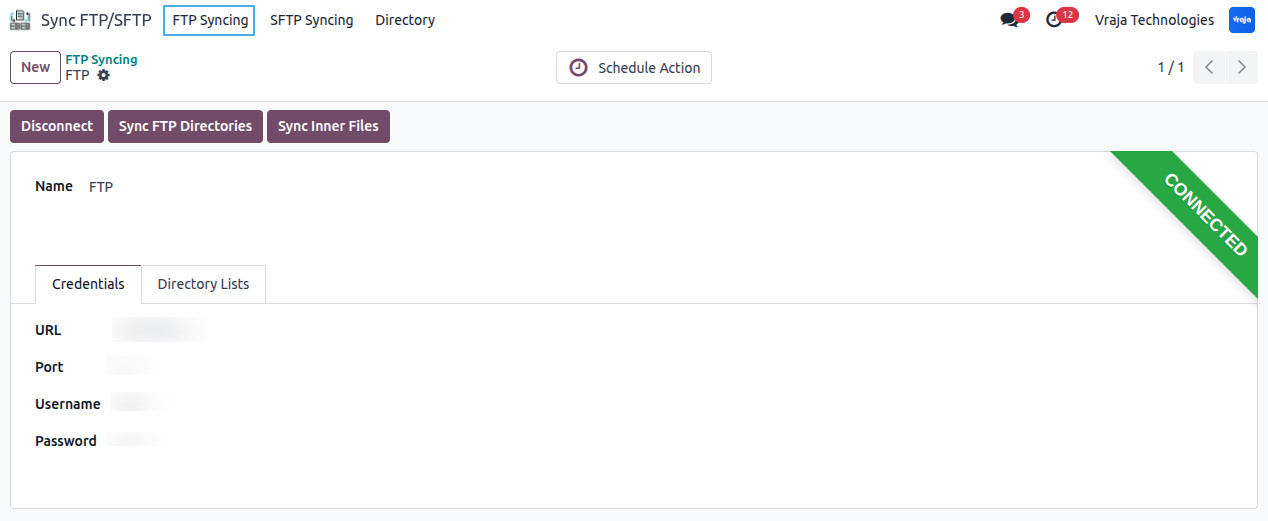
You need to set up FTP syncing connection by entering the URL, port, username, and password.
After entering the proper details, the right-side ribbon indicates whether your FTP connection is properly configured or not.
You need to set up SFTP syncing connection by entering the Host, username, password, host. Additionally you need to enter root directory path, so we will import inner all directories.
After entering the proper details, the right-side ribbon indicates whether your SFTP connection is properly configured or not.

03 Fetch Directories from FTP/SFTP
After successfully syncing with FTP/SFTP, you will see the 'Sync FTP/SFTP Directories' button. Clicking this button will fetch the directories from FTP/SFTP and create corresponding records in Odoo.

04 AS2 (Applicability Statement 2) Configuration
If you would like to use the AS2 protocol please follow steps below.
- Your GLN Number: Enter your unique GLN (Global Location Number). Max Length is 13.
- Partner: Selet the partner for which you would like to setup the AS2 in Odoo.
- Partner's GLN Number: Enter the Partner's unique GLN (Global Location Number). Max Length is 13.
- Partner's URL: Enter the URL where you would like to perform the import/export operations. (Should be provided by the partner.)
- Upload Partner's Certificate: You have to upload the partner certificate here.
- Your Certificate: You have to either upload the certificate along with the private key. If you do not have the public/private keys then you can generate them with given button.
- Your Private Key: You have to upload the private key if you have. If not then, you can generate the key-pair from given button.
- Certificate Validity (Days): If you are generating the certificate from the button, then you have to enter the validity of the Certificate. In simple terms, for how much period of time you want this certificate to be valid?
- Encryption Policy: There are 4 different Policies: Un-signed & Un-Encrypted, Un-signed & Encrypted, Signed & Un-Encrypted and, Signed & Encrypted.
- Message ID Customisation: You can customise the Message ID from the header to show from where the file originated.
- MDN Policy: Three types of policies are supportd in the module: MDN Not required, Un-signed MDN required and, Signed MDN required. You can choose the best options to match your requirements.
- For Import Data File
- XML File Header: You have to enter the file header of the import file to match with the configuration table in order to successfully process the file in Odoo.
- EDI configuration Table: Select the Configuration table for the incoming file.

01 Integration Steps
02 1. EDI Table integration (From EDI menu)
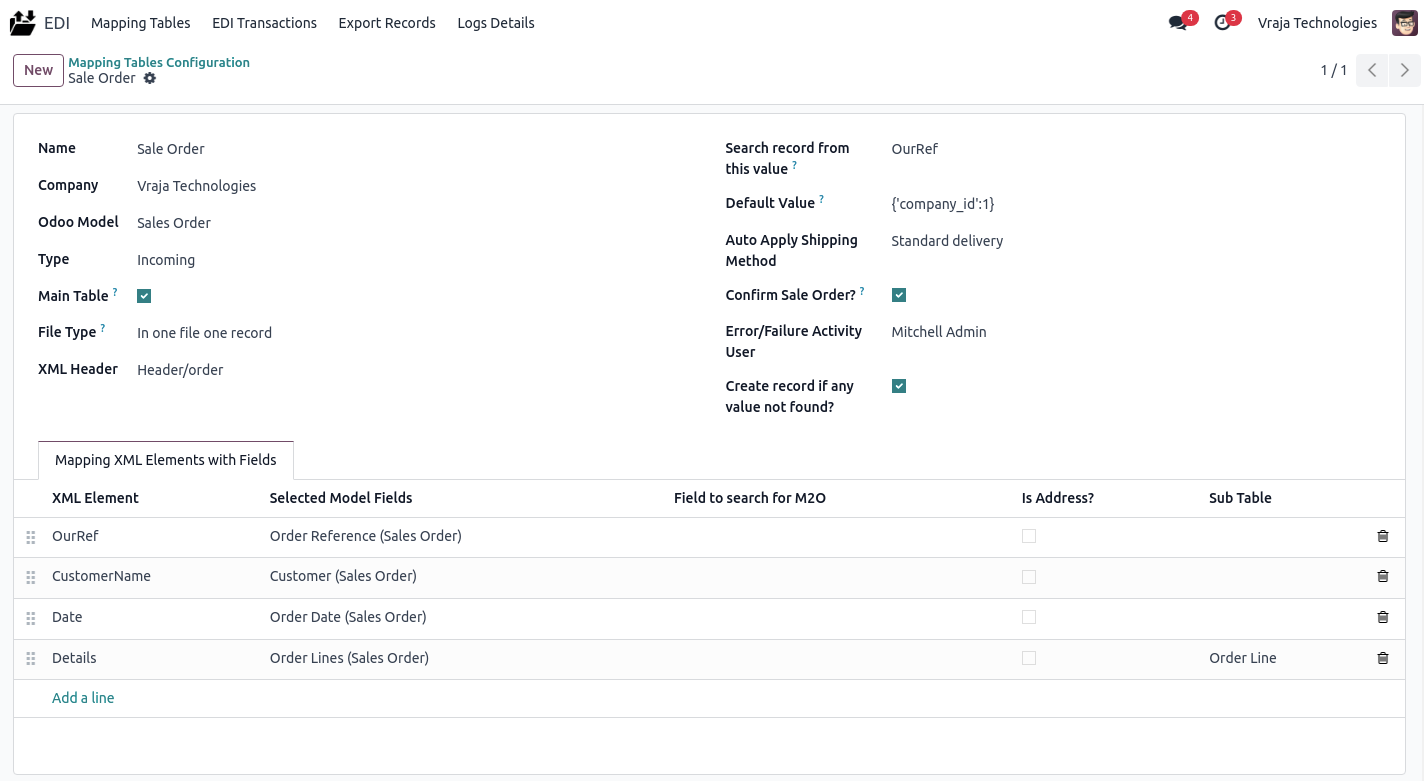
You need to mention the required details for the incoming/outgoing table.
- Odoo Model: Which Odoo model would you like to perform the operation on?
- Type: Incoming/Outgoing, this table will be used for which kind of operation.
- Main table: You need to enable this option if your configuration is main. For example, to add a sale order record, create a configuration record with the main table option enabled for the sale order model. Additionally, create a separate configuration for the sale order line without enabling the main table option.
- File Type If your XML file having single record then select single. - If your XML file having multiple records then select multiple.
- XML Header: You need to specify the main header name in the XML.
- Search record from this value: To check an existing record, Set the XML element name(s) here. Use the provided value(s) to check if existing records are available. You can specify multiple XML elements, separated by commas.
- Default value: During the import/export process, if you want to include specific values along with the processed data, you should enter these values in dictionary format.
- Auto Apply Shipping Method : Select the delivery carrier that should be automatically applied to the sale order during import.
- Confirm Order? : Enable this option if you want the sale order to be automatically confirmed after it is successfully imported.
- Error/Failure Activity User: Choose the user who will receive an activity notification when an error or failure occurs during the import process.
- Create record if any value not found? : Enable this option if you want the system to create a new record automatically when one or more matching values are not found during the import process.
03 In Mapping XML Elements with Fields table
- XML Element: You need to enter the exact XML element you want to map with the Odoo field.You can also access values from an XML tag or its attributes using special notation.
- 1. For an element like Lumber Inc, use CustomerName/#text to read the value Lumber Inc.
- 2. Use @ followed by the attribute name to read an attribute value. For an element like , use CustomerReference/@ref to read the value Customer123.
- Selected Model fields: You need to select the field with which you want to map the XML data.
- Field to search for M2O: This field is optional. If you choose a Many2one field for mapping, you have the option to set the inner field of that Many2one model. This helps you search records based on that field; otherwise, the search will use the name field of the Many2one model.
- Is Address?: This field is optional. If you have selected any Address field in the "Selected Model Fields" and you want to check that if that address exists in Odoo or not. If address exists then use that address and if it is not then create that address in the Odoo and use it. If you select this field, you have to enter the subtable as well. Sub table should be of Contact model and configuration will be same as any sub table.
- Sub Table:For a One2Many field, you need to select a subtable where a separate configuration is available for the One2Many fields. (In the subtable, follow the same concept, but you do not need to enable the Main table option. If the "Search record from this value" field is left empty, it will create duplicate One2Many records from the CSV. If you select this option, it will update existing records.)
04 Main Table

05 Sub Table

06 Contact Sub Table for Is Address Field

07 2. Import Records Process (From FTP/SFTP to Odoo)
Fetch Inner files/attachments from directories through button "Sync Inner Files"
We have also provided a scheduled action option for automation. A scheduled action will be created for each FTP/SFTP configuration, and you can review it using the smart button within the form view. You can configure the execution time according to your requirements.
Before pressing the button or executing the scheduled action, certain configurations must be completed. The details are provided below.
First, in the directory list view, specify which directory will be used for the Download operation, so from those directory we will fetch inner files.
In the directory configuration, there's an option stating, "Daily new file coming in this directory". If a directory receives new files with the same name every day, and you need to fetch and process them in Odoo daily, you should enable this checkbox.

Second, in the directory itself you need to select Mapping Model/Table if you don't want to search using XML header.
We’ve added a feature that allows automatic mapping table search using an XML file’s header. Enable the "Search mapping table using XML header" option in the directory form view to support multiple file formats in one directory. Ensure the mapping table is configured for different XML headers.

08 After making these selections of download option & mapping Model/table you need to press 'Sync Inner Files' button, that process fetch inner files/attachments from the directories chosen for downloading will be fetched into Odoo, creating Odoo attachments.
Along with FTP/SFTP attachments, EDI transaction records will also be created. If you have received the file from the AS2 URL then, it will directly create the EDI transaction records. (Transaction records will be processed when the scheduled action executes.)

Additionally, we have implemented a directory-wise auto-sync feature. If you have numerous files across different directories that are marked for download, there is a possibility where the common scheduled action of sync inner files encounters timeouts due to Odoo's processing limits, resulting in incomplete synchronization.
To address this issue, we have provided an option to enable auto-sync on a per-directory basis. Simply click the "Generate Auto Sync" button in the desired directory, and the sync process will run individually for the files within that directory, ensuring complete synchronization. You can review it using the smart button within the form view.
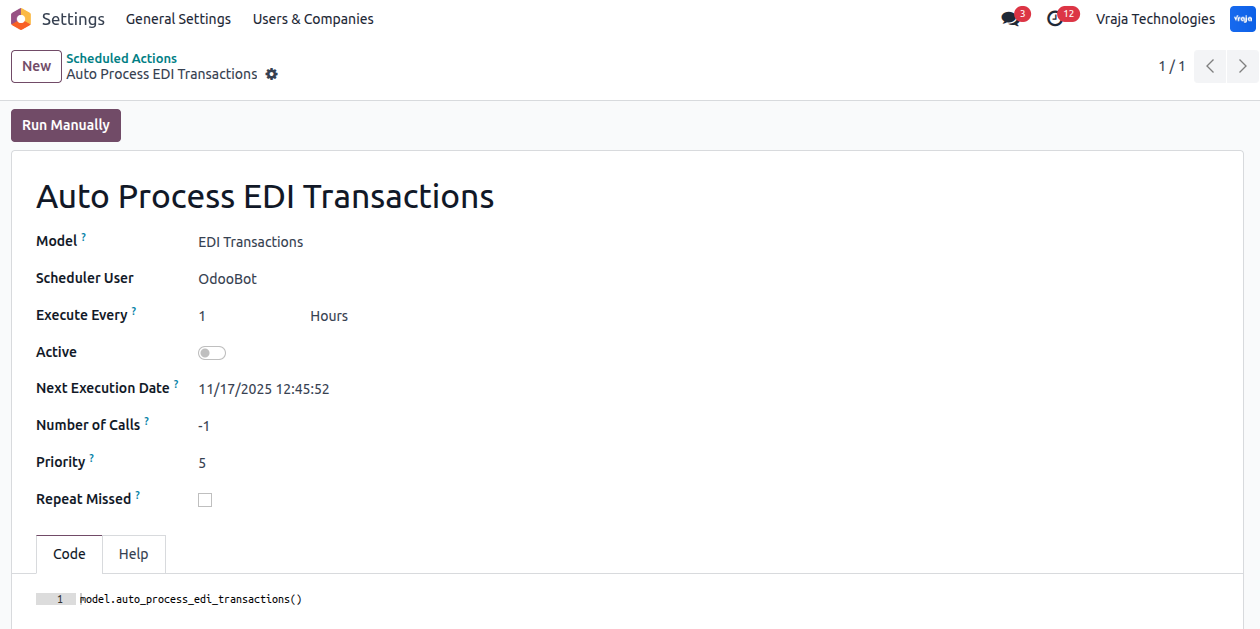
09 3. To process EDI Transactions through Scheduled Action (Cron)
From the scheduled action, all EDI transactions in the draft state are processed based on the type.
- Incoming type: Records will be created in Odoo.
On successful EDI transaction processed that record will move to the done state, if any issue arises then it will move into the failed state & log will generated to check issue.
10 Scheduled Action

11 Incoming record created of Sale Order

12 Incoming record created of Purchase Order

13 4. Log management
A log is created for reference in case of any faults during the import/export process.
We also set a scheduled action to delete log records older than 13 days.


14 5. Sample XML files
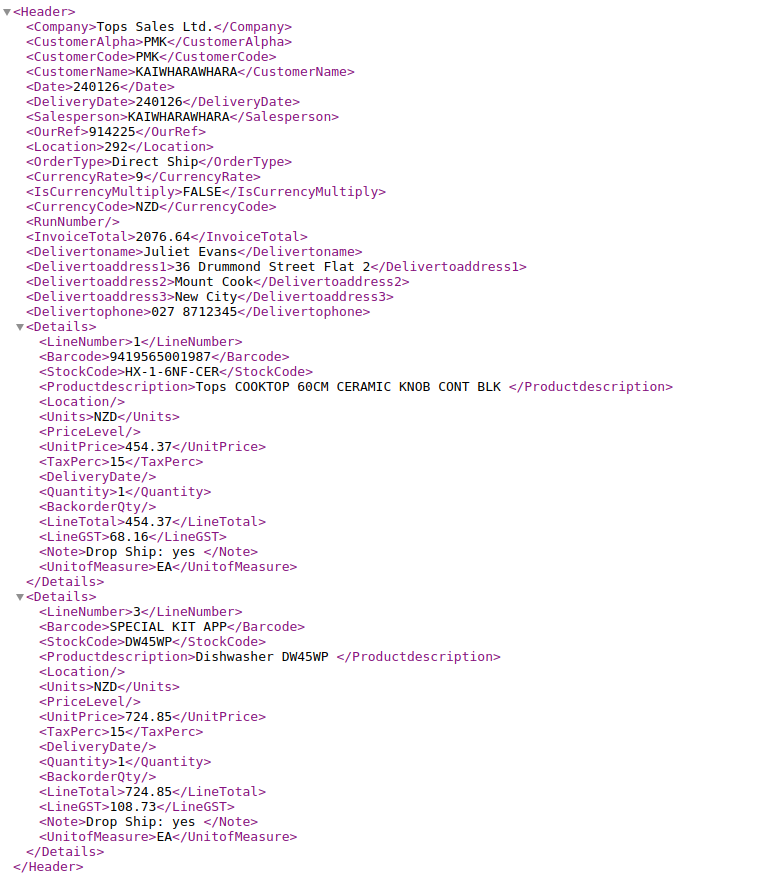
Sample Sale order file which gets imported from FTP.

01 1. Export Records Process (From Odoo to FTP/SFTP)
Firstly you need to do some configuration.
Inside FTP/SFTP Syncing form view you need to enable Upload option beside those directory in which you want to export files from Odoo to FTP/SFTP.

In Configuration table of type outgoing, you need to select partner whom records you need to export.bold text
Fields for Export only
- Add additional search domain: If you want to get the specific records for selected partner to export then you can add the filter here in the form of list of tuples.
- Server Type: Which Server you would like to use for export purpose: FTP/SFTP/AS2.
- Trading Partner: When the type is outgoing, you need to select the trading partner/contact from which records of the particular model will be fetched and then exported to FTP/SFTP/AS2.
- Export file to FTP/SFTP Directory: When the type is outgoing, and server is FTP or SFTP you need to select the FTP/SFTP directory where you want to export files.
Mapping XML elements level Fields
- Required: If it's enabled, the element is required and will cause an error if the value is missing.
- Character length max: This option allows you to limit the number of characters for a field.
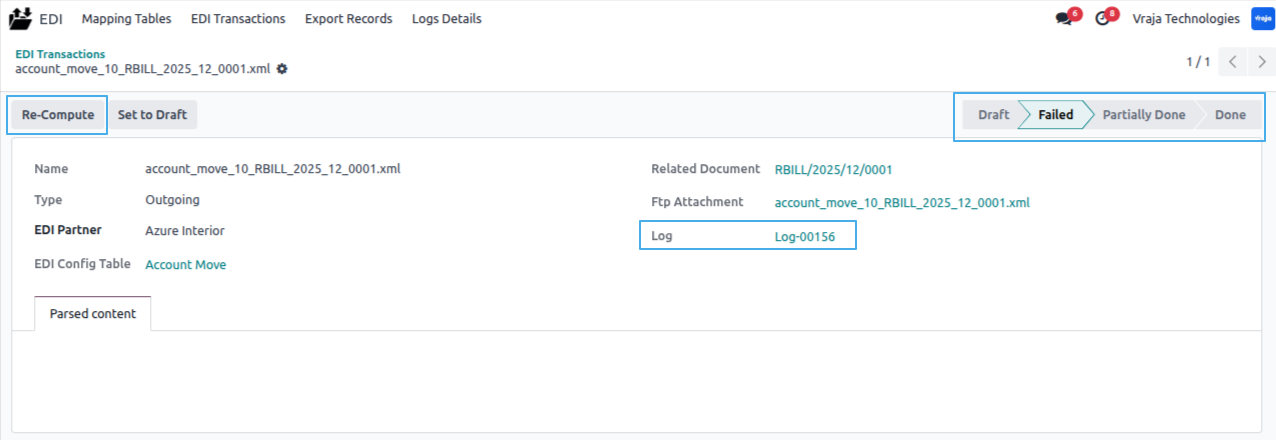
02 A scheduled action has been created to fetch export records based on the EDI Table configuration of the Trading Partner and Odoo Model, which will then create EDI transaction records in ‘Draft’ state. (Those records will be processed when the scheduled action executes.)
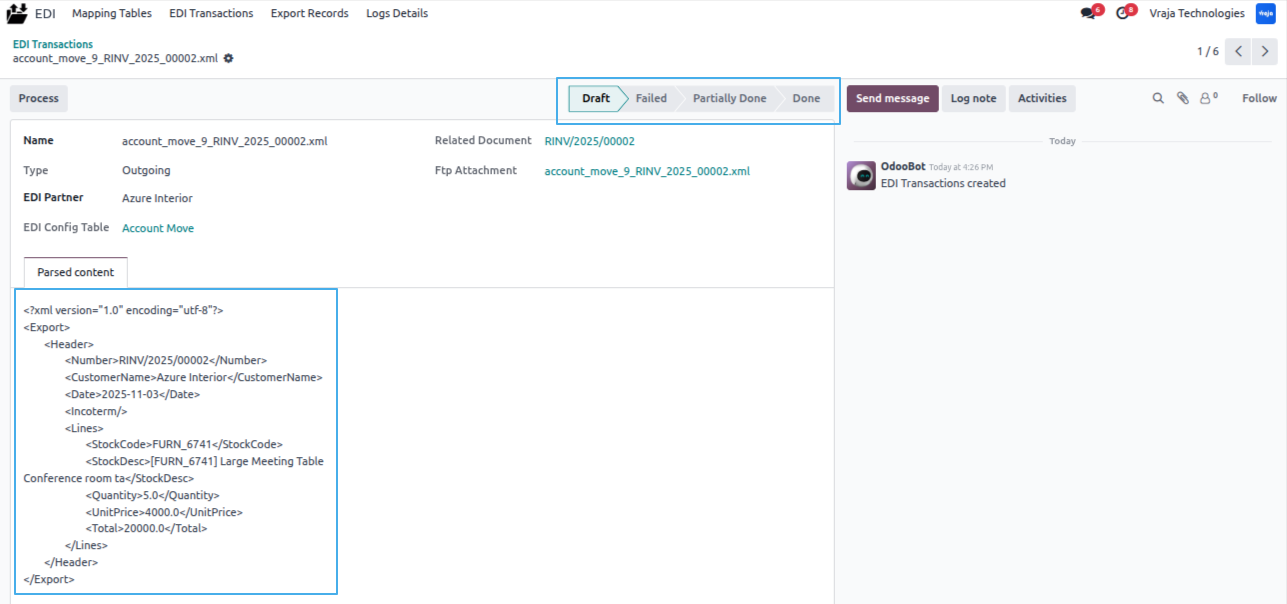

03 If something goes wrong or required field values are missing, those EDI transaction records will be set to a failed state, and a log will be generated for them. After rectifying the issue, you can recompute the XML content by clicking the 'Re-compute' button. Upon successful recomputation, the XML content will be available, and the state will change to draft.


04 2. To process EDI Transactions through Scheduled Action (Cron)
From the scheduled action, all EDI transactions in the draft state are processed based on the type.
- Outgoing type: Records will be exported/uploaded to FTP/SFTP/AS2 from Odoo. Based on the configuration table, the XML file will be uploaded to the directory specified in the configuration or sent to the URL in case of AS2.
On successful EDI transaction processed that record will move to the done state, if any issue arises then it will move into the failed state & log will generated to check issue.
Scheduled Action

Outgoing record: XML file is generated and exported to the configured FTP/SFTP directory.

05 3. Log management
A log is created for reference in case of any faults during the export process.
We also set a scheduled action to delete log records older than 13 days.

01 1. We are managing a distinct configuration setup for the import multiple records in a single file.
- File Type: Select the option that says "In one file multiple records" to import the multiple records form the same file.
In Mapping XML Elements with Fields table
- XML Element: Enter the exact XML element to map with the Odoo field. Use '/' to separate elements for nested levels.
- Sub EDI Import Table: For importing multiple records in a file, create a table without enabling the main table option, inside that table map Odoo fields to XML elements, and select that table here.
Main Table of Import multiple records in a file

Sub Table

Sub Table of Import Quants

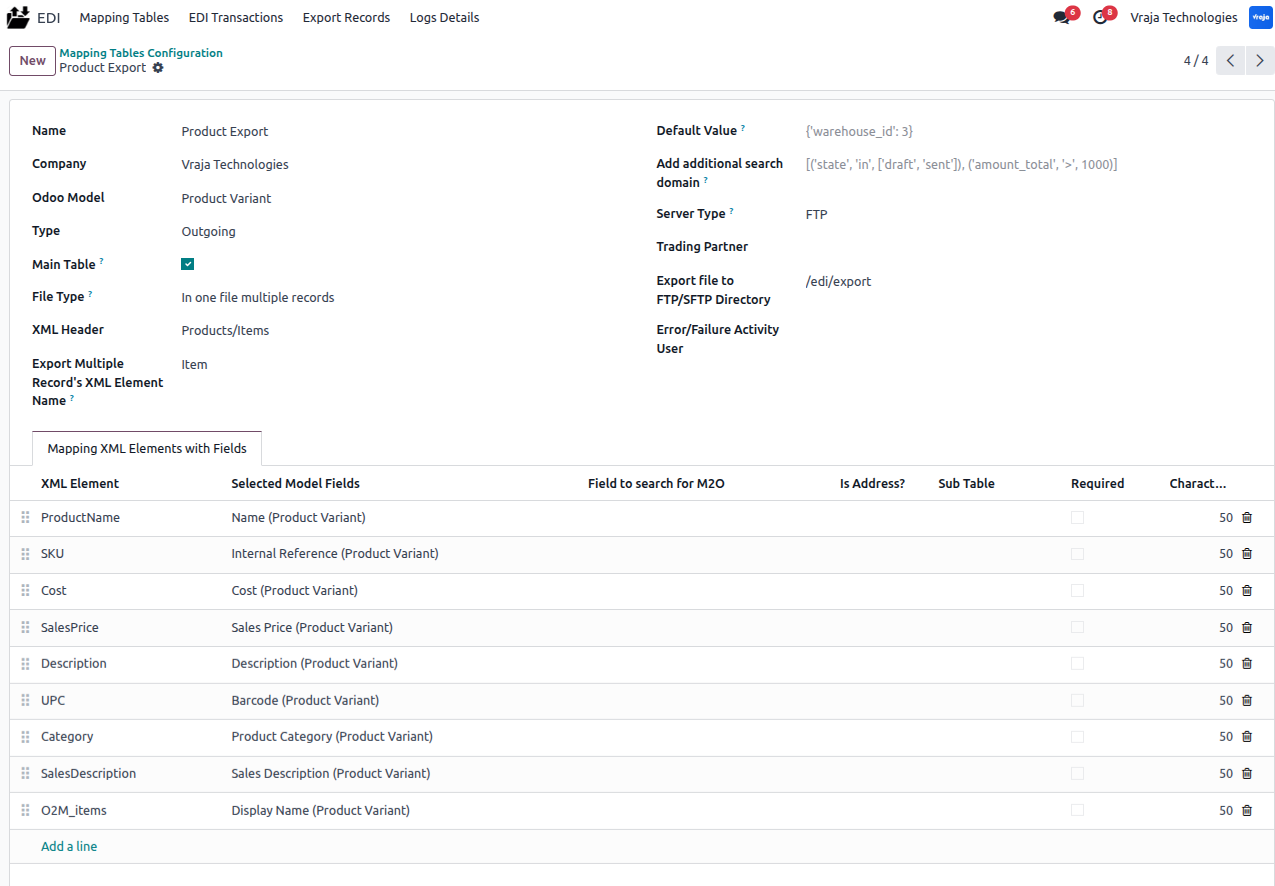
Sample Product file which gets imported from SFTP & having multiple products data in single file.

Sample file of Import Quants
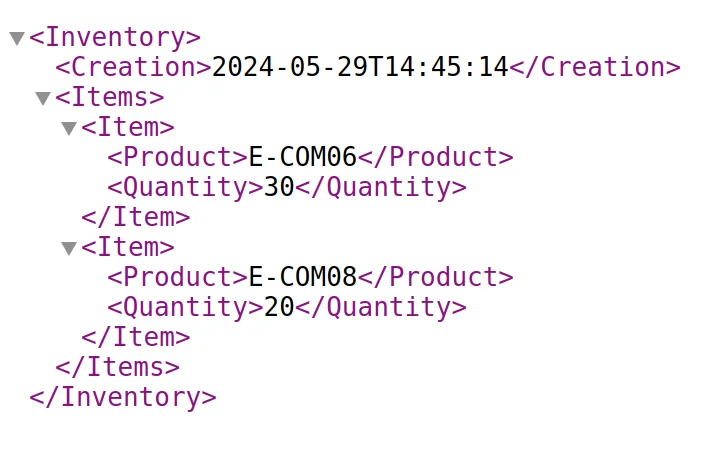
01 1. Main Table of Export multiple product records in a file

02 2. Export Multiple Product Records Process
We have given separate process for it, you need to click on 'Export Records' menu, a wizard like this will open.
You need to select mapping model of product variant which you created.
You can select single/multiple product records in products field.
Upon completion of the process, EDI transactions will be created for the Outgoing type. These transactions can be processed manually or automatically through a scheduled action.
|
|
I need an extra customization in this application, how can I get it?Yes, you can contact us on support@vrajatechnologies.com or can schedule a DEMO with our team to customize additional features. |
|
|
Is the application compatible with Odoo Enterprise and Community?Yes, this application module is supported by both. It is also compatible with test and production environments. |
|
|
Do I get free upgrades and support if I purchase this application?If there is a bug or any issues, our team will be there to help you out. If you need to add any new features, you will need to upgrade the application. |
|
|
Is technical knowledge required to set up the integration?While some technical understanding may be helpful, the integration is designed to be user-friendly. Detailed documentation and support may be provided to aid in the setup process. |
|
|
Is this free customization and implementation?Our team has produced a support video that guides you through the implementation process step by step. If you encounter any issues, please feel free to contact us for assistance. |
|
|
Which protocol you have used to transfer file?We have used FTP protocol to transfer files. |
|
|
Does this support all type of import records?Yes, mostly all types of records will supported, for import inventory we have given separate configuration that mentioned in documentation. |
|
|
Which file format supported?XML file format supported. |
|
|
From one directory currently 5 files are there & those imported in Odoo, next time when there are total 10 files(5 old and 5 new) that time if I fetch inner files from same directory is it create old records again in Odoo?No, we have managed that thing. Only new files will import in Odoo & from those files records will create. |
|
|
Once records exported from Odoo to FTP, is that export again?No, we have managed that thing. Those records which exported that not export again, system only pick fresh records next time. |
|
|
Included App Support90 Days Complimentary Support for Supported Versions If you encounter issues caused by the app itself, our team provides complimentary support for 90 days from the date of purchase for supported Odoo versions. |
Included App Support
90 Days Complimentary Support for Supported Versions
If you encounter issues caused by the app itself, our team provides complimentary support for 90 days from the date of purchase for supported Odoo versions.

Customer SupportNeed help with installation, configuration, technical issues, or general questions about the module? Submit a support ticket through our dedicated support portal. |
||
|
Support Portal
vrajatechnologies.com/helpdesk
|
Support PolicyReview our support policy for complete information about support coverage, issue eligibility, exclusions, version compatibility, and other support conditions. |
||
|
Support Policy
vrajatechnologies.com/support-policy
|
Scan for Support
|
||
|
Support Portal
vrajatechnologies.com/helpdesk
|