Explore the key features, workflow, and value of this Odoo module.
|
|
Import FunctionalityProducts, Customer, Chart Of Account, Taxes. |
|
|
Export FunctionalityProduct, Customer, Chart Of Account, Taxes, Order, Invoice, Customer Payment. |
01 Integrate ZOHO Books with Odoo
Download the Zoho Book Odoo Connector from the Odoo Store and place it in your Odoo Addons directory (or any preferred location).
- First, create an API Key and Secret Key in Zoho.
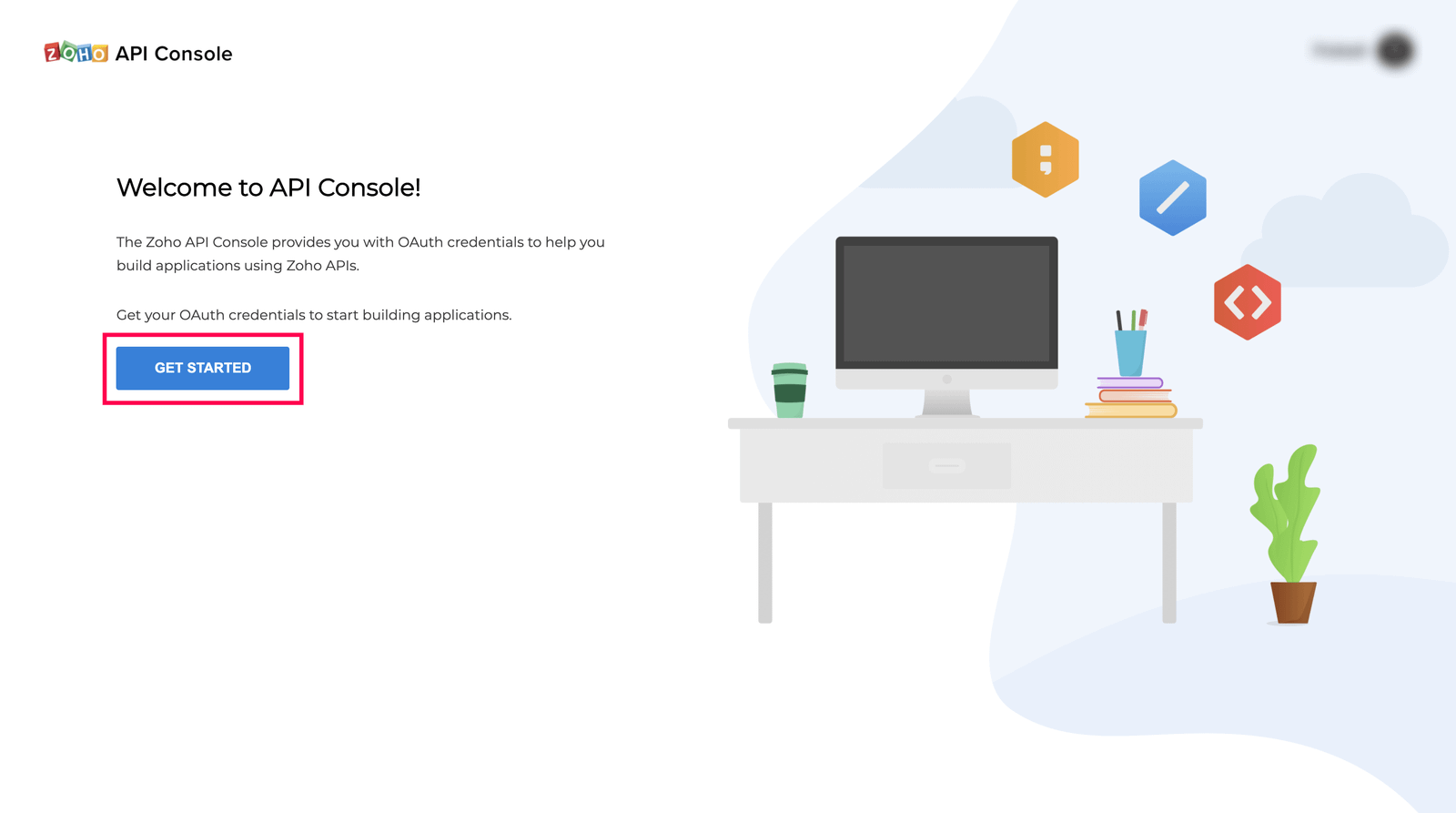
- After getting started go to Choose a Client Type. Click on “Server-based Applications” and “Create Now”.

- Create a New Client > Add The Details : Client Type, Client Name, Homepage URL, Authorized Redirect URLs Click on CREATE
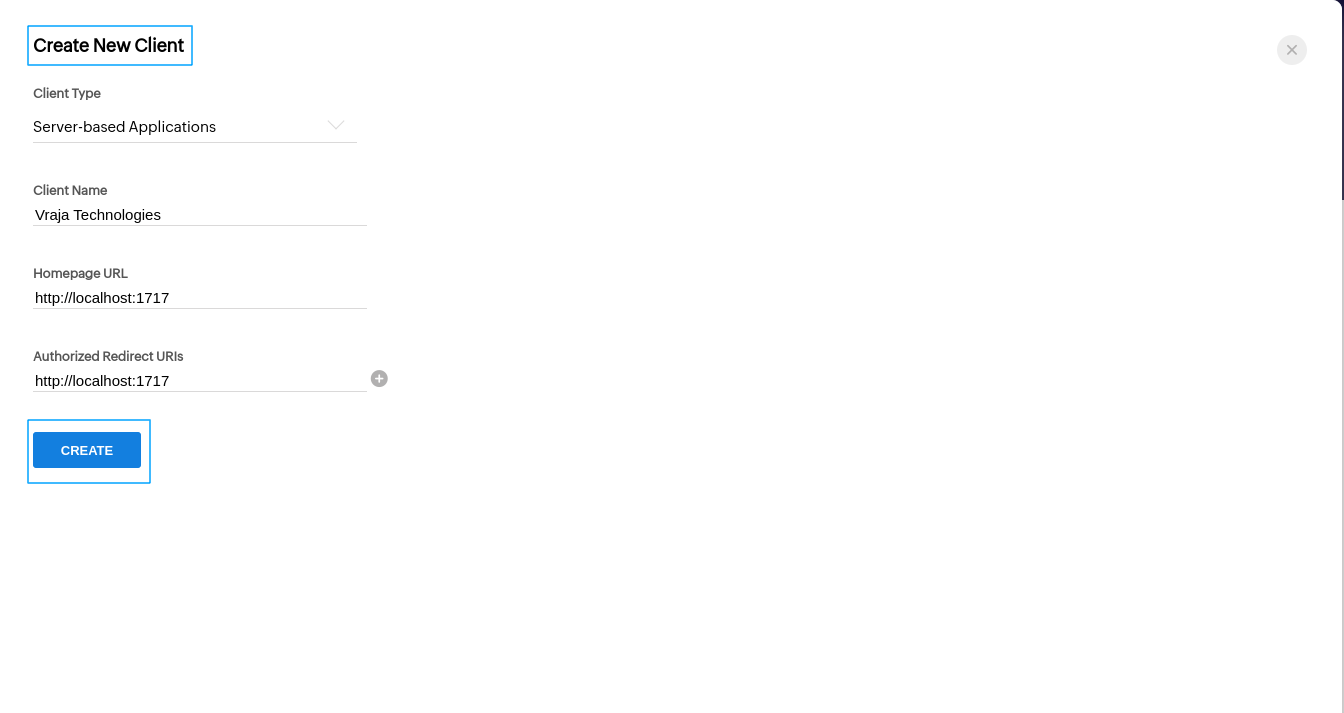
- Add Client ID and Secret Client ID here.

- In Odoo, for each Zoho account, you'll need to set up an instance to manage multiple accounts from one place. Go to Zoho Connector > Configuration > Instance and click New.

- In the new window, enter your credentials: Client ID, Secret Key, Organization ID, and API Key from Zoho.
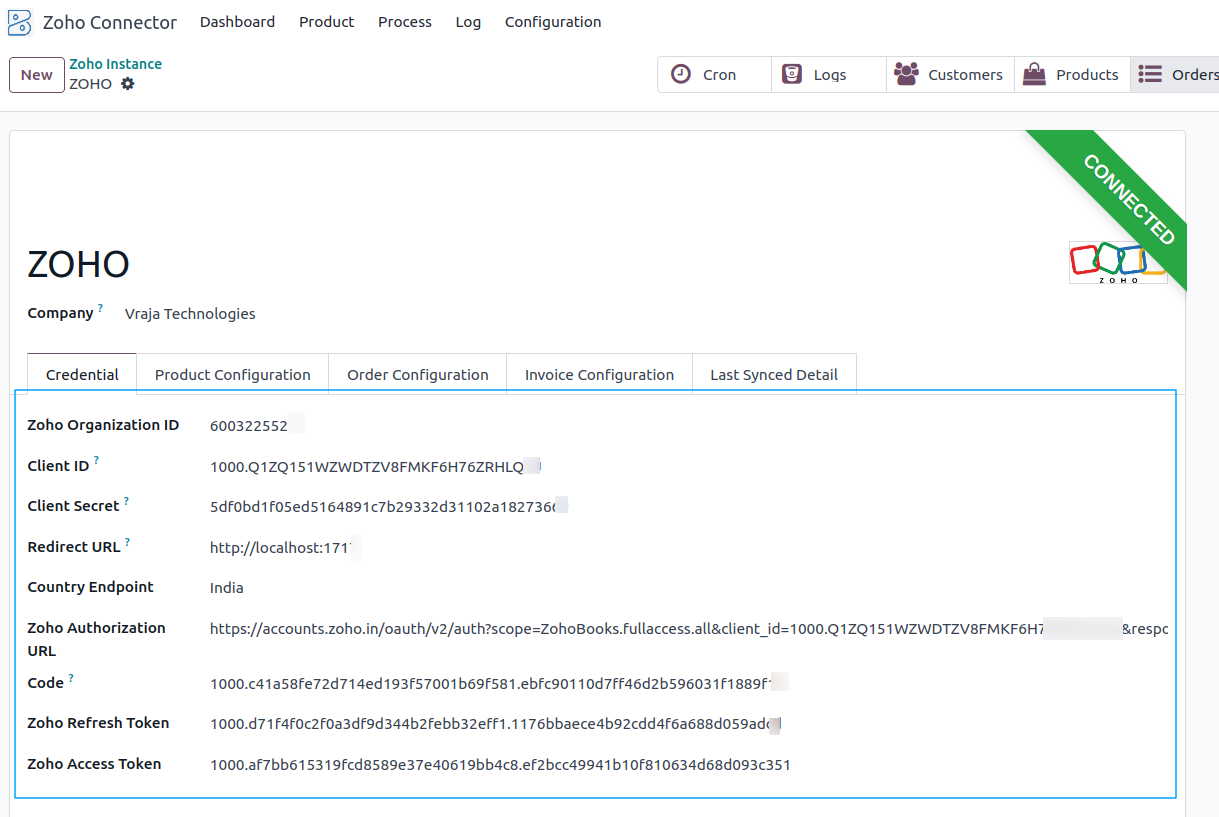
- Track both successful and failed processes, creating logs to help you identify reasons for any mismatches or errors.

02 Import Customer Process: Zoho Books to Odoo Database
Go to Zoho Operations. Here you can choose to Import and Export your Records. (Chart of Accounts and Taxes, Customers, Product)
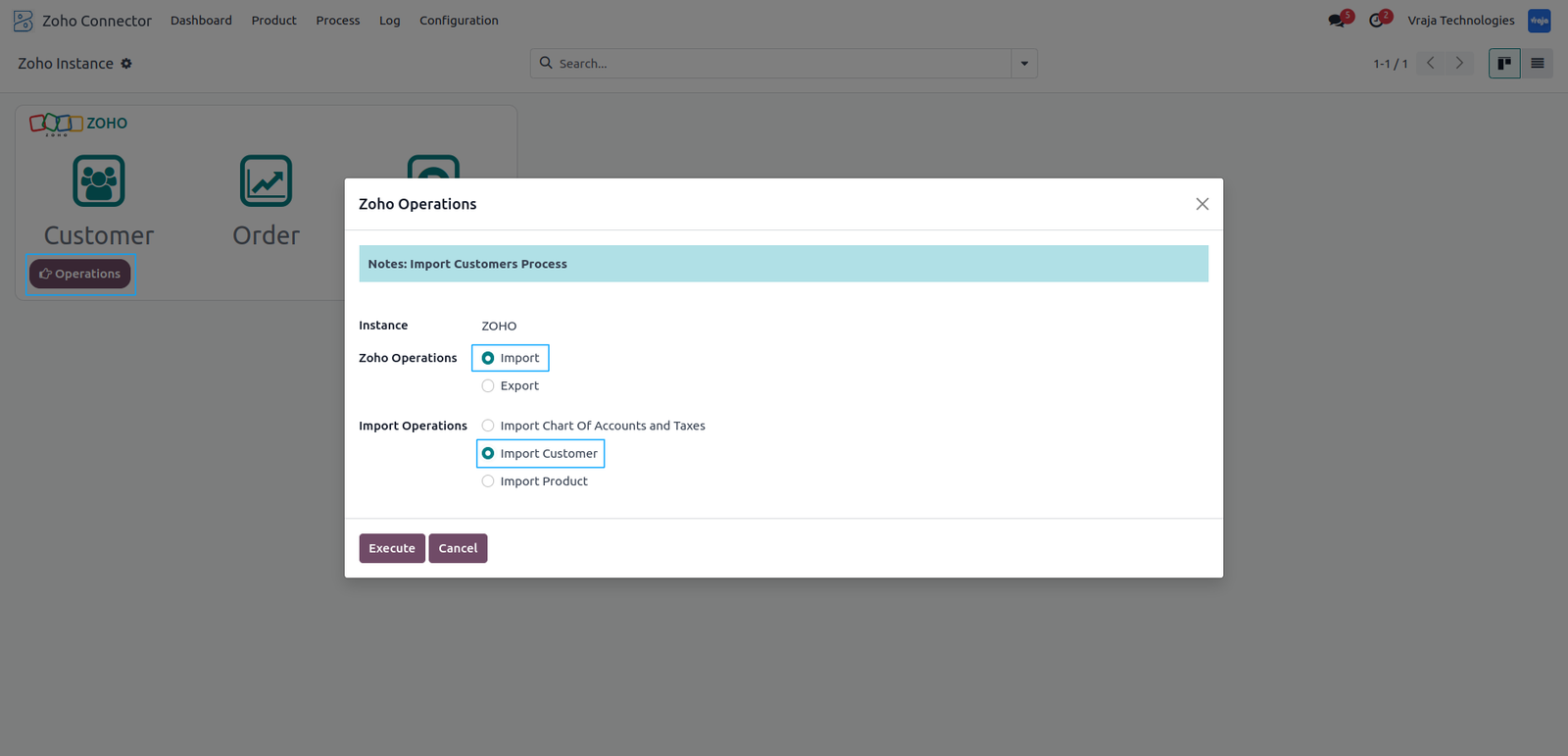
The data will be added to the Customer Queue for processing. Navigate to Zoho Connector > Process > Customer Queue and click the Process Queue Manually button to run the import.

The Customer Queue will also be automatically processed through a scheduled action. You will mention Action Details as mentioned. If you want to import / export any data you can click on RUN MANUALLY before the scheduled time.

03 Import Product Process: Zoho Books to Odoo Database
To manually import products, go to the Operations button and select Import Product. There are two ways to import products: By selecting a range (From) , By specifying Zoho Product IDs.
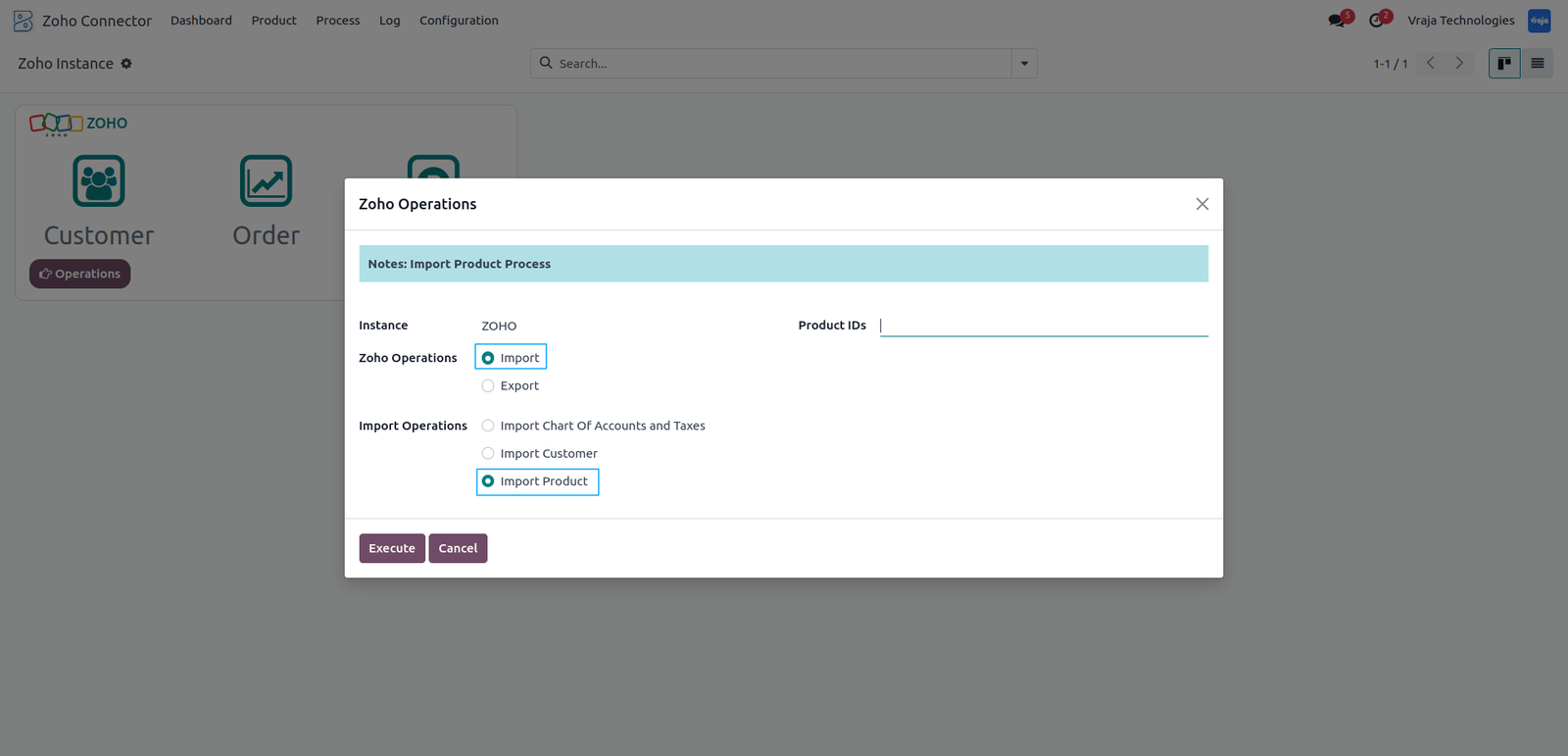
The data will be added to the Product Queue for processing.Navigate to Zoho Connector > Process > Product Queue to view the queue.
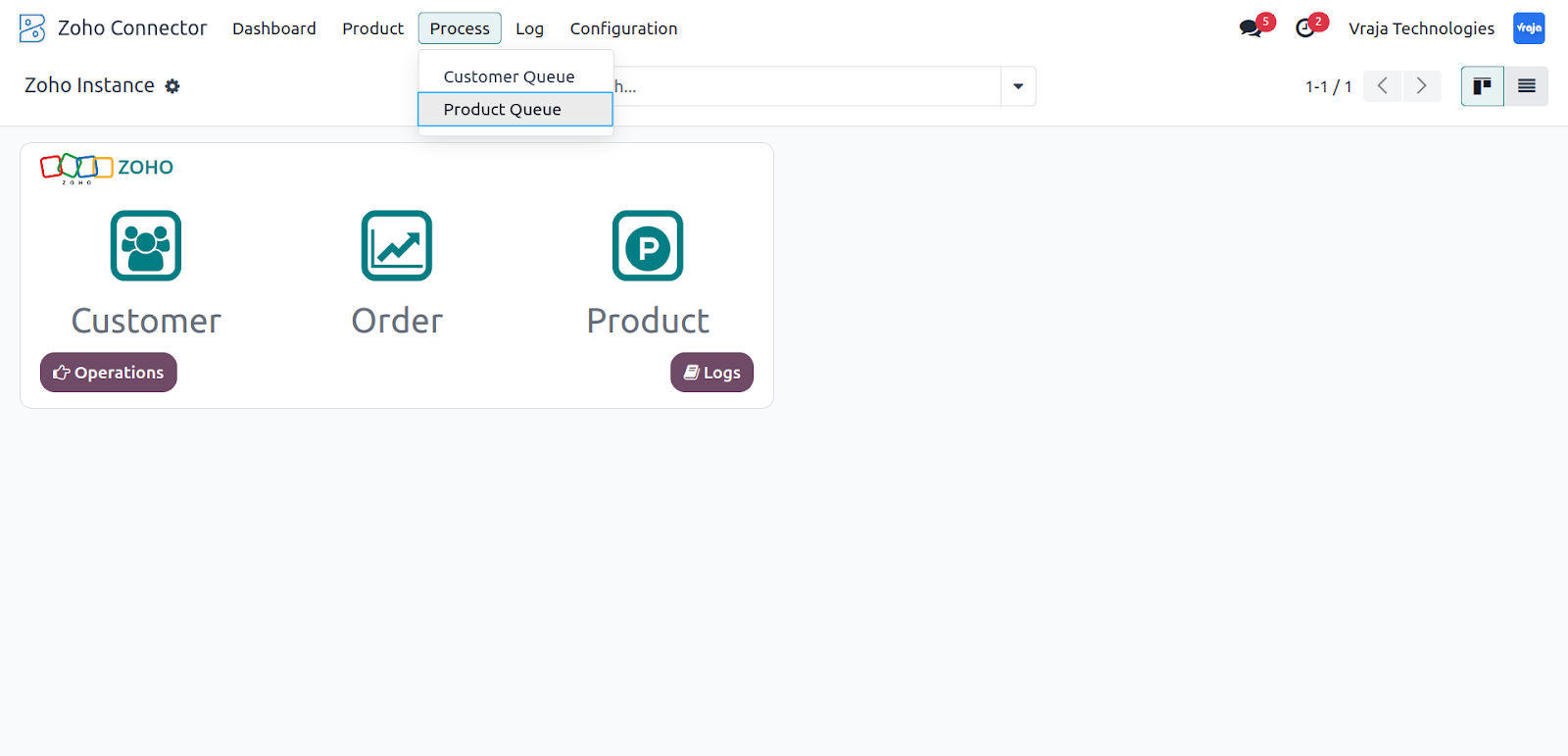
To run the import immediately, click Process Queue Manually. Otherwise, the queue will be processed automatically based on a scheduled action.


04 Export Customers: From Odoo Database to Zoho Books
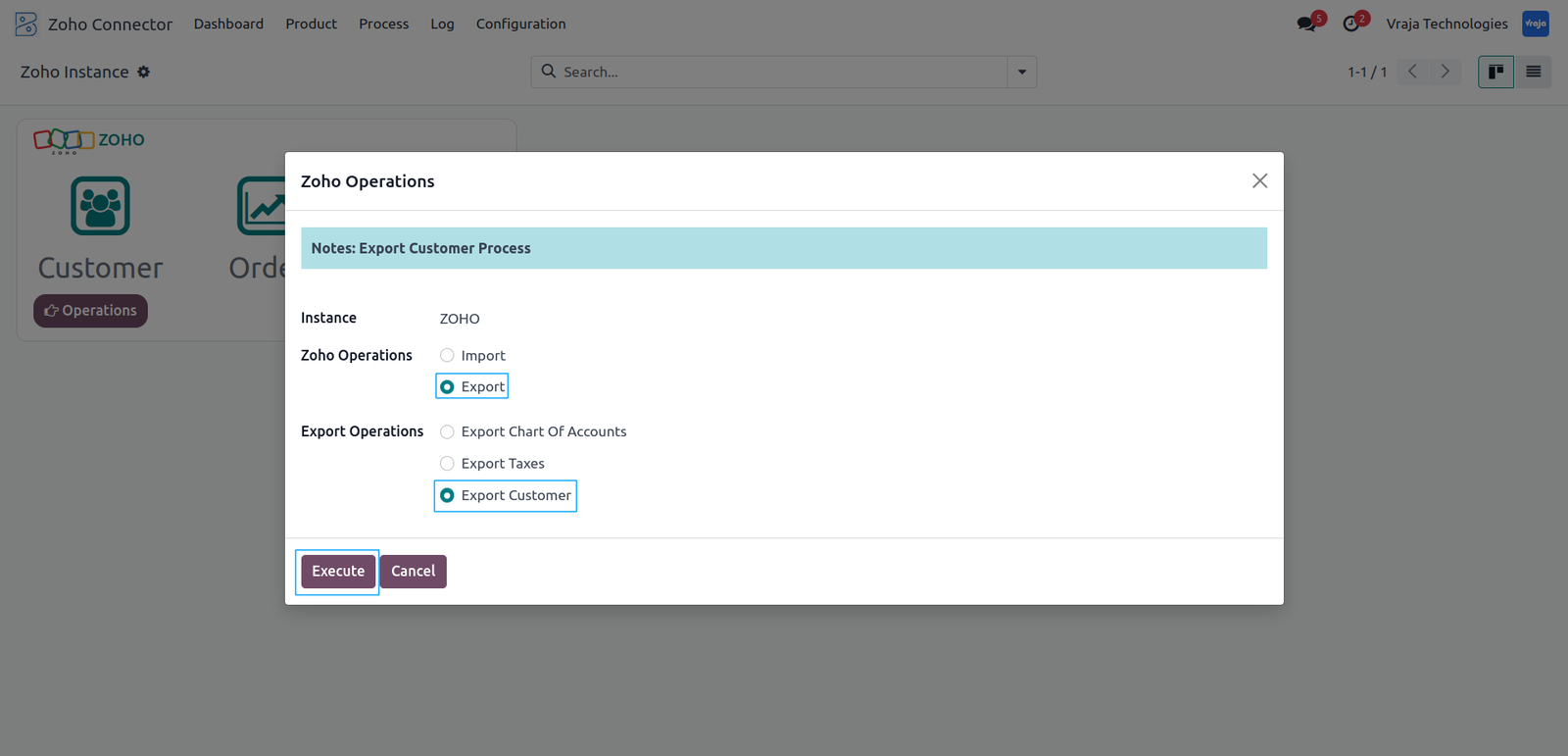
To manually export customers, go to the Operations button and select the Export Customer option. This will start exporting all customer data from Odoo to Zoho.
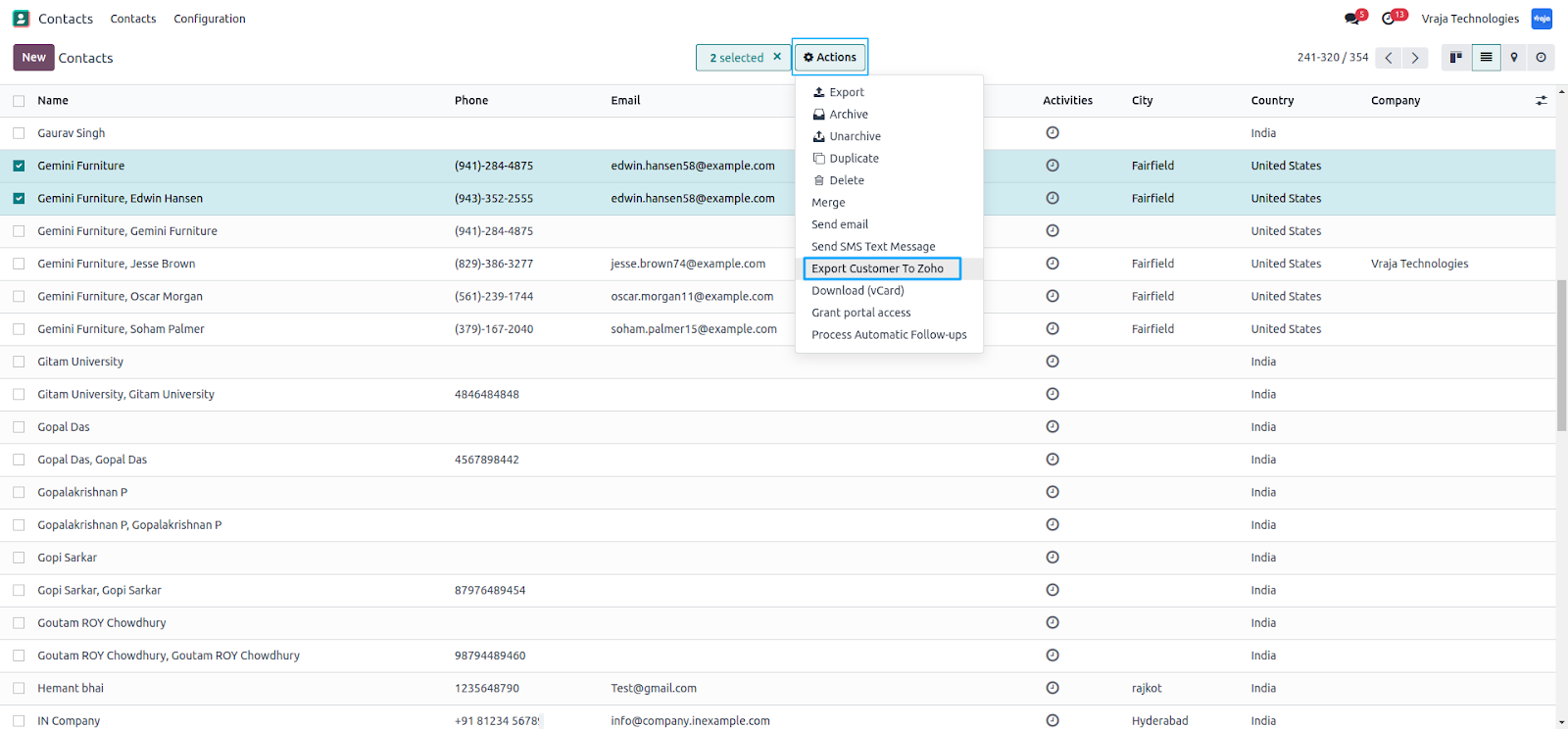
If you want to export the individual customers, the method is slightly different. You can select the customers as you want and go to Actions > Click Export Customer to Zoho.

05 Export Products : From Odoo Database to Zoho Books
For products set up in Odoo but not yet synced with Zoho, you can initiate the Export Product to Zoho process directly from Odoo’s product table. This will create a new product entry in Zoho.
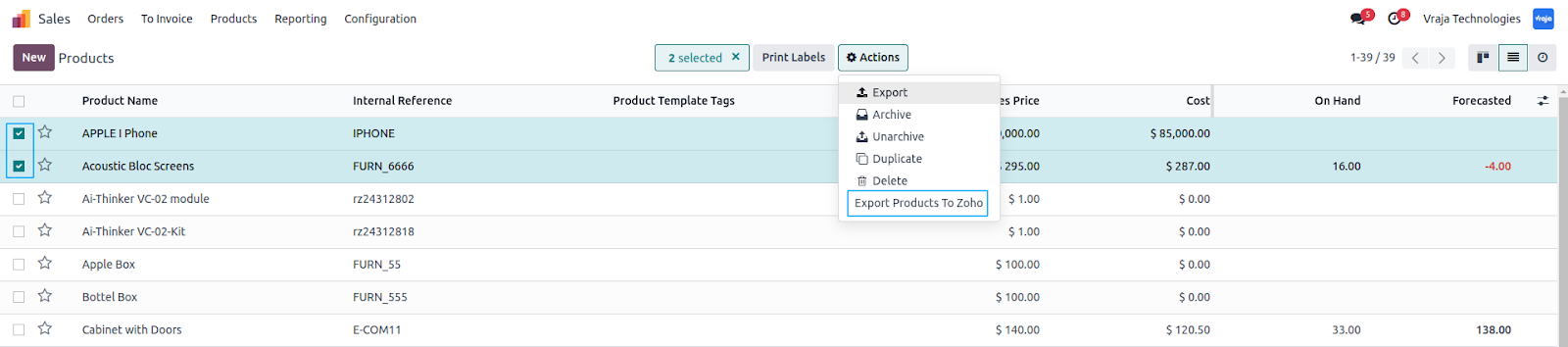
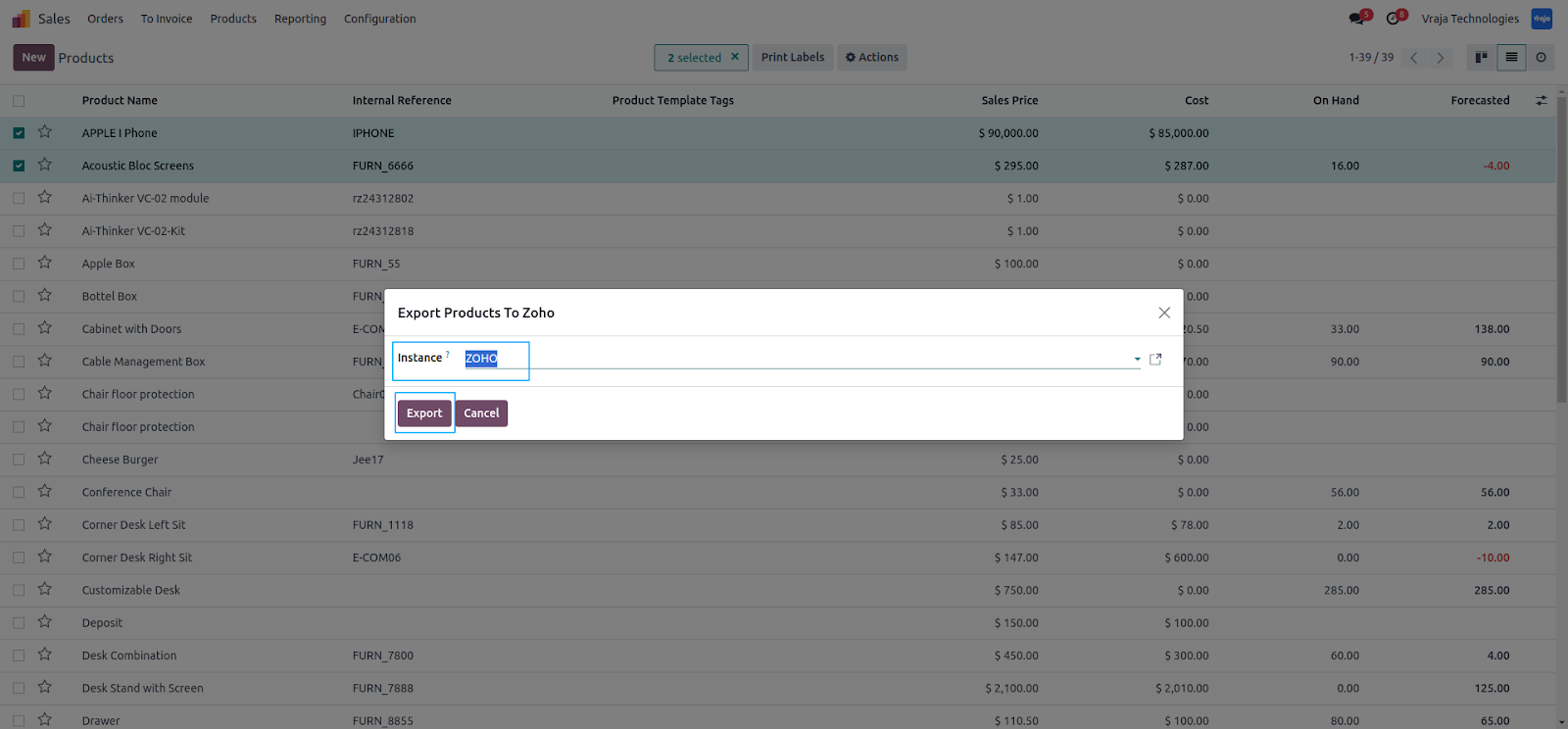
If you want to export the individual products, the method is slightly different. You can select the products as you want and go to Actions > Click Export Products to Zoho.
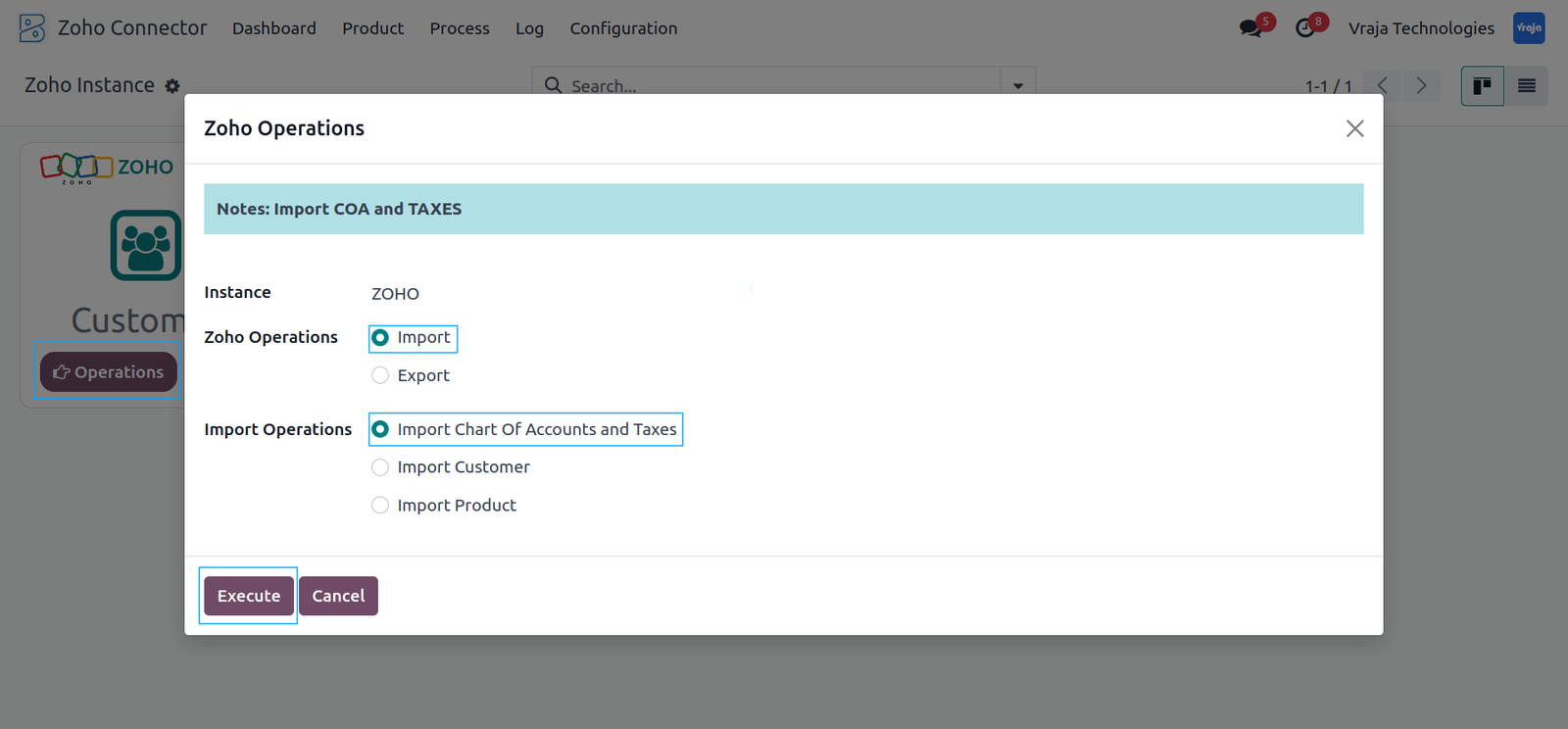
06 Import Chart of Accounts and Taxes: From Zoho Books to Odoo Database
To manually import the Chart of Accounts and Taxes, go to the Operations button and select the Import Chart of Accounts and Taxes option. This will begin retrieving the data from Zoho to Odoo.

07 Export Chart of Accounts and Taxes: From Odoo Database to Zoho Books
To manually export the Chart of Accounts and Taxes, go to the Operations button and select the Export Chart of Accounts and Taxes option. This will start exporting the data from Odoo to Zoho.

08 Export Sale Order From Odoo to Zoho
You can export orders from Odoo to Zoho to keep both platforms synchronized for smooth business operations. Create a Sales Order, and Confirm the same.
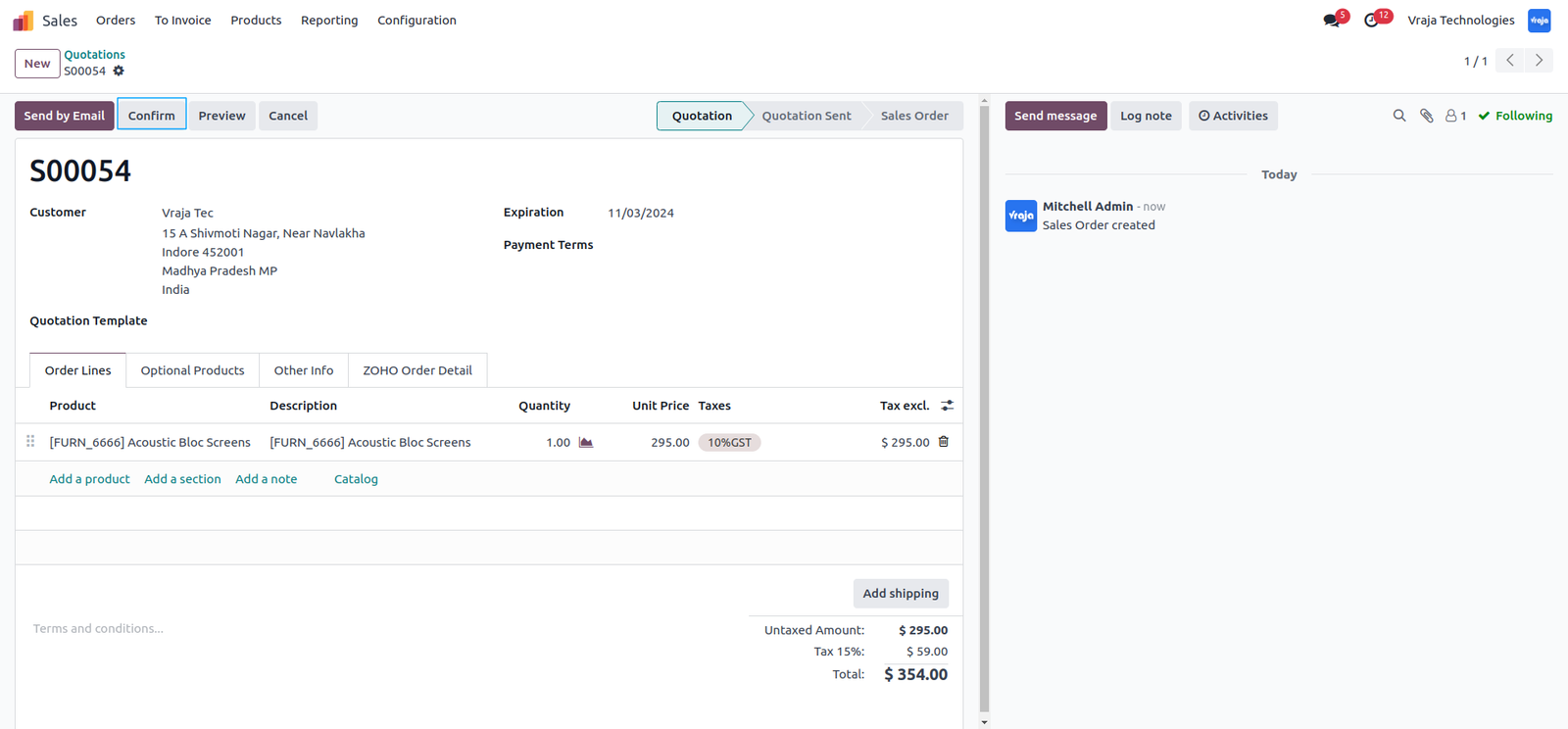
In cases where automation is not enabled, you can manually export the orders to Zoho by navigating to the Operations menu. -Select the Instance as Zoho for the order export process. -Once exported, the details of the order will be automatically populated in Zoho.
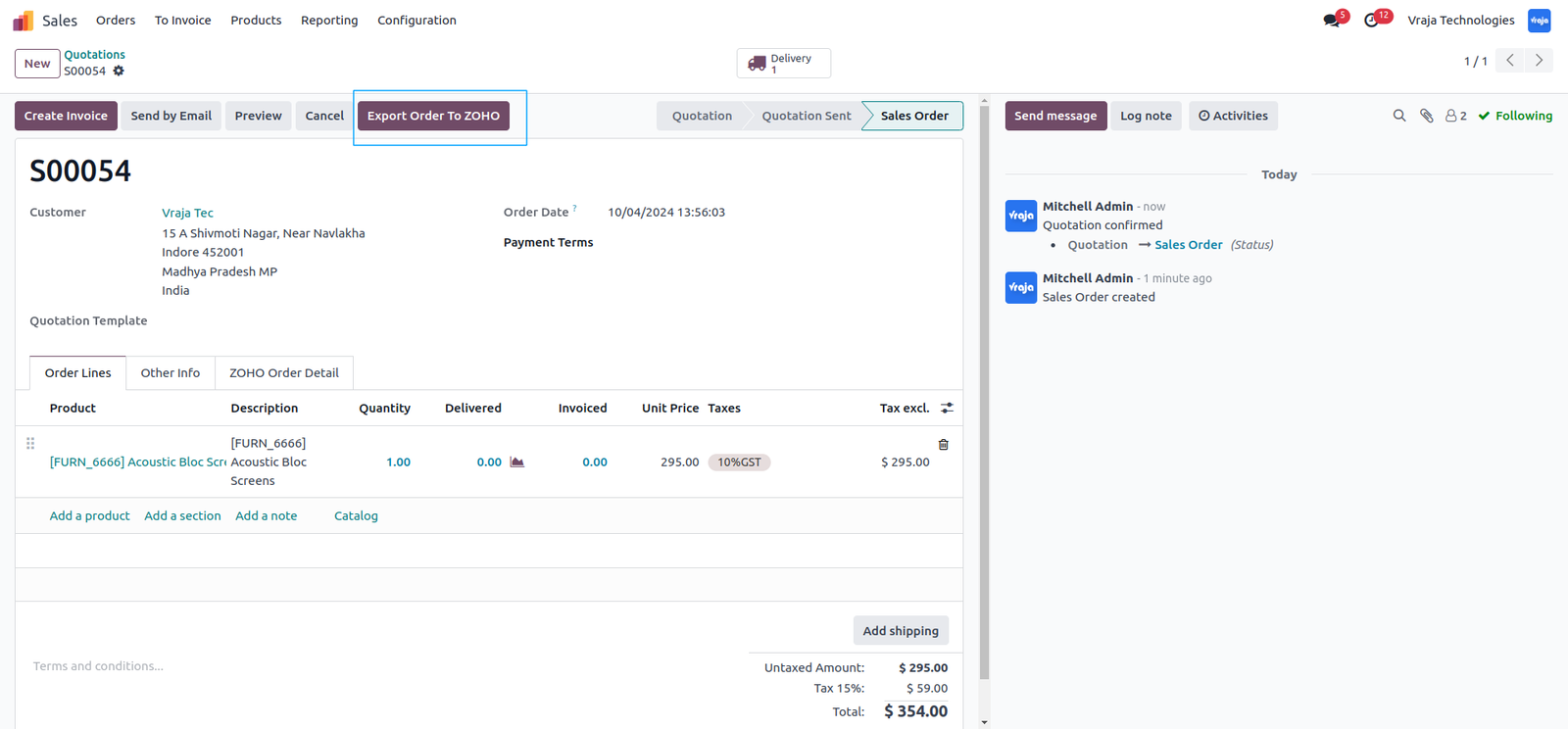
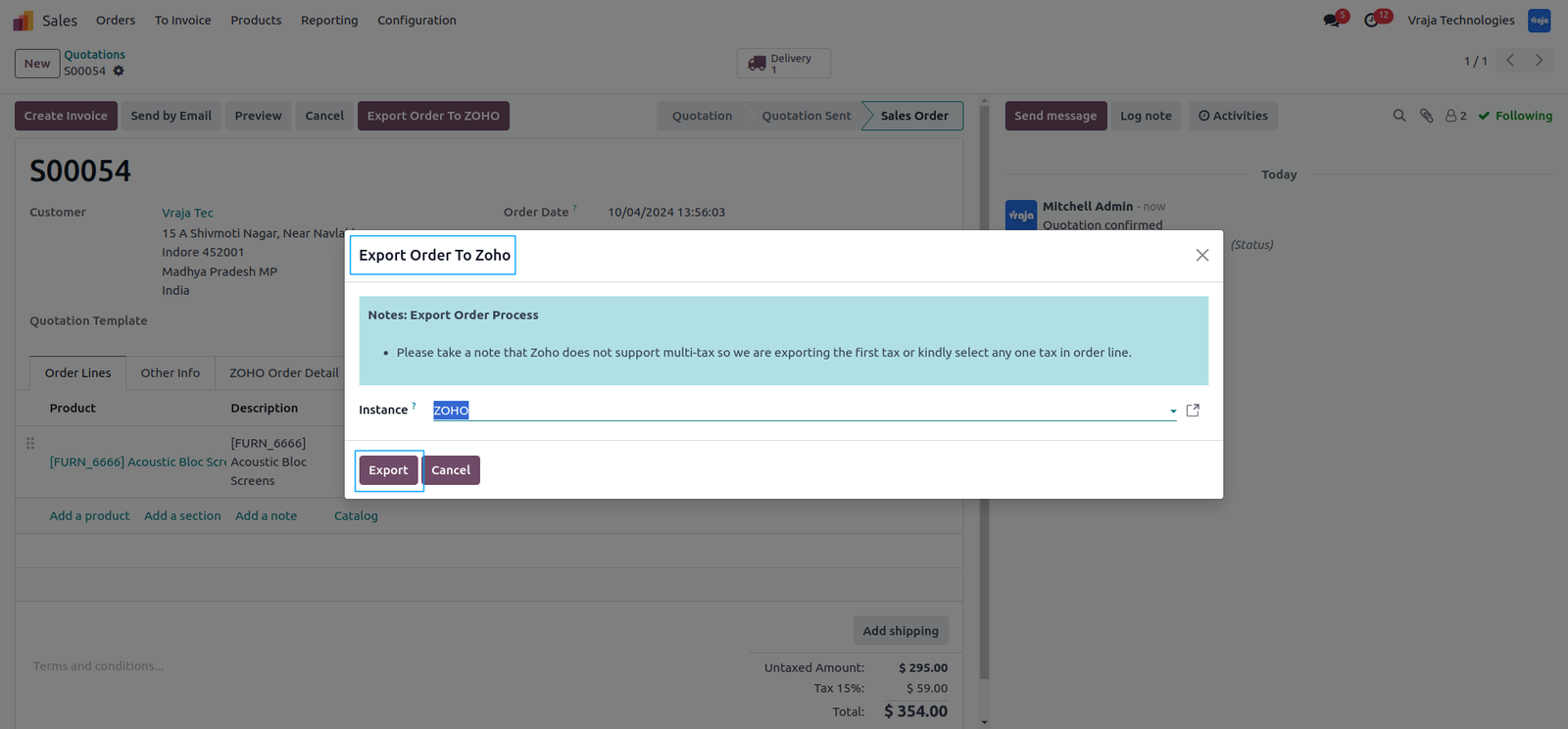
Once exported, Odoo Database will be synced with Zoho Order Number and Zoho Order Identification in Odoo.
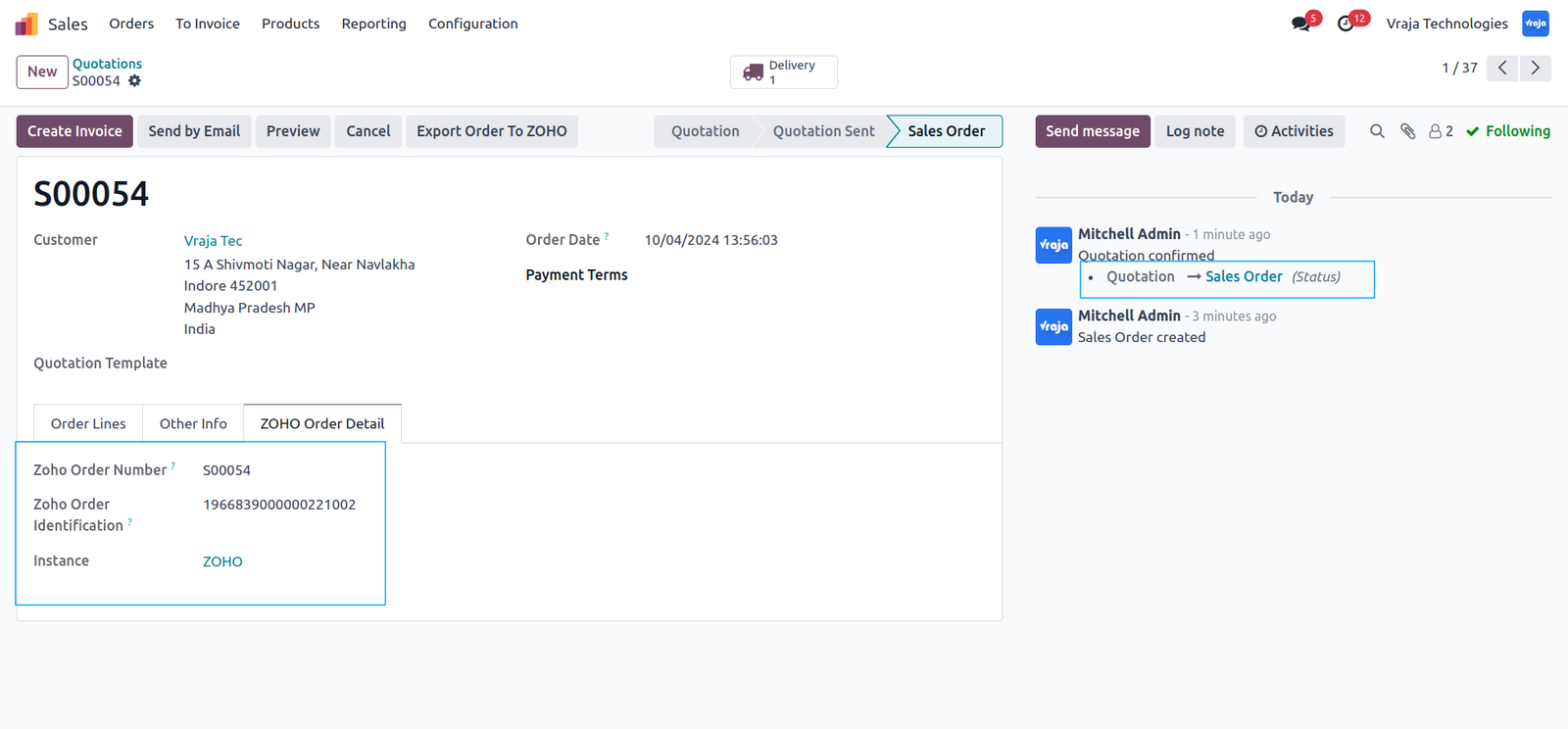
In Zoho, the exported orders will appear in a Draft state. You can review and finalize them as needed in Zoho’s dashboard.

09 Cancel Sale Order from Odoo to Zoho
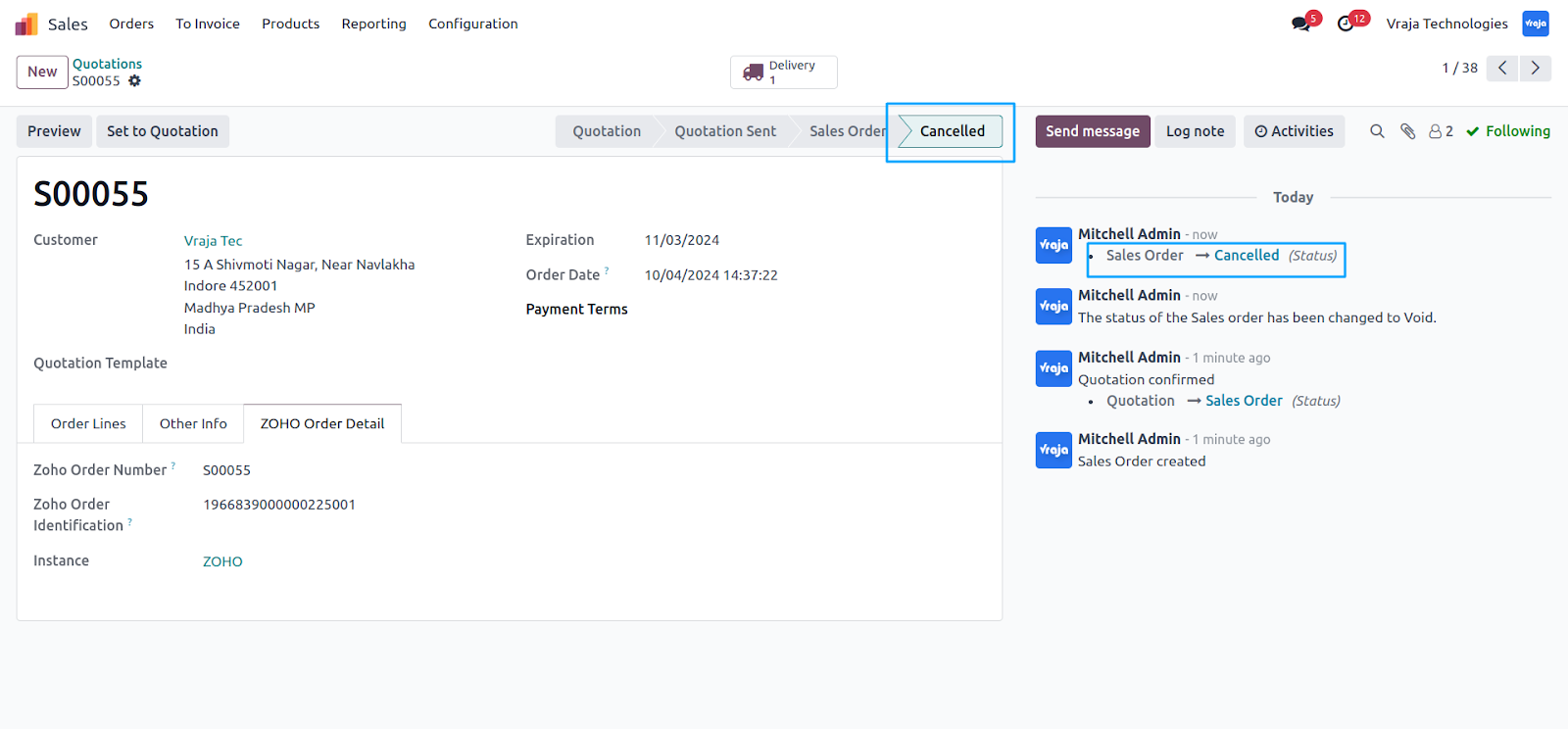
The orders once created can only be canceled if Invoice and Payment is not registered. After drafting invoice and payment the order cannot be canceled from Odoo.

As we cancel the order, logs will be generated in Odoo.
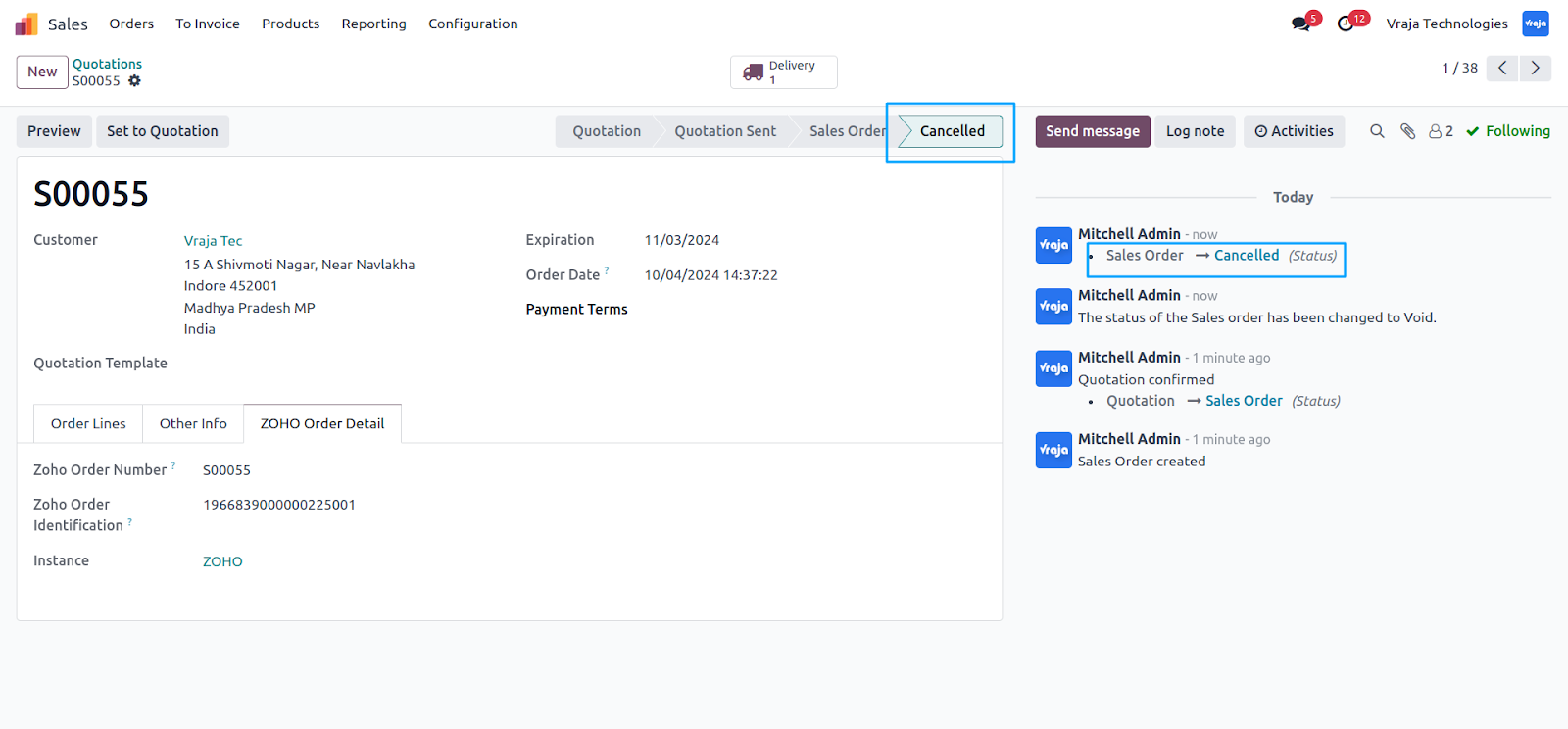
As an order is canceled in Odoo, it will be canceled in Zoho as well and it will be marked as VOID.
10 Export Invoice from Odoo to Zoho
After creating a sales order in Odoo, you can directly generate a draft invoice from it. In the export instance, ensure ZOHO is selected.

Once the export is done, the invoice will be linked to the corresponding sales orders, with all details like Zoho Invoice Number and Zoho invoice identification will be populated.

In Zoho, the invoice will appear under the Invoice section, reflecting the exported data.

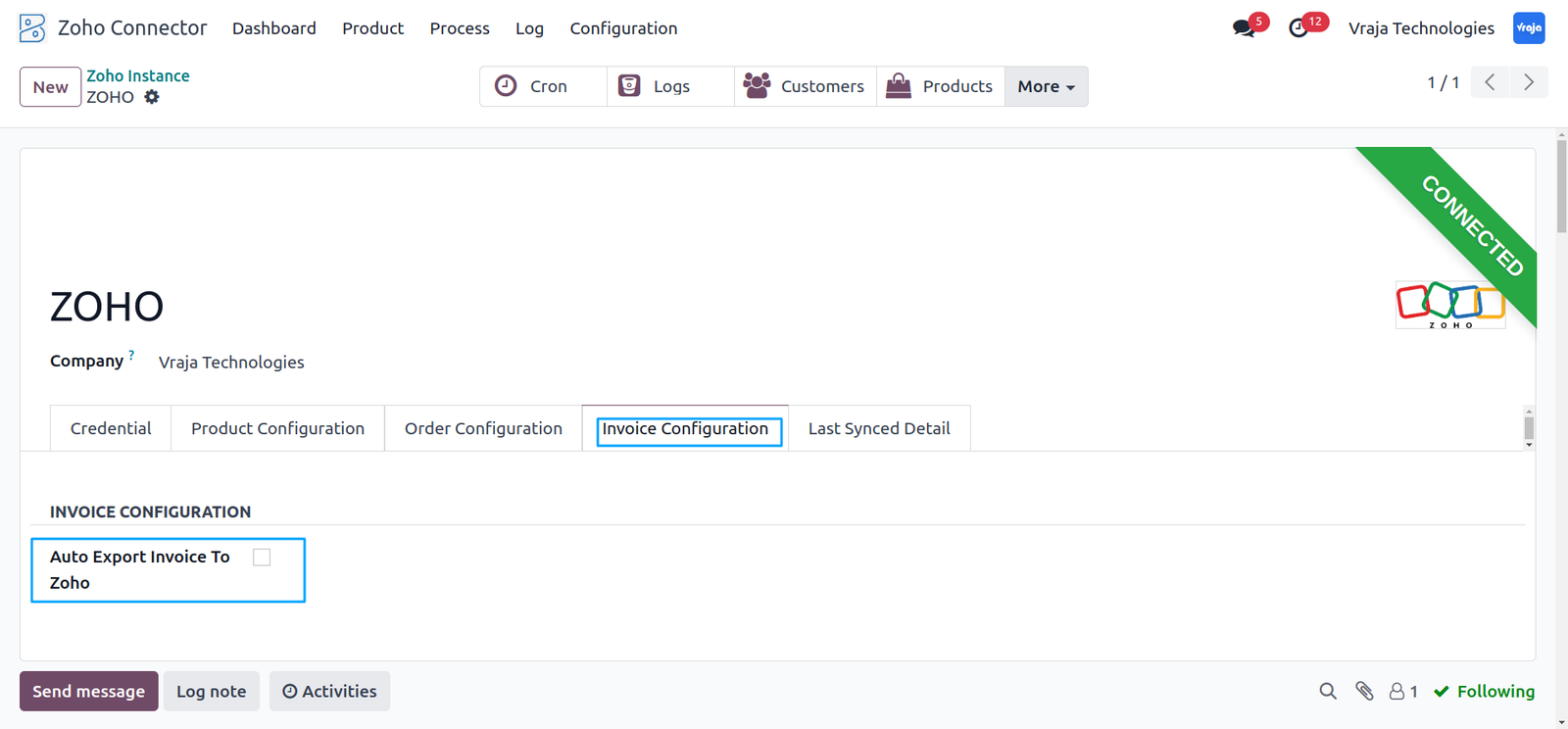
If invoice automation is configured, invoices will be automatically exported to Zoho without any manual action required.
11 Payment Process From Odoo to Zoho
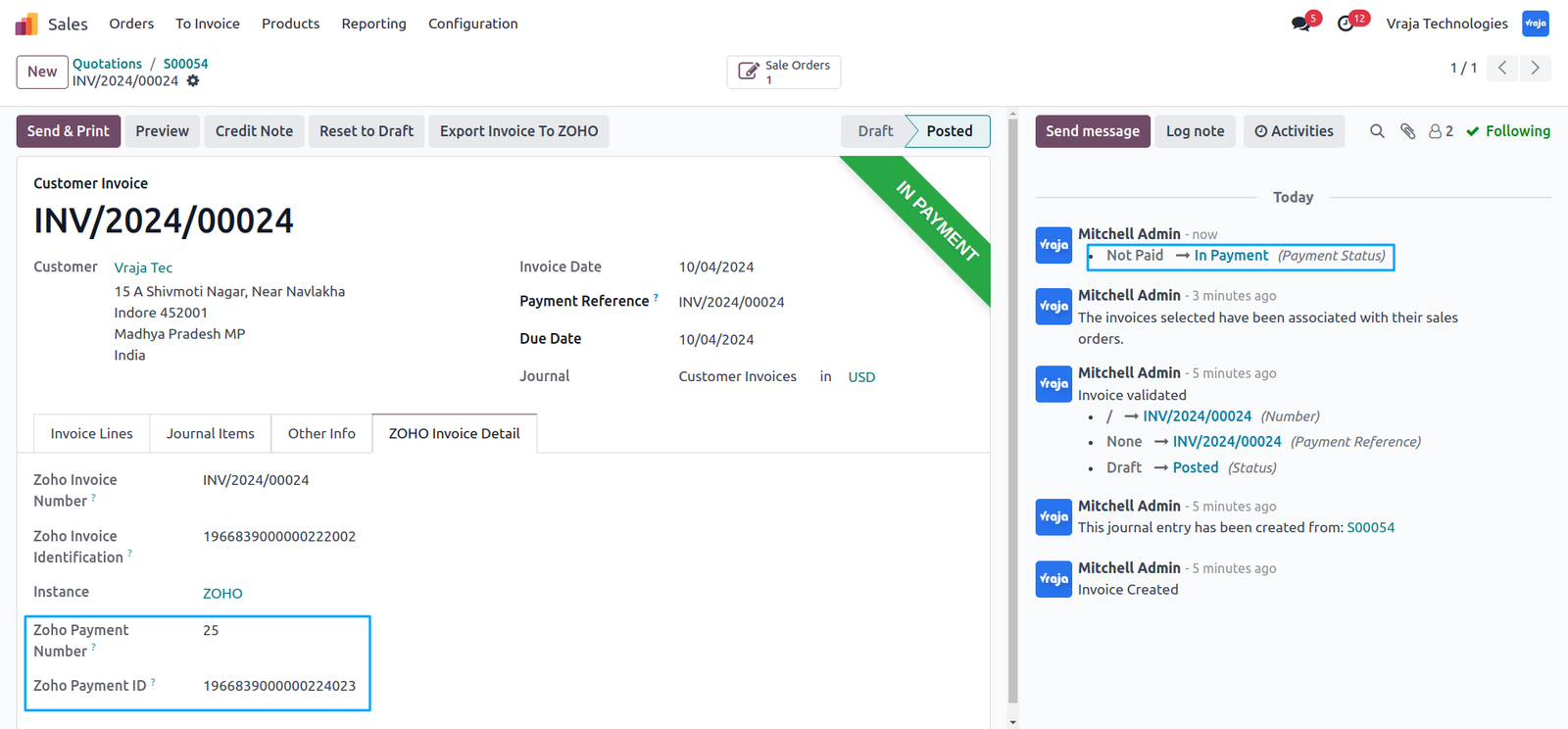
Register Payment in Odoo and Create Payment to sync with Zoho.

Once it is synced, the Zoho Payment Number and Payment ID will be seen in Odoo.
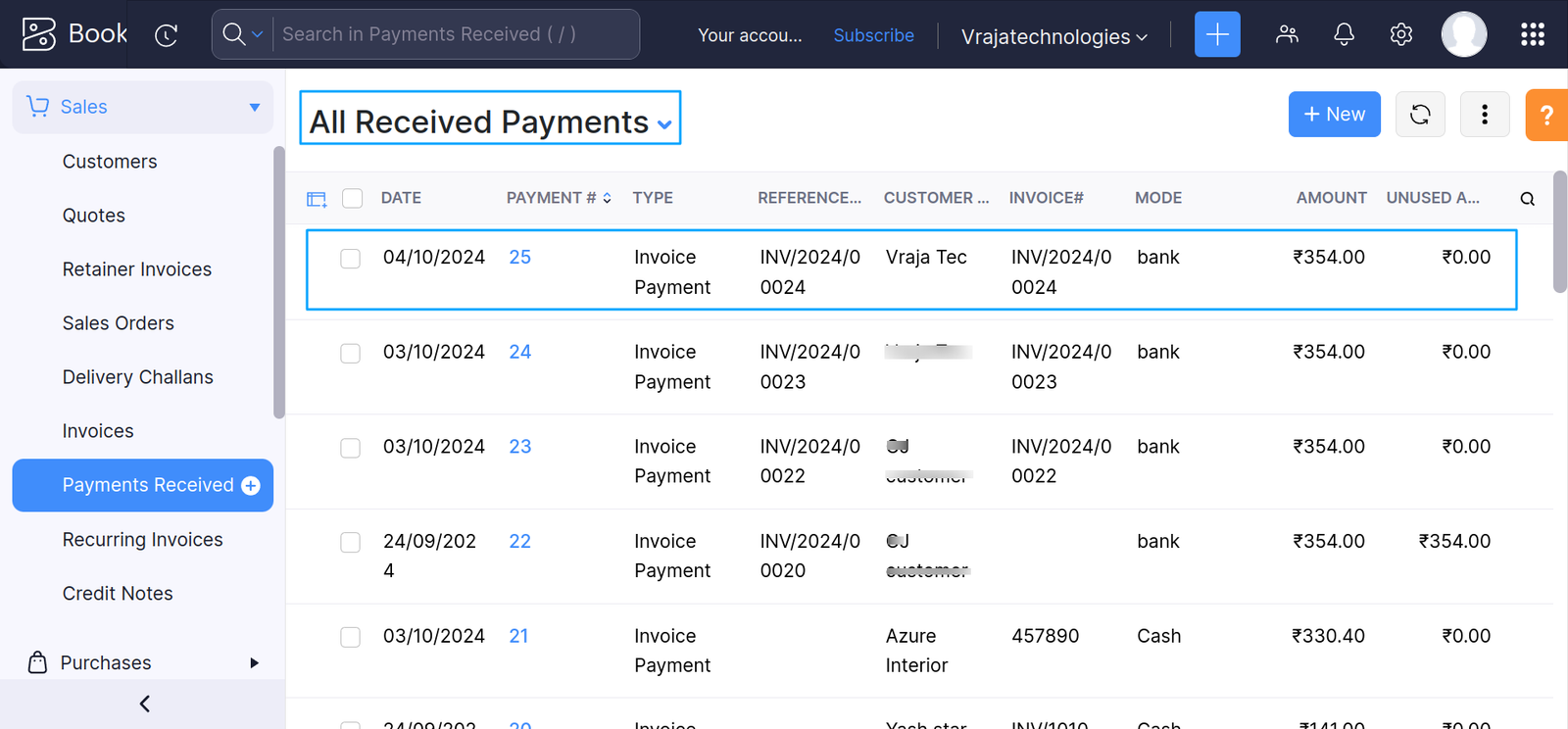
In Zoho, go to the Payments Received section, payment will be reflected.
|
|
I need an extra customization in this application, how can I get it?Yes, you can contact us on support@vrajatechnologies.com or can schedule a DEMO with our team to customize additional features. |
|
|
How does the integration work?The integration works through APIs, allowing seamless communication between Odoo and this connector without the need to navigate to the user dashboard. This ensures a smooth experience when managing shipping tasks directly from Odoo. |
|
|
Is the application compatible with Odoo Enterprise and Community?Yes, this application module is supported by both. It is also compatible with test and production environments. |
|
|
Can I modify the delivery address once it is generated?No, the delivery address cannot be modified once the label is generated. |
|
|
Do I get free upgrades and support if I purchase this application?If there is a bug or any issues, our team will be there to help you out. If you need to add any new features, you will need to upgrade the application. |
|
|
Is technical knowledge required to set up the integration?While some technical understanding may be helpful, the integration is designed to be user-friendly. Detailed documentation and support may be provided to aid in the setup process. |
|
|
Is this free customization and implementation?Our team has produced a support video that guides you through the implementation process step by step. If you encounter any issues, please feel free to contact us for assistance. |
|
|
Does the module support Dropship Workflow?No, it requires customization according to your specific needs which we will take into consideration. |
|
|
Is it possible to generate labels for incoming orders?No, this would require customization based on your specific requirements. |
|
|
Are upgrades free when the API provider makes changes?Yes, they are for free. |
|
|
Included App Support90 Days Complimentary Support for Supported Versions If you encounter issues caused by the app itself, our team provides complimentary support for 90 days from the date of purchase for supported Odoo versions. |
Included App Support
90 Days Complimentary Support for Supported Versions
If you encounter issues caused by the app itself, our team provides complimentary support for 90 days from the date of purchase for supported Odoo versions.

Customer SupportNeed help with installation, configuration, technical issues, or general questions about the module? Submit a support ticket through our dedicated support portal. |
||
|
Support Portal
vrajatechnologies.com/helpdesk
|
Support PolicyReview our support policy for complete information about support coverage, issue eligibility, exclusions, version compatibility, and other support conditions. |
||
|
Support Policy
vrajatechnologies.com/support-policy
|
Scan for Support
|
||
|
Support Portal
vrajatechnologies.com/helpdesk
|