
Description
.png)
 Enterprise Community Odoo.sh
ANSI X12 EDI Odoo Integration (Supplier)
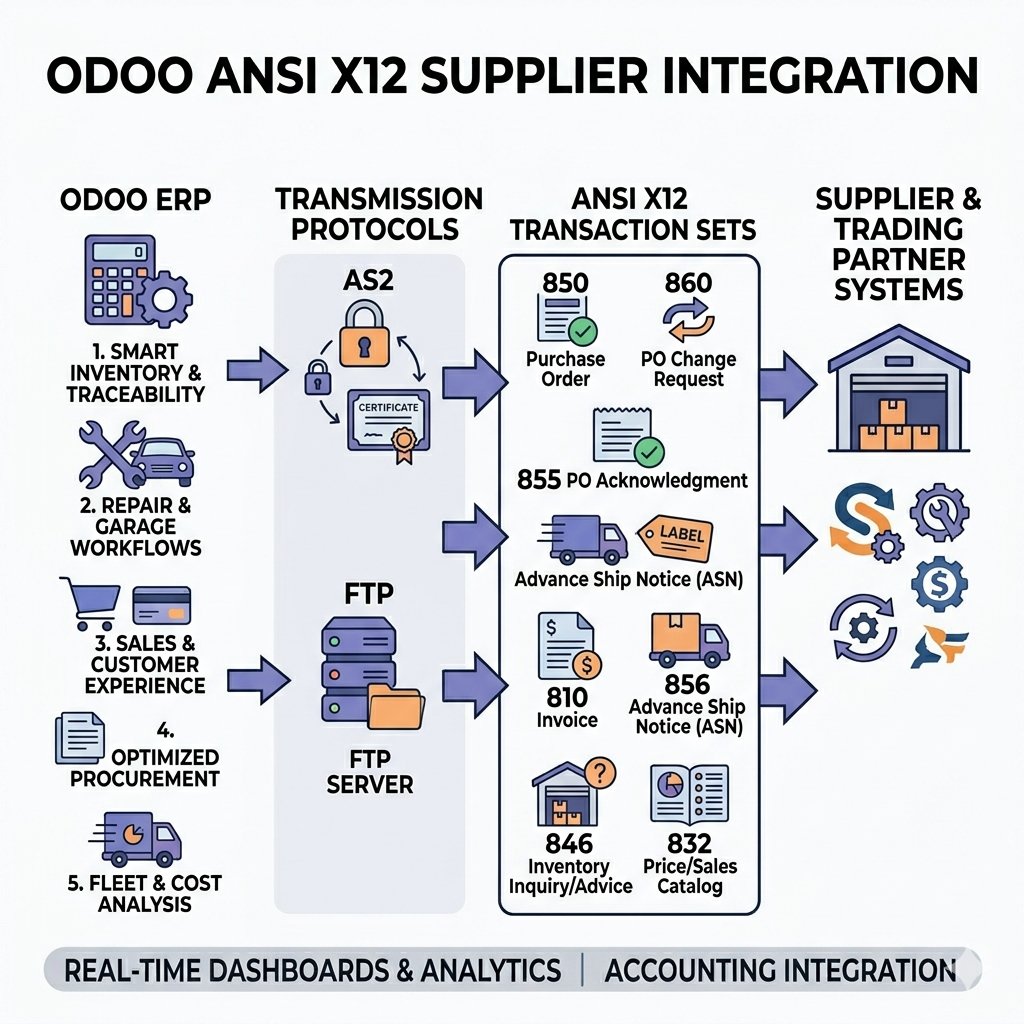
The ANSI X12 EDI Odoo Integration (Supplier Side) automates the exchange of business documents between Odoo and trading partners, improving efficiency and reducing manual work. It supports the import of Purchase Orders (EDI 850) and Purchase Order Changes (EDI 860), creating and updating Sales Orders in Odoo. Based on updates, orders can be auto-confirmed and Purchase Order Acknowledgments (EDI 855) are sent back to customers.On the outbound side, it enables sending Advance Ship Notices (EDI 856), customer invoices (EDI 810), Sales Pricelists (EDI 832), and Product Inventory (EDI 846) to share the latest stock availability with customers.This integration follows ANSI X12 standards and supports AS2 and FTP protocols and ANSI(4010) format, ensuring secure and reliable data exchange with trading partners.
We specialize in delivering advanced Odoo solutions across multiple domains. Our expertise includes:

EDI & SWIFT/ACH Payment Integrations
End-to-end EDI automation, including X12, EDIFACT, XML standards, & financial integrations such as SWIFT, ACH, & Fedwire.


eCommerce Integrations
Seamless integration with leading eCommerce platforms to sync products, orders, inventory, and customer data in real time.

Shipping Integrations
Robust shipping connectors for global couriers, offering automated label generation, tracking, and rate computation.

Most Useful Apps for your ERP
A wide range of highly-rated Odoo modules designed to enhance automation, improve productivity, & simplify business operations.
 Features
 FTP Process
 AS2 Process
 FAQs
FAQs
 Import Purchase Orders (EDI 850) and create Sales Orders in Odoo.
Update Sales order from Purchase Orders (EDI 860) in Odoo.
Export Purchase Order Acknowledgement (EDI 855) -> send PO ack directly from Odoo.
Export Advance ship notice (ASN) (EDI 856) -> send Delivery order from Odoo.
Export Bills (EDI 810) -> send Customer Invoices from Odoo.
Export Sales Pricelist (EDI 832) -> send Sales Pricelist from Odoo.
Export Product Inventory (EDI 846) -> send latest stock availability with customers.
Supports AS2/FTP communication protocols and ANSI(4010) format for secure and reliable data transfer.
Import Purchase Orders (EDI 850) and create Sales Orders in Odoo.
Update Sales order from Purchase Orders (EDI 860) in Odoo.
Export Purchase Order Acknowledgement (EDI 855) -> send PO ack directly from Odoo.
Export Advance ship notice (ASN) (EDI 856) -> send Delivery order from Odoo.
Export Bills (EDI 810) -> send Customer Invoices from Odoo.
Export Sales Pricelist (EDI 832) -> send Sales Pricelist from Odoo.
Export Product Inventory (EDI 846) -> send latest stock availability with customers.
Supports AS2/FTP communication protocols and ANSI(4010) format for secure and reliable data transfer.
Upon Installing the application, you can see the FTP/SFTP Syncing menu.

First, fill in all the
required FTP configuration fields on the left side, and on the right side,
configure the file paths for import and export, including Sender ID,
Pricelist, Customer, and Inventory Export paths.
After filling in all the details, test the connection to ensure it is working
correctly.

Once the connection is
successful, click on the “Create Automatic Job” button to generate the
scheduled action (cron job) for automatic import and export of files.

These are your schedule actions for importing or exporting file and process them accordingly.

This is where you have to give partner’s ID to reflect in import/export format.

This the schedule action you have to run to import the purchase order (850/860) in order to create/update the sales order in the Odoo.

After successfully running the schedule action, you can see the newly created sales order and file attached to it form which that sales order was created with the FTP used to import the file.

If you have 860 for that order, upon importing the 860, changes are updated in the sales order from that file and Quotation becomes the Sales order. Immediately after that 855 (PO Acknowledgement) will be export to the FTP. You can view the import/export file in the chatter area.

You can export the Delivery Order as well upon validating the DO.

After validation, you can see the exported file to the chatter area and FTP used to export the file.

You can export the Customer Invoice as well upon confirming the Invoice.

After confirmation, you can see the exported file to the chatter area and FTP used to export the file.

You can export Sales Pricelist form the Sales Menu as well to the FTP.

You have to select the FTP form the wizard field to export the file to that FTP.

You can see the exported file in the chatter area with the FTP used to export that file.

To export product
inventory, you must set a related partner on the product. The inventory will
be exported only for that partner, ensuring the correct data is sent to each
trading partner.

A scheduled cron job
automatically exports inventory in ANSI X12 846 format to the configured FTP
location. sending accurate product and stock data to trading partners.

You can view all import and export logs, including success and failure details, in the Log Details section of the FTP/SFTP Syncing module.

Upon successfully installing the application you can see the FTP/SFTP/AS2 Syncing menu.

First, you have to enable the Pricelists from the sales configuration menu and save it.

AS2 (Applicability Statement 2) Configuration
If you would like to use the AS2 protocol please follow steps below.
Your Configuration
- Your GLN Number: Enter your company’s unique GLN (Global Location Number). This number identifies your organization in EDI communication. Maximum length is 13 digits.
- Certificate Validity (Days): If you are generating the certificate from the button, then you have to enter the validity of the Certificate. In simple terms, for how much period of time you want this certificate to be valid?
- Your Certificate: You have to either upload the certificate along with the private key. If you do not have the public/private keys then you can generate them with given “Generate your Certificate & Key” button.
- Your Private Key: You have to upload the private key if you have. If not then, you can generate the key-pair from given “Generate your Certificate & Key”button.
Partner Configuration
- Partner: Select the partner (customer or supplier) for whom the AS2 configuration is being created.
- Partner’s GLN Number Enter the partner’s GLN (Global Location Number) used to identify them in EDI transactions.
- Partner’s URL: Enter the URL provided by the partner. This URL is used to send EDI messages through the AS2 protocol.
- Upload Partner’s Certificate: Upload the partner’s public certificate. This certificate is used to encrypt messages before sending them to the partner.
Export Data File Configuration
-
Encryption Policy:
Define how outgoing EDI messages should be secured.
The following policies are supported:
- Un-signed & Un-encrypted
- Un-signed & Encrypted
- Signed & Un-encrypted
- Signed & Encrypted
- Message ID Customisation: Specify a custom identifier to be included in the AS2 Message ID header.This helps partners identify the source system or sender of the message.
Import MDN Configuration
-
MDN Policy:
Defines how the system should handle Message Disposition Notifications (MDN).
- Supported policies:
- MDN Not Required
- Un-signed MDN Required
- Signed MDN Required
ANSI Supplier Side Configuration
- ANSI Default Pricelist: Select the default price list that will be used when generating EDI files related to product pricing.
- ANSI Export Inventory Location: Select the inventory location from which product stock quantities will be exported to the ANSI file.
EDI File Mapping
- Message Type: in which define the only ANSI import file message type. for example if purchase order import then acording ansi file format 850 or 860 is come in the edi file format. only need to define import file.


You have to create schedule actions for export inventory process. You can view the created Schedule Action from the smart button on top.

This is your created schedule actions.

From here, you can view the Purchase Order(850) imported from the customer, based on which the Sales Order is created in Odoo. You can also check the import message in the chatter for reference. Additionally, the related AS2 Source ID can be viewed from the “EDI AS2 ANSI” page.


If there are no Purchase Order changes (EDI 860), you can manually confirm the Sales Order, and the PO Acknowledgment (EDI 855) will be sent to the customer.
If there are changes in the Purchase Order (EDI 860), they can be imported from the customer. Based on those updates, the Sales Order in Odoo is automatically updated, confirmed, and a PO Acknowledgment (EDI 855) is sent back to the customer. You can also check the chatter messages for reference.

From the Delivery smart button, you can open the Delivery Order and validate it. Once the delivery is validated, the ASN (DESADV) is automatically exported, and the exported file is attached in the chatter for reference.


After confirming the Sales Order, you can create an Invoice using the Create Invoice button.After confirming the Invoice, the invoice is automatically exported. You can check the chatter, where the exported file is attached for reference.


From the Pricelist, click on the “Export Pricelist (ANSI)” button. This will open a wizard where you need to select Export through AS2 and choose the required AS2 Configuration. After selecting the configuration, click on the Export Pricelist button to export the pricelist. The exported file will be attached in the chatter for reference.


To export product inventory, you must set a related partner on the product. The inventory will be exported only for that partner, ensuring the correct data is sent to each trading partner.

A scheduled cron job automatically exports inventory in ANSI format to the configured AS2 partner. sending accurate product and stock data to trading partners.

you can see the logs under the log details menu for all the operations.

 Which protocol you have used to transfer file?
- We have used AS2/FTP protocol to transfer files.
Can we see the exported file? If yes, where?
- Yes, you can view or download the exported file from the message post as shown in the screenshots.
Do we get any confirmation or message after schedule action performs its tasks?
- Yes, we have managed logs for all the process whether it is export or import.
Can Purchase Order changes (EDI 860) update existing orders?
- Yes, PO changes are processed, and the related Sales Orders in Odoo are updated accordingly.
Can we export the Sales Pricelist ?
- Yes, you can export the Sales Pricelist from its form view.
Is inventory information shared with customers?
- Yes, Product Inventory (EDI 846) can be exported to share the latest stock availability with customers.
I would like to request a custom feature for this application. What’s the process to get it implemented?
- We’re happy to help tailor the application to meet your business needs! You can reach us via sales@vrajatechnologies.com
Who is the point of contact for technical support, configuration support or bug-related queries?
- You can reach us via support@vrajatechnologies.com
Submit a Support Ticket
If you encounter any issues while using our app that are caused by the app itself, we offer complimentary support for 90 days from the date of purchase.
To create a support ticket, please register via the Vraja Technologies Support Email and provide the necessary details so we can assist you in resolving the issue.

Email Us
support@vrajatechnologies.com

 1.png)
Contact Us
vrajatechnologies.com/contactus

Support
vrajatechnologies.com/support-policy
Vraja Technologies Services

Odoo Implementation

Odoo App Integration Services

Odoo Customization

Odoo Consultation

Odoo Support & Maintenance

Odoo Developer Outsourcing
Suggested Application




Reviews
There are no reviews yet.