
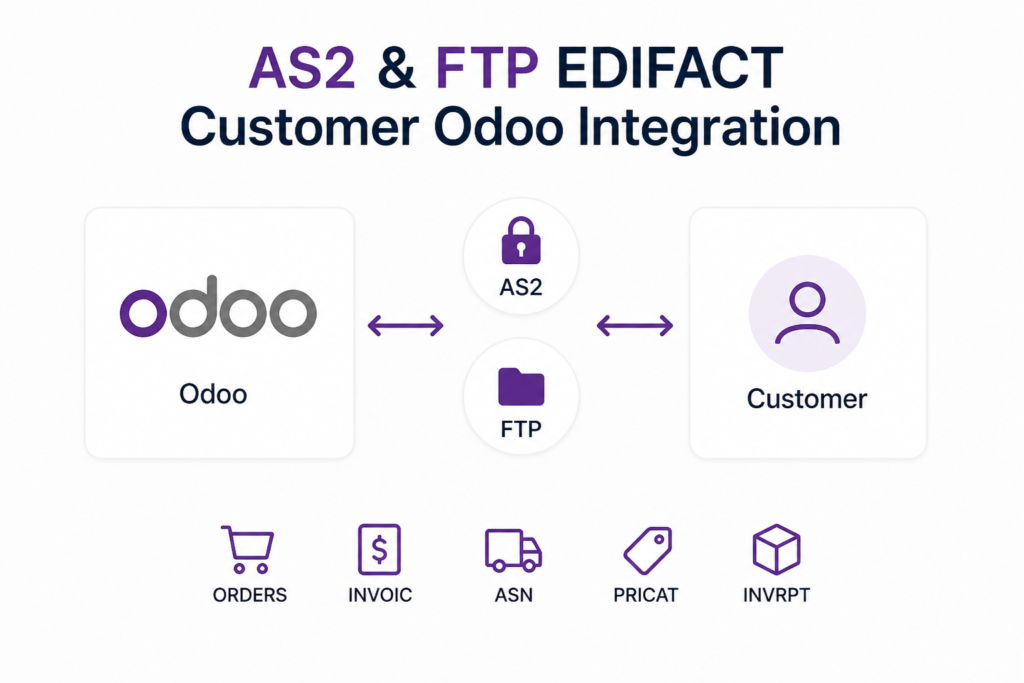
Description
.png)
 Enterprise Community Odoo.sh
EDIFACT EDI Odoo Integration (Customer Side)
EDIFACT EDI integration with Odoo on the customer side automates purchase order and vendor billing processes through seamless data exchange. It enables the export of Purchase Orders from Odoo and the automatic import of Vendor Bills to create Bills within the system. The integration also supports the import of Advanced Ship Notices (ASN), Sales Pricelists, and Product Inventory data, helping businesses receive shipment updates, pricing information, and stock availability from suppliers. Using the EDIFACT file format ensures standardized communication, while secure FTP/AS2 protocols provide reliable data transfer. This solution improves efficiency, reduces manual work, and enhances transaction accuracy between businesses and suppliers.
We specialize in delivering advanced Odoo solutions across multiple domains. Our expertise includes:

EDI & SWIFT/ACH Payment Integrations
End-to-end EDI automation, including X12, EDIFACT, XML standards, & financial integrations such as SWIFT, ACH, & Fedwire.


eCommerce Integrations
Seamless integration with leading eCommerce platforms to sync products, orders, inventory, and customer data in real time.

Shipping Integrations
Robust shipping connectors for global couriers, offering automated label generation, tracking, and rate computation.

Most Useful Apps for your ERP
A wide range of highly-rated Odoo modules designed to enhance automation, improve productivity, & simplify business operations.
 Features
 FTP Process
.png) AS2 Process
AS2 Process
 FAQs
FAQs
 Export Purchase Orders from Odoo.
Import Vendor Bills and create Bills in Odoo.
Import Advanced Ship Notice (ASN).
Import Sales Pricelist and create the vendor pricelist in odoo.
Import Product Inventory.
Utilize the EDIFACT file format (D96A) for seamless data exchange.
Supports FTP/AS2 communication protocols for secure data transfer.
Export Purchase Orders from Odoo.
Import Vendor Bills and create Bills in Odoo.
Import Advanced Ship Notice (ASN).
Import Sales Pricelist and create the vendor pricelist in odoo.
Import Product Inventory.
Utilize the EDIFACT file format (D96A) for seamless data exchange.
Supports FTP/AS2 communication protocols for secure data transfer.
Configuration
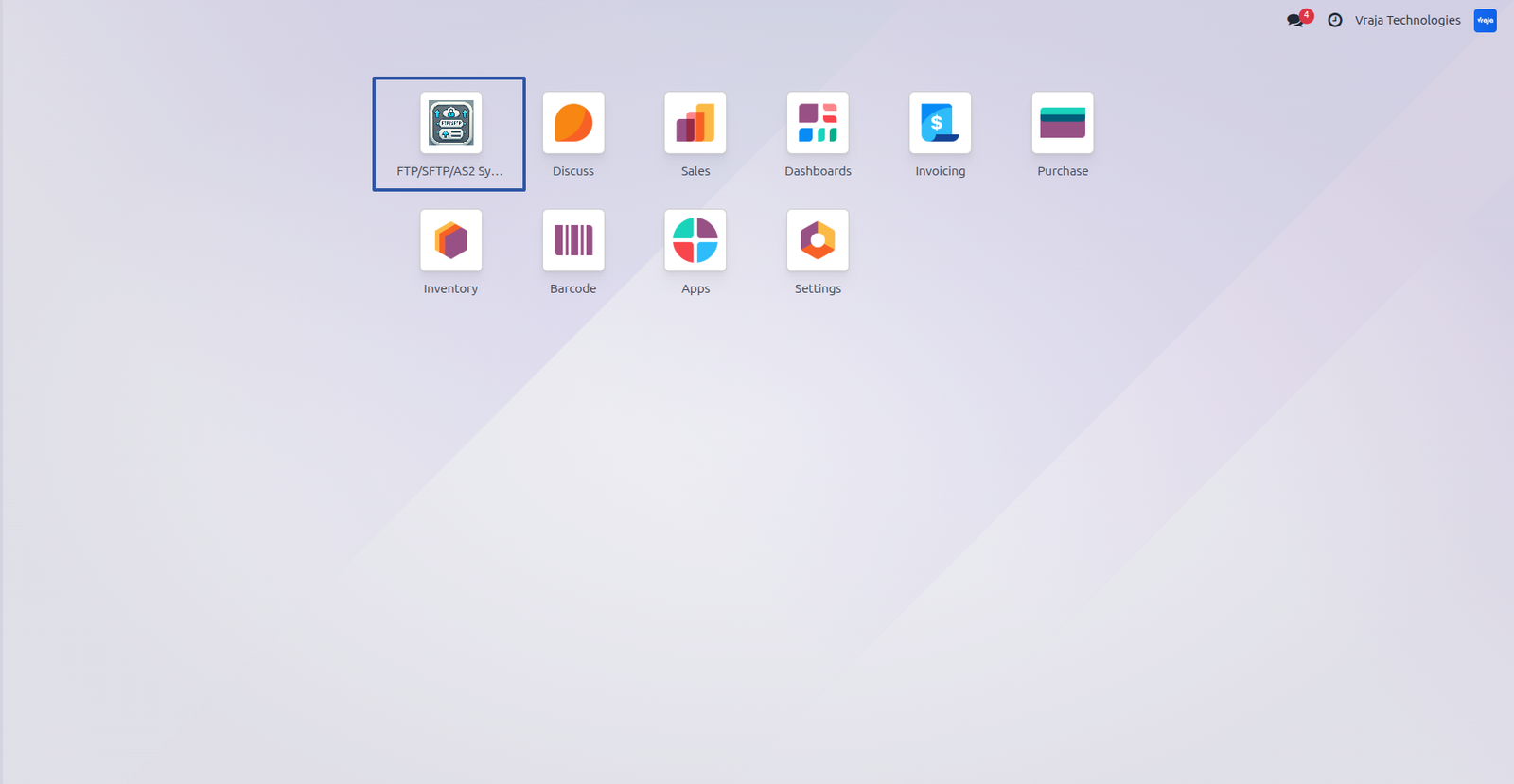
After installing the application, the FTP/SFTP/AS2 syncing menu becomes accessible.
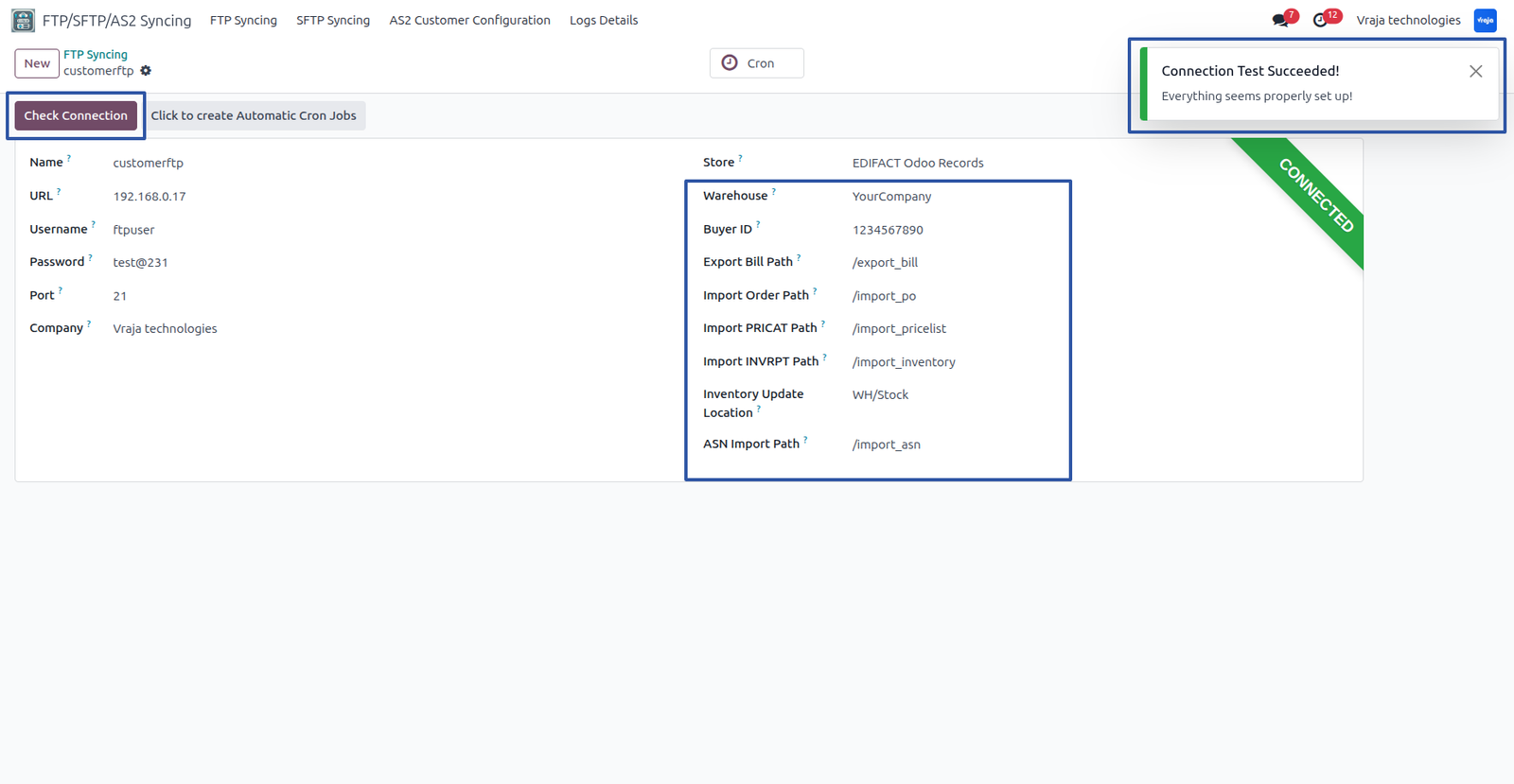
On this screen, enter the FTP credential details for server connection. Use the ‘Check Connection’ button to verify connectivity. Next, select the ‘EDIFACT Odoo Records’ store, specify the warehouse for order export, Buyer ID (Owner ID) which need to pass in export file, and define the server directory names for importing/exporting.
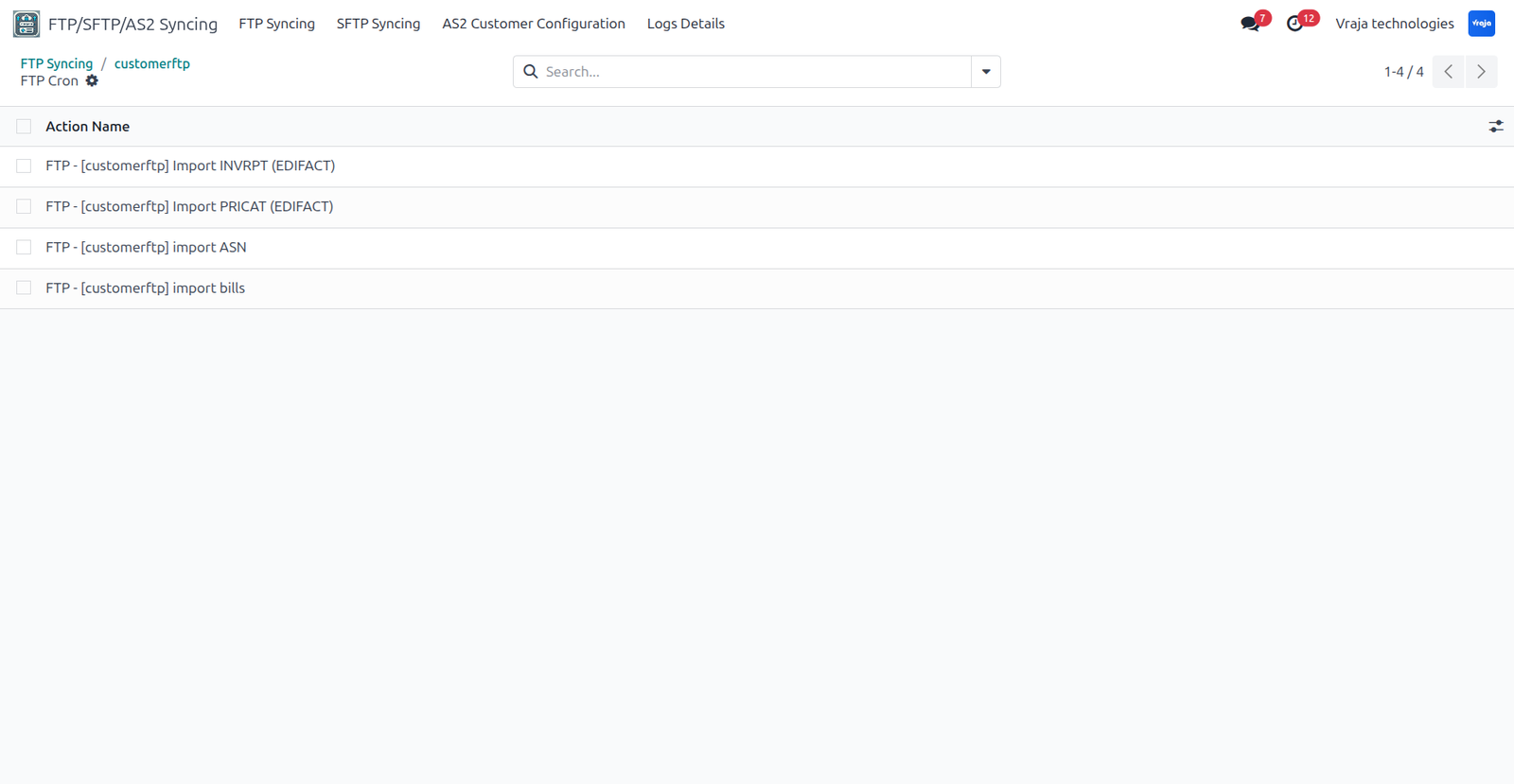
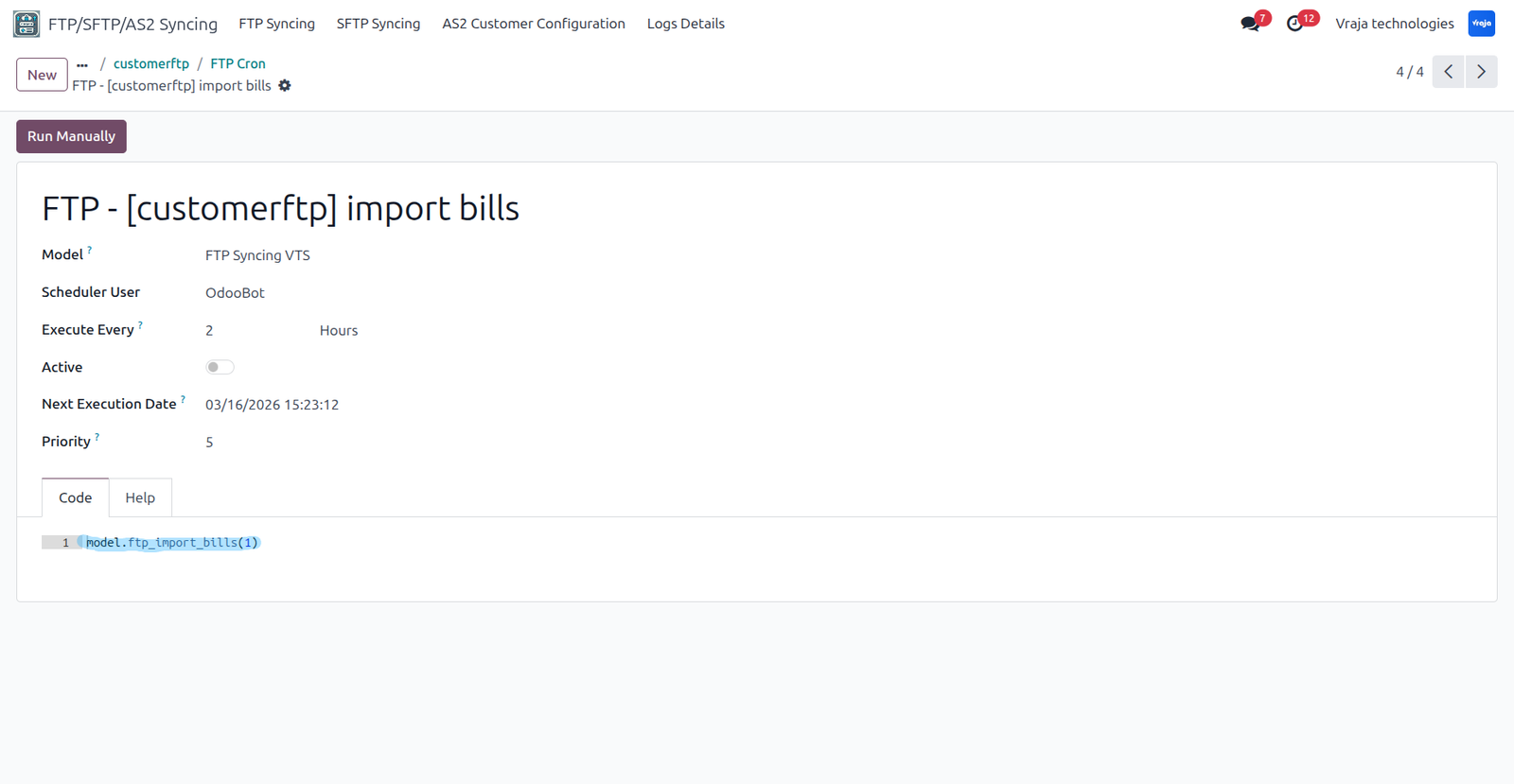
Once connected to FTP, click on the ‘Click to create automatic cron jobs’ button to generate a cron job for importing bills. You can access the cron job through the smart button.
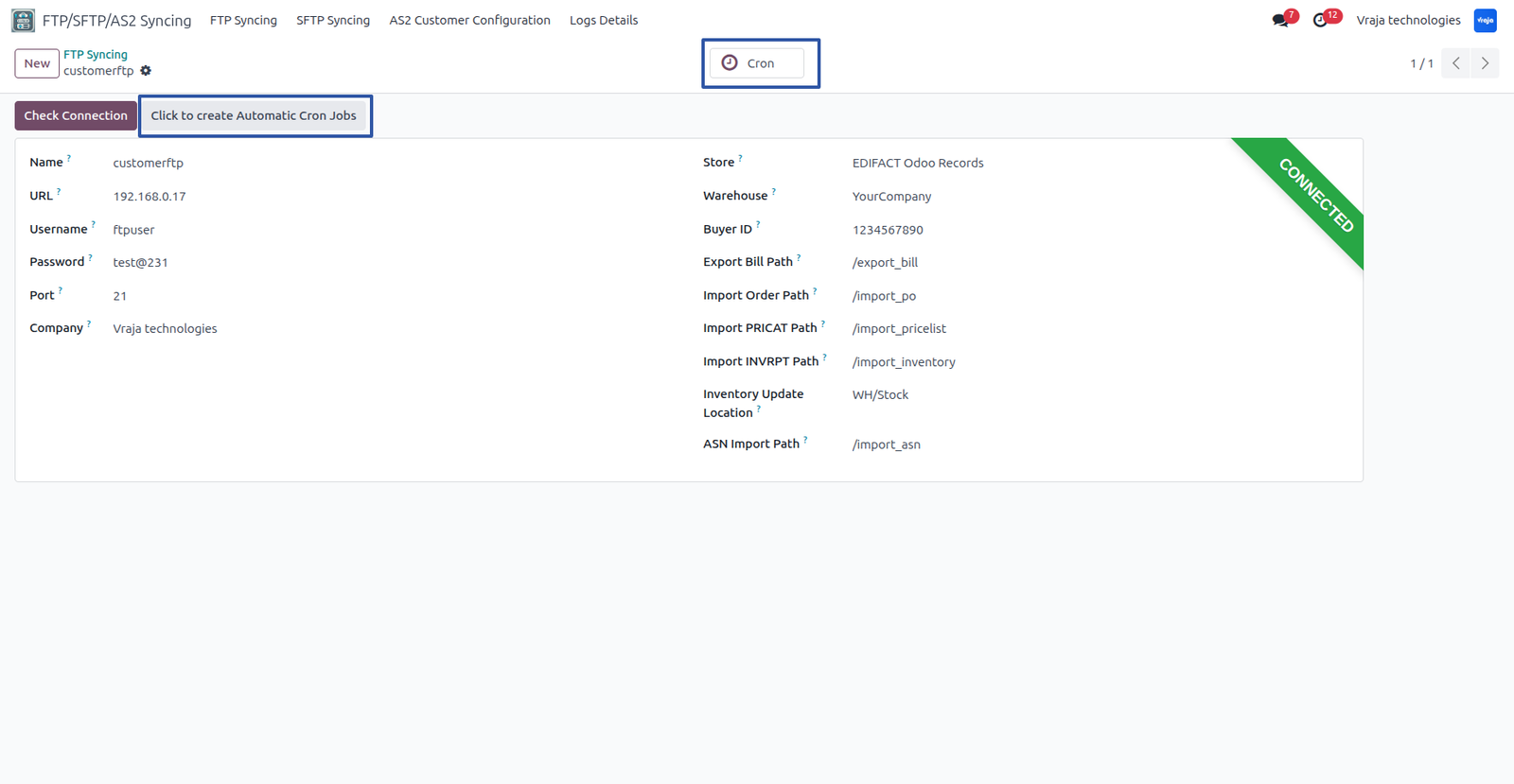
The scheduled action (cron job) is successfully created.
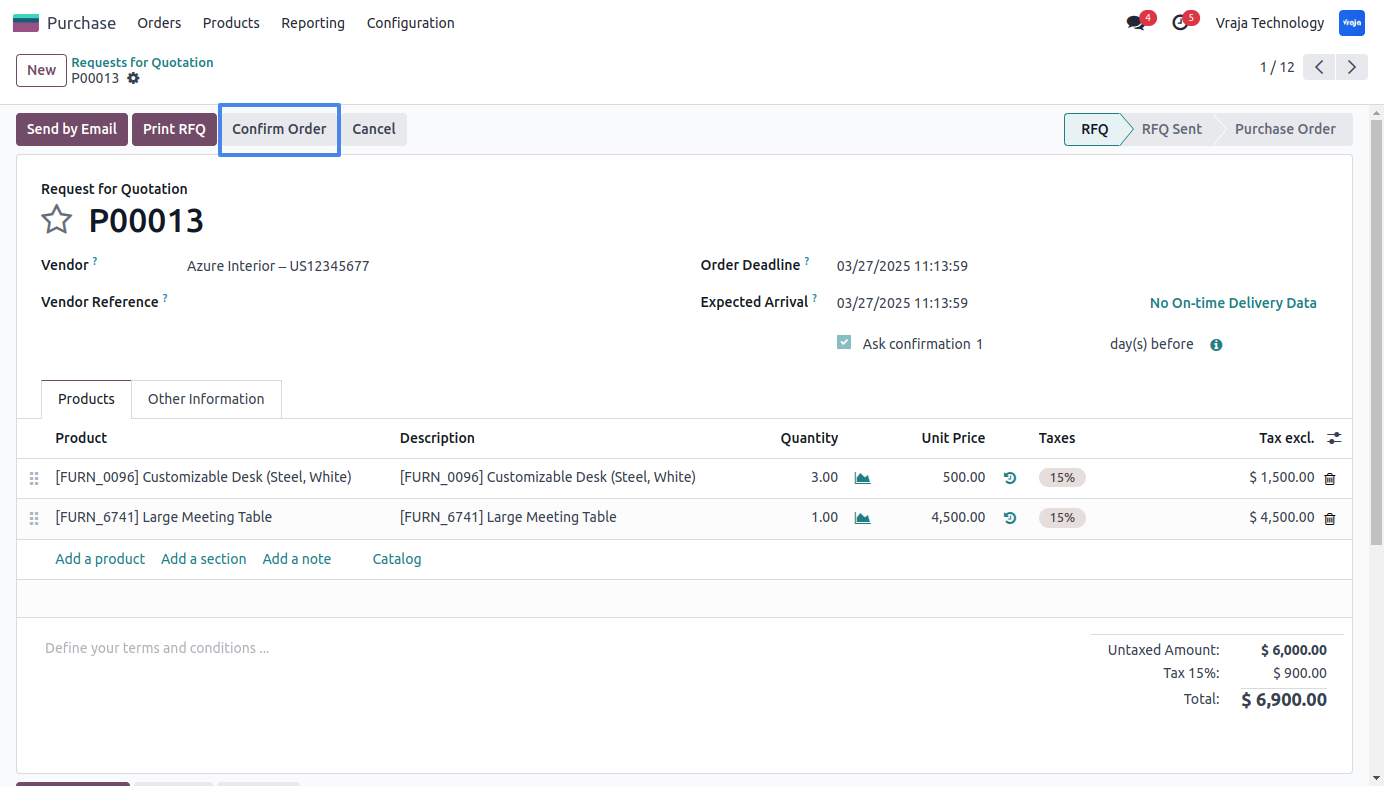
Export Purchase Order Process
To export a Purchase Order (PO), you need to click the ‘Confirm Order’ button.
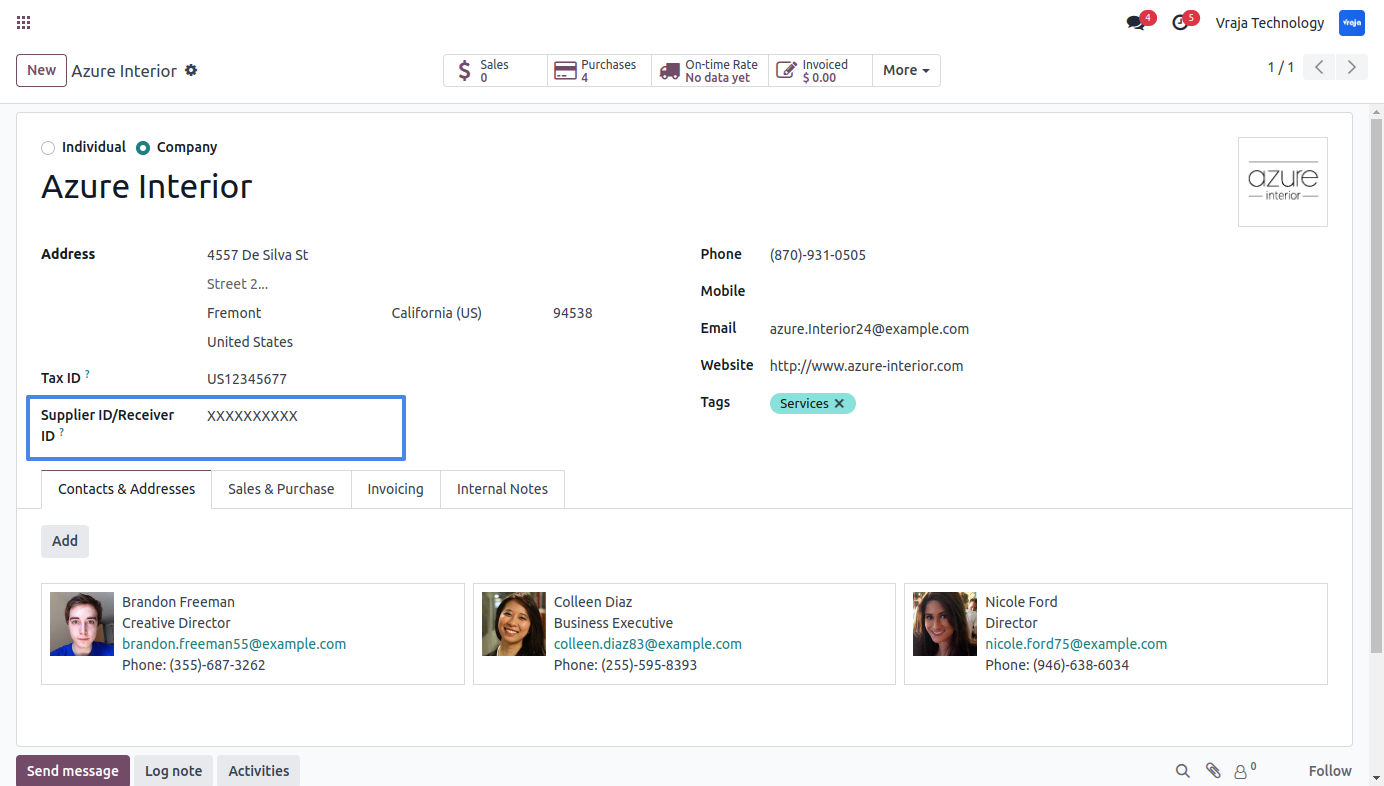
Before confirming, you have to set the ID for Partner to show in the EDIFACT format as a SupplierID.
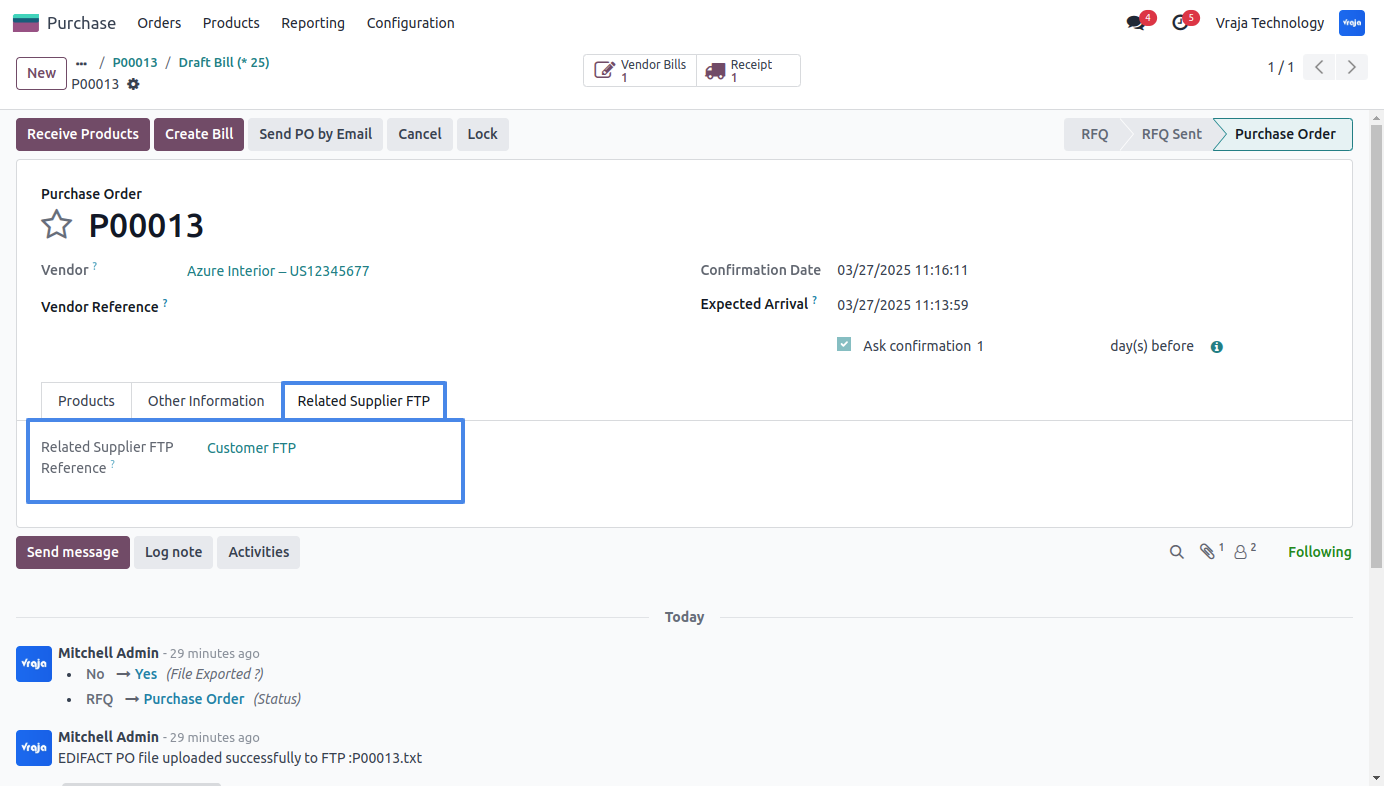
Upon confirmation, the PO is exported to FTP and attached to that record and you can see in chatter area.
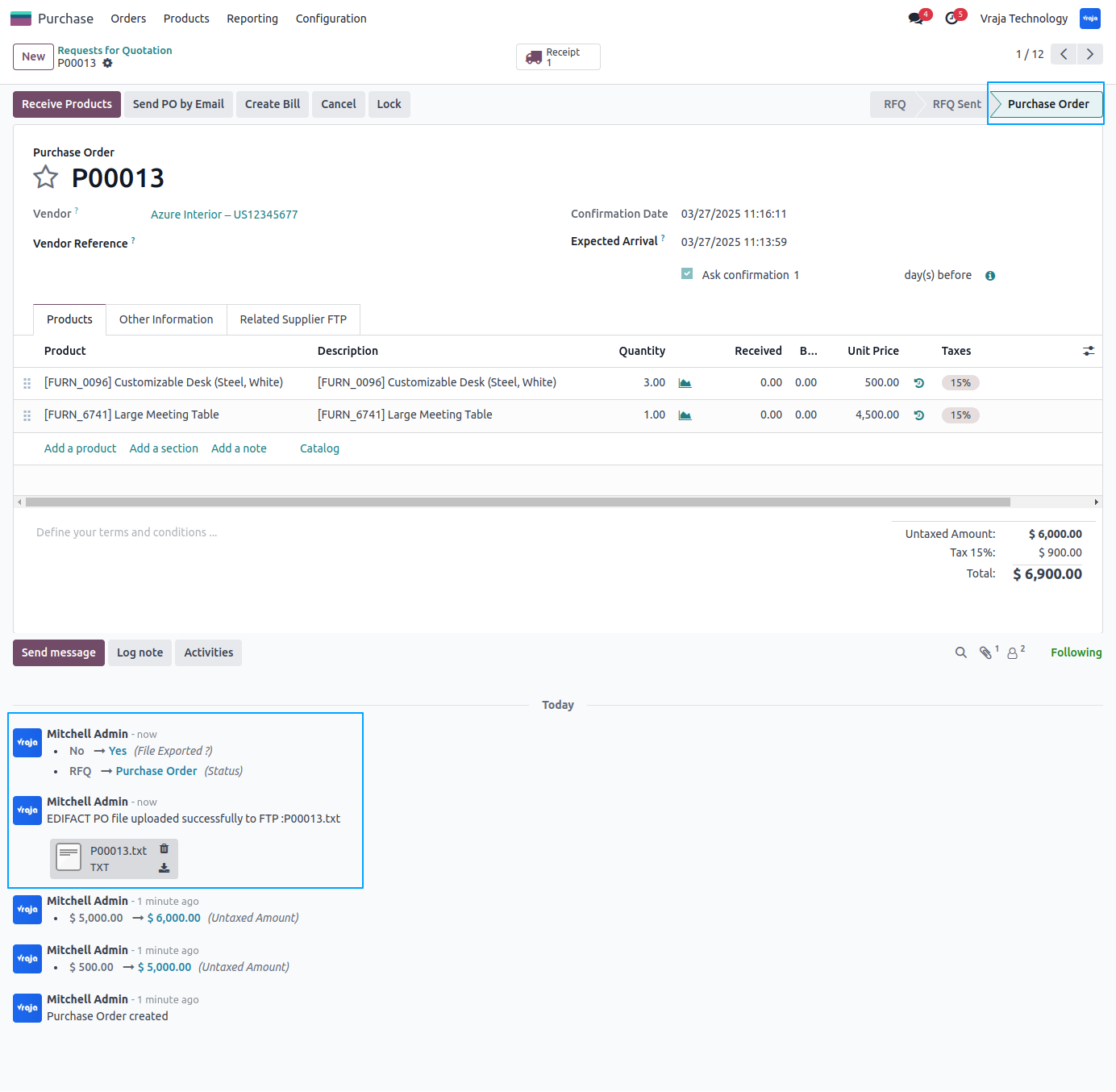
The exported file can be viewed as an attachment.
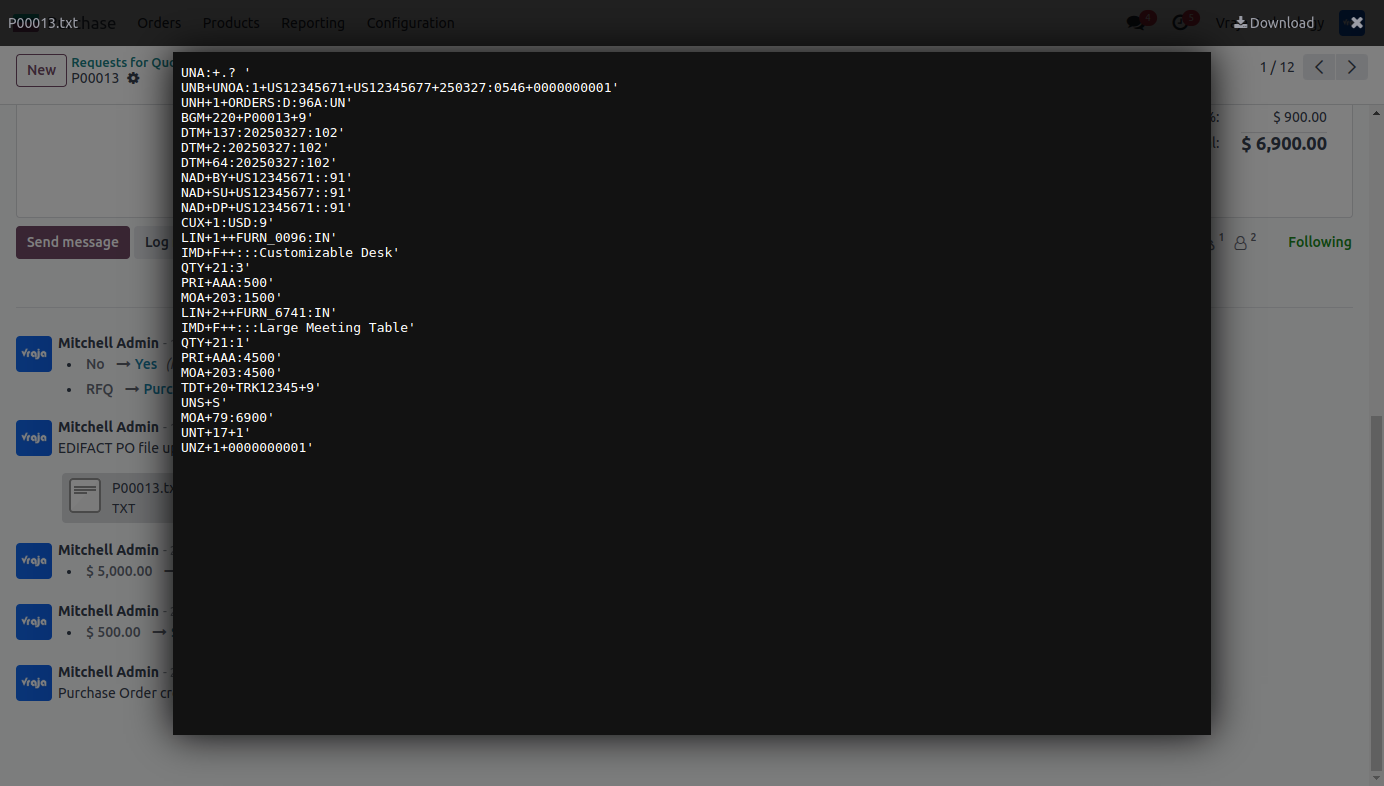
The FTP location where the PO was exported is visible.
Import Bill Process
The bill is available in the FTP system for import.
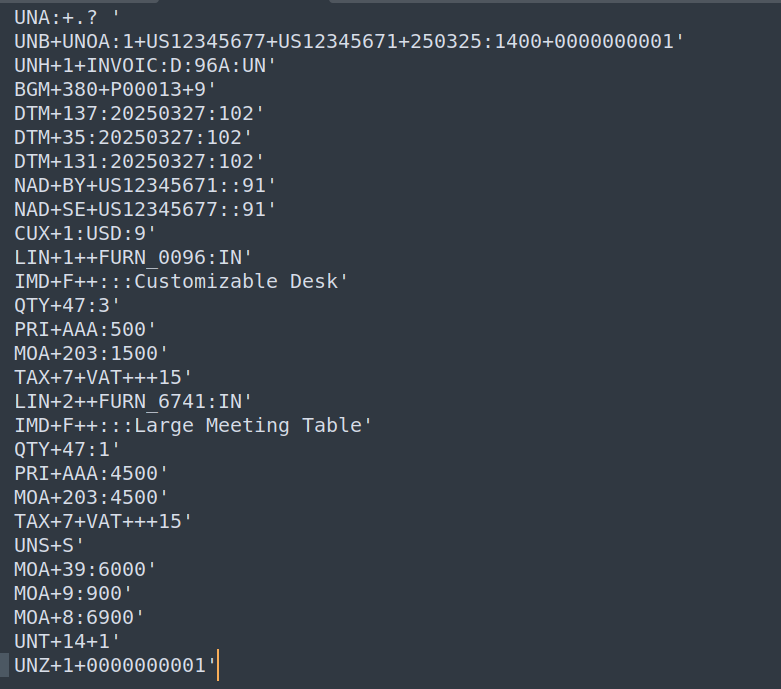
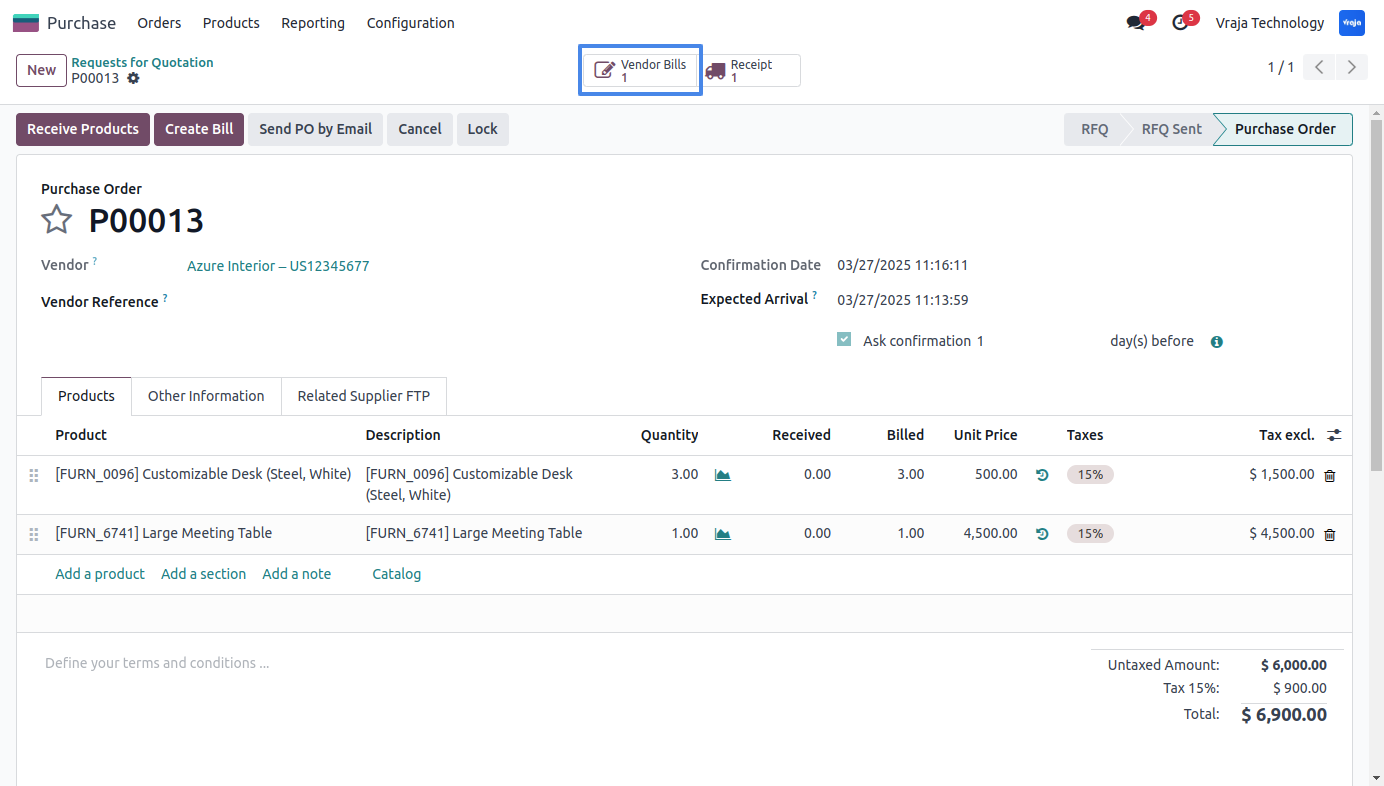
The created scheduled action will automatically generate a vendor bill for the PO.
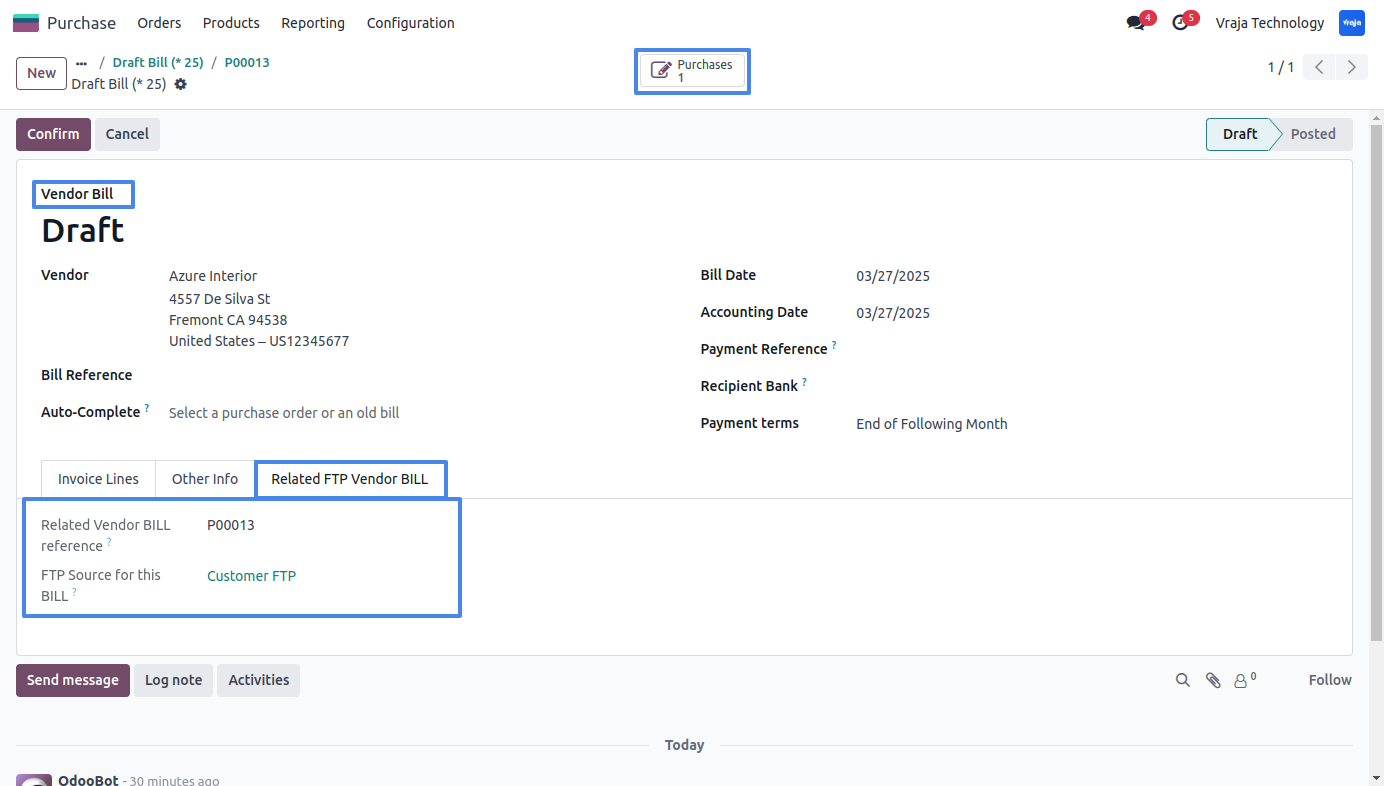
The imported bill is synchronized with the corresponding PO.
The imported bill details display the FTP used for import and the bill reference number from FTP.
ASN Update Process
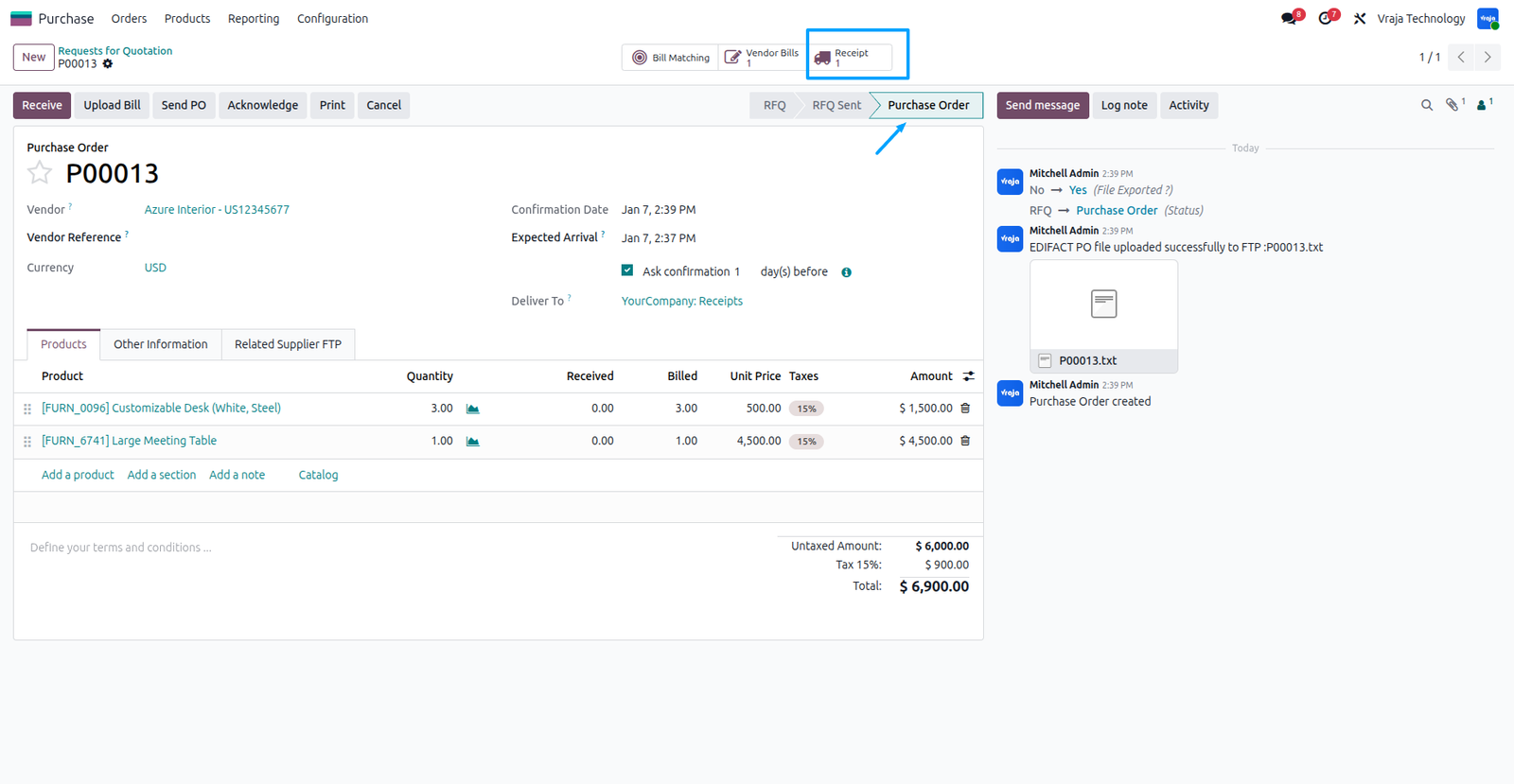
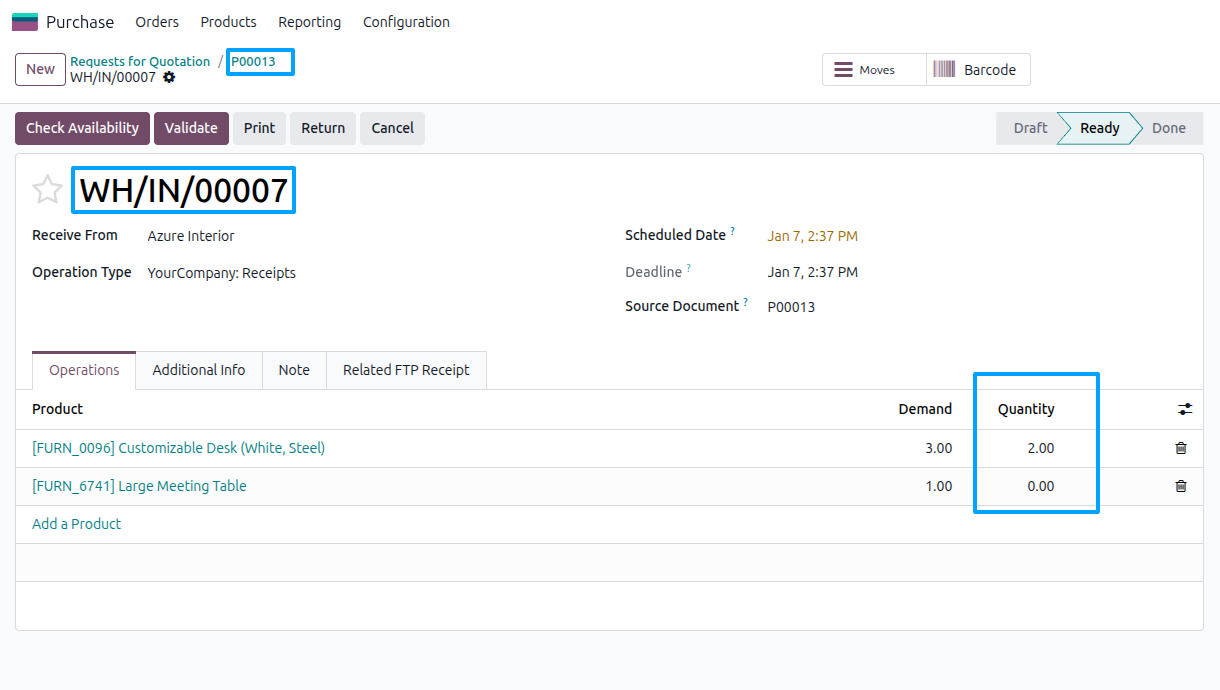
Inside the purchase order, you can find the receipt that needs to be updated.
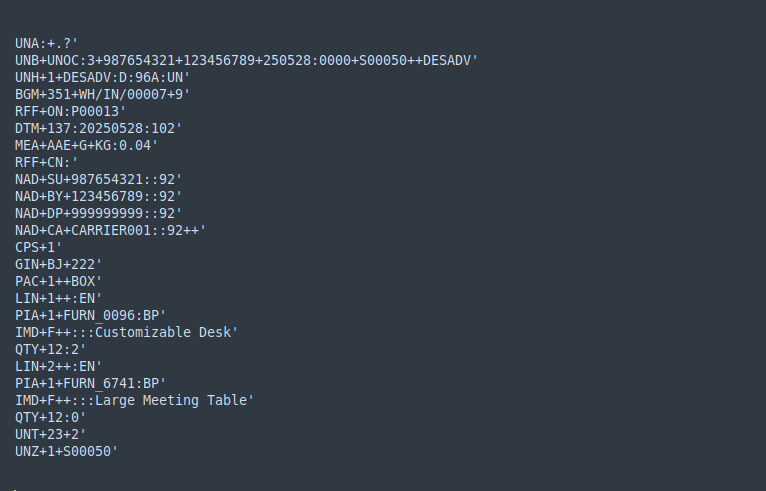
The ASN file is available in the FTP system for import
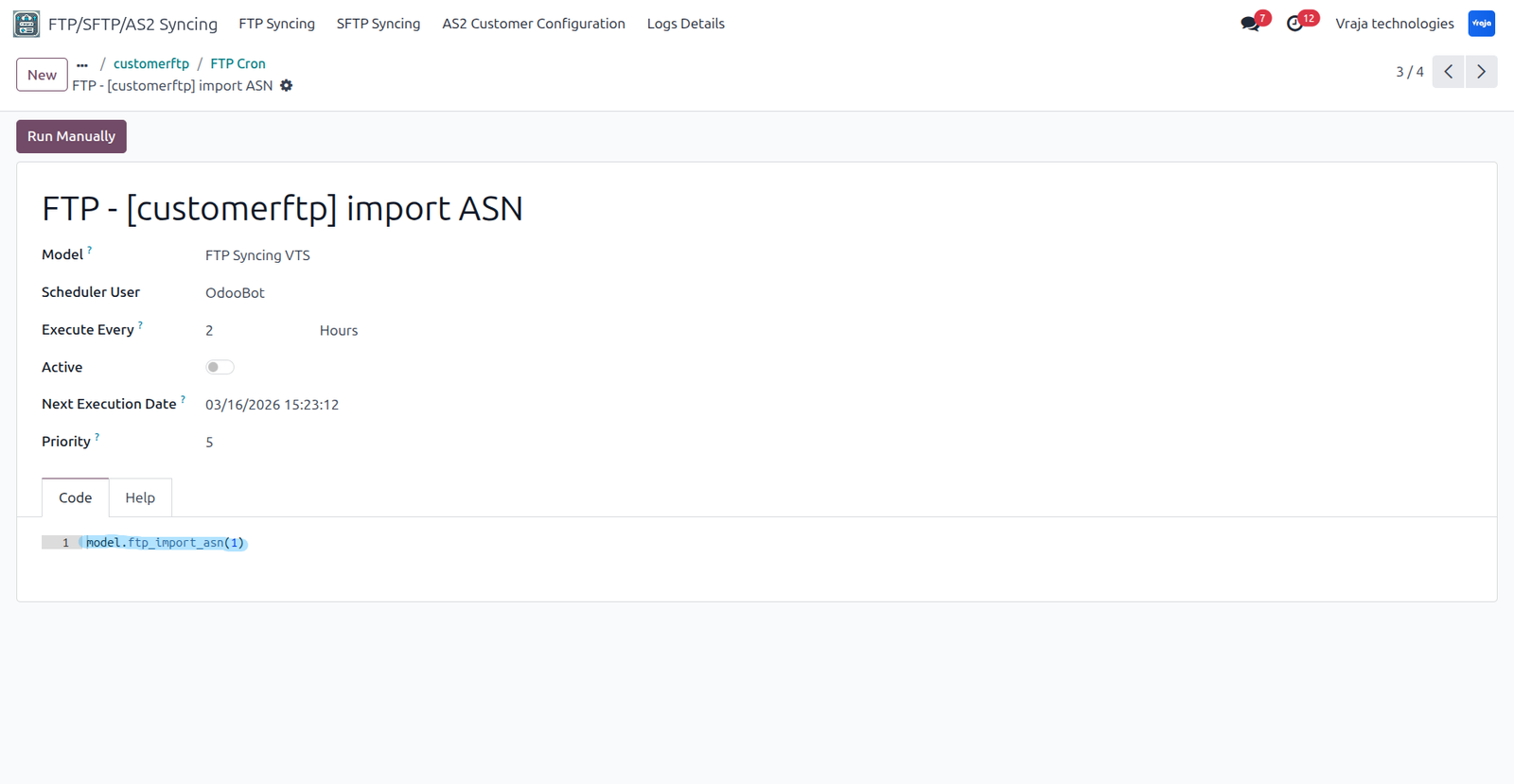
The created scheduled action will automatically run
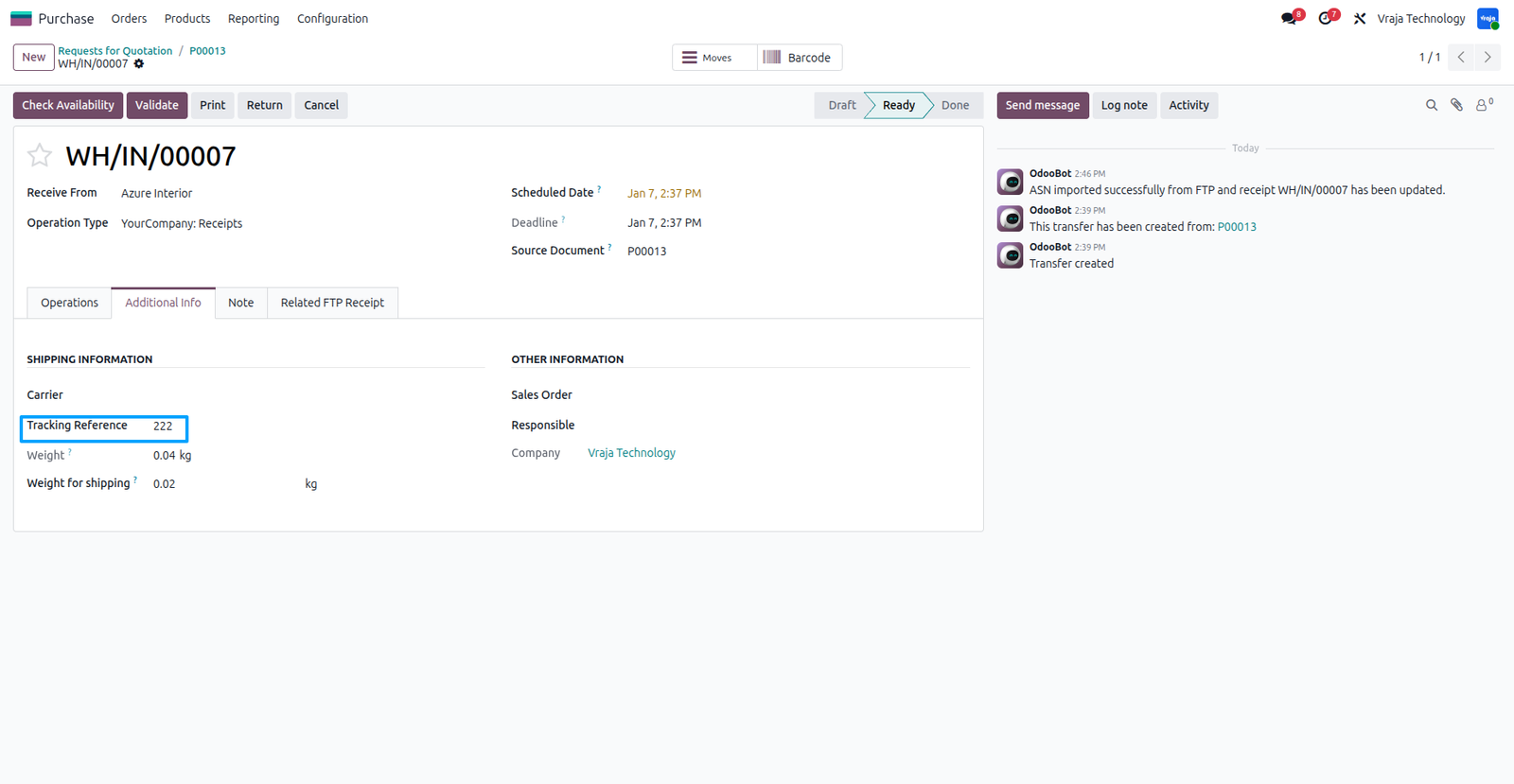
It updates the quantity and tracking reference in the receipt.
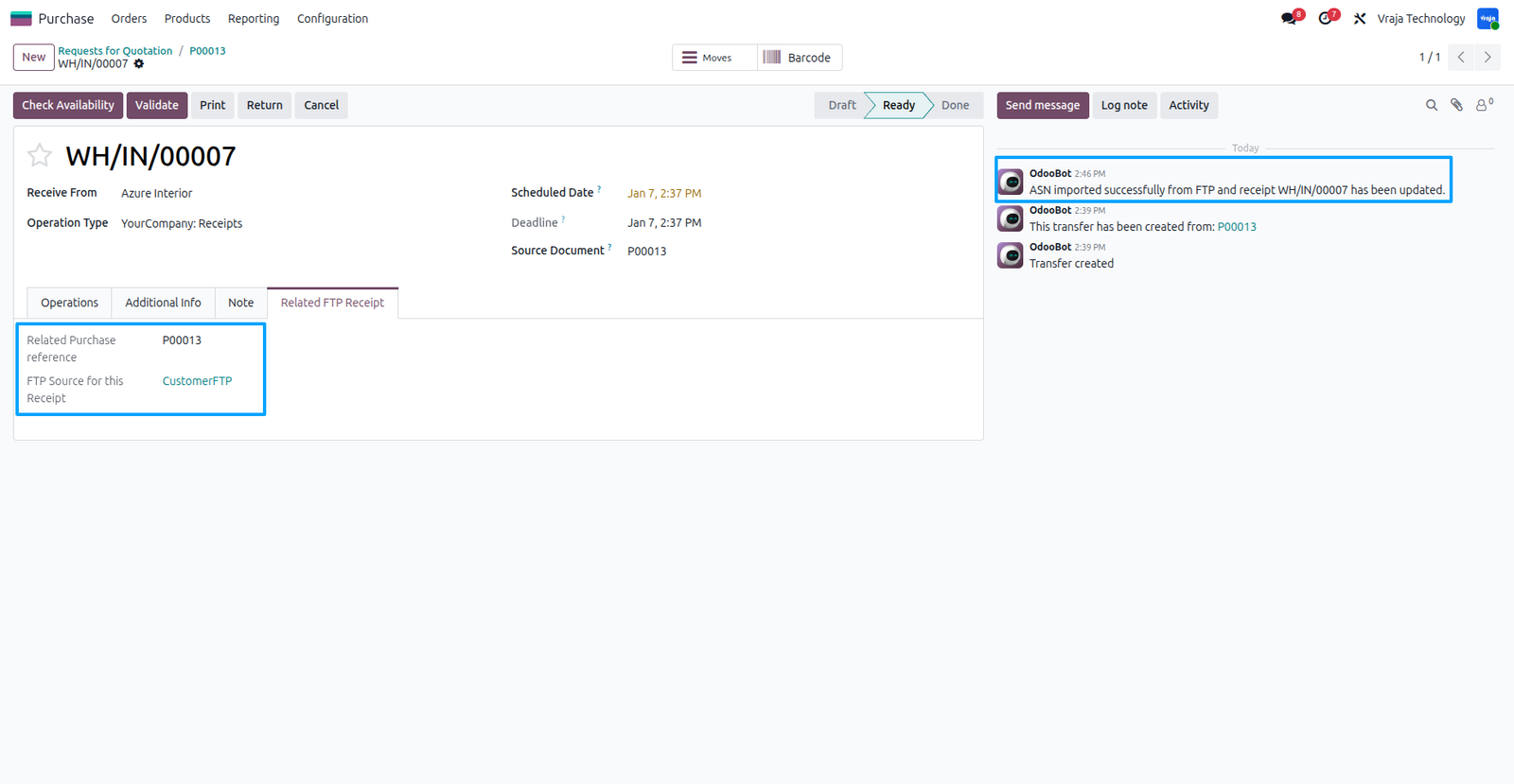
The source for this document update, such as the purchase reference and
FTP server reference, can be seen in the Related FTP Receipt tab.
Update messages are also available in the chatter.
Import Vendor Pricelist Process
This Schedule action is for importing the vendor price list (PRICAT) to the Odoo database for your products.
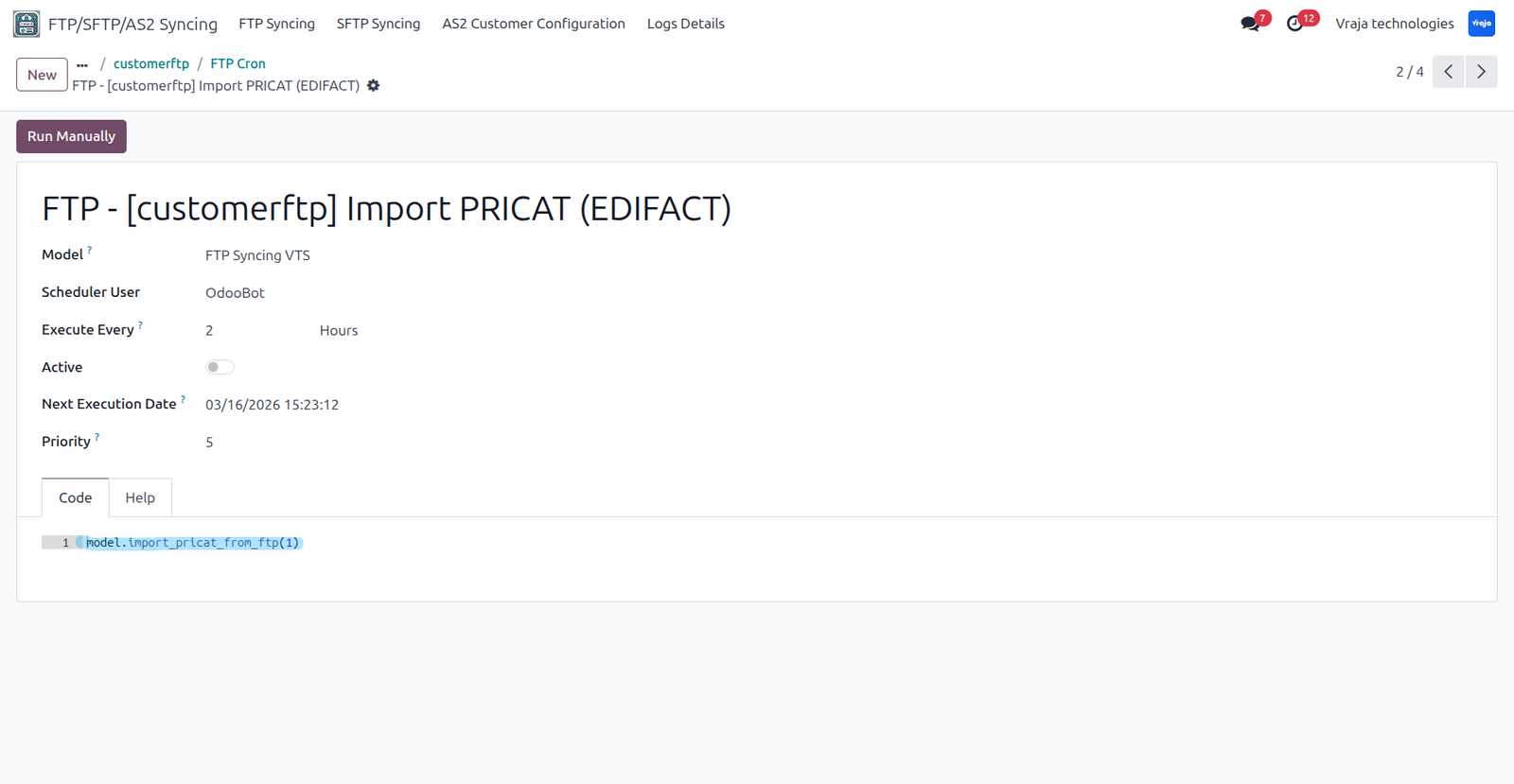
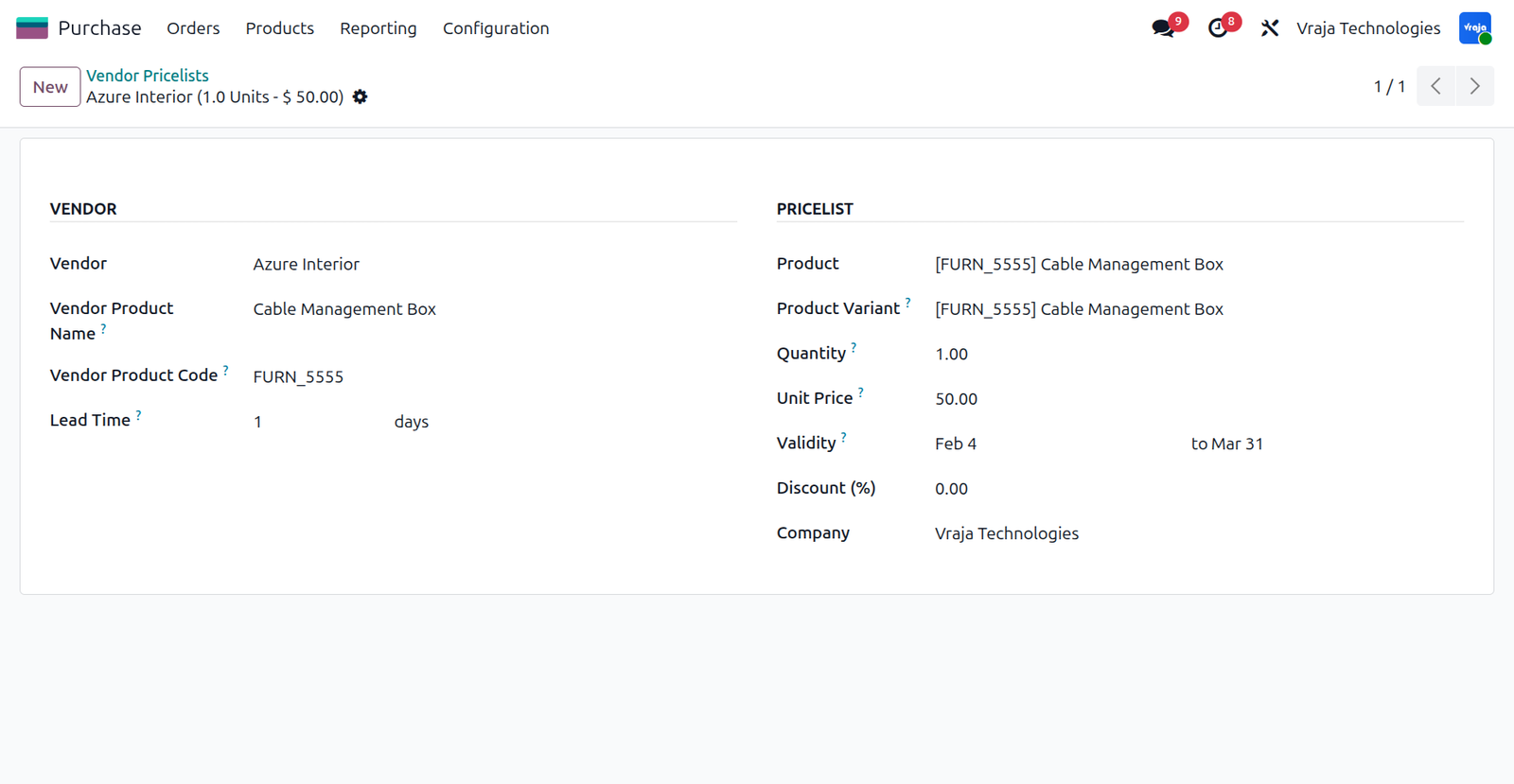
This vendor pricelist is created from the schedule action that fetches pricelist from the FTP.
Import Product Inventory Process
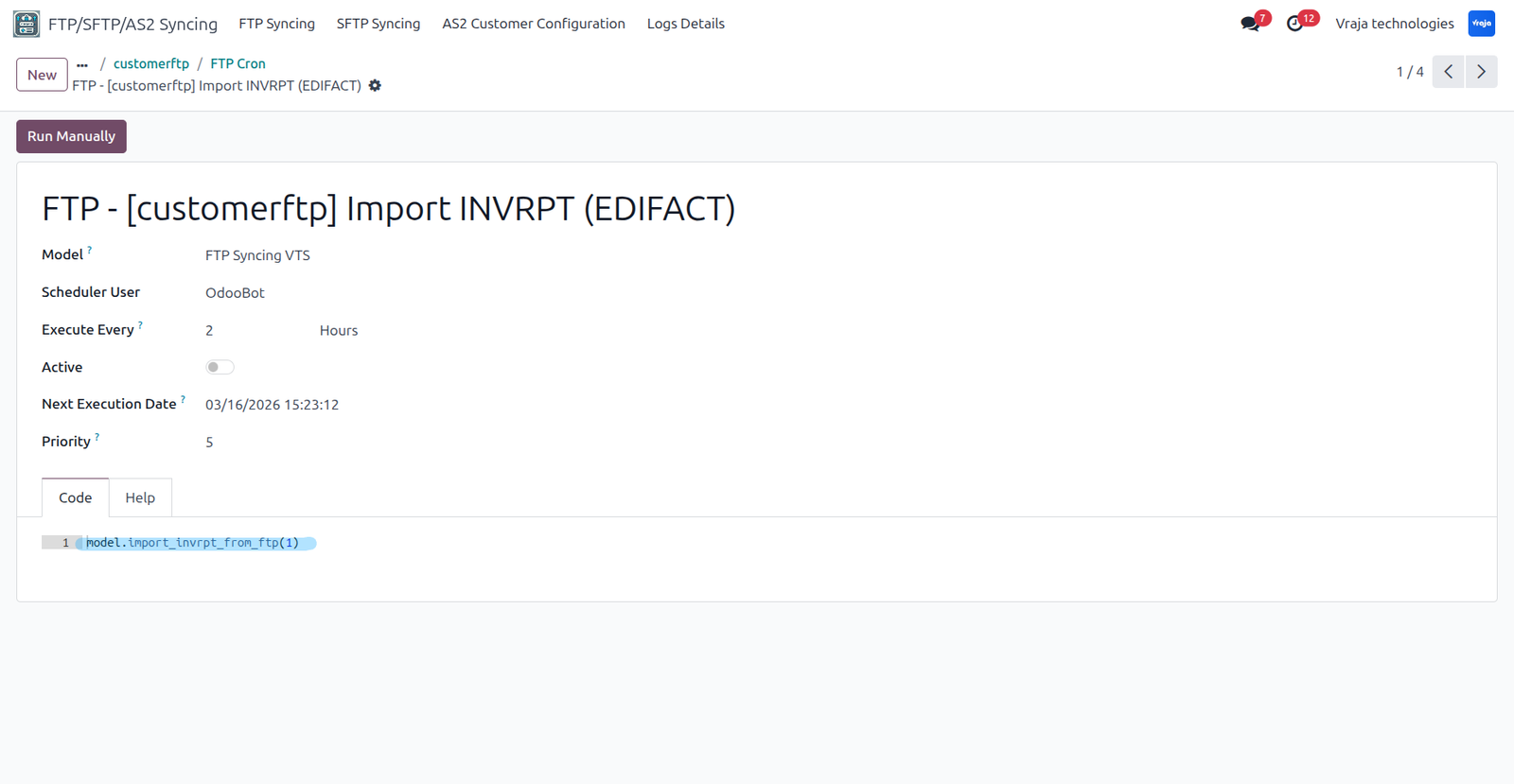
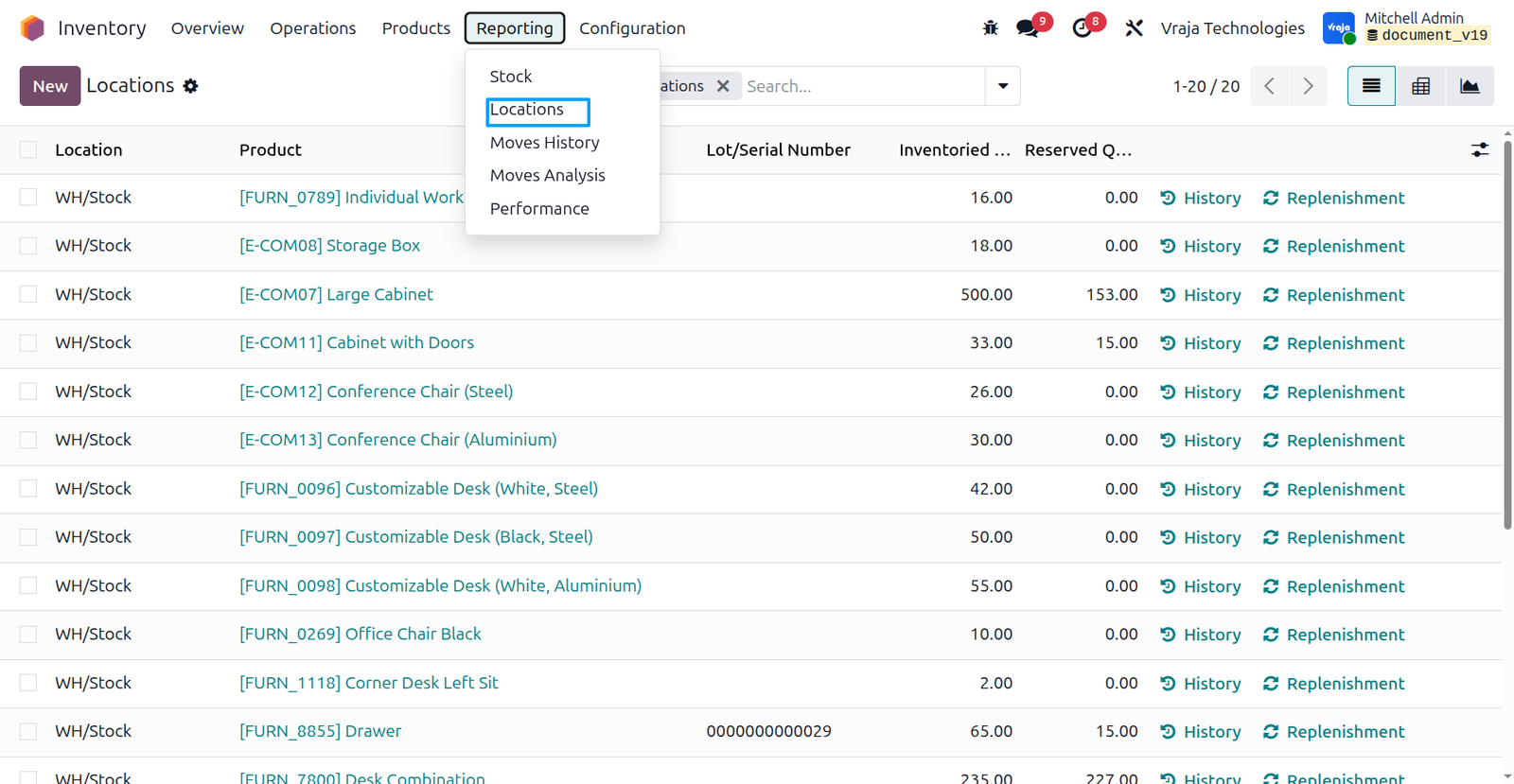
This Schedule action is for importing the Product Quantity (INVRPT) to the Odoo database and update the On hand Quantity for your products.
This Stock Quants is created from the schedule action that fetches Product Quantity from the FTP.
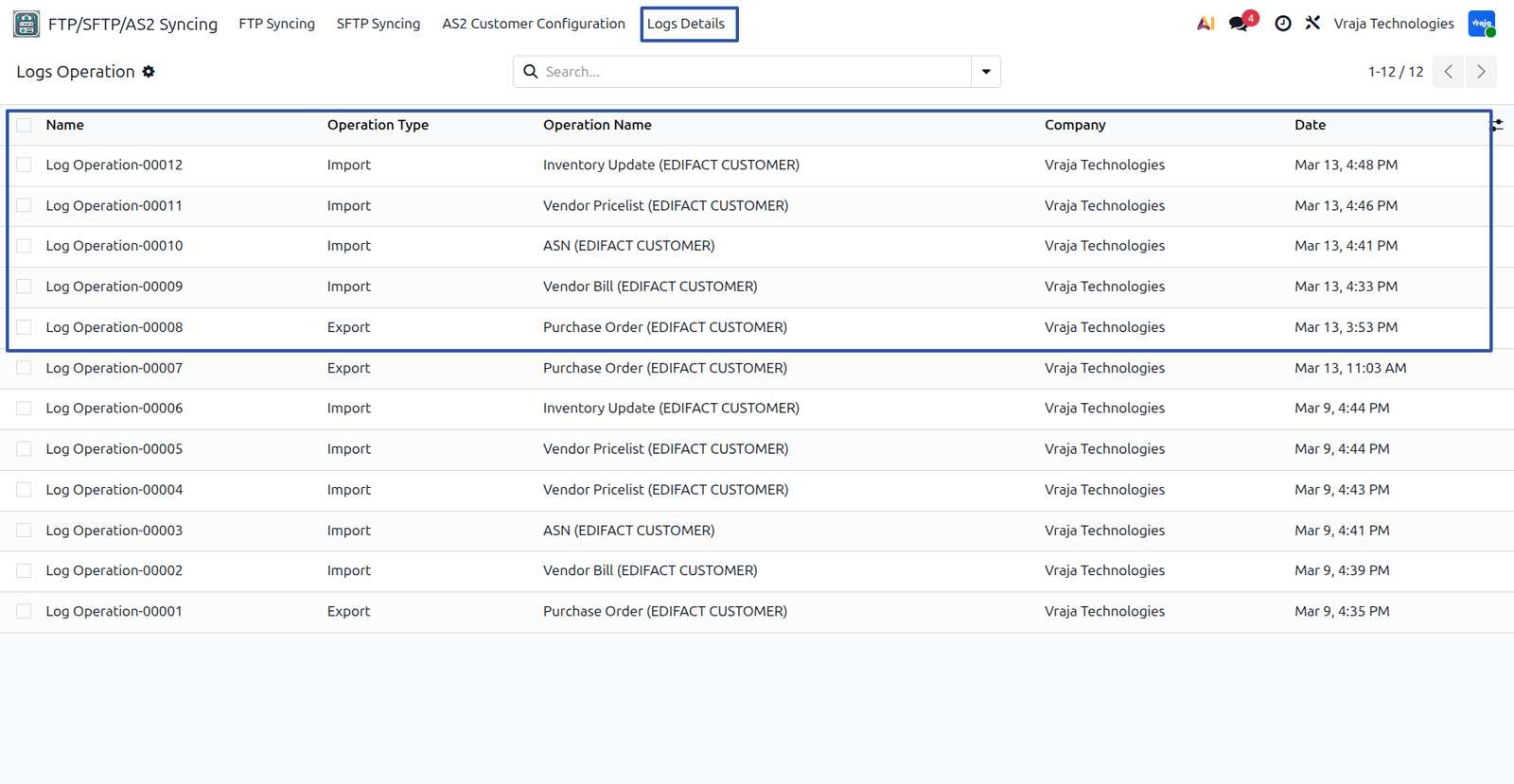
Log details can be found under the ‘Log Details’ menu in FTP/SFTP/AS2 syncing,
capturing both successful and failed operations for reference.
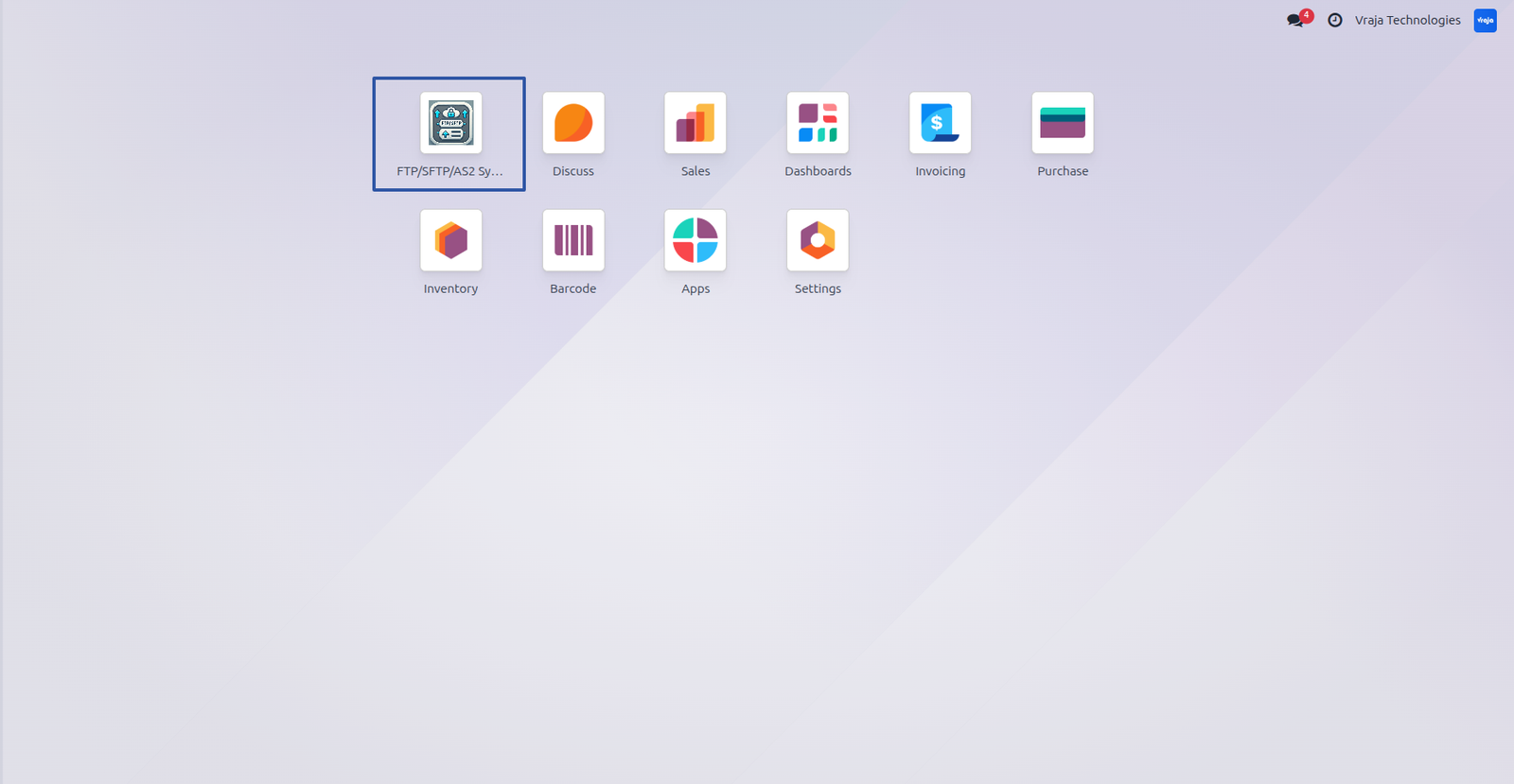
Configuration
After installing the application, the FTP/SFTP/AS2 syncing menu becomes
accessible.
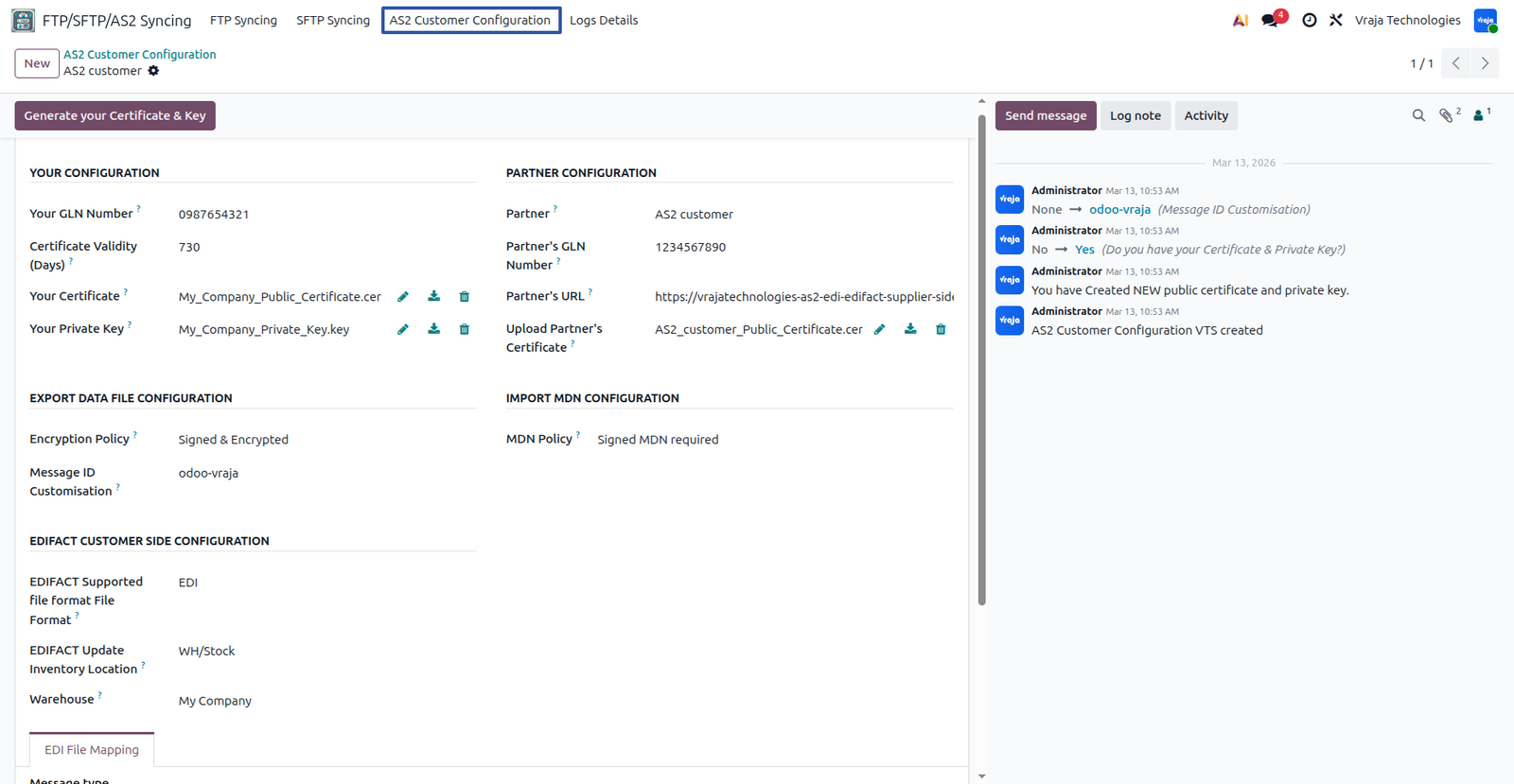
AS2 (Applicability Statement 2) Configuration
If you would like to use the AS2 protocol please follow the steps below.
Your Configuration
- Your GLN Number: Enter your company’s unique GLN (Global Location Number). This number identifies your organization in EDI communication. Maximum length is 13 digits.
- Certificate Validity (Days): If you are generating the certificate using the Generate your Certificate & Key button, you must specify the validity period of the certificate in days.
- Your Certificate: Upload your public certificate used for secure AS2 communication. If you do not have a certificate and private key, you can generate them using the Generate your Certificate & Key button.
- Your Private Key: Upload your private key associated with the certificate. If you do not have the key pair, you can generate it using the Generate your Certificate & Key button.
Partner Configuration
- Partner: Select the partner (customer or supplier) for whom the AS2 configuration is being created.
- Partner’s GLN Number: Enter the partner’s GLN (Global Location Number) which is used to identify them in EDI transactions.
- Partner’s URL: Enter the URL provided by the partner. This URL is used to send EDI messages through the AS2 protocol.
- Upload Partner’s Certificate: Upload the partner’s public certificate. This certificate is used to encrypt the messages before sending them to the partner.
Export Data File Configuration
-
Encryption Policy:
Define how outgoing EDI messages should be secured. Supported
policies are:
- Un-signed & Un-encrypted
- Un-signed & Encrypted
- Signed & Un-encrypted
- Signed & Encrypted
- Message ID Customisation: Specify a custom identifier to be included in the AS2 Message ID header. This helps the partner identify the source system or sender of the message.
Import MDN Configuration
-
MDN Policy:
Defines how the system should handle Message Disposition
Notifications (MDN).
- MDN Not Required
- Un-signed MDN Required
- Signed MDN Required
EDIFACT Supplier Side Configuration
- EDIFACT Supported File Format: Defines the file format supported for EDI communication. The system supports edi and txt formats. In this configuration, the EDI format is currently selected.
- EDIFACT Update Inventory Location: Select the inventory location where product stock quantities will be updated when the Product Inventory (INVRPT) file is imported from the partner.
- Warehouse: Select the warehouse where the inventory operations will be applied during the import of the Product Inventory (INVRPT) file. The stock quantities received from the partner will be updated for this selected warehouse.
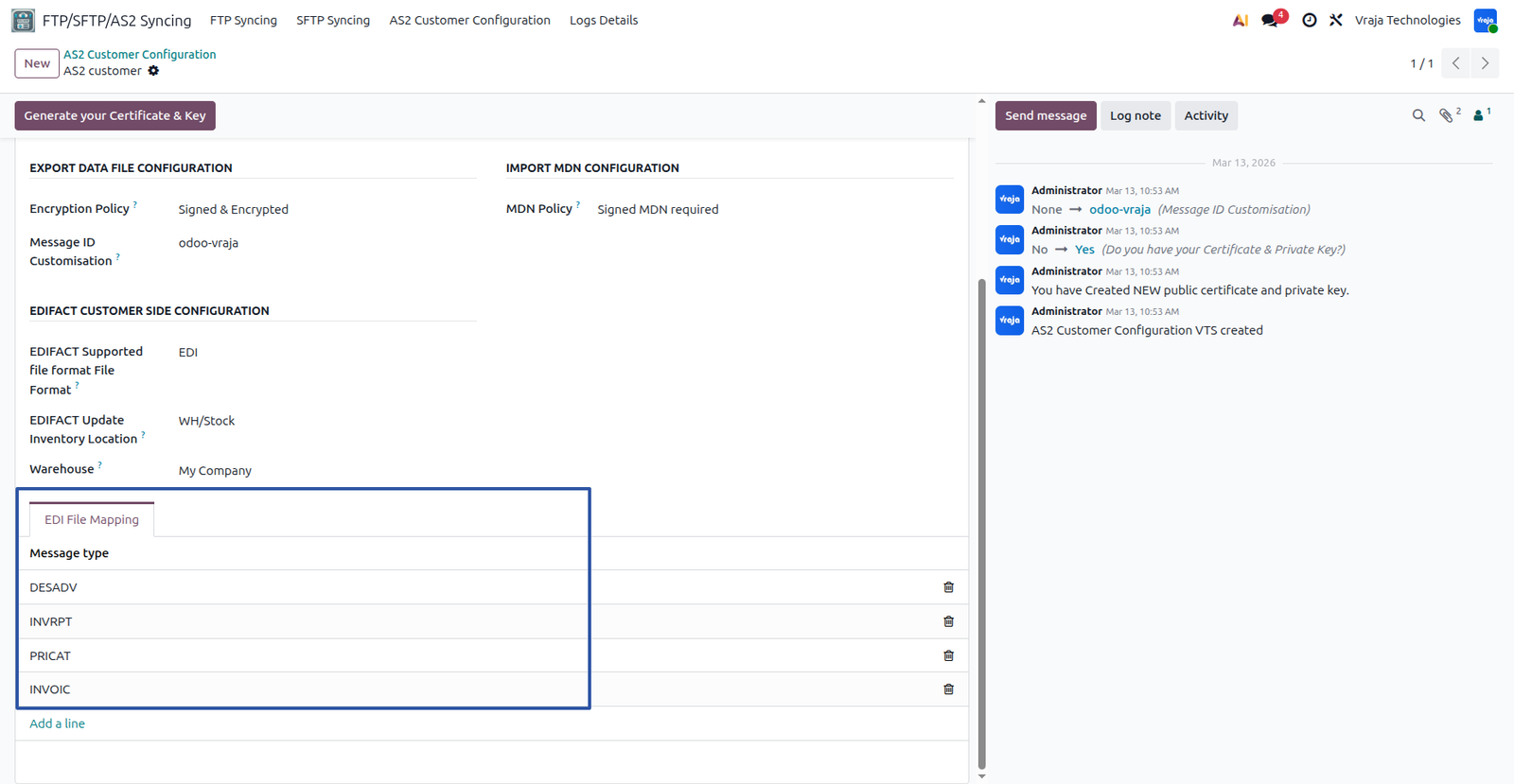
EDI File Mapping
- Message Type: Define the EDIFACT message type used for the import file. For example, when importing a Vendor Bill, the EDIFACT file contains the message type INVOIC according to the EDIFACT format. This field is used only to define the message type for incoming EDIFACT files.
Export Purchase Order Process
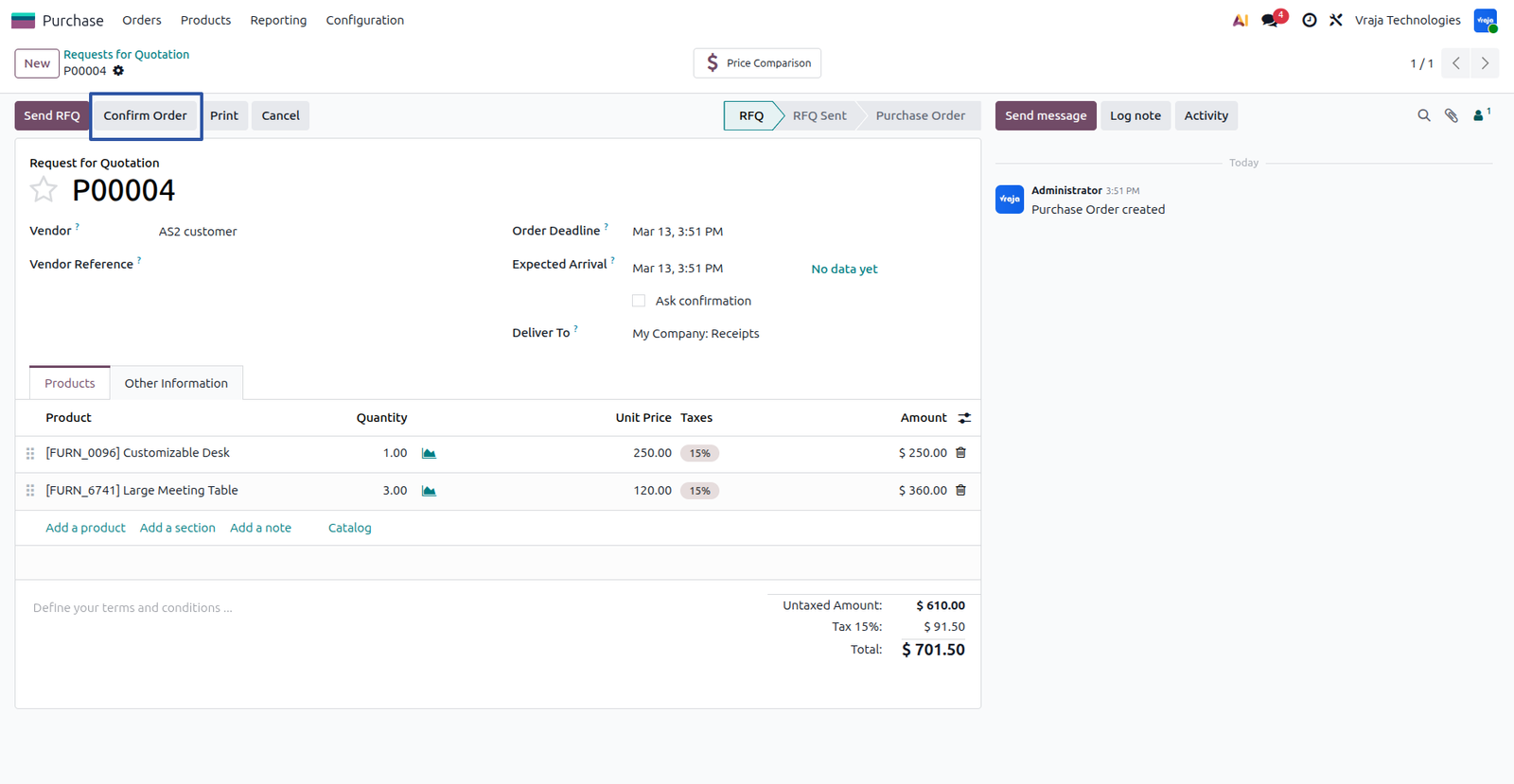
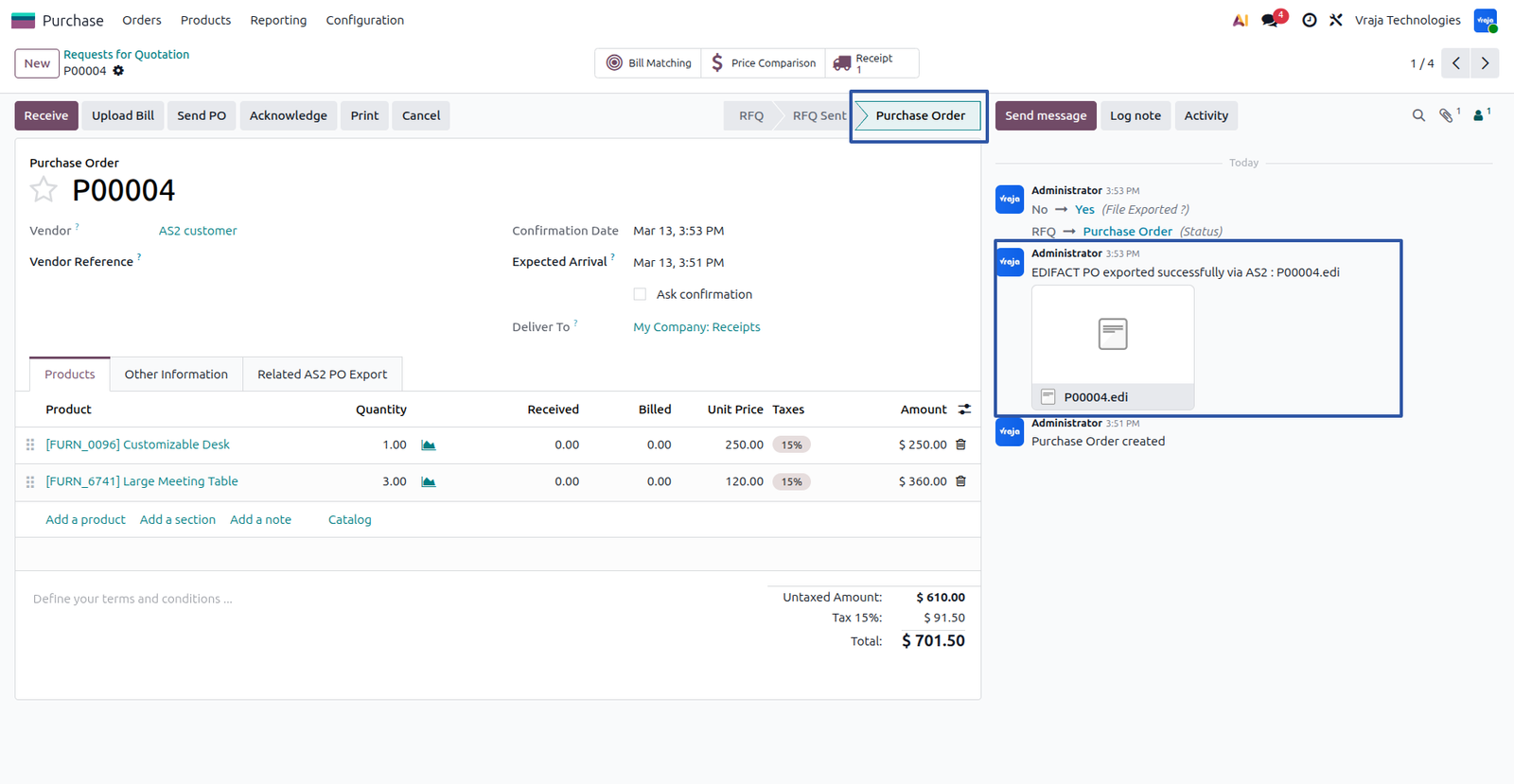
Click the Confirm Order button to export the Purchase Order (ORDERS). Once
the order is confirmed, the PO is automatically exported using AS2 configuration.
and the exported file is attached to the record. You can view
the attachment in the chatter for reference.
Import Vendor Bill Process
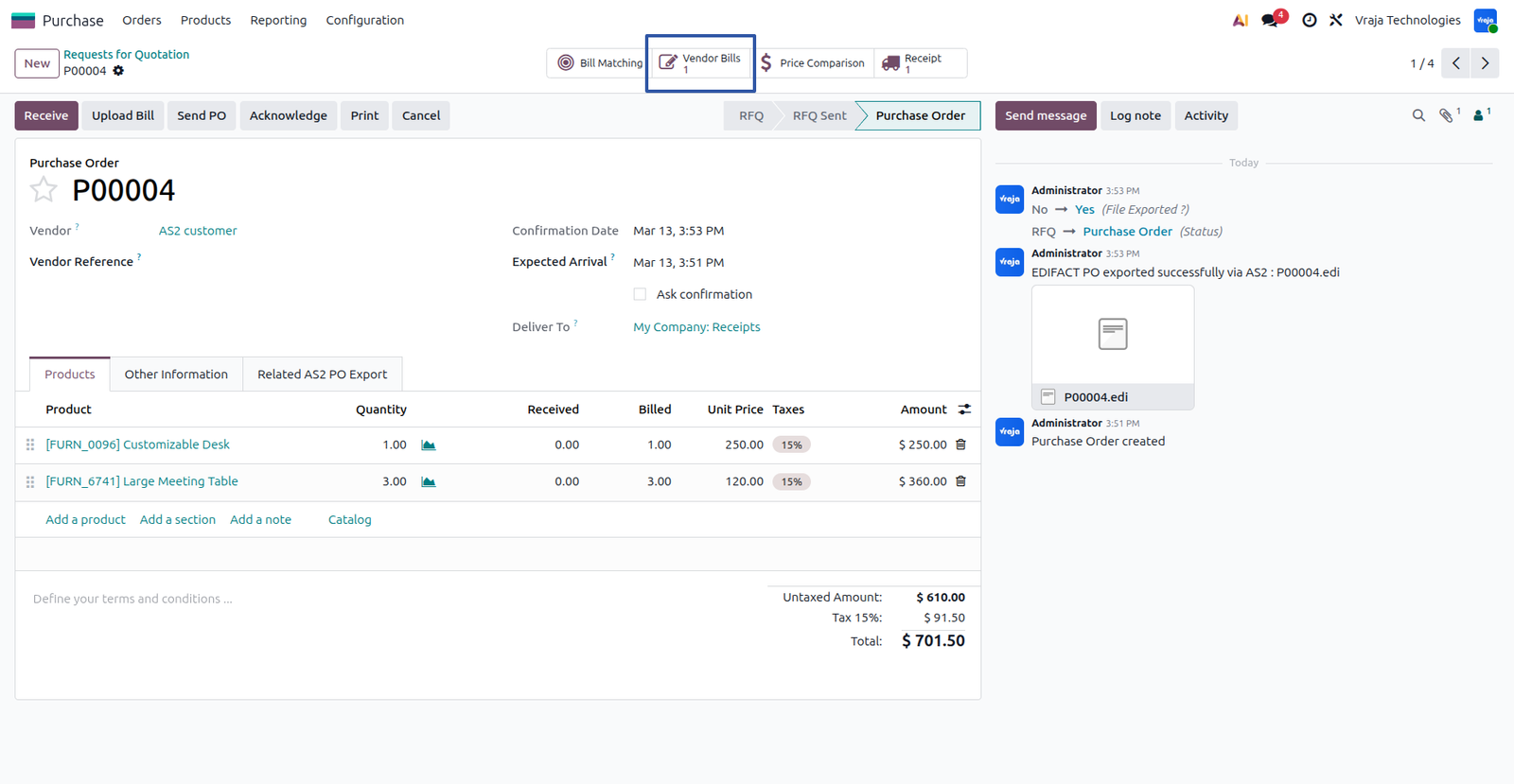
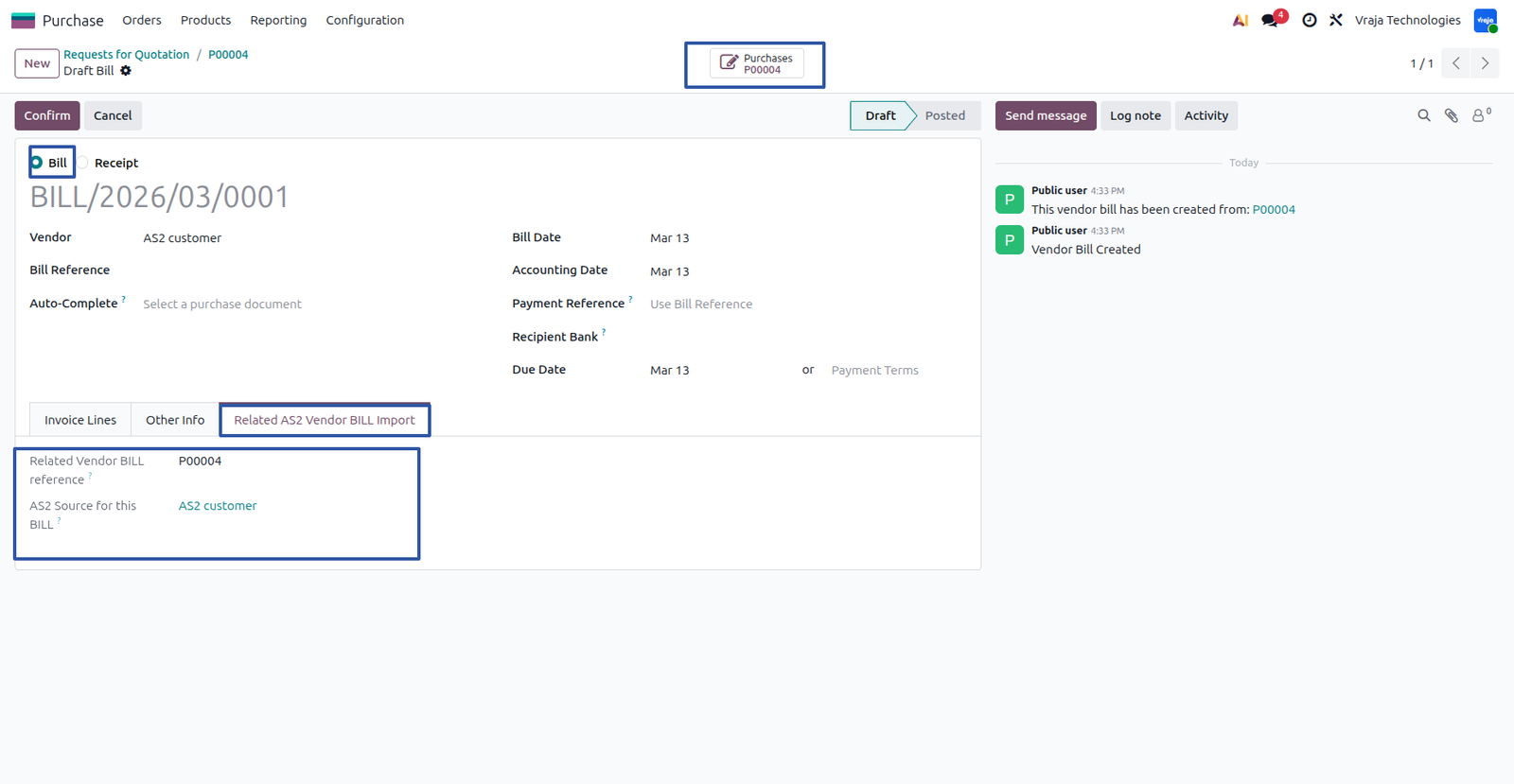
You can view the imported Vendor Bill(INVOIC) using the Vendor Bill smart
button. You can also check the source of the imported bill from the
Related AS2 Bill Import page.
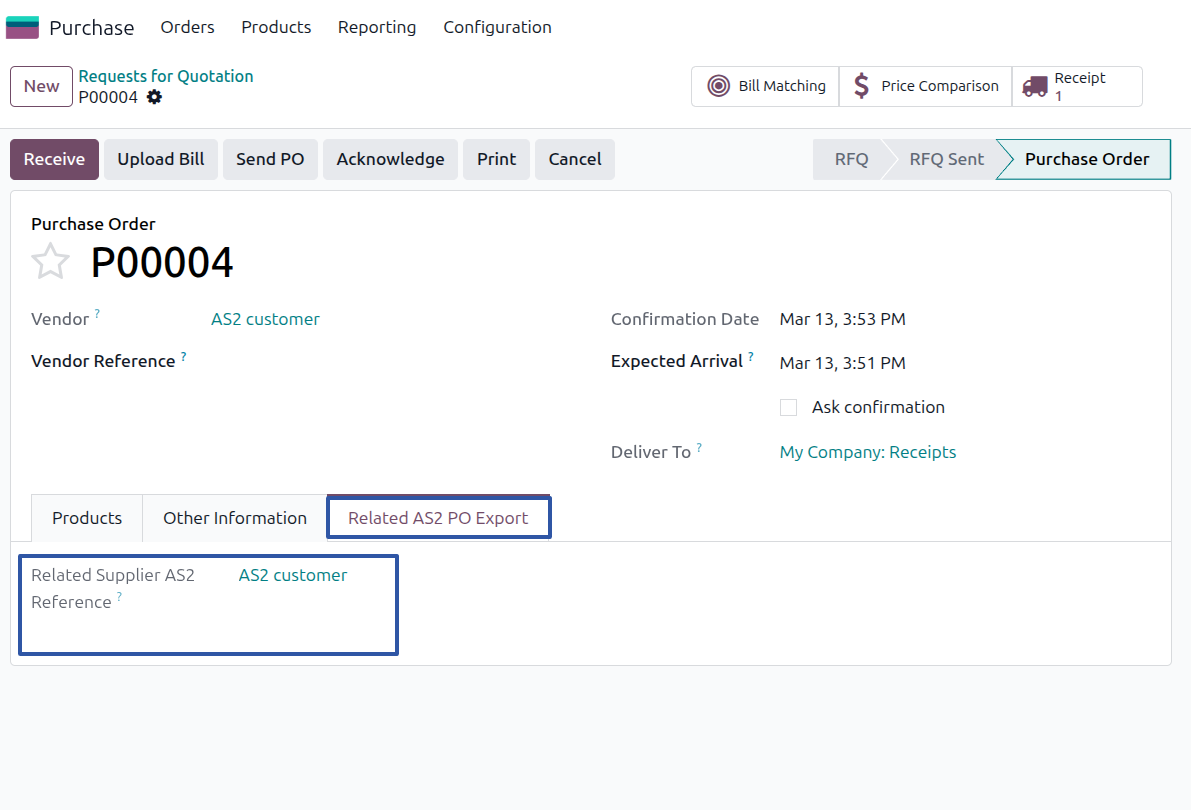
Here you can find the source of the AS2 Purchase Order export from the
“Related AS2 PO Export” page.
Import ASN Process
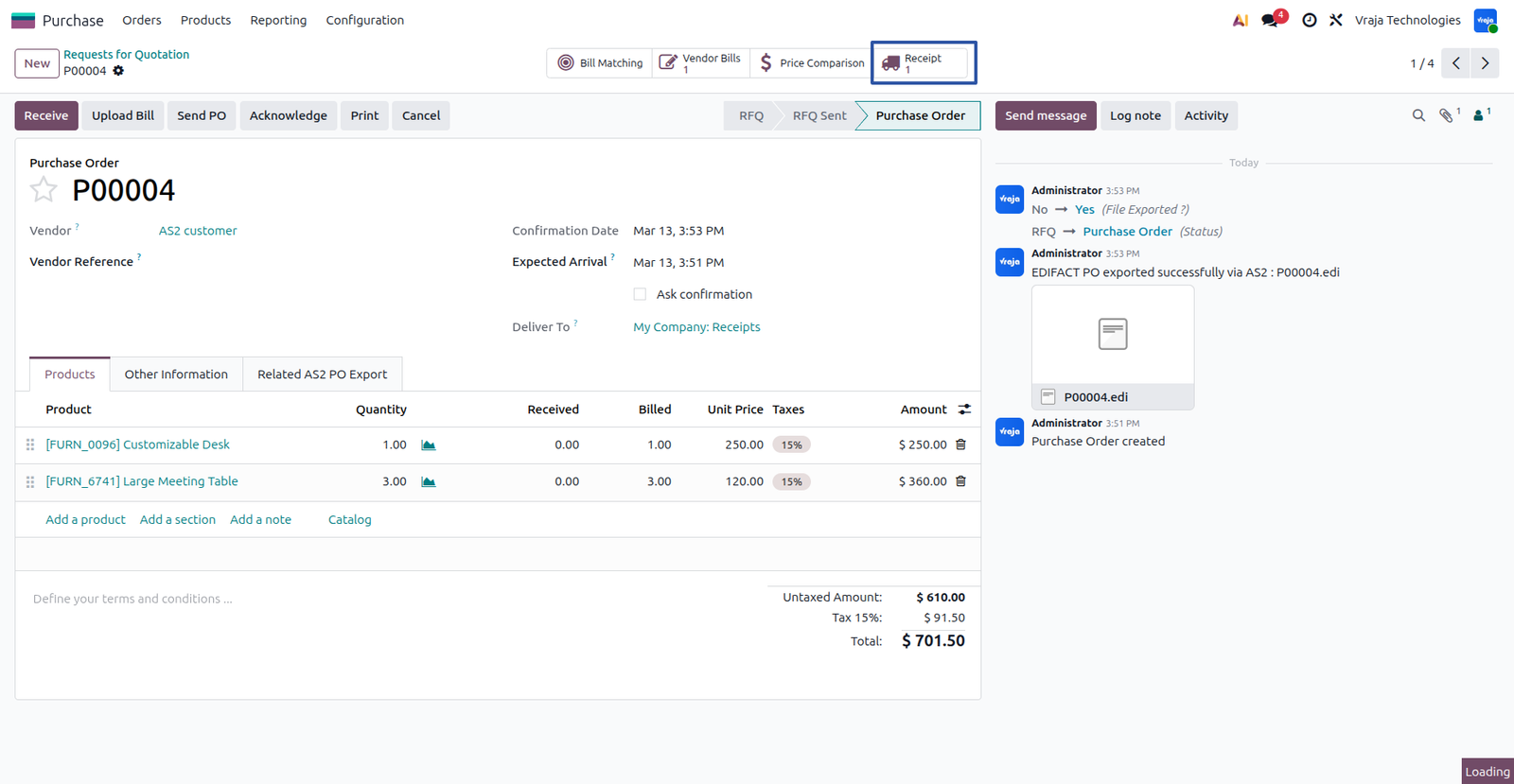
Inside the purchase order, you can find the receipt that will be
updated by importing ASN (DESADV).
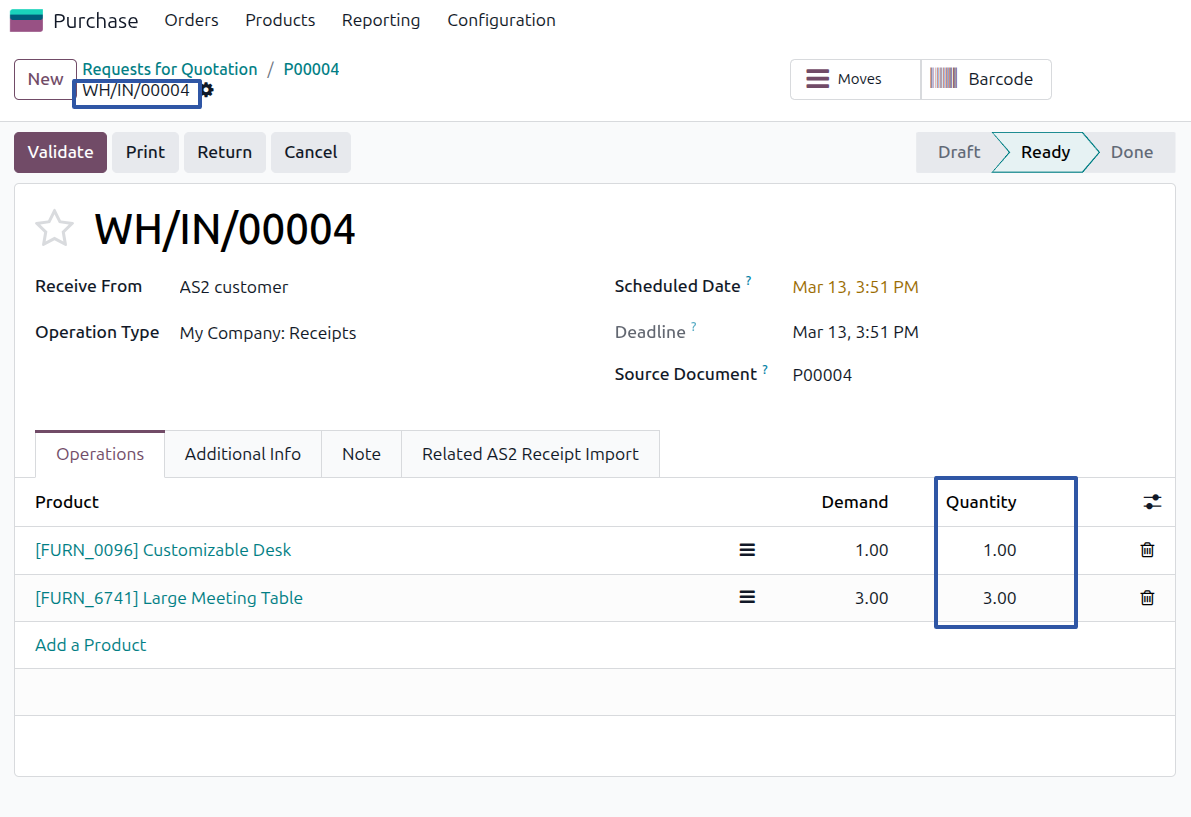
It updates the quantity and tracking reference in the
receipt.
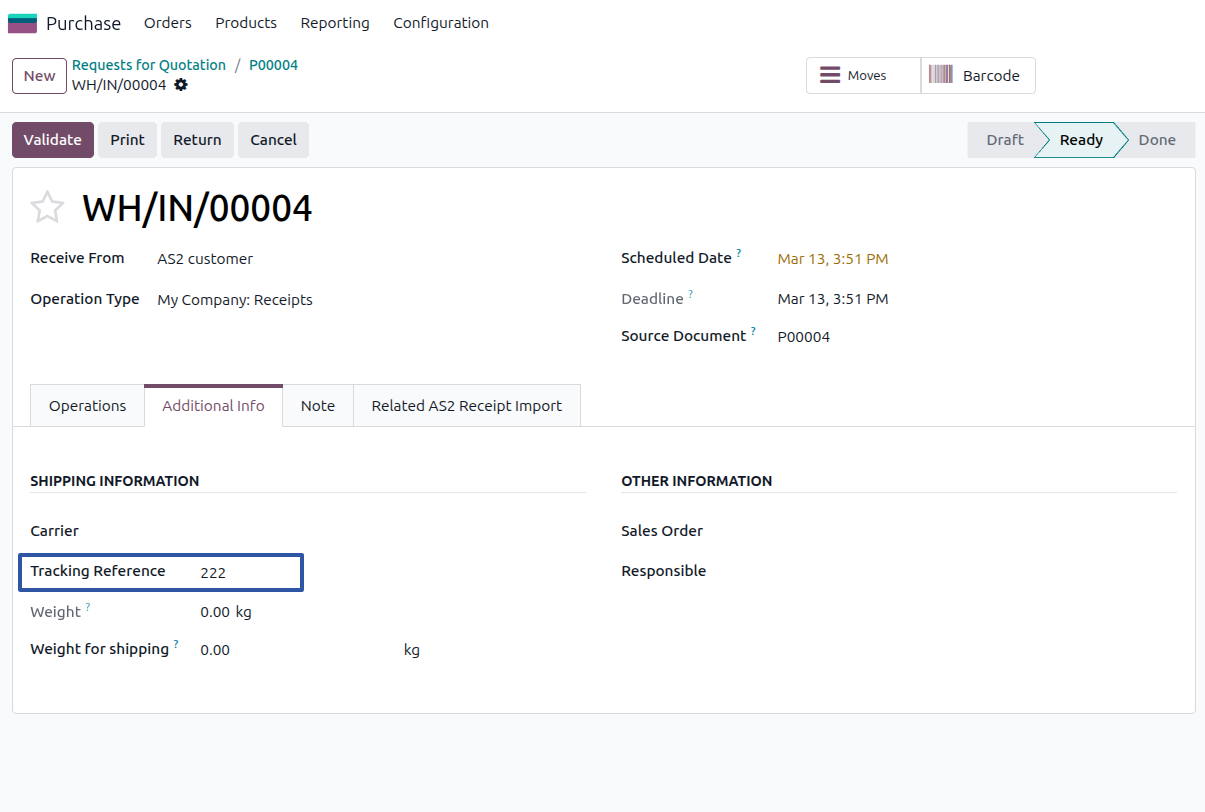
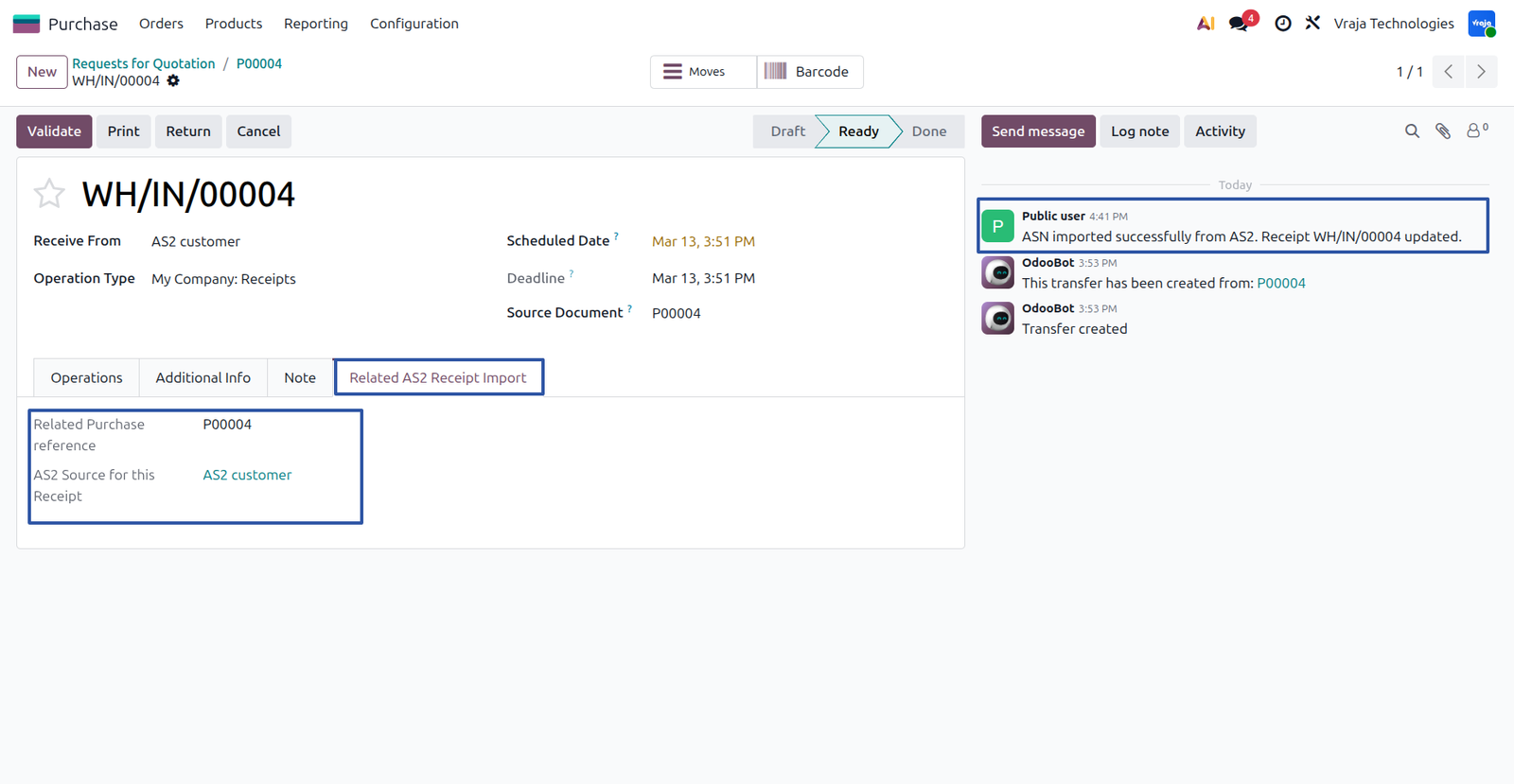
The source for this document update, such as the purchase reference and
AS2 reference, can be seen in the Related AS2 Receipt Import tab. Update
messages are also available in the chatter.
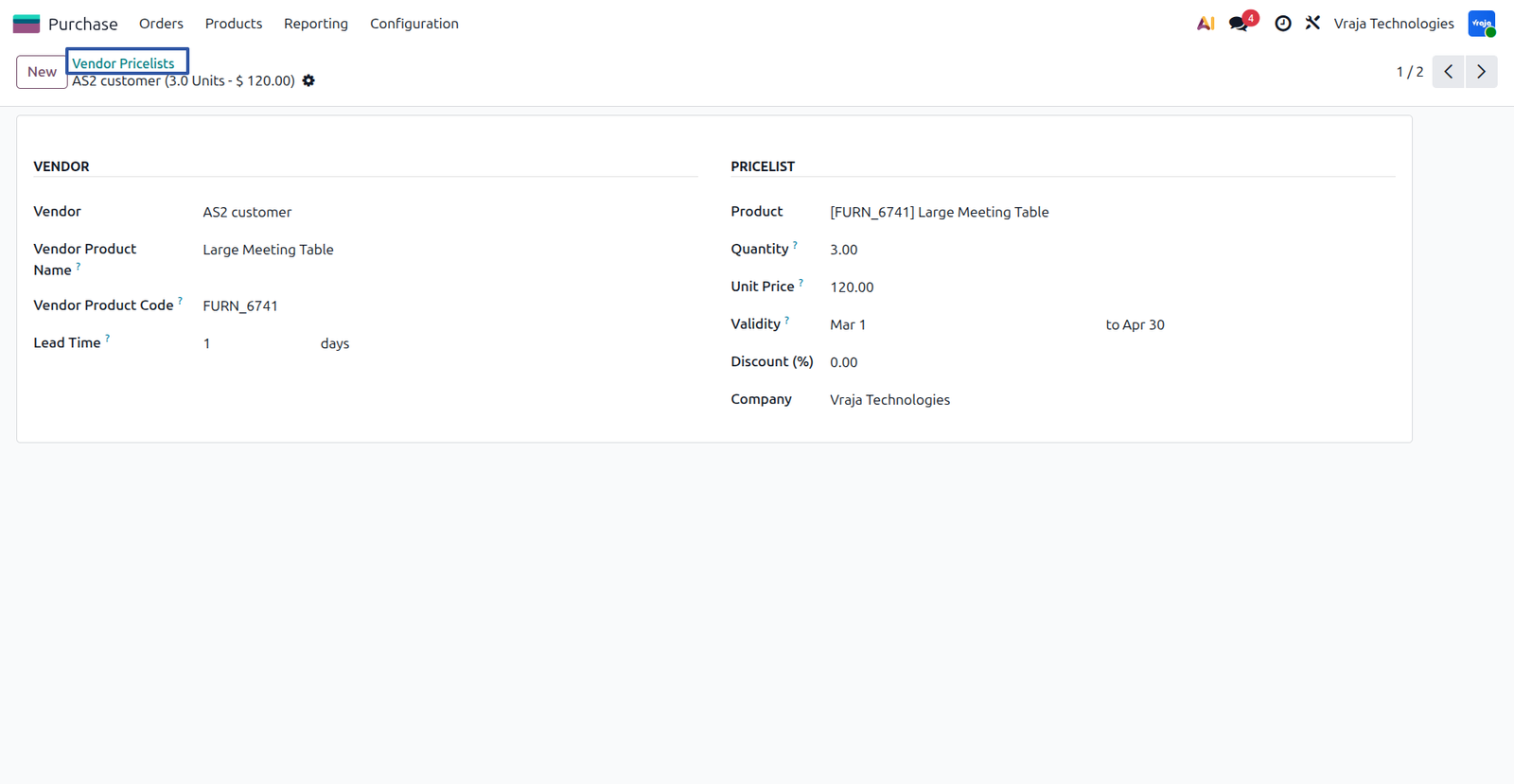
Import Vendor Pricelist Process
This Vendor Pricelist is created through the AS2 import process(PRICAT),You can view it in the Vendor
Pricelist menu.
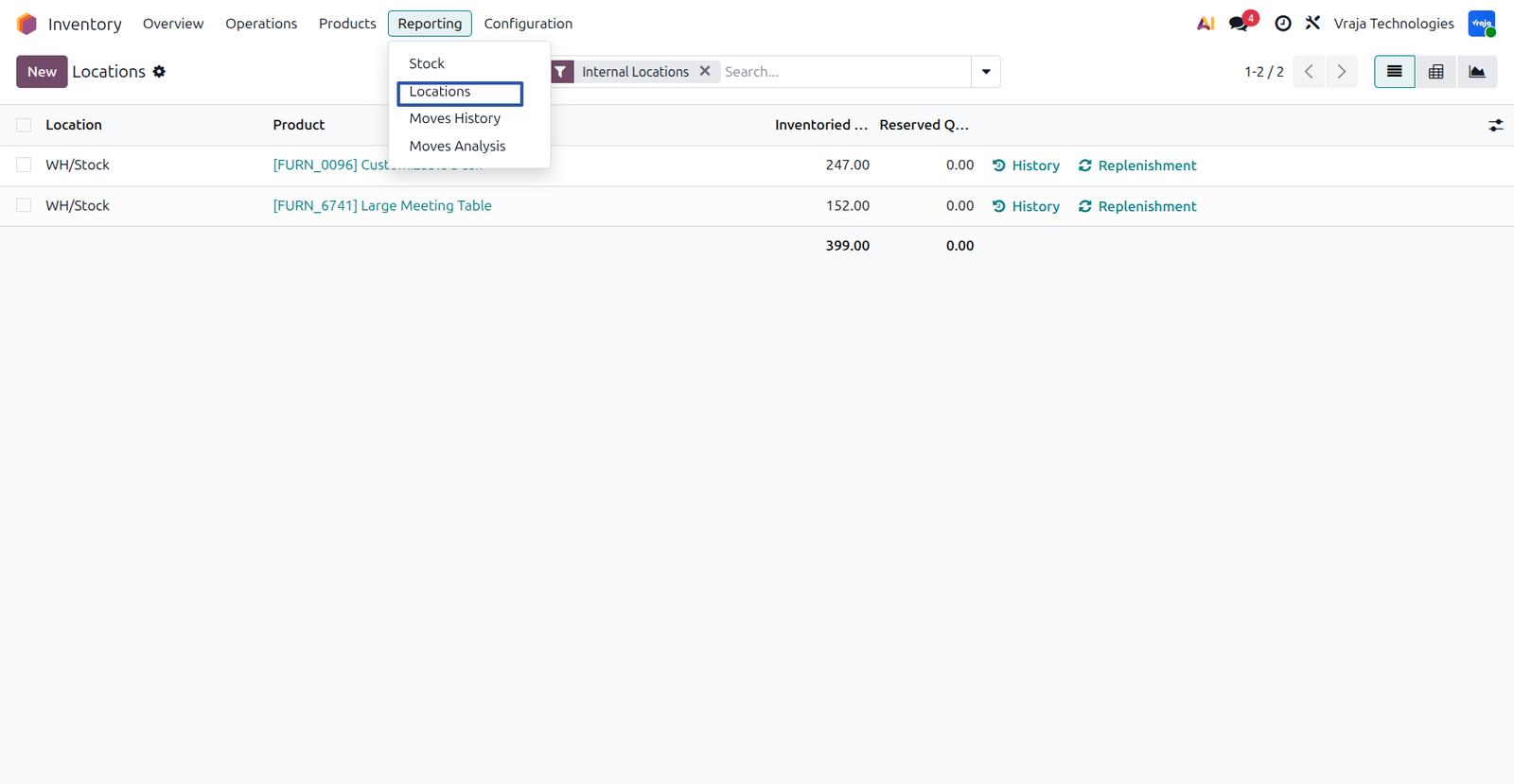
Import Product Inventory Process
In this process, the Product Quantity (INVRPT) file is imported into the
Odoo database and updates the On Hand Quantity of the products. The
Stock Quants are created through the AS2 import process, which retrieves
the product quantity information from the AS2 partner.
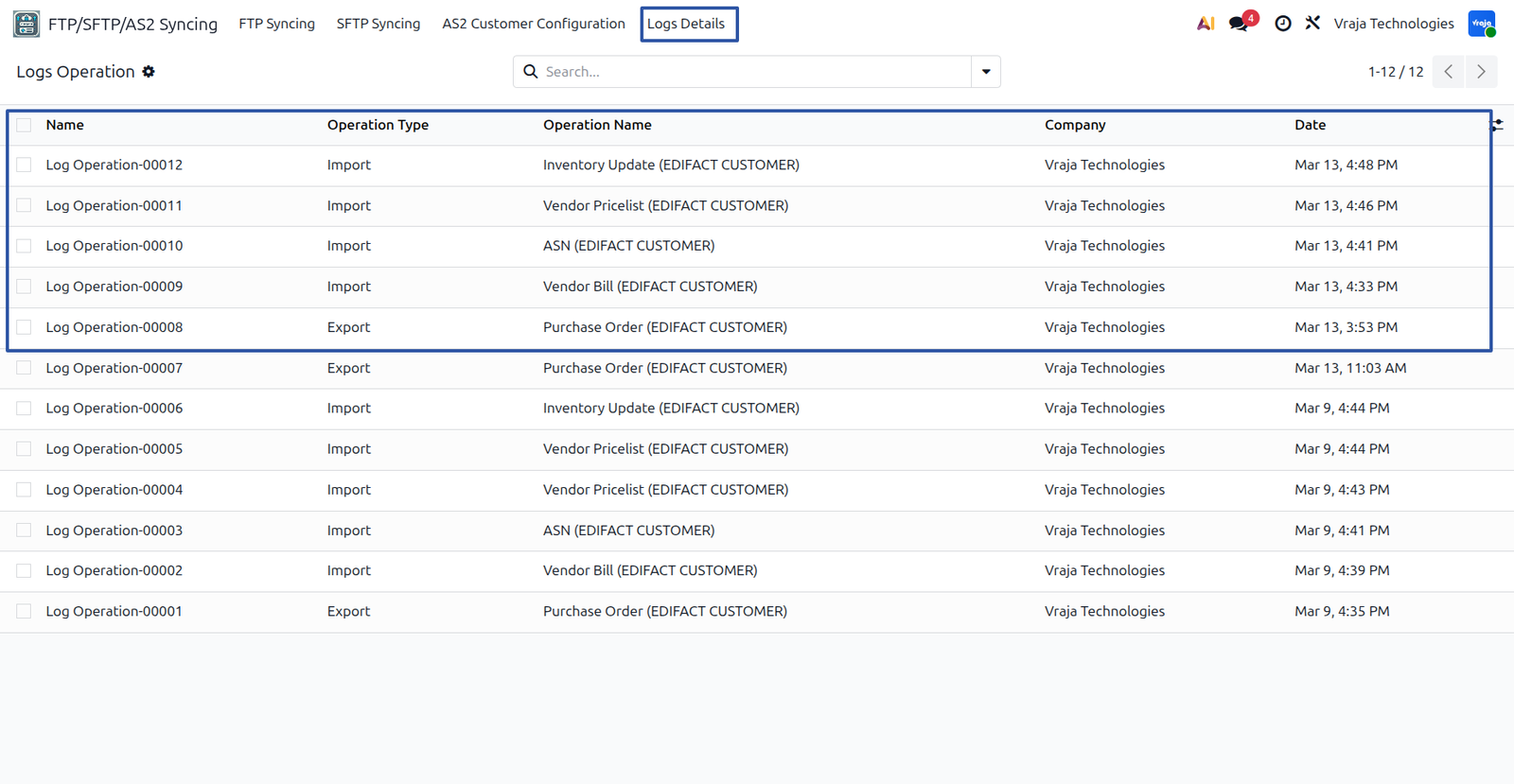
Log details can be found under the ‘Log Details’ menu in FTP/SFTP/AS2
syncing, capturing both successful and failed operations for
reference.
 I need an extra customization in this application, how can I get it?
- Yes, you can contact us on support@vrajatechnologies.com or can schedule a DEMO with our team to customize additional features.
Is the application compatible with Odoo Enterprise and Community?
- Yes, this application module is supported by both. It is also compatible with test and production environments.
Do I get free upgrades and support if I purchase this application?
- We provide free support for the first 90 days following the purchase date.
Is technical knowledge required to set up the integration?
- While some technical understanding may be helpful, the integration is designed to be user-friendly. Detailed documentation and support may be provided to aid in the setup process.
Is this free customization and implementation?
- Our team has produced a support video that guides you through the implementation process step by step. If you encounter any issues, please feel free to contact us for assistance.
Which protocol you have used to transfer file?
- We have used FTP protocol to transfer files.
Submit a Support Ticket
If you encounter any issues while using our app that are caused by the app itself, we offer complimentary support for 90 days from the date of purchase.
To create a support ticket, please register via the Vraja Technologies Support Email and provide the necessary details so we can assist you in resolving the issue.

Email Us
support@vrajatechnologies.com

 1.png)
Contact Us
vrajatechnologies.com/contactus

Support
vrajatechnologies.com/support-policy
Suggested Application














Reviews
There are no reviews yet.