
Description
.png)
 Enterprise Community Odoo.sh
BigCommerce Odoo Integration
Save time and money with a platform designed for the functionality small businesses need. With more built-in features than other leading platforms, BigCommerce gives you the power to grow your online store from day one. BigCommerce Odoo Integration will help you integrate and manage your BigCommerce store in Odoo. Perform various operations like Importing Orders and Customer Data, Importing & Exporting Products, Product Categories, Product attribute, Product Variant & and much more.

 Watch on YouTube

BigCommerce Key Features
.png)
Effortless installation with a single click
.png)
Support for managing multiple BigCommerce stores or websites
.png)
The Ultimate Integration: Advanced and User-Friendly
.png)
Ensure seamless synchronization of products, inventory, orders, and customers between BigCommerce and Odoo
.png)
Conduct thorough testing to prevent synchronization issues and ensure reliability

Regularly update and maintain integration to adapt to platform changes
We specialize in delivering advanced Odoo solutions across multiple domains. Our expertise includes:
EDI & SWIFT/ACH Payment Integrations
End-to-end EDI automation, including X12, EDIFACT, XML standards, & financial integrations such as SWIFT, ACH, & Fedwire.

eCommerce Integrations
Seamless integration with leading eCommerce platforms to sync products, orders, inventory, and customer data in real time.
Shipping Integrations
Robust shipping connectors for global couriers, offering automated label generation, tracking, and rate computation.

Most Useful Apps for your ERP
A wide range of highly-rated Odoo modules designed to enhance automation, improve productivity, & simplify business operations.
 Features
 API Setup
 Configuration
 Import
 Export
 FAQs
FAQs
Features
Import Operations (BigCommerce to Odoo)
- Import products with essential details, including variants, descriptions, categories, brands, images, and prices.
- Import customers with basic information.
- Import orders different different order status wise, along with detailed information such as order discounts and taxes.
Export Operations (Odoo to BigCommerce)
- Export customers with basic details.
- Export and update products, including variants and product details.
- Export and update product stock, prices, and images.
- Update stock delivery automation when delivery validated in Odoo.
- Export shipment automation when delivery validated in Odoo.
- Export/Update order status in BigCommerce with the tracking details.
Webhook Features (Real-Time Sync)
- Real-time order creation and update sync from BigCommerce to Odoo via webhooks.
- Instant order status update synchronization triggered by BigCommerce webhook events.
- Automatic product creation and update synchronization from BigCommerce to Odoo using product webhooks.
Odoo – BigCommerce Synchronization
Order
Import from BigCommerce & Create in Odoo
Order Status
Export/update
Order Payment Status
Import from BigCommerce
Inventory
Export Inventory to BigCommerce
Customers
Bi-directional synchronization
Product
Bi-directional synchronization
Categories
Import
Brands
Import
Orders
Import
Order Status
Export/update

BigCommerce Account & API Integration
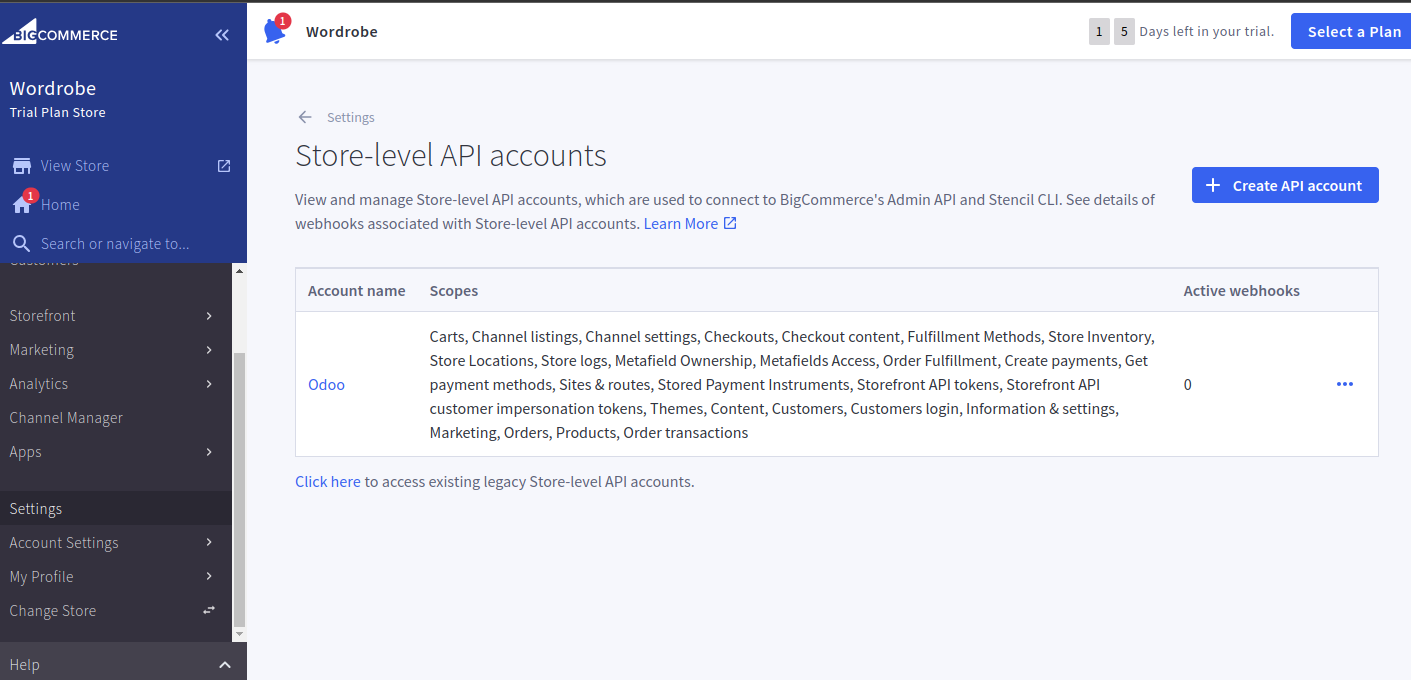
Create a BigCommerce account or log in, then go to Settings > API > Store-Level API Accounts.
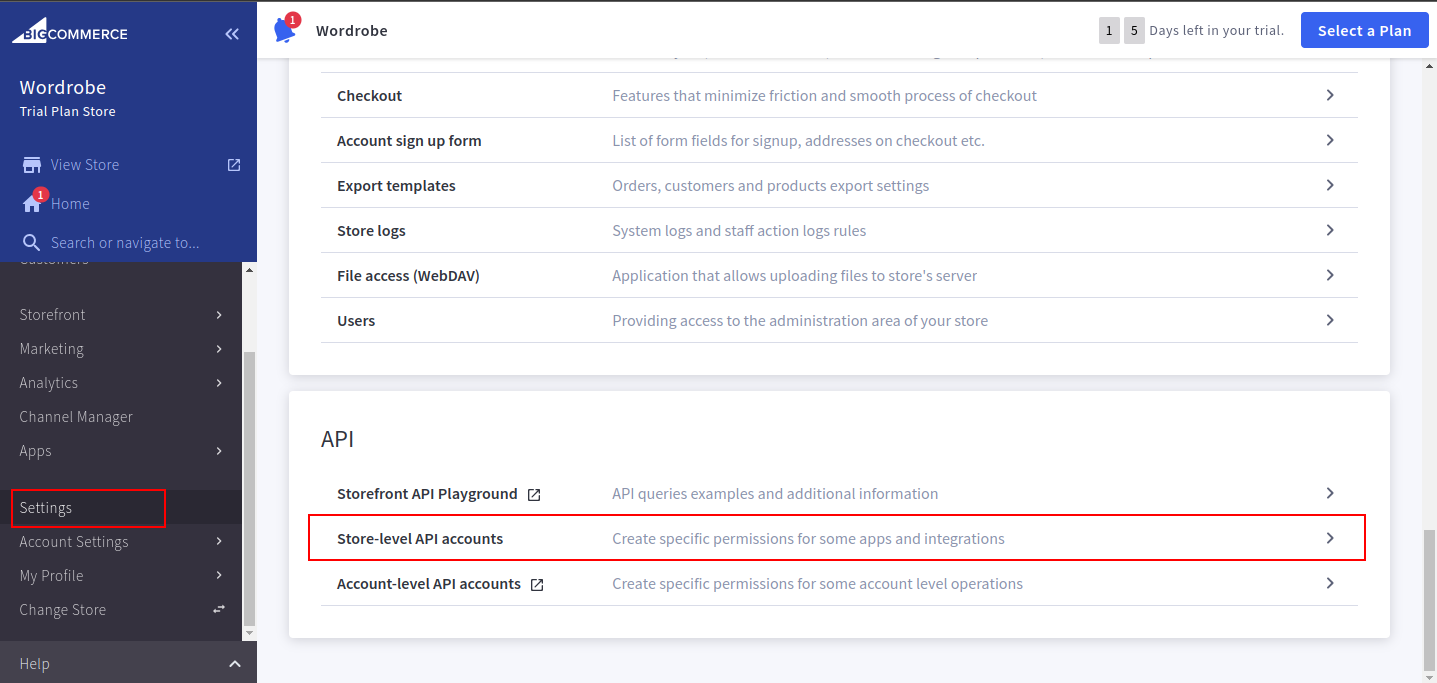
After selecting Store-Level API Accounts, click the Create API Account button.
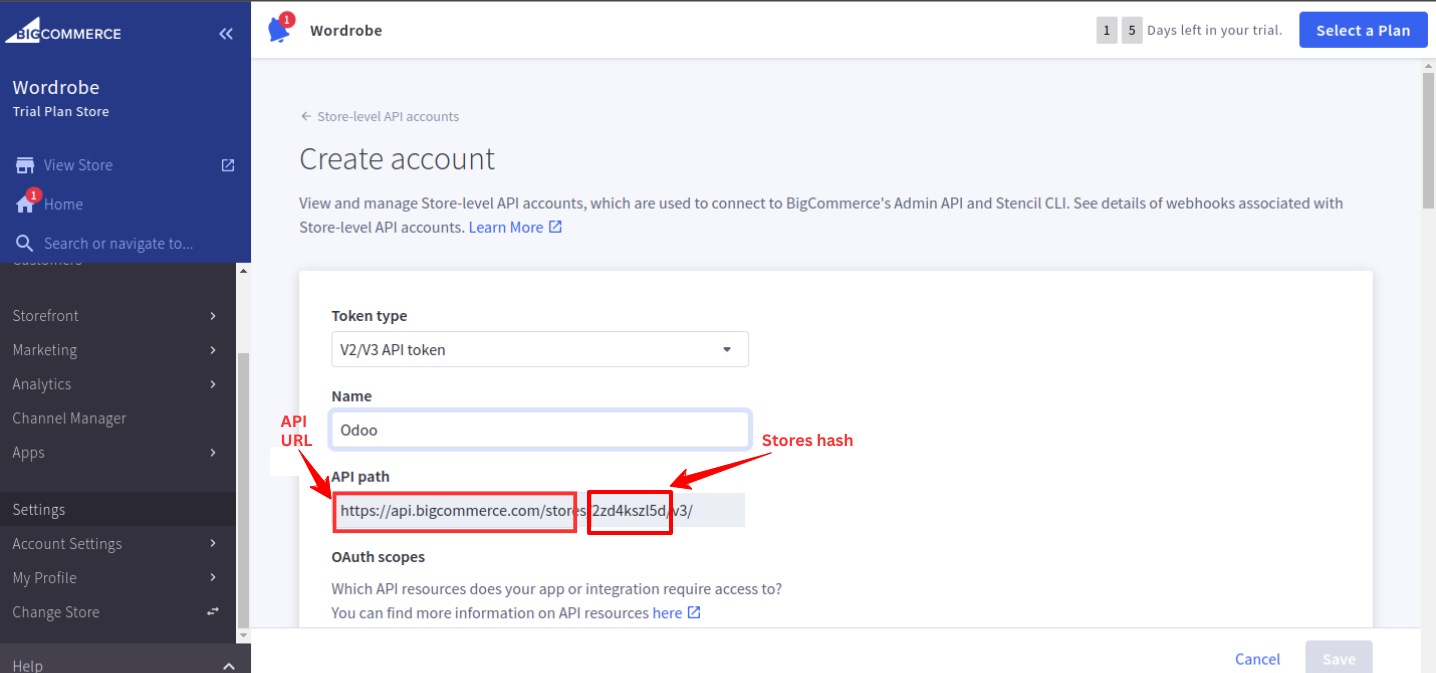
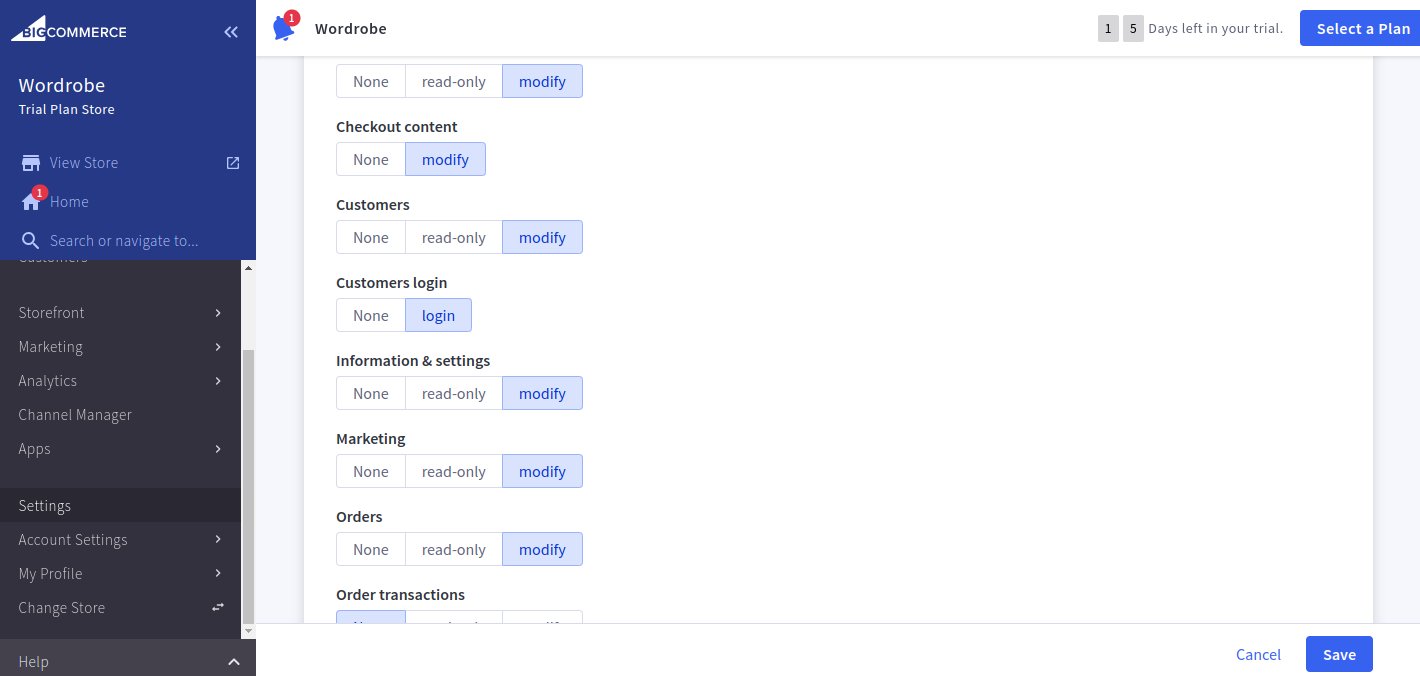
After clicking Create API Account, a window will open—enter a name in the input field and enable all permissions as shown in the screenshots.
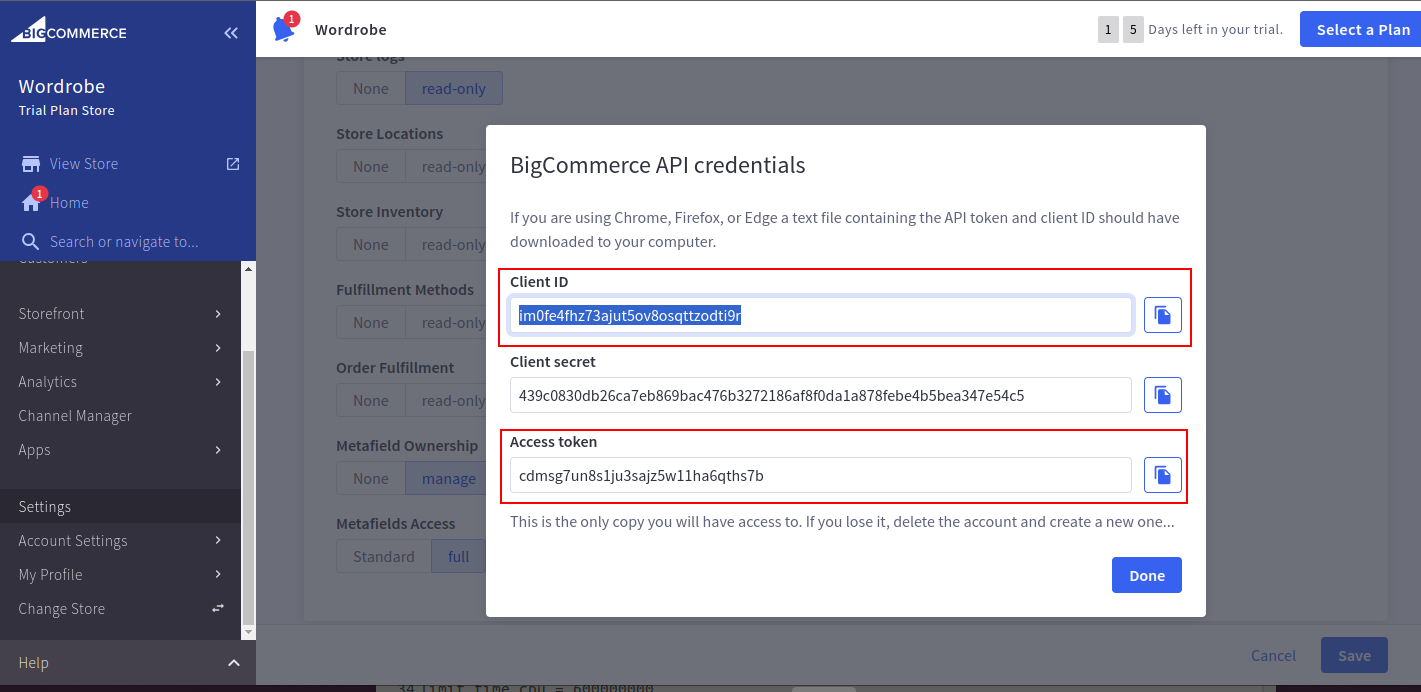
After granting permissions, click Save, note the API credentials, and then click Done.
Installation
Download the BigCommerce Odoo Integration App from Vraja Technologies, place it in the Odoo Addons path, restart Odoo, and update the Apps List to view it in Apps.
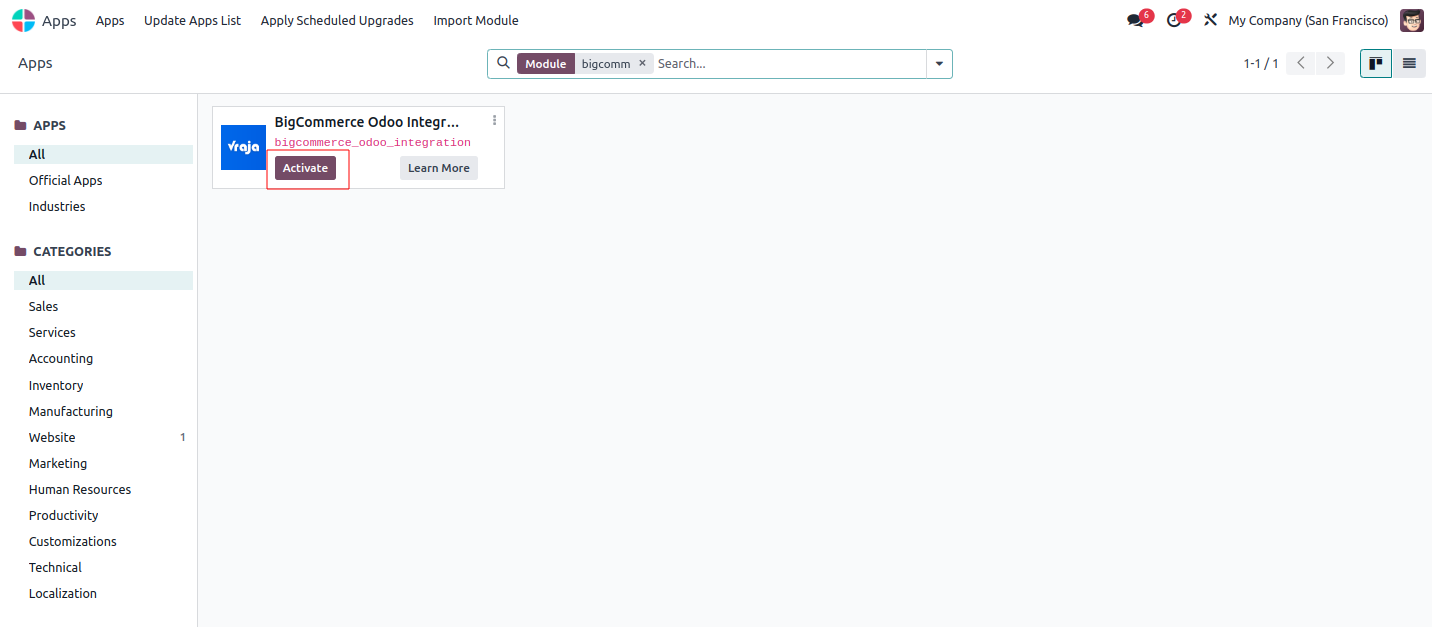
Click the Activate button, and you’re all set to use BigCommerce Odoo Integration in Odoo!
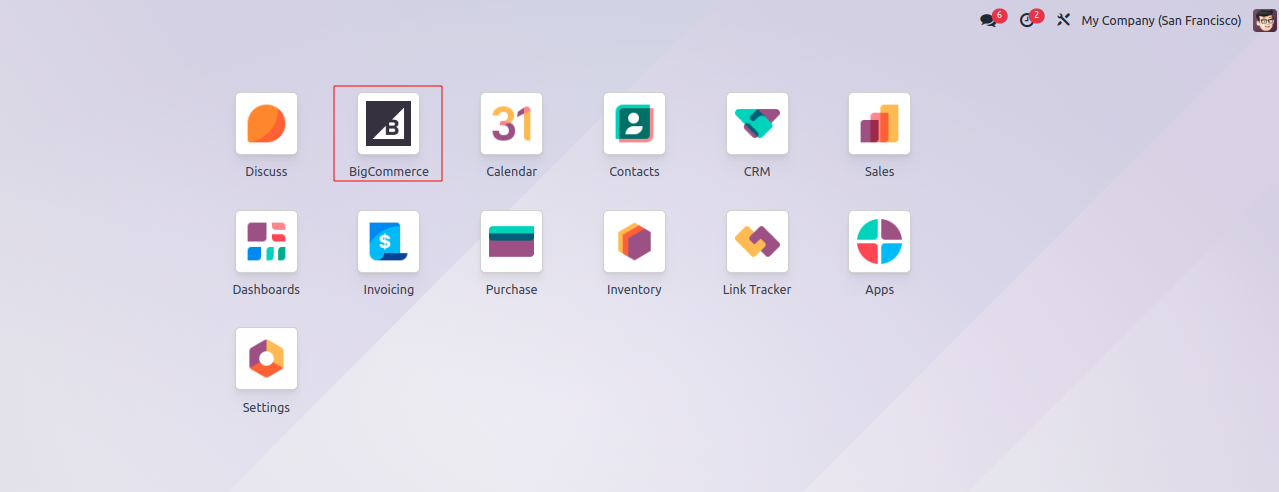
BigCommerce Instance creation process with it’s configuration in Odoo
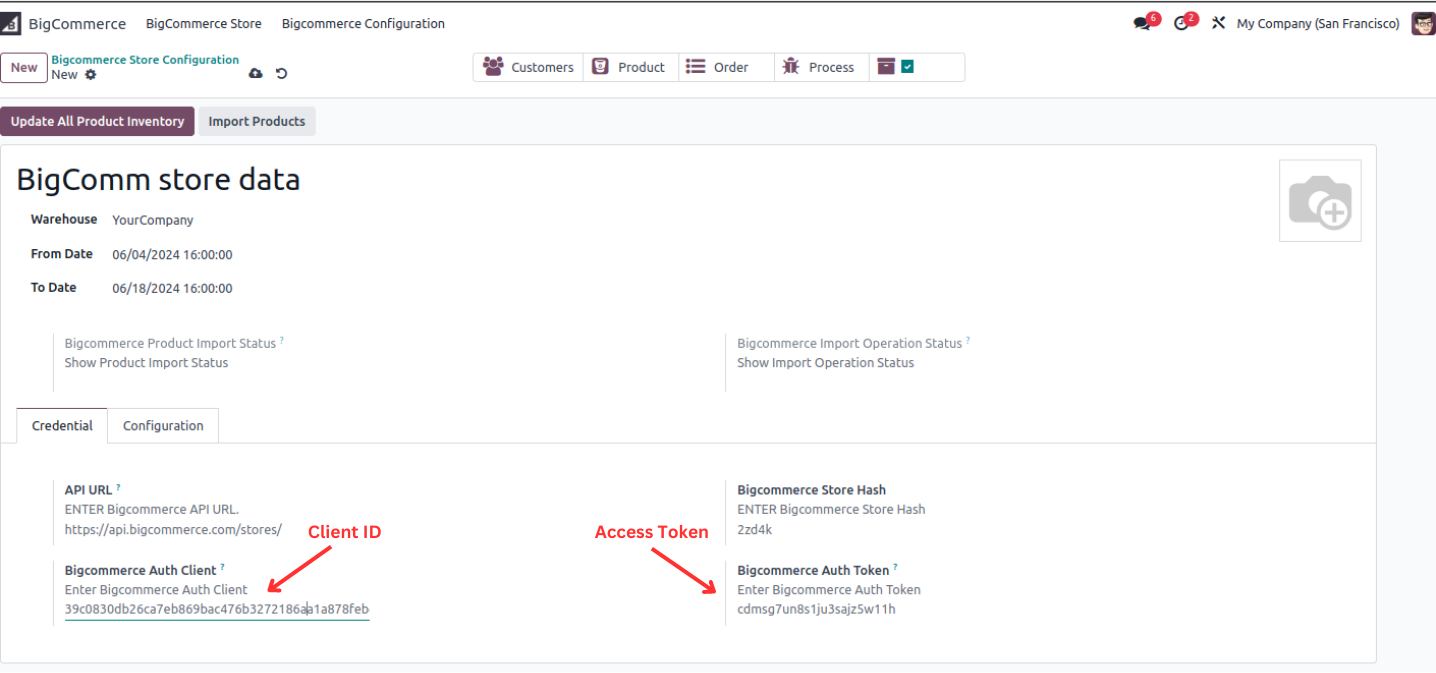
Open the app and click the New button to create a store.

Enter the store name and details in the credentials tab, including the Client ID, Store Hash, and Access Token from your BigCommerce account.
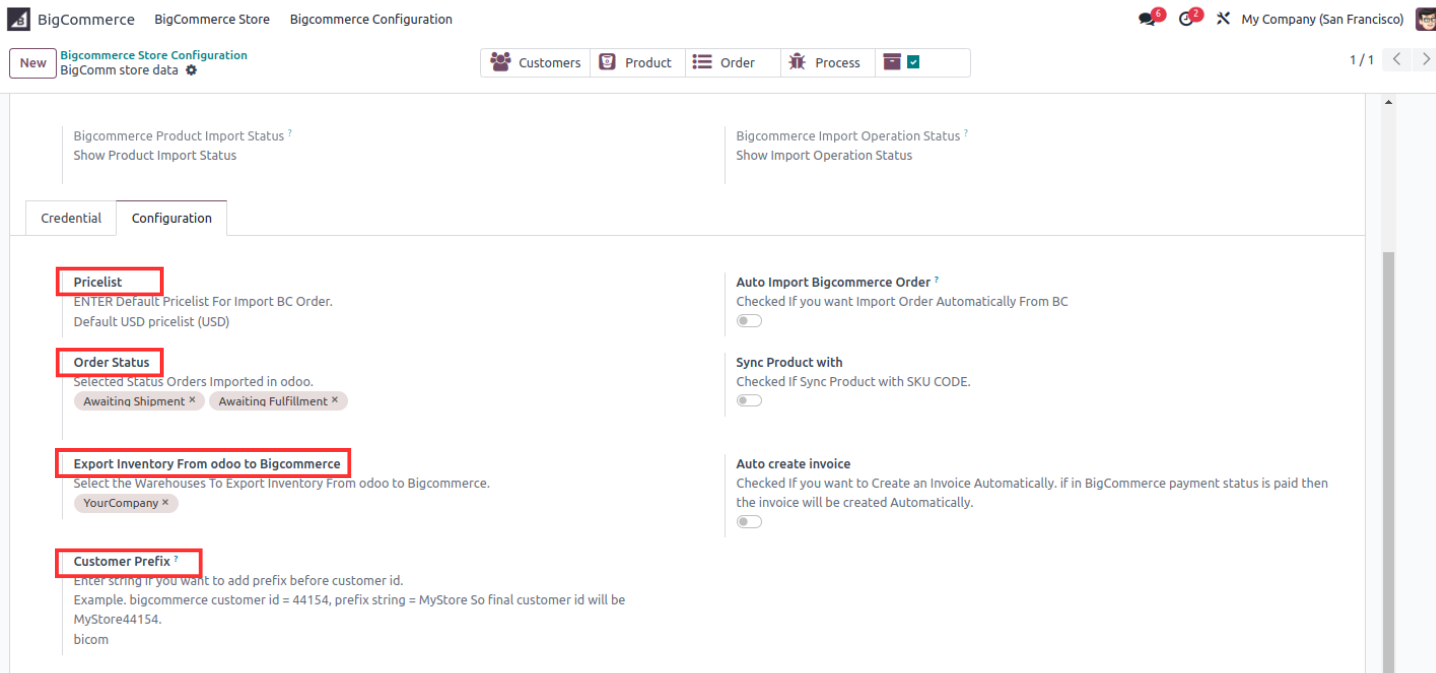
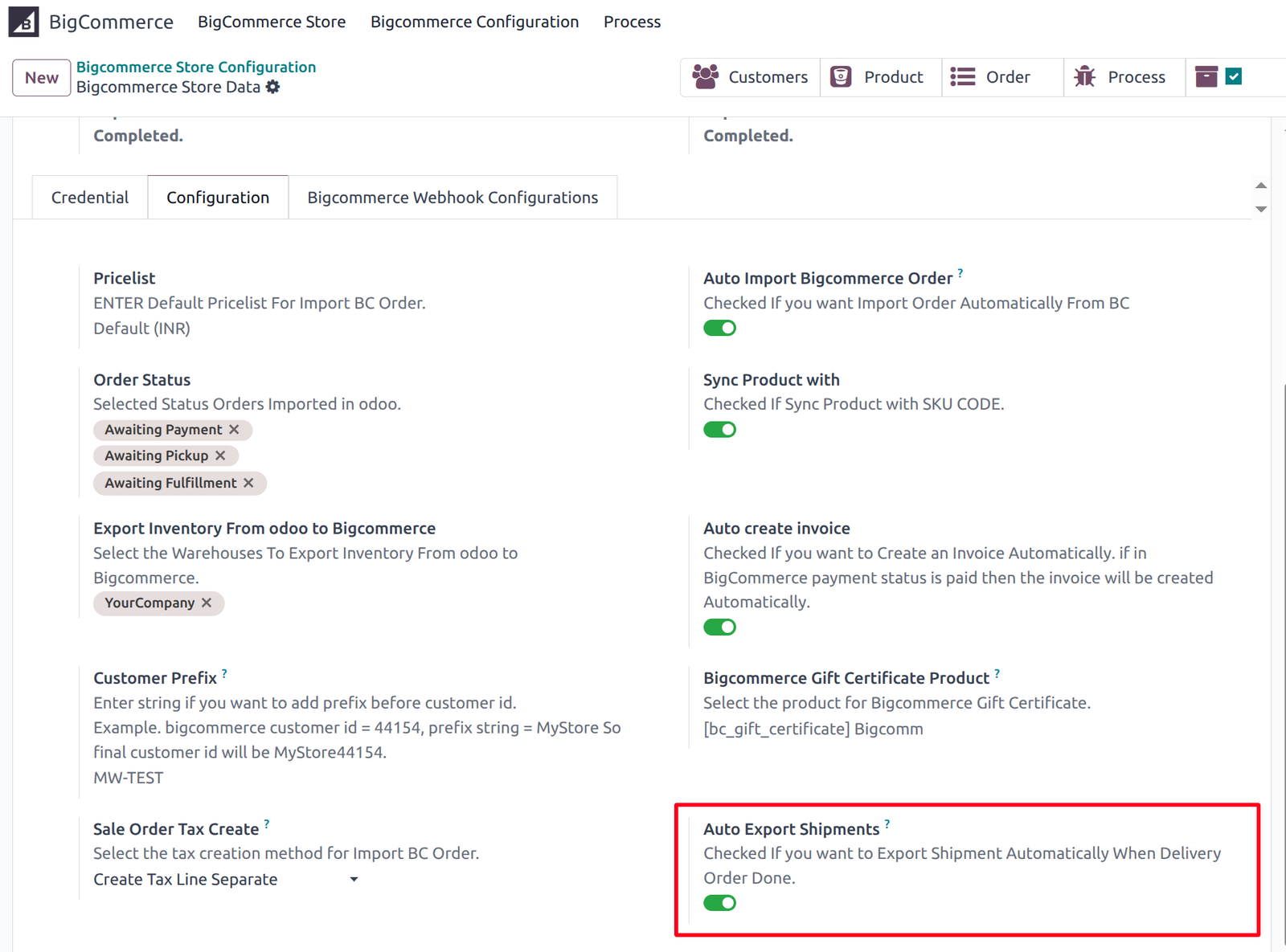
Next, go to the Configuration tab and enter details like Price List, Order Status, Export Inventory, and Customer Prefix.
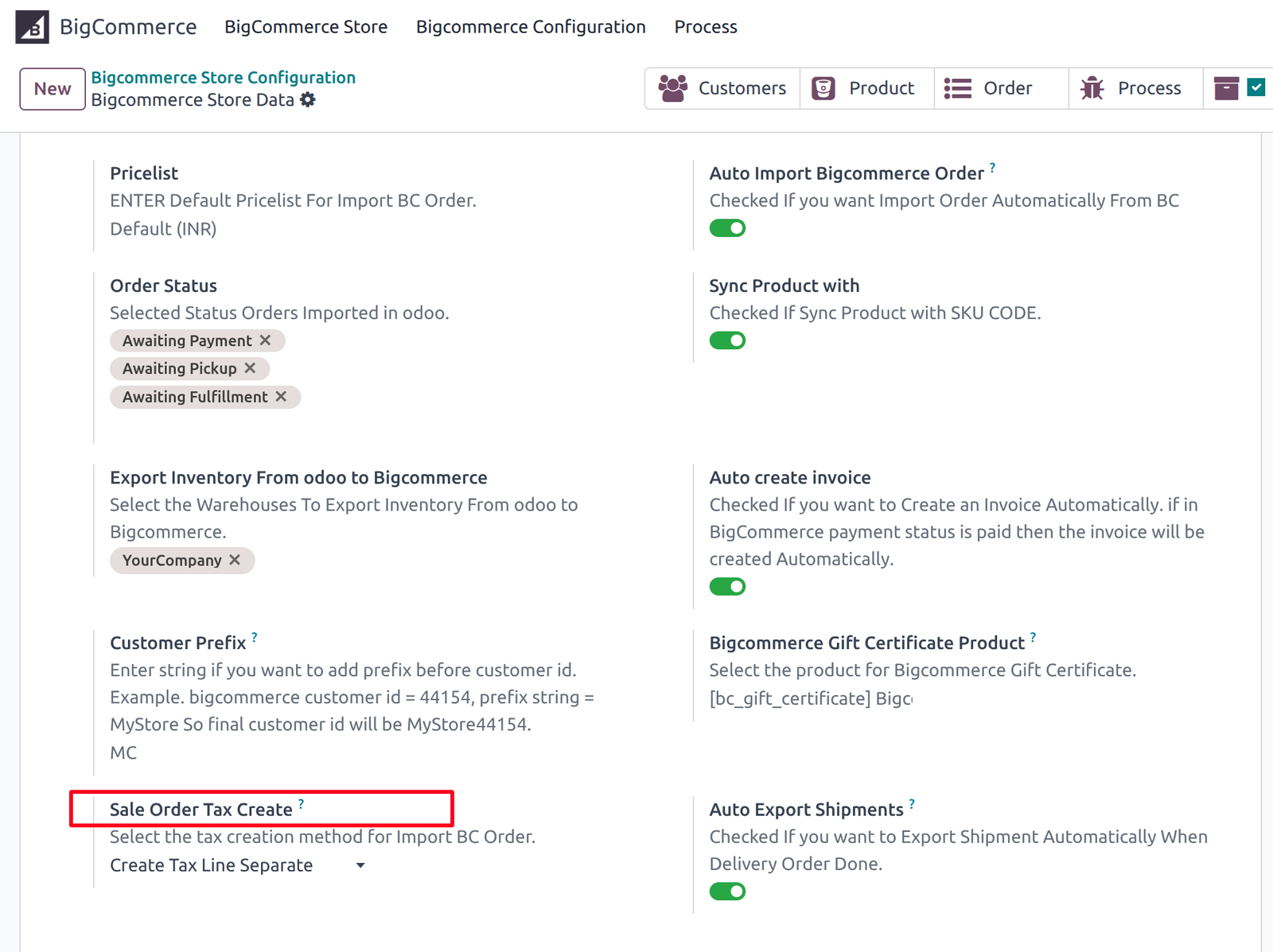
You can select the Sale Order Tax Create method to decide how taxes from BigCommerce should be applied in Odoo Orders.
- Create Separate Line – Creates a separate tax line in the sale order.
- Odoo Default – Applies taxes using Odoo’s standard tax calculation flow.
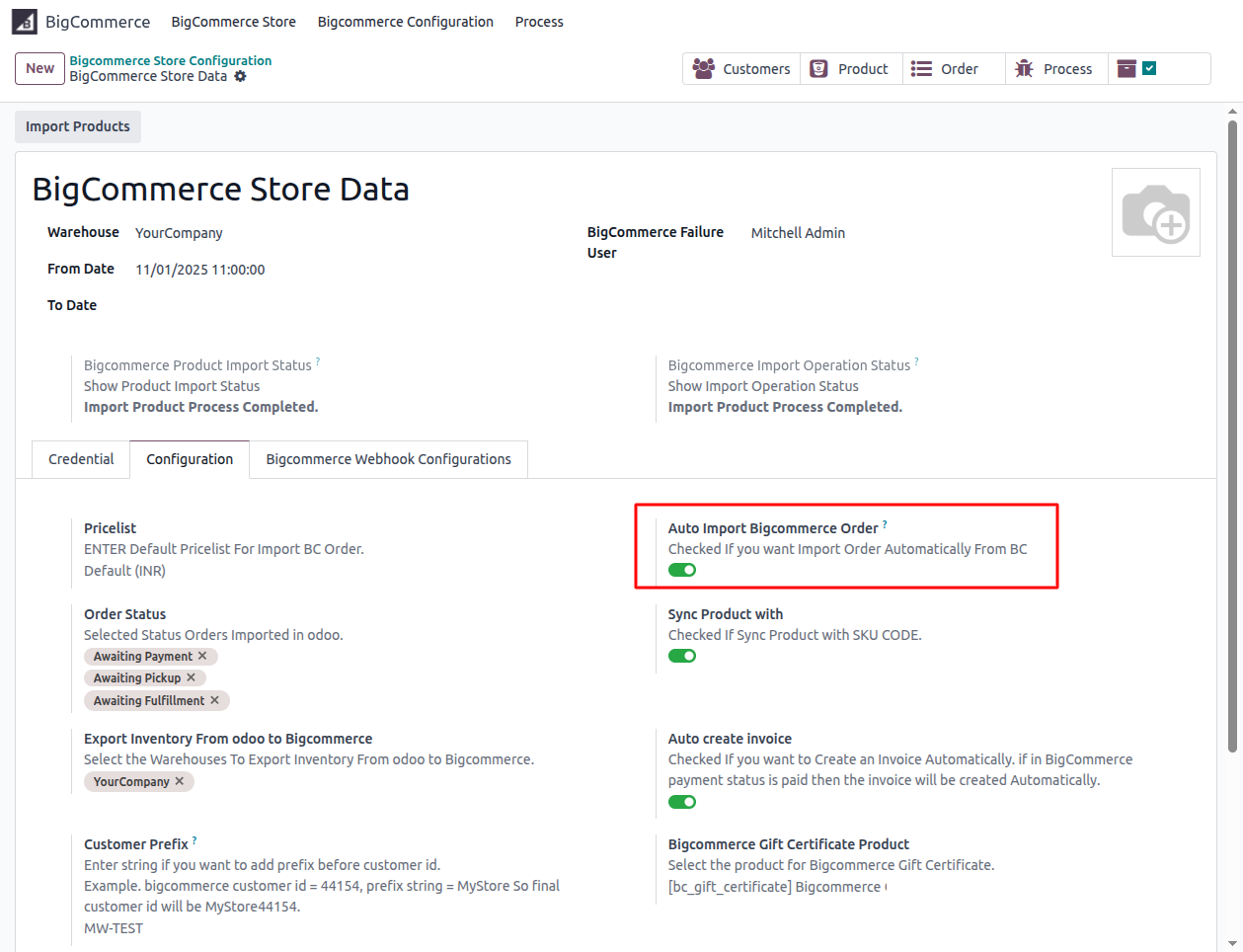
If the Auto Import BigCommerce Order option is enabled, the system will automatically import orders with the selected statuses from BigCommerce whenever the order scheduled action runs.
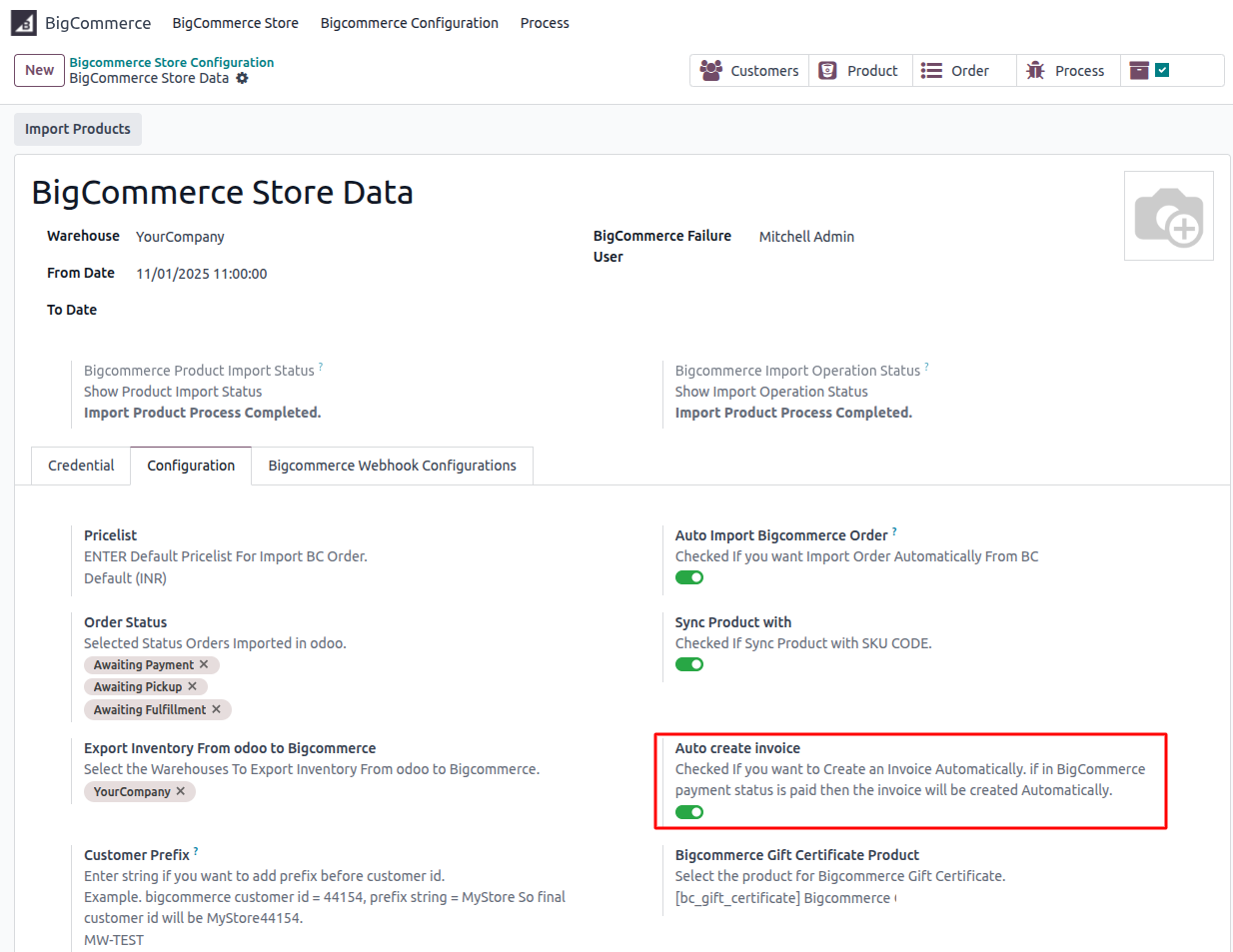
If Auto Create Invoice option is enabled in the store configuration, the system will automatically generate the invoice for BigCommerce paid orders.
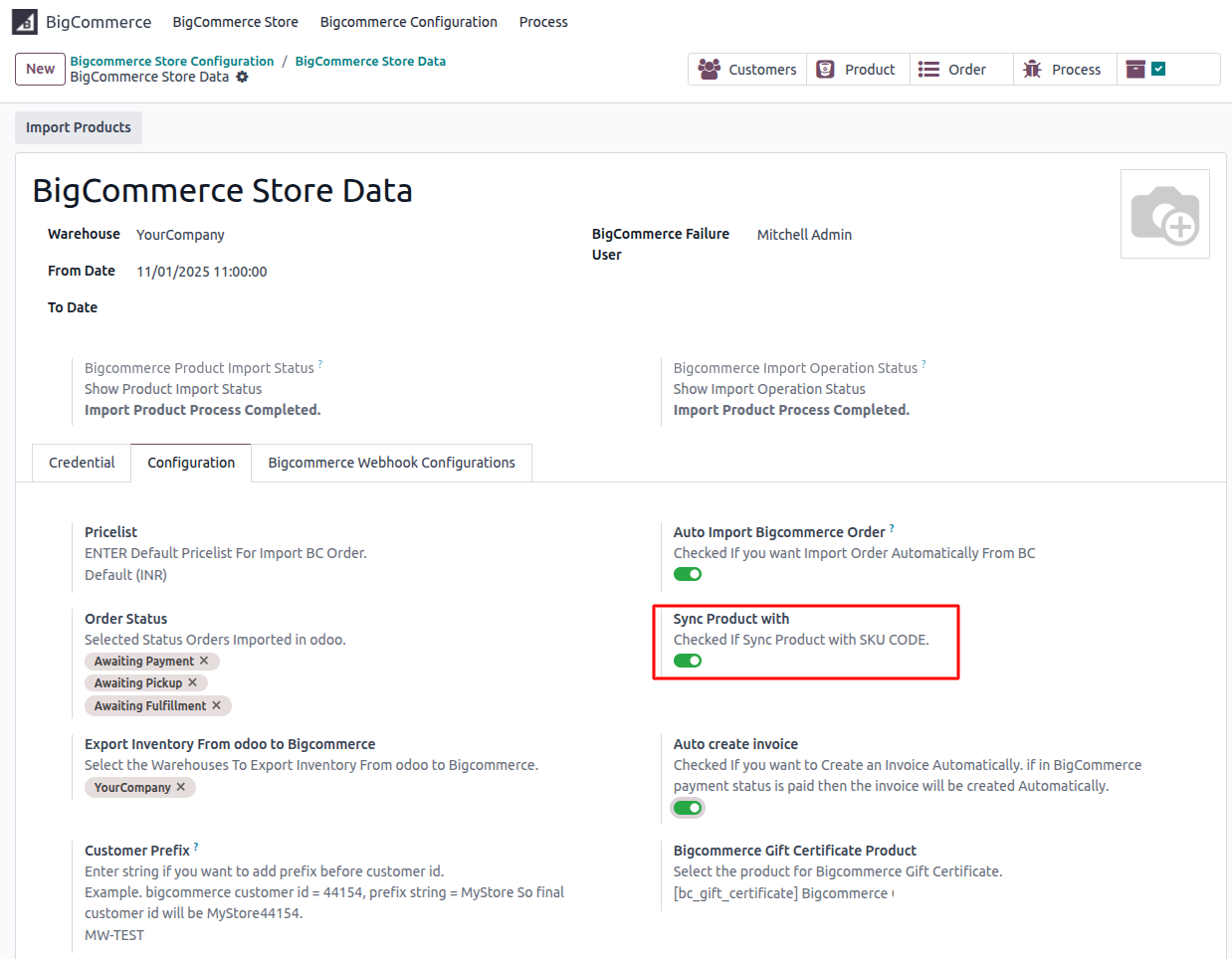
If the Sync Product with SKU option is enabled, the system will match BigCommerce products with existing Odoo products using the SKU Code. If a product with the same SKU already exists in Odoo, it will be updated instead of creating a duplicate.
BigCommerce Webhook Configuration
To enable real-time synchronization between BigCommerce and Odoo, configure webhooks inside the BigCommerce Webhook Configurations tab.
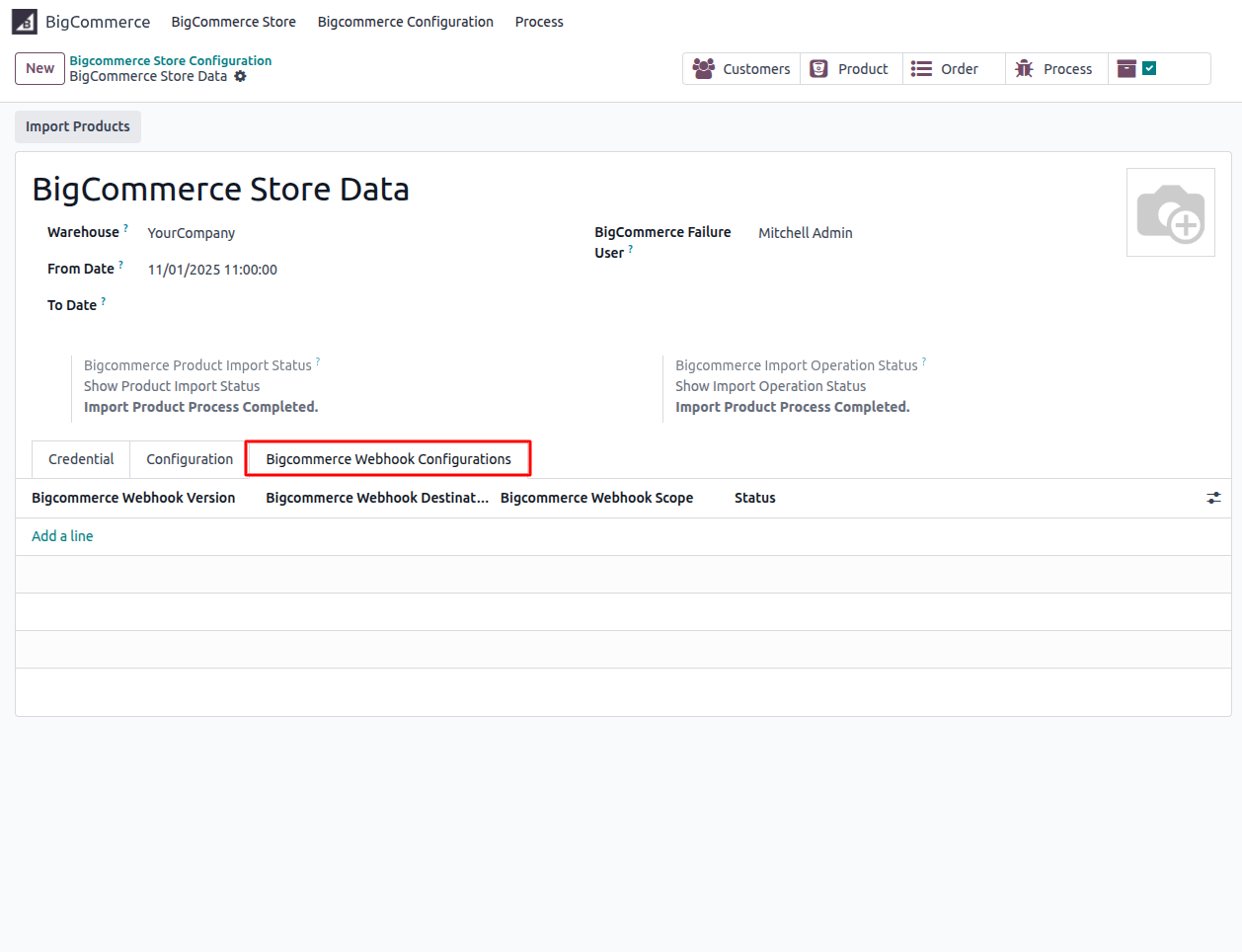
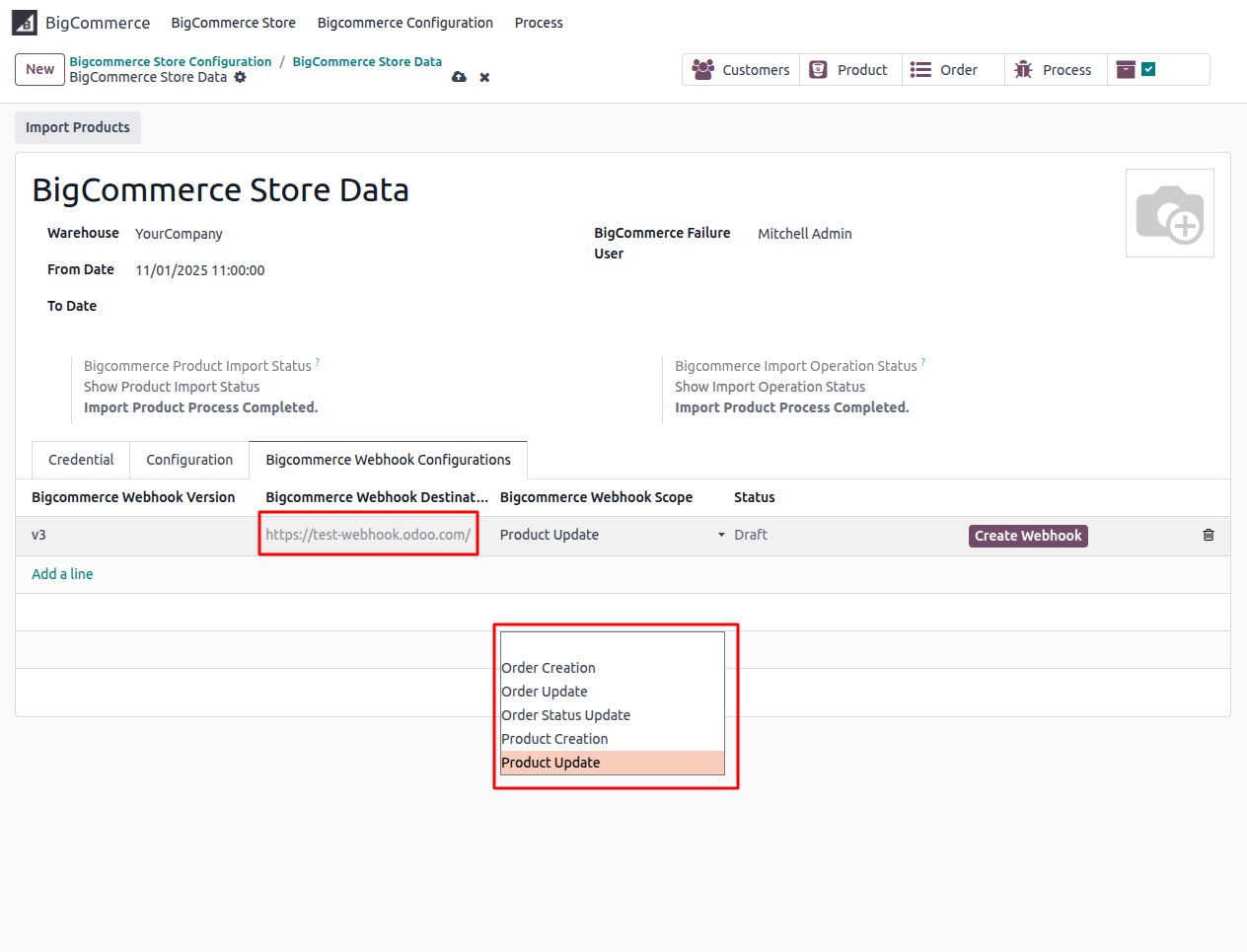
Click Add a line to create a new webhook entry. Enter the webhook version, webhook destination URL and select the desired webhook scope from the dropdown list. The module supports the following webhook events:
- Order Creation – Triggered when a new order is placed in BigCommerce.
- Order Update – Triggered when order details are modified in BigCommerce.
- Order Status Update – Triggered when an order changes its status in BigCommerce.
- Product Creation – Triggered when a new product is created in BigCommerce.
- Product Update – Triggered when an existing product or its variants are updated in BigCommerce.
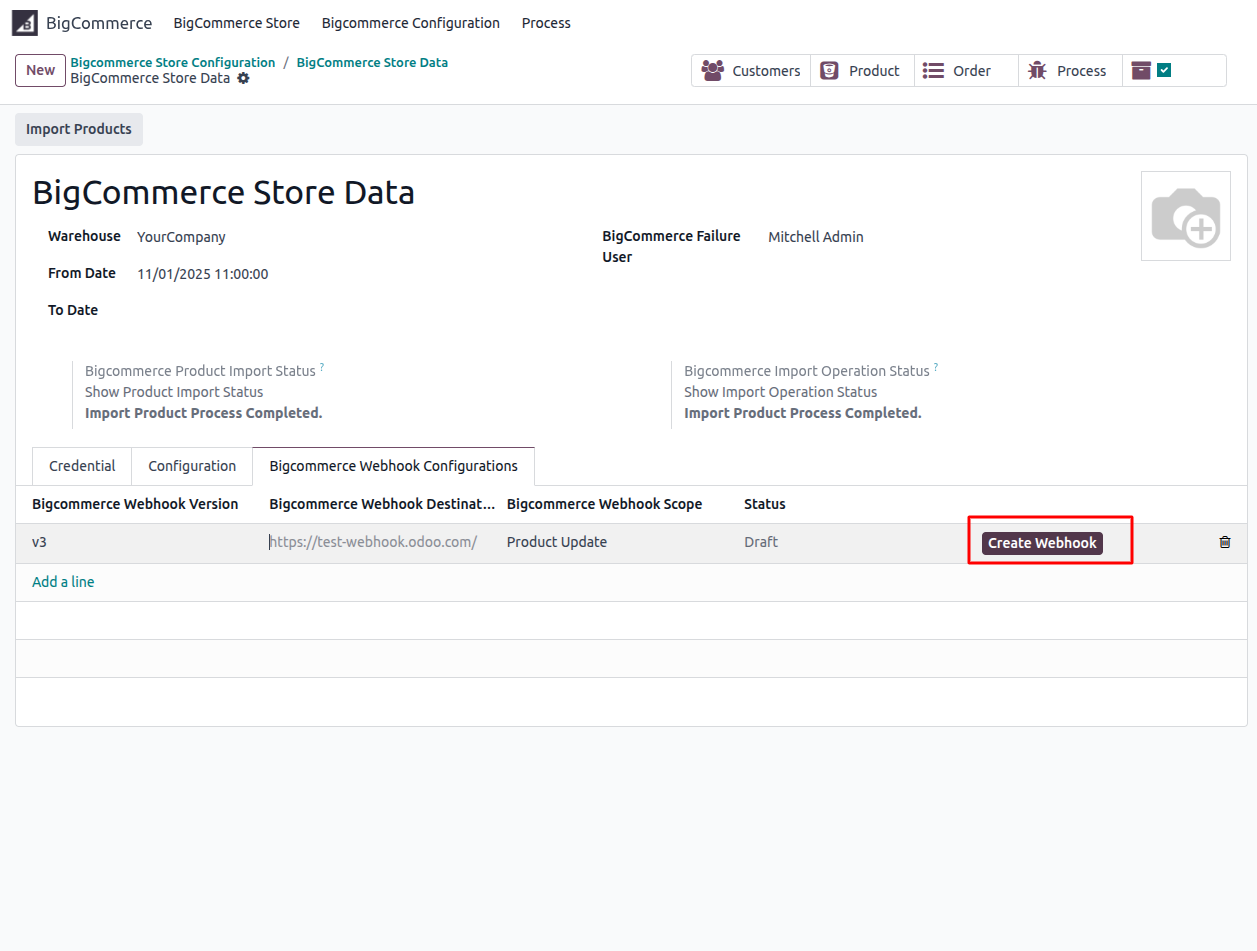
After selecting the scope and entering the URL, click the Create Webhook button to register the webhook inside BigCommerce. The webhook status will then appear in the list. Once configured, Odoo will automatically process the selected events in real-time, ensuring faster and more accurate BigCommerce–Odoo synchronization.
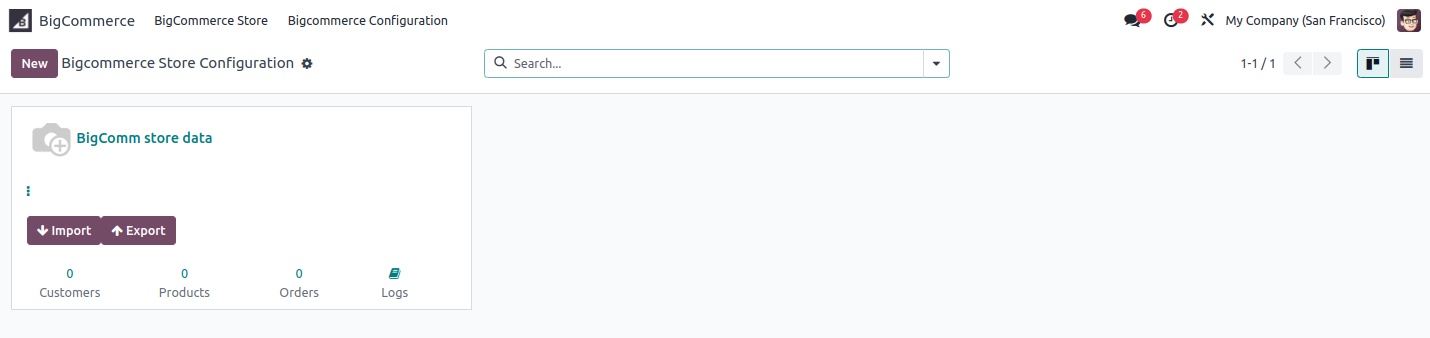
Save all the details, and the following image will appear.
Other process
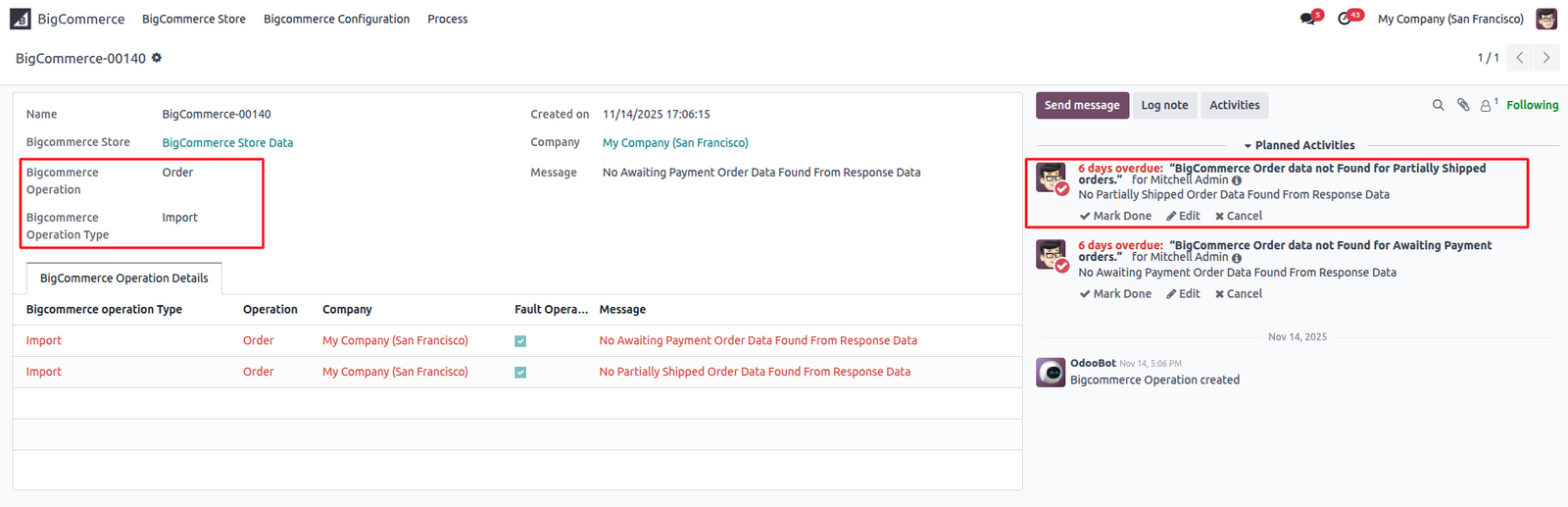
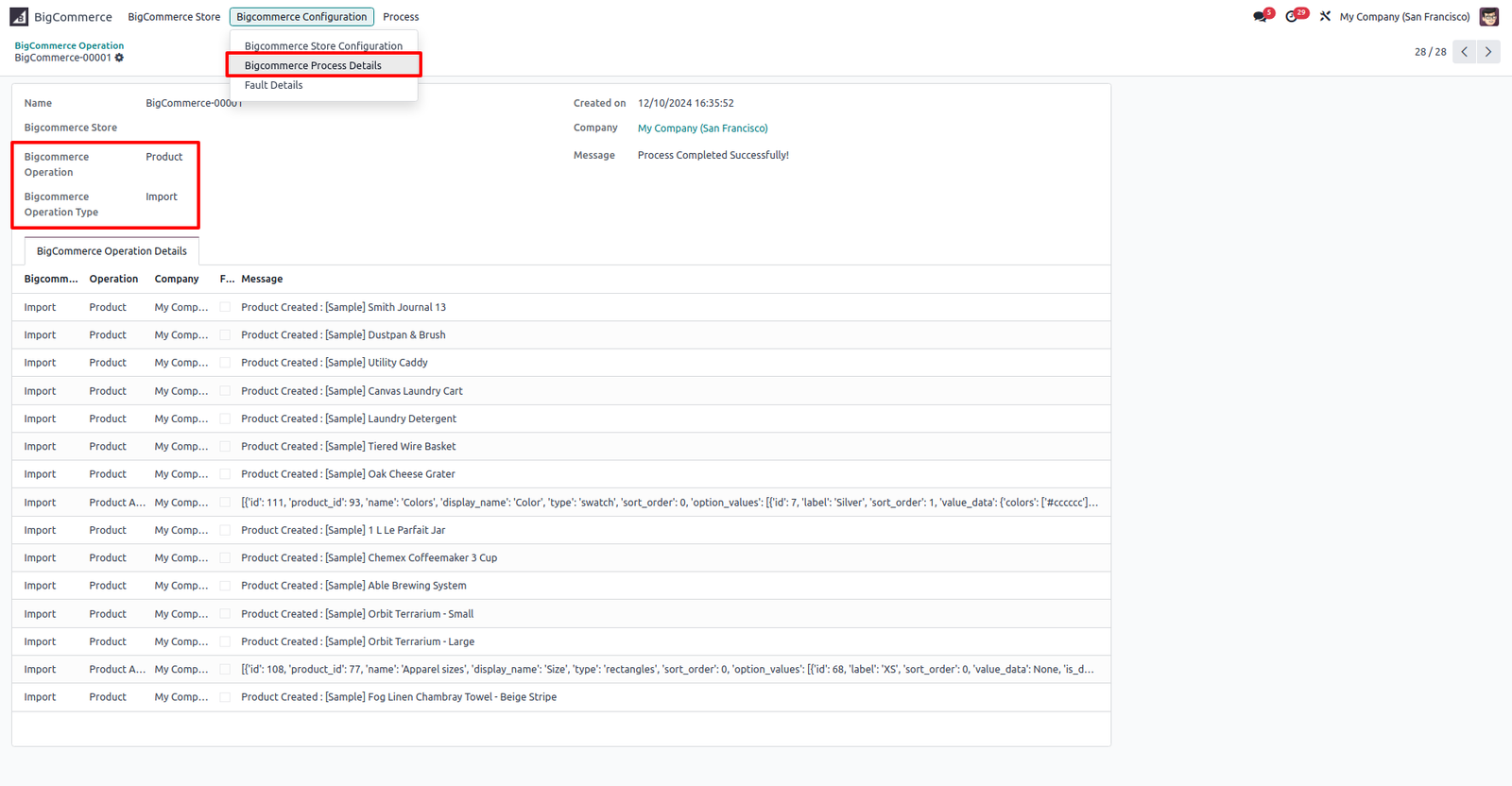
Manage Logs(If any Process Breaks then you can check the logs to correct it.)
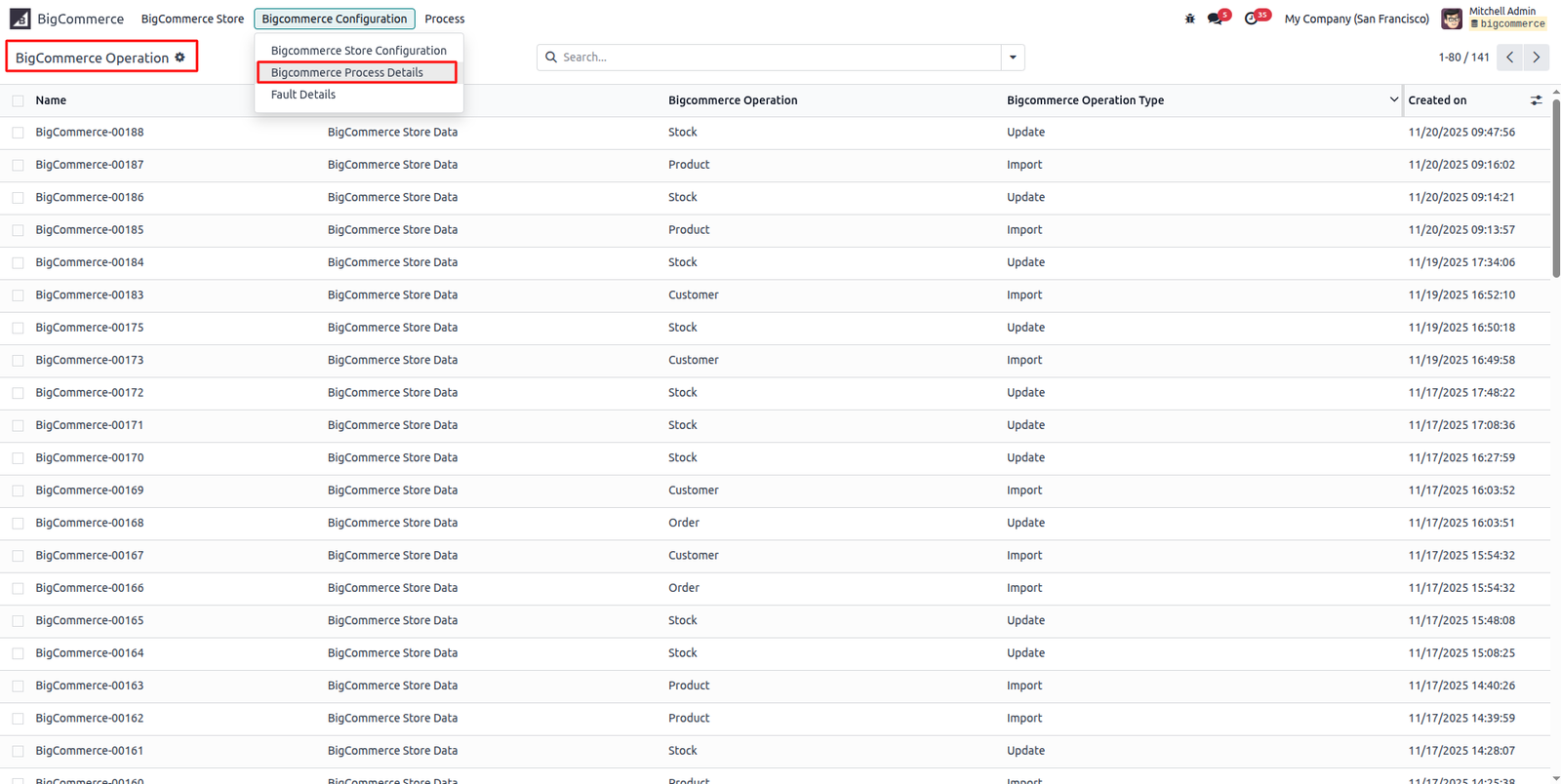
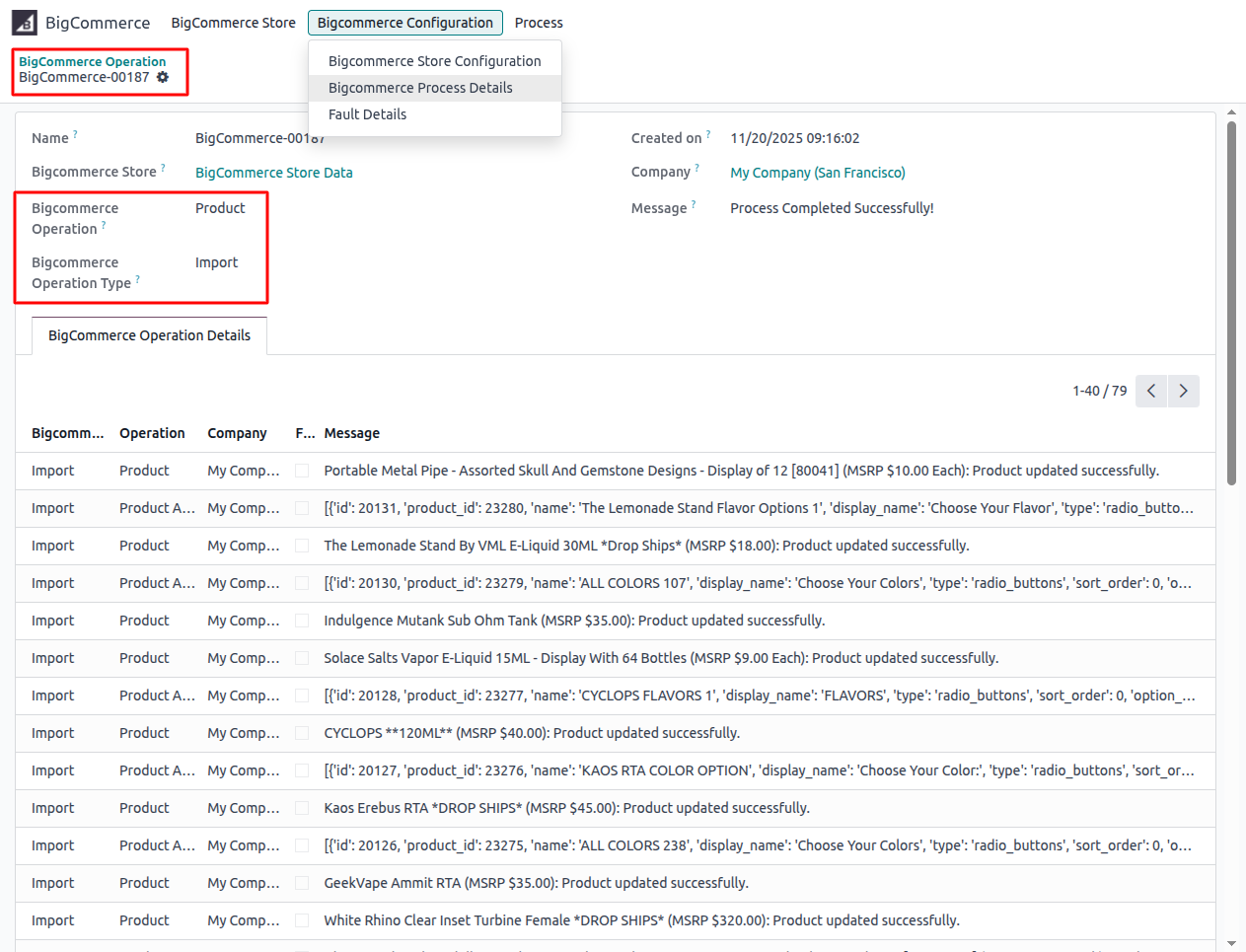
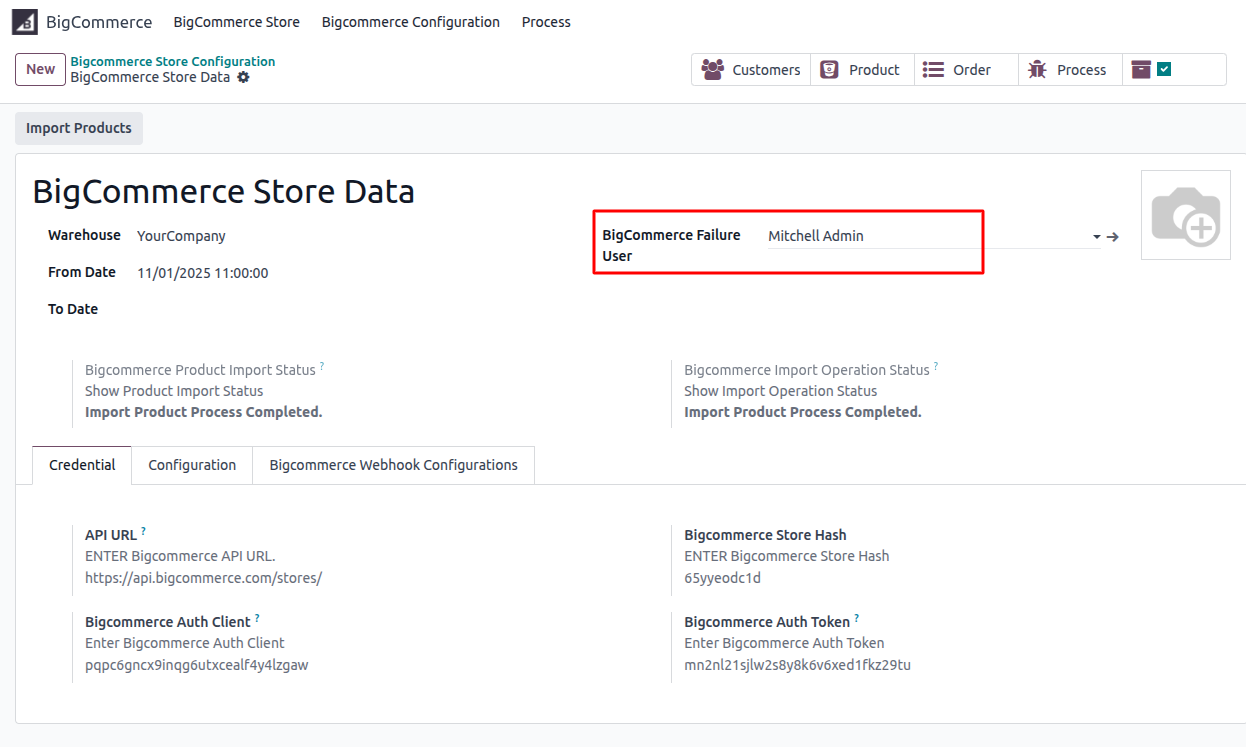
We also manage activity alert notifications for failure logs. You can select the user who will receive these alerts directly from the store configuration.
Product category, Brand & Customer Group from BC to Odoo
Click Import, open the BigCommerce import window, select Product Category, Brand, and Group, then click Import.
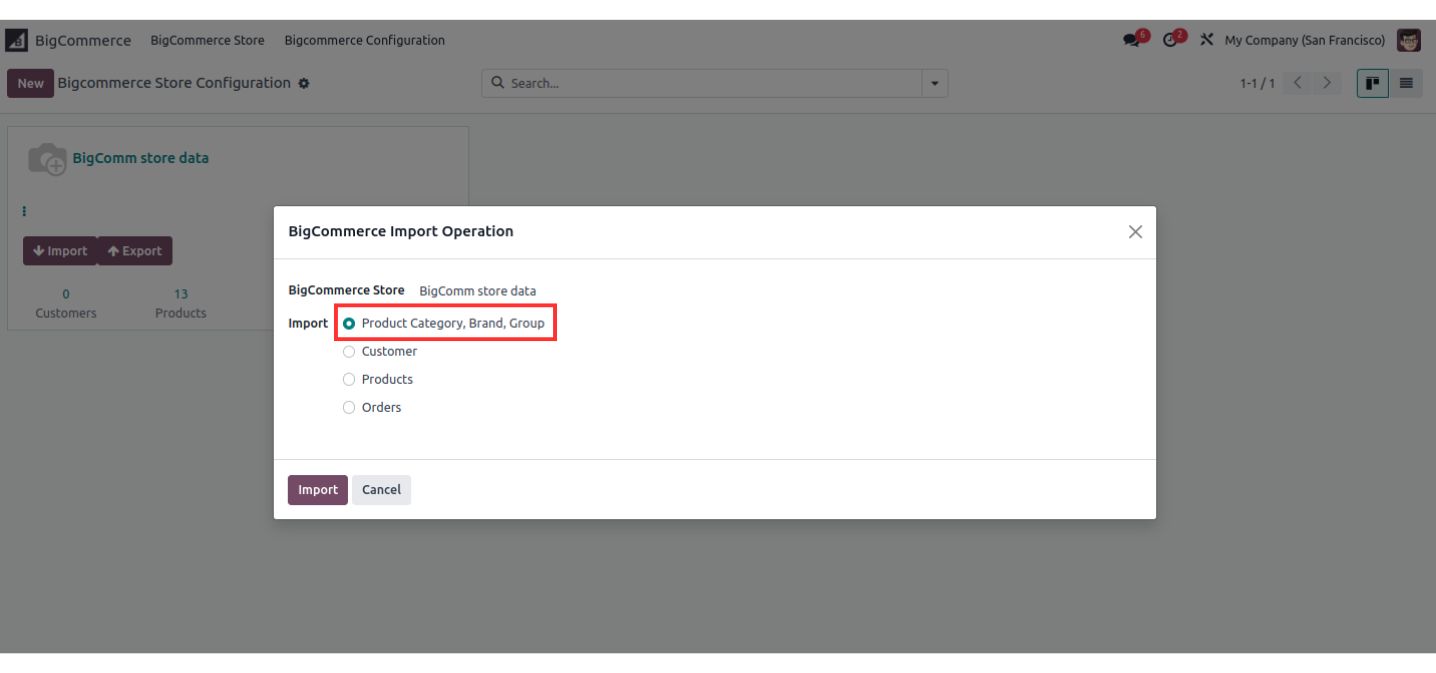
It will retrieve all categories, brands & customer groups from your BigCommerce store.
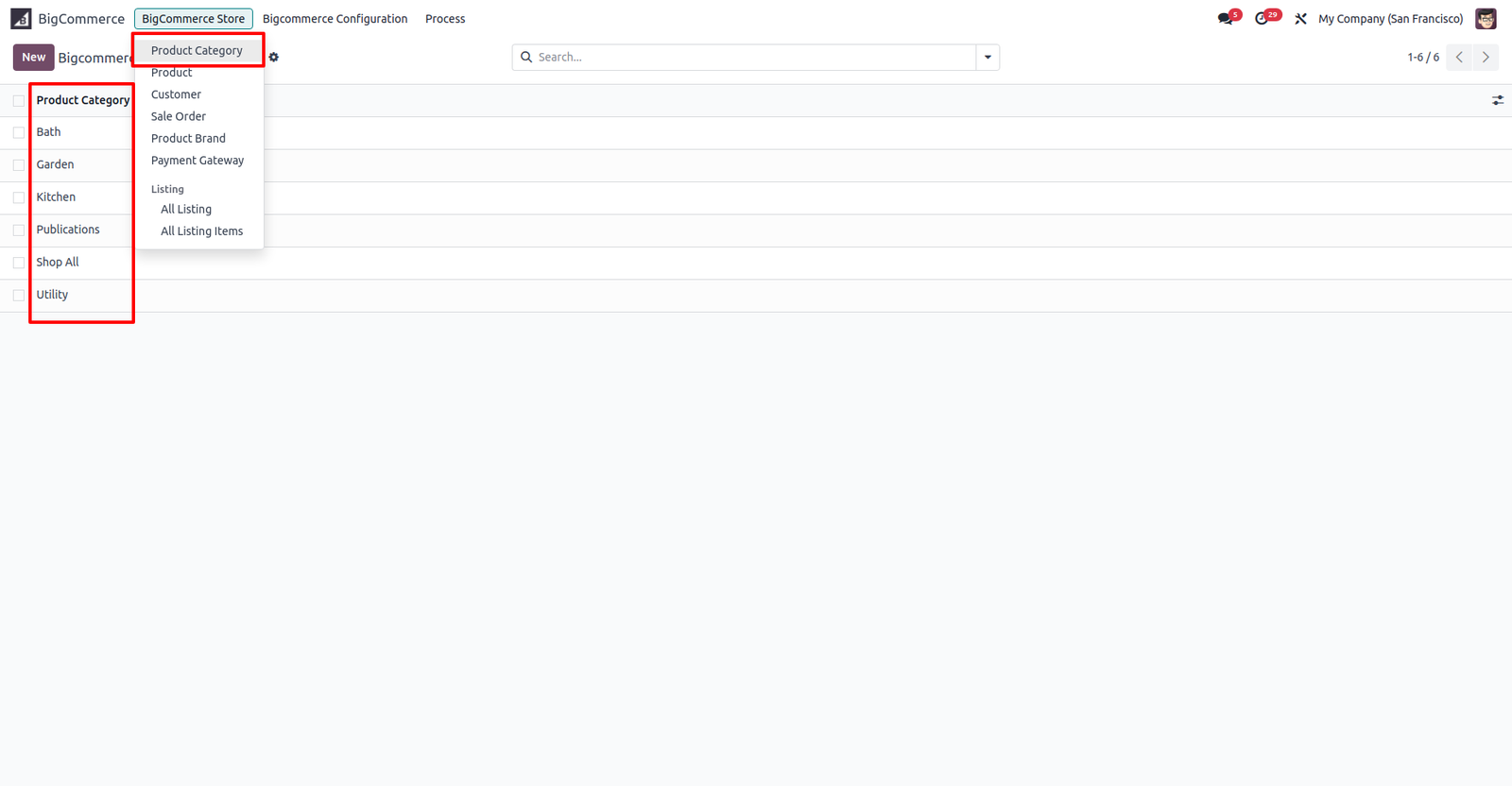
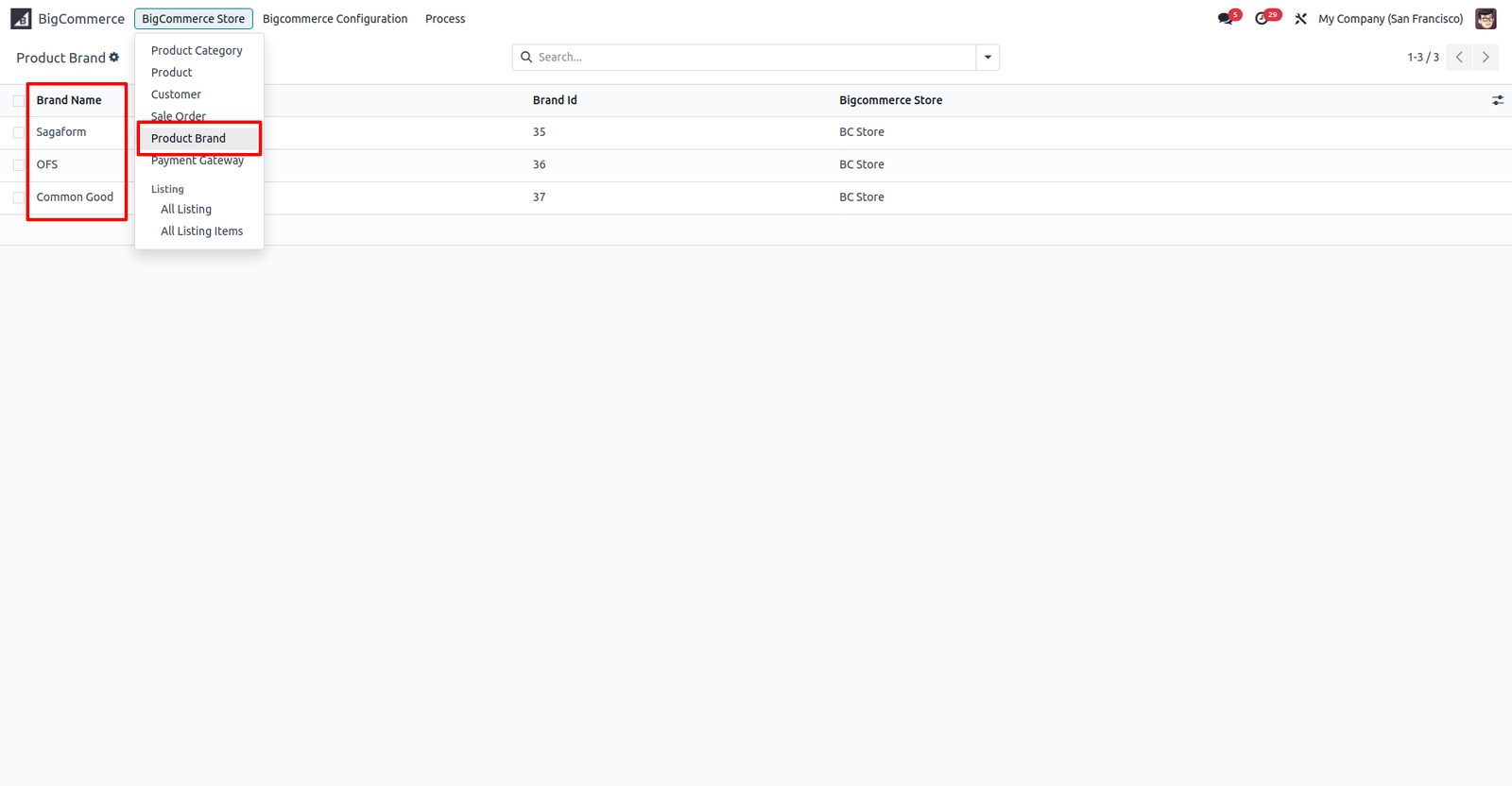
Import Product process
Import Product from BigCommerce to Odoo (You can import product through page wise or Product ID wise)
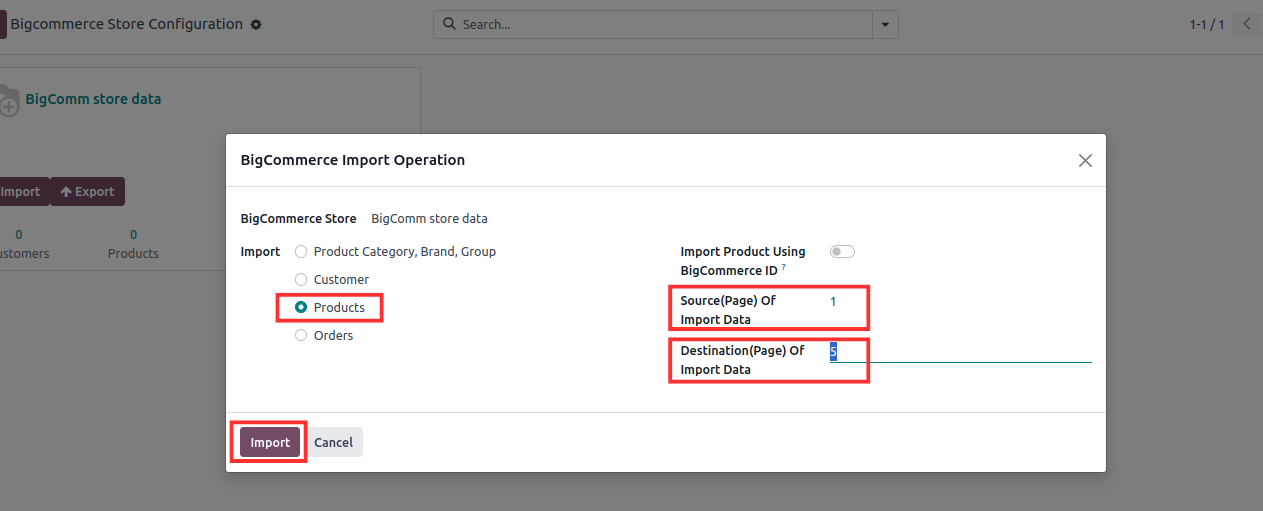
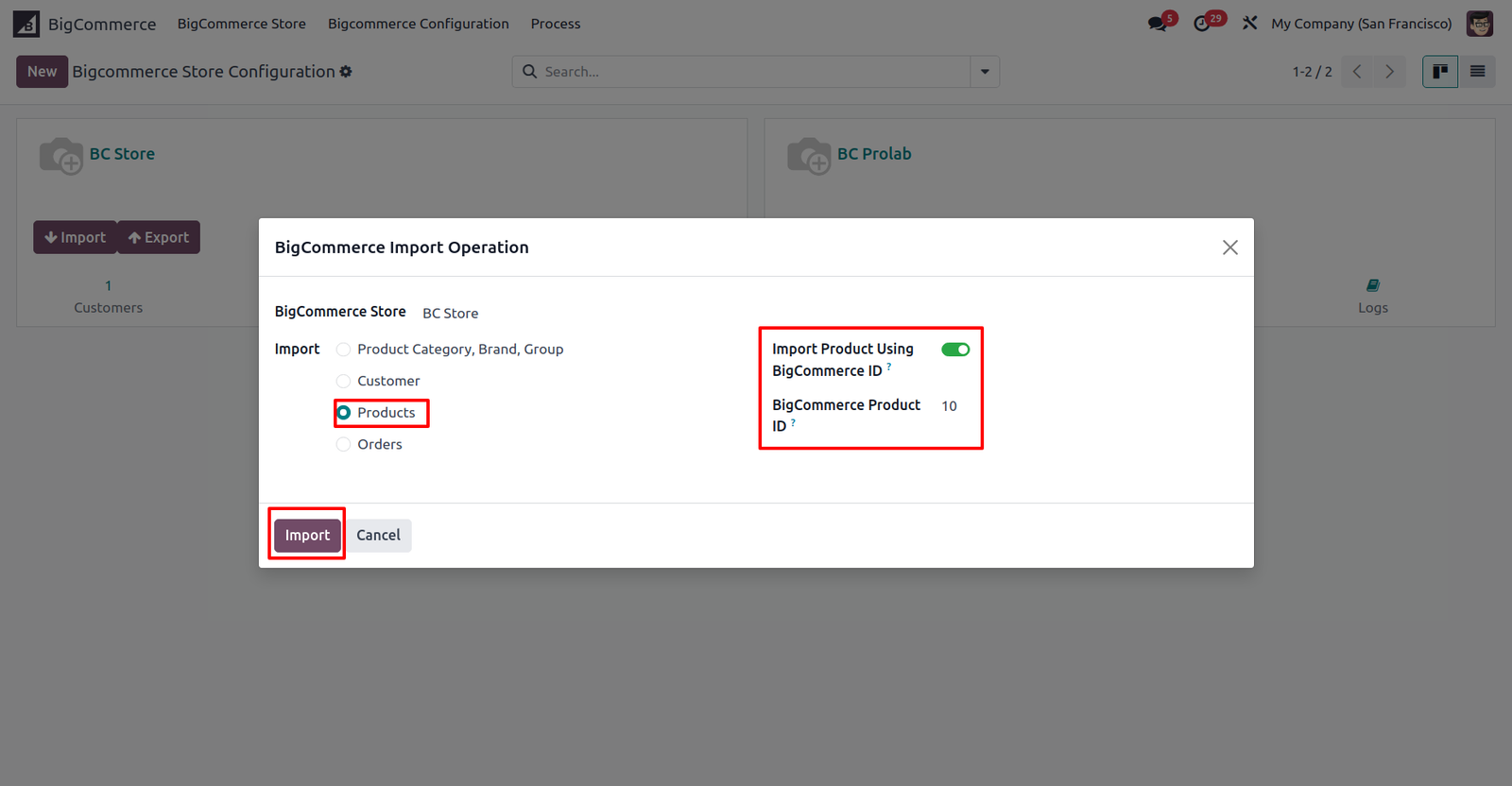
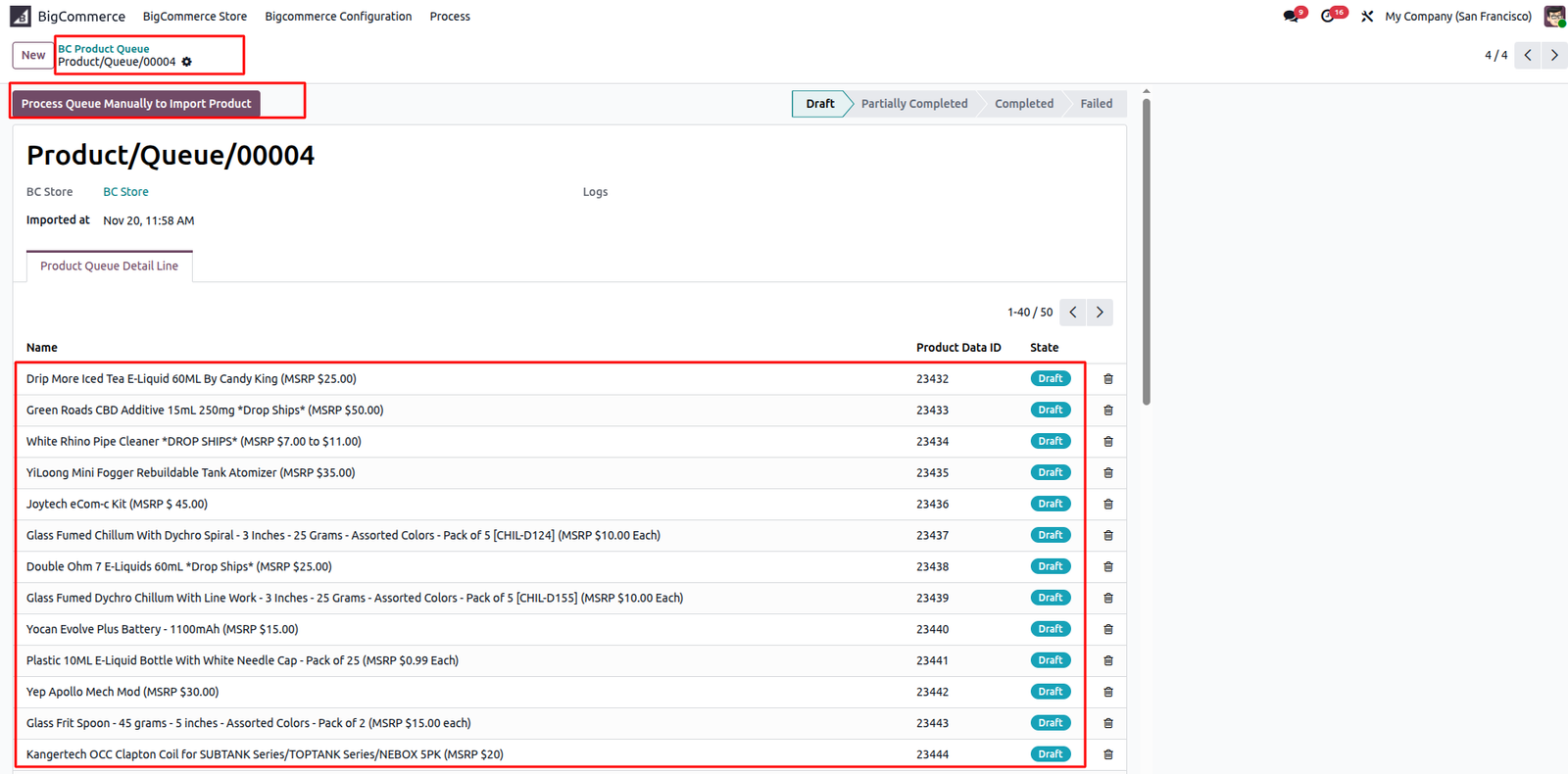
When products are imported from BigCommerce, the system first creates a Product Queue. Each queue contains product lines in Draft state, which are then processed to import or update products in Odoo.
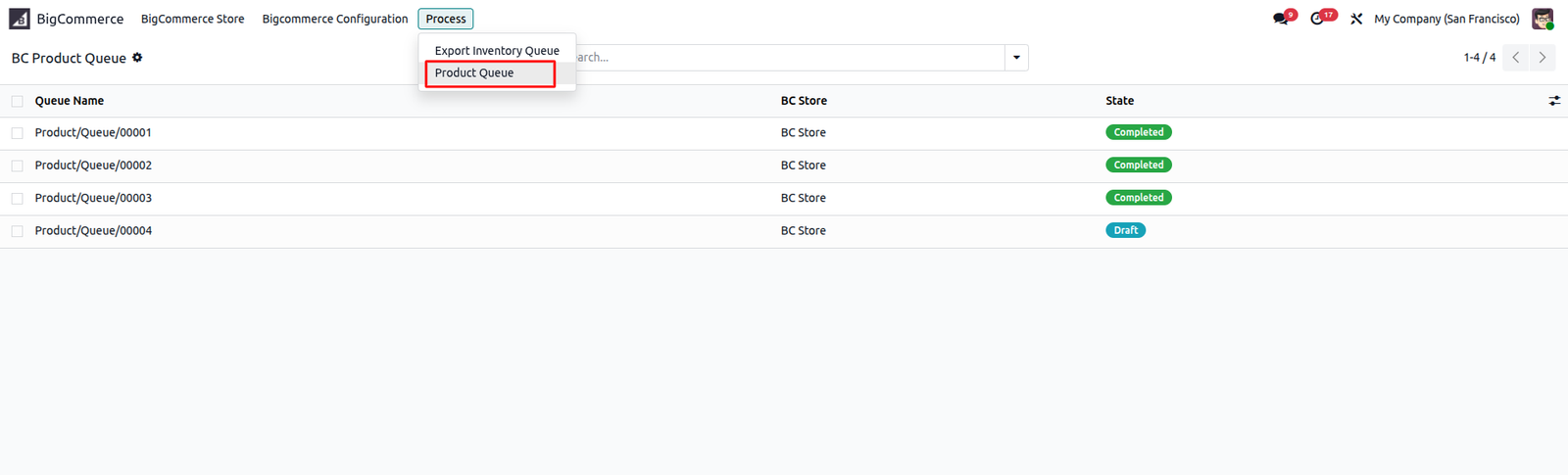
You can process the queue manually using the Process Queue Manually to Import Product button, and once completed, the queue will move to the Completed state.
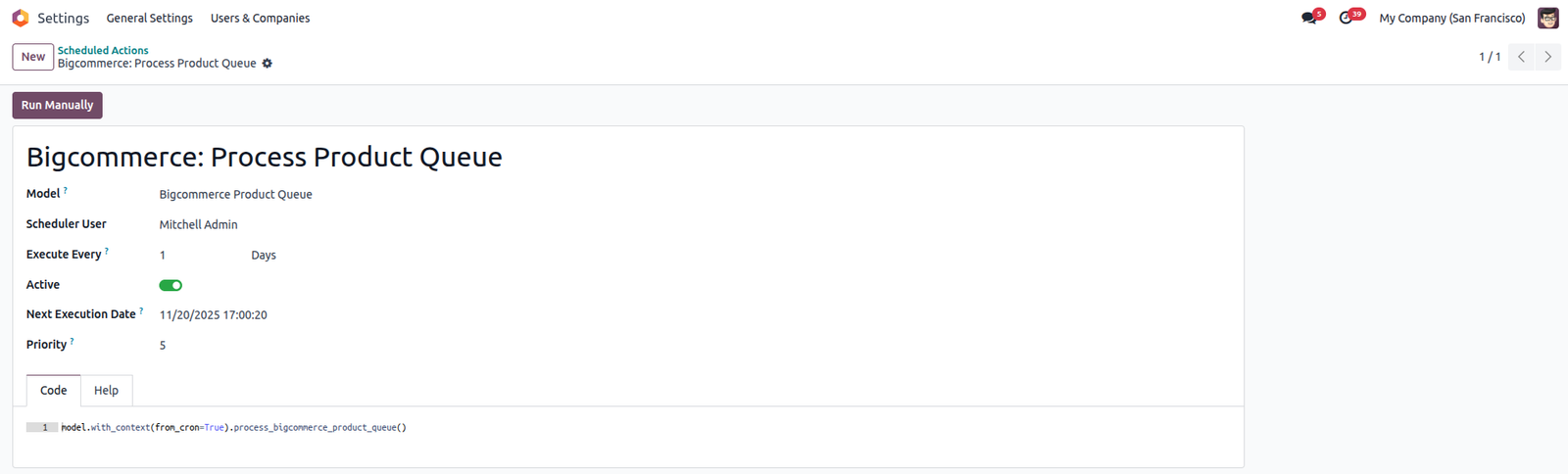
To process all queues automatically we have given Scheduled Action
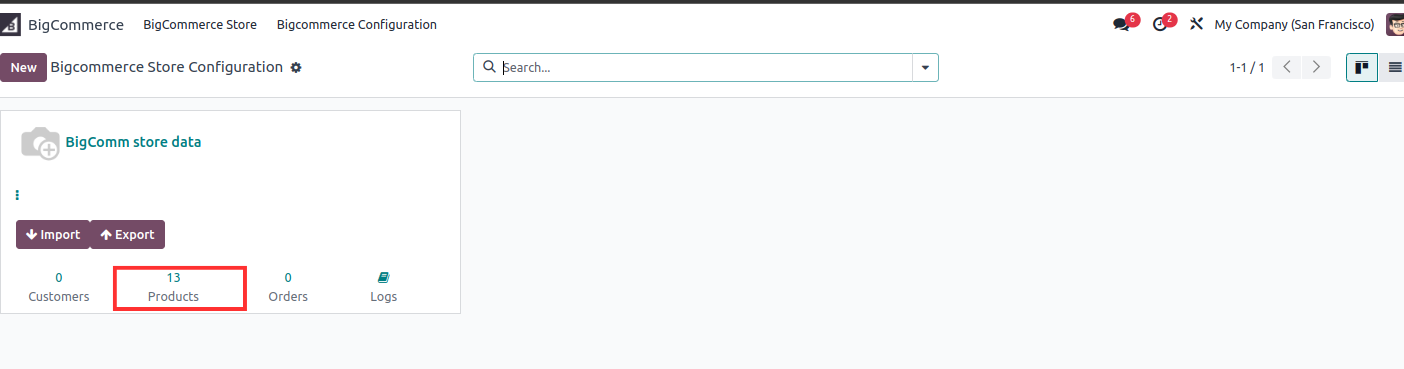
Total 13 products are imported and displayed, as shown in the image below.
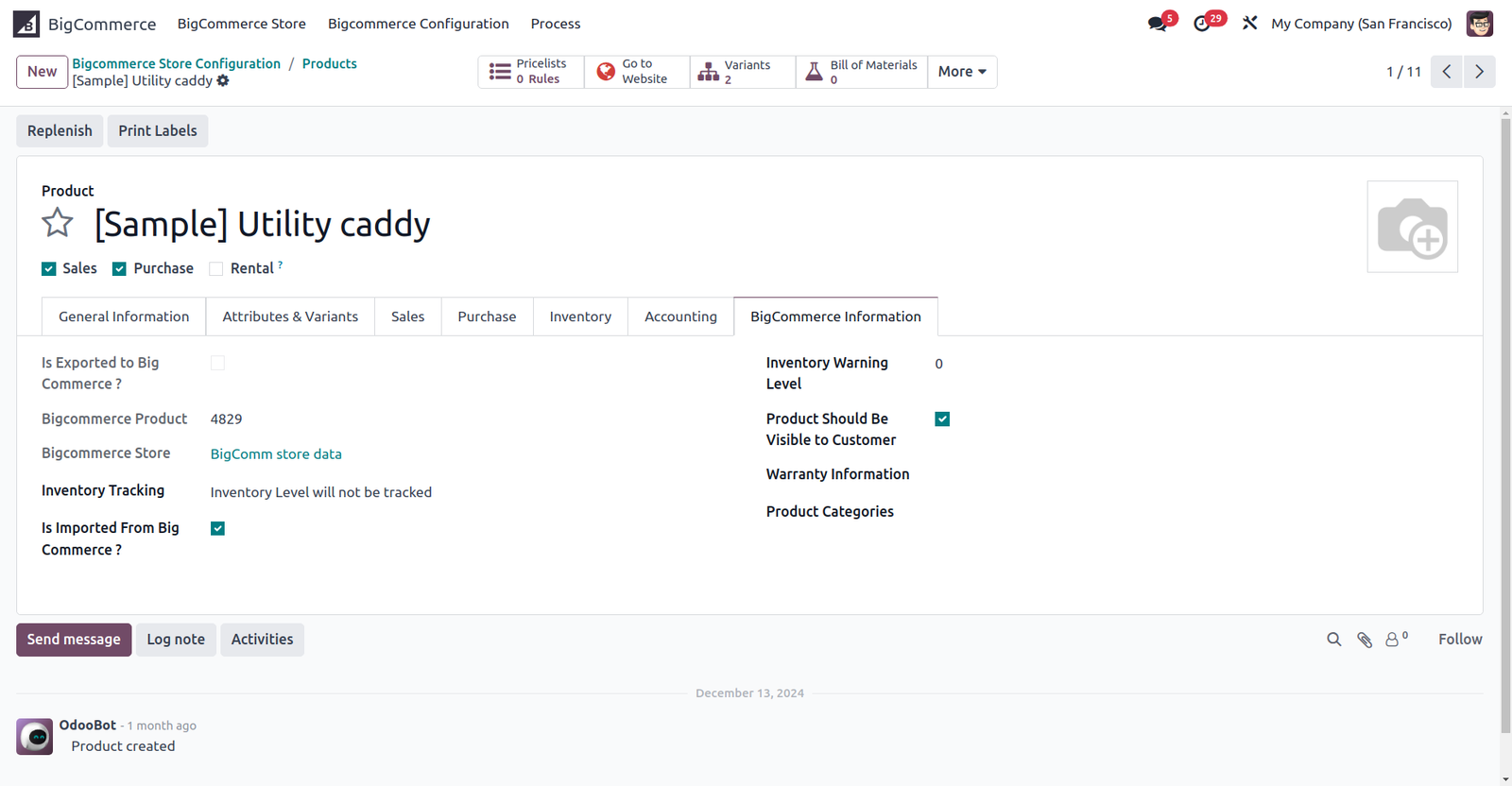
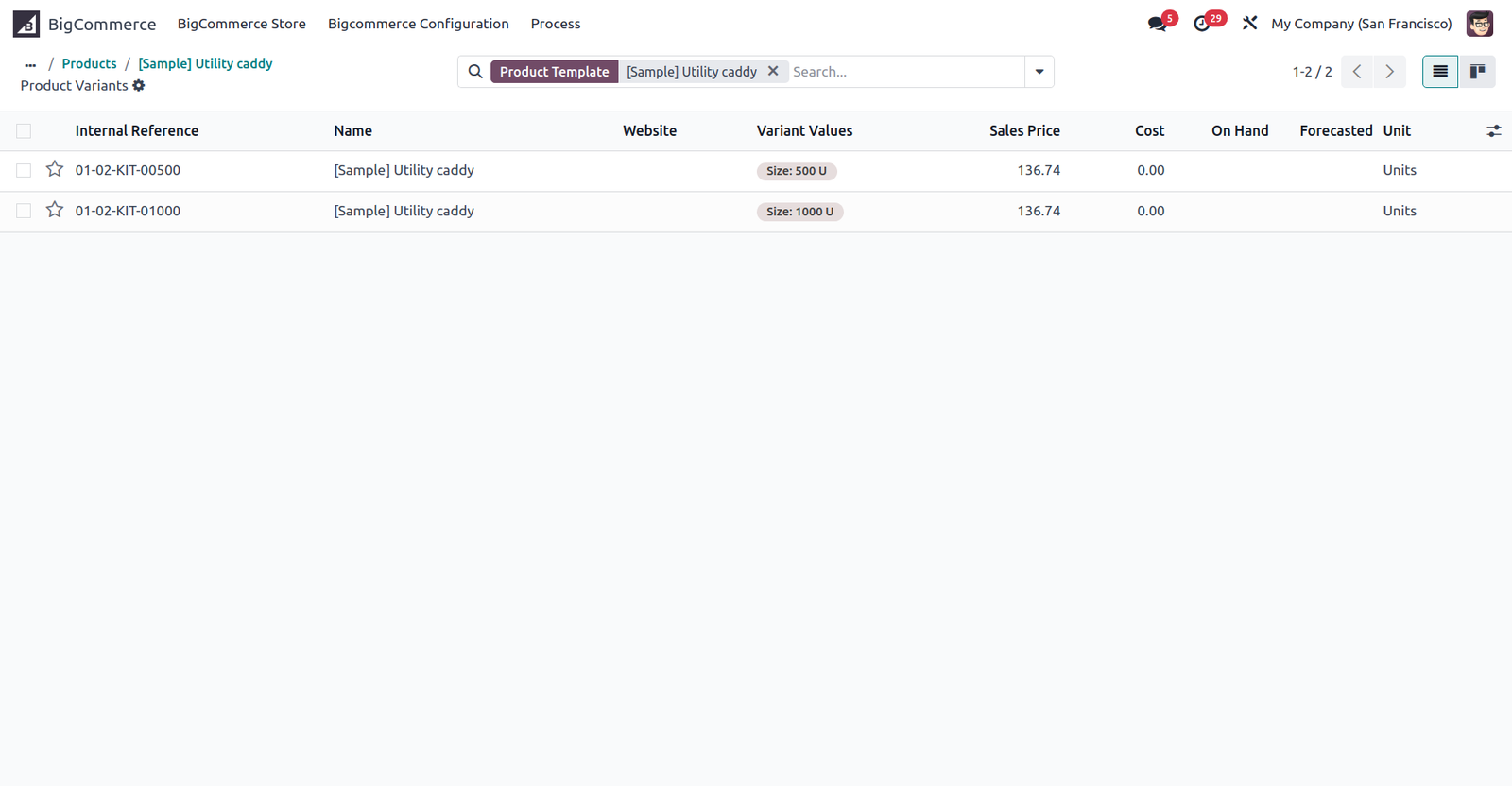
This type of Odoo product created and we have set BigCommerce information inside product. Also shown product variants.
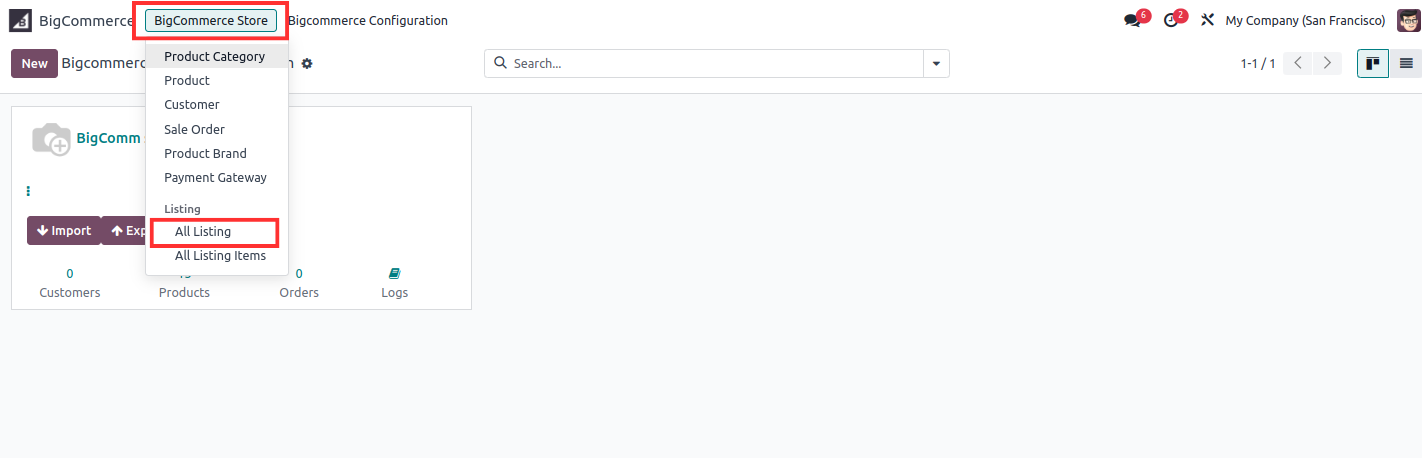
Navigate to BigCommerce Store > All Listing to view the main products from BigCommerce.
All 13 products are now visible in the Listing section.
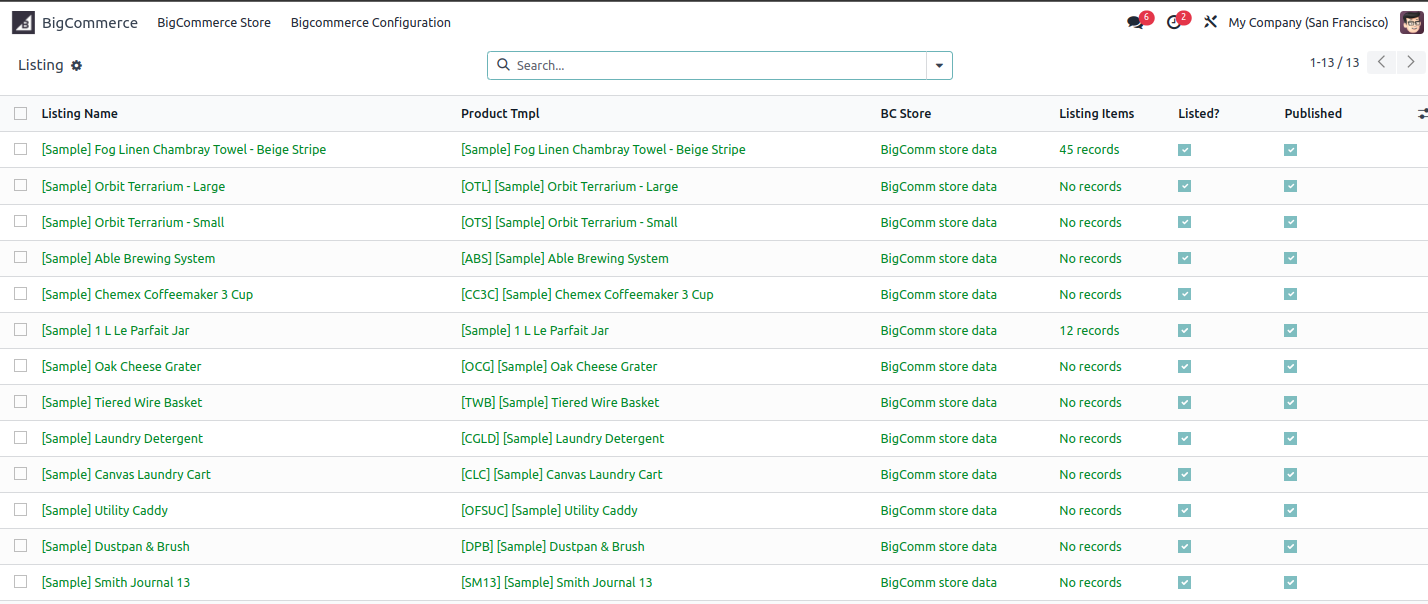
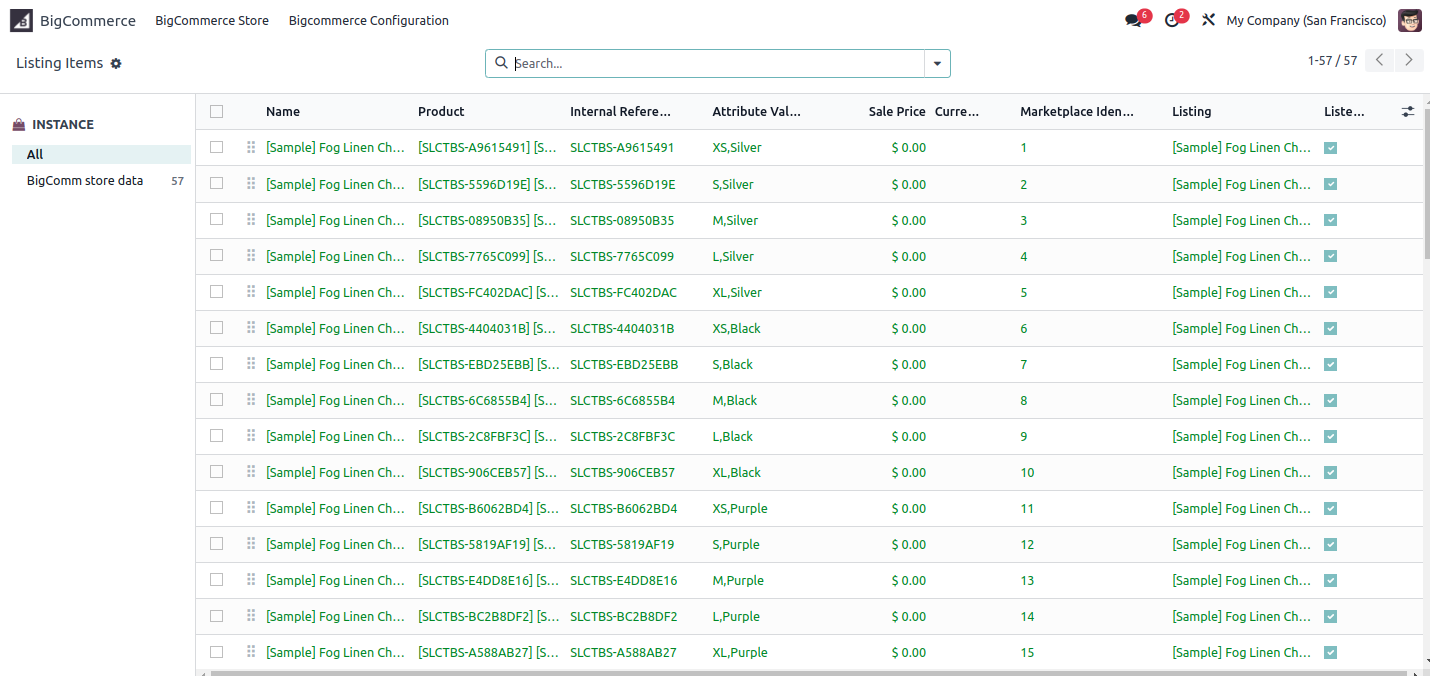
Navigate to BigCommerce Store > Navigate to BigCommerce Store > All Listing Items to view the variant products from BigCommerce.
We are also managing logs for success or failure.
Import Customer process
Import Customer from BigCommerce to Odoo. (You can import customer through page wise.)
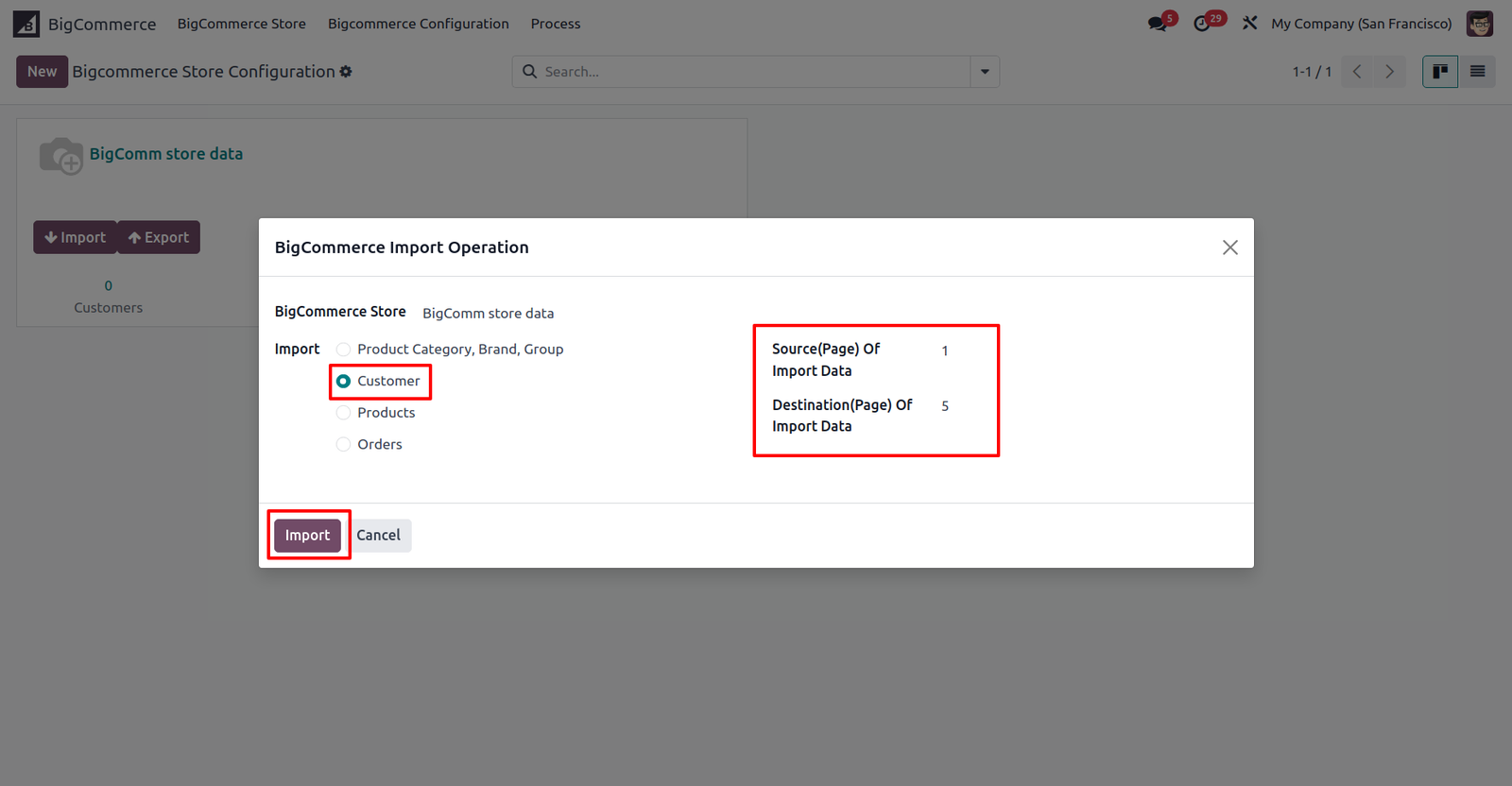
Total 118 customers are imported and displayed, as shown in the image below.
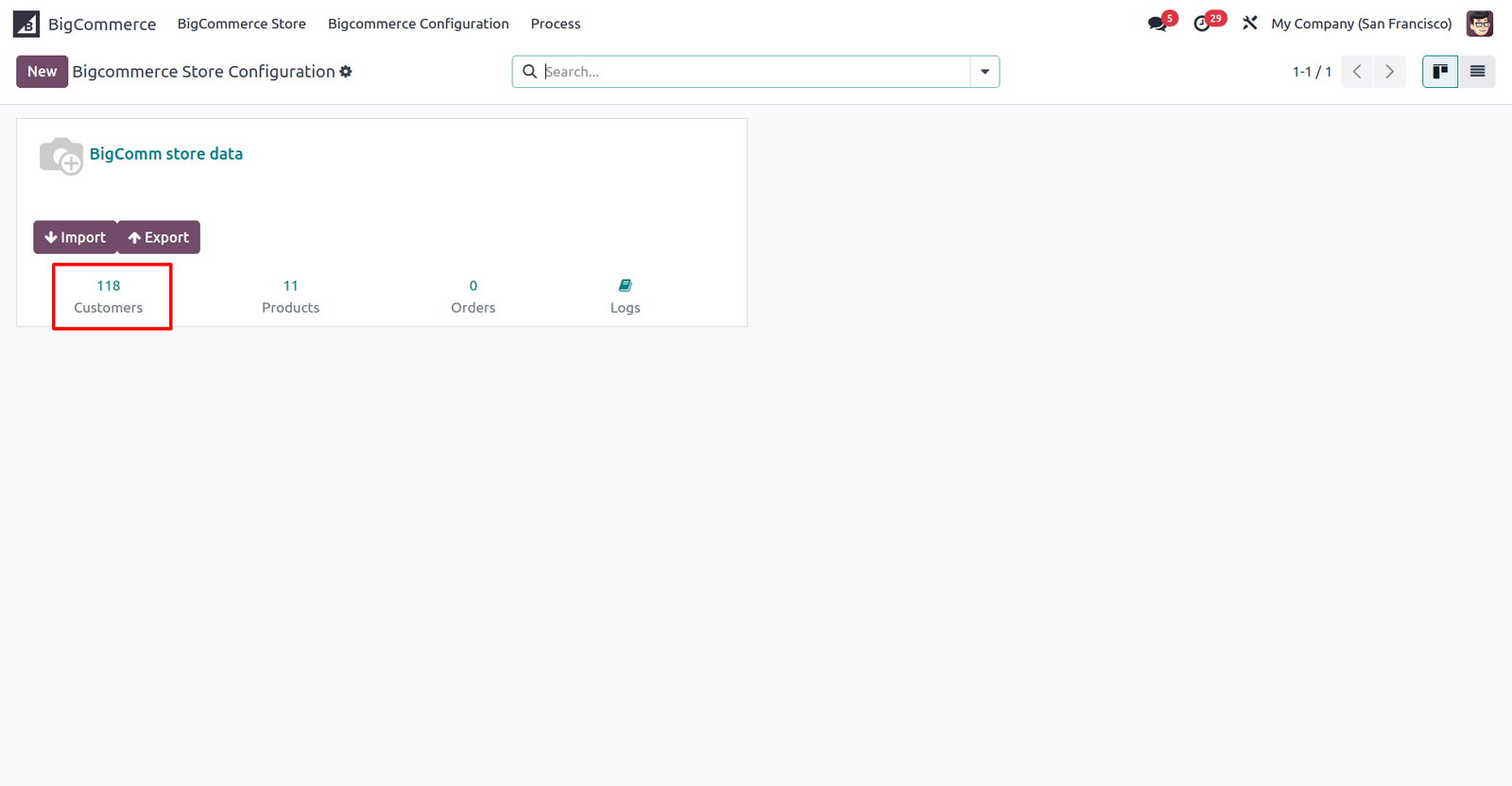
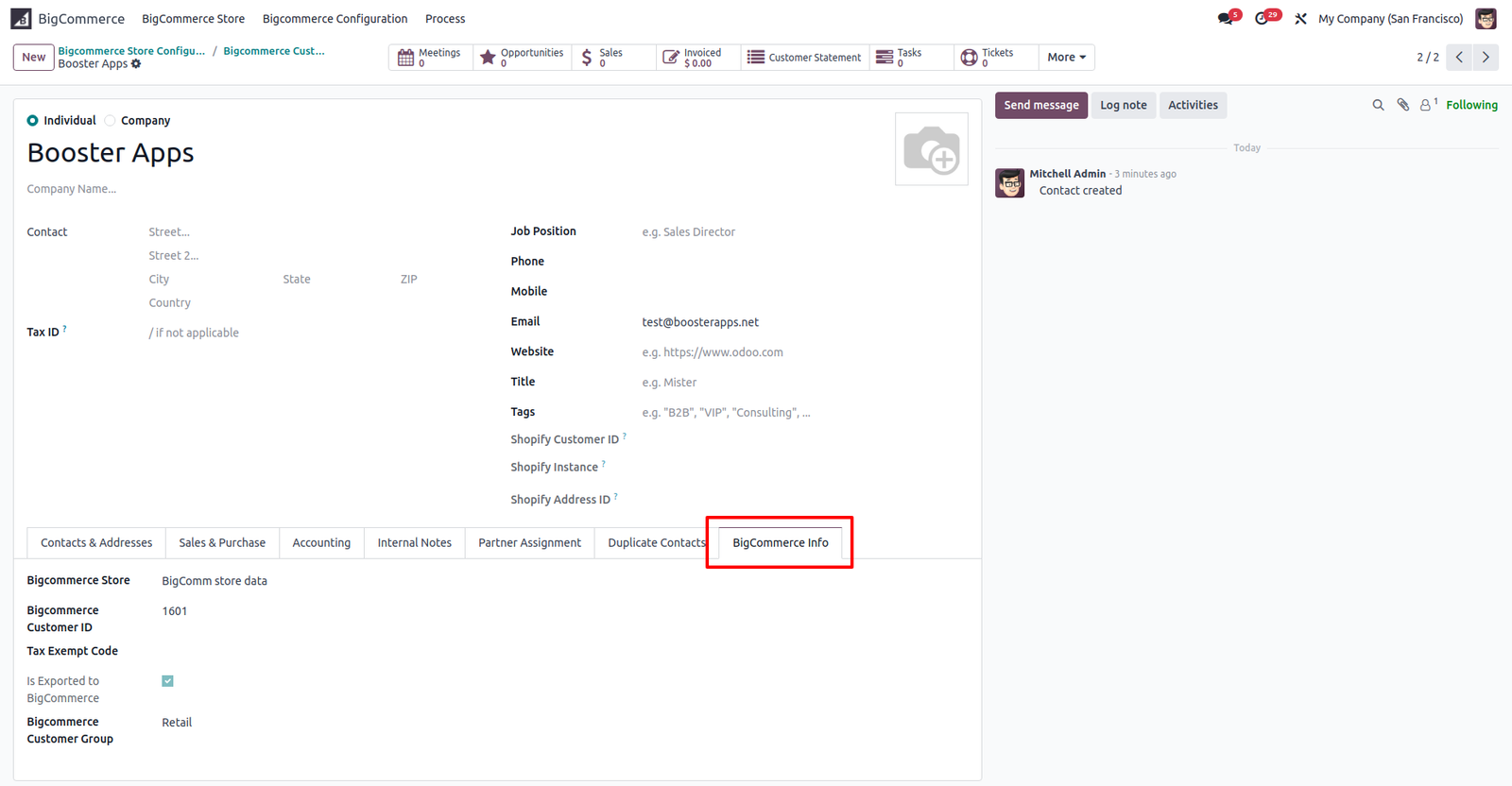
This type of Odoo customer created and we have set BigCommerce information inside customer.
Import Order process
Import Order from BigCommerce to Odoo, you can import order through date-range (With date you can also choose order status) or Order IDs.
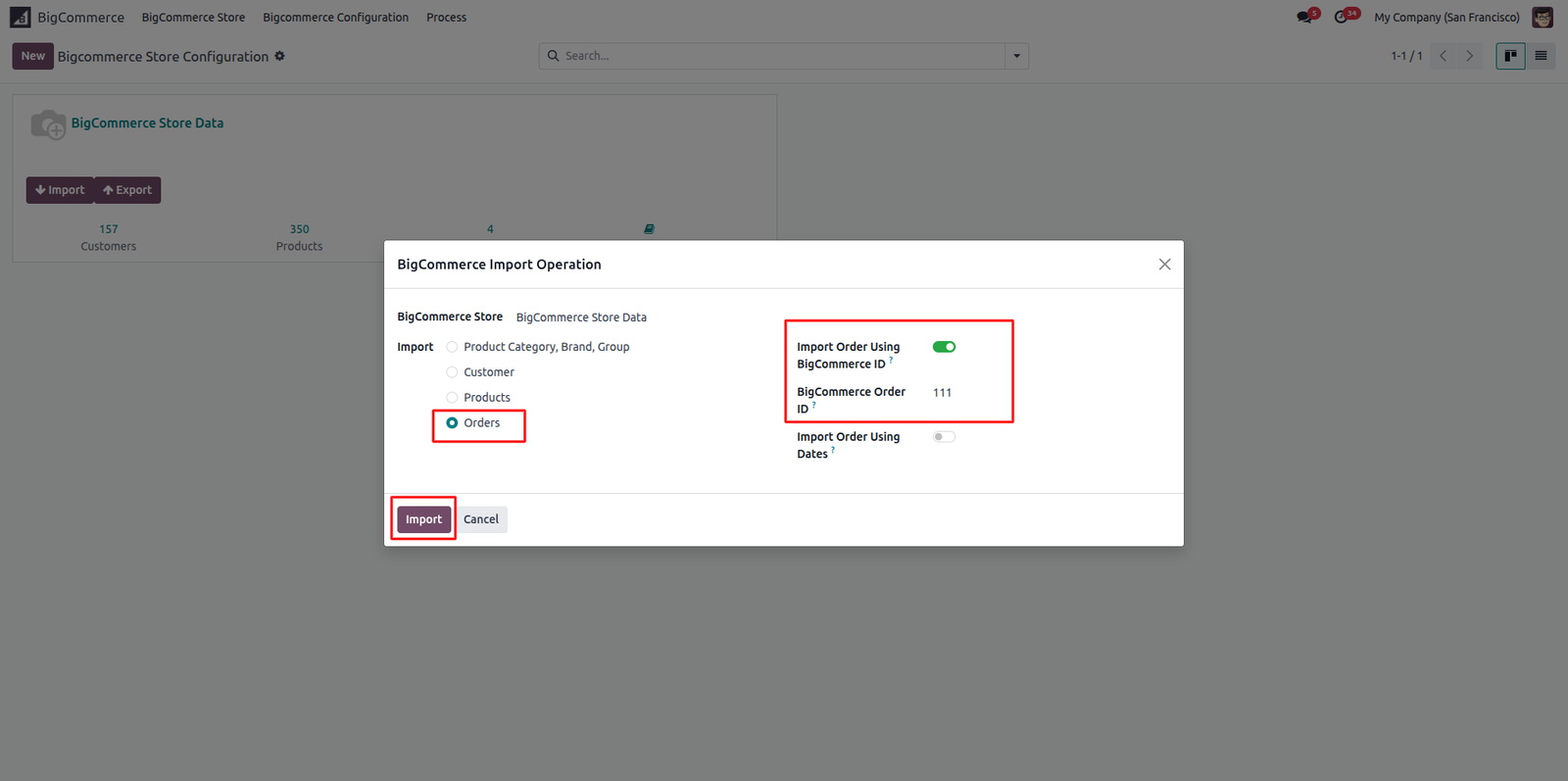
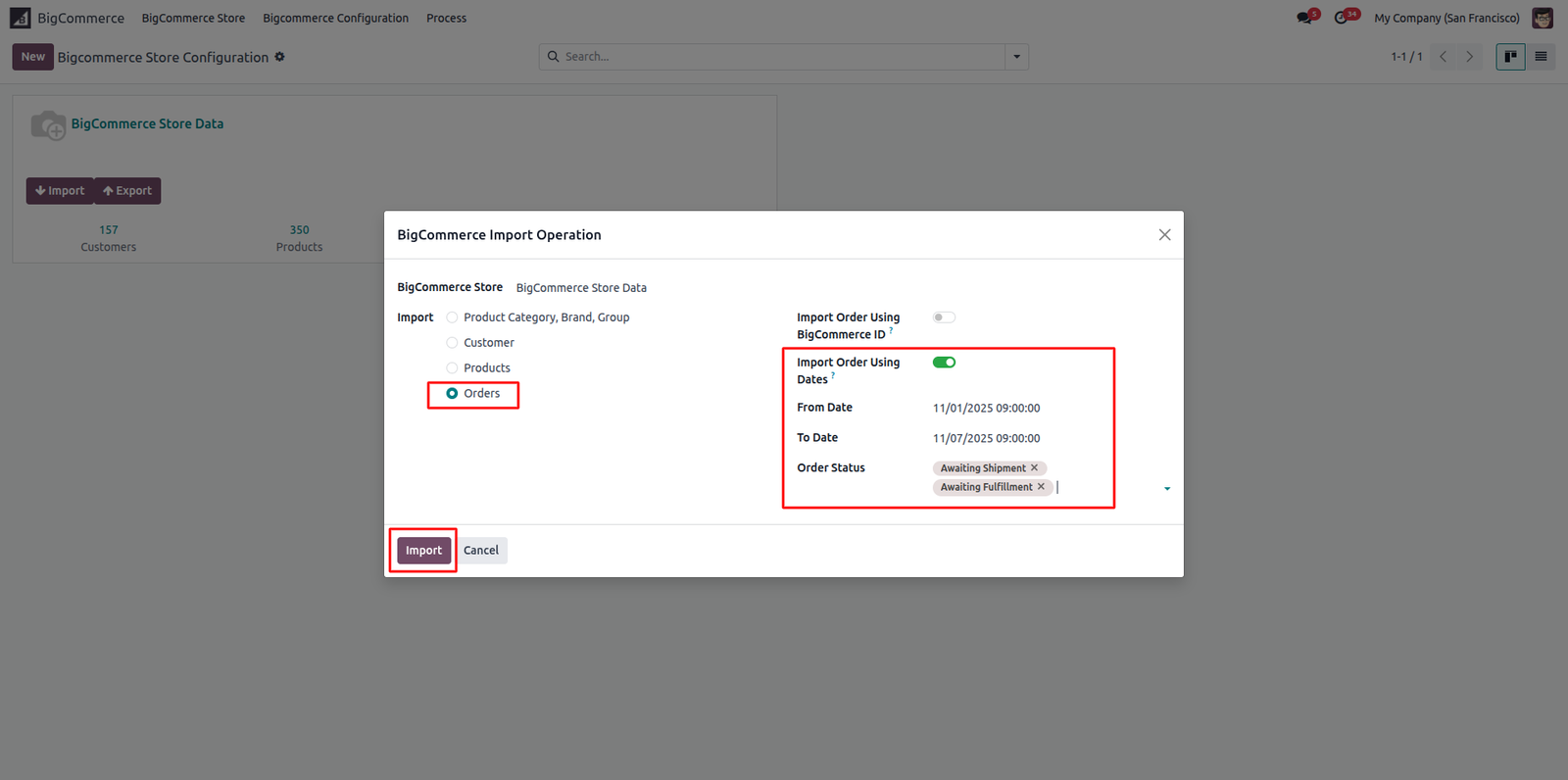
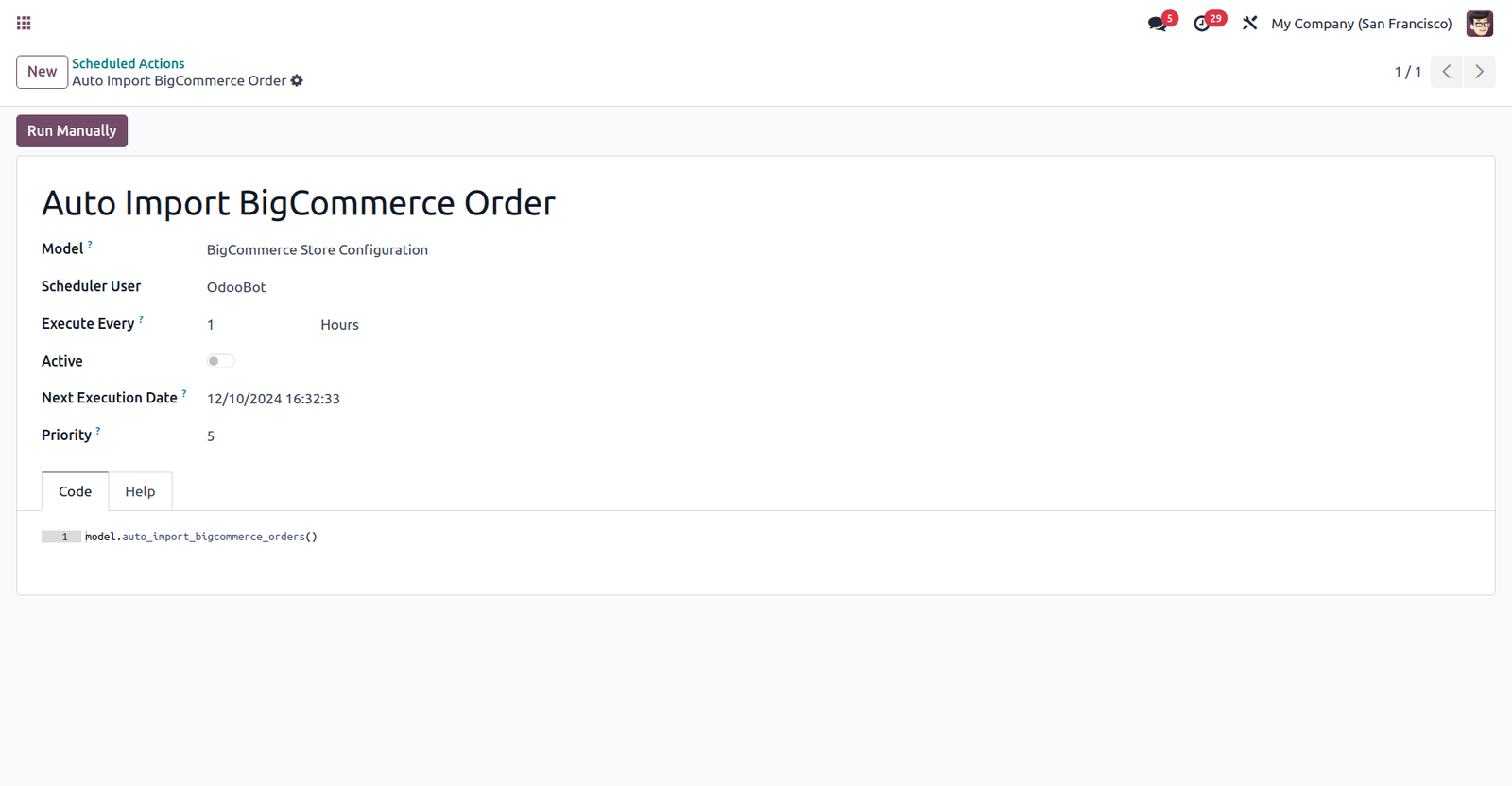
Import Order (We have also given scheduled action to auto import orders)
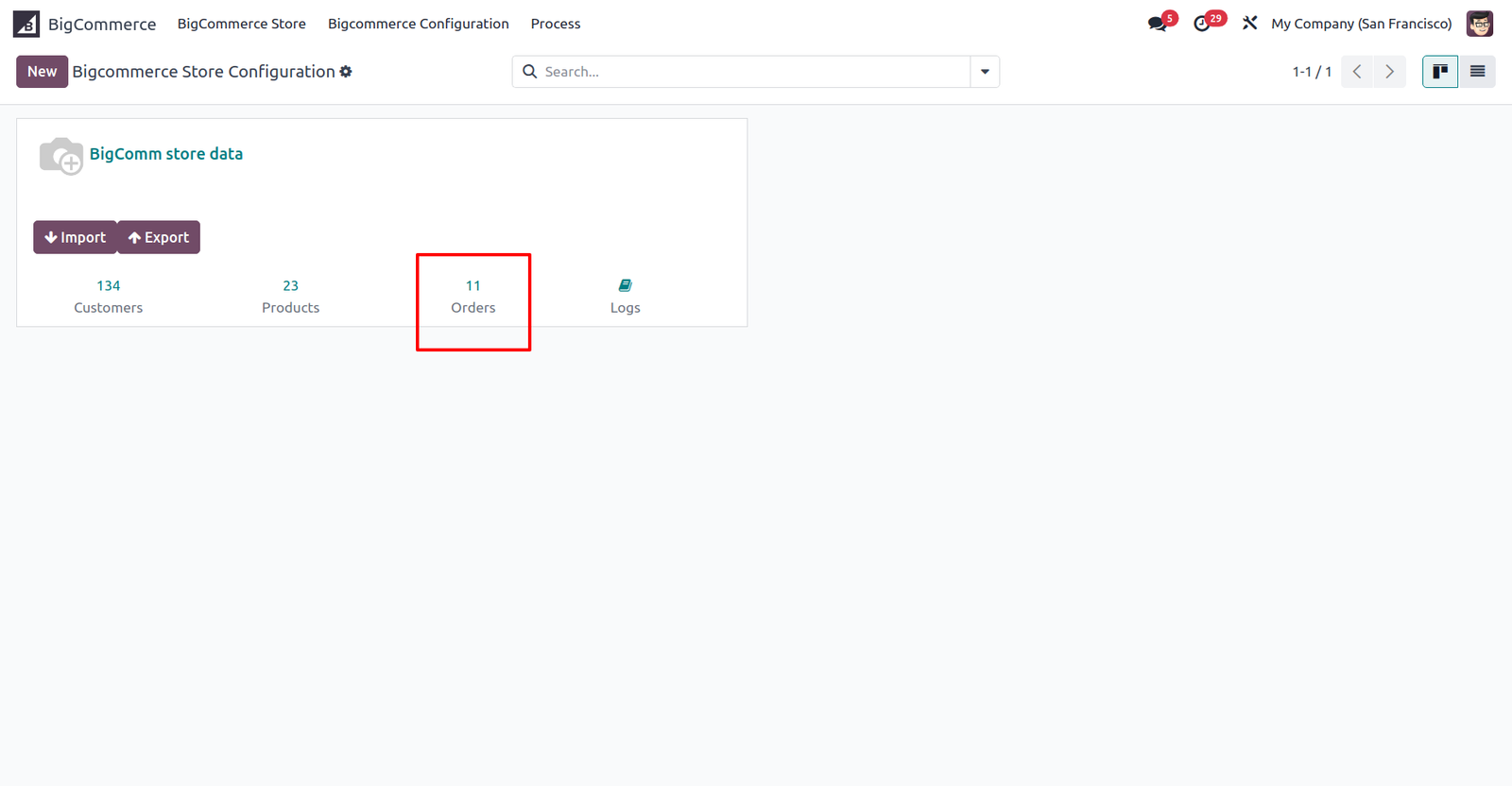
Total 11 orders are imported and displayed, as shown in the image below.
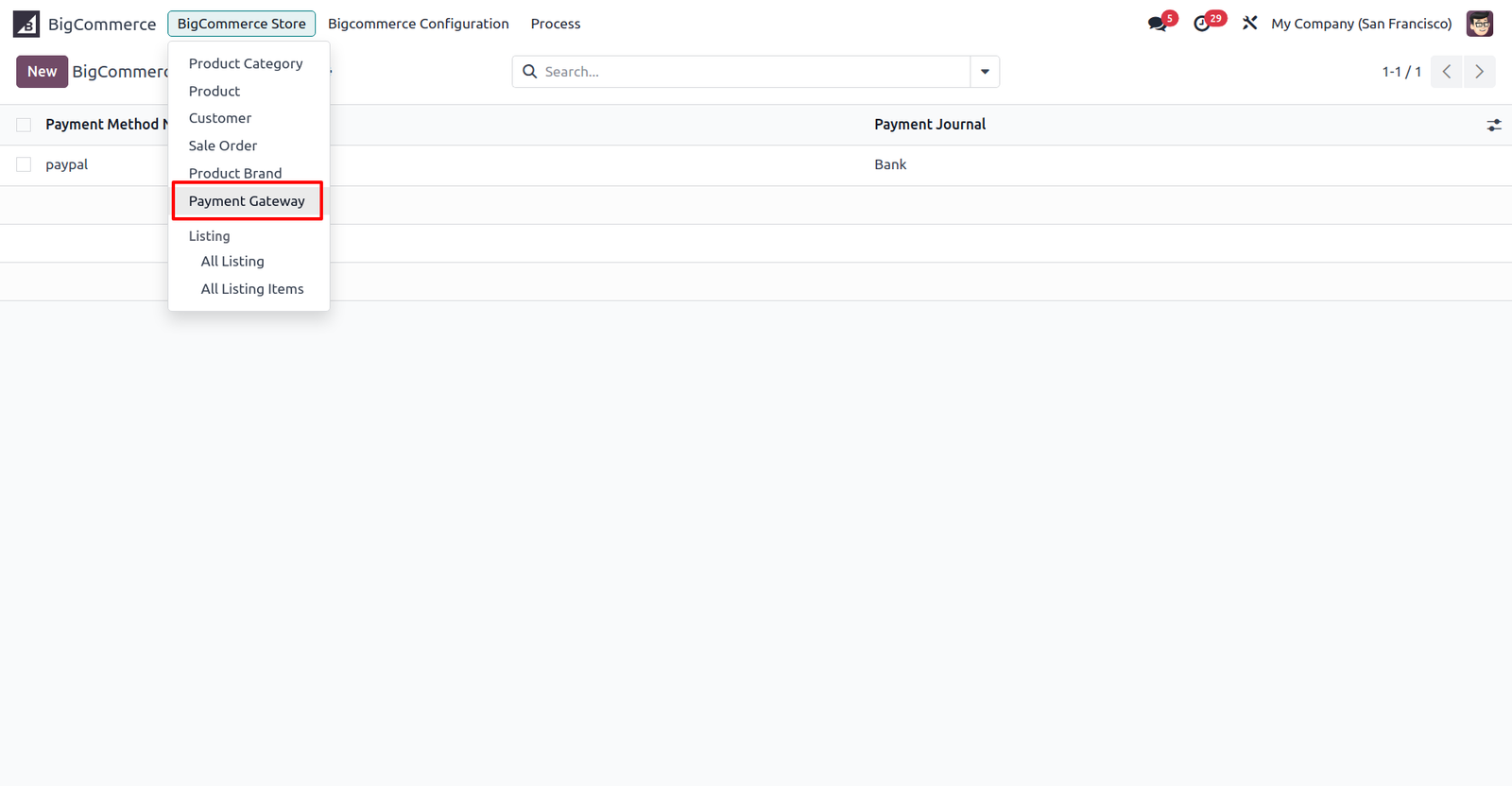
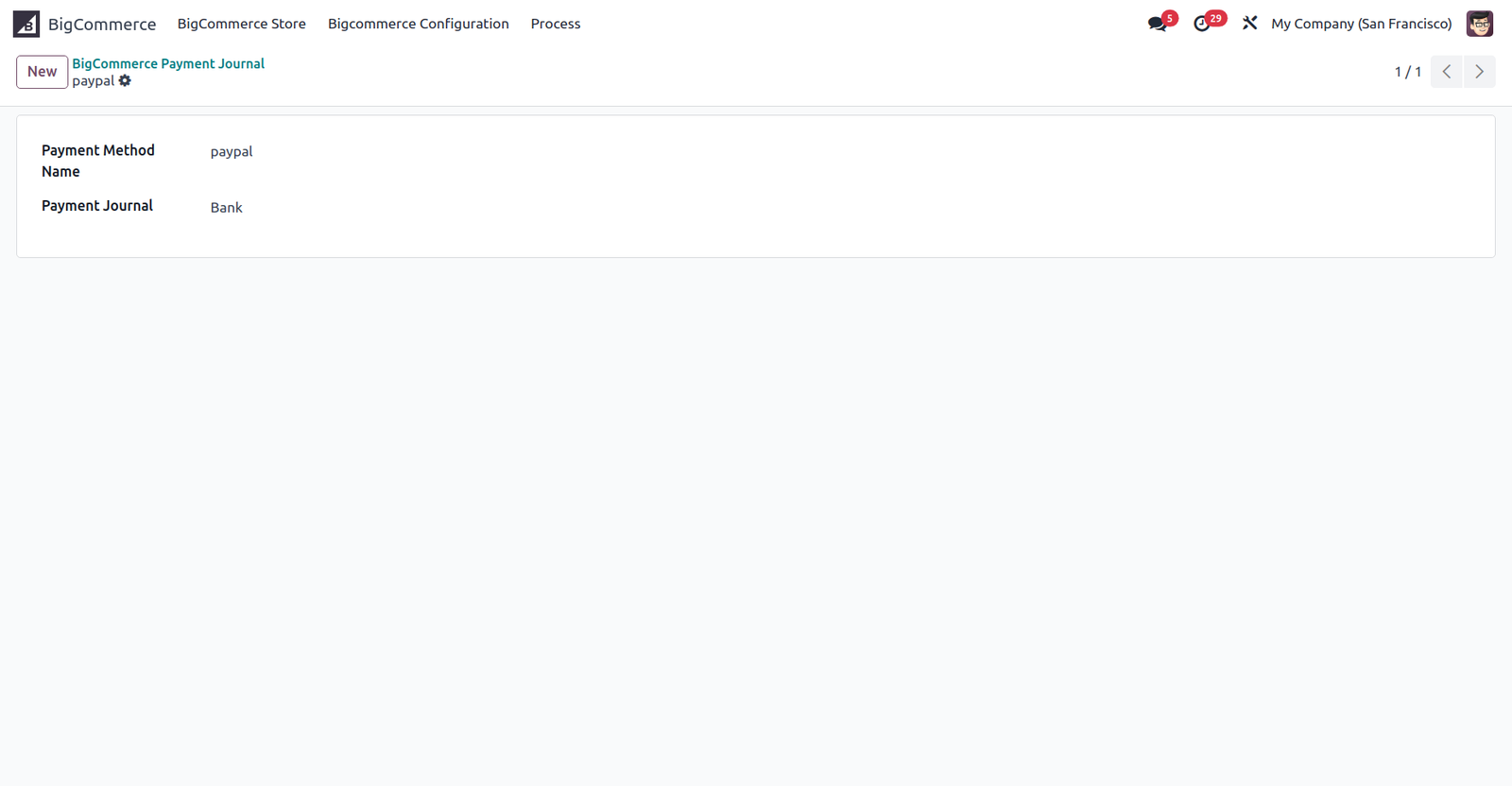
If your orders are paid orders from BigCommerce, you will need to configure the payment method with the payment journal.
In Odoo this type of orders will get created.
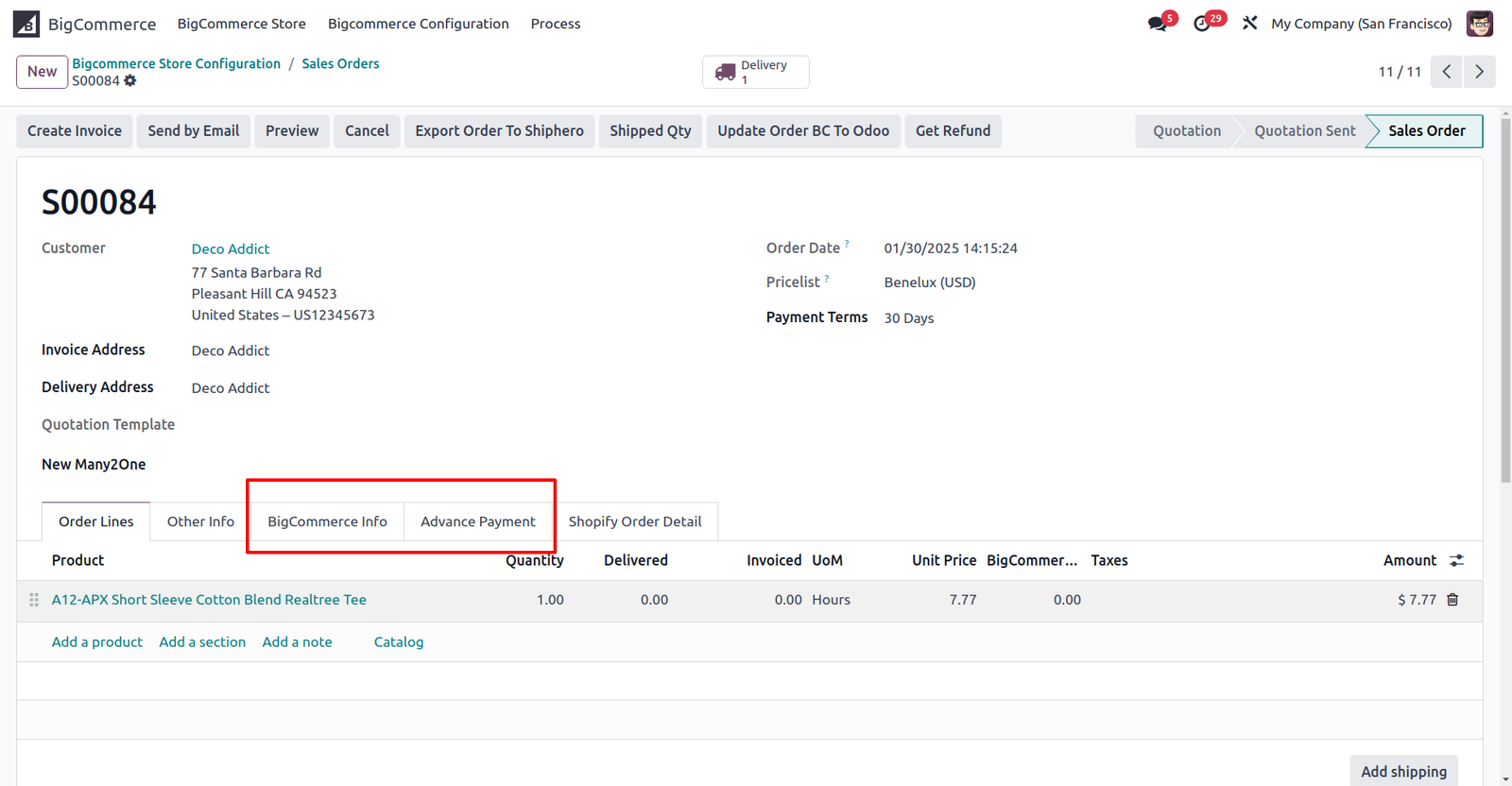
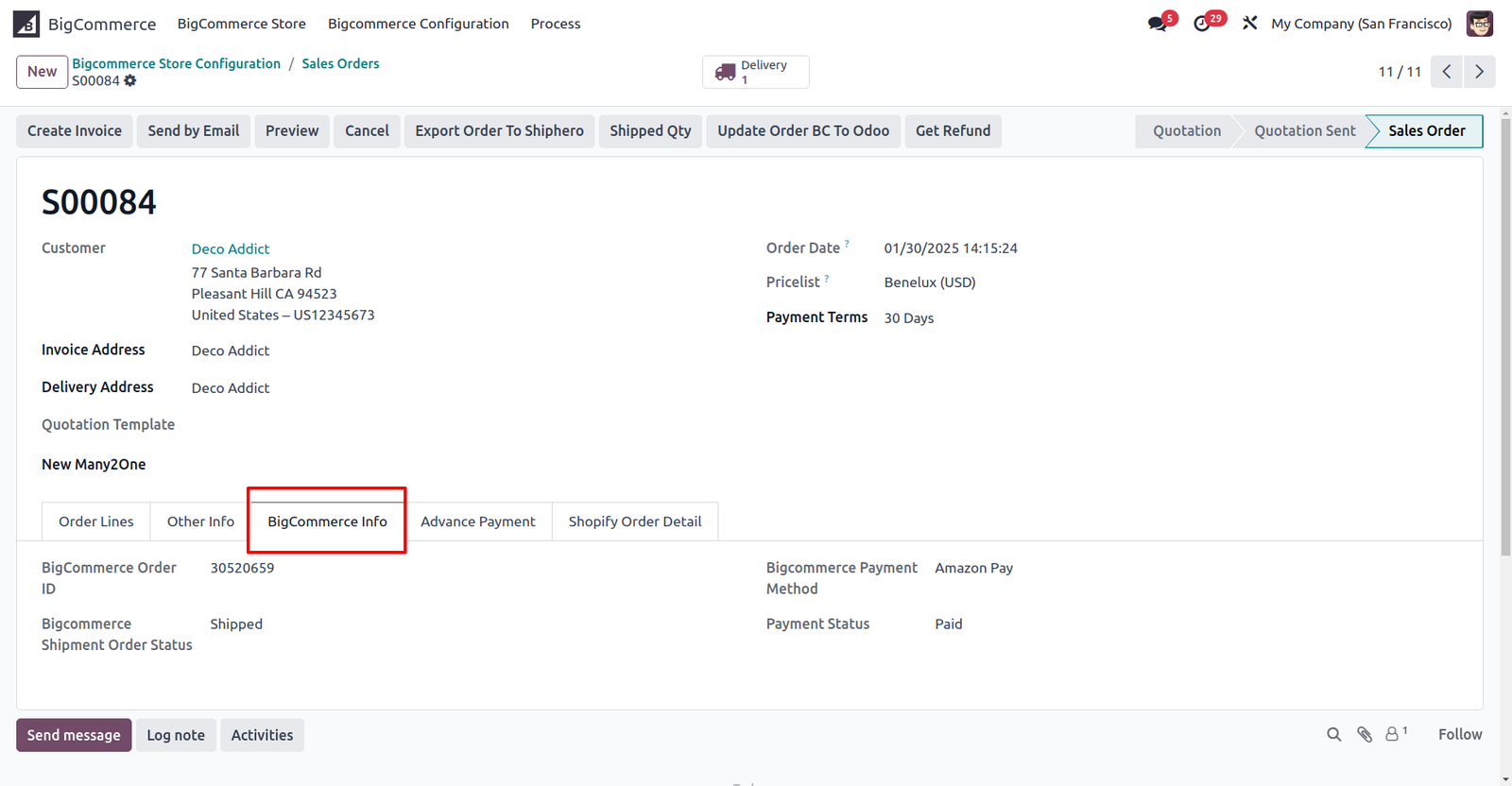
We have set BigCommerce information inside order. If your order is paid & payment gateway configuration was set then payment record also get created & it will show under Advance Payment tab.
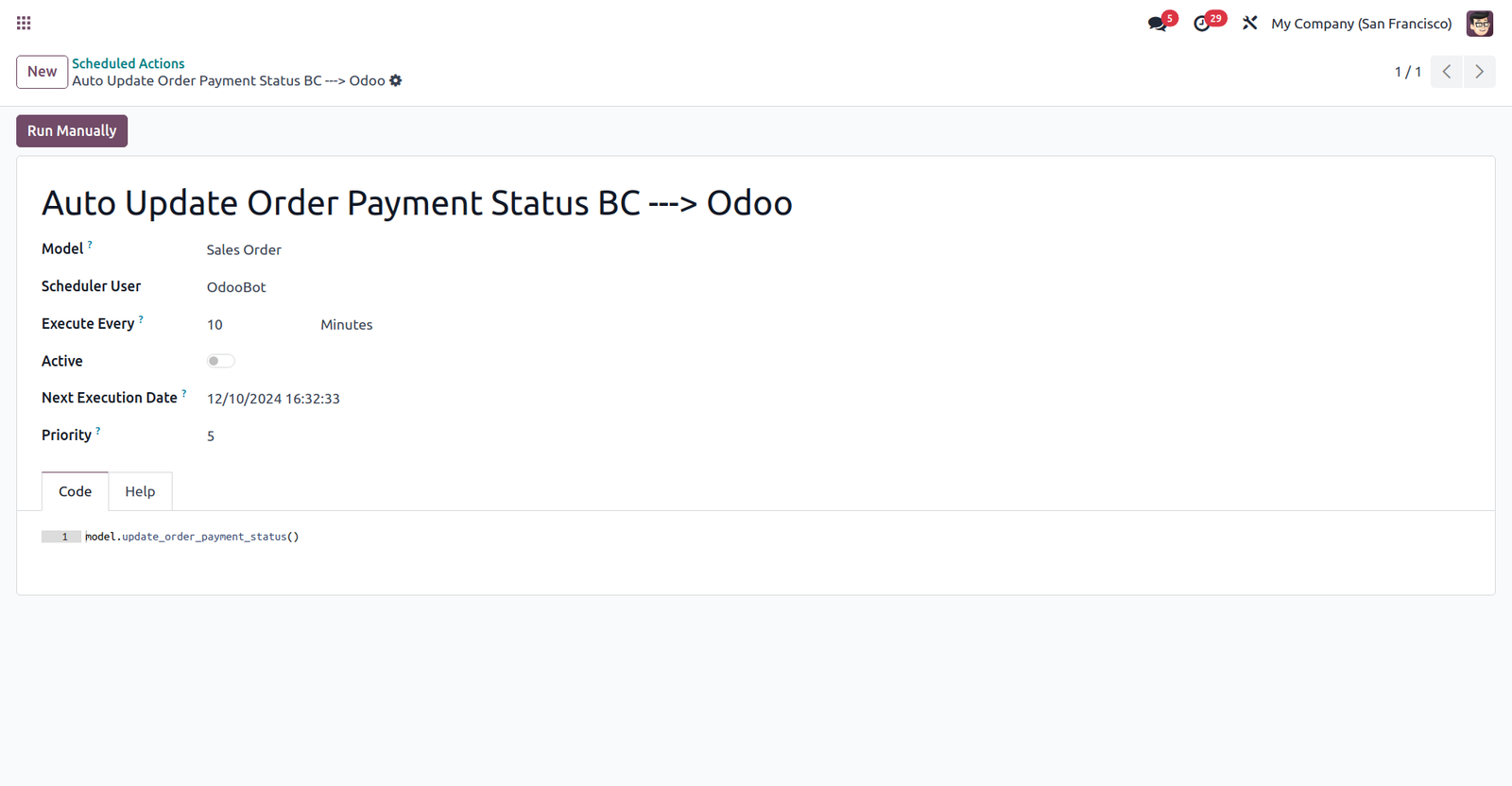
We have given one scheduled action to auto update payment status for BigCommerce order in Odoo.
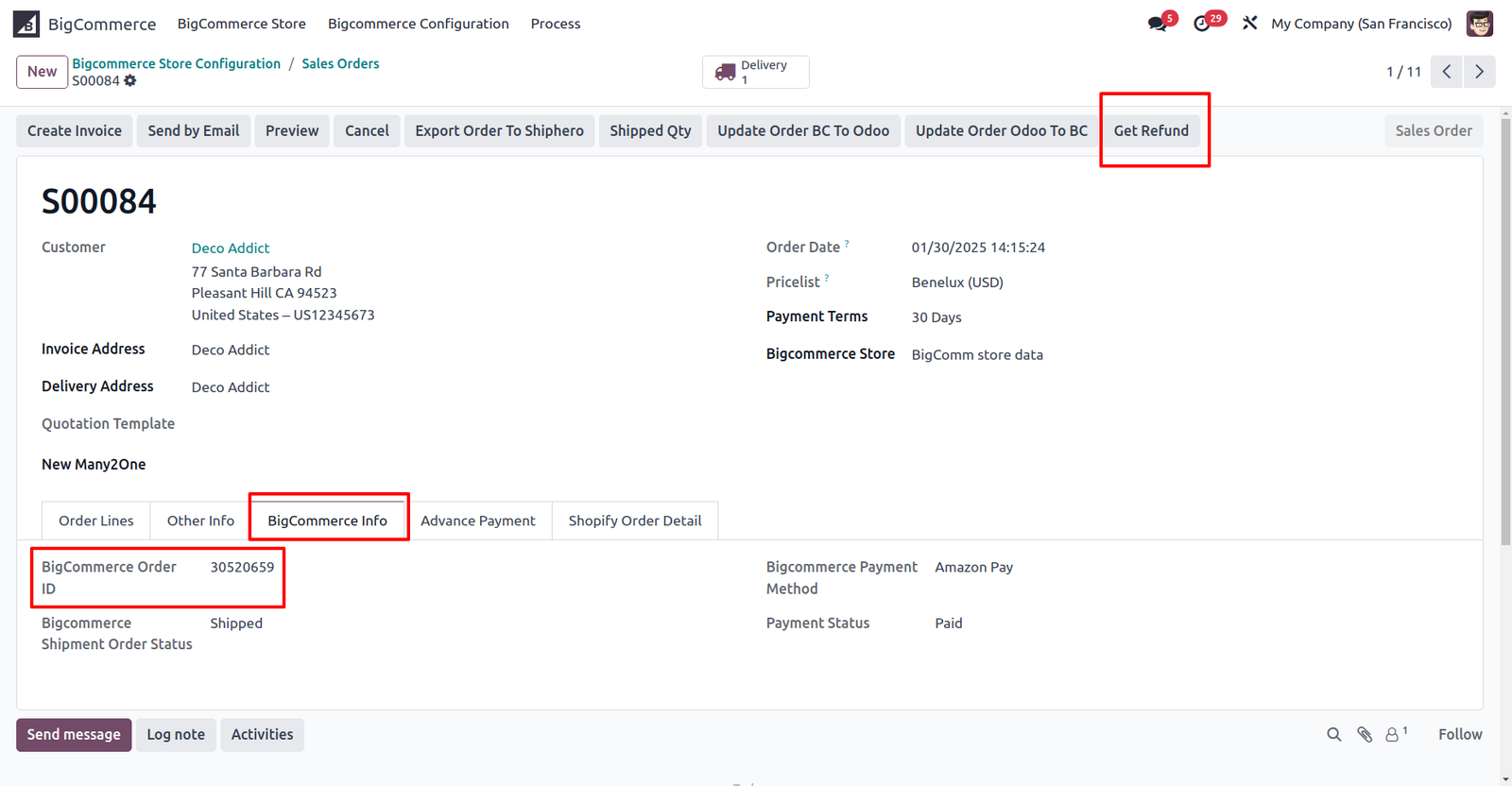
If an order is refunded in BigCommerce, you can create a corresponding refund in Odoo by clicking this button in the Sale Order.
We are also managing logs for success or failure.
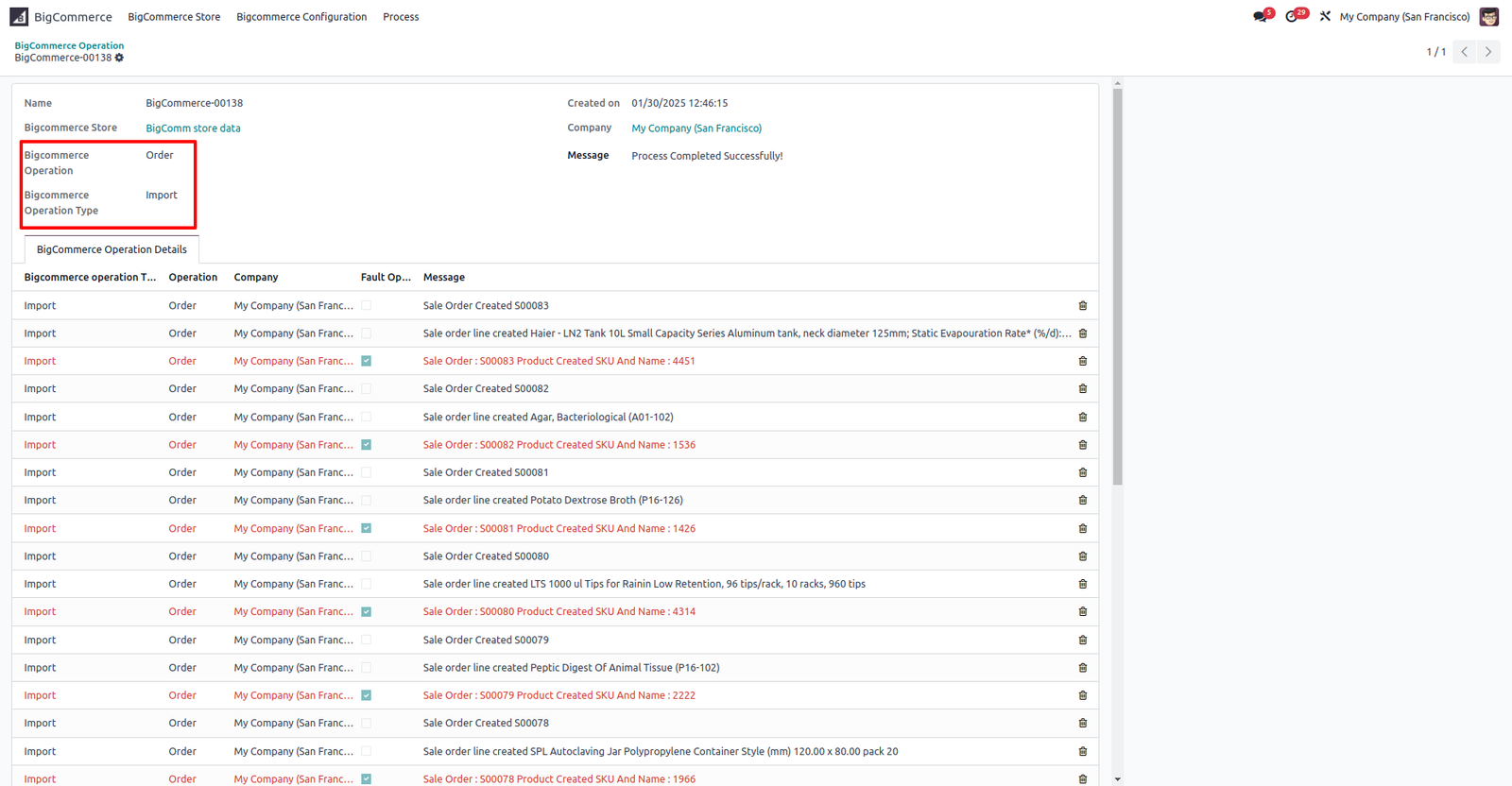
Export functionality from Odoo to BigCommerce
To use this functionality, you first need to enable export access at the user level. This can be done by configuring the settings in the User Settings.
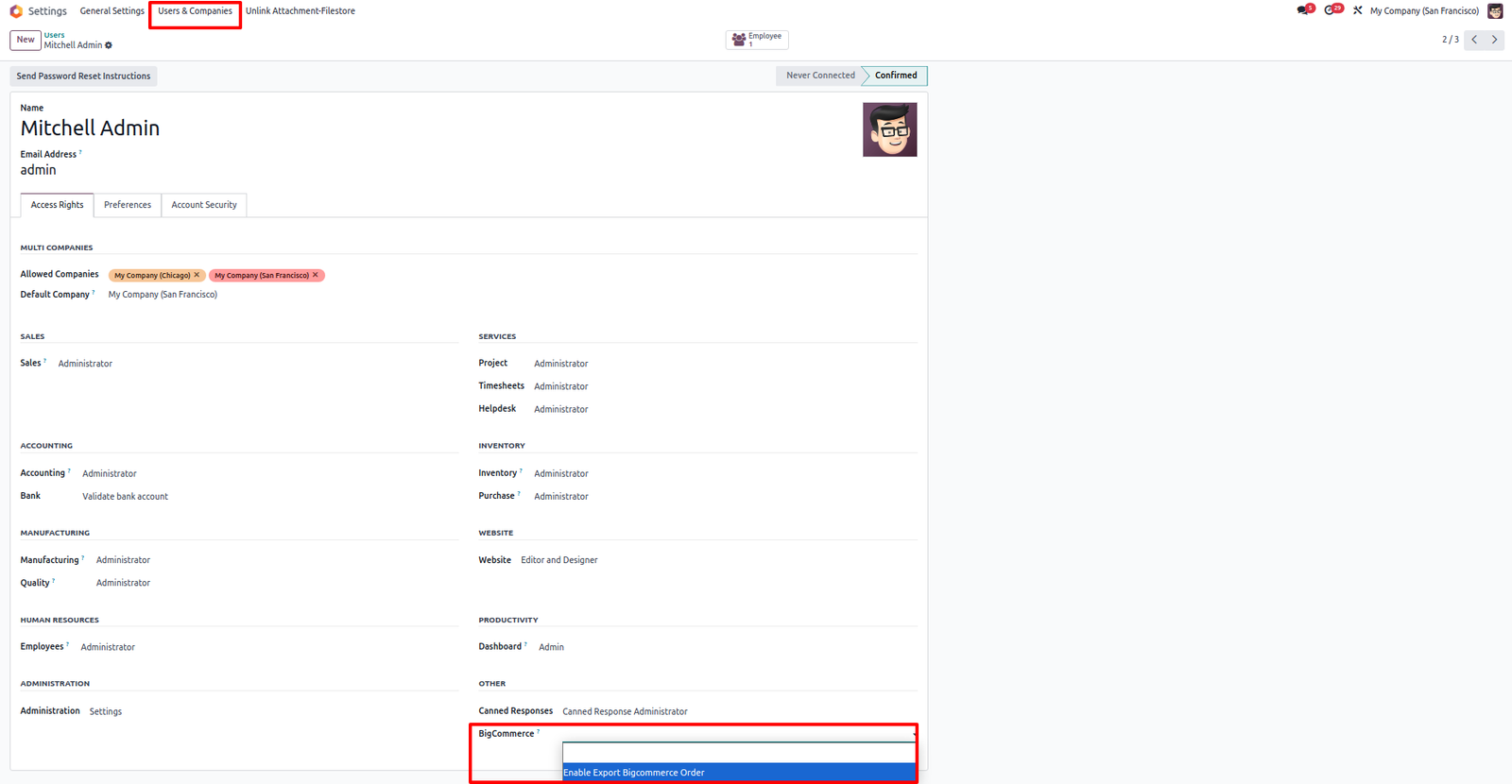
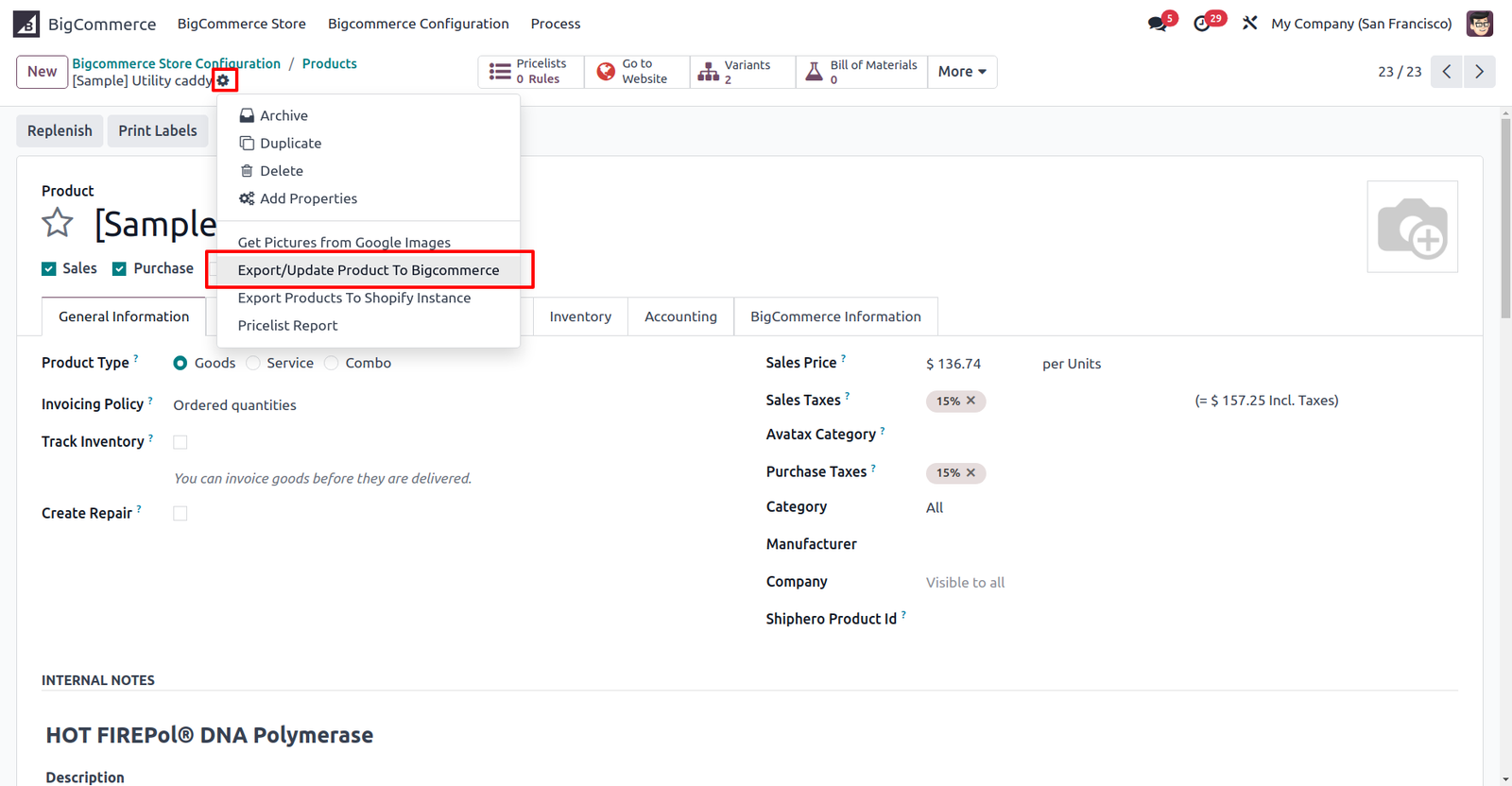
Export/Update Product from Odoo to BigCommerce
Select the product, then click the settings button and choose “Export/Update Product To BigCommerce”.
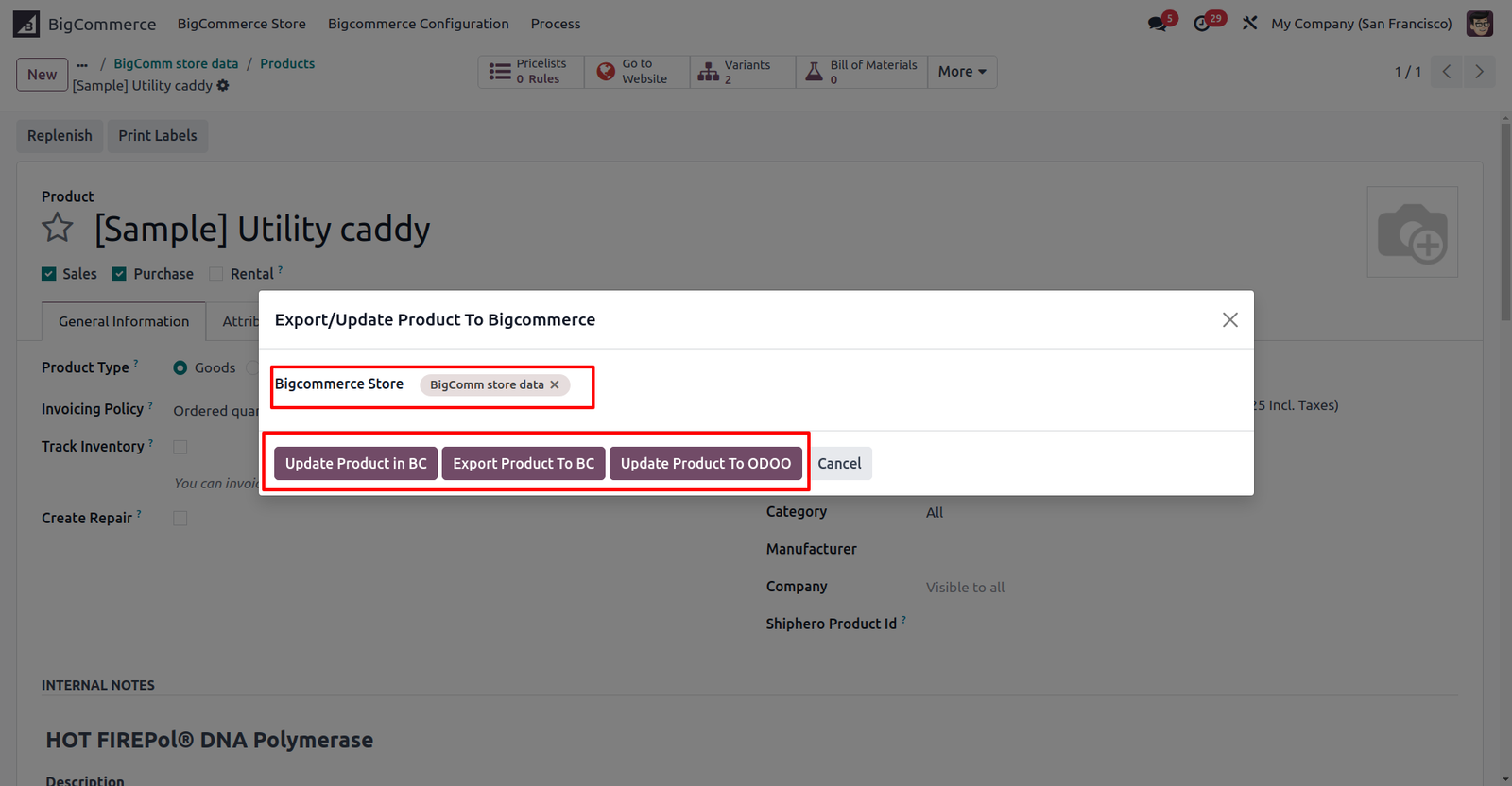
A window will appear. Select the BigCommerce store, and you’ll see several buttons: – If the product is already synced with BigCommerce, you can either update it from Odoo to BigCommerce using the “Update Product in BC” button or from BigCommerce to Odoo using the “Update Product to Odoo” button. – If the product isn’t synced yet, click the “Export Product to BC” button to export it from Odoo to BigCommerce.
Export Customer process
Open the customer record you want to export, go to the BigCommerce Info tab, and select the BigCommerce store and Tax Exempt Code.
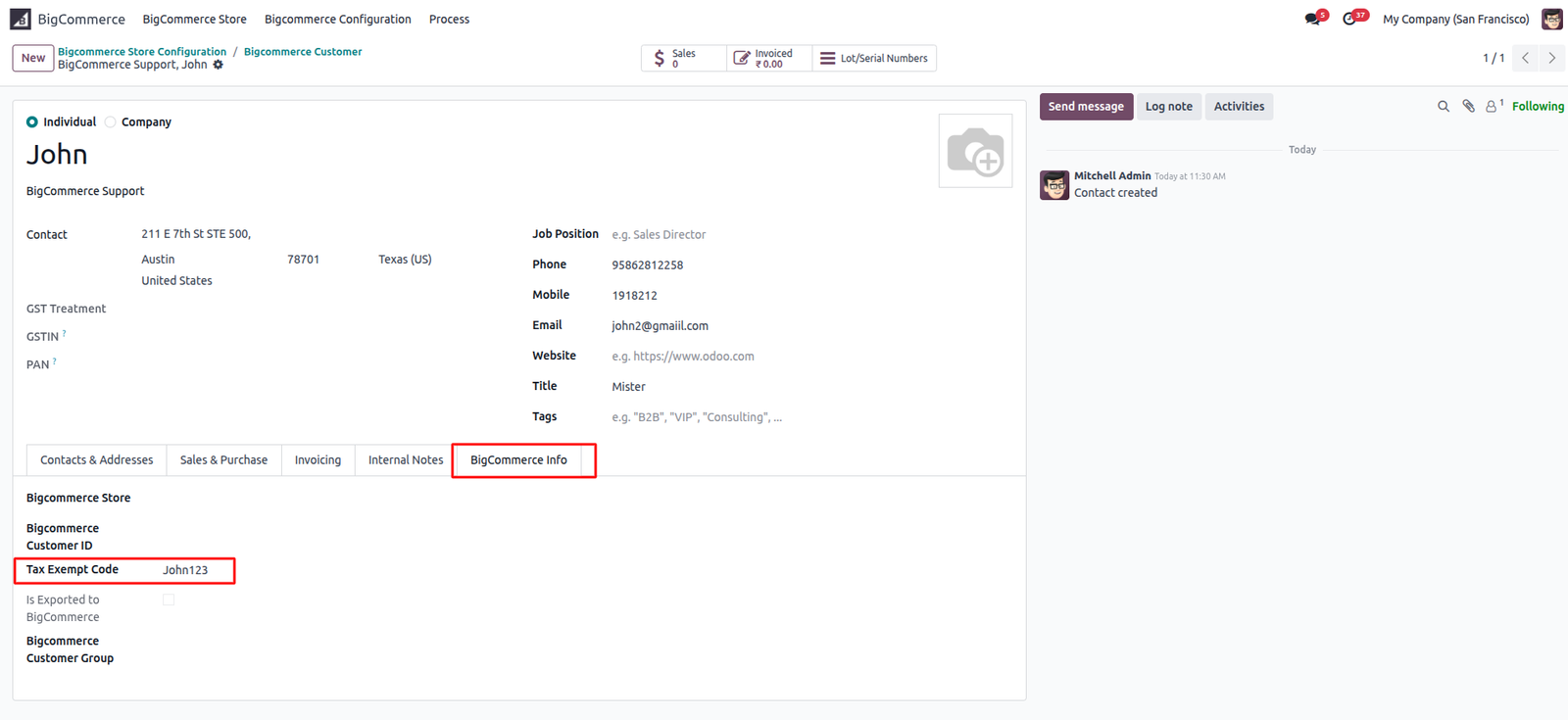
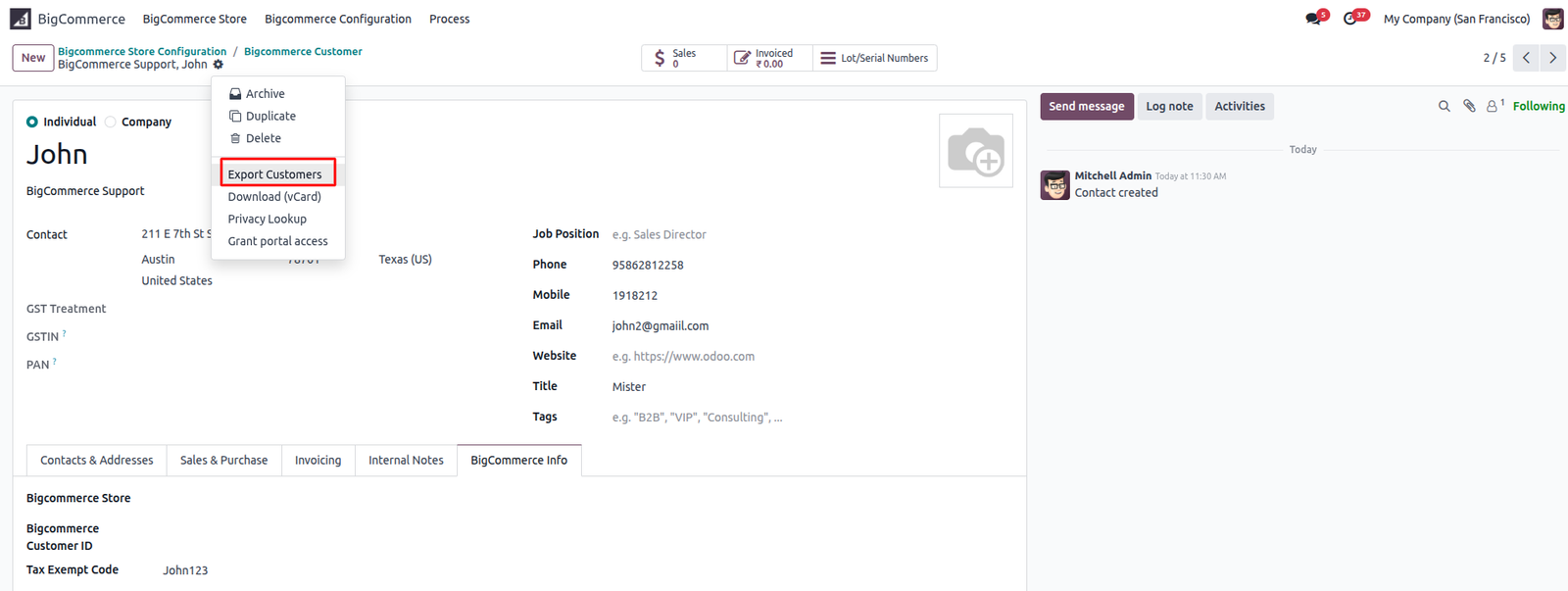
Next, navigate to the action settings and select the “Export Customers” option, as shown in the image below.
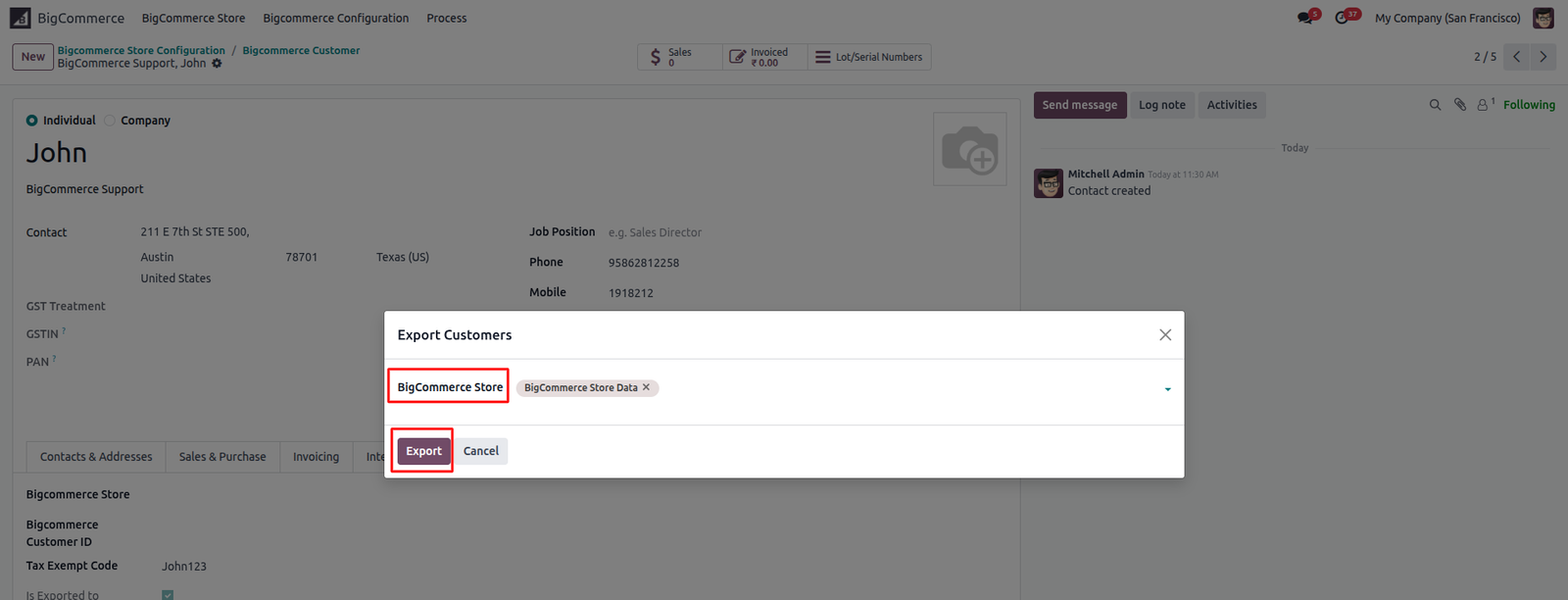
A window like this will appear. Inside it, select the BigCommerce store and then click the Export button.
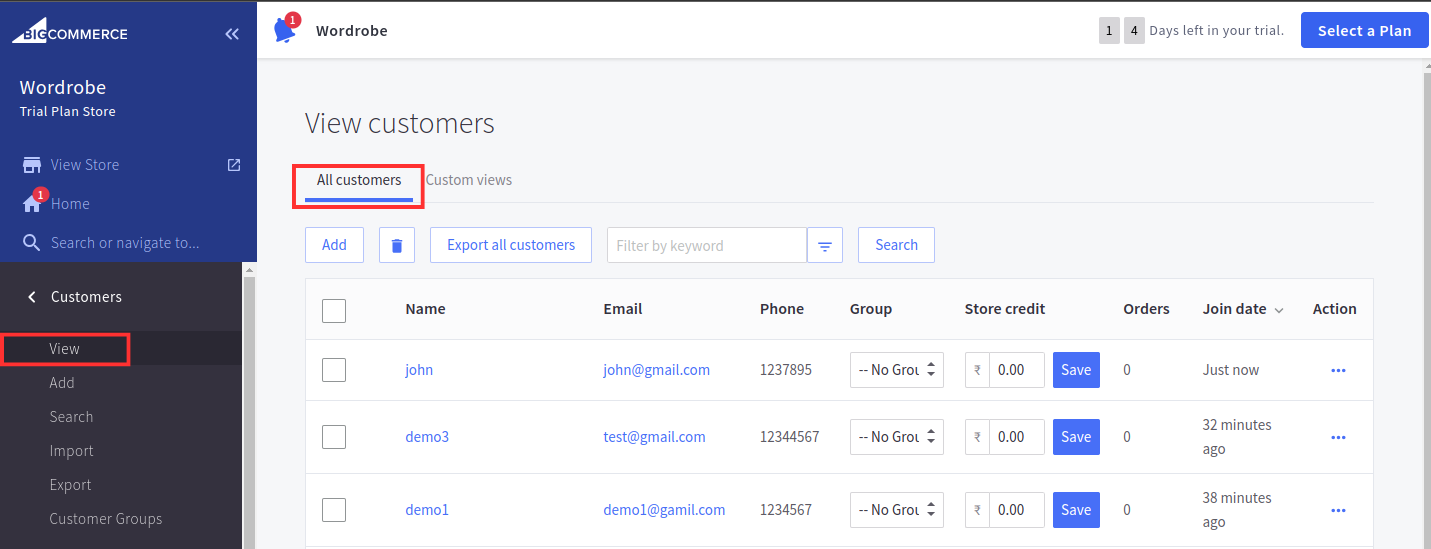
Once you’ve completed these steps, navigate to the BigCommerce store and go to the Customer view in the left panel. The customer will now be successfully exported.
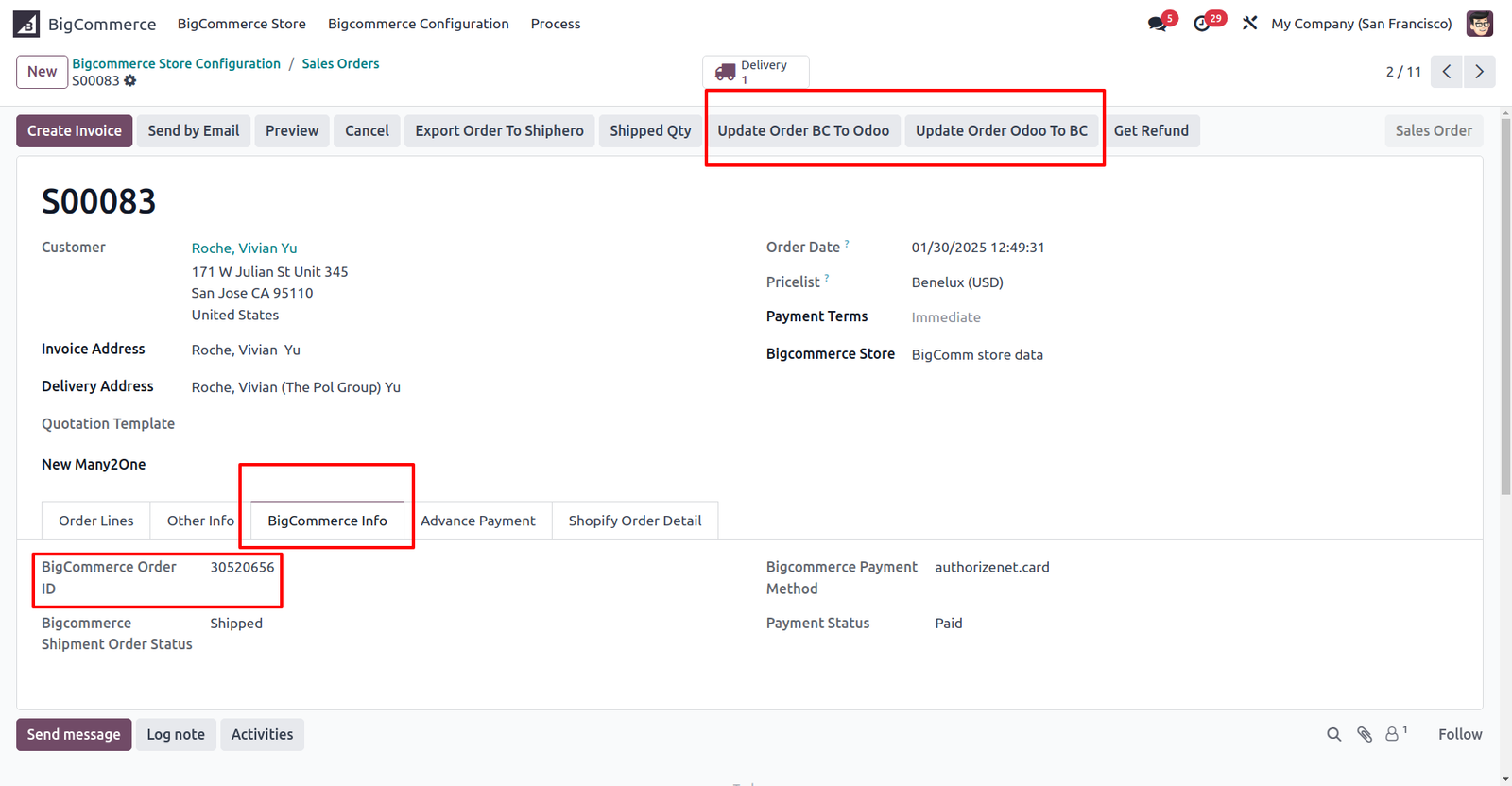
Update Order (Bi-directional)
If the order is already synced with BigCommerce, you can either update it from Odoo to BigCommerce using the “Update Order Odoo To BC” button or from BigCommerce to Odoo using the “Update Order BC to Odoo” button.
Export Product Inventory/Stock process
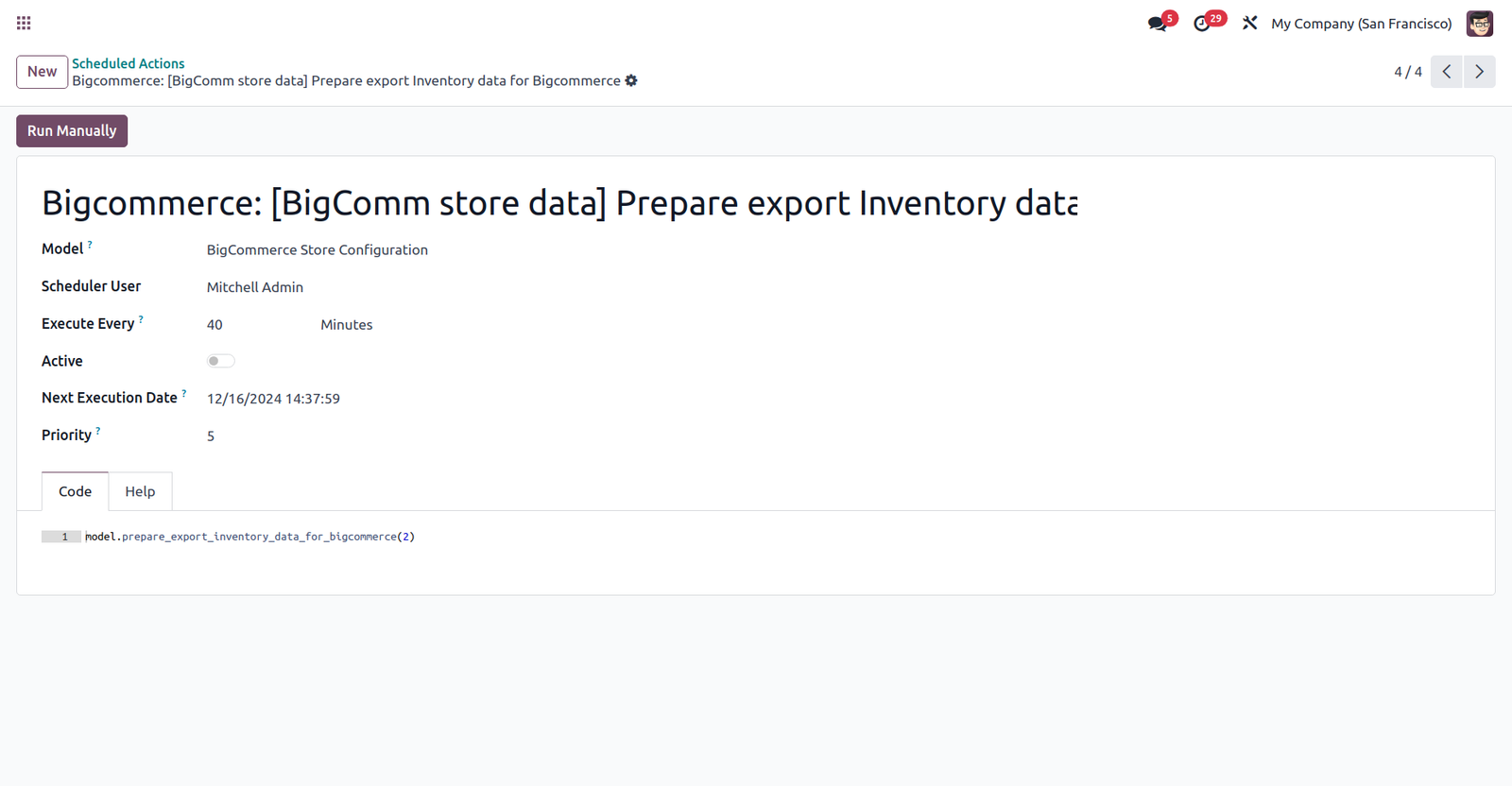
Inventory data is automatically synchronized from Odoo to the BigCommerce store when a Sale Order or Delivery Order is validated, cancelled, or when a return is processed.
Export Inventory/Stock from Odoo to BigCommerce (This scheduled action will prepare export stock data and will create inventory queue)
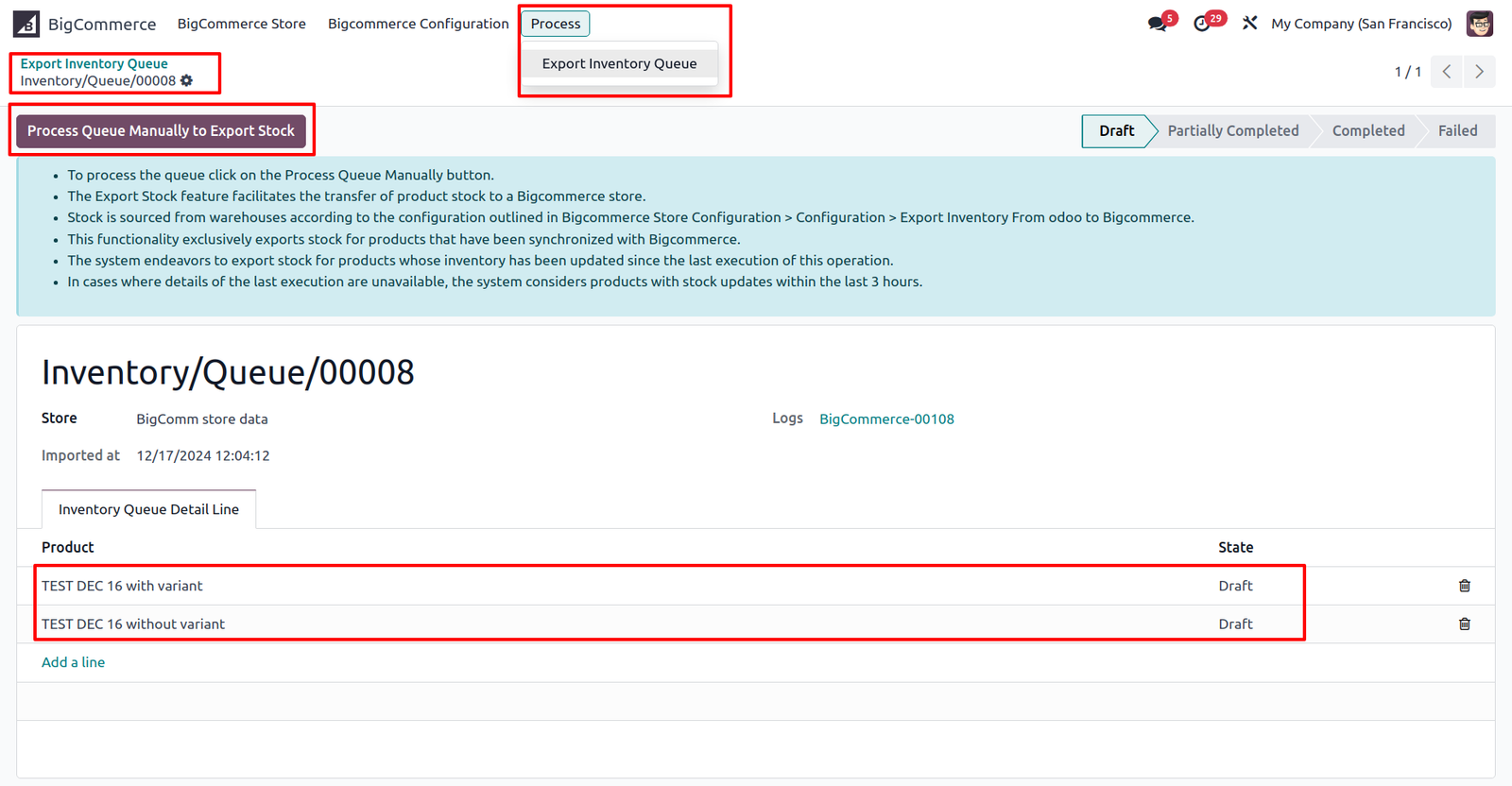
To process particular queue manually have to click on ‘Process Queue Manually to Export Stock’ button
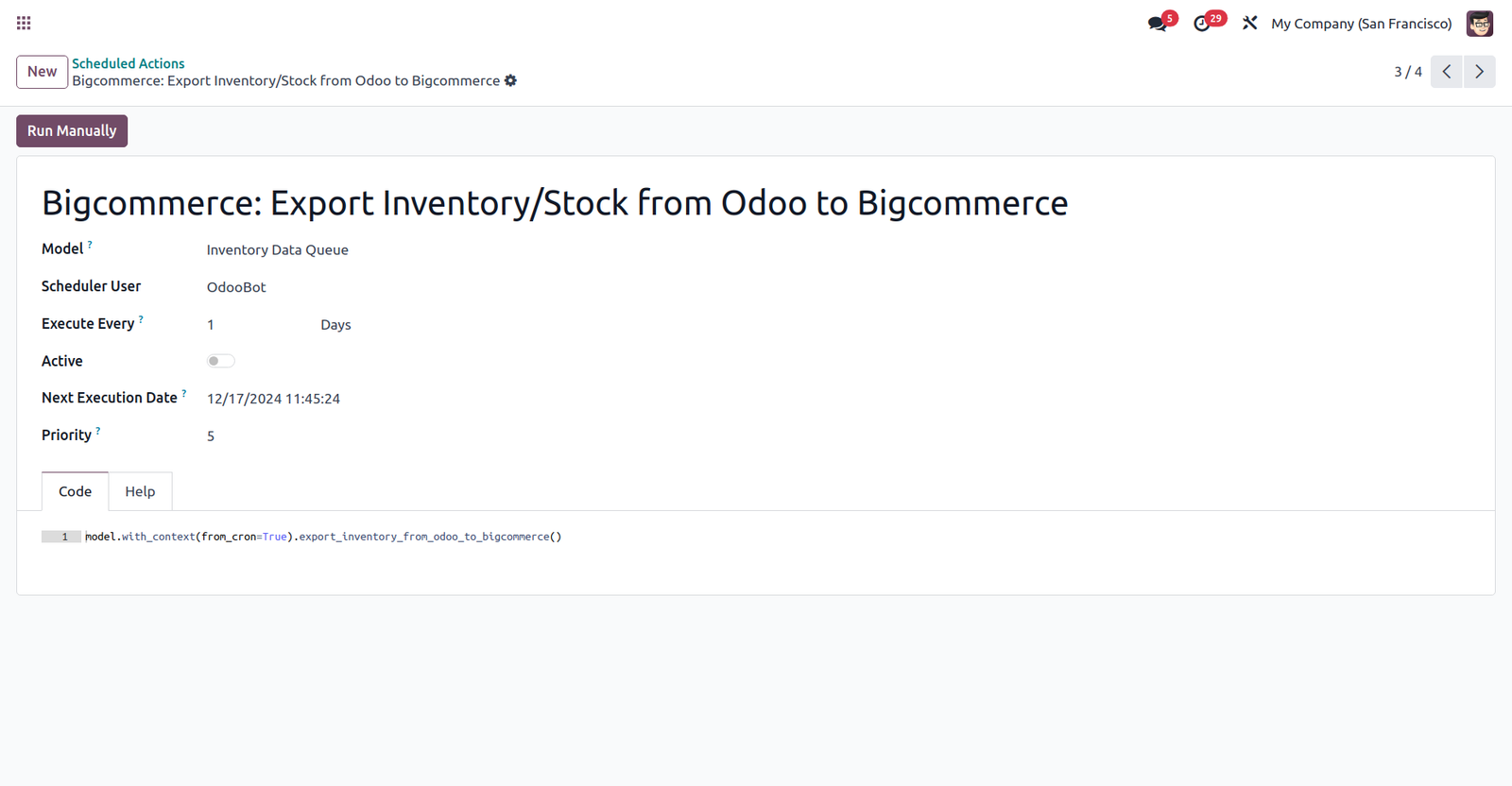
To process all queues automatically we have given Scheduled Action
Export Shipment or create shipment process from Odoo to BigCommerce
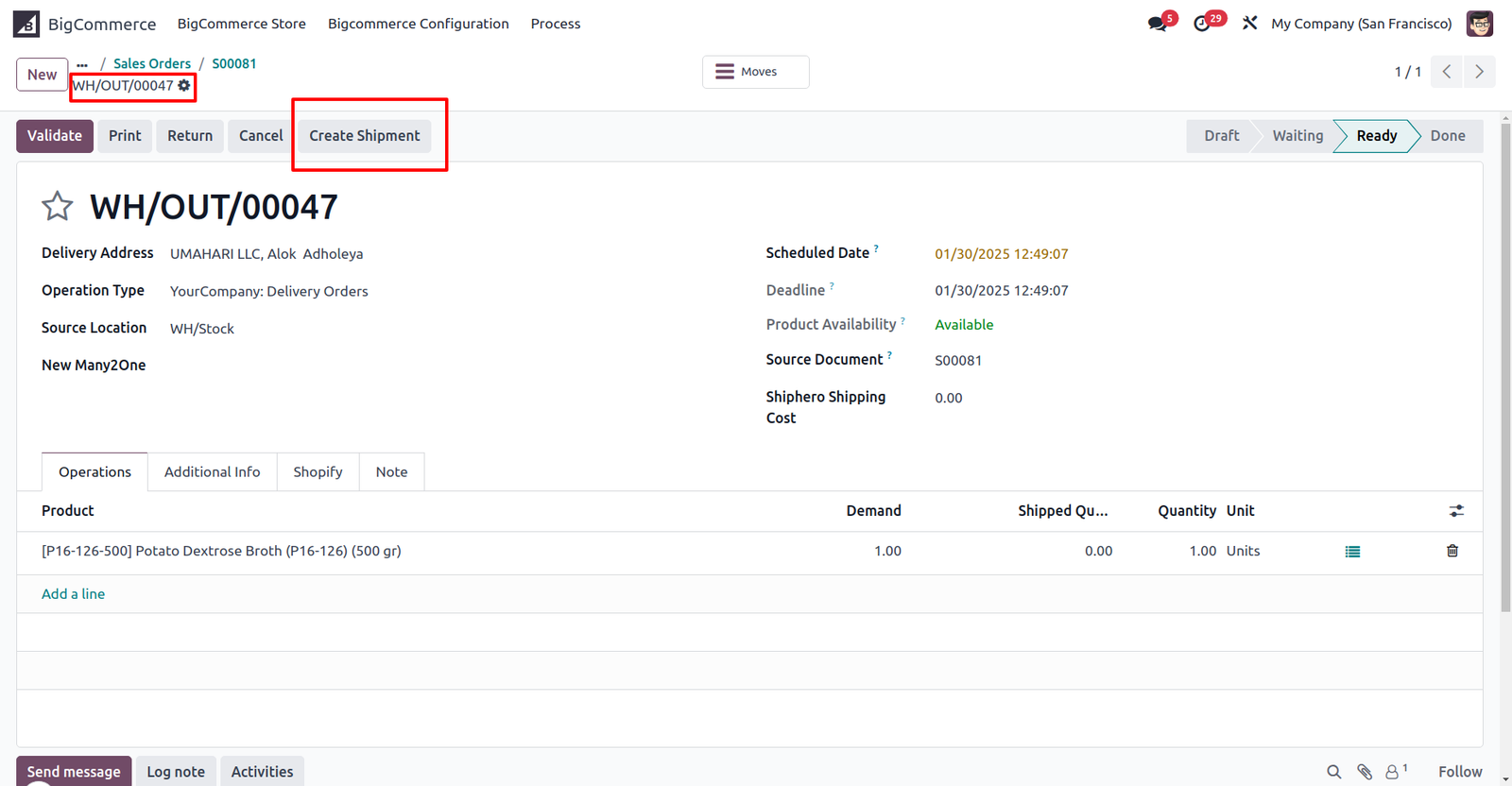
If the Auto Export Shipment option is enabled, this process runs automatically when the delivery order is validated.
Additionally, a button is available in the delivery order form view—if a shipment hasn’t been exported, you can manually trigger the export by clicking this button.
 Is this application compatible with both Odoo Enterprise and Community editions?
- Yes, the application is fully compatible with Odoo Enterprise (On-premise and Odoo.SH) and Community editions. However, it cannot be installed on Odoo Online, as third-party apps are not supported.
It is possible to manage multiple stores?
- Yes
It is supported to import orders automatically and manually from BigCommerce to Odoo?
- Yes
How can inventory updates be managed through the integration?
- The integration allows you to update inventory from Odoo to BigCommerce, either manually or automatically via scheduled actions (cron job).
Will I receive free support and upgrades with the purchase of the application?
- We provide free support for the first 90 days following the purchase date.
Need some customization in this app, whom to contact?
- Please drop email at support@vrajatechnologies.com or raise a ticket through Odoo store itself.
Suggested Application












Reviews
There are no reviews yet.