
Description
.png)
Odoo Google Merchant Center Integration
The Google Merchant Center Integration module for Odoo provides a fully automated, native bridge between your Odoo eCommerce catalog and your Google Shopping. Manual uploads and outdated API connections often lead to data mismatches and frustrating account suspensions. This module eliminates those headaches by dynamically generating perfectly structured XML feeds directly from your Odoo database and pushing them securely via automated SFTP synchronization. Designed for both simplicity and scale, the module excels at handling complex Odoo data. It naturally processes product templates, automatically grouping variants and translating attributes like Color or Size into Google-compliant swatches. For businesses with multi-warehouse operations, it offers precision control—allowing you to filter feeds by specific Stock Locations so Google only sees inventory available for your eCommerce fulfillment. Furthermore, it actively protects your Google Merchant account with built-in data quality tools. It prevents zero-priced products from being submitted, automatically enforces Google’s strict character limits on titles and descriptions, and logs user-friendly warnings right inside Odoo if essential data is missing. Whether managing a hundred products or tens of thousands of SKUs, this module ensures your catalog remains flawlessly formatted, compliant, and continuously optimized for Google Shopping.
We specialize in delivering advanced Odoo solutions across multiple domains. Our expertise includes:

EDI & SWIFT/ACH Payment Integrations
End-to-end EDI automation, including X12, EDIFACT, XML standards, & financial integrations such as SWIFT, ACH, & Fedwire.


eCommerce Integrations
Seamless integration with leading eCommerce platforms to sync products, orders, inventory, and customer data in real time.

Shipping Integrations
Robust shipping connectors for global couriers, offering automated label generation, tracking, and rate computation.

Most Useful Apps for your ERP
A wide range of highly-rated Odoo modules designed to enhance automation, improve productivity, & simplify business operations.
 Features
 Process
 FAQs
FAQs
 Automated Feed Generation & Sync (SFTP):
Generate dynamic XML feeds instantly or rely on automated cron jobs to push fresh product listings, prices, and stock data straight to Google via secure SFTP. Eliminates manual exports and ensures Google always has your latest catalog data.
Intelligent Variant Grouping & Mapping:
Odoo variants are handled naturally. The module auto-injects g:item_group_id for product families and intelligently auto-maps Odoo attributes like Color, Size, and Material into the precise XML g:tags that Google requires, ensuring perfect variant swatches on Google Shopping.
Stock Location Filtering & Precision Inventory:
Have multiple warehouses but only want to fulfill eCommerce orders from specific locations? Easily select designated Stock Locations on the feed configuration. The module computes the exact g:availability and <g:quantity> exclusively from those warehouses, falling back to global stock if no locations are selected.
Actionable Validation Logs & Warnings:
Missing a product description or an image? The system validates your data seamlessly during the XML build process. It logs user-friendly and actionable warnings directly in Odoo without interrupting the feed upload, providing a clear report of exactly which products need fixing.
High-Resolution Image Support:
First impressions matter on Google Shopping. The module securely routes and properly formats high-resolution image links straight from your Odoo web server.
Customizable Attribute Mapping Interface:
Move beyond rigid standard setups. The module includes a dynamic dropdown interface to effortlessly pair Odoo product fields or static text values with both standard Google tags and fully custom XML tags, allowing advanced custom labels like g:custom_label_0 and dynamic categorization like g:google_product_category.
Automatic Scheduled Jobs:
Set it and forget it. Fully integrated with Odoo’s Scheduled Actions, the module silently builds and pushes fresh product listings, inventory quantities, and price data to Google via secure SFTP daily, eliminating manual exports and ensuring Google always has your latest catalog data.
Easy Feed Preview:
Eliminate the guesswork of what your feed looks like. With a single click, you can generate a real-time, easy-to-read preview of your XML feed directly within the Odoo interface. This allows you to verify tag injection, check data formatting, and confirm your products look perfect before pushing them to Google.
Advanced Product & Domain Filters:
Gain absolute control over exactly which products are sent to Google. Instead of blindly syncing your entire catalog, the module uses Odoo’s powerful domain filtering system. This allows you to build advanced dynamic filters, such as syncing only products from specific categories, published items only, or seasonal collections, ensuring you only spend ad budget on the exact products you want visible in Merchant Center.
Easy Credentials & SFTP Setup:
Connecting to Google Merchant Center is seamless and frustration-free. The module features an intuitive credential manager where you can safely enter your Google SFTP connection details directly into Odoo. It also includes a built-in Test Connection button, allowing you to instantly verify your host, port, username, and password credentials before your first feed upload.
Import Google Categories
Go to Website > Google Merchant Center > Import Google Categories.
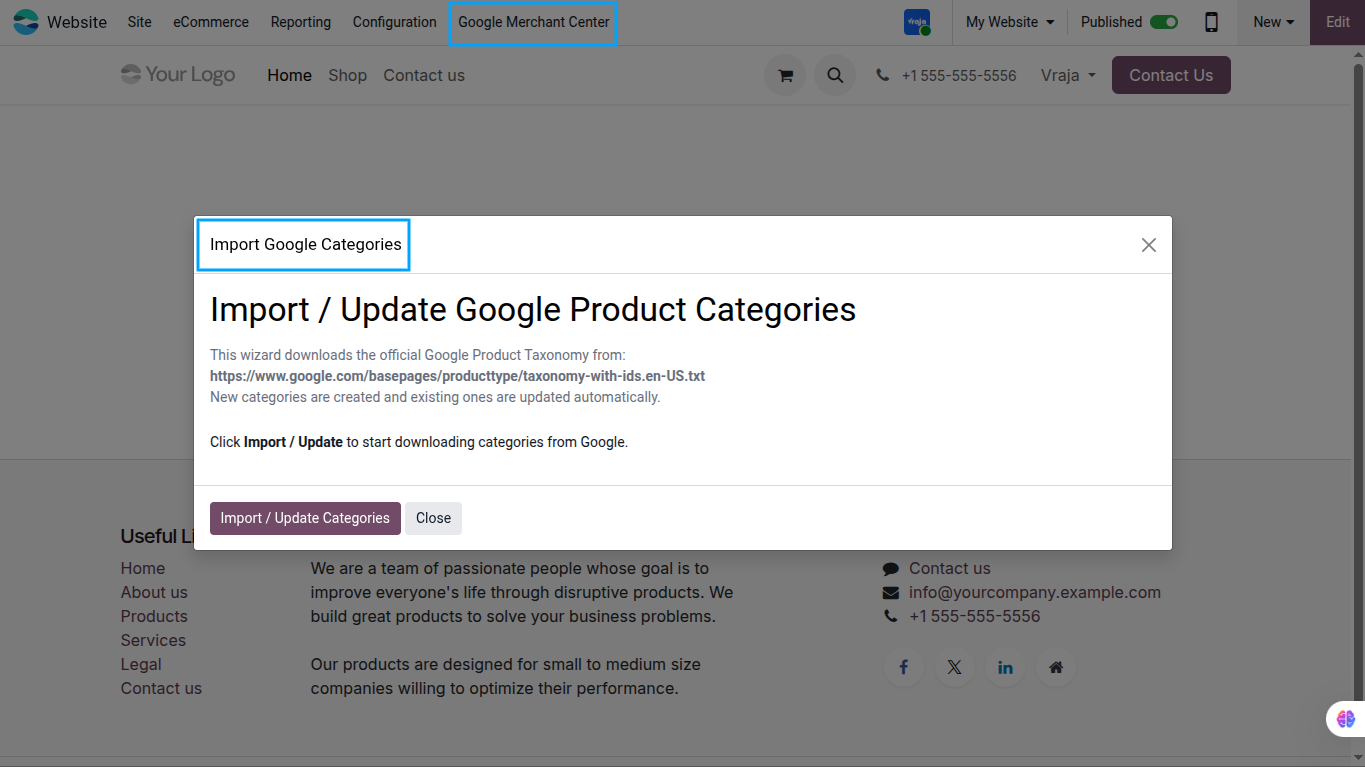
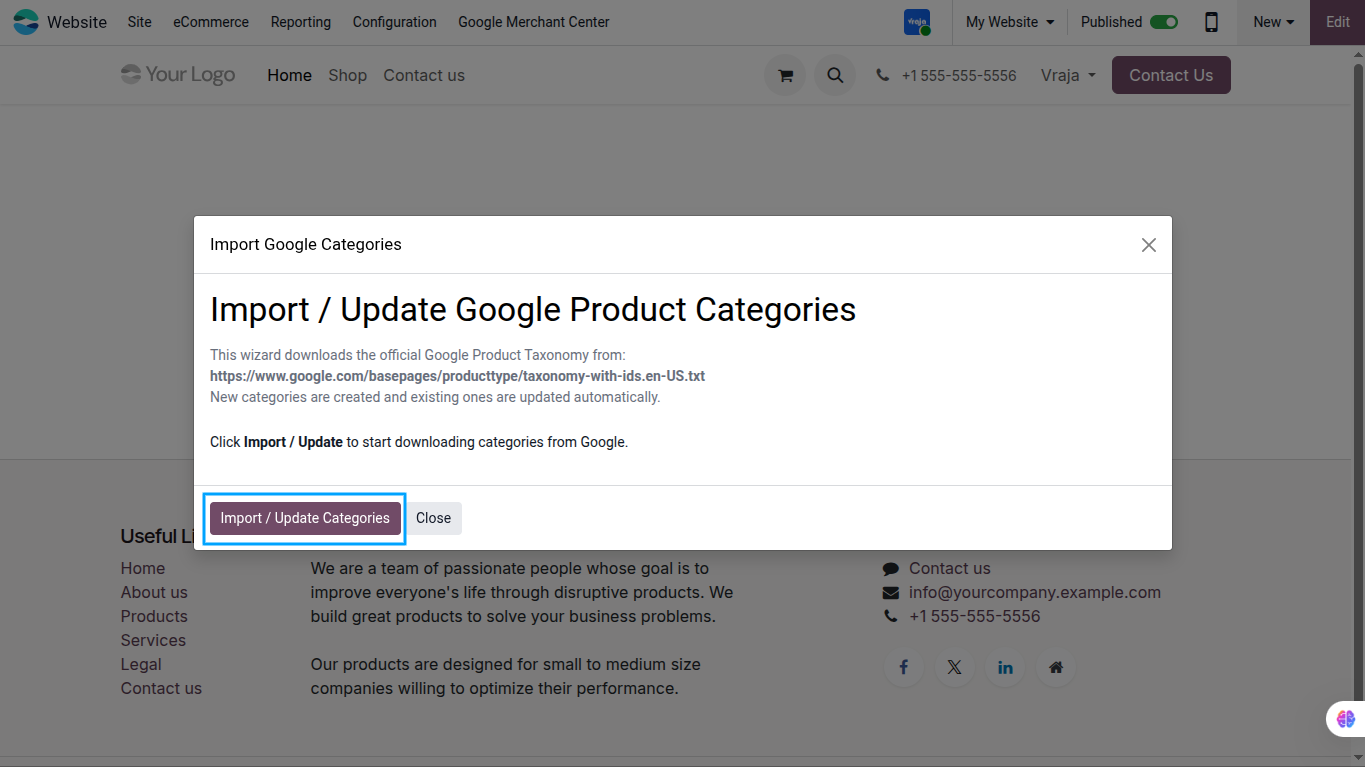
Import / Update Product Categories
Now, click on the Import / Update Product Categories button.
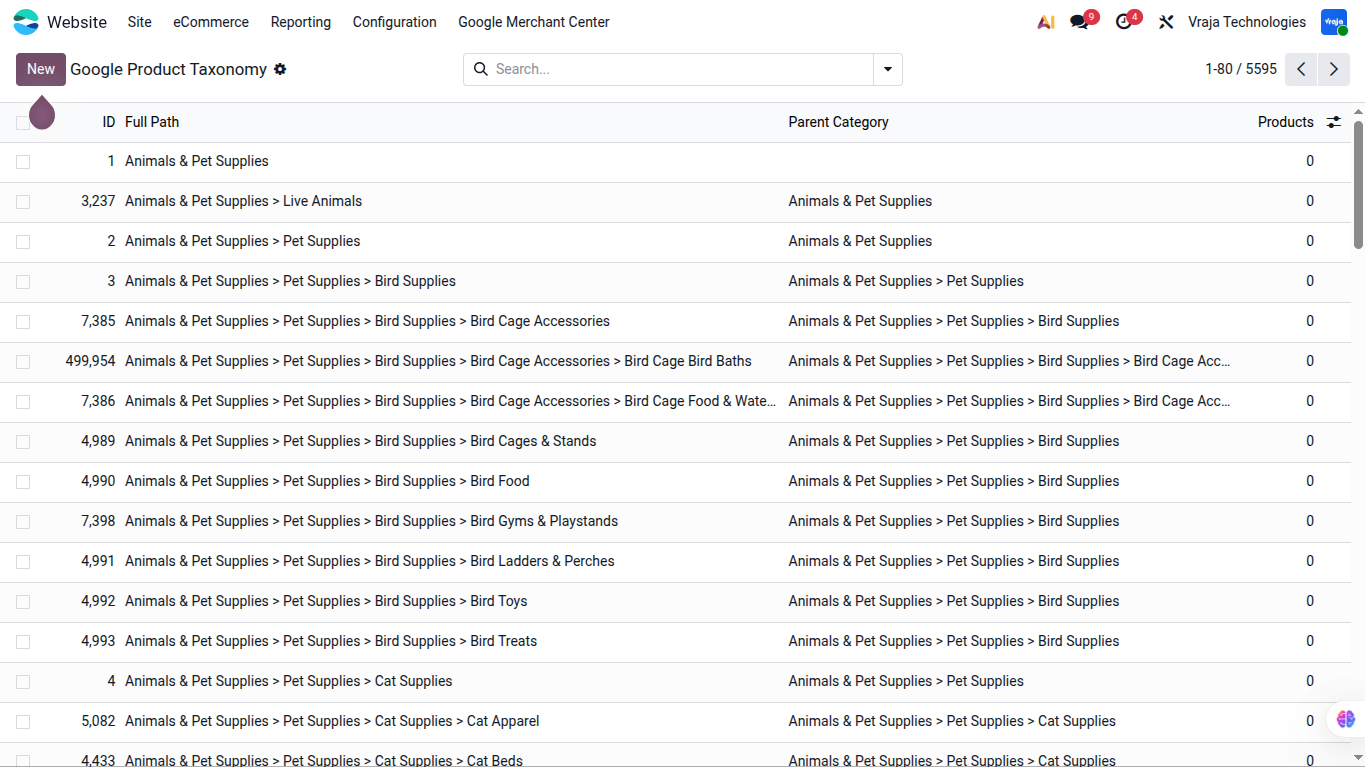
Open Google Product Taxonomy
Now navigate to Website > Google Merchant Center > Google Product Taxonomy.
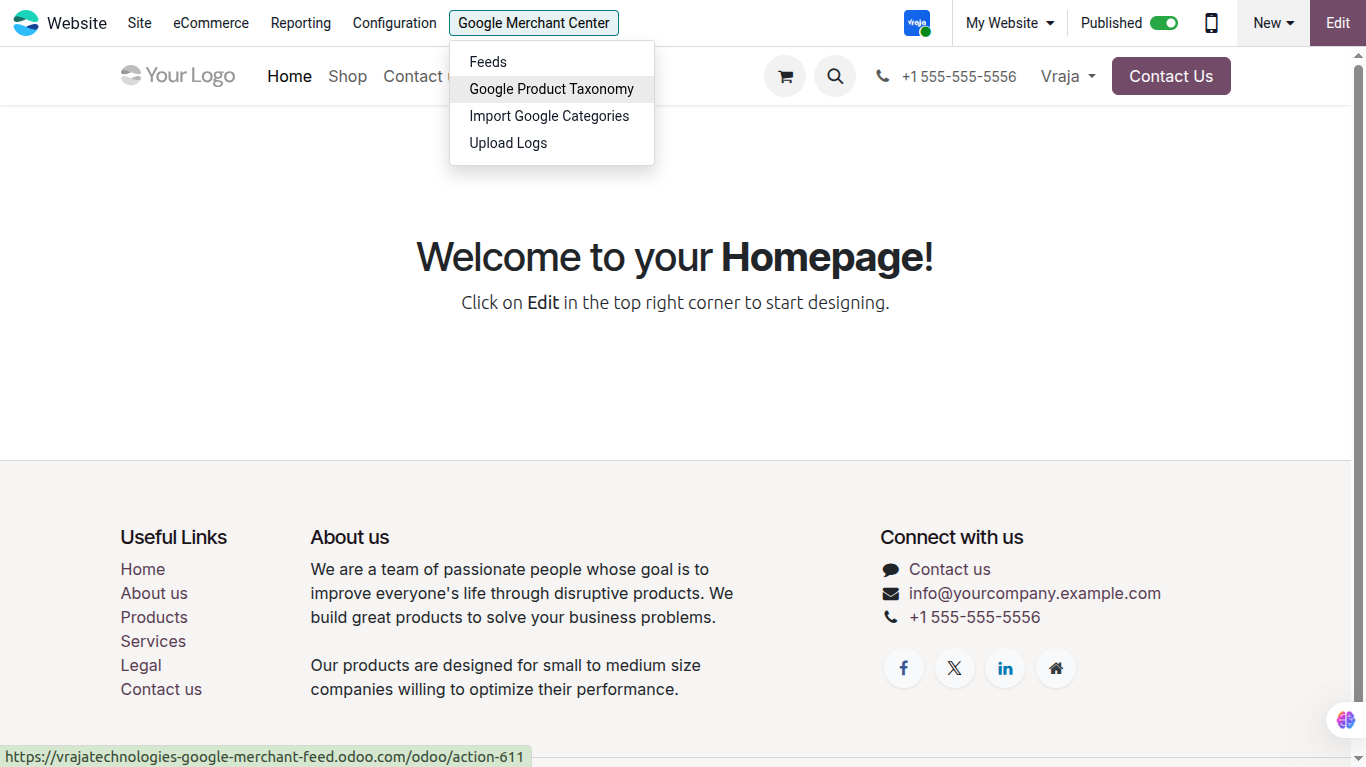
View Google Product Categories
Inside the list view, you can see all individual categories. Inside the form view, you can also see subcategories.
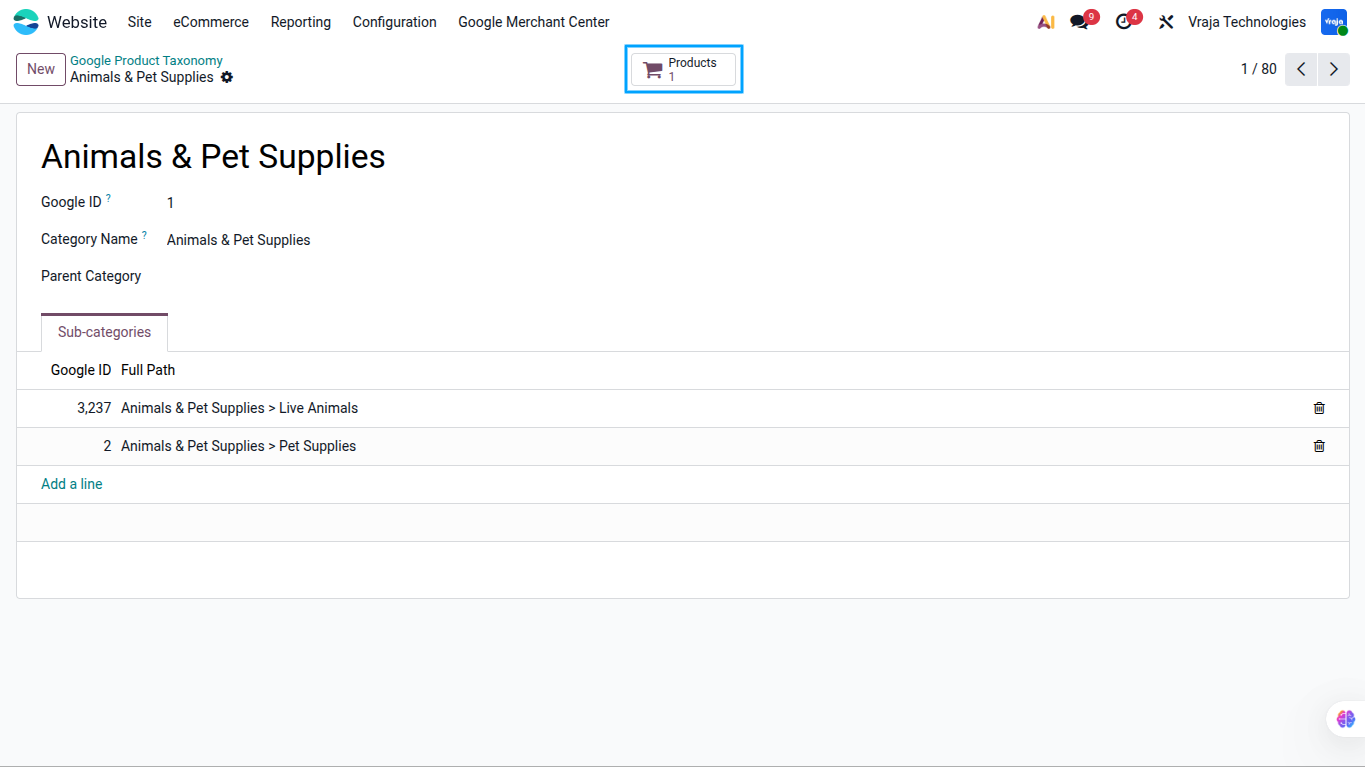
Track Products by Category
Inside the form view, there is a useful smart button for easy identification and tracking, showing how many products belong to this category.
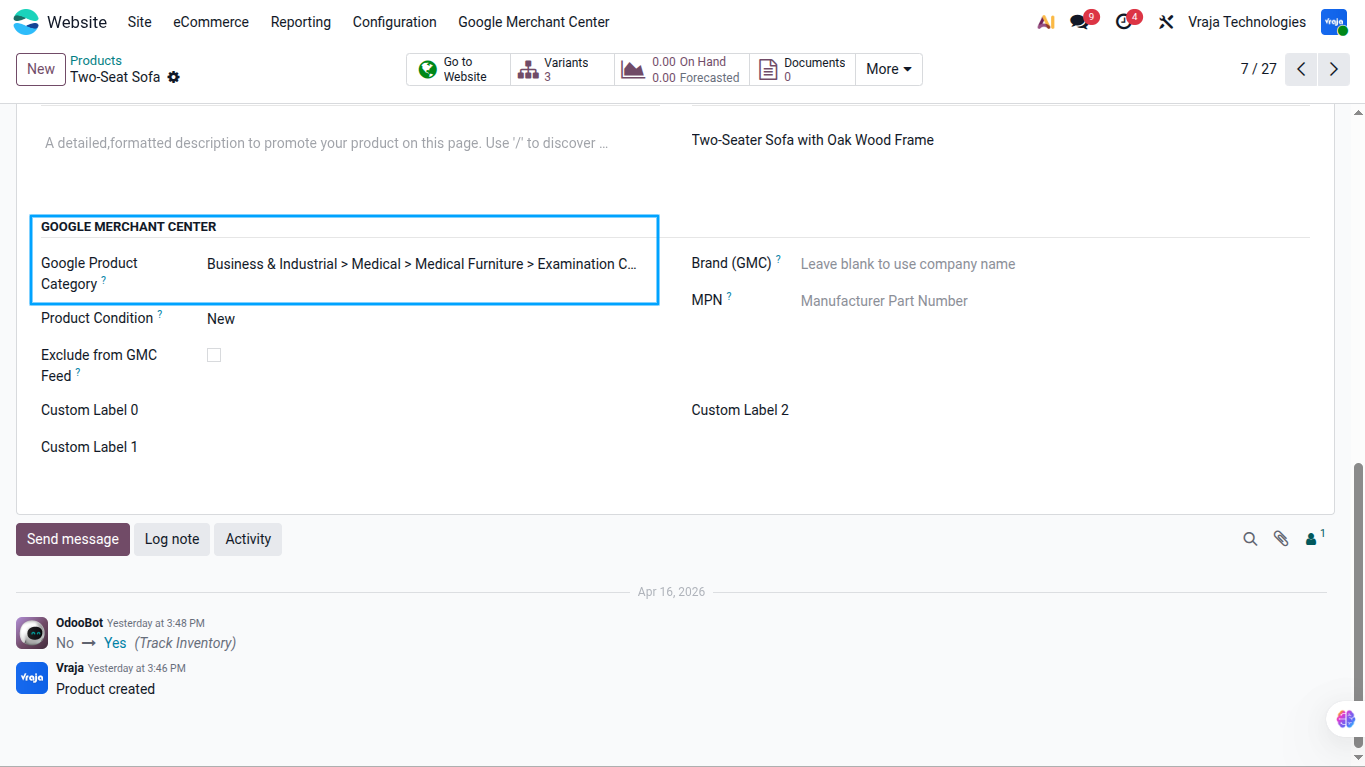
Assign Google Product Category
Inside the product form, navigate to the Sales tab. In the Google Merchant Center section, you can assign the Google Product Category.
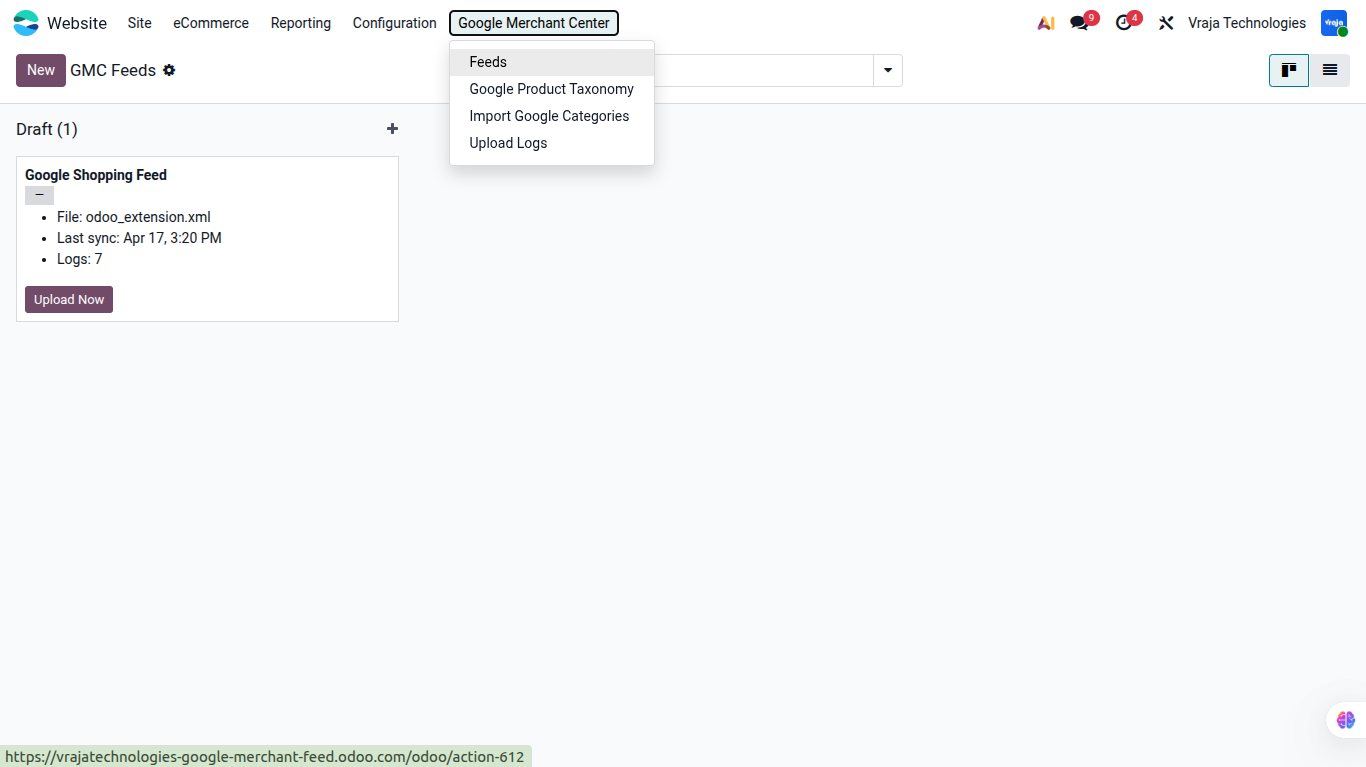
Open Feeds Menu
Now navigate to Website > Google Merchant Center > Feeds.
Configure Feed Details
Fill in the feed details such as Feed Name, Remote Filename, Language, Currency, Pricelist, Store Title, and Store URL.
- Feed Name: A descriptive internal name, for example, Google Shopping – US (USD).
- Remote Filename: Must exactly match the feed filename registered inside your Google Merchant Center account, for example, products_feed.xml.
- Language: Select the language for the feed content.
- Currency: Select the currency for prices.
- Pricelist: Optionally select an Odoo pricelist to compute prices using specific rules.
- Store Title: The name of your store as it appears in the feed channel title.
- Store URL: Your store base URL.
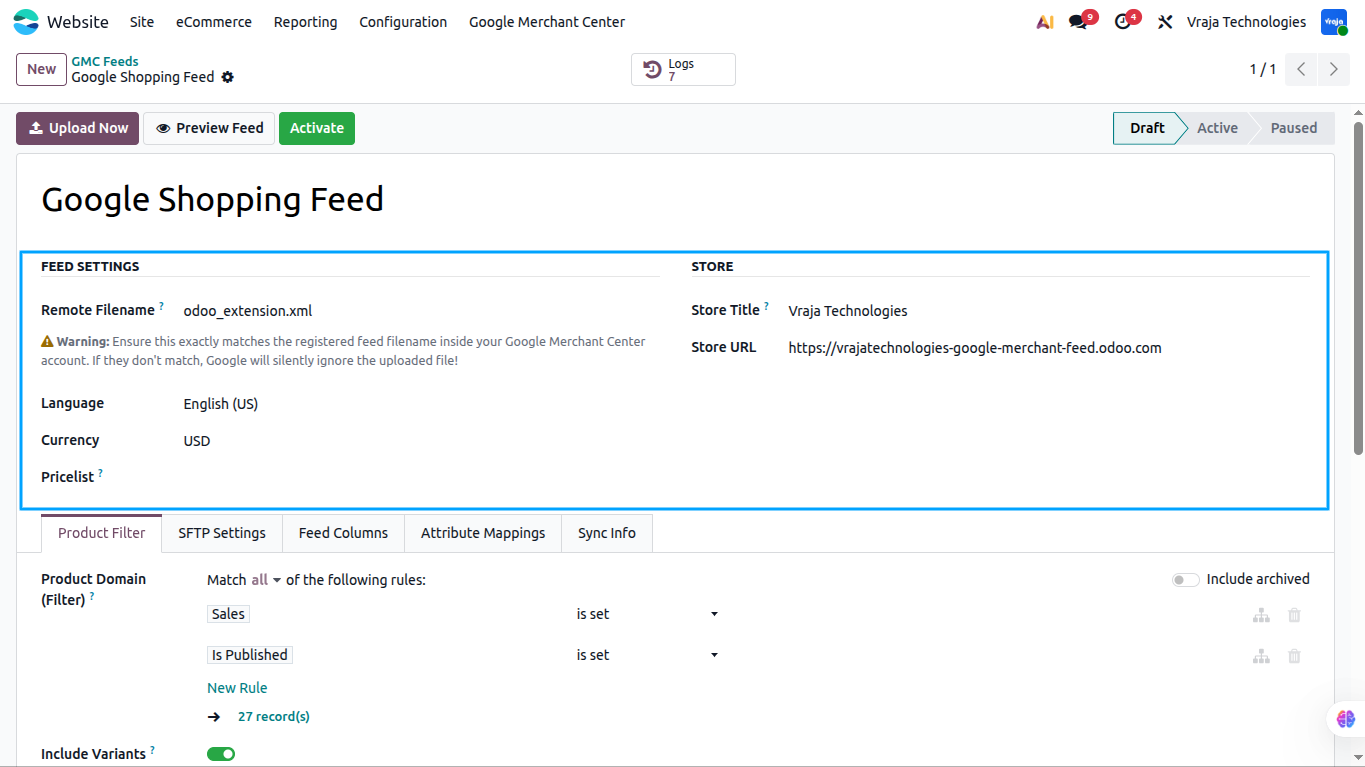
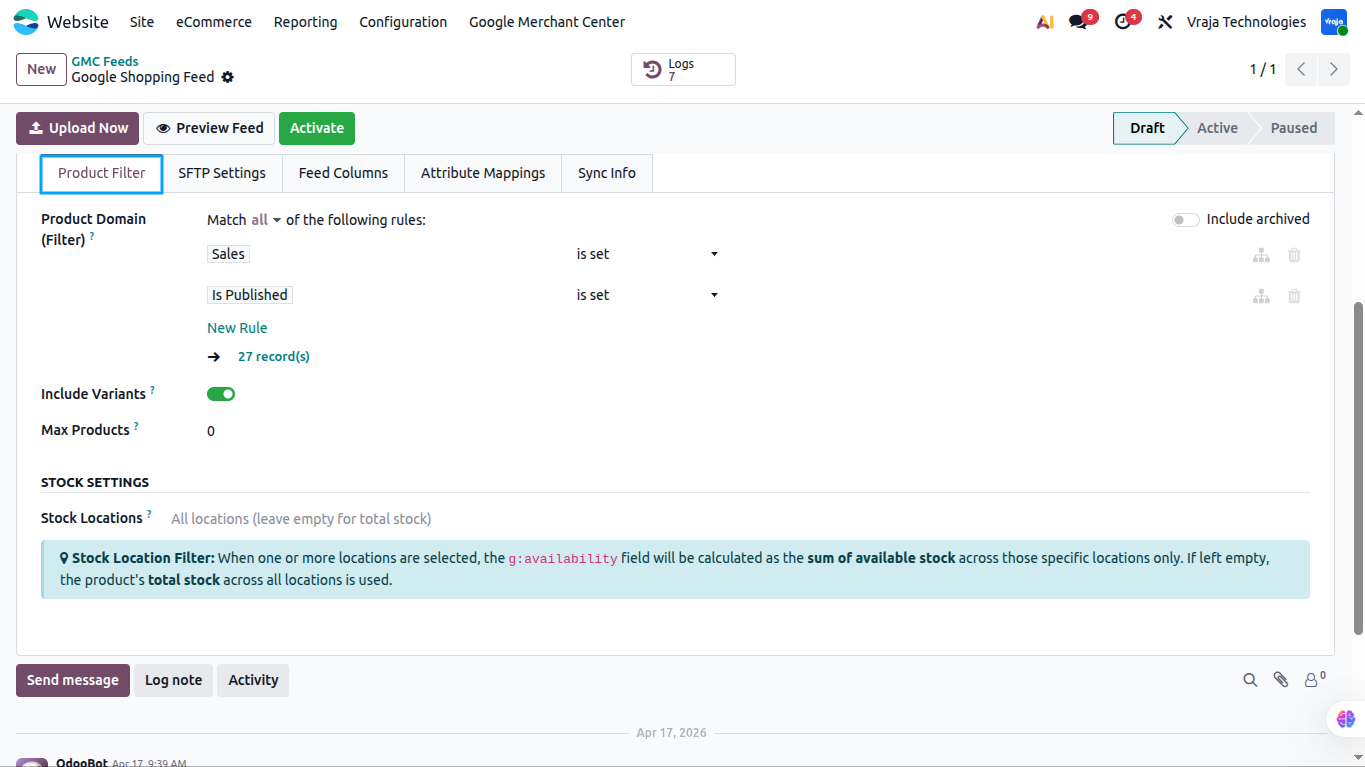
Open Product Filter Tab
Inside the Feed form, go to the Product Filter tab.
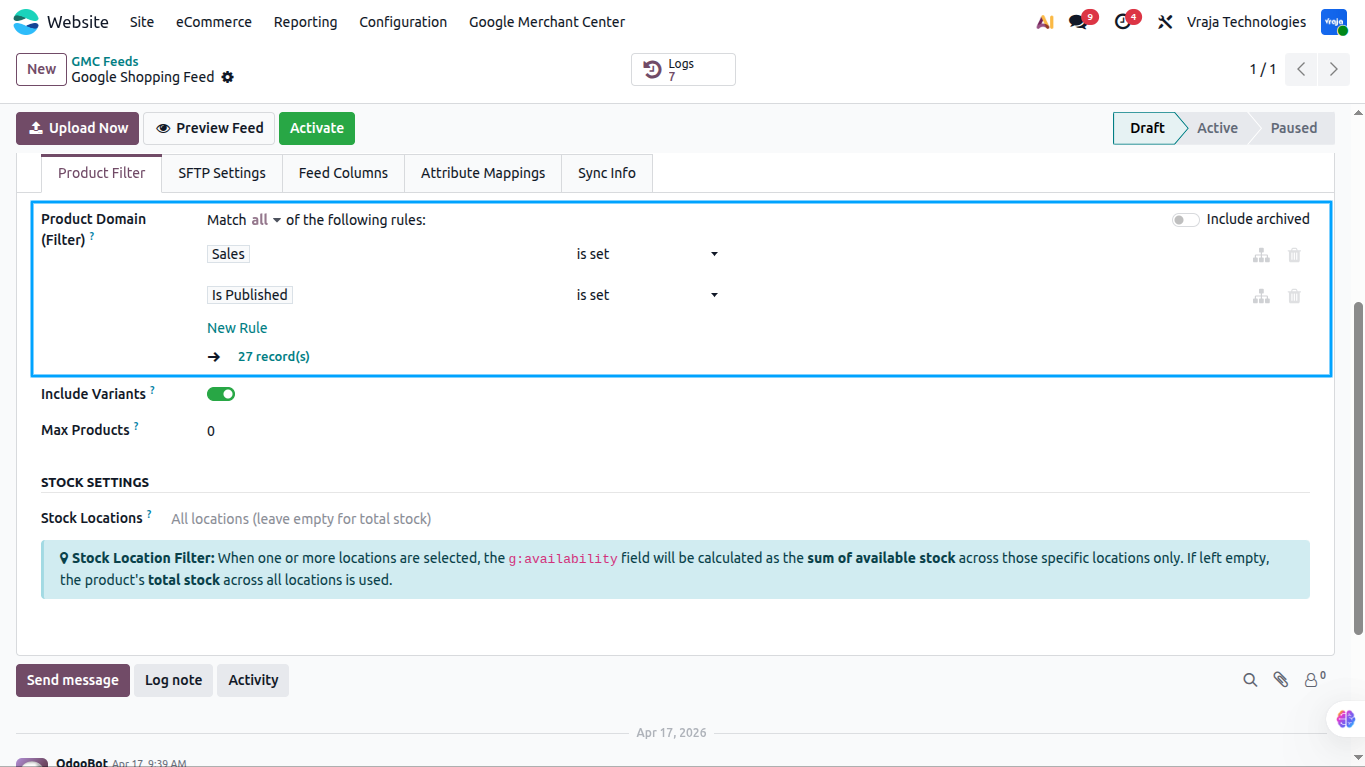
Set Product Domain Filter
Use the Product Domain field to define which products are included in the feed. By default, it exports only products that are for sale and published on your website.
- Only a specific product category
- Products with a specific internal tag
- Products above a certain price
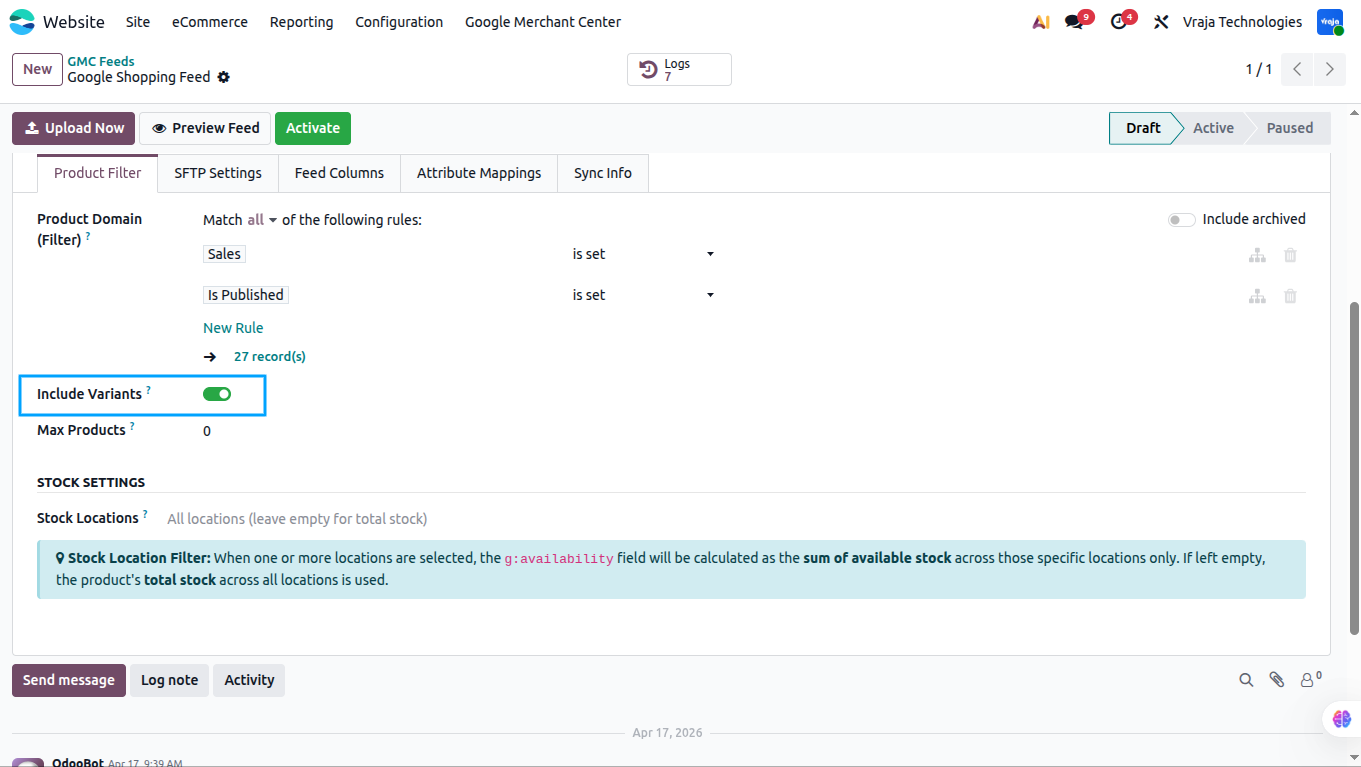
Enable Product Variants
Toggle Include Variants to control whether each product variant is exported. This is recommended for products with Color or Size variants. When enabled, each variant gets its own item row and a shared g:item_group_id.
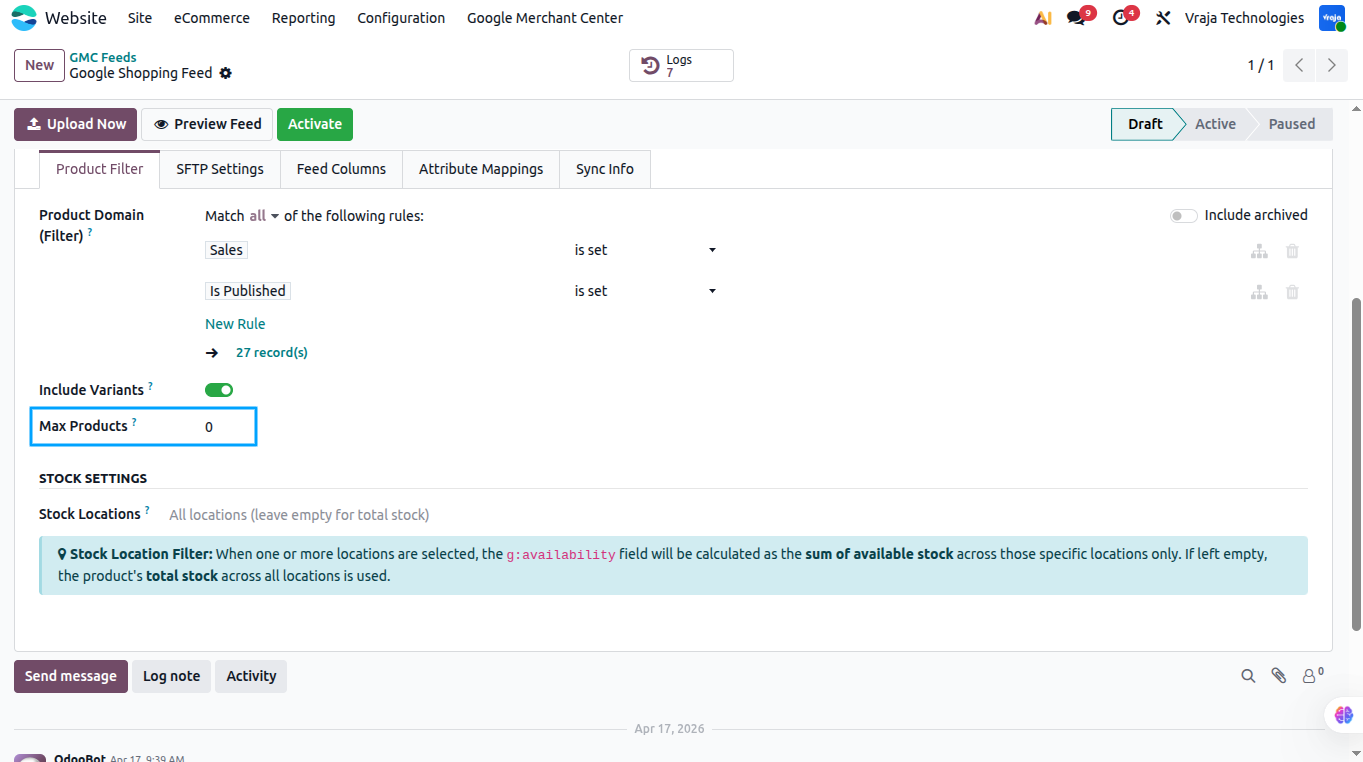
Set Maximum Products
Set Max Products if you want to limit the feed to a fixed number of products during testing. Set it to 0 for unlimited products.
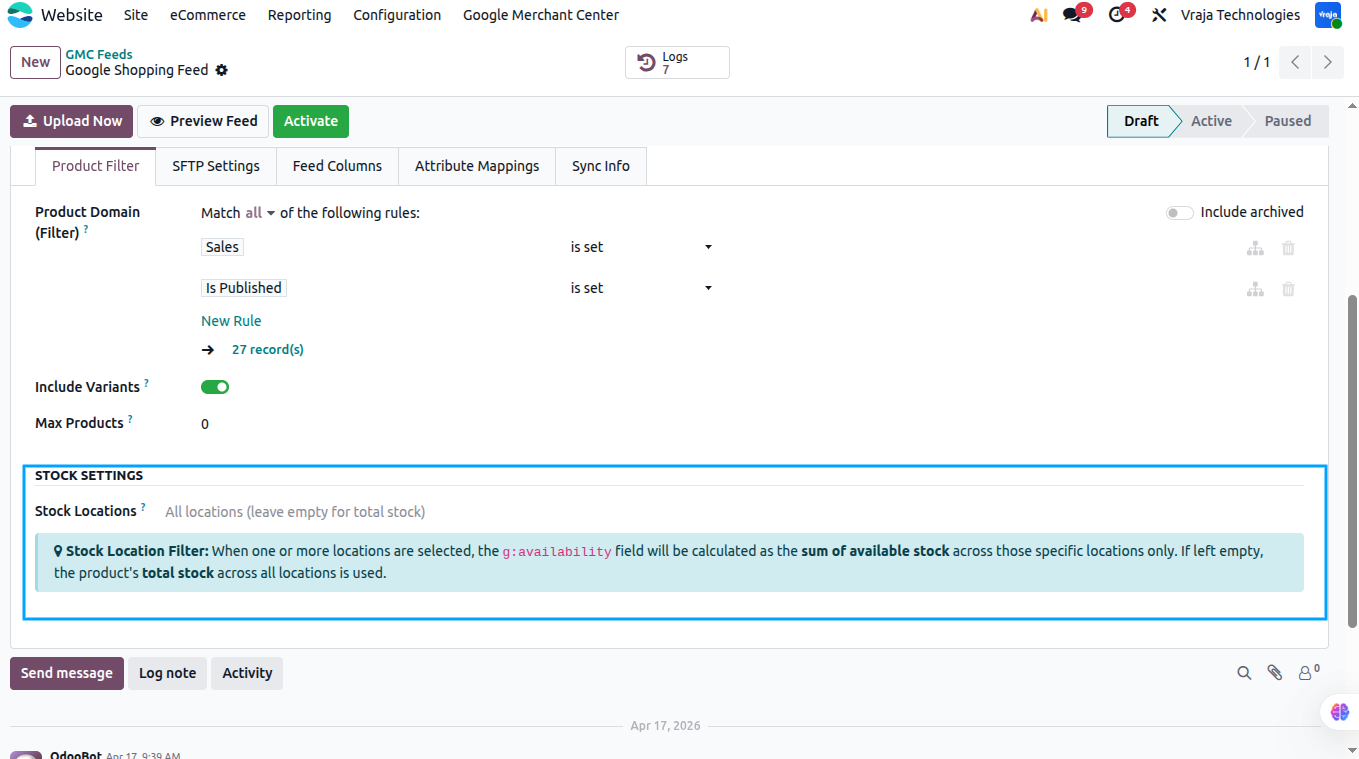
Configure Stock Locations
Under Stock Settings, select one or more Stock Locations to restrict availability calculation to specific warehouses. If no location is selected, total stock across all locations is used.
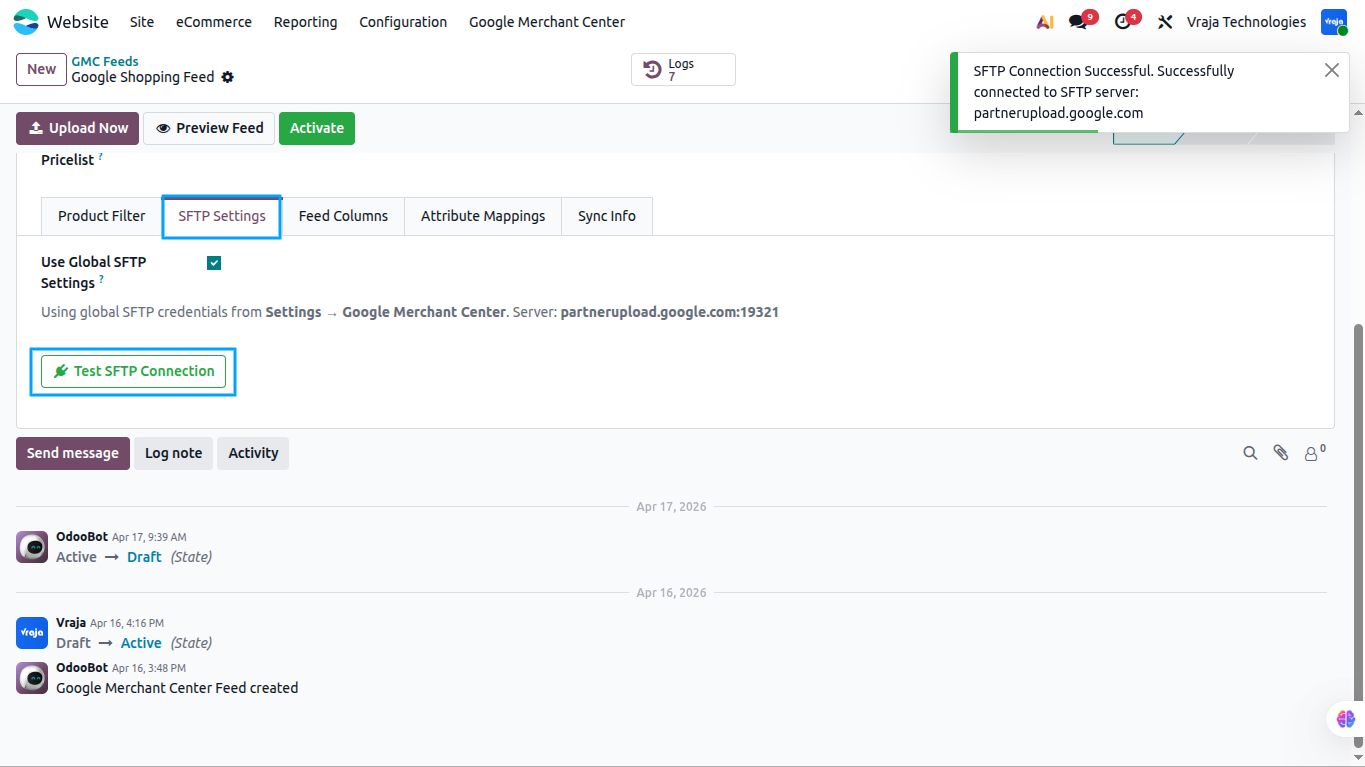
Configure SFTP Settings
Inside the Feed form, go to the SFTP tab. By default, Use Global SFTP Settings is enabled and uses the credentials saved in Settings.
If this feed requires different SFTP credentials, disable the toggle and manually enter the SFTP Host, Port, Username, and Password. Then click Test SFTP Connection to verify the credentials.
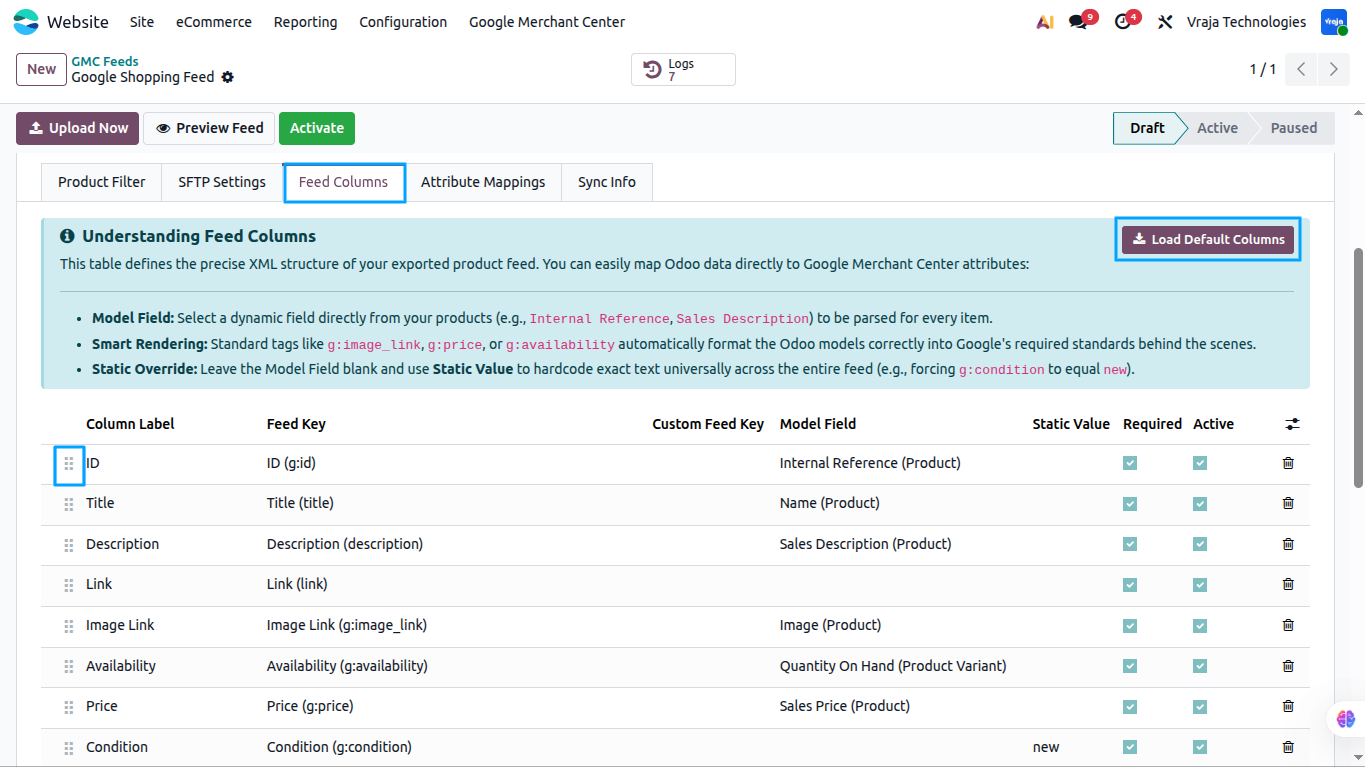
Configure Feed Columns
Inside the Feed form, go to the Feed Columns tab. If columns are not pre-loaded, click the Load Default Columns button to populate standard recommended Google Merchant Center fields automatically.
- Column Label: Human-readable name for the column.
- Feed Key: Select the standard Google XML tag, such as
g:id,title,g:price, org:availability. - Model Field: Select a live Odoo field from product.template or product.product.
- Static Value: Add fixed text to apply the same value across all products.
- Required: Enable this for mandatory GMC fields so the module logs warnings for missing data.
- Active: Disable a column temporarily without deleting it.
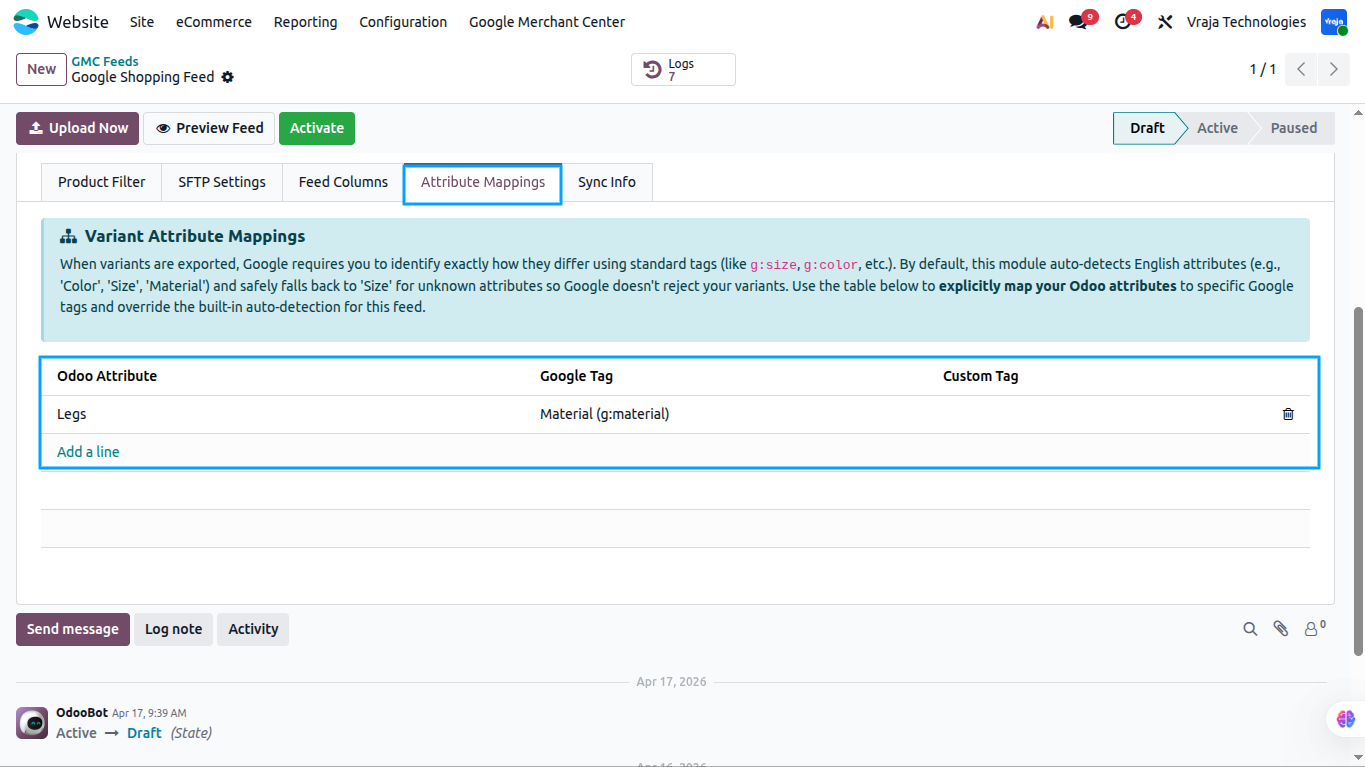
Map Product Attributes
If Include Variants is enabled, the Attribute Mappings tab will appear. Here, you can map Odoo product attributes to the correct Google tags.
- Odoo Attribute: Select the attribute, for example, Color, Size, or Fabric.
- Google Tag: Select the matching Google tag, for example,
g:color,g:size, org:material. - Select Do Not Export if you do not want a specific attribute to appear in the feed.
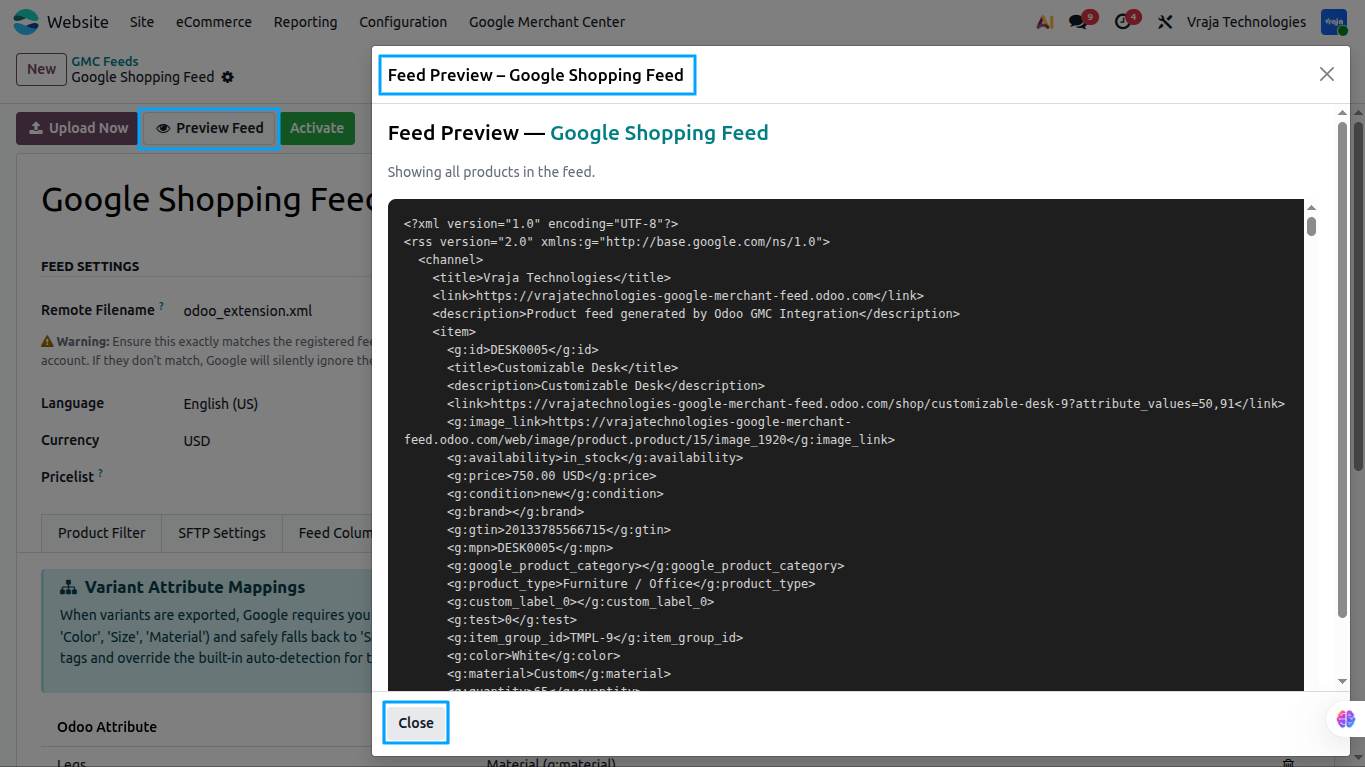
Preview XML Feed
From the Feed form, click the Preview Feed button in the header. A dialog window will open showing a real-time preview of your XML feed content directly inside Odoo.
Review the structure, check that product data looks correct, verify that all g: tags are populated, and confirm the formatting matches Google requirements.
Activate and Upload Feed
From the Feed form header, click Activate to move the feed from Draft to Active state. To push the feed to Google immediately, click Upload Now.
- Build the full XML feed from your Odoo product catalog.
- Validate all products against required fields.
- Upload the file securely to Google SFTP server.
- Show a success notification or warning notification if any products have missing required data.
To pause automated uploads temporarily without deleting the feed, click Pause.

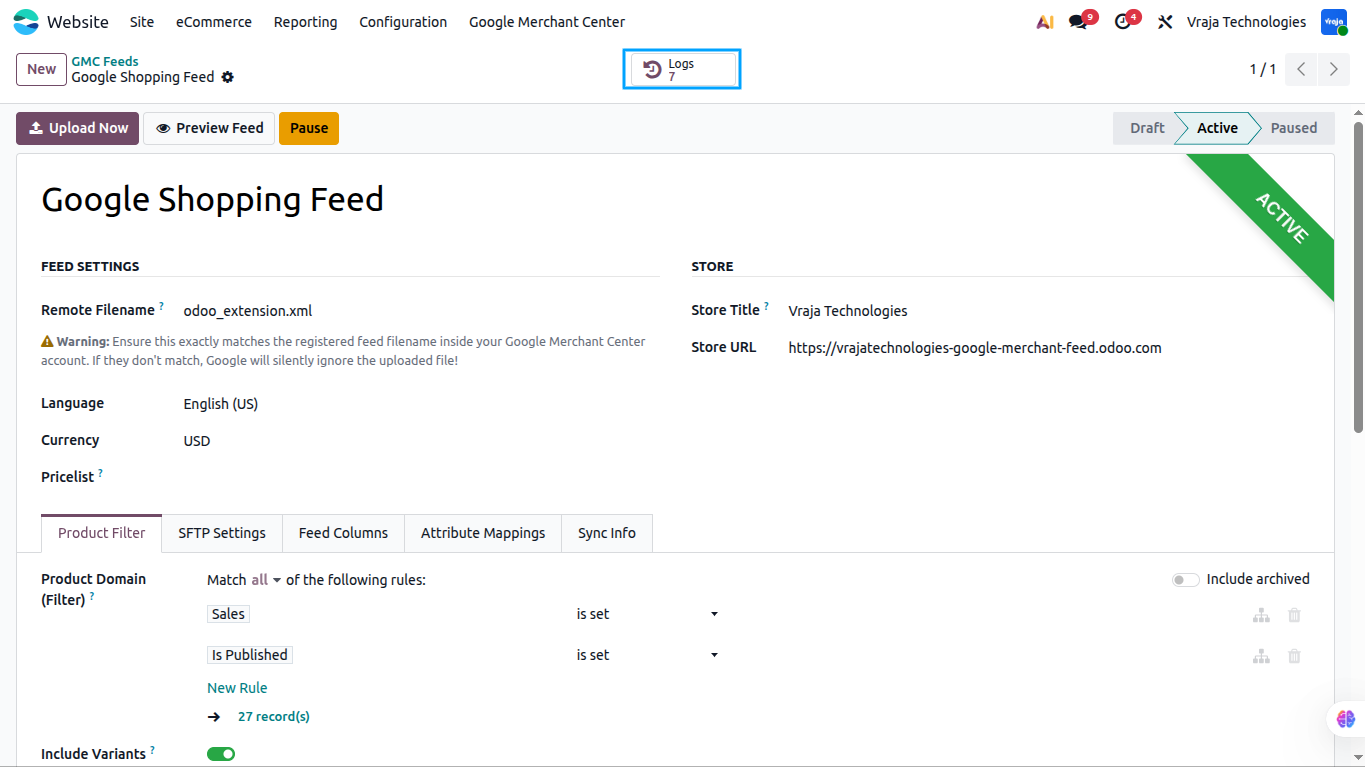
View Feed Logs
After each upload, manual or scheduled, a log entry is created. Click the Logs smart button on the feed form to view all upload history.
- Date and time of the upload
- Trigger type, Manual or Scheduled
- Status, Success, Error, or Warning
- Products Exported count
- File Size in KB
- Duration in seconds
- Detailed message or error description
- Missing Required Fields report
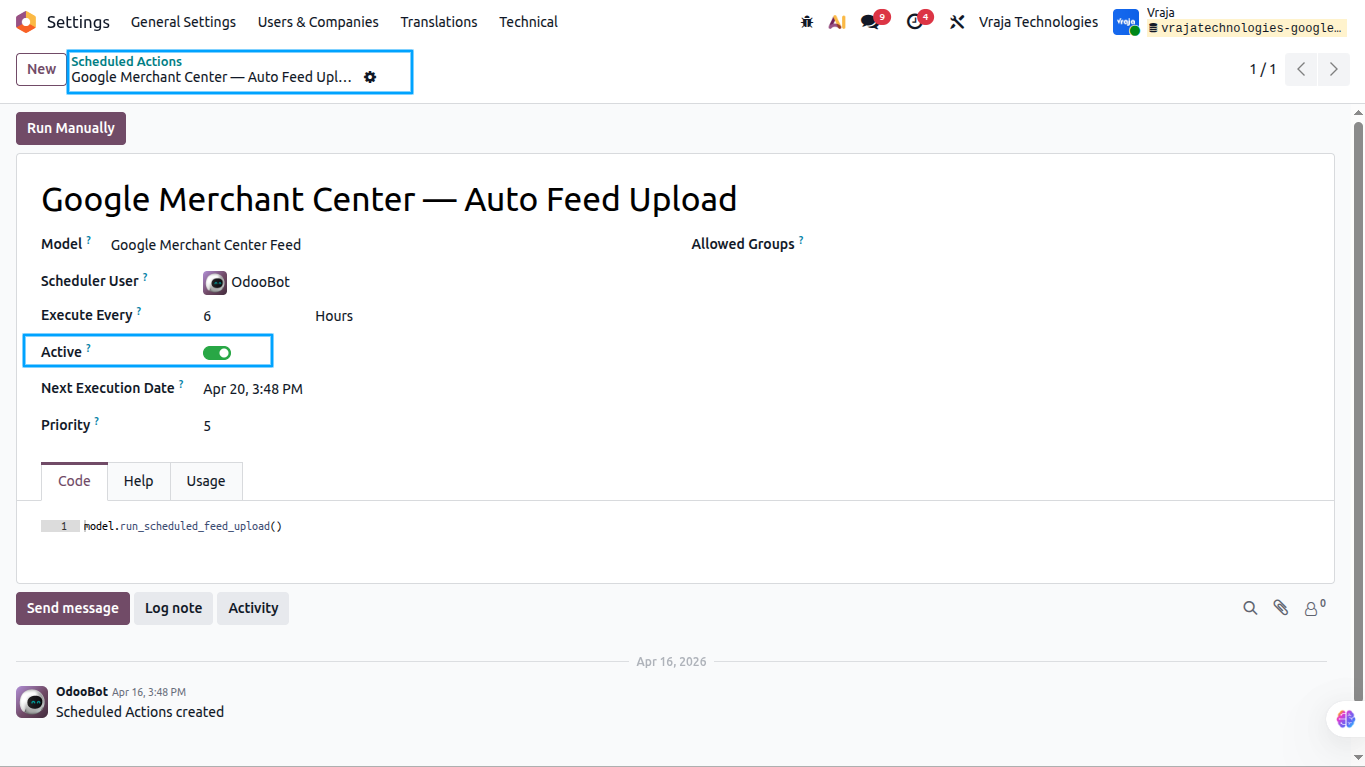
Automated Scheduled Uploads
The cron job is set to run daily by default. It automatically builds and pushes fresh feeds for all Active feeds via SFTP without manual work.
You can adjust the frequency to hourly, daily, or weekly depending on how often your prices or inventory change. Feeds in Draft or Paused state are automatically skipped by the cron job.
 Does the module map product variants accurately for Google Shopping?
- Yes. The integration fully supports complex Odoo product templates. It automatically assigns the mandatory
g:item_group_idto link variations together and accurately translates multi-variant attributes like Color, Size, and Material into Google-compliant variant swatches.
Can I choose which warehouse stock is pushed to Google?
- Absolutely. You can select specific Stock Locations on your feed configuration. The integration calculates both
<g:availability>and<g:quantity>based only on the available stock from those selected locations.
How do I prevent my entire catalog from syncing to Google?
- The module includes an Advanced Domain Filter feature. You can easily configure conditions to sync only products from specific categories, products with a particular tag, or items marked as published. This gives you full control over which products are sent to Google Merchant Center.
What happens if a product has missing required data like an image or description?
- The feed sync will continue uploading correctly configured products. For affected products with missing required data, the module detects the issue during feed generation and creates a user-friendly Feed Log warning inside Odoo, so you know exactly which product attributes need to be fixed.
Will zero-priced products cause my Google feed to be rejected?
- No. The system includes a built-in validation guard that identifies products with a $0.00 price and prevents them from being pushed to Google. This helps avoid invalid pricing issues and protects your Google Merchant Center feed quality.
How do I connect Odoo to my Google Merchant Center?
- The module provides an easy credentials section where you can enter your Google Merchant Center SFTP host, port, username, and password. It also includes a built-in Test Connection button to instantly verify your credentials before uploading the feed.
Is there a way to verify the feed before sending it to Google?
- Yes. The module includes an Easy Preview feature. With one click, you can generate a real-time, readable preview of your XML feed directly inside the Odoo interface to confirm that tags, formatting, and product data are correct before sending it to Google.
Is the data sync fully automated?
- Yes. You can run the feed manually by clicking Run Feed, or configure the setup once and let Odoo’s built-in Scheduled Action cron job automatically push updated product listings, inventory quantities, and prices to Google via secure SFTP on a daily basis.
I would like to request a custom feature for this application. What’s the process to get it implemented?
- We’re happy to help tailor the application to meet your business needs! You can reach us via sales@vrajatechnologies.com
Who is the point of contact for technical support, configuration support or bug-related queries?
- You can reach us via support@vrajatechnologies.com
Submit a Support Ticket
If you encounter any issues while using our app that are caused by the app itself, we offer complimentary support for 90 days from the date of purchase.
To create a support ticket, please register via the Vraja Technologies Support Email and provide the necessary details so we can assist you in resolving the issue.

Email Us
support@vrajatechnologies.com

 1.png)
Contact Us
vrajatechnologies.com/contactus

Support
vrajatechnologies.com/support-policy
Vraja Technologies Services

Odoo Implementation

Odoo App Integration Services

Odoo Customization

Odoo Consultation
Odoo Support & Maintenance

Odoo Developer Outsourcing
Suggested Application















Reviews
There are no reviews yet.