
Description
.png)
 Enterprise Community Odoo.sh
Odoo Quickbooks Canada Connector
QuickBooks is a powerful business accounting platform. Integrating QuickBooks with Odoo creates a smooth and efficient financial workflow by ensuring both systems stay in sync. The connector supports importing key data such as customers, vendors, payment terms, taxes, chart of accounts, products with categories, invoices, payments, vendor bills, and bill payments from QuickBooks into Odoo. It also supports exporting customers, vendors, products, invoices, bills, payments, chart of accounts, and payment terms back to QuickBooks. With automated data exchange, the integration removes repetitive manual entry, reduces the risk of inconsistencies, and helps maintain accurate financial records ultimately improving productivity and financial visibility.
 Watch on YouTube
We specialize in delivering advanced Odoo solutions across multiple domains. Our expertise includes:

EDI & SWIFT/ACH Payment Integrations
End-to-end EDI automation, including X12, EDIFACT, XML standards, & financial integrations such as SWIFT, ACH, & Fedwire.


eCommerce Integrations
Seamless integration with leading eCommerce platforms to sync products, orders, inventory, and customer data in real time.

Shipping Integrations
Robust shipping connectors for global couriers, offering automated label generation, tracking, and rate computation.

Most Useful Apps for your ERP
A wide range of highly-rated Odoo modules designed to enhance automation, improve productivity, & simplify business operations.
 Features
 Configuration
 Import
 Export
/ Update
Export
/ Update
 FAQs
FAQs
Features
Import Operations
- Import Customers with essential information including contact details and addresses.
- Import Vendors essential details such as name, email, phone number, billing addresses.
- Import Payment Terms and automatically sync them with Odoo records.
- Import Taxes from QuickBooks and configure them instantly in Odoo.
- Import Chart of Accounts and map QuickBooks accounts to Odoo accounts seamlessly.
- Import Products with key details such as SKU, description, pricing, cost, and category.
- Import Customer Invoices from QuickBooks for accurate accounting alignment.
- Import Customer Payments linked to their respective invoices into Odoo..
- Import Vendor Bills with complete billing information.
- Import Bill Payments to keep Odoo’s financial records up to date.
Export Operations
- Export Customers and Vendors created or updated in Odoo directly to QuickBooks.
- Export Products with names, SKUs, and pricing to maintain uniform product data in QuickBooks.
- Export Invoices and Bills from Odoo to QuickBooks for accurate financial synchronization.
- Export Customer Payments and Vendor Payments to keep QuickBooks ledgers up to date.
- Export Chart of Accounts from Odoo to maintain a unified account structure across both platforms.
- Export Payment Terms to ensure consistent billing and payment rules in QuickBooks.
- Automatically schedule Import and Export of Invoices, Bills, and Payment synchronization at regular intervals.
Odoo – Quickbook Synchronization
Token Refresh Cron
Authentication
Invoice & Vendor Bill
Import / Export
Customer Payment & Bill payment
Import / Export
Send Export Failure Report
Notification
Customers
Import/Export
Payment Terms
Import / Export
Taxes
Import
Chart of Accounts
Import / Export
Products
Import / Export
Product Category
Import
Vendors
Import / Export
Customer Invoices / Vendor Bills
Import / Export
Customer Payments / Vendor Payments
Import / Export
Quickbook Benefits
Increased Efficiency
Automated sync between Odoo and QuickBooks reduces manual work by handling record creation, updates, and data transfers automatically, minimizing human effort and errors.
Better Payment Flow Management
QuickBooks integration provides a clear view of invoices, bills, and payments, helping you manage your financial flow efficiently.
Streamlined Accounting Processes
QuickBooks integration reduces manual bookkeeping by automatically syncing invoices, vendor bills, payments, and customer/vendor data, saving time and effort.
Enhanced Control & Transparency
Track every import and export operation directly from Odoo with detailed logs. Easily monitor what data has been synced and when, ensuring full visibility over your integration process.
Scalability
As your business grows, seamlessly handle more invoices, payments, and customers without added complexity. The integration scales with your operations to support multiple QuickBooks instances and large datasets.
Faster Reconciliation
Automatically matching payments with invoices and bills makes bank and account reconciliation quicker and less error-prone.
Reliable Automation
Built-in scheduled actions (cron jobs) automate repetitive tasks such as token refresh, invoice/bill Import/exports, and payment synchronization, allowing you to focus on business priorities.
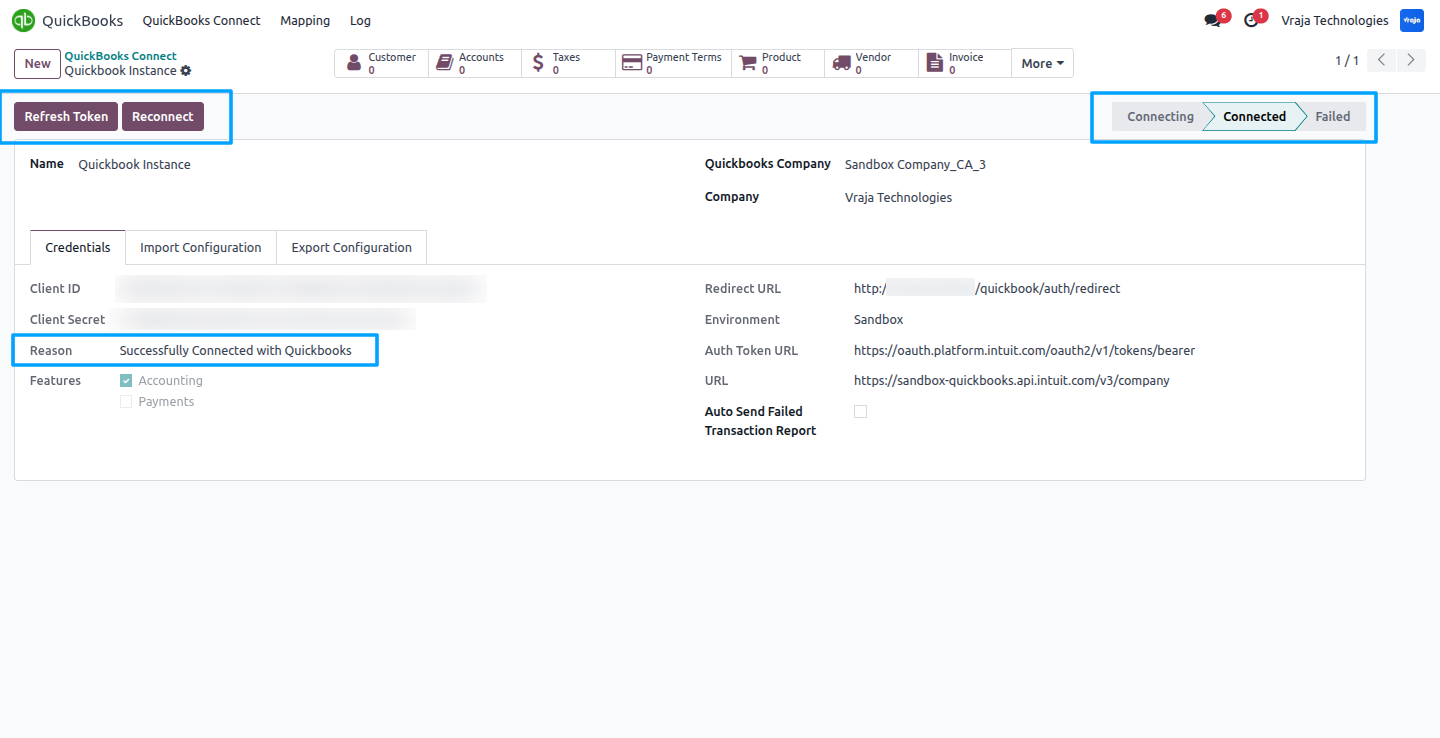
 Instance creation and configuring a new QuickBooks connection.
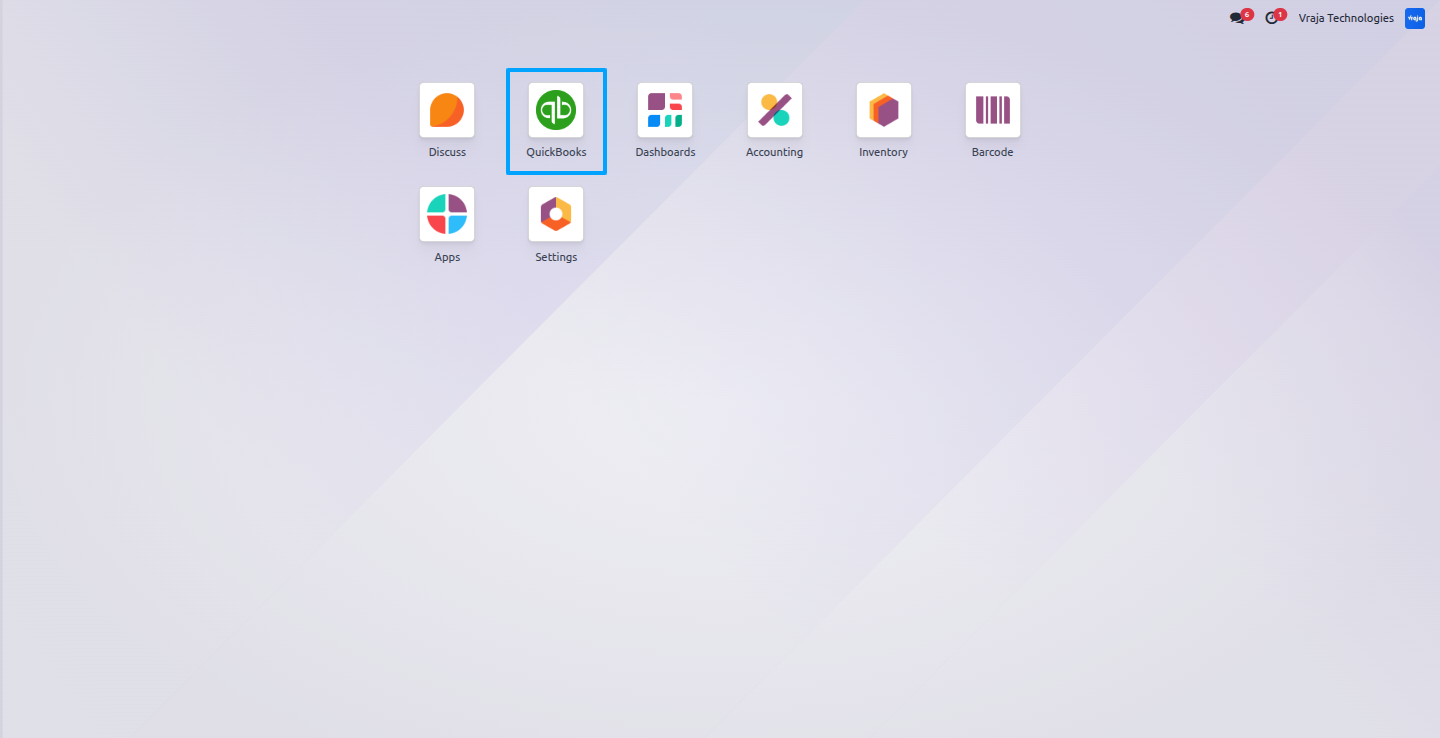
Configure your QuickBooks instance in Odoo; this menu lets you create new instances and manage them easily.
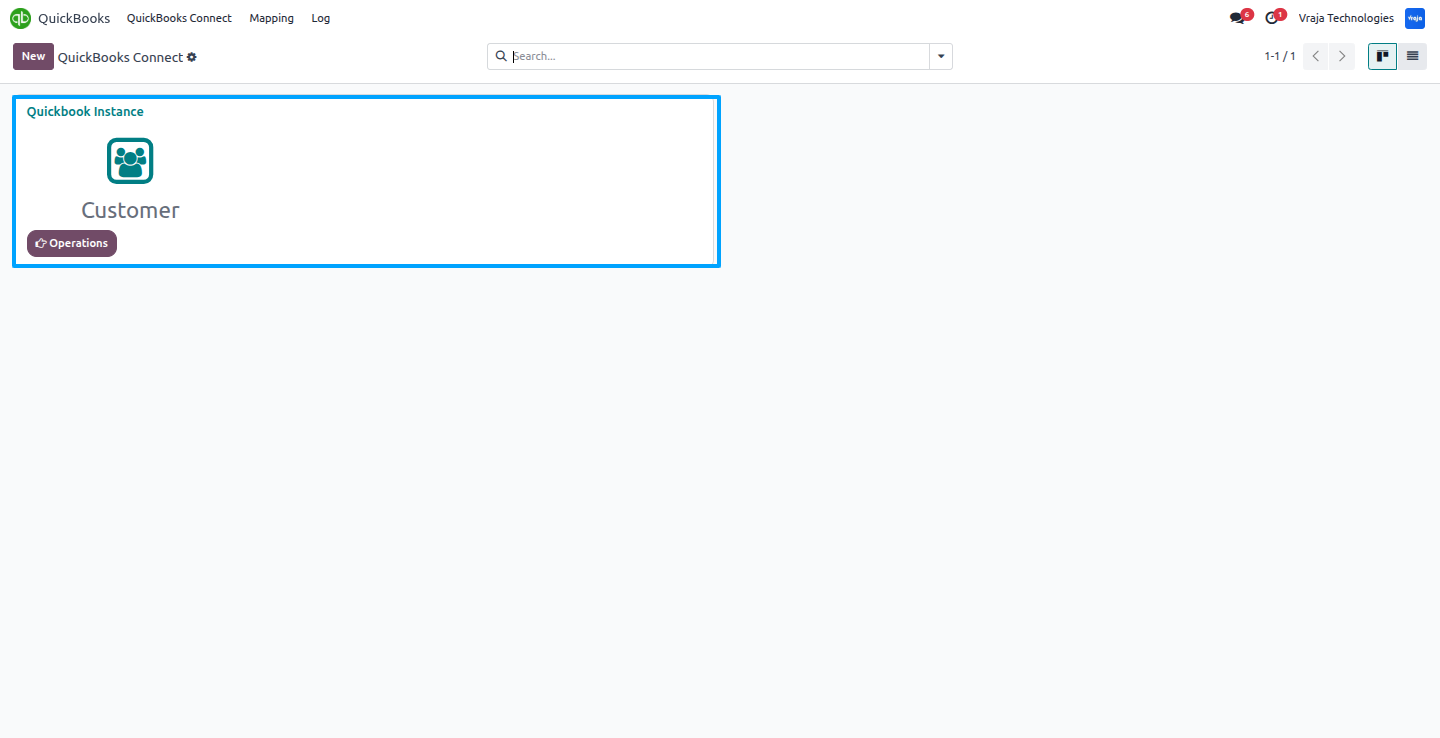
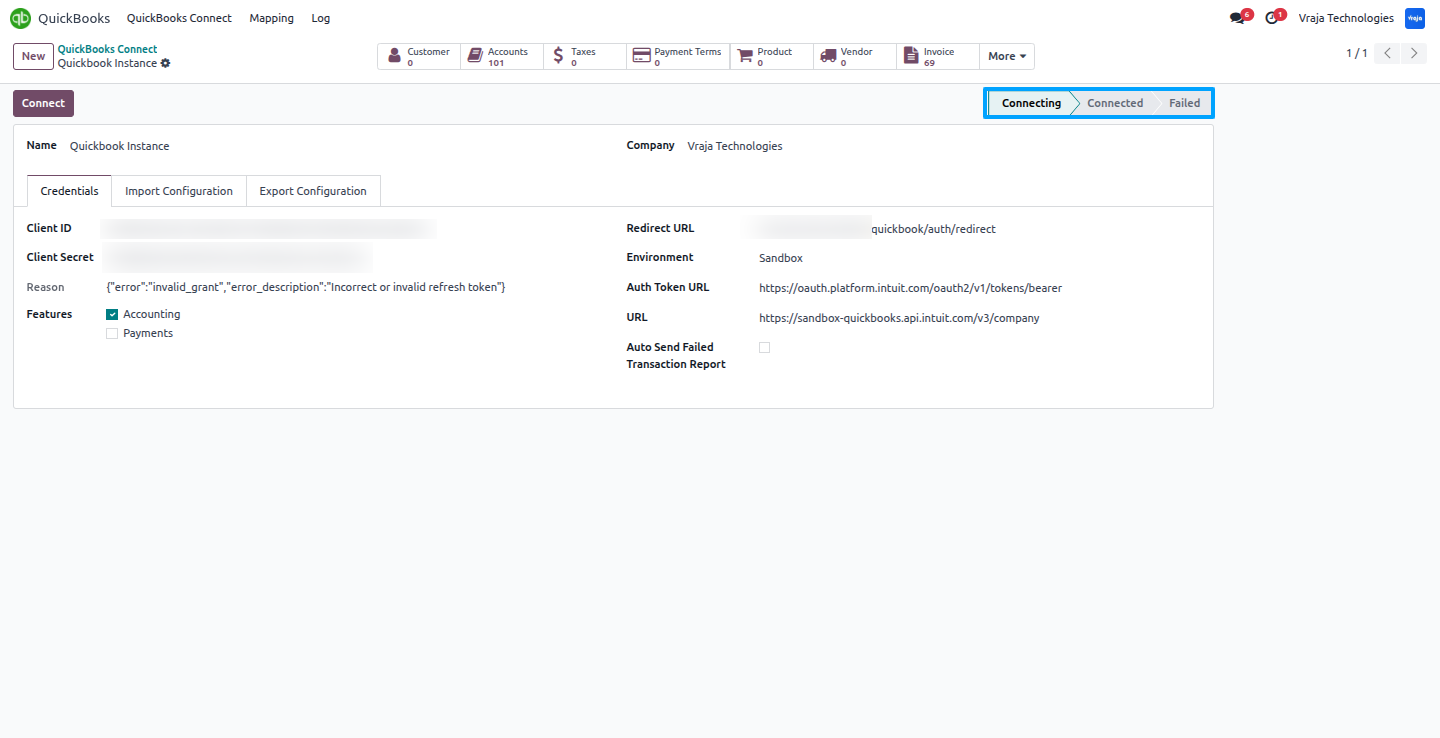
In the instance, provide your QuickBooks credentials to create a secure connection between Odoo and QuickBooks.
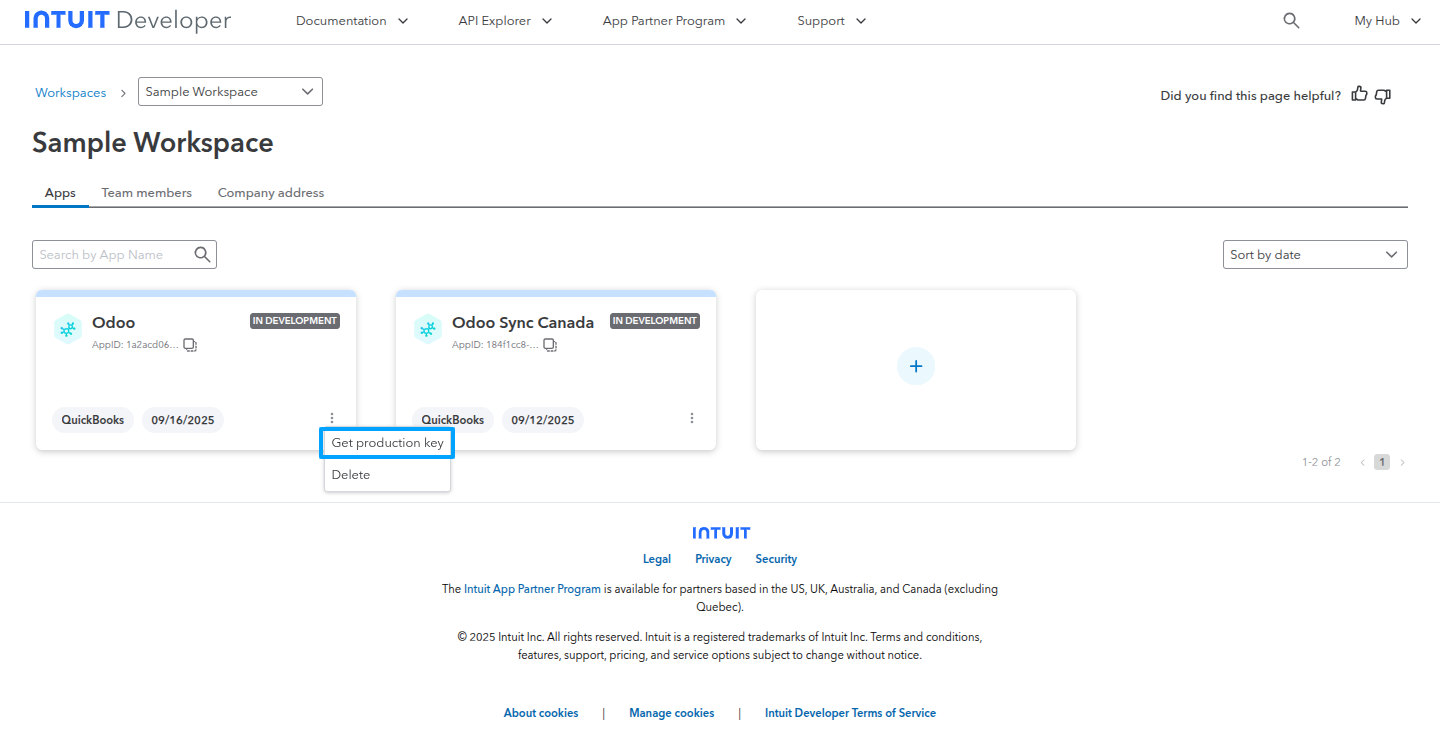
In your QuickBooks Workspace, click “Get Production Key” to obtain the client ID and client secret needed to connect your QuickBooks account to Odoo.
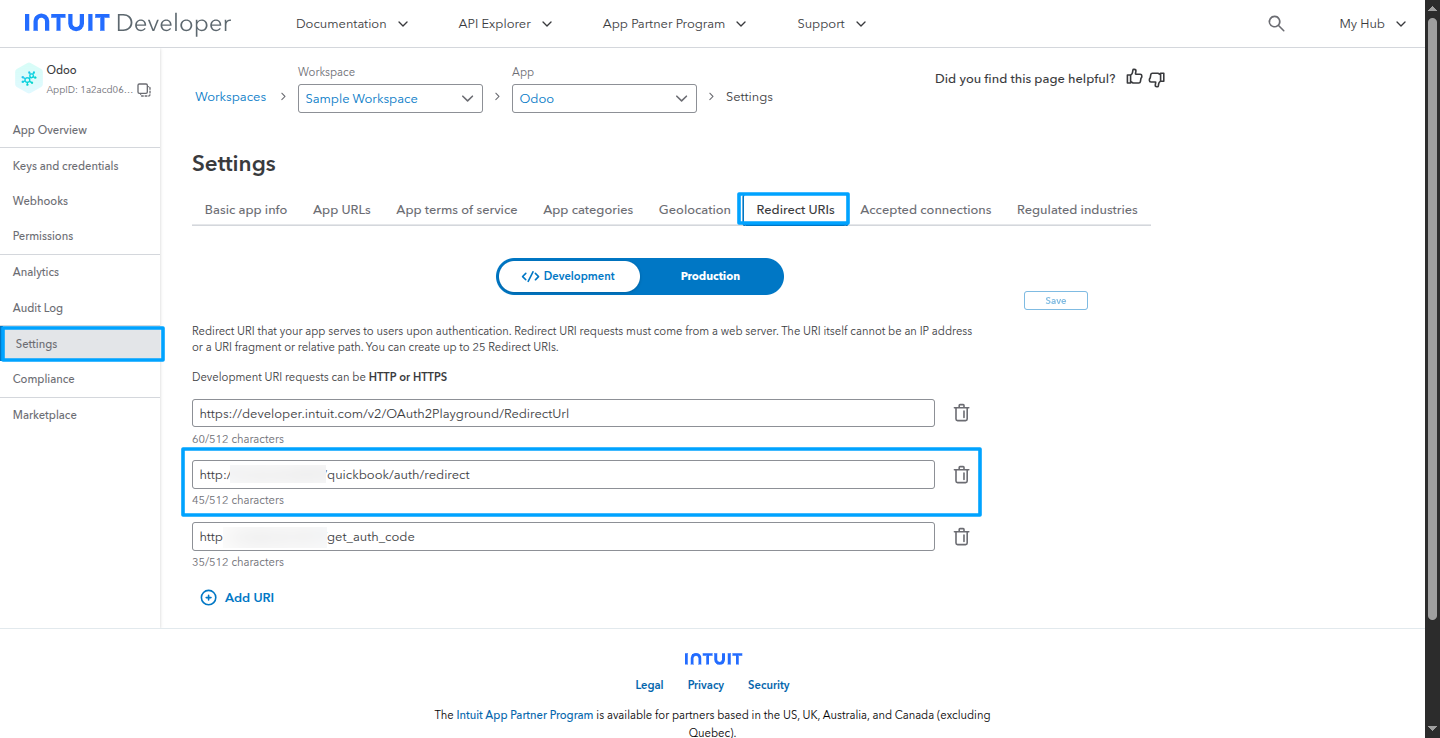
Click “Redirect URL” in your QuickBooks app to enter the required redirect link.
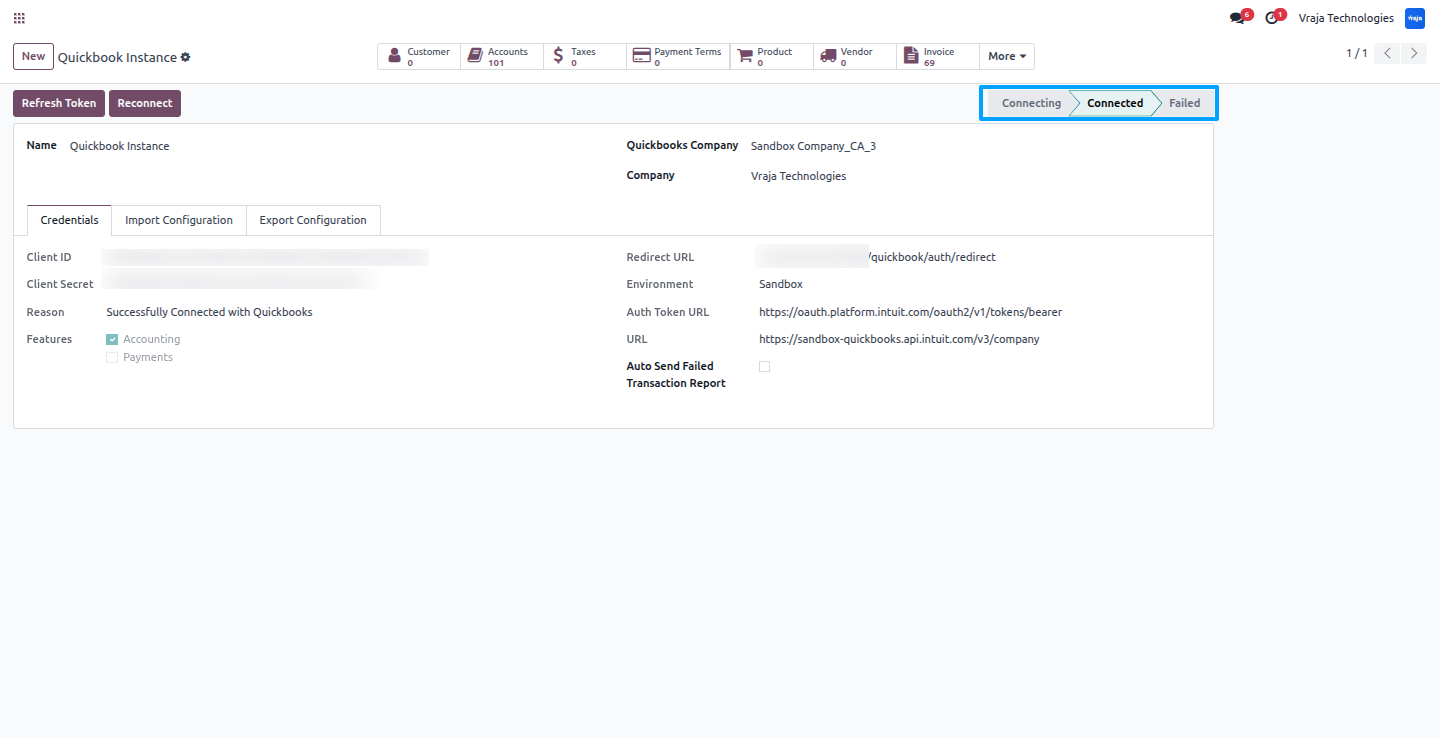
When you click “Connect,” Odoo redirects you to the QuickBooks authorization page to link your company account.
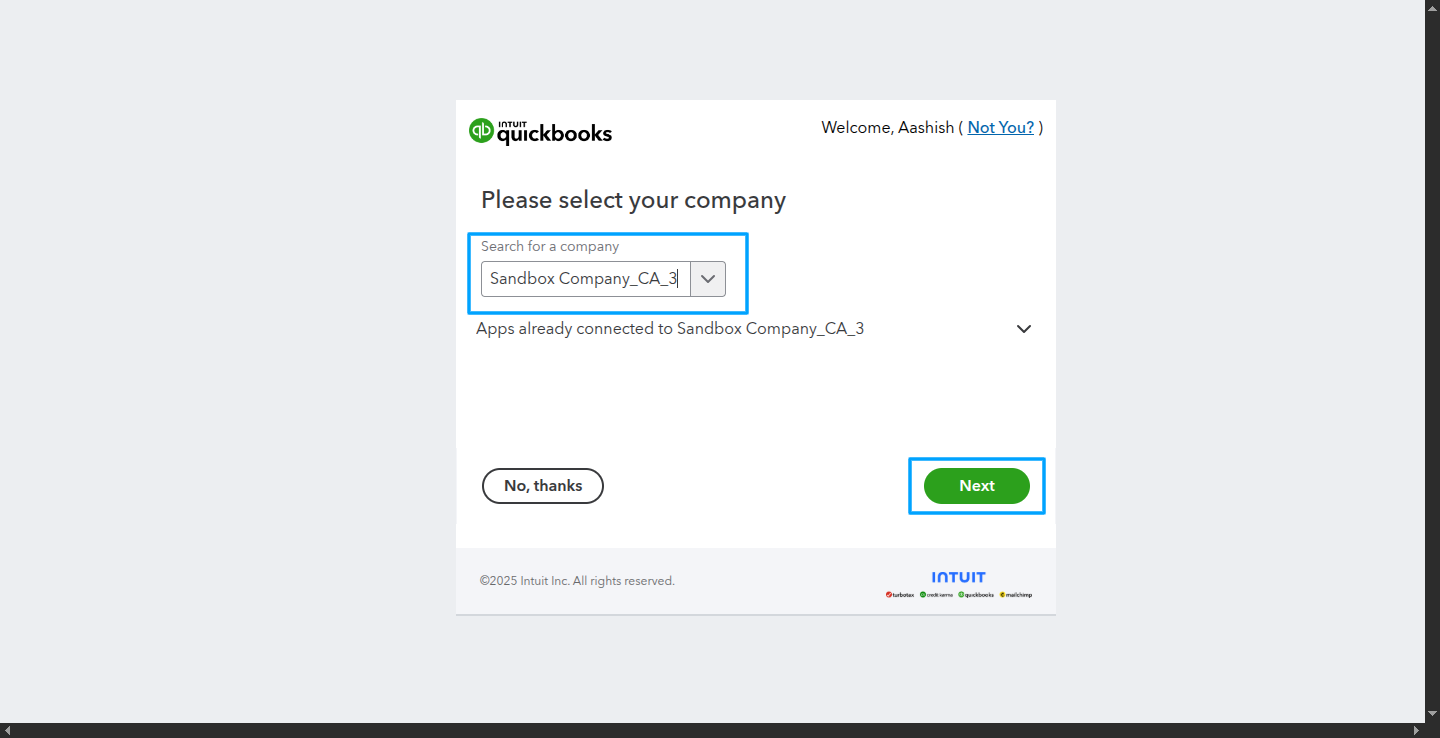
Choose your QuickBooks company and click ‘Next’.
You’ll be redirected to Odoo, and the instance will automatically establish a successful connection.
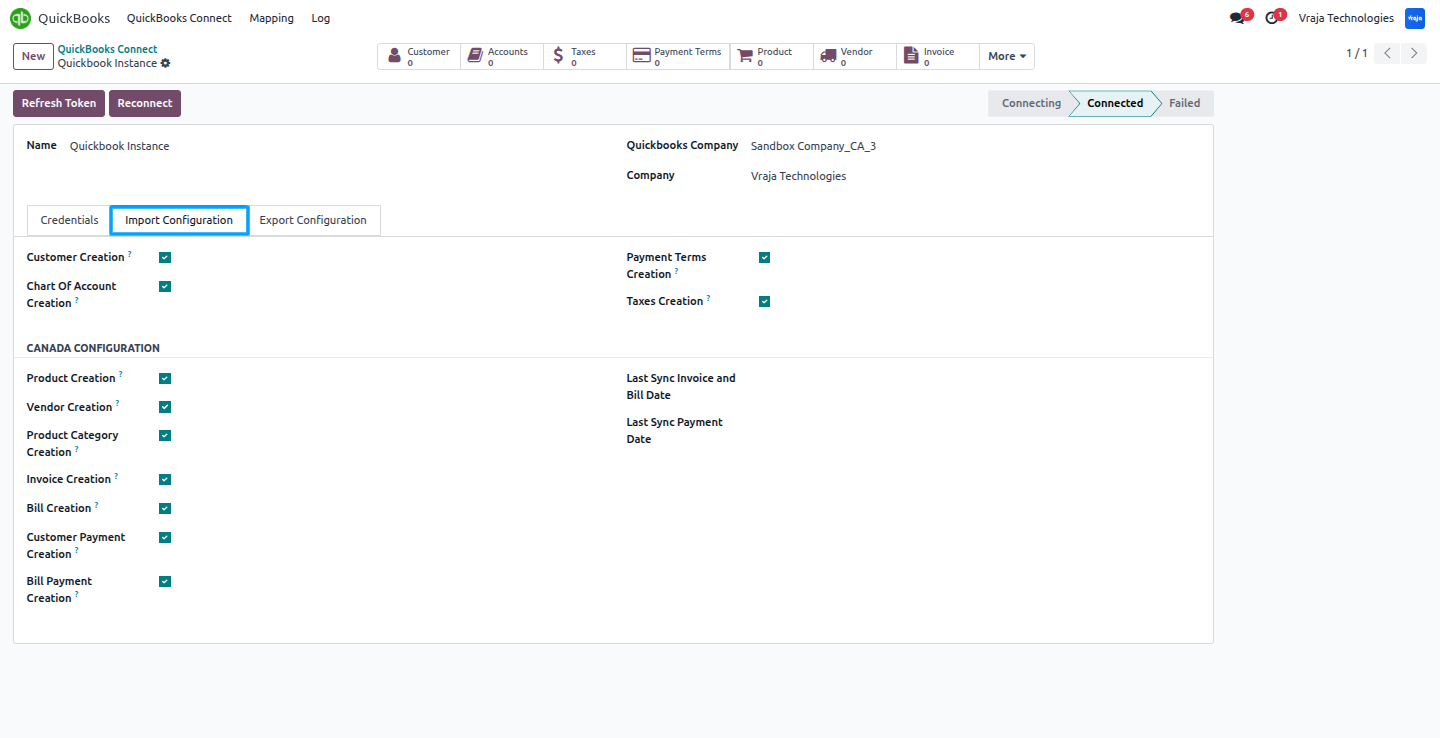
In the import configuration, when the options for Customer, Chart of Accounts, Payment Terms, Products, Product Category, Taxes, Vendor, Invoice, Bills, Payments, and Bill Payment are enabled, the data from QuickBooks will be automatically created in Odoo during the import process
Last Sync Invoice and Bill Date: Automatically imports all invoices and bills from QuickBooks into Odoo for records whose transaction dates are between the last sync date to today’s date.
Last Sync Payment Date: Automatically imports all payment records from QuickBooks into Odoo for transactions dated between the last sync date and today.
In the Export Configuration, enable Send Invoice Tax Included to ensure taxes are included when exporting invoices to QuickBooks
You can also enable Automatic Invoice/Bill Export to QuickBooks and Automatic Payment Export to QuickBooks to schedule automatic synchronization
This feature exports invoices, bills, and payments from Odoo to QuickBooks automatically based on the defined export date, ensuring your financial data stays up to date.
Auto Update Invoice/Bill: Automatically applies any changes made to exported invoices and bills in QuickBooks, keeping both systems in sync.

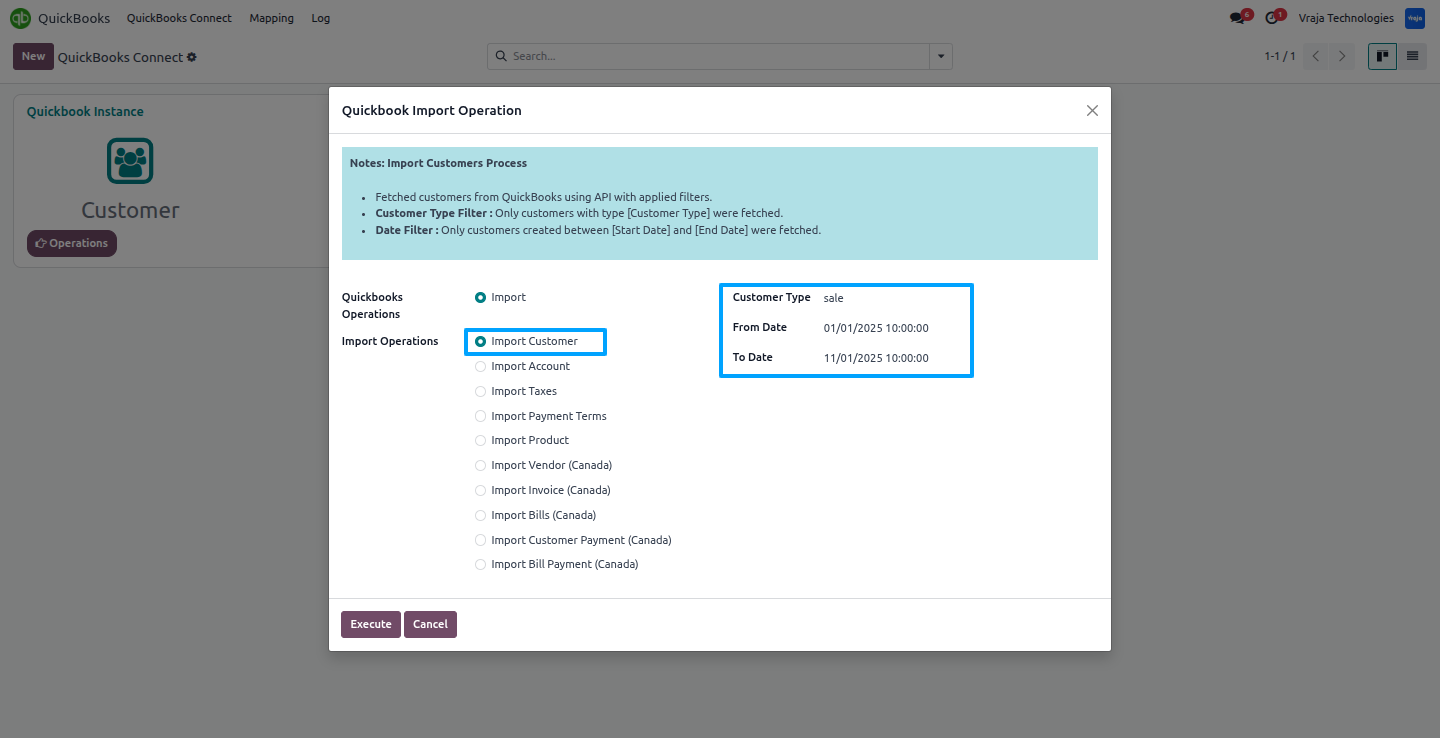
Import Customer Process
Import customers from QuickBooks into Odoo, with the option to filter by date range or customer type.
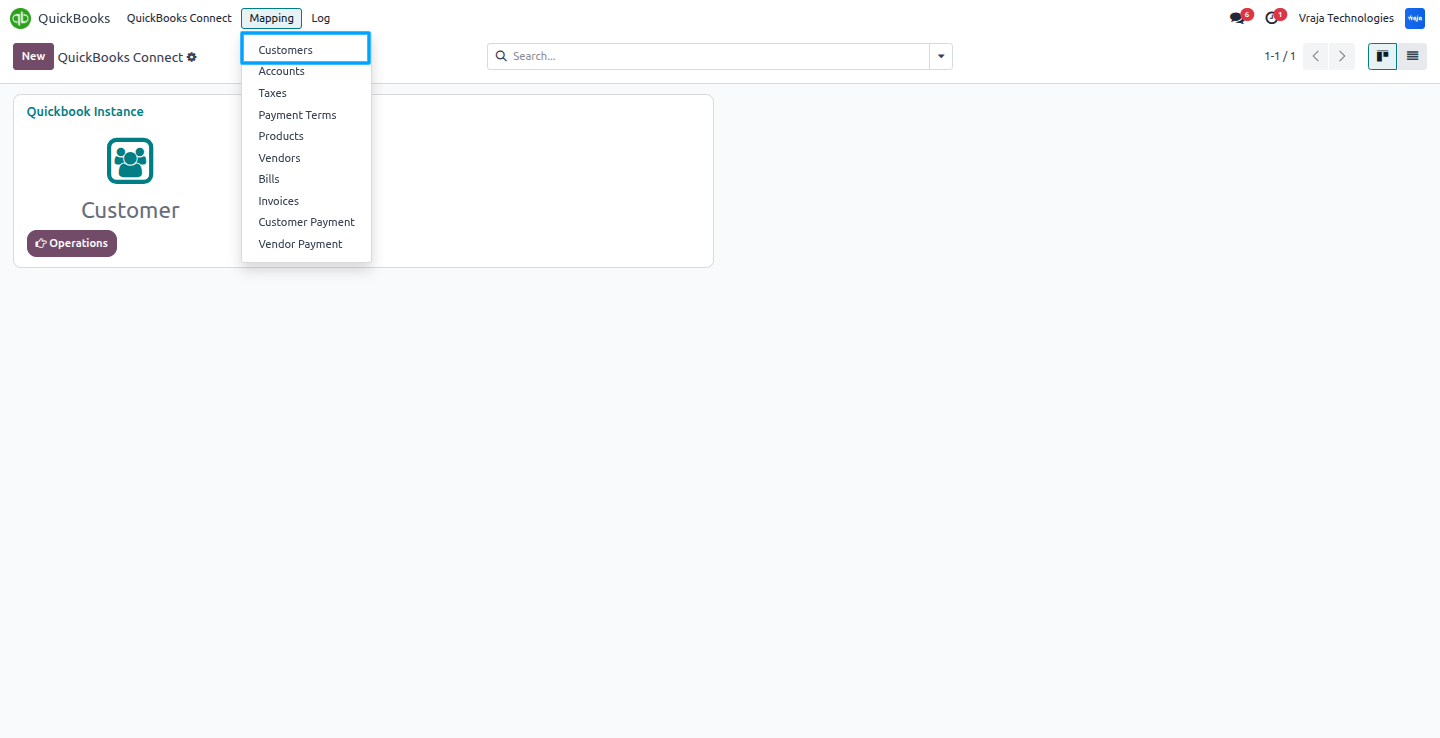
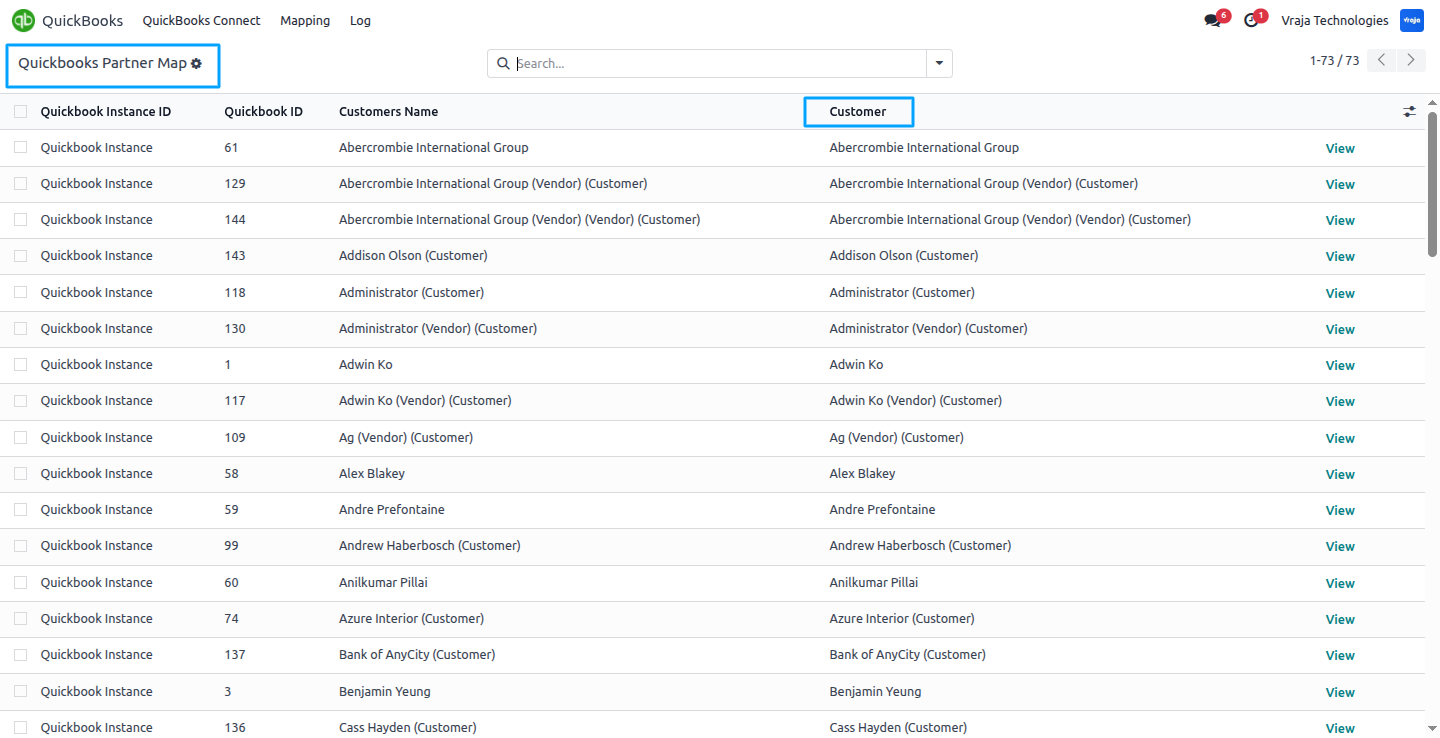
In the Mapping menu, the Customer Mapping table shows the customers linked between QuickBooks and Odoo.
During the import process, the Customer Mapping table is created using the data fetched from QuickBooks into Odoo.
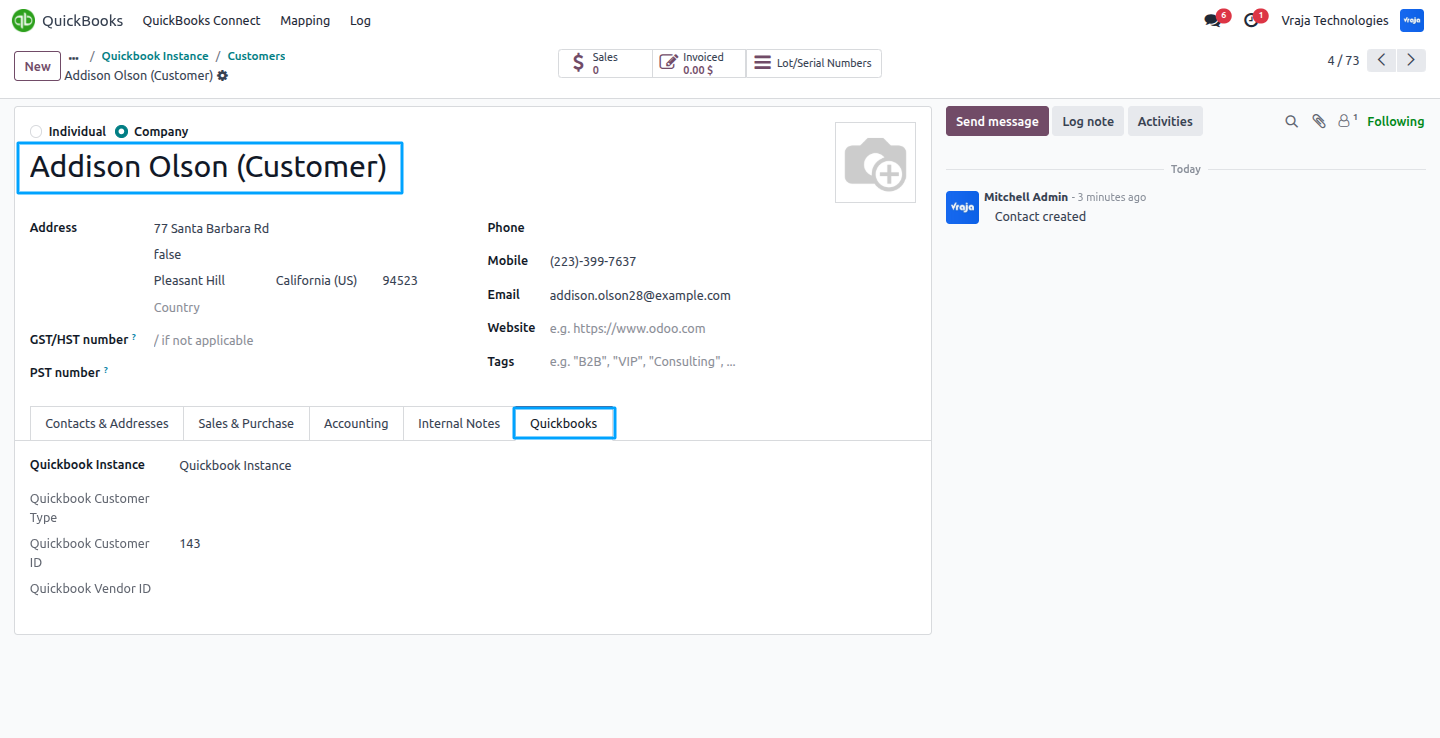
During the import process, this customer was created in Odoo using the data received from QuickBooks, keeping both systems in sync and generating the matching record in Odoo.
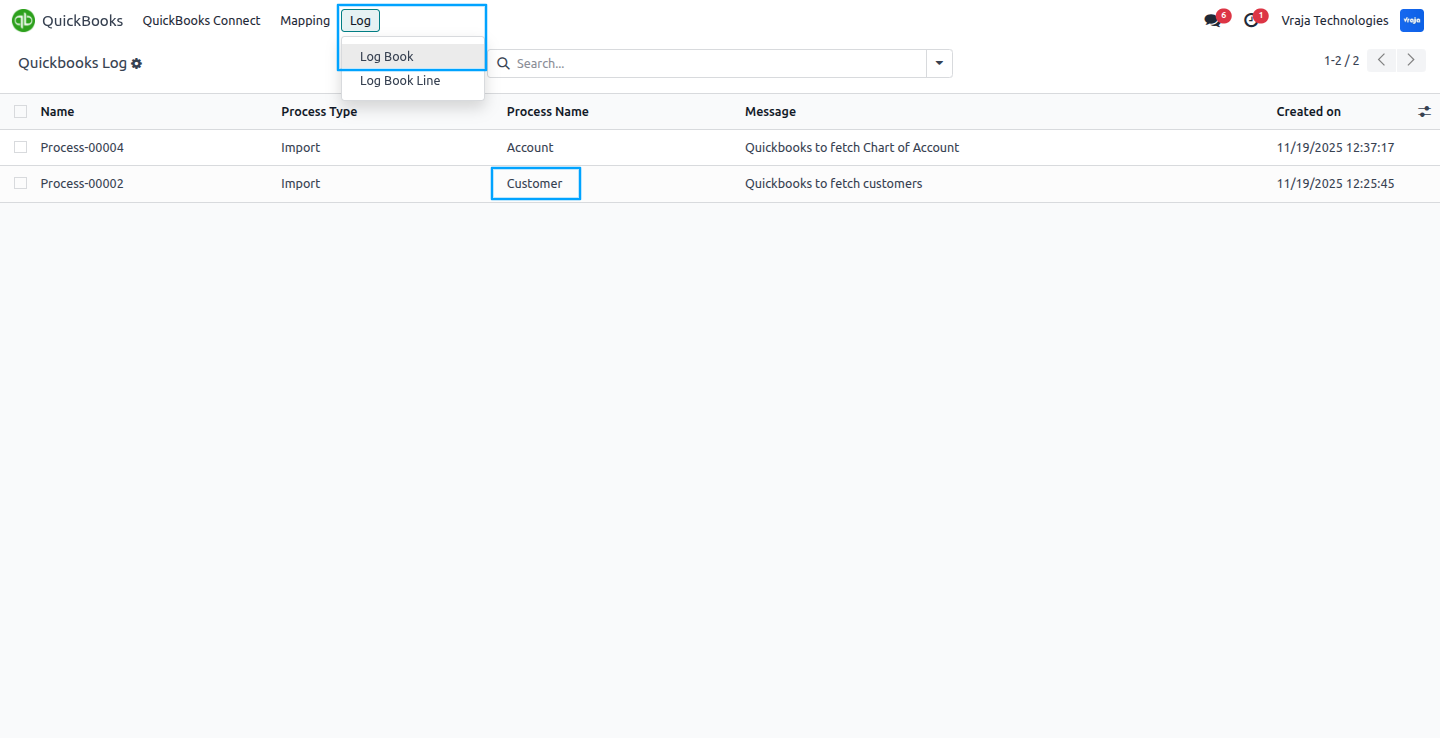
During the import process, a logbook is automatically created to track the data received from QuickBooks into Odoo.
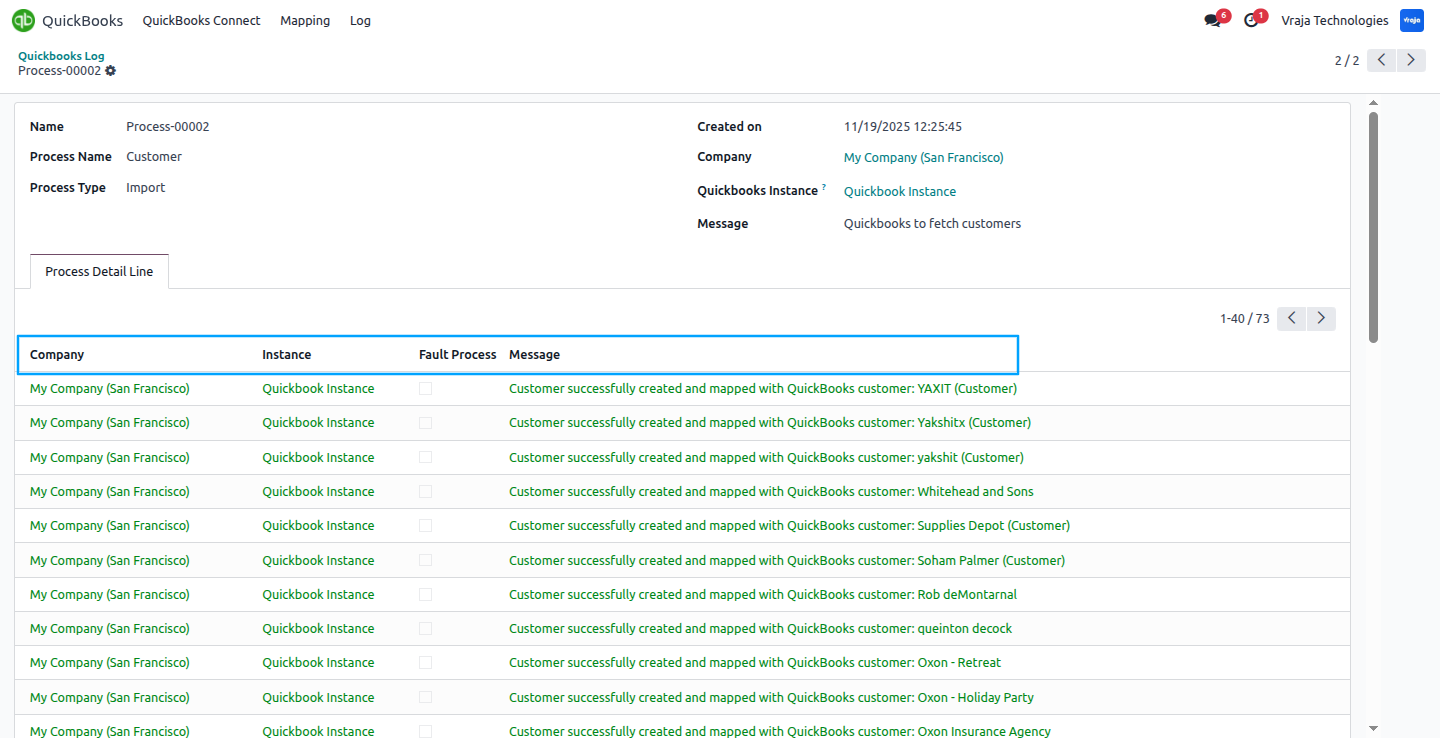
Each line in the logbook represents a single customer import and includes detailed response information and status messages received from QuickBooks during the import process.
Import Account Process
Import accounts from QuickBooks into Odoo, with the option to filter by date range.

In the Mapping section, the Account Mapping table shows the accounts linked between QuickBooks and Odoo.
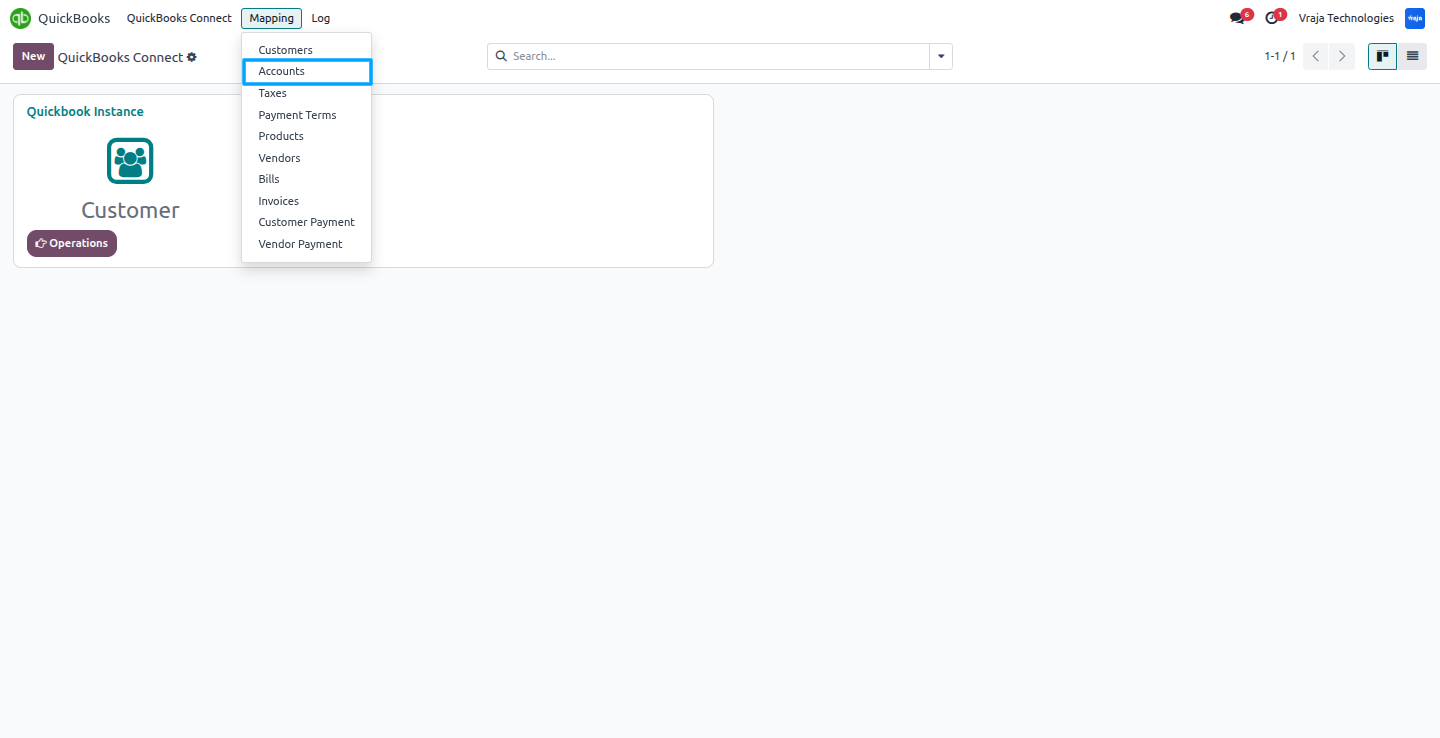
During the import process, the Account Mapping table is created using the data received from QuickBooks into Odoo.
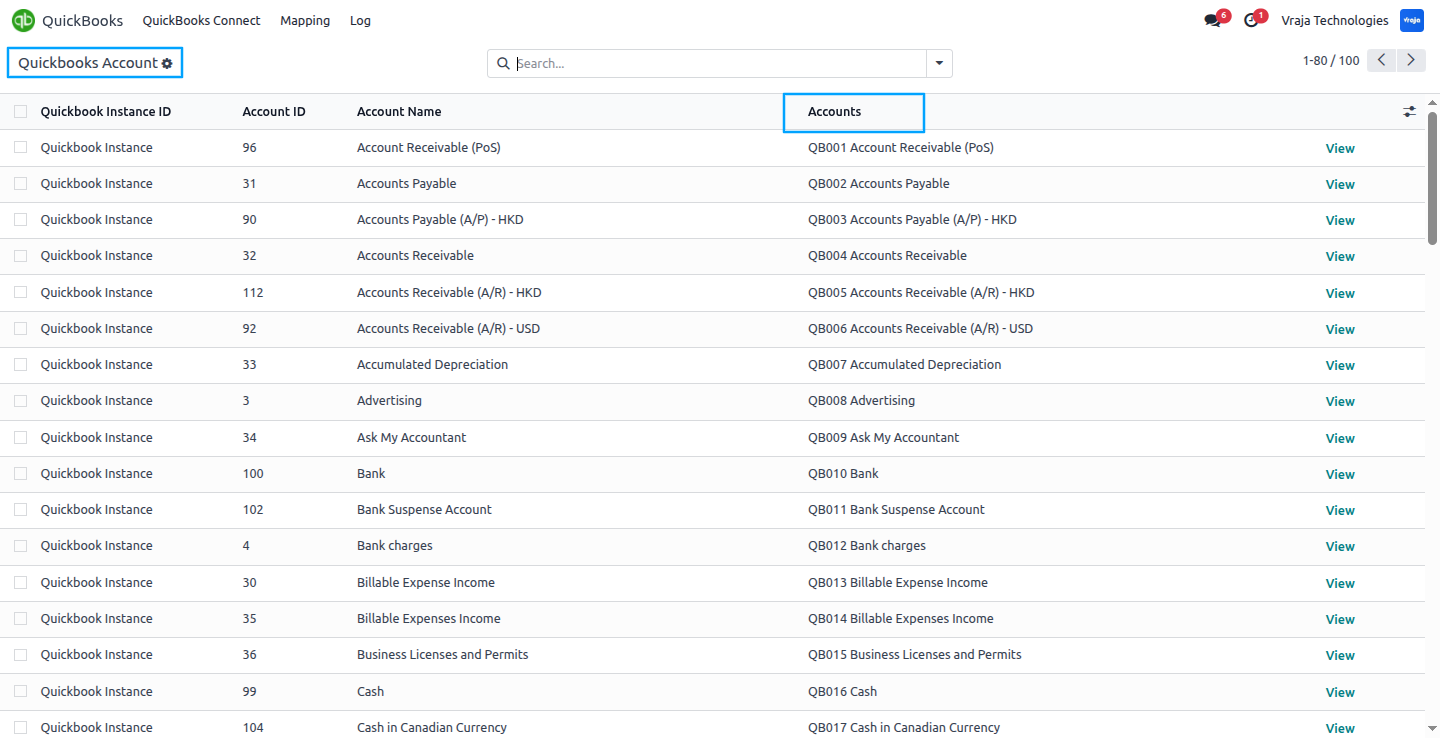
During the import process, this account was created in Odoo using data from QuickBooks, keeping both systems synchronized and generating the corresponding record in Odoo.
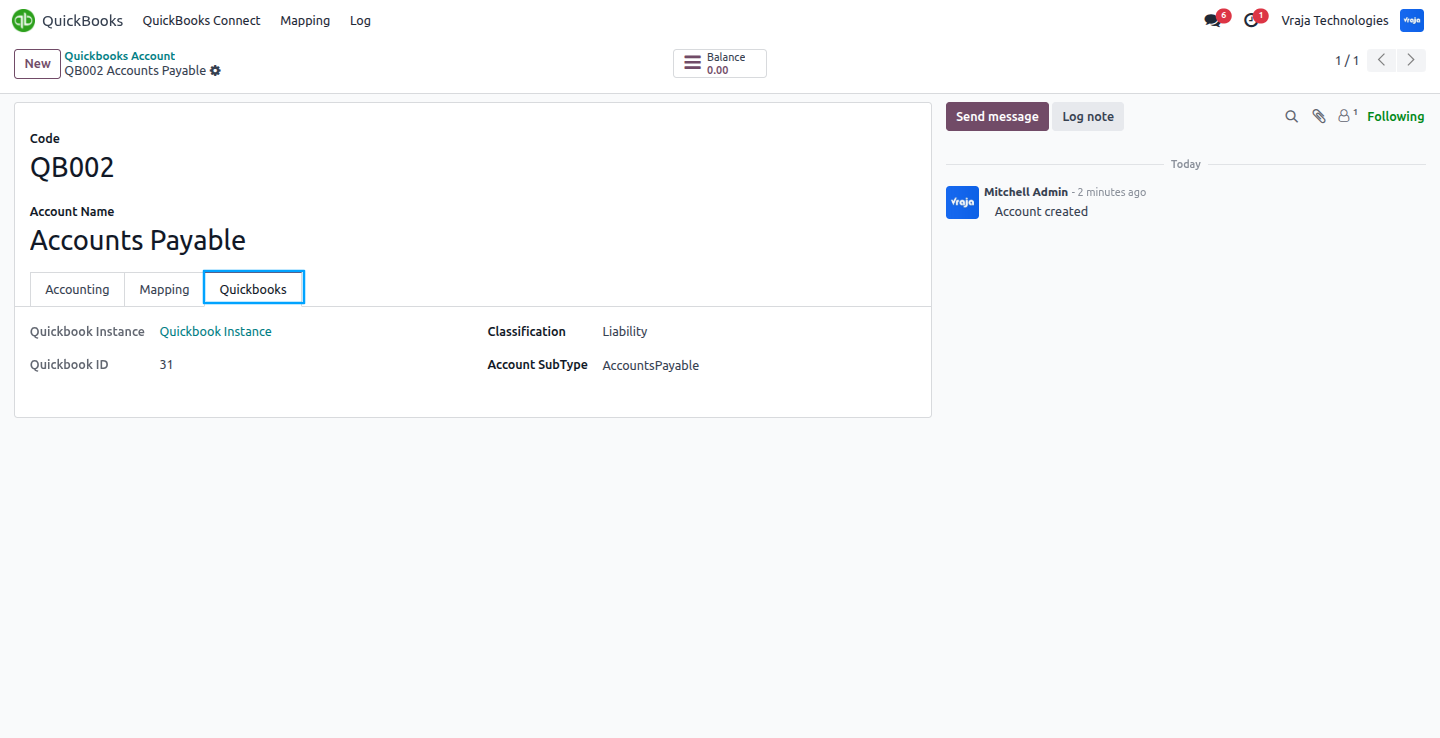
Import Taxes Process
Import taxes from QuickBooks into Odoo, with the option to filter by date range.
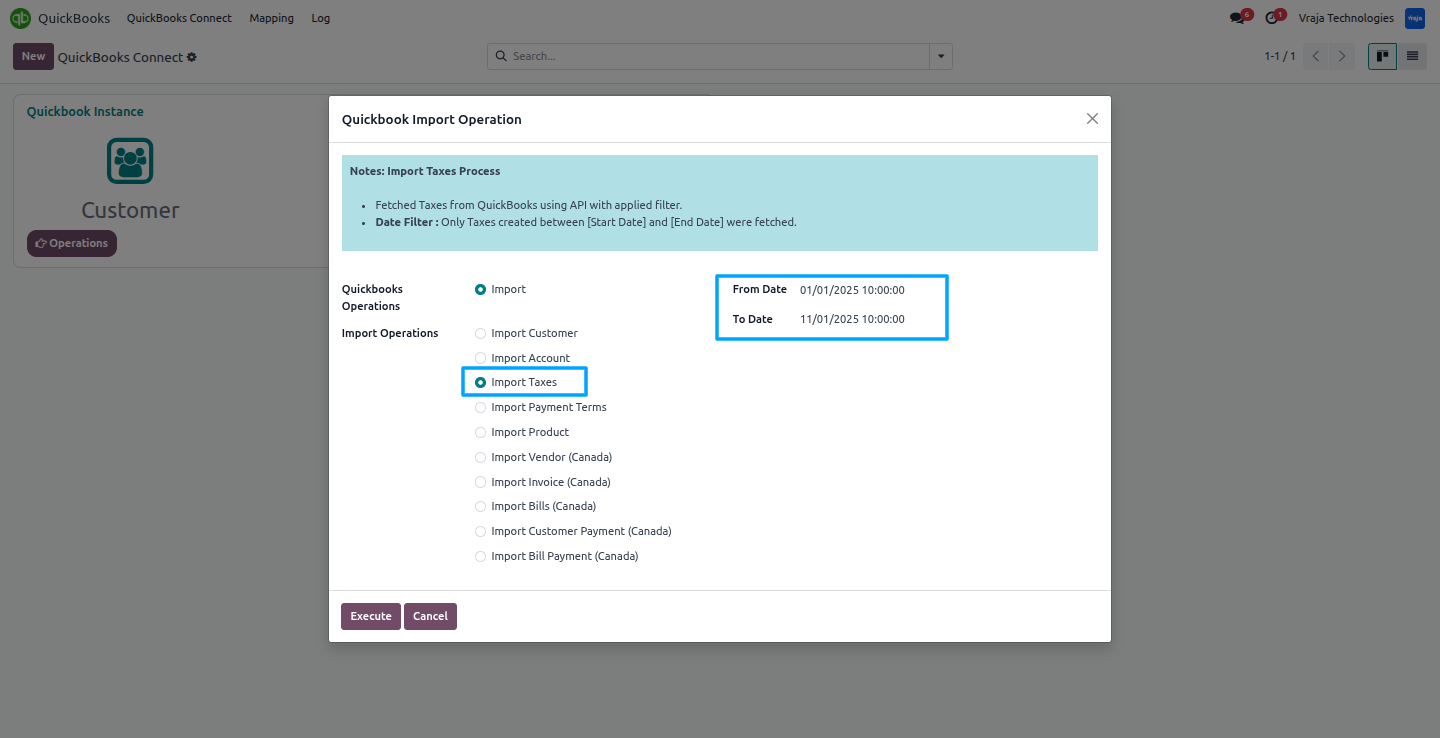
In the Mapping section, Taxes Mapping table displays the mapped taxes between QuickBooks and Odoo.
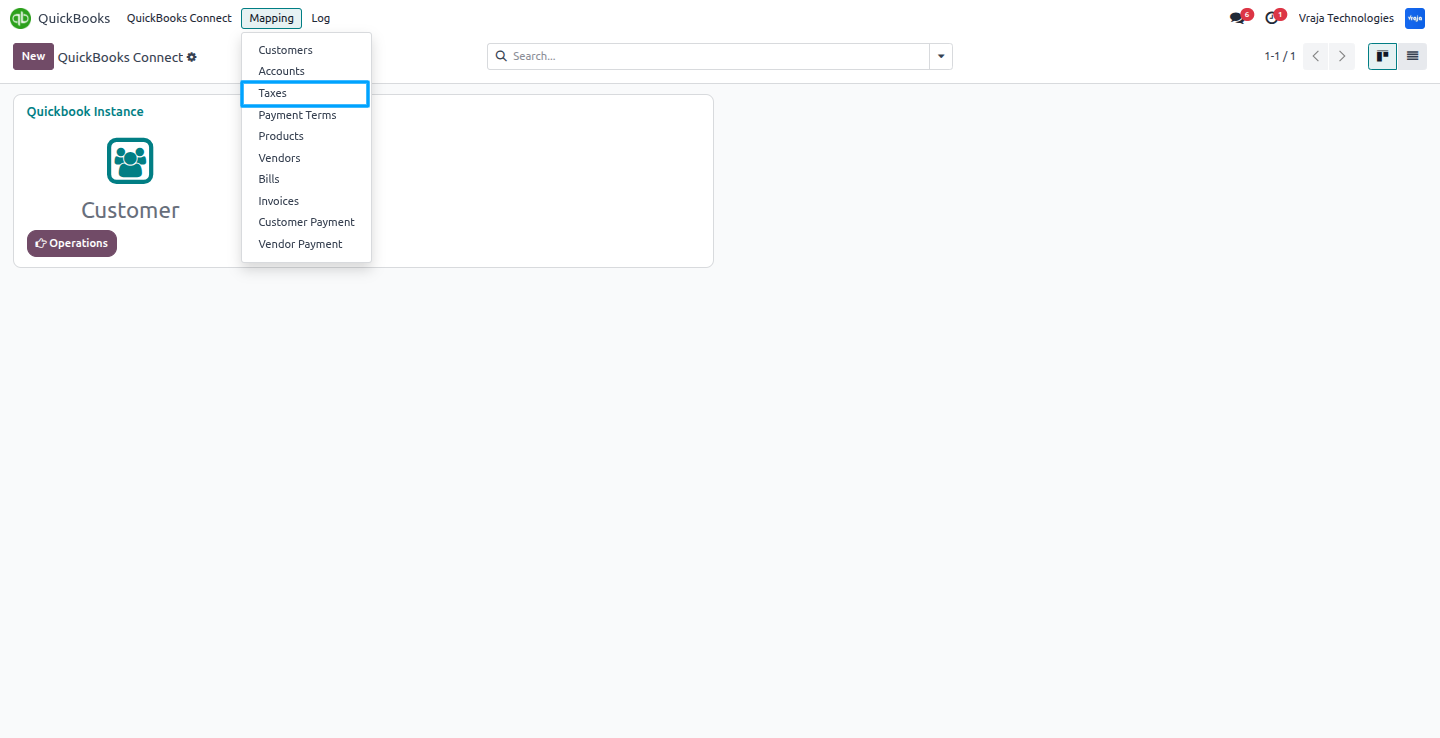
During the import process, the Taxes Mapping table is created using the data received from QuickBooks into Odoo.
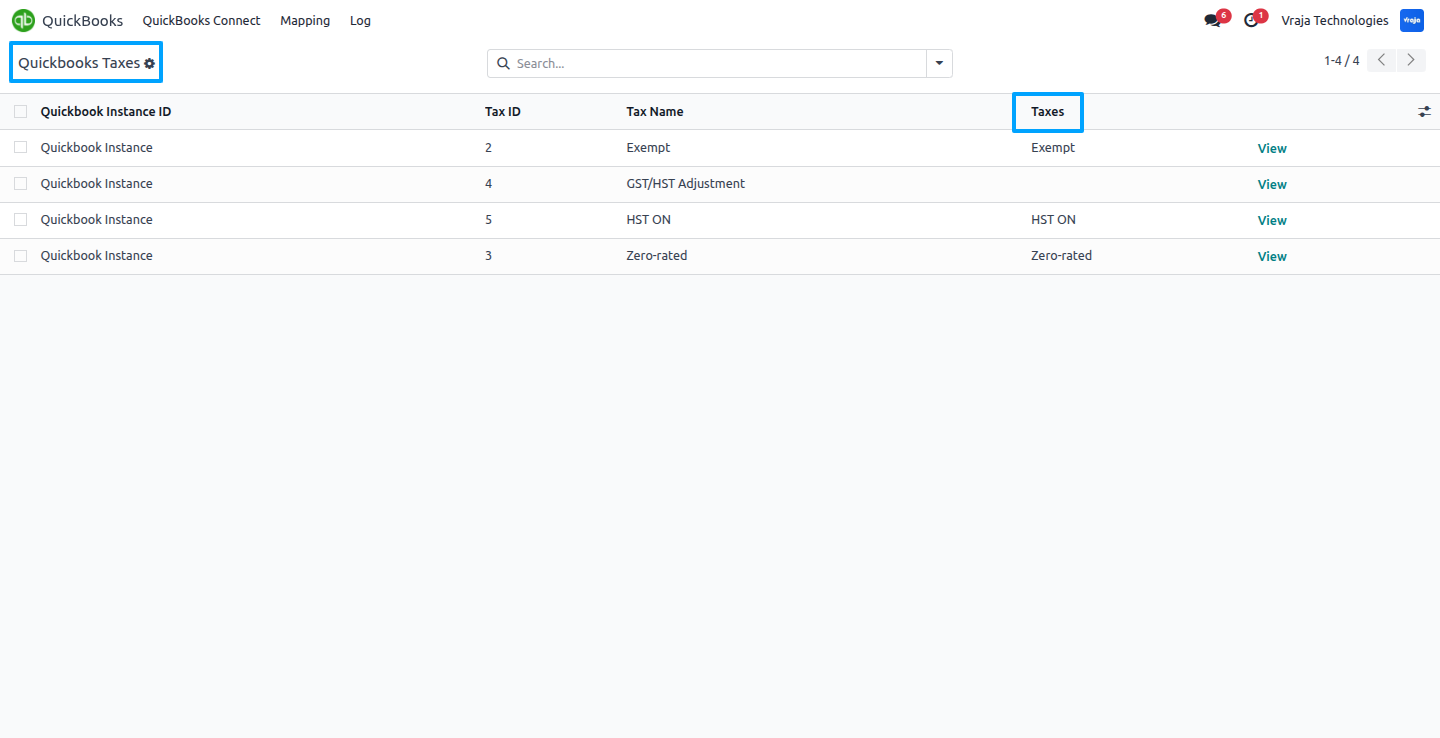
During the import process, this taxes was generated in Odoo based on data received from QuickBooks, ensuring synchronization between both platforms and creating the corresponding record in Odoo.
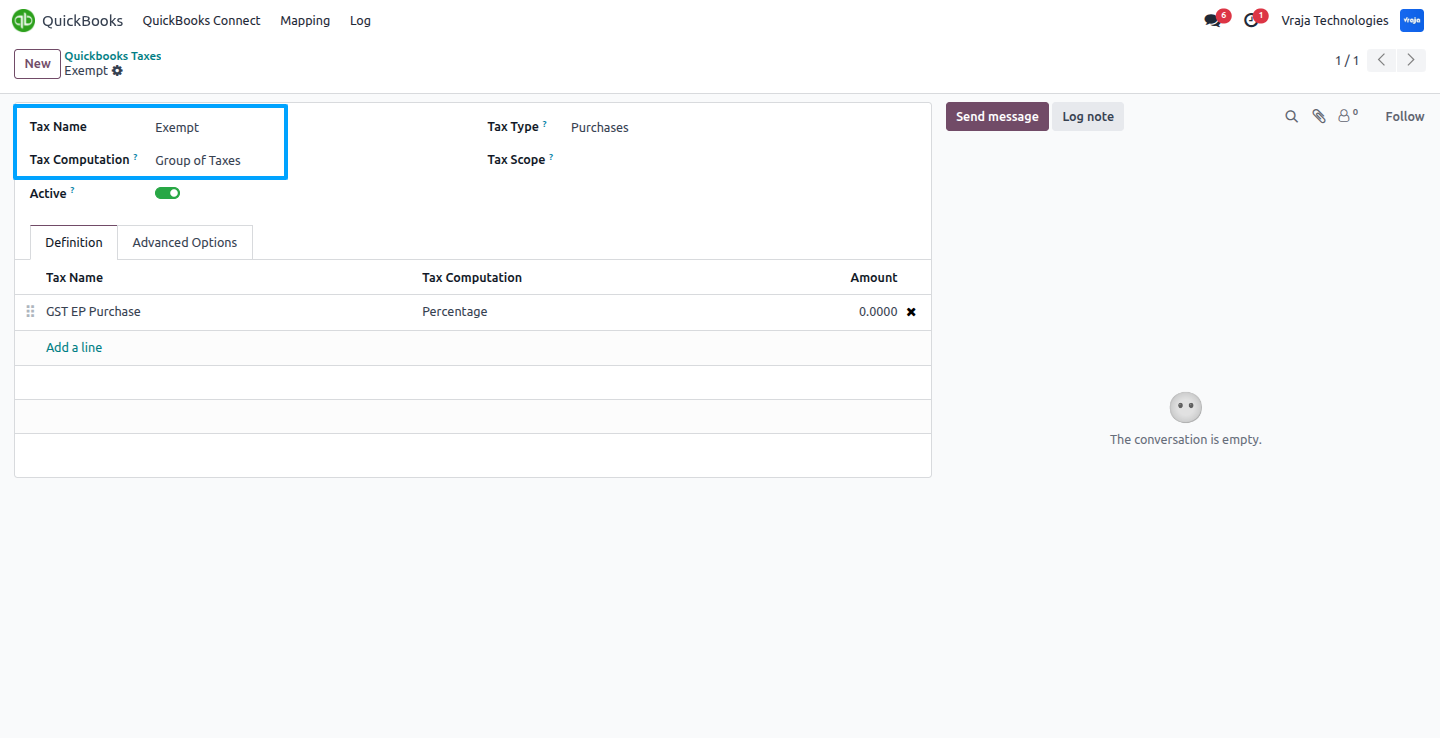
Import Payment Terms Process
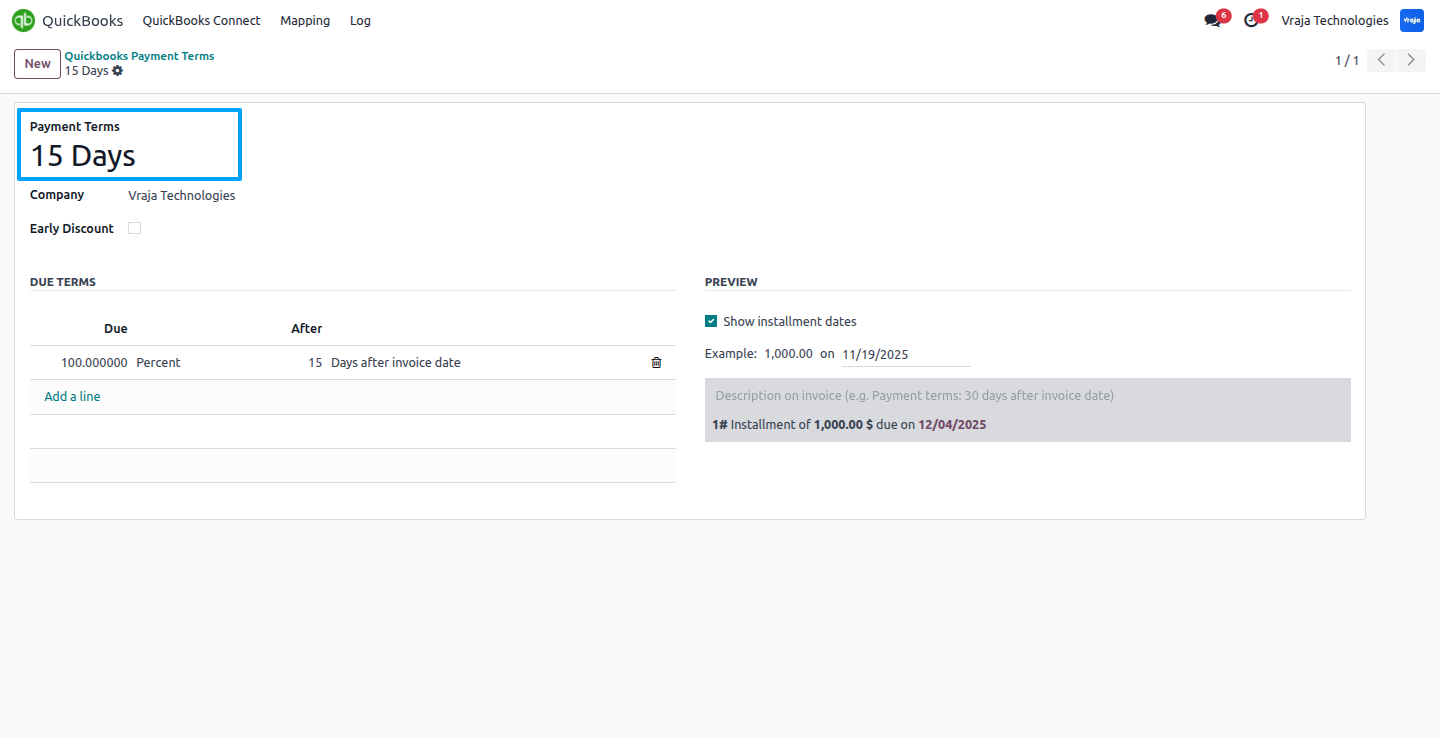
Import payment terms from QuickBooks into Odoo, with the option to filter by date range.
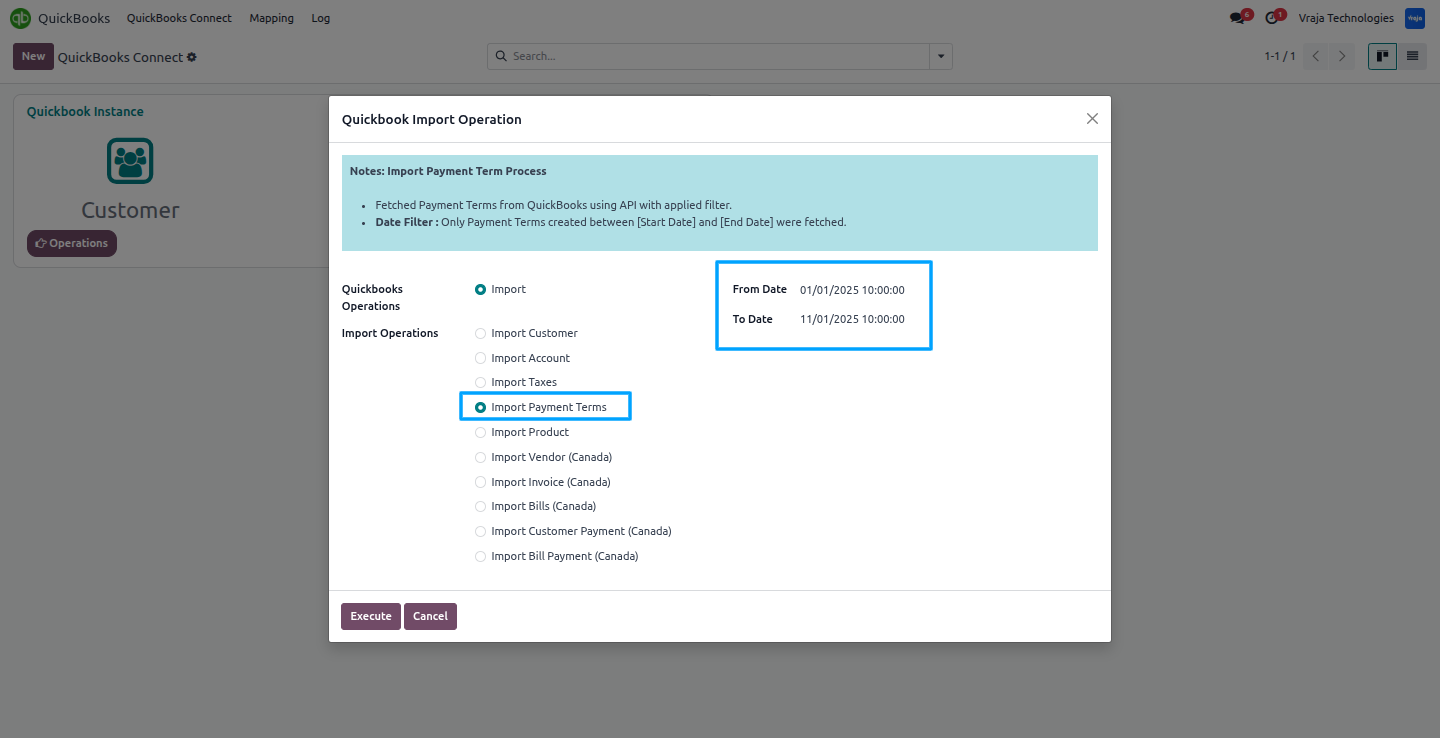
In the Mapping section, Payment Terms Mapping table displays the mapped Payment Terms between QuickBooks and Odoo.
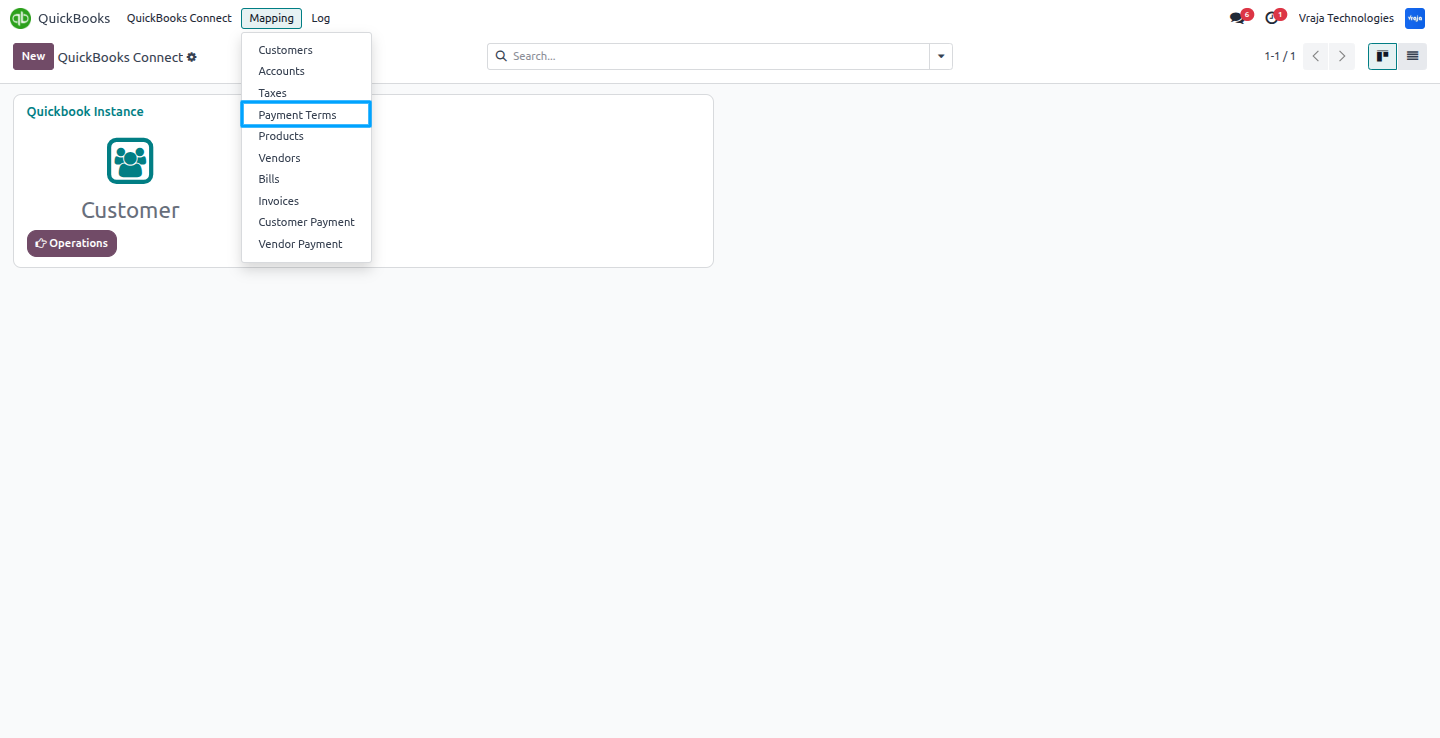
During the import process, the Payment Terms Mapping table is created using the data received from QuickBooks into Odoo.

During the import process, this Payment Terms was generated in Odoo based on data received from QuickBooks, ensuring synchronization between both platforms and creating the corresponding record in Odoo.
Import Product Process
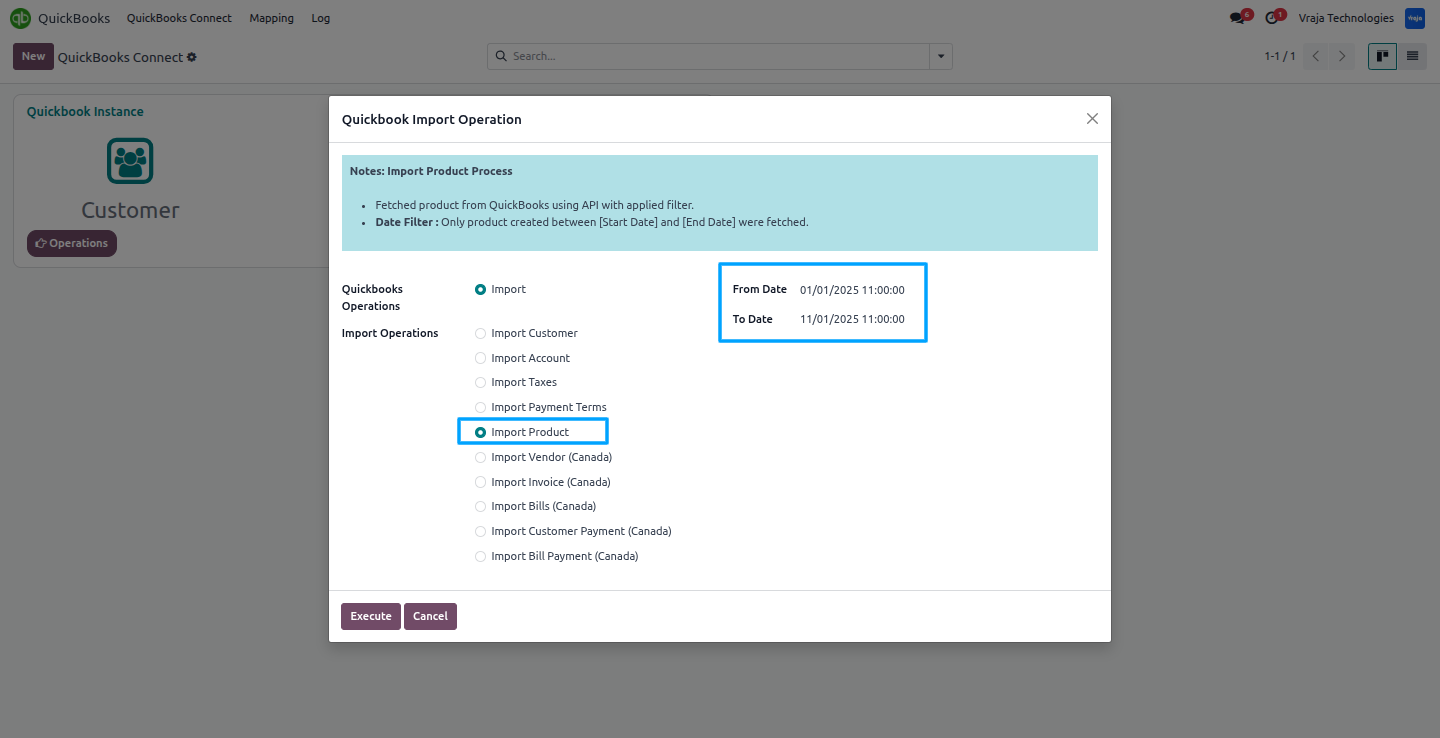
Import products from QuickBooks into Odoo, with the option to filter by date range.
In the Mapping section, Product Mapping table displays the mapped Product between QuickBooks and Odoo.
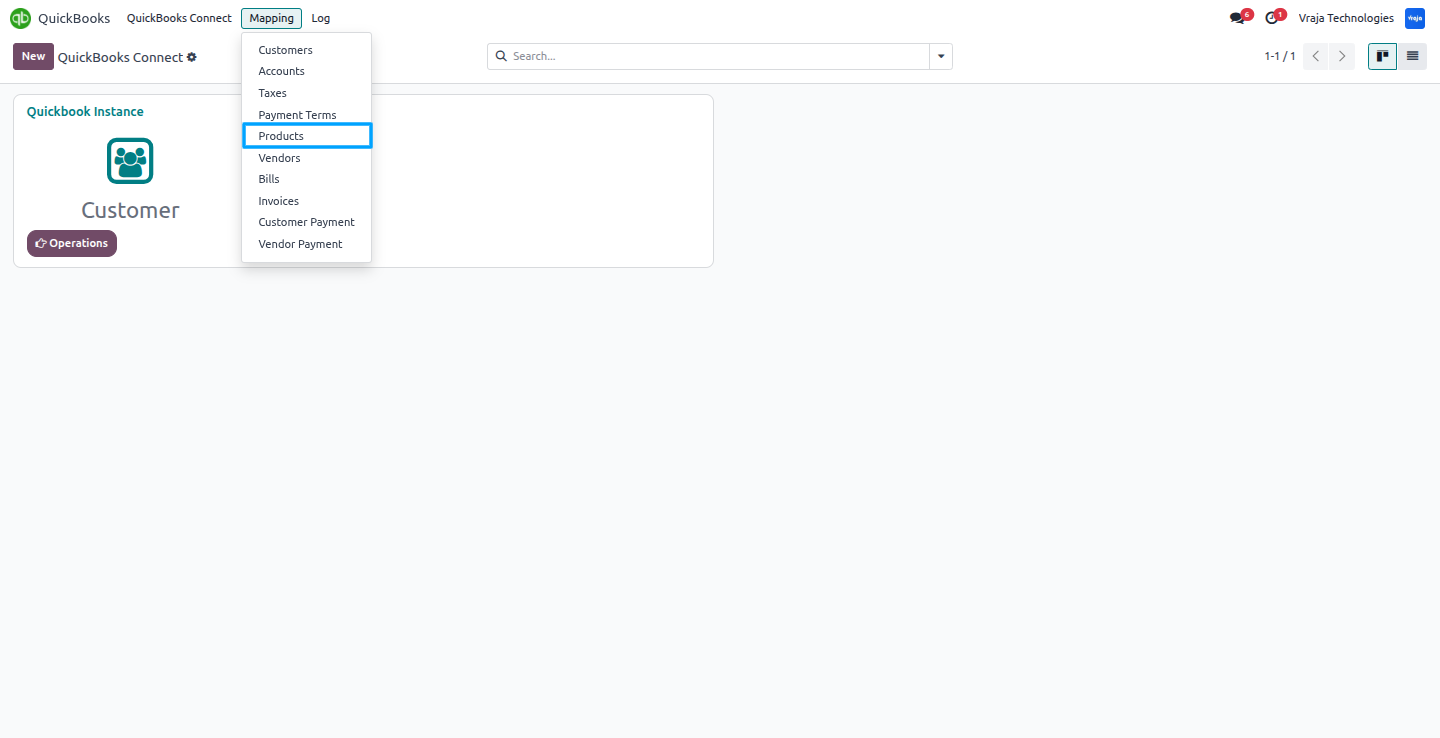
During the import process, the Product Mapping table is created using the data received from QuickBooks into Odoo.

During the import process, this Product was generated in Odoo based on data received from QuickBooks, ensuring synchronization between both platforms and creating the corresponding record in Odoo.
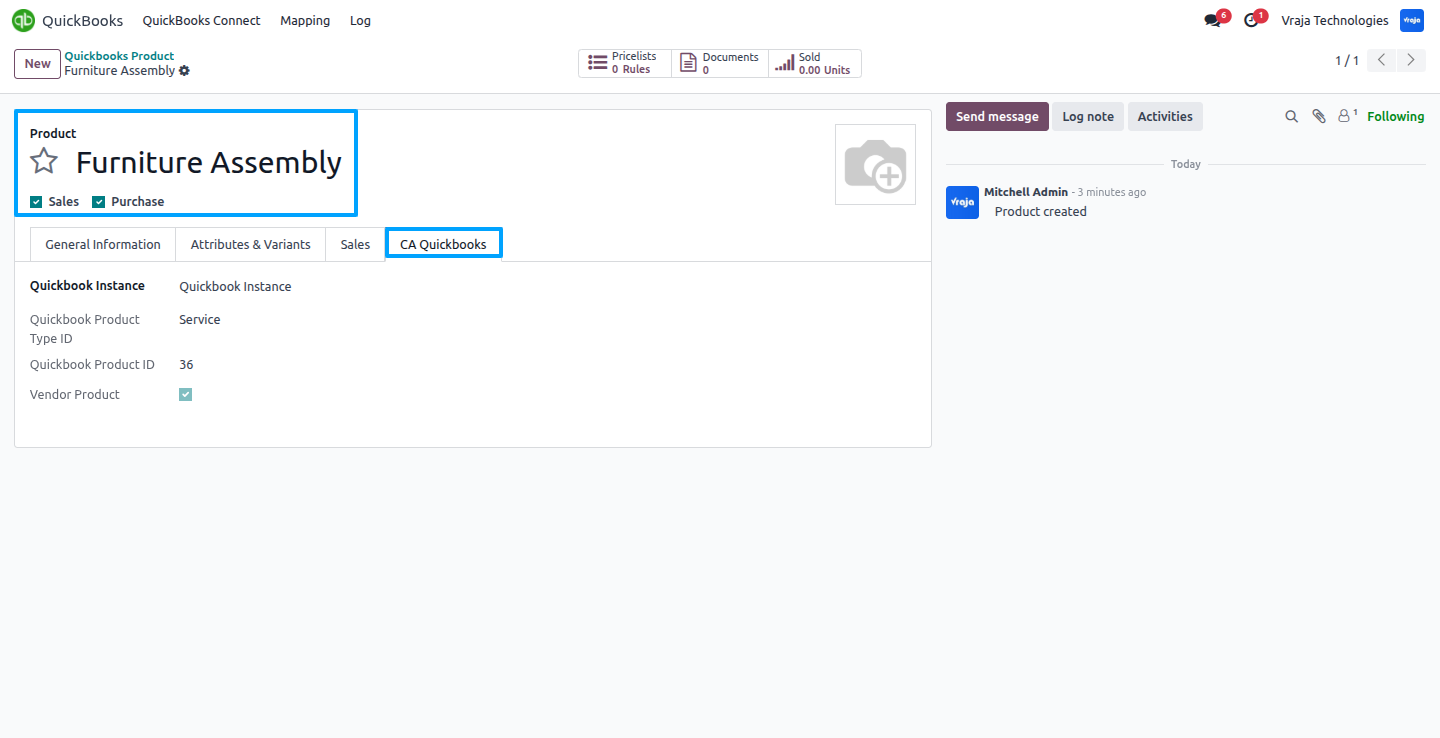
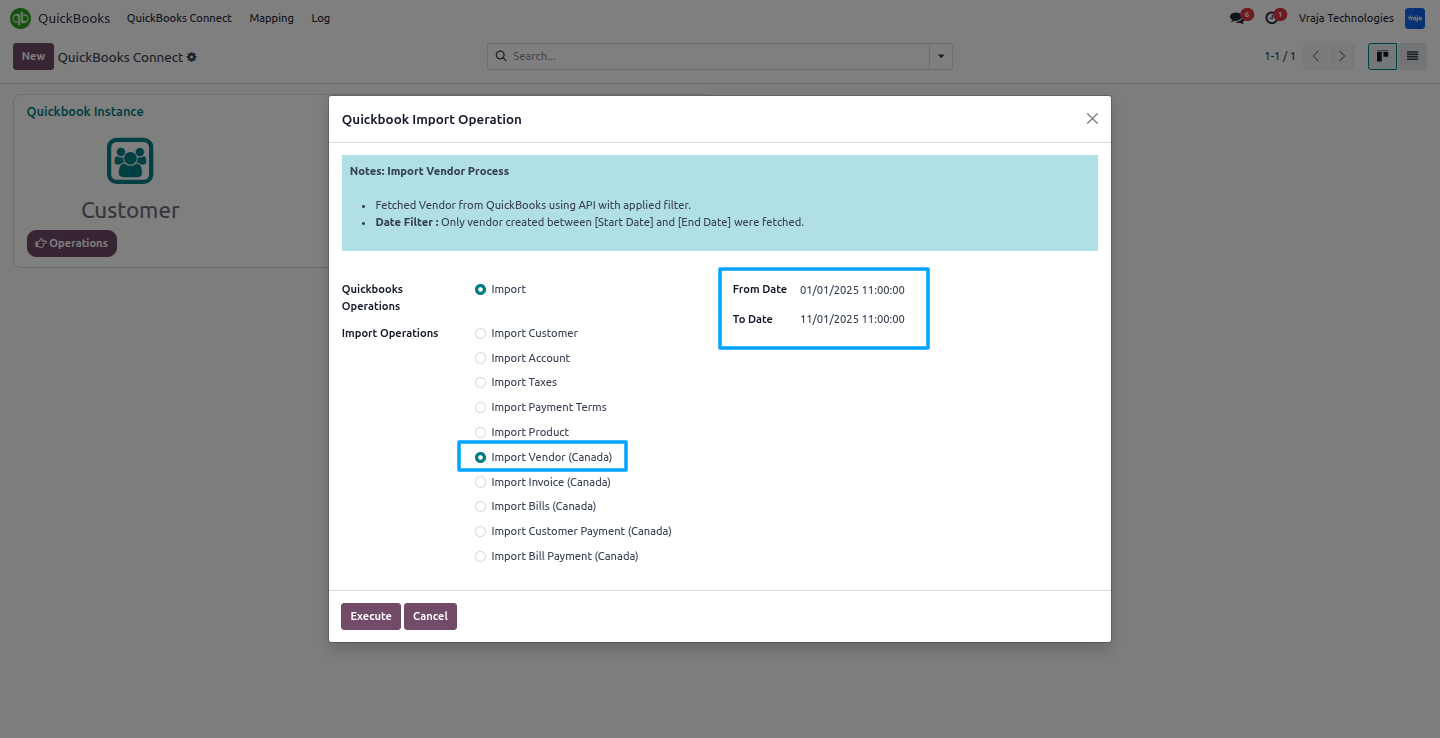
Import Vendor Process
Import vendors from QuickBooks into Odoo, with the option to filter by date range.
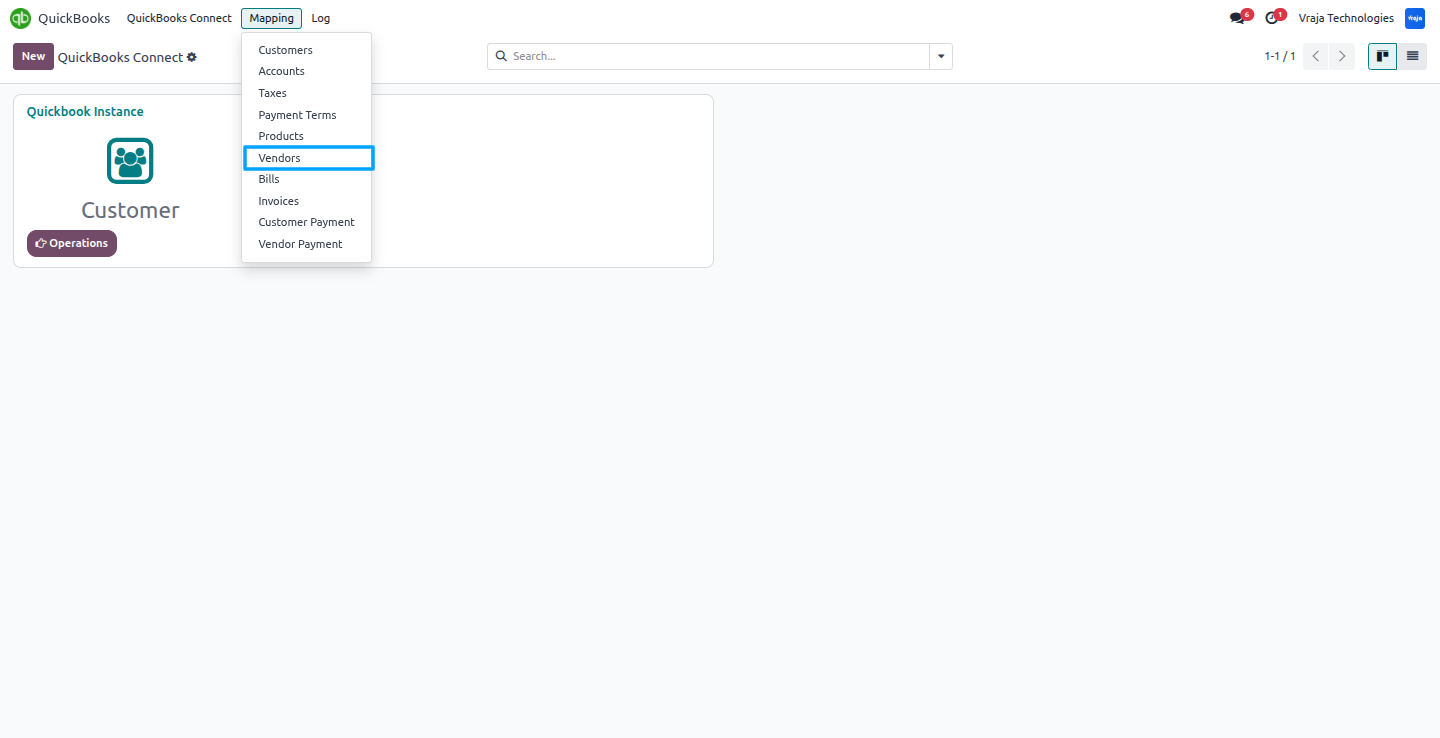
In the Mapping section, Vendor Mapping table displays the mapped Vendor between QuickBooks and Odoo.
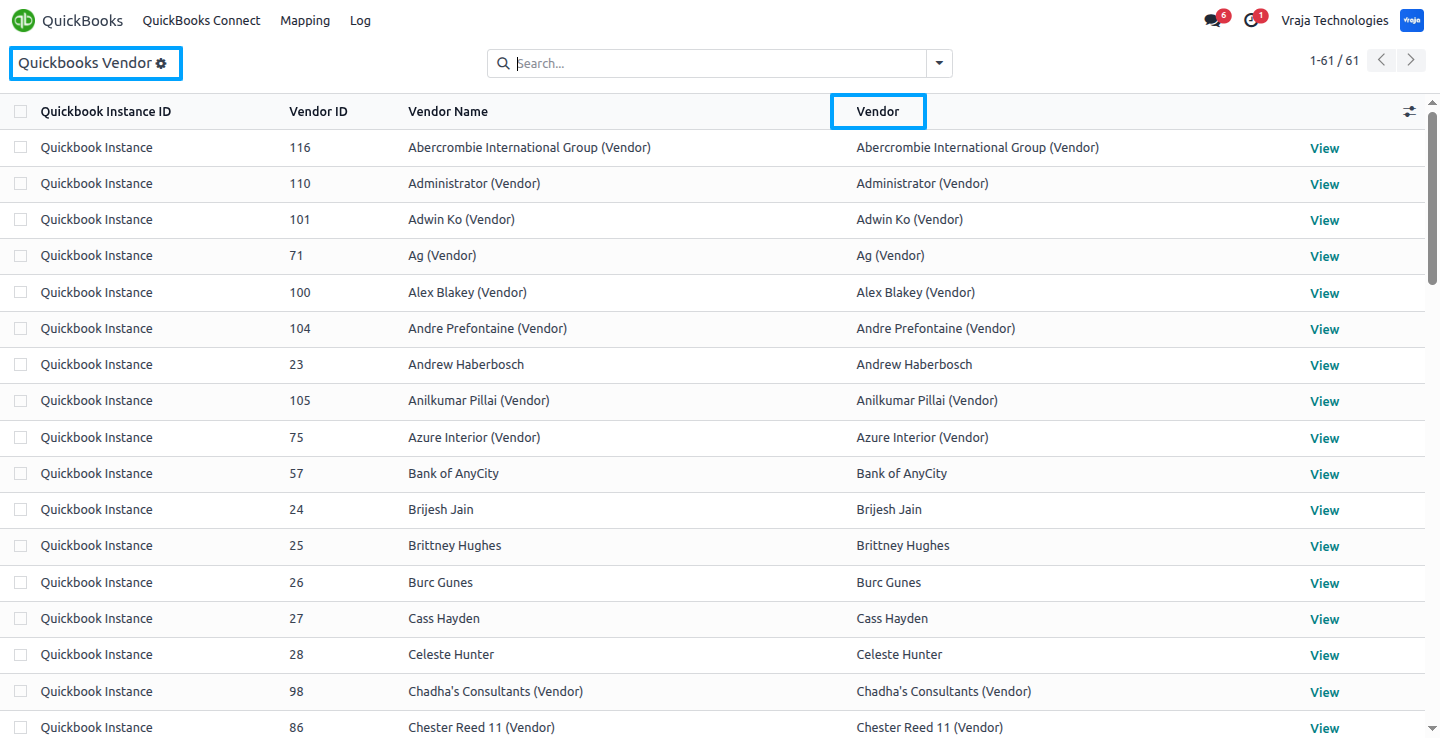
During the import process, the Vendor Mapping table is created using the data received from QuickBooks into Odoo.
During the import process, this vendor was generated in Odoo based on data received from QuickBooks, ensuring synchronization between both platforms and creating the corresponding record in Odoo.
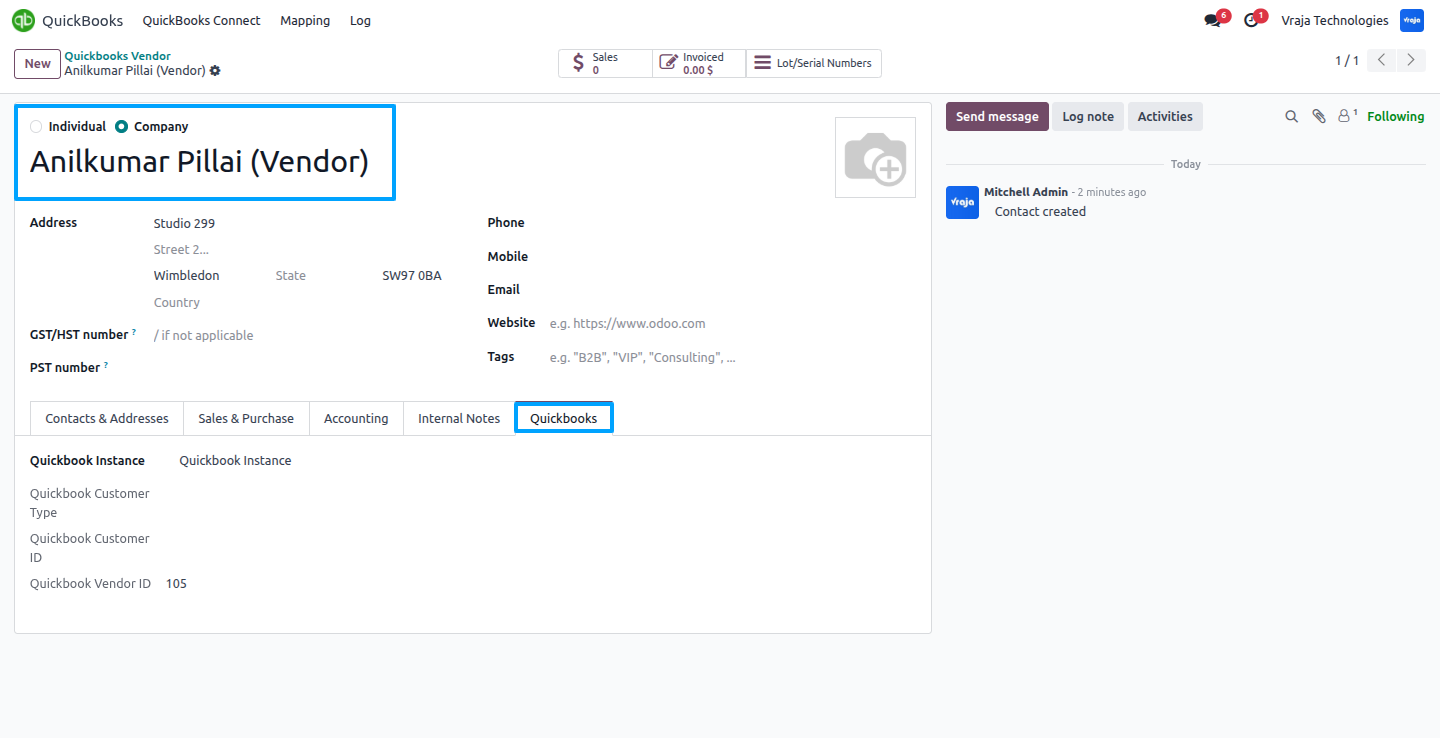
Import Invoice Process
Import invoices from QuickBooks into Odoo, with the option to filter by date range.
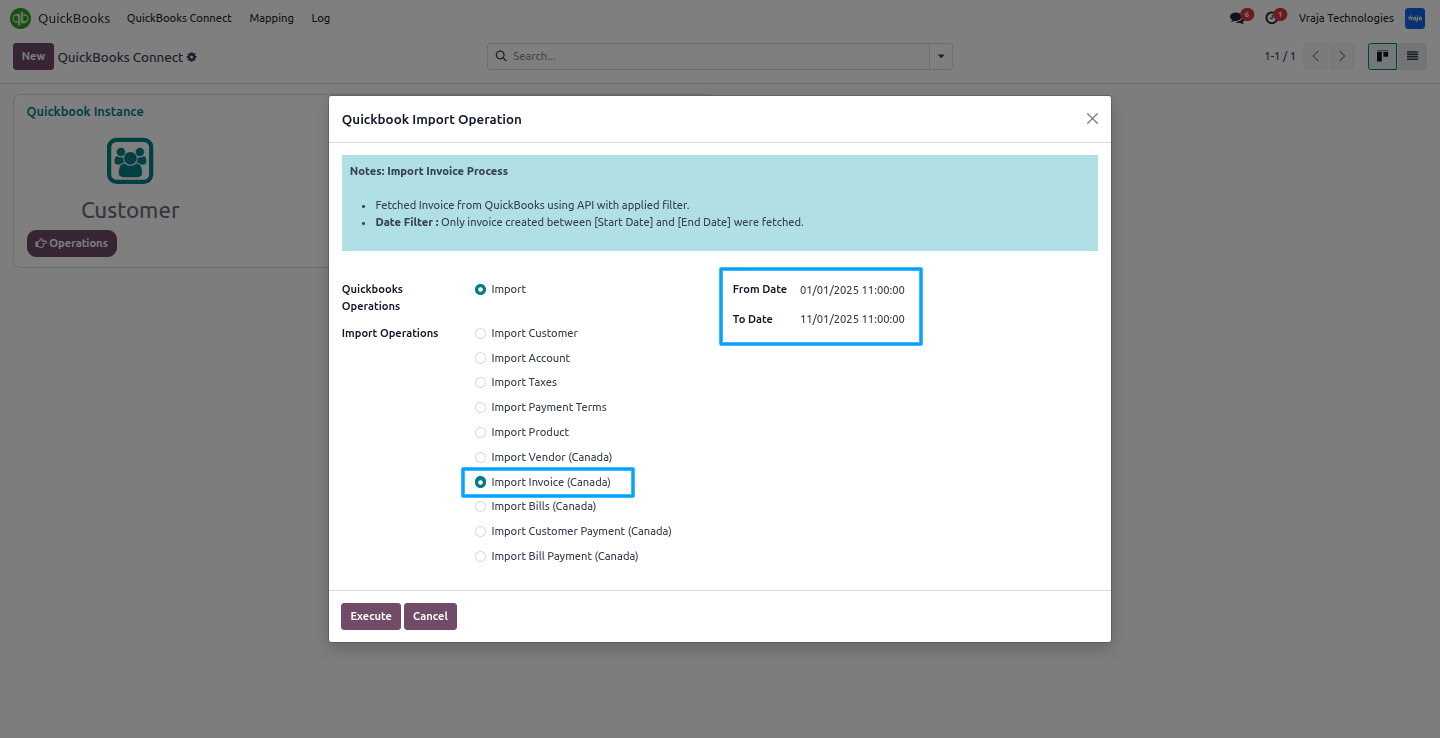
In the Mapping section, the Invoice Mapping table shows the invoices linked between QuickBooks and Odoo.
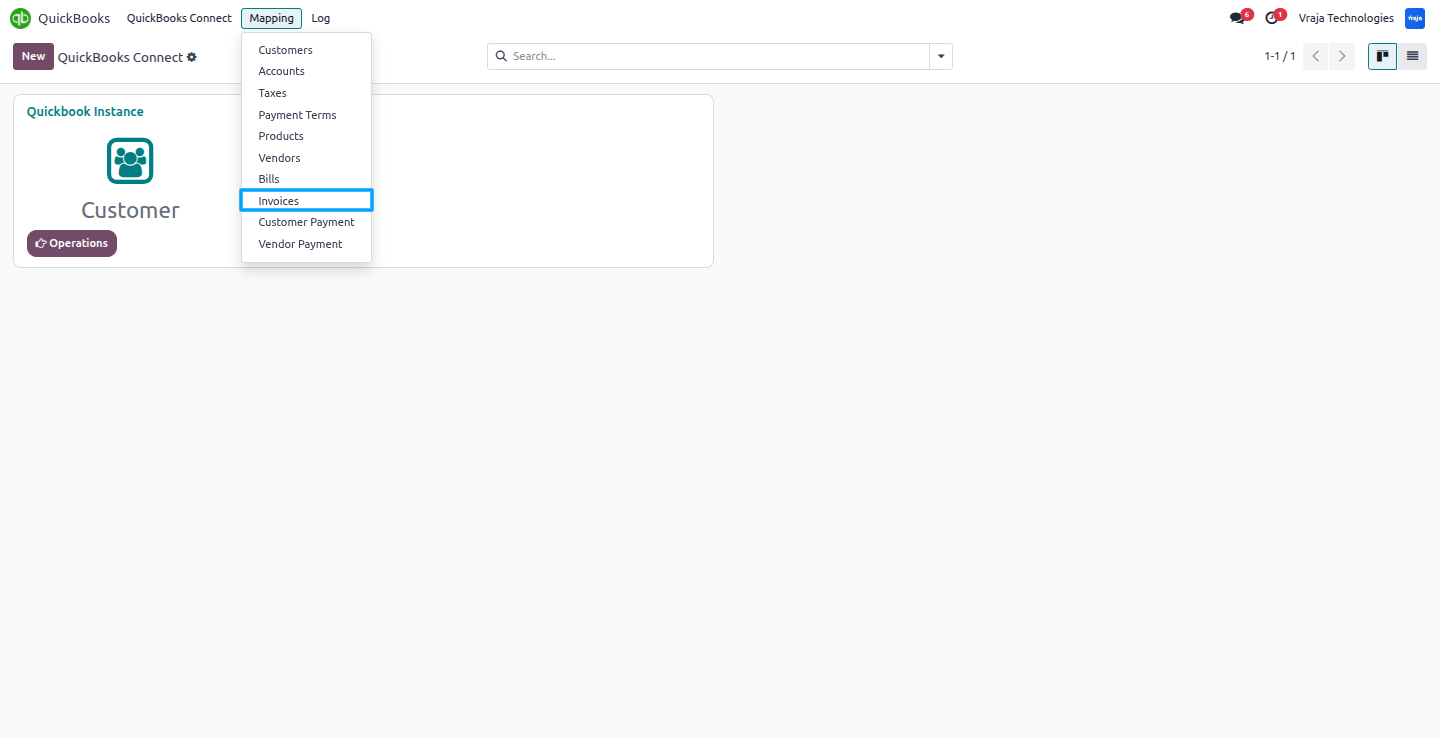
During the import process, the Invoice Mapping table is created using the data received from QuickBooks into Odoo.
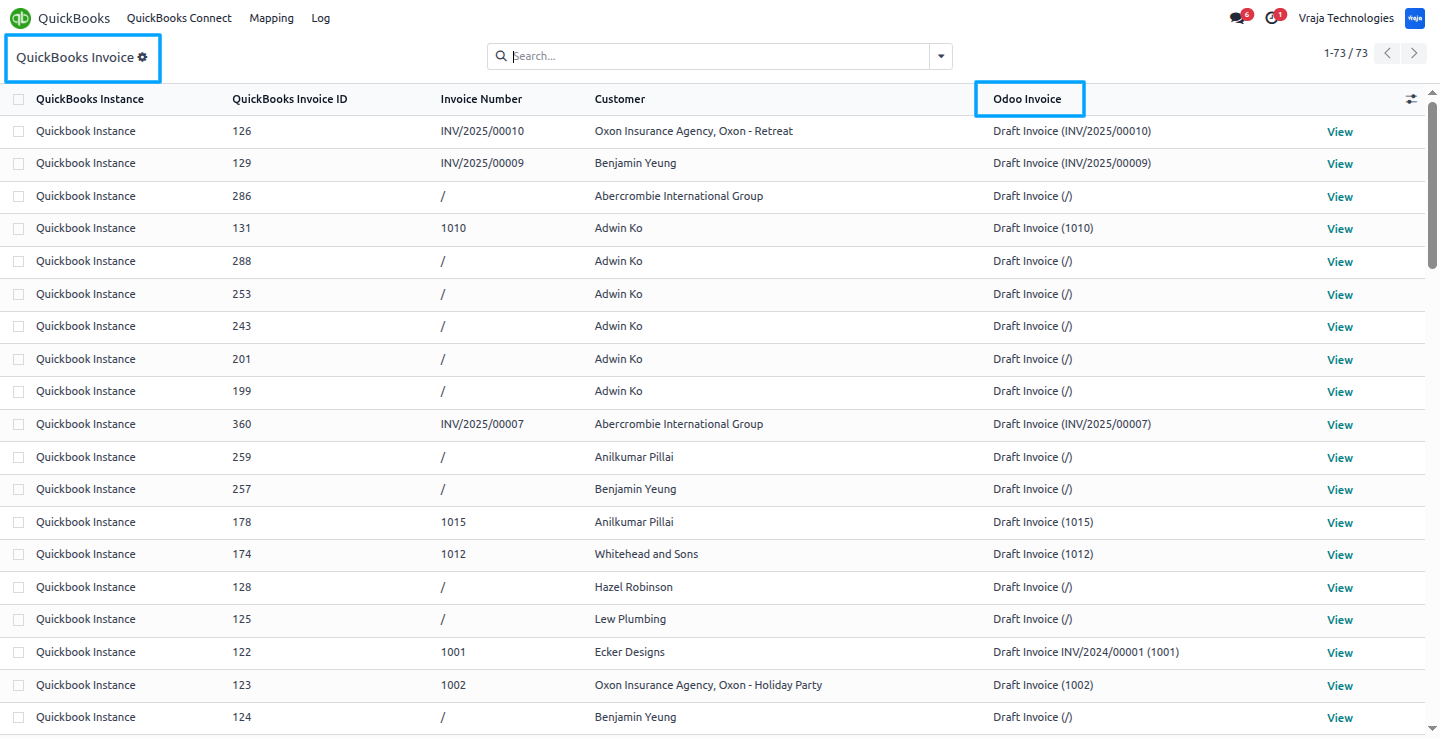
During the import process, this invoice was generated in Odoo based on data received from QuickBooks, ensuring synchronization between both platforms and creating the corresponding record in Odoo.
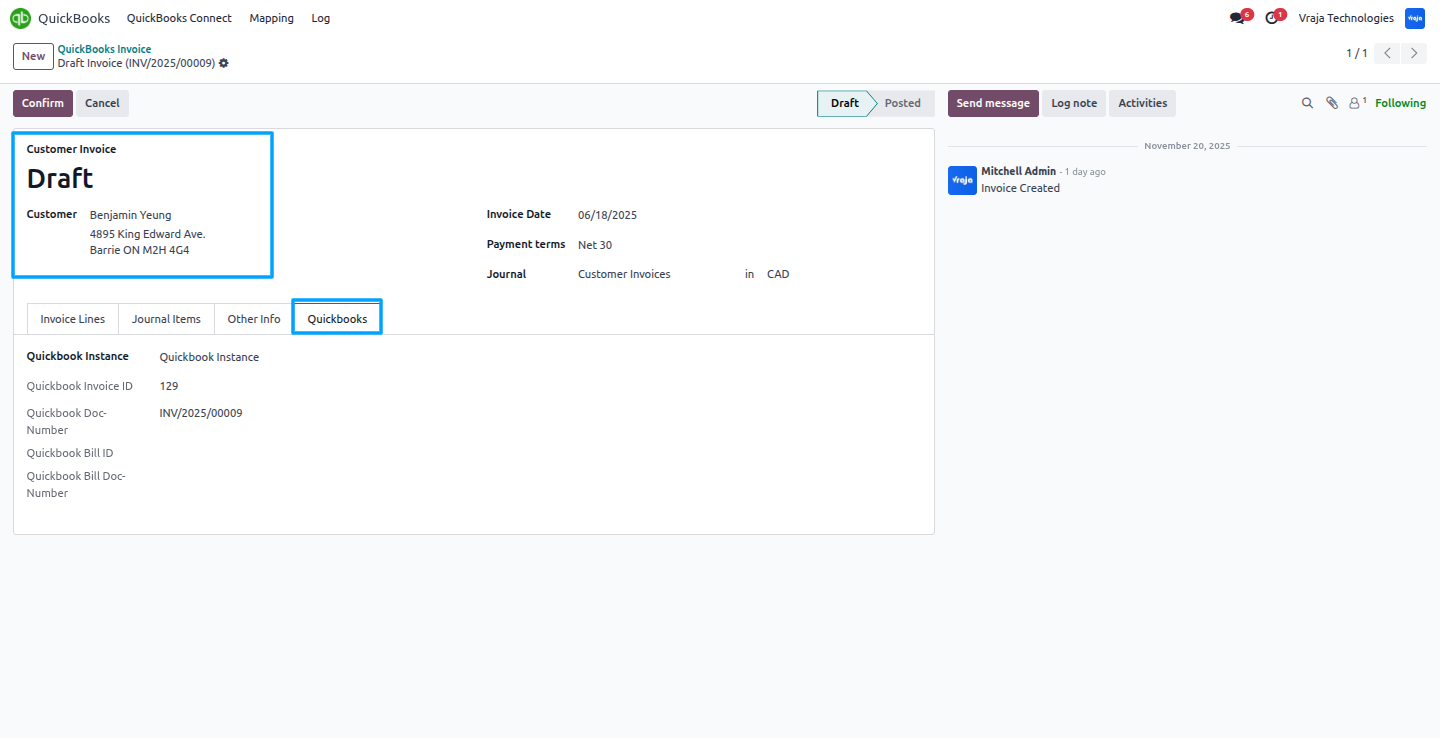
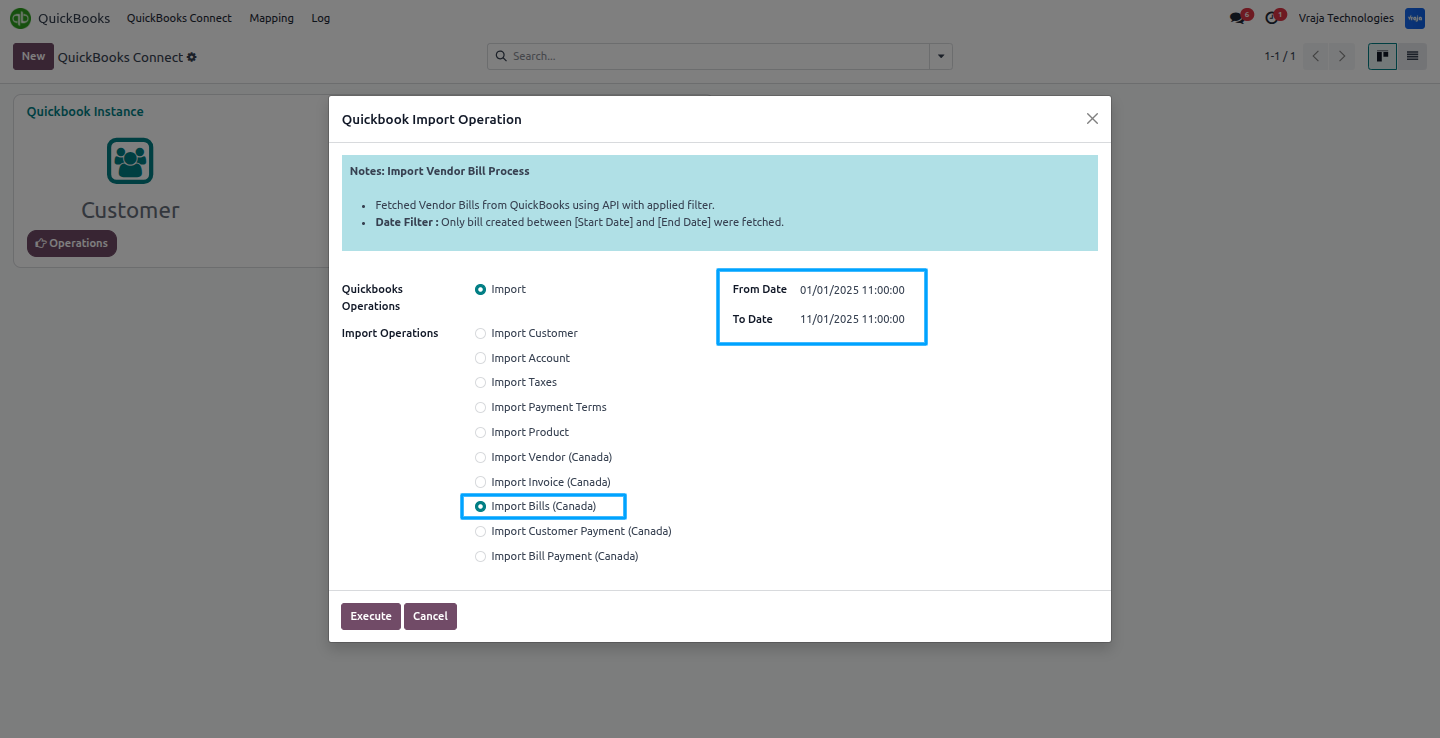
Import Vendor Bill Process
Import vendor bills from QuickBooks into Odoo, with the option to filter by date range.
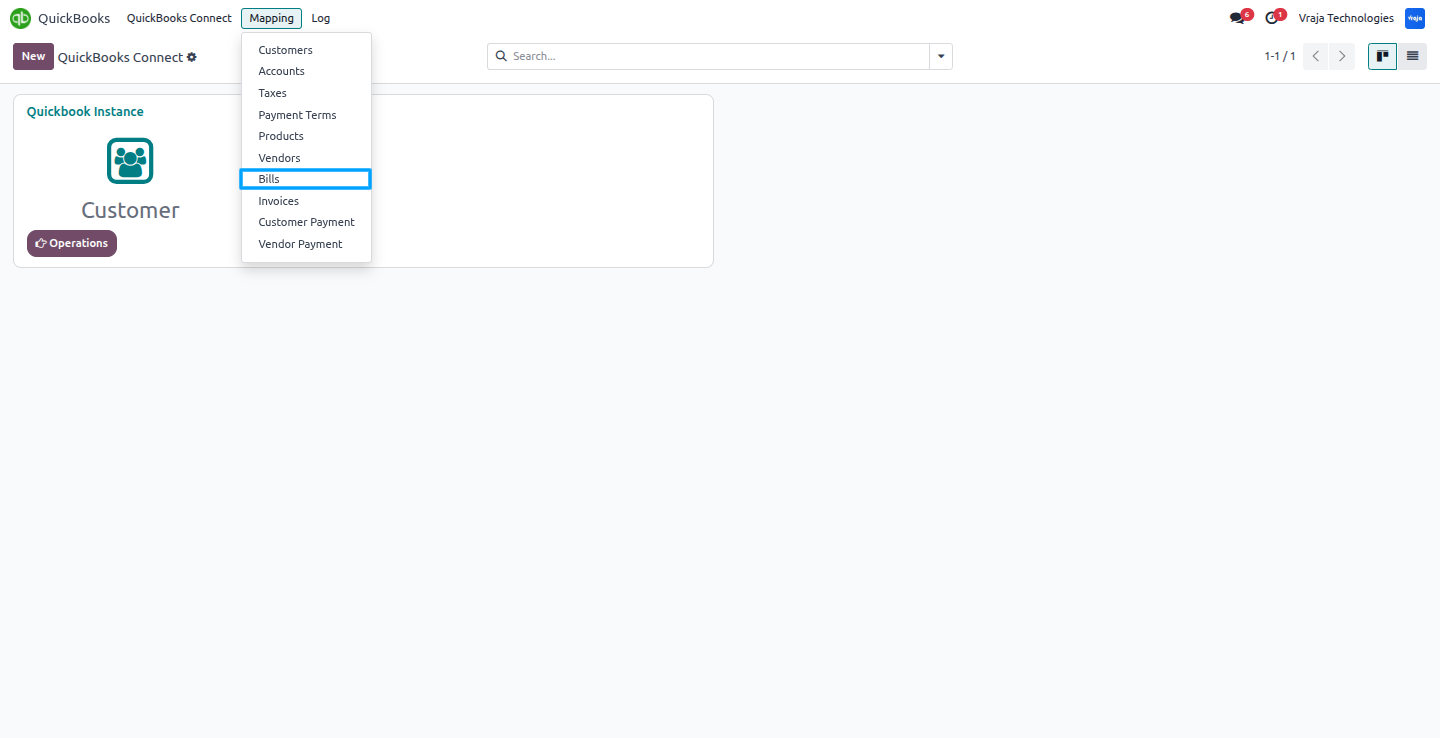
In the Mapping section, Vendor Bill Mapping table displays the mapped Vendor Bill between QuickBooks and Odoo.
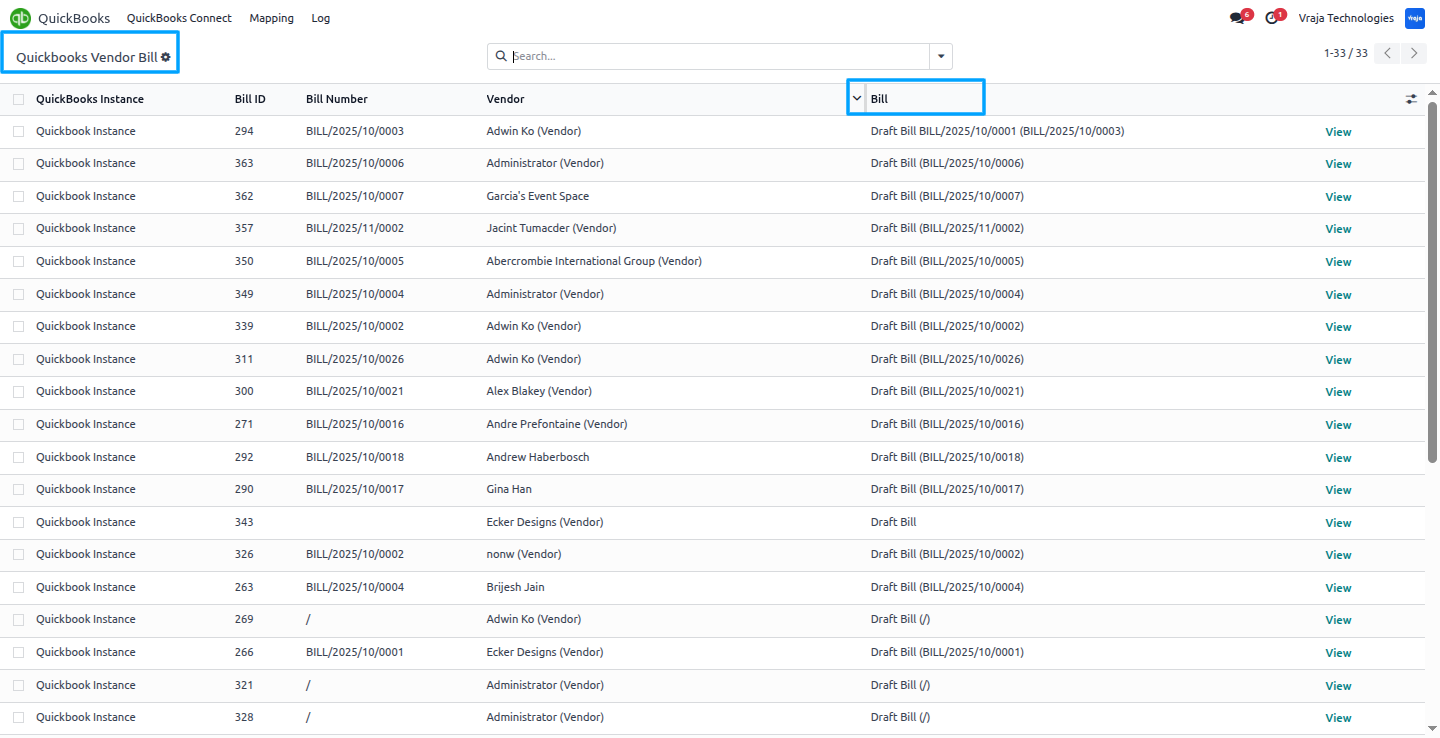
During the import process, the Vendor Bill Mapping table is created using the data received from QuickBooks into Odoo.
During the import process, this vendor bill was generated in Odoo based on data received from QuickBooks, ensuring synchronization between both platforms and creating the corresponding record in Odoo.
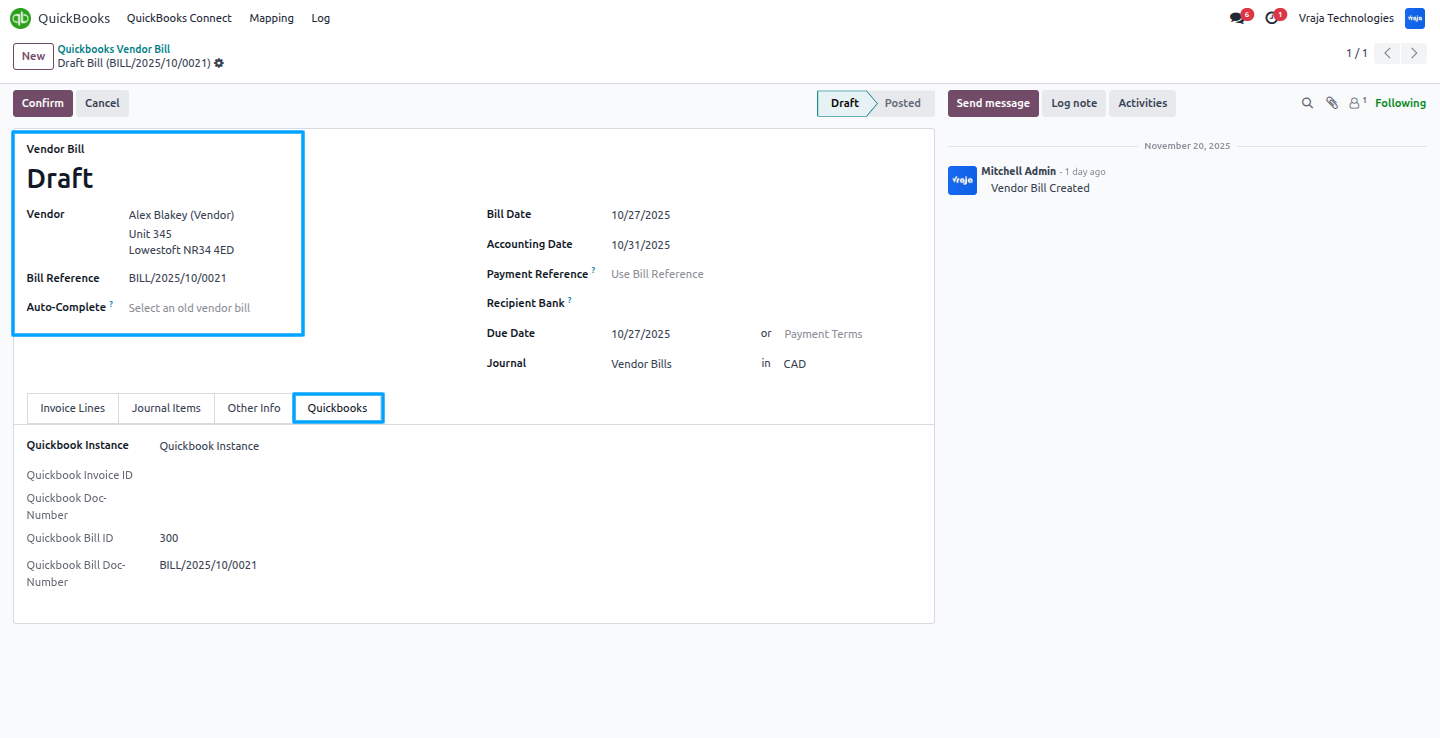
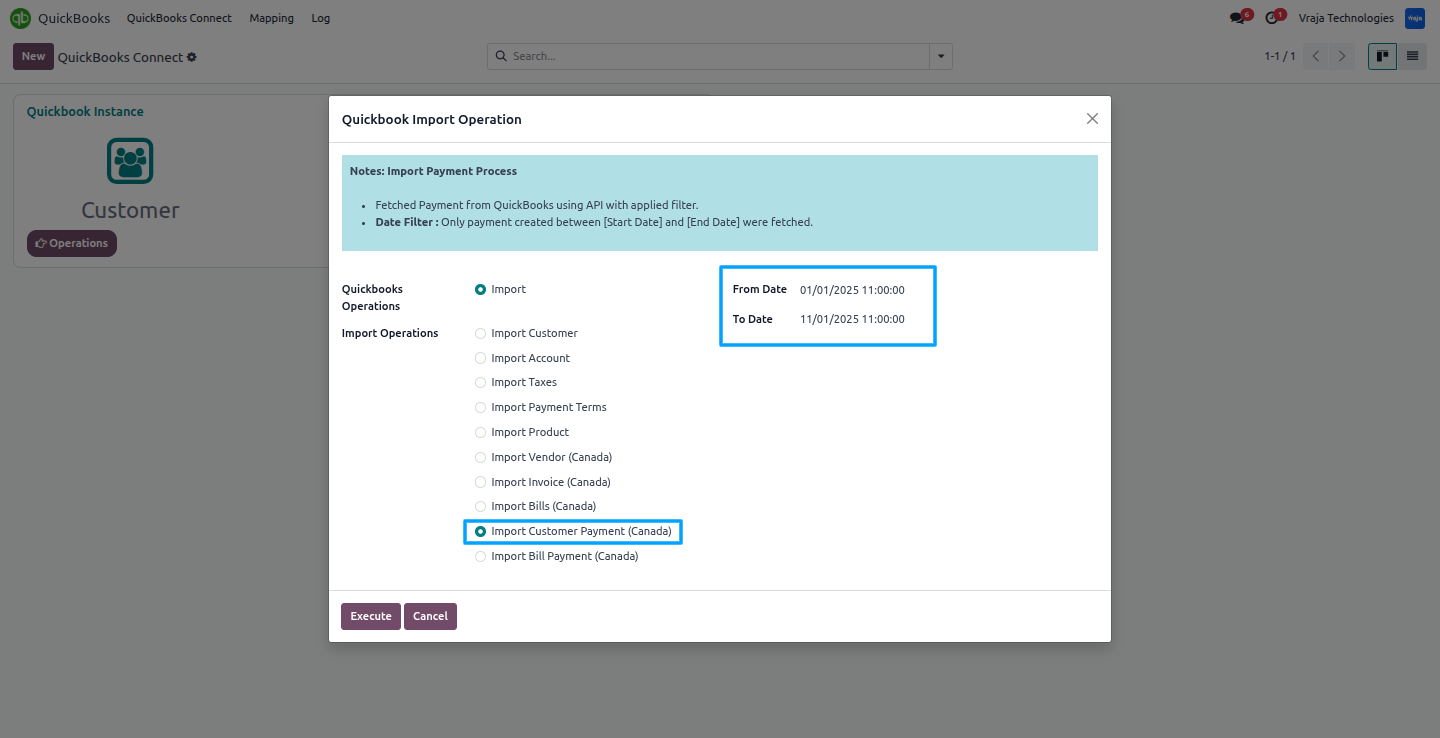
Import Payment Process
Import payments from QuickBooks into Odoo, with the option to filter by date range.
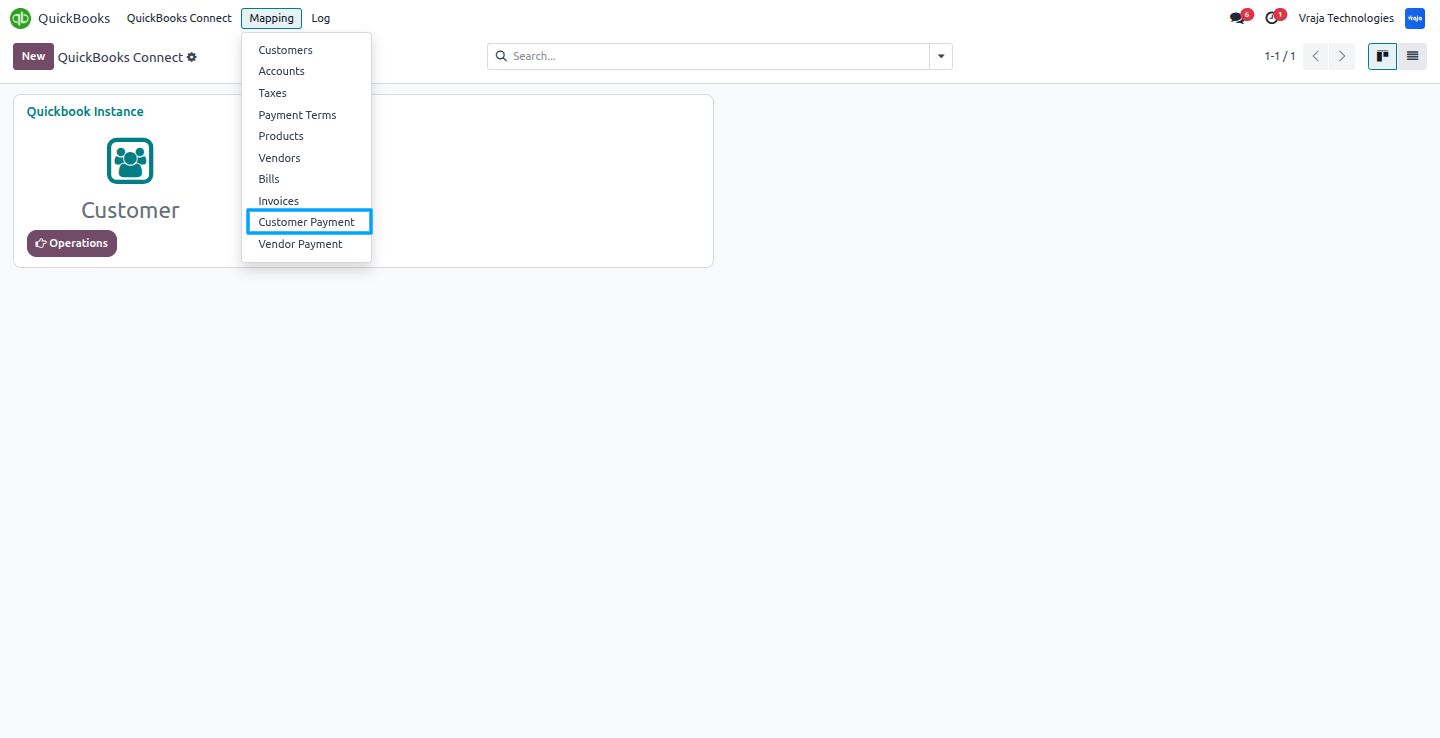
In the Mapping section, the Payment Mapping table shows the payments linked between QuickBooks and Odoo.
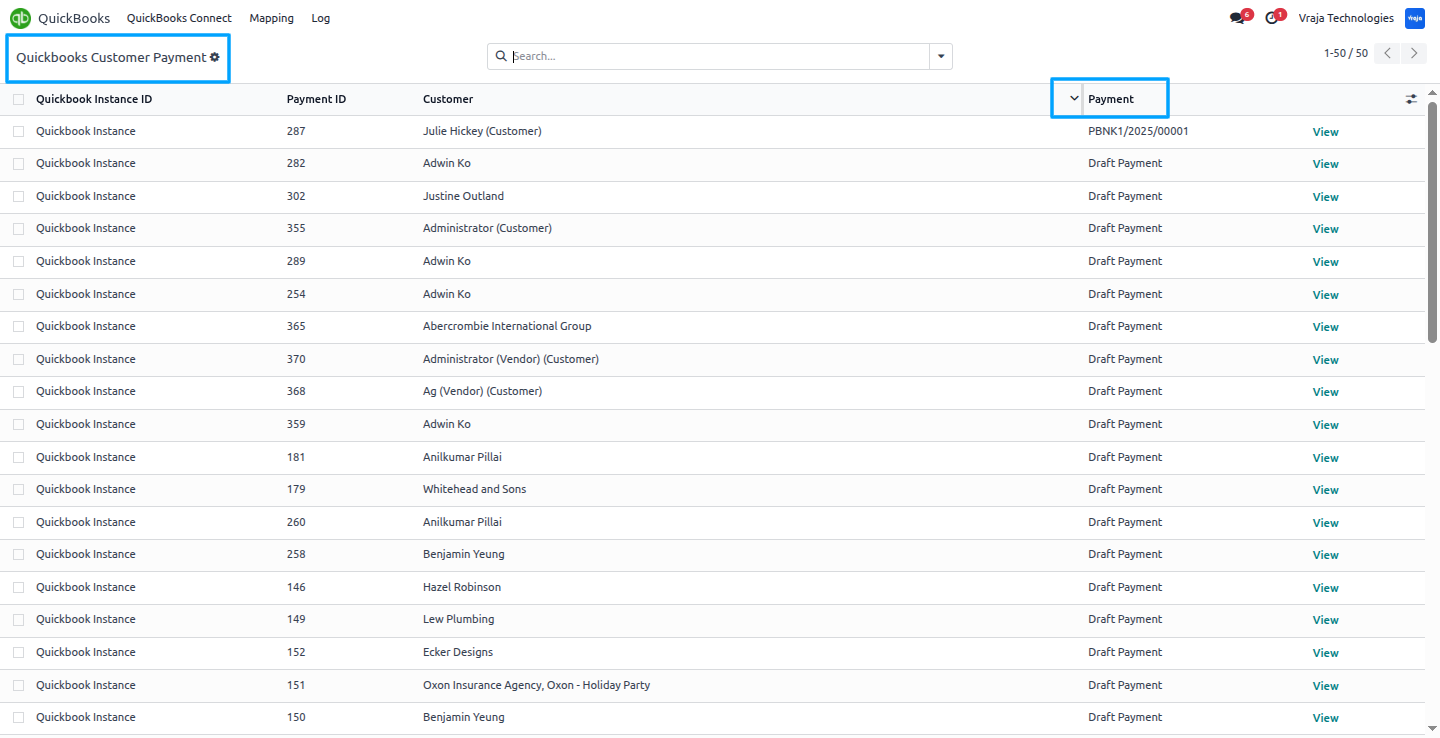
During the import process, the Payment Mapping table is generated with data received from QuickBooks to Odoo.
During the import process, this payment was created in Odoo using data from QuickBooks, keeping both systems synchronized and generating the corresponding record in Odoo.
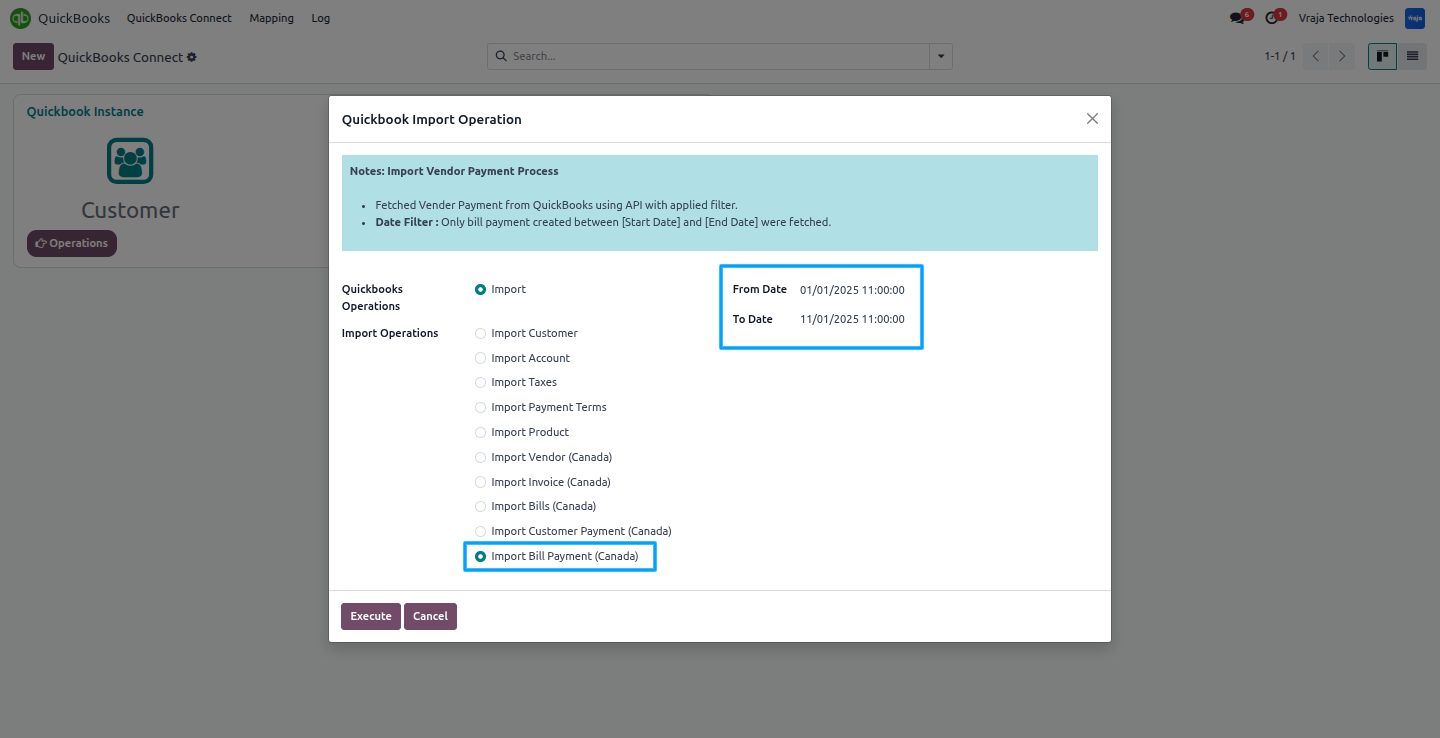
Import Vendor Payment Process
Import vendor payments from QuickBooks into Odoo, with the option to filter by date range.
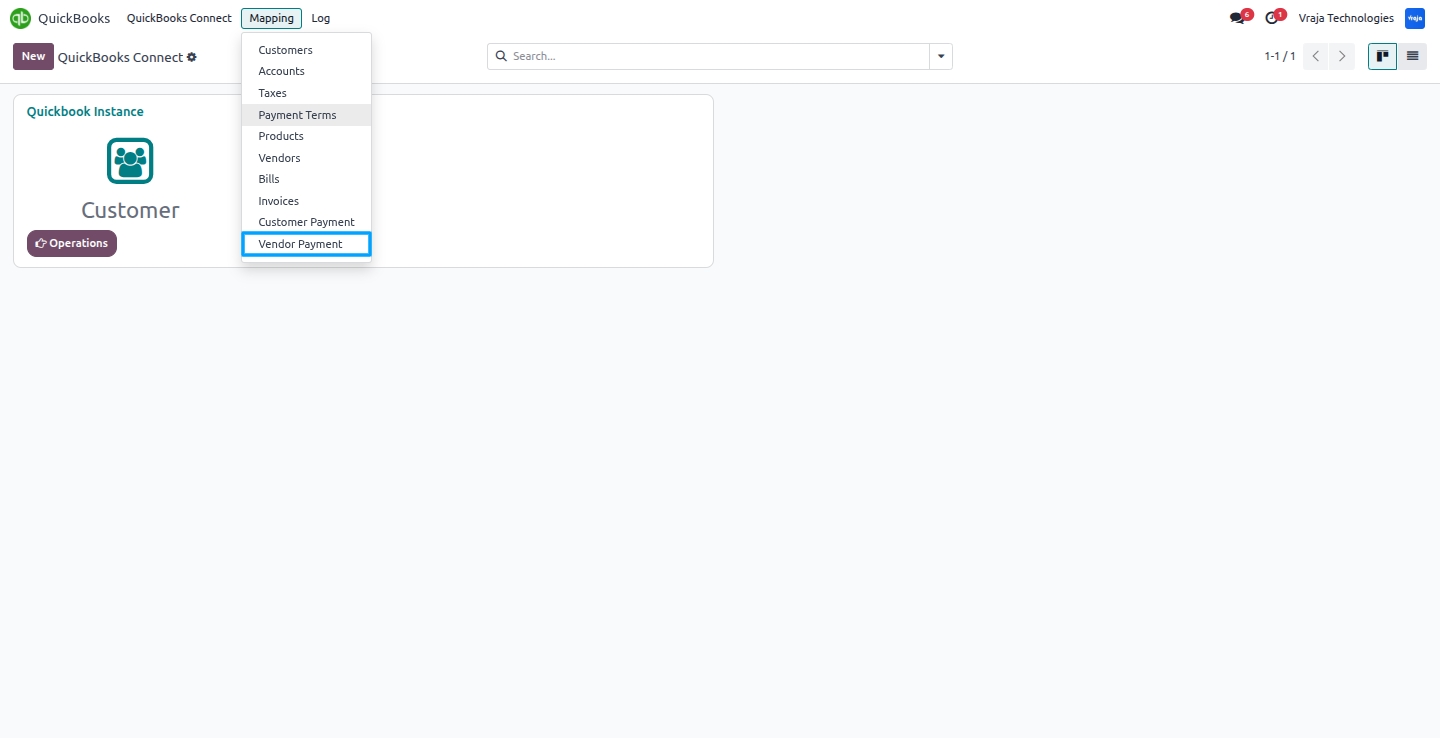
In the Mapping section, the Vendor Payment Mapping table shows the vendor payments linked between QuickBooks and Odoo.
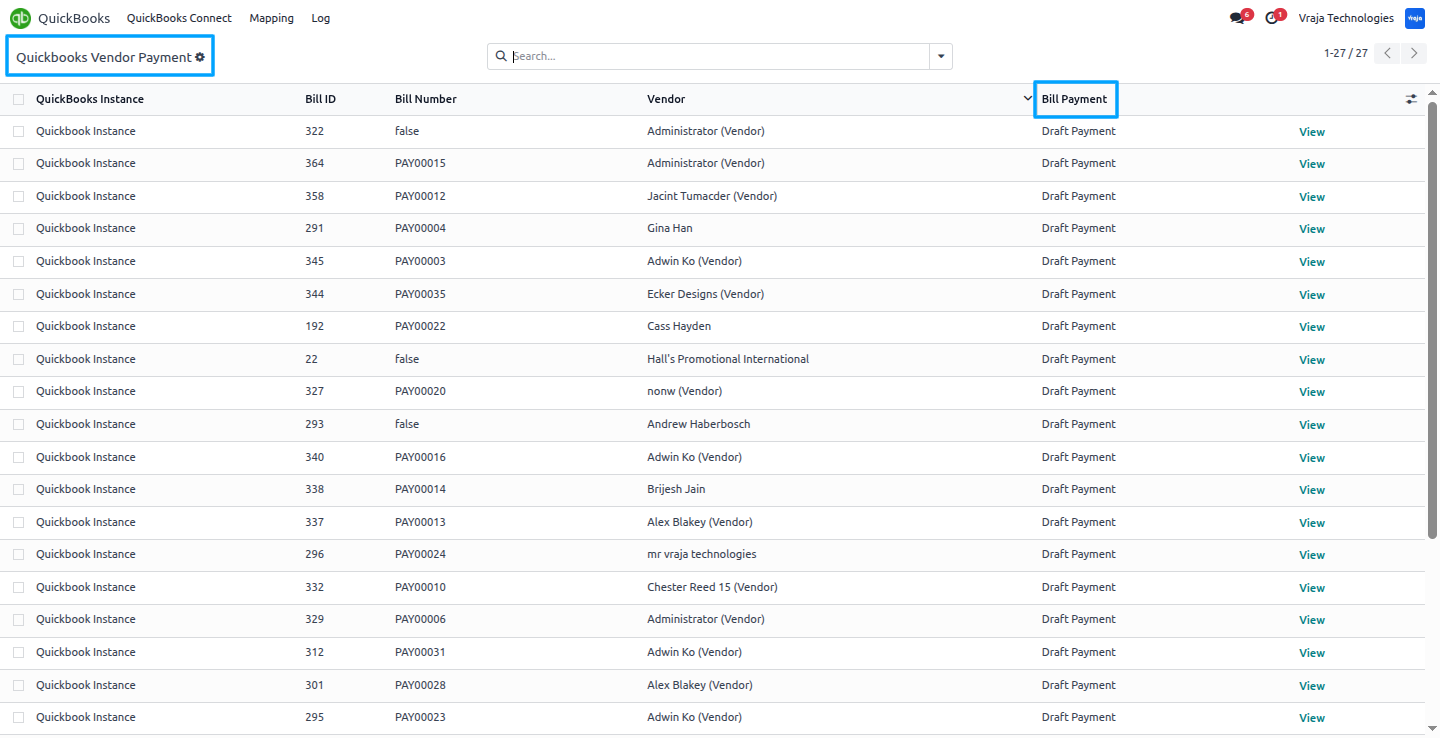
During the import process, the Vendor Payment Mapping table is created using the data received from QuickBooks into Odoo.
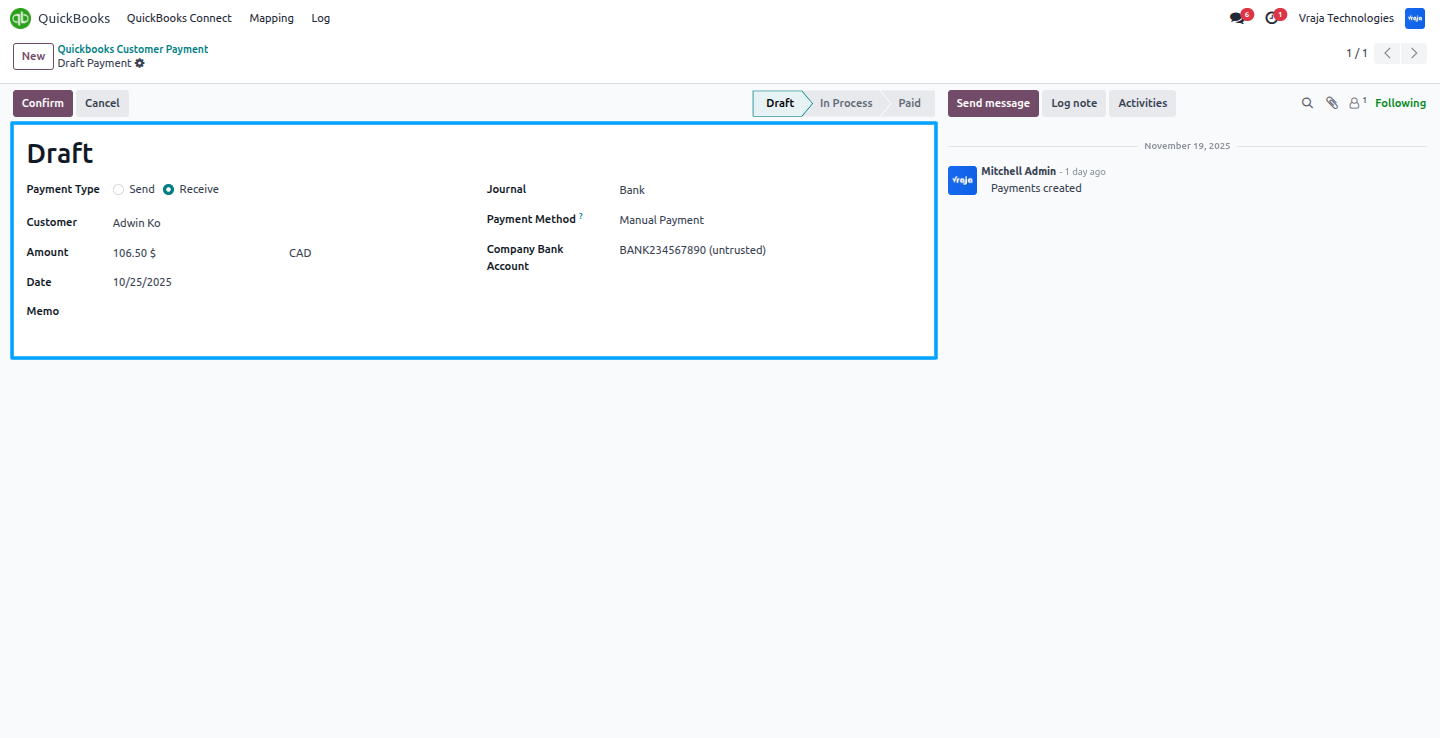
During the import process, this Vendor Payment was generated in Odoo based on data received from QuickBooks, ensuring synchronization between both platforms and creating the corresponding record in Odoo.
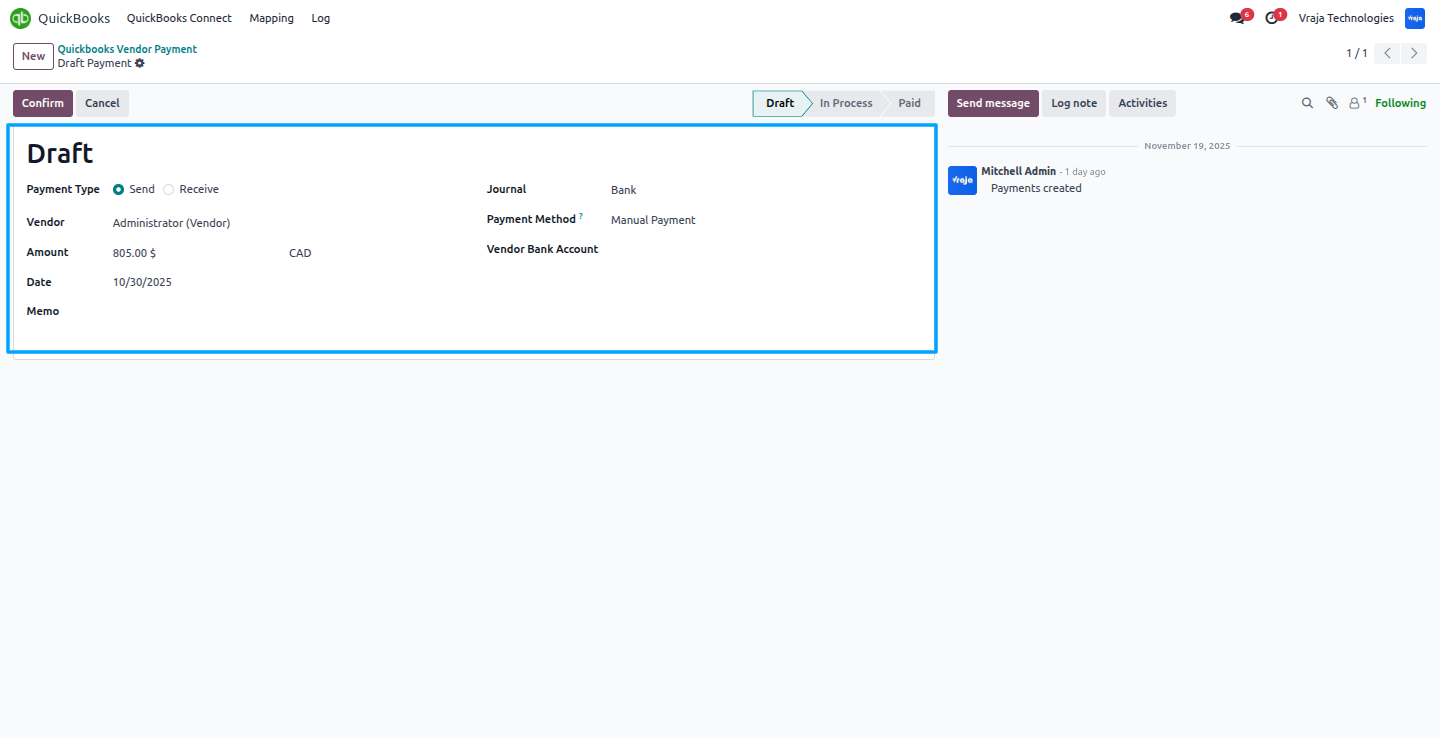
Export Customer & Vendor process
Export customer records from Odoo to QuickBooks to ensure your accounting system has the latest customer information.
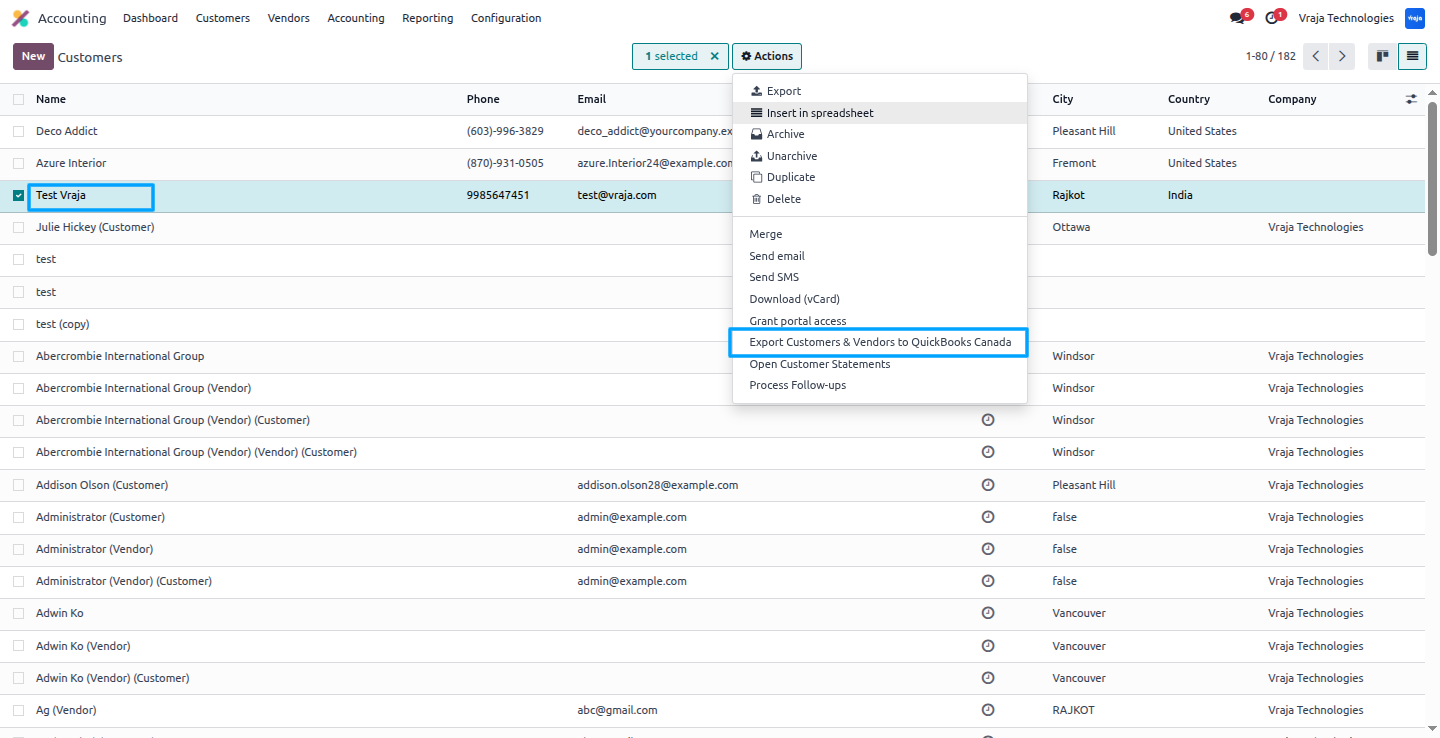
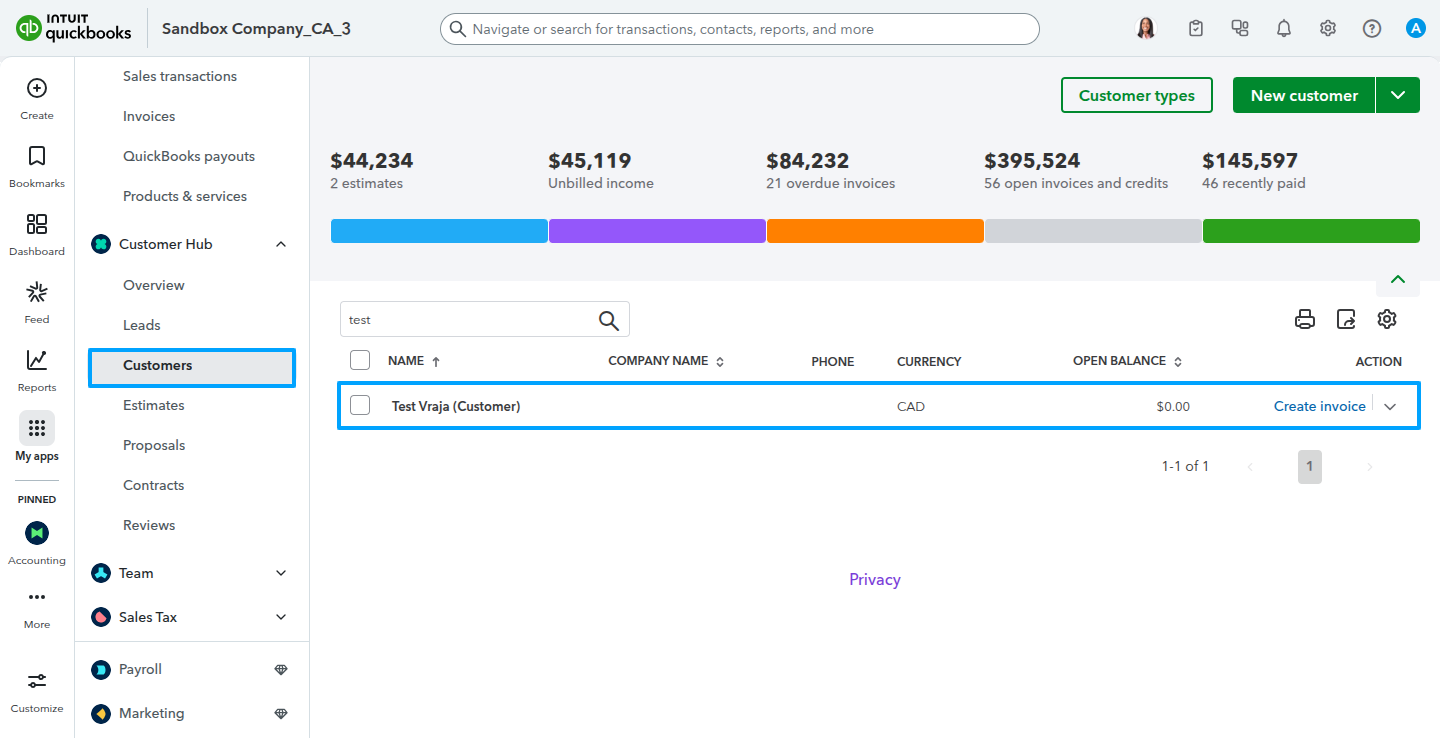
Export vendor records from Odoo to QuickBooks to keep your accounting system up to date with the latest information.
When exporting a customer, if the Odoo customer has any vendor bills, they will also be created as a vendor in QuickBooks.
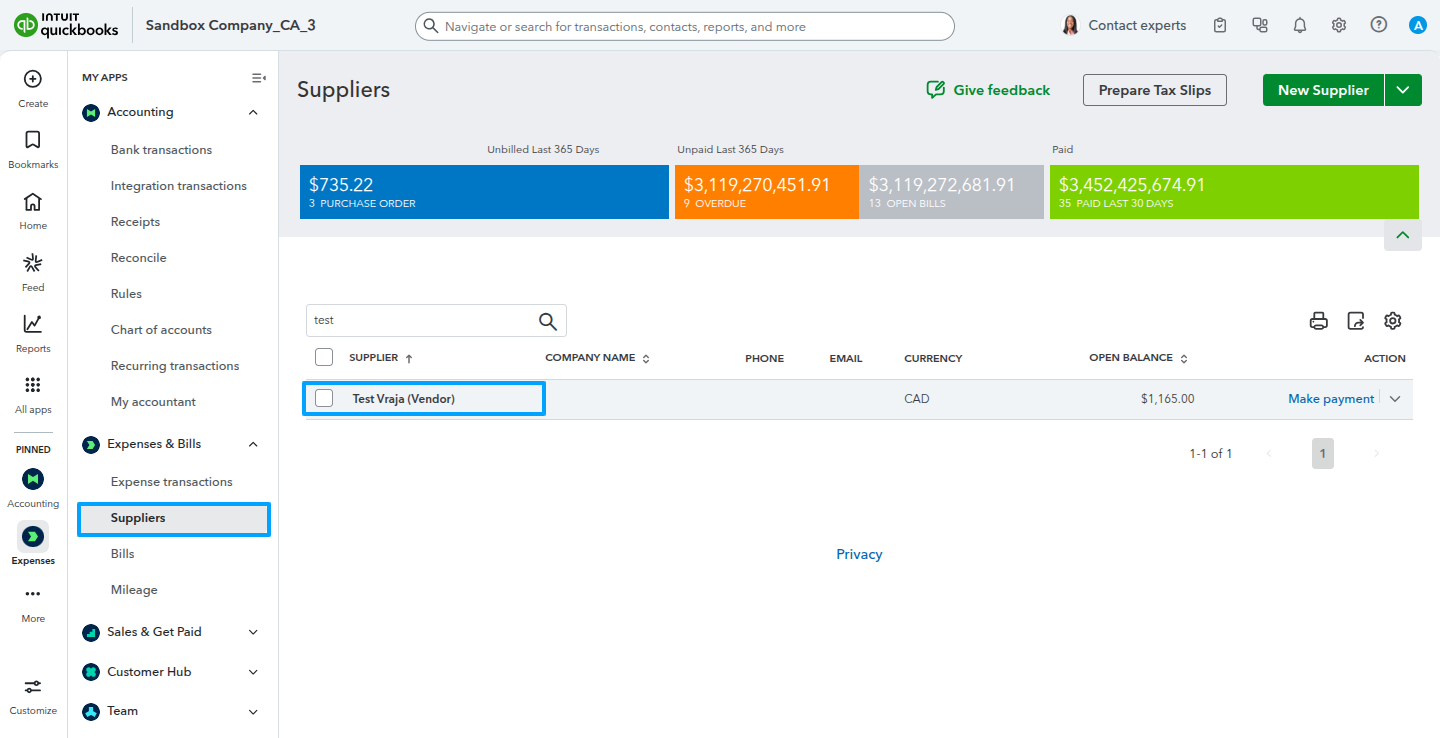
Export Invoice/Bill process
Export invoices from Odoo to QuickBooks to ensure your accounting system stays up to date with the latest billing and payment information.


This QuickBooks invoice was exported from Odoo, with all amounts and taxes accurately reflected.
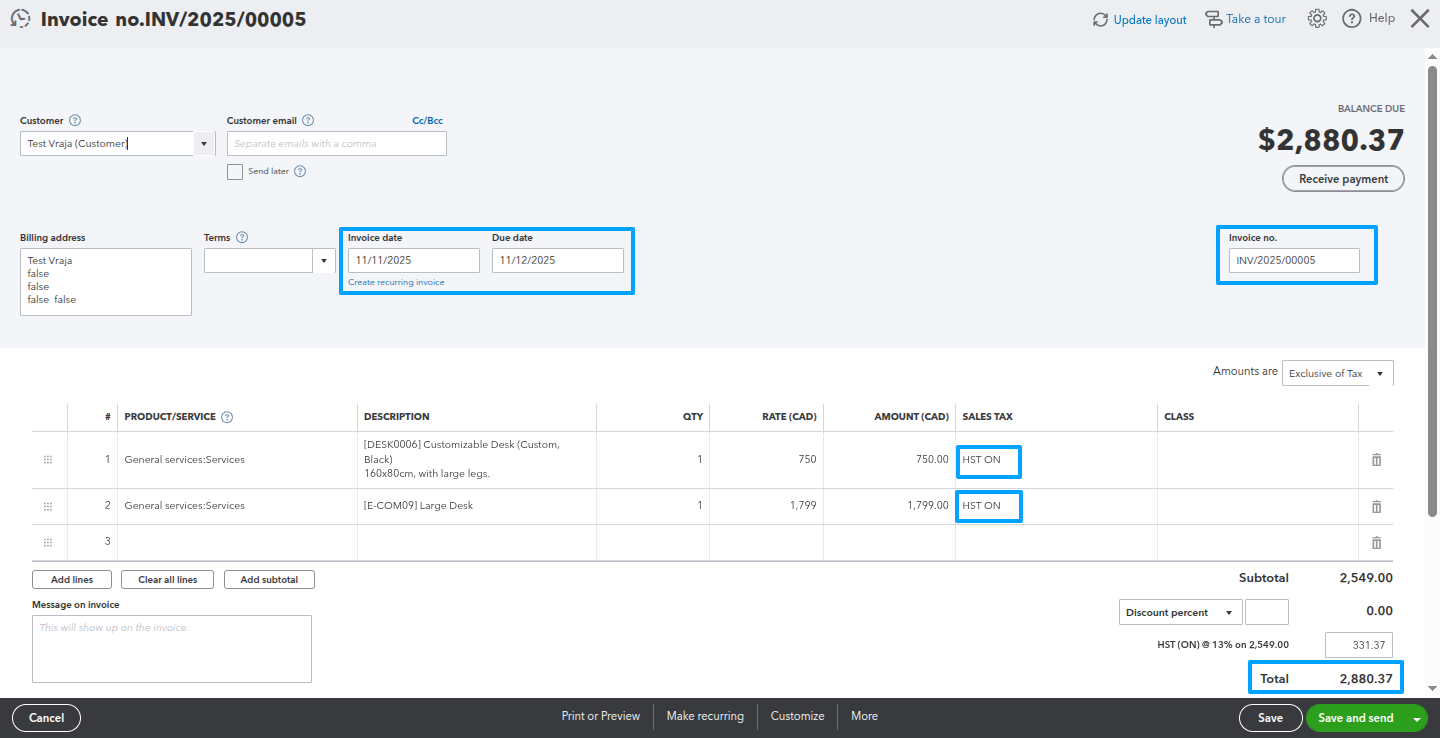
Exporting invoices from Odoo to QuickBooks with tax-included pricing, where all taxes are already built into the product price and no additional tax is added to the total
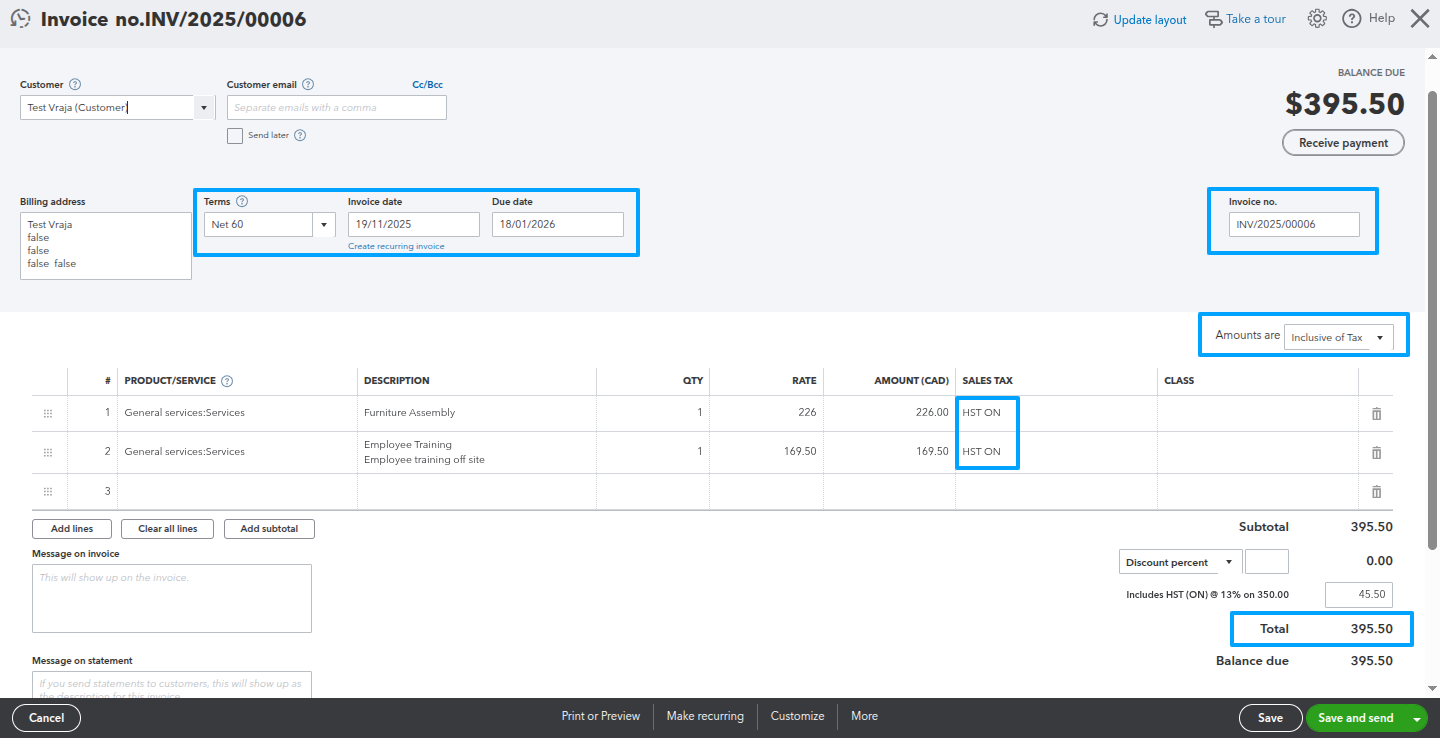
When you enable the feature of Send Tax Included and if your country is not canada than you invoice exported as Tax Included in product price
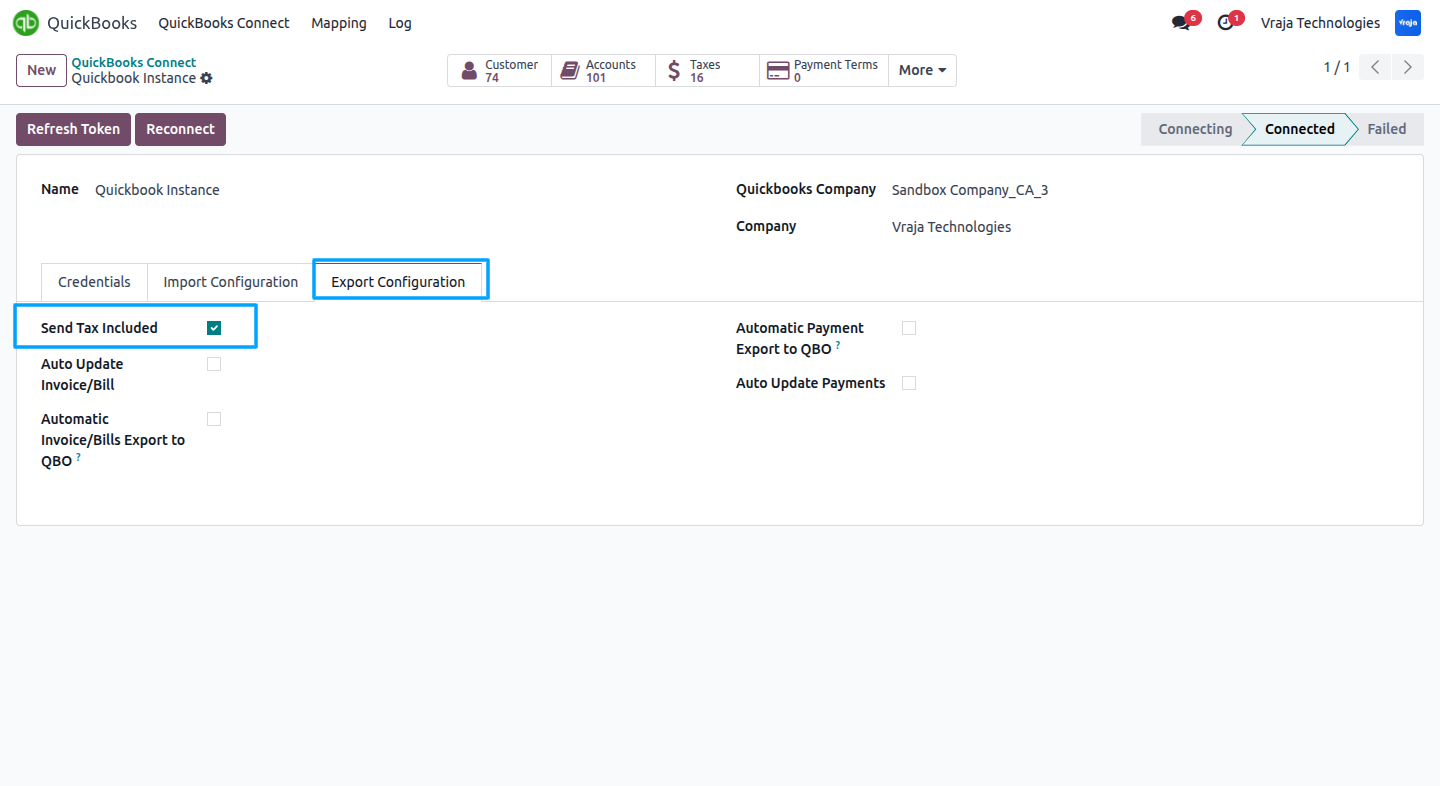
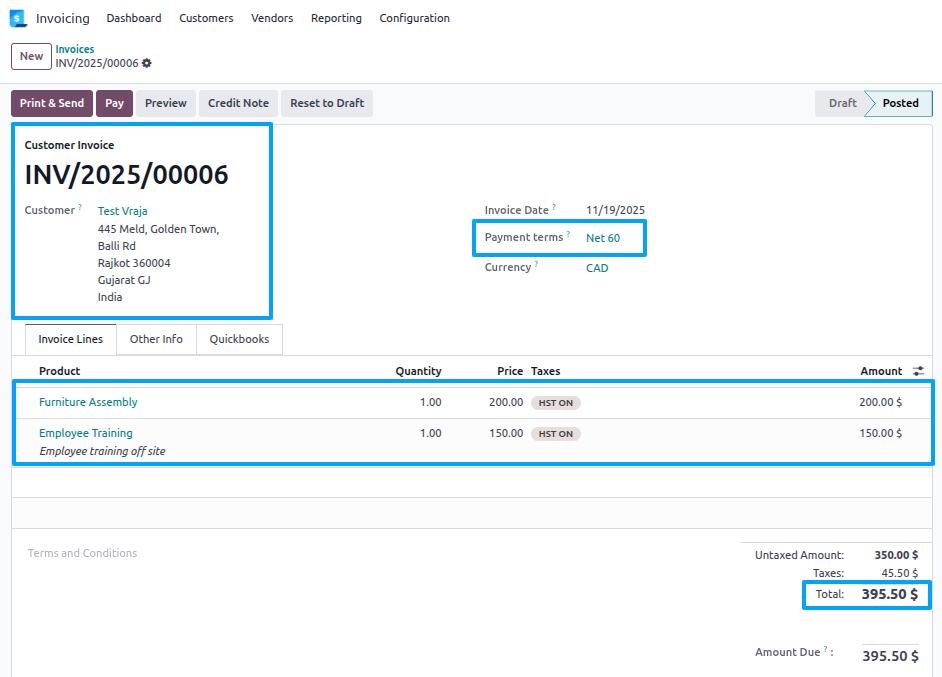
When you enable the “Send Tax Included” feature, and your country is not Canada, your invoices will be exported with tax already included in the product price.
Export vendor bills from Odoo to QuickBooks to keep your accounting system updated with the latest expenses and payments.
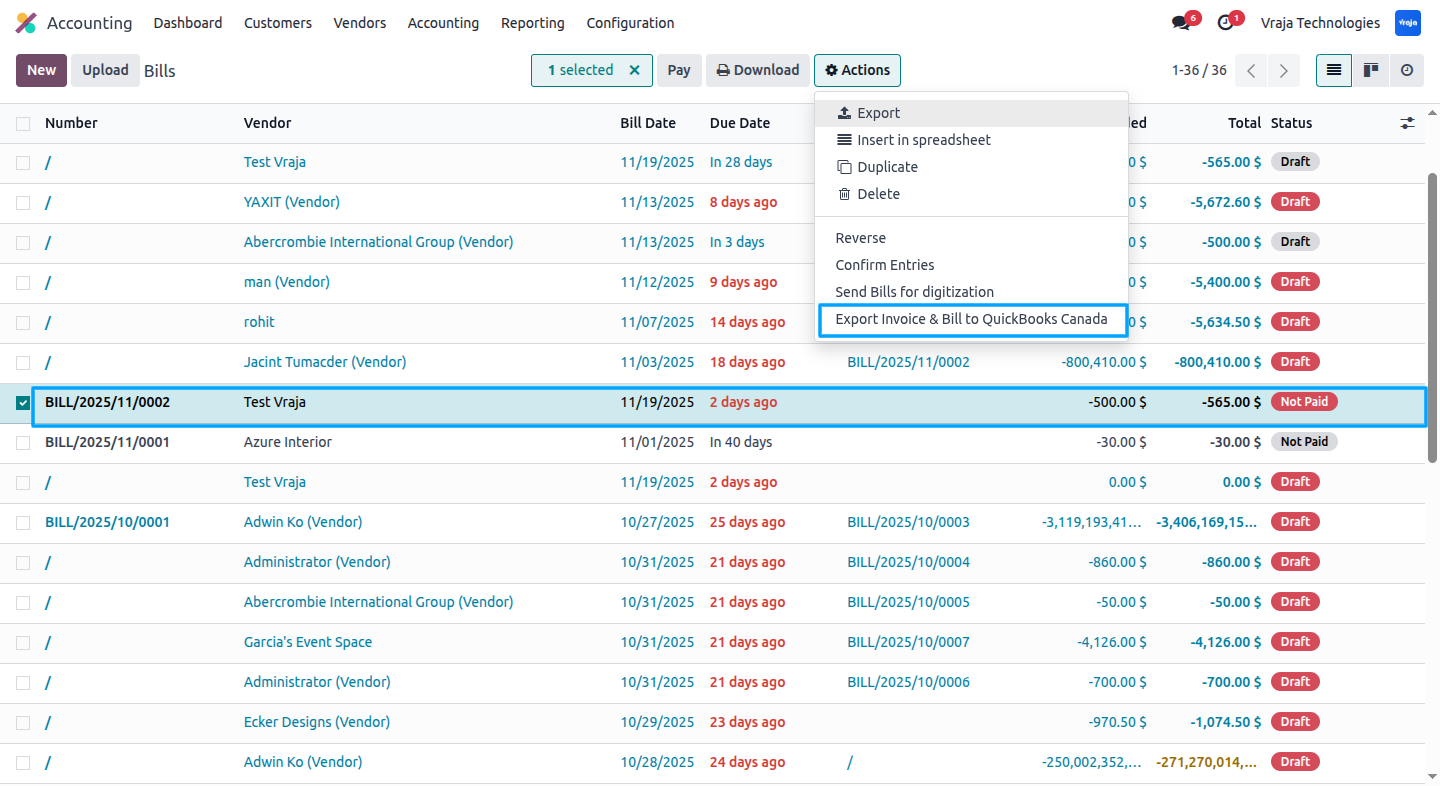
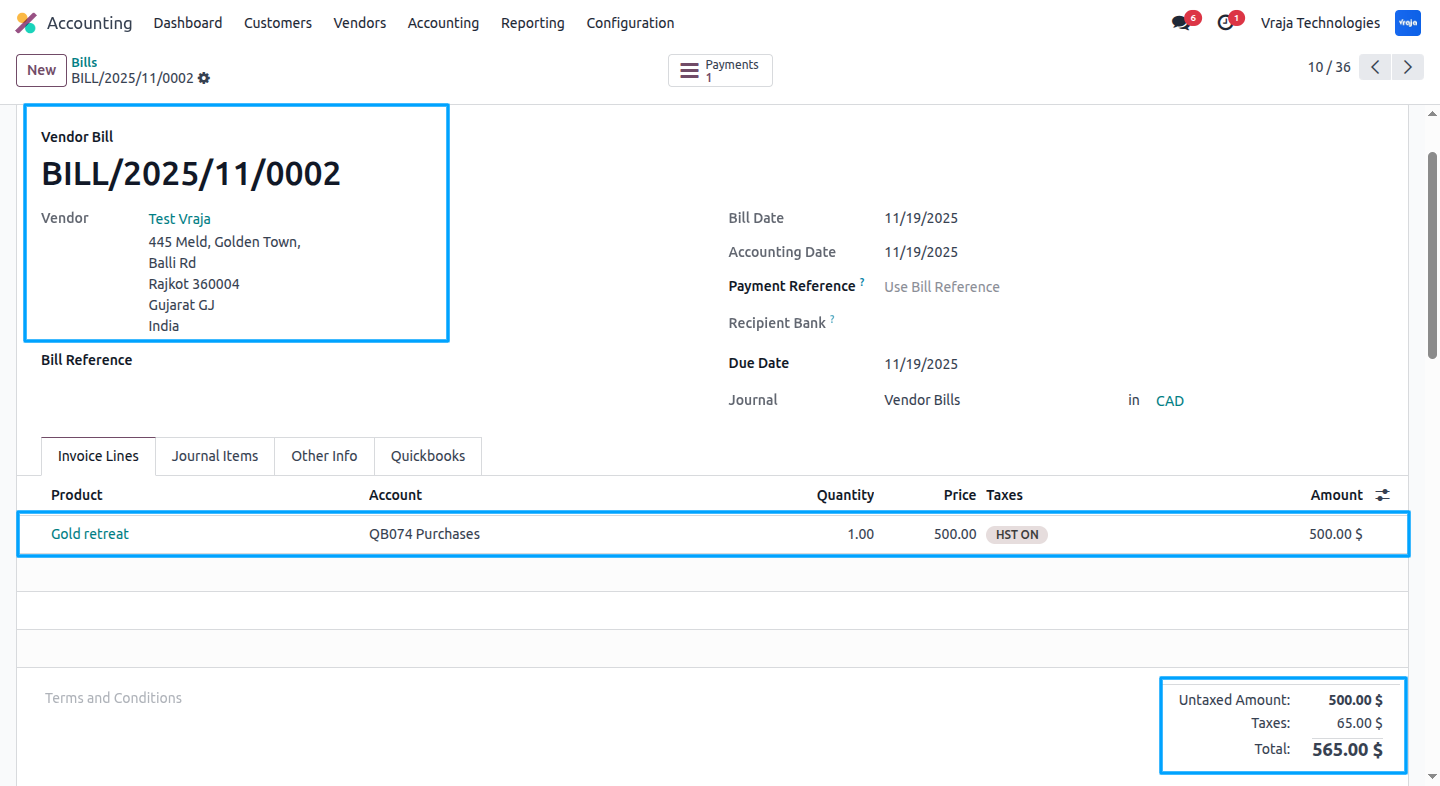
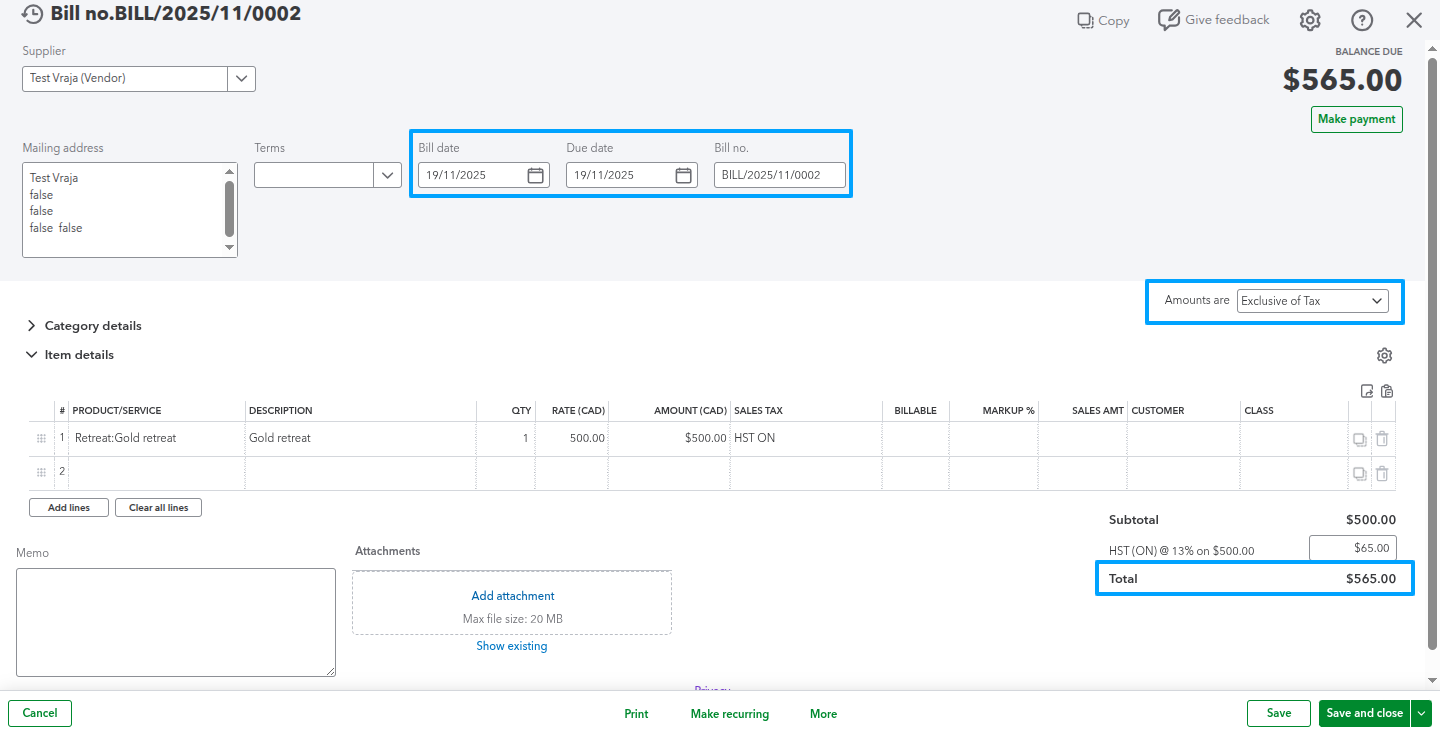
This QuickBooks vendor bill was exported from Odoo, with all amounts accurately matched to ensure consistency.
If you add taxes of Odoo in a vendor bill and expor it, there is a chance that the total amount may change because quickbook canada only allow there own tax.
Export Customer Payment Process
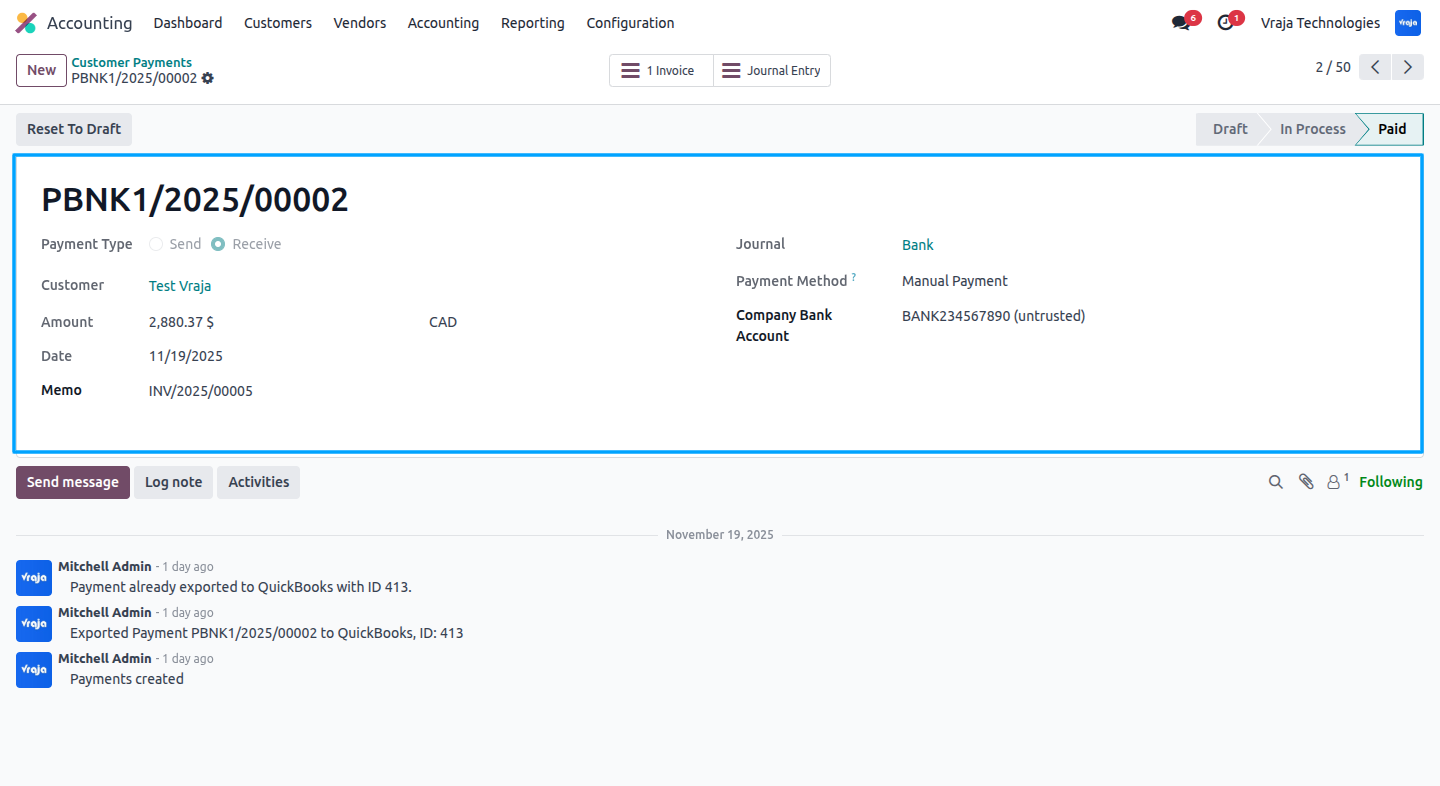
Export customer payments linked to invoices from Odoo to QuickBooks to ensure your payment records accurately match the corresponding invoice details.
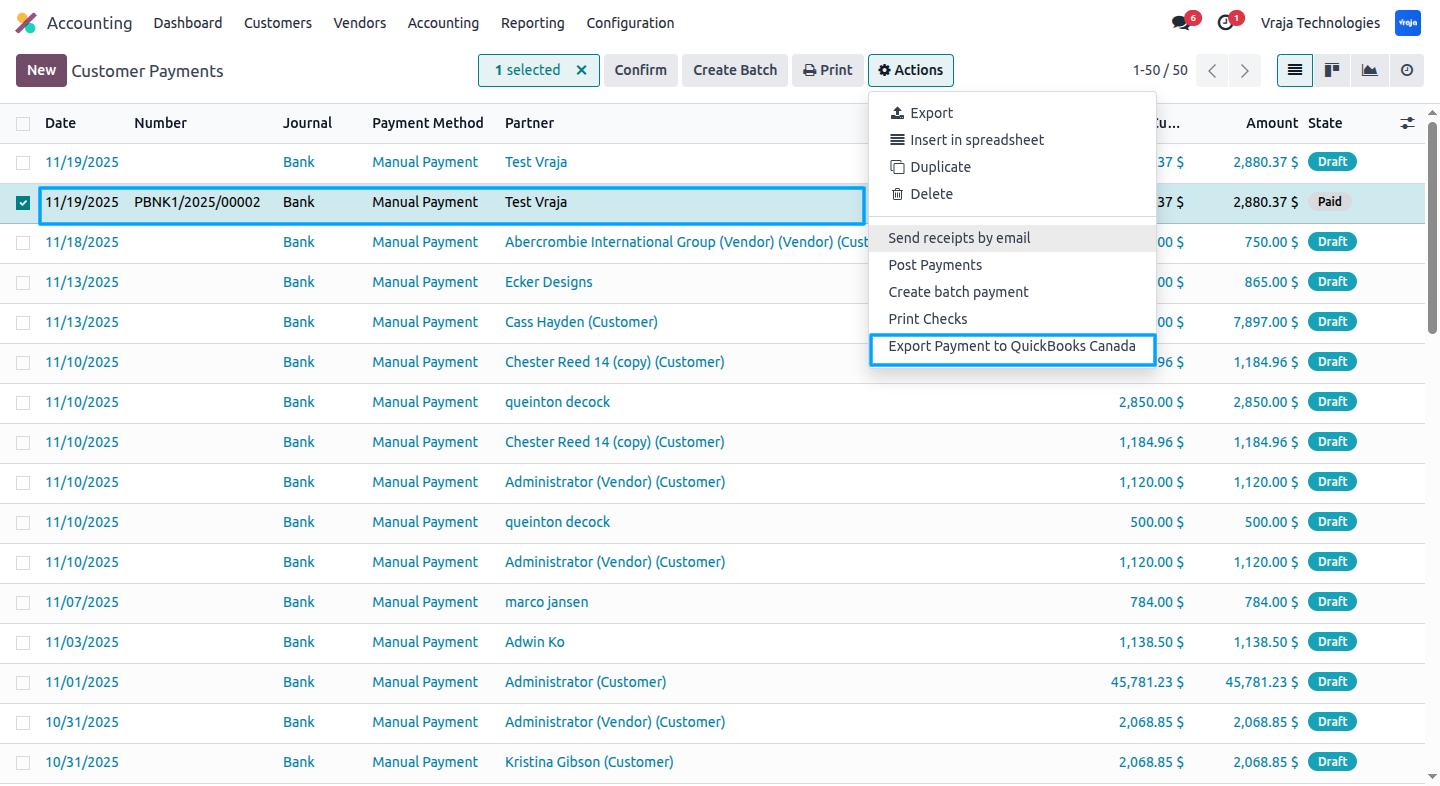
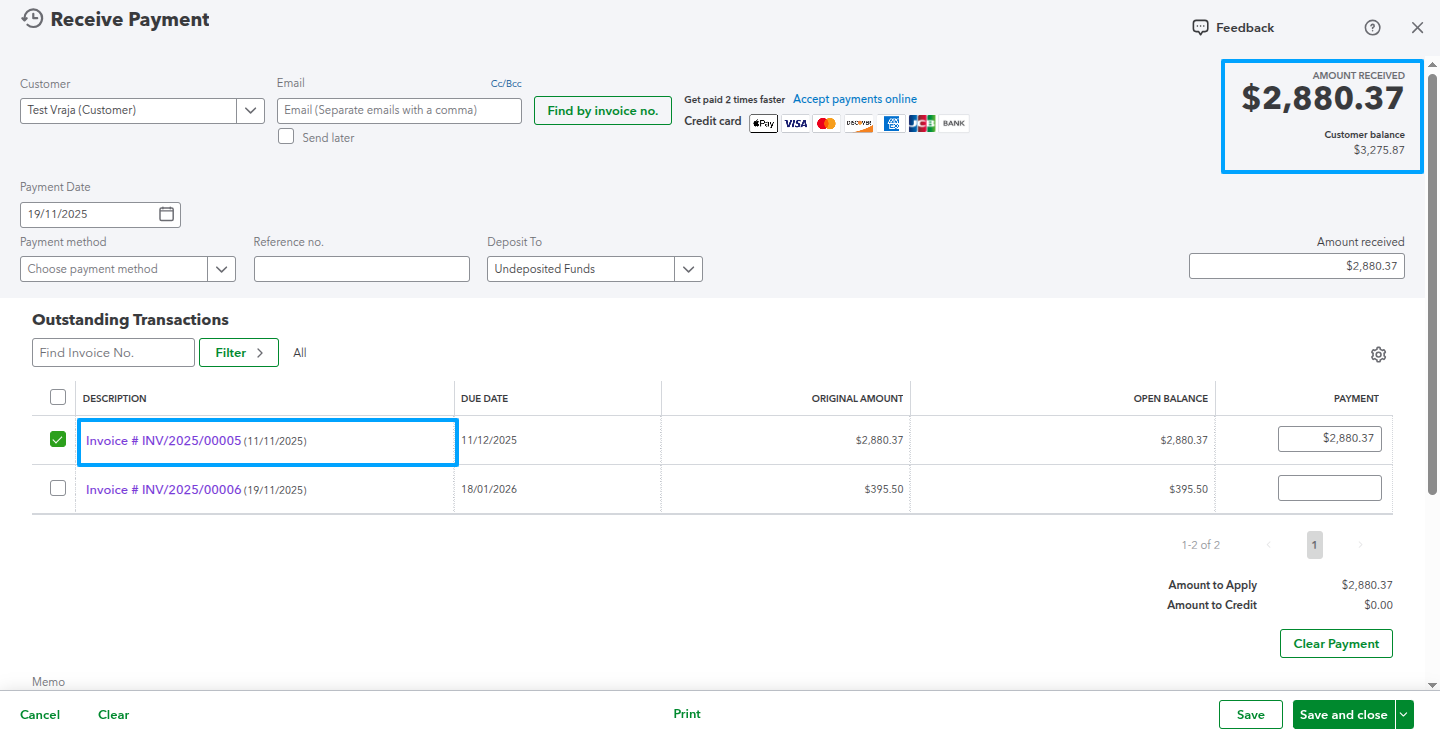
This QuickBooks customer payment has been exported from Odoo, with all amounts accurately matched to the related invoices.
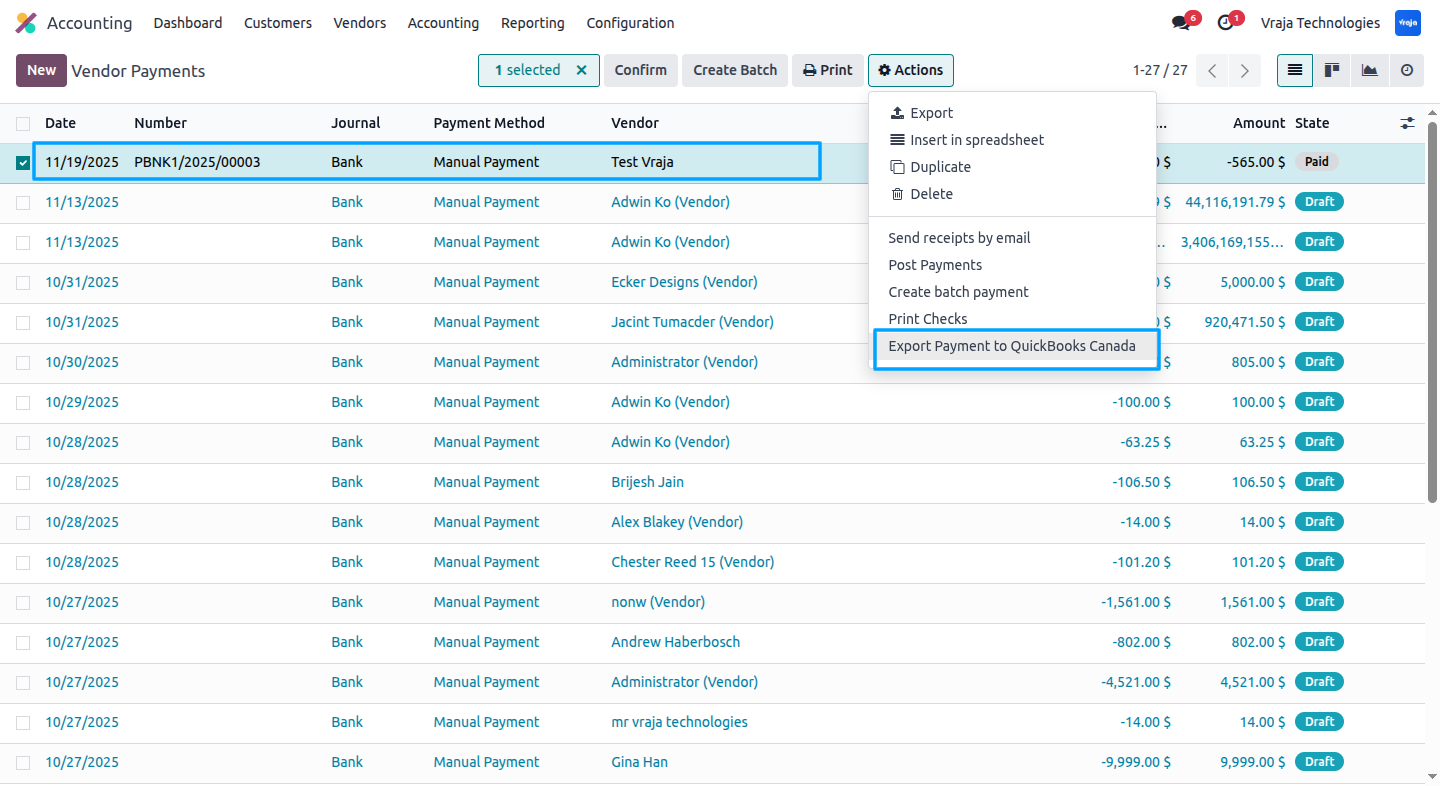
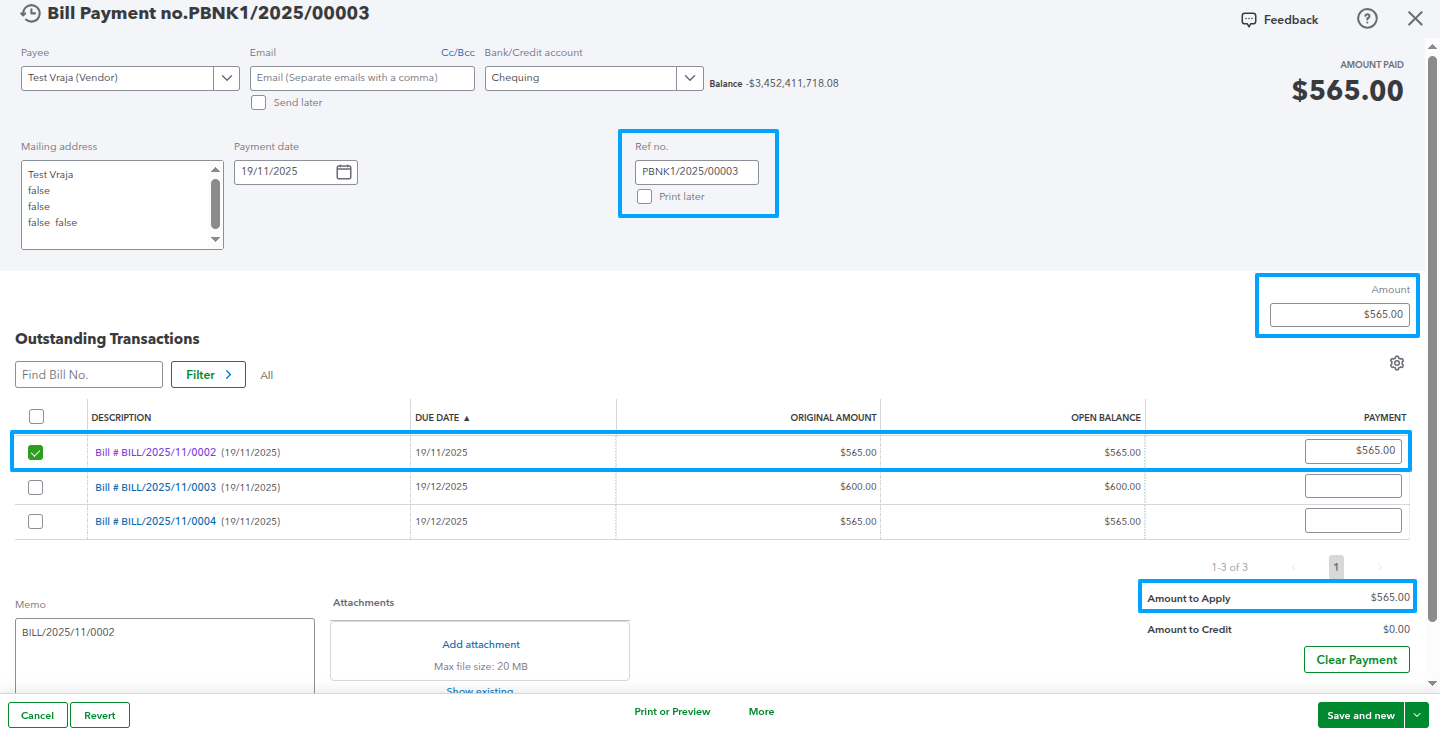
Export bill payments linked to vendor bills from Odoo to QuickBooks to ensure your payment records match the corresponding invoice details accurately.
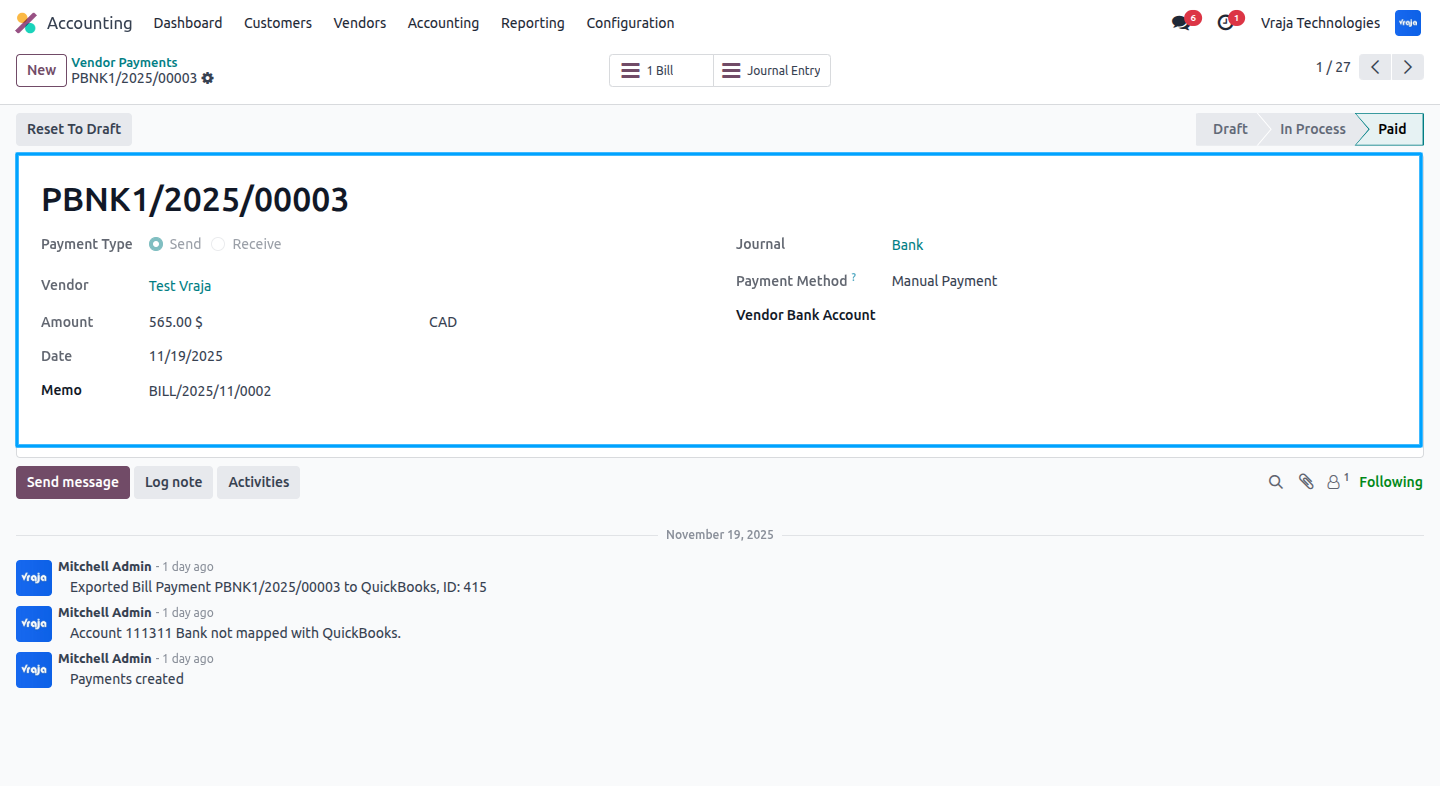
QuickBooks bill payment has been exported from Odoo. All amounts have been accurately matched to ensure consistency with the related bills.
Export Payment Terms process
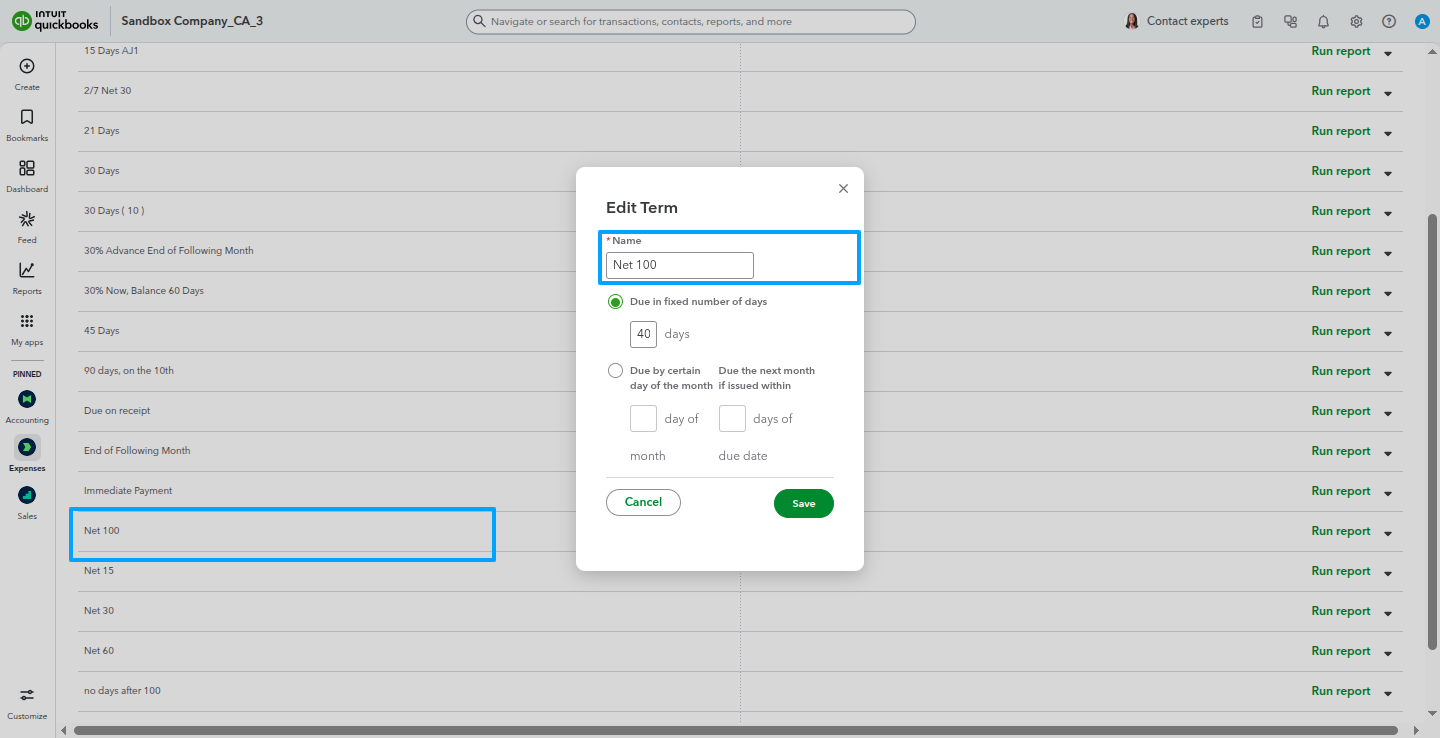
Exporting payment terms from Odoo to QuickBooks keeps both systems aligned with the latest terms.
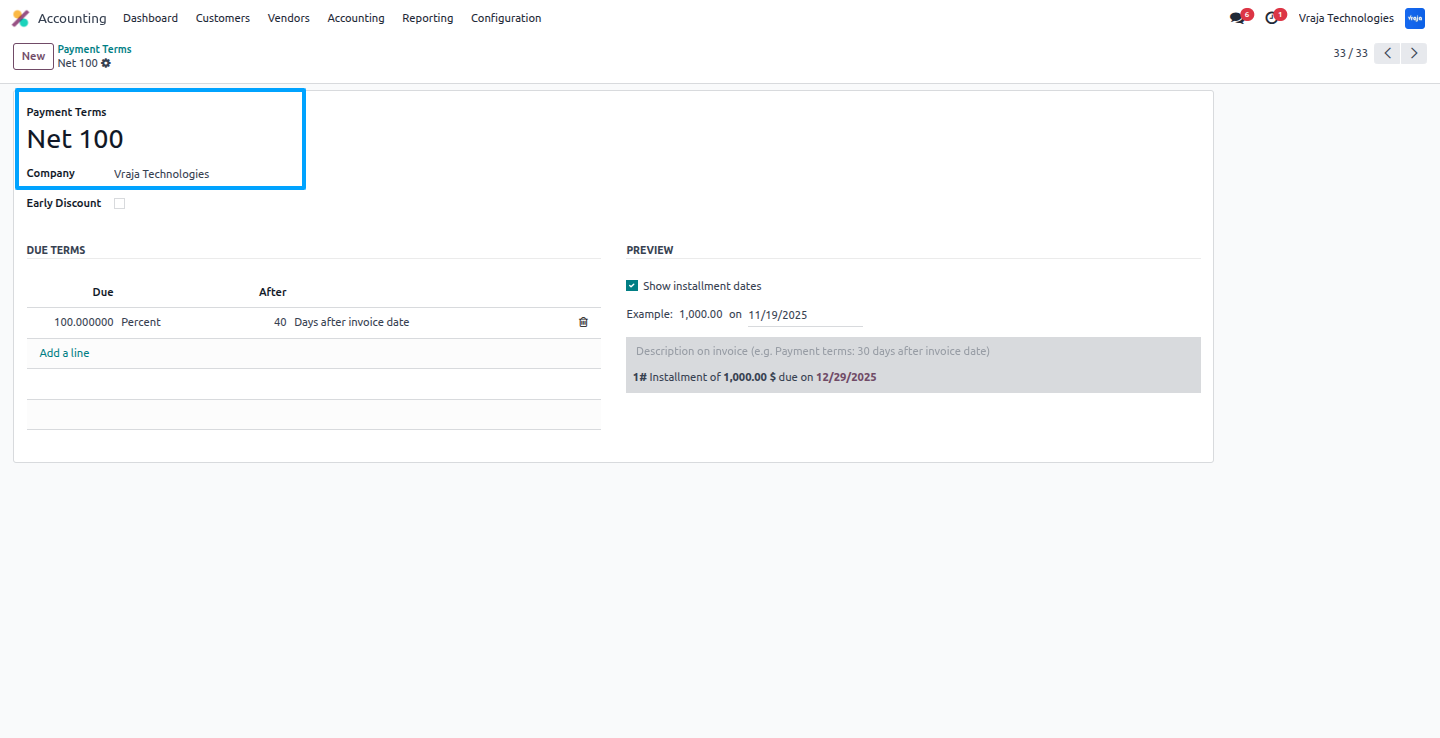
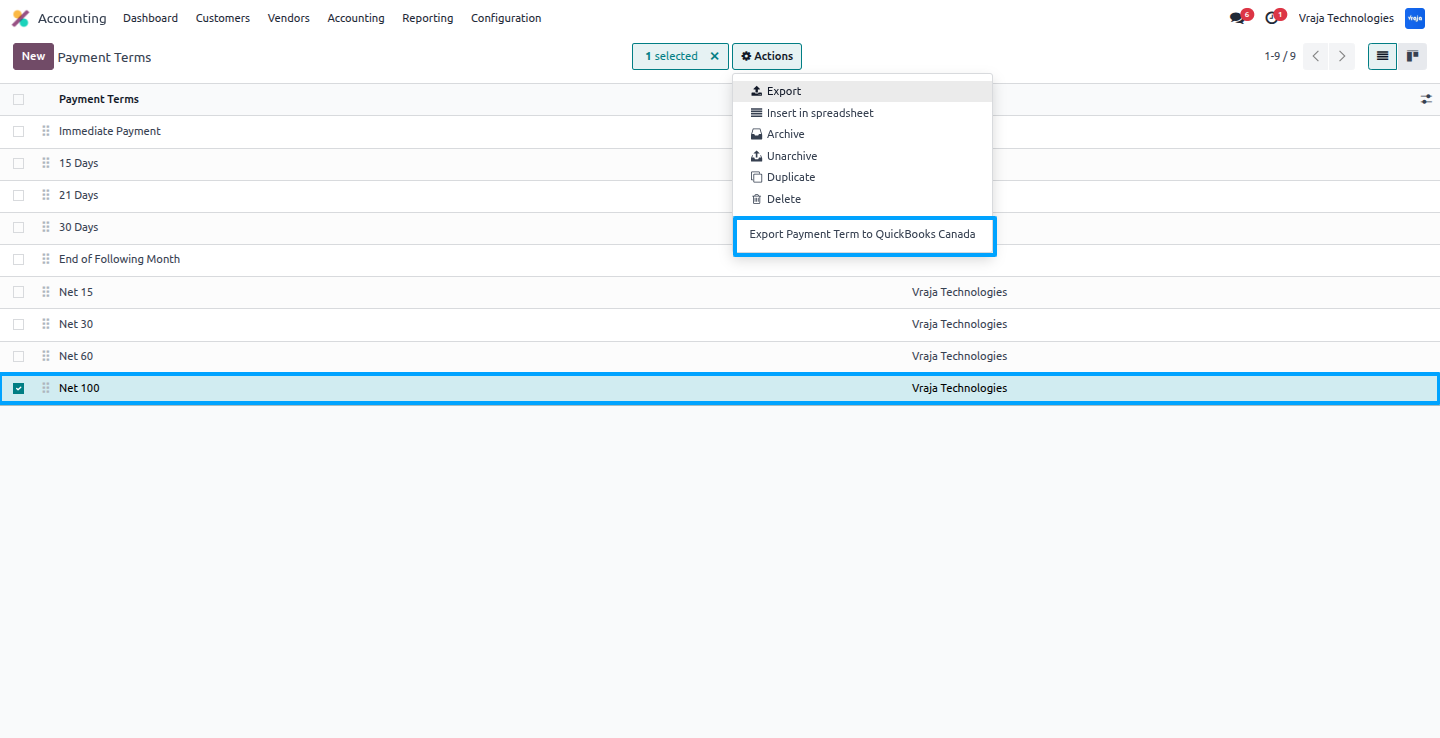
QuickBooks payment terms were exported from Odoo, ensuring all terms are accurately synced and consistent with your accounting setup.
Export Charts Of Account process
Exporting the Chart of Accounts from Odoo to QuickBooks keeps both systems synchronized with the latest account structure.
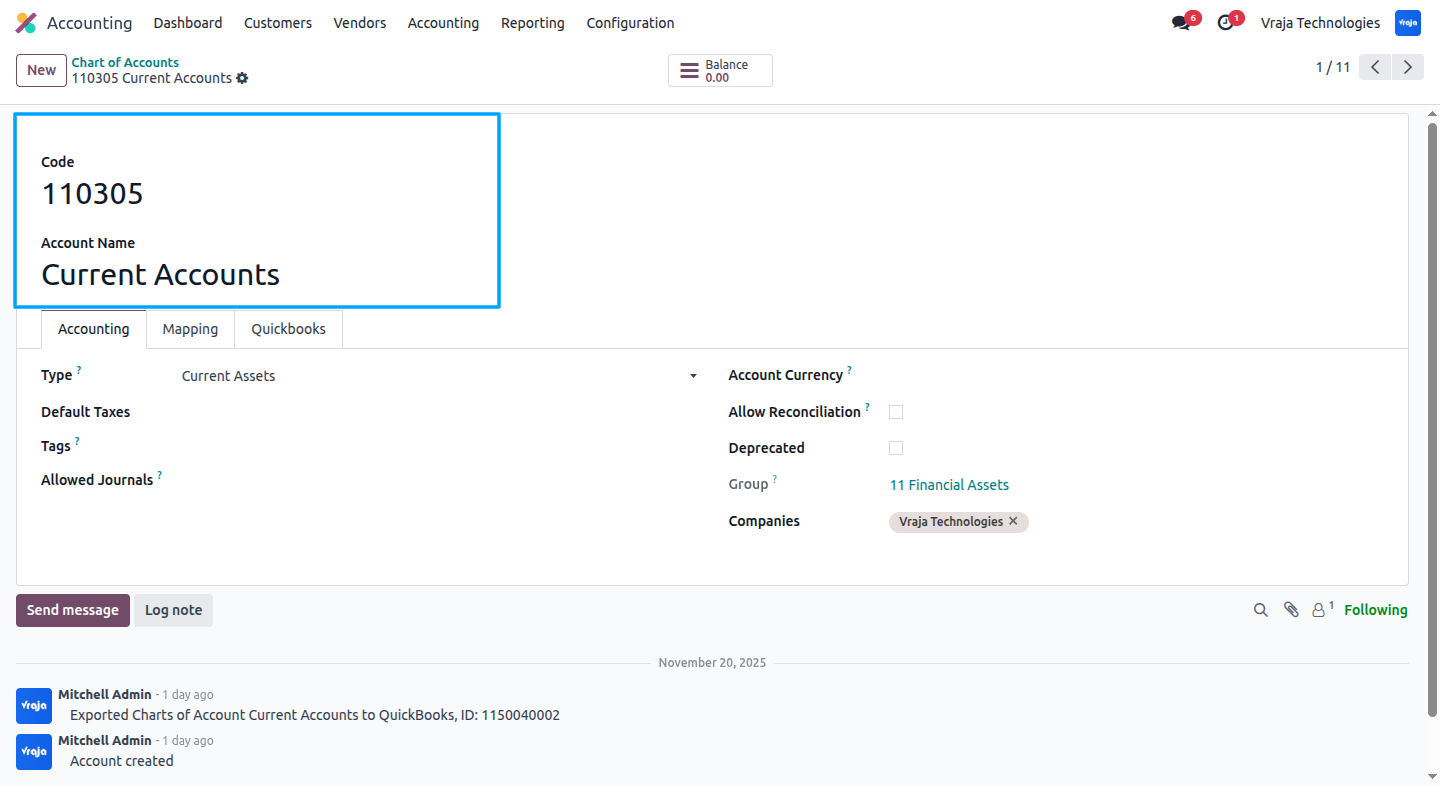
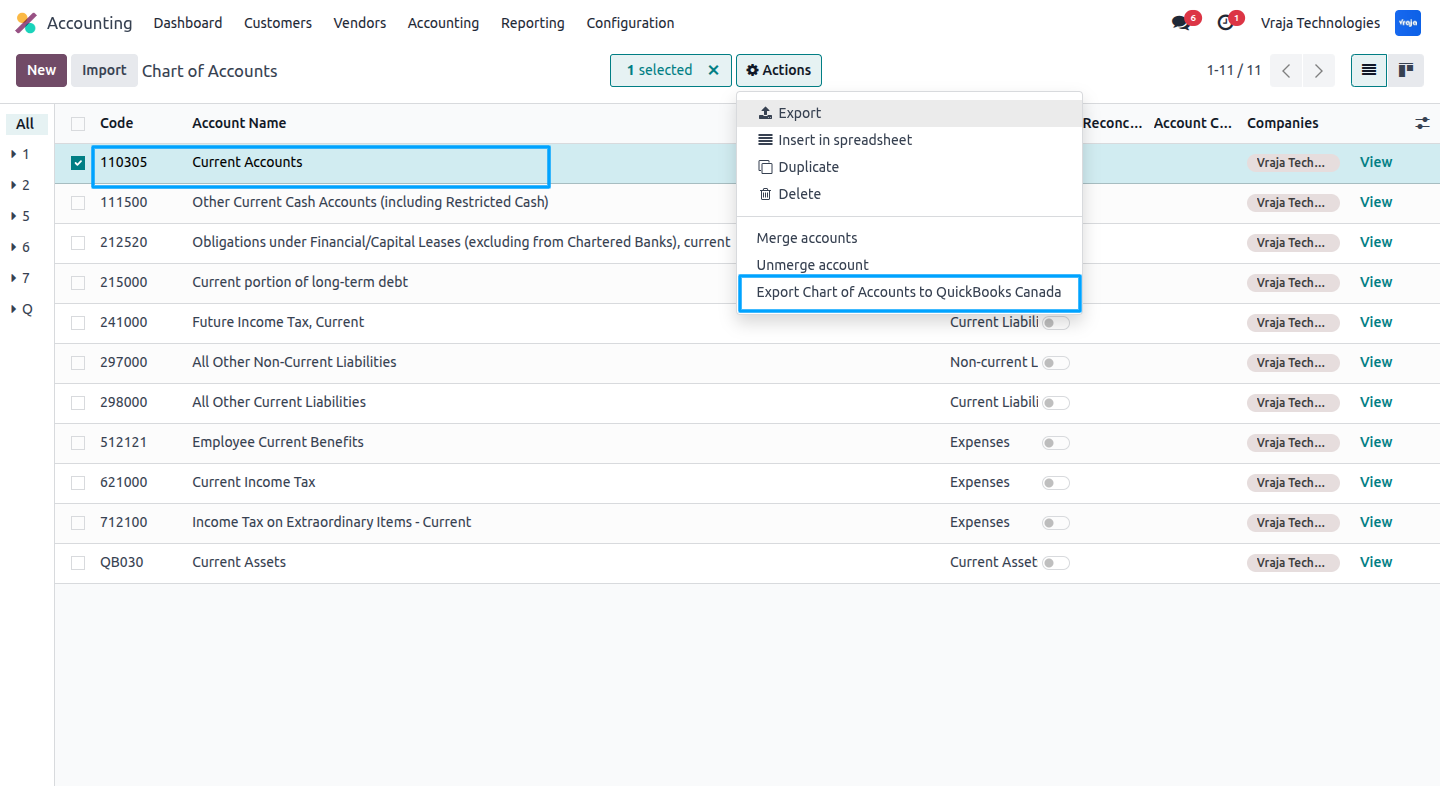
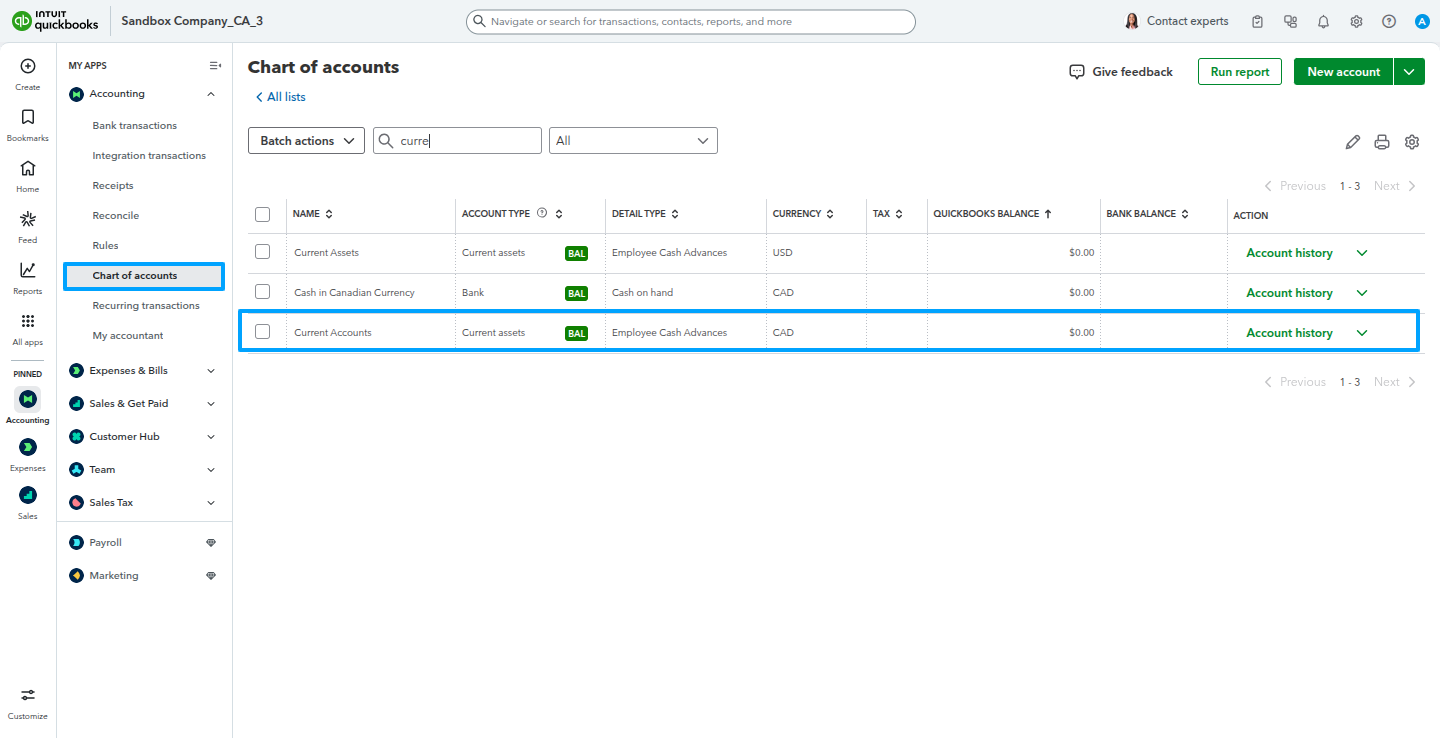
QuickBooks product categories were exported from Odoo, ensuring each category is accurately synced and aligned with your product structure in QuickBooks.
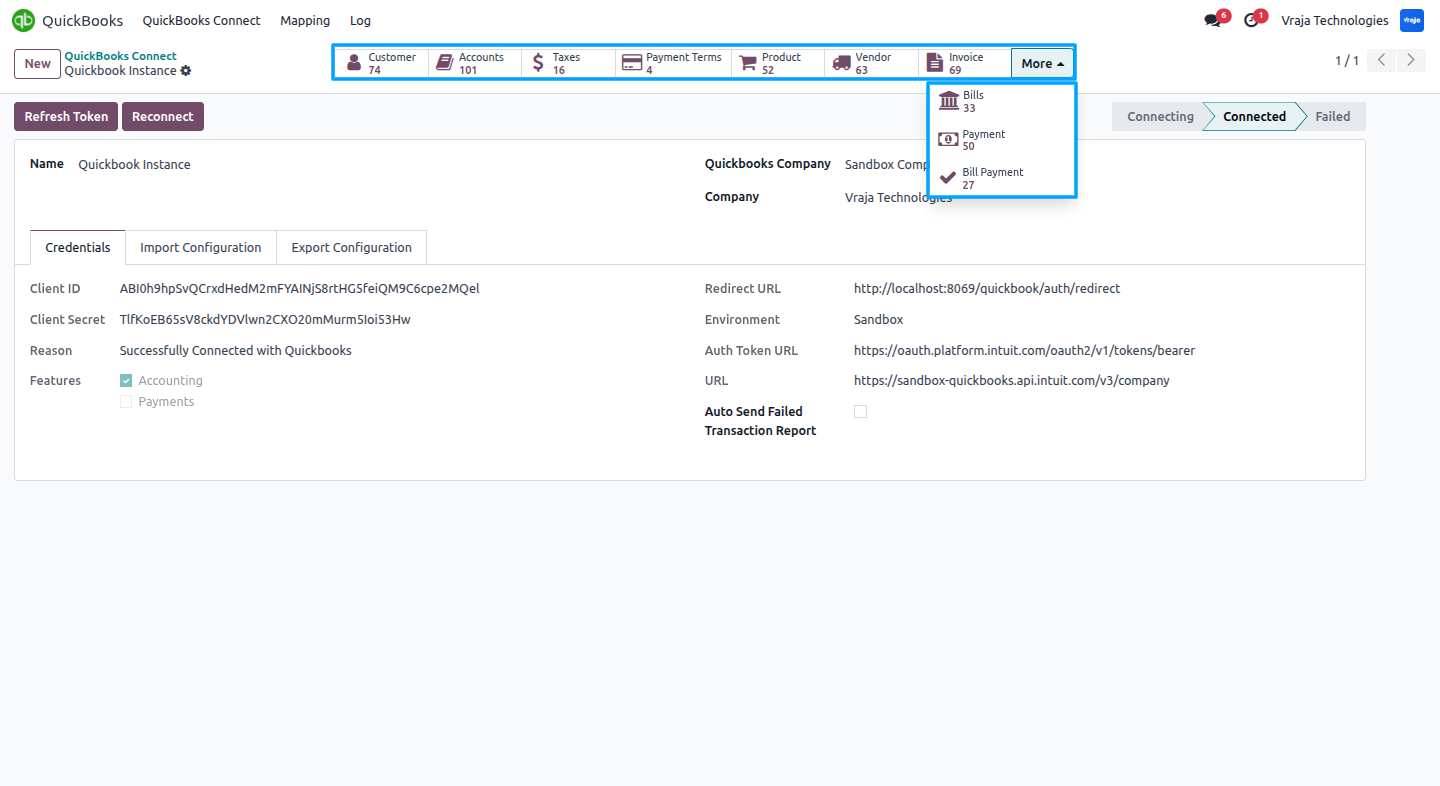
The QuickBooks instance provides a dedicated smart button that opens all connected QuickBooks records, including the linked customer profile along with its related accounts, taxes, payment terms, products, invoices, vendors, vendor bills, and payment details
QuickBooks keeps a logbook that tracks all data exchanges with Odoo, storing each import and export record so its details can be viewed individually.
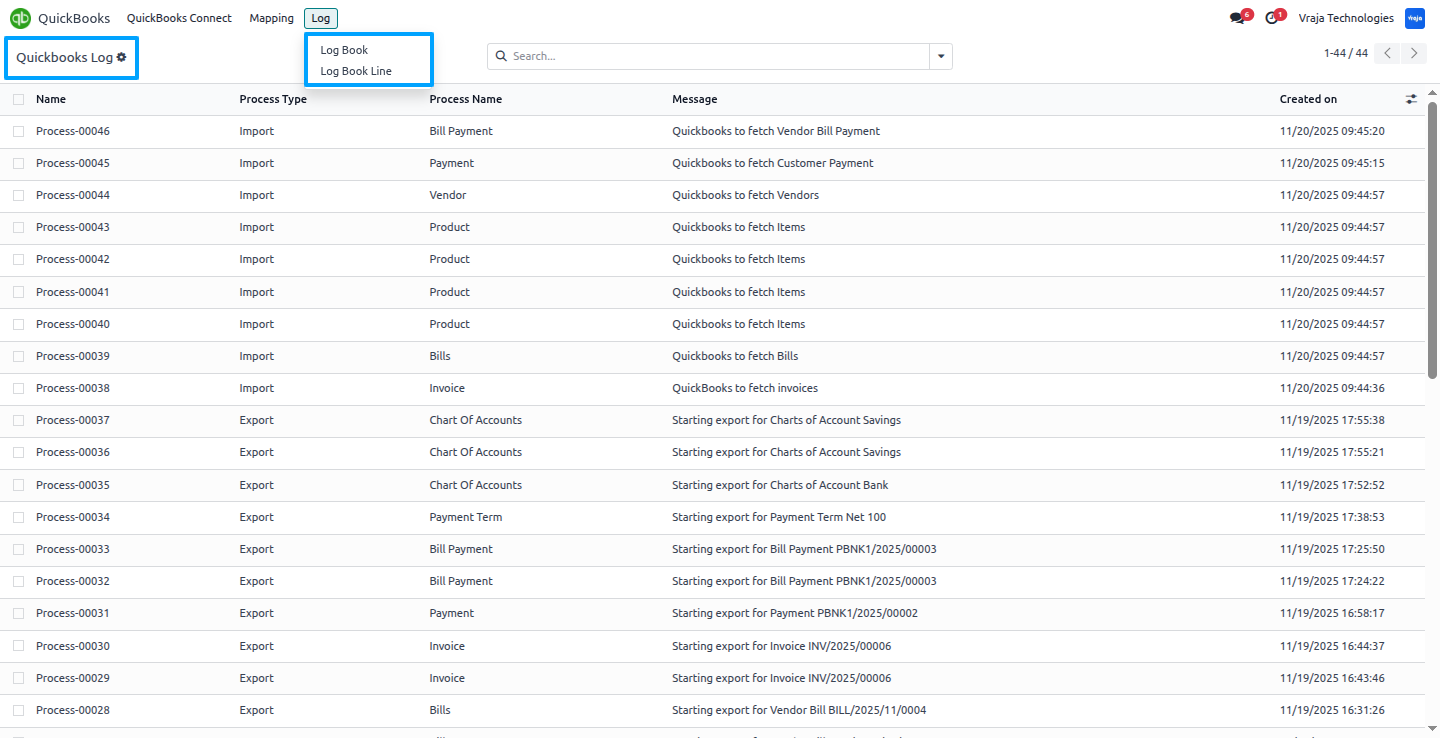
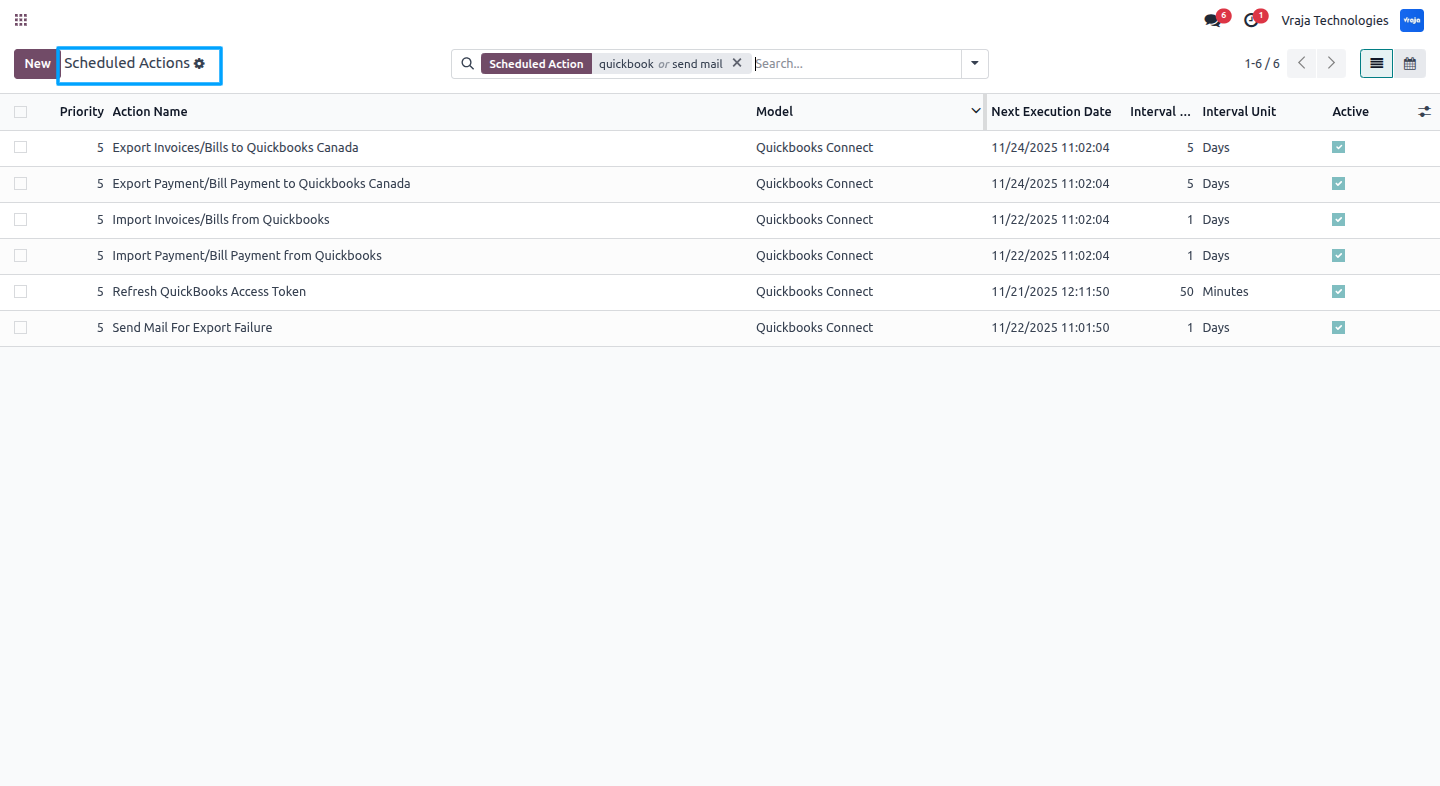
An automation routine in QuickBooks manages both import and export operations according to your configuration. It refreshes the token Automatically and uses a mail cron to alert users about any export failures.
 Does the application support both QuickBooks Online and QuickBooks Desktop?
- This application is designed specifically for QuickBooks Online. QuickBooks Desktop is not supported in this version.
Do I need technical knowledge to use this integration?
- No, the integration is user-friendly and does not require technical skills for daily use.
What type of data can I import from QuickBooks to Odoo?
- You can import the following records from QuickBooks to Odoo:
- Customers / Vendor
- Payment Terms
- Taxes
- Chart of Accounts
- Products
- Product Categories
- Customer Invoices / Vendor Bills
- Customer Payments / Vendor Payments
- During import, you’ll have an option to create records in Odoo if they don’t already exist or skip them as per your configuration.
What type of data can I export from Odoo to QuickBooks?
- You can export the following data from Odoo to QuickBooks:
- Customers
- Vendors
- Products
- Charts of Accounts
- Payment Terms
- Customer Invoices / Vendor Bills
- Customer Payments / Vendor Payments
Are there scheduled actions (cron jobs) for automatic synchronization?
- Yes, The app includes five automatic scheduled actions (cron jobs):
- Token Refresh Cron – Automatically refreshes QuickBooks API tokens to maintain authentication.
- Auto Invoice Import Process
- Auto Payment Import Process
- Invoice/Bill Export Cron – Automatically exports Odoo invoices and vendor bills based on the instance’s date filter.
- Payment Export Cron – Automatically exports Odoo customer/vendor payments using the instance’s date range.
- You can also run these operations manually at any time.
What is the email notification feature in QuickBooks integration?
- The email notification feature automatically sends an attachment of failure records to users, ensuring you are immediately informed about any issues during synchronization.
What if I don’t receive the failure emails?
- Ensure that the email server is properly configured and that the mail cron is active. Also verify that the recipient’s email address is correct and not blocked.
Why is this feature only applicable for companies outside Canada?
- QuickBooks Canada calculates taxes differently. For companies outside Canada, enabling tax-included ensures amounts match QuickBooks’ expected tax rules and prevents mismatches during export.
Will my data remain accurate between Odoo and QuickBooks?
- Yes, synchronization ensures that your Odoo and QuickBooks data stays aligned and up to date.
Is tax mandatory when exporting an invoice or bill?
- Yes, adding tax is mandatory. However, if you forget to apply a tax or leave it empty, the system will automatically assign a default Canada tax during the export process.
The app ensures correct linking of tax codes and accounts between Odoo and QuickBooks to maintain financial consistency.
- Yes, you can perform manual sync operations for all import and export functionalities directly from the instance dashboard in Odoo.
Submit a Support Ticket
If you encounter any issues while using our app that are caused by the app itself, we offer complimentary support for 90 days from the date of purchase.
To create a support ticket, please register via the Vraja Technologies Support Email and provide the necessary details so we can assist you in resolving the issue.

Email Us
support@vrajatechnologies.com

 1.png)
Contact Us
vrajatechnologies.com/contactus

Support
vrajatechnologies.com/support-policy
Vraja Technologies Services

Odoo Implementation

Odoo App Integration Services

Odoo Customization

Odoo Consultation

Odoo Support & Maintenance

Odoo Developer Outsourcing
Suggested Application



Reviews
There are no reviews yet.